
Can’t find your activity log? Discover the hidden path to view and manage your Facebook history in 2026. Full step-by-step guides for mobile app and desktop!
If you are struggling to find my Facebook activity log, you aren’t alone. With every new platform update, menus shuffle, and settings get tucked away into new corners. Keeping track of your digital footprint is essential, whether you want to delete an embarrassing old post, untag yourself from a photo, or simply check my activity on Facebook to see what you’ve been up to over the years.

So, can I see my activity history? Yes, absolutely. Facebook provides a comprehensive tool that records almost everything you do on the platform. This guide will walk you through exactly how to view activity log on Facebook, filter your past actions, and manage your data across all your devices.
Is There Still An Activity Log On Facebook?
Yes, there is still an activity log on Facebook. It serves as your personal, chronological database. Every time you like a photo, leave a comment, search for a friend, or publish a status update, it gets recorded here. Think of it as a private diary of your digital life.
It is important to note that your Facebook activity log is strictly private. Only you can view it. However, the individual posts and comments listed inside the log are still visible to whatever audience they were originally shared with (for example, a public comment on a brand’s page remains public, even though your log of making that comment is private).
Accessing your Facebook activity log settings is the first step to regaining control over your social media presence.
Where Is Activity Log On Facebook App
Because most users browse social media on their phones, let’s start with mobile devices. The process to see Facebook activity log on a mobile device is quick and straightforward.
Follow these steps for iPhone and general mobile users:
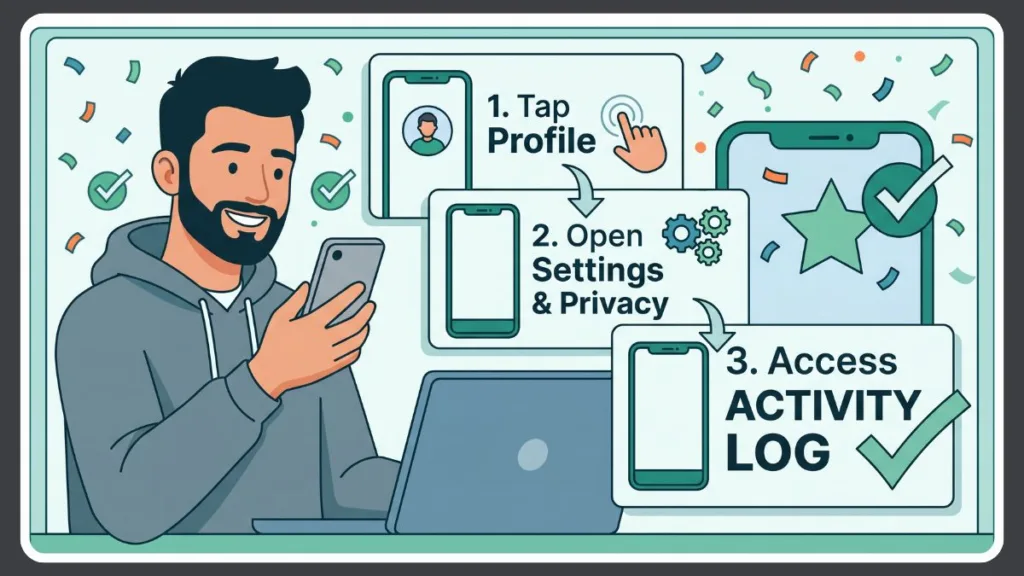
- Open the Facebook app and tap your profile picture in the top left corner to go directly to your profile.
- Tap the Options button (represented by three horizontal dots) located just below your profile picture and name.
- Tap Activity log from the menu that appears.
How To Find Activity Log On Facebook Android
The steps for Android users are virtually identical to the general app instructions. Navigate to your profile, tap the three dots, and select Activity log. However, Android (along with iPhone and Facebook Lite) users have a distinct advantage: you can access the “Manage Activity” feature. This allows you to bulk-select multiple pieces of content—like several posts you are tagged in—and archive or delete them all at exactly the same time.
Finding Specific Content In Your Log
Once you open your log, scrolling through years of daily interactions is impossible. To search my activity log Facebook effectively, you must use the platform’s robust filtering tools.
At the top of your activity log, you can filter by Date (selecting specific years and months) or by Categories (such as Your posts, Interactions, or Connections).
How To See Watch History In Facebook
If you want to find a video you watched last week but forgot to save, your activity log has a category just for this.
- Open your Activity log.
- Scroll to the category named Logged actions and other activity.
- Expand this section and look for the option to review videos you’ve watched.
How To Watch Recently Watched Videos On Facebook App
On the mobile app, navigating to this specific history is just a matter of tapping the right filters. Once inside your Activity log, tap the blue Filters button at the top. Select Categories, scroll down to Logged actions and other activity, and tap Videos you’ve watched. This will instantly pull up a chronological feed of your viewing history, allowing you to re-watch or share videos you recently enjoyed.
How To See Recently Viewed Posts On Facebook Mobile
Similarly, if you accidentally refreshed your feed and lost a post you were reading, you cannot see a direct list of “viewed” text posts. However, you can find it if you interacted with it. Filter your activity log by Interactions to immediately pull up the most recent posts you liked, loved, or commented on.
Managing And Removing Your Data
Your activity log isn’t just for looking at the past; it is a powerful tool for cleaning up your profile.
Facebook Activity Log Delete
When you find a post, search query, or tag you no longer want, you have a few options for removal. Click or tap the Options icon next to any item in your log.
- Hide from profile: This keeps the post active on Facebook (in search and feeds) but removes it from your personal profile page.
- Move to archive: Archiving hides the content from everyone else, but saves it privately for you to look at later.
- Move to Recycle bin: If you want to delete something, you will move it to the Recycle Bin.
Important Tip: Items moved to the recycle bin are not deleted immediately. They sit in the bin for exactly 30 days. During this time, they are invisible to the public, but you can restore them if you change your mind. After 30 days, the content is permanently deleted and cannot be recovered.
Troubleshooting Common Issues
Sometimes, the system doesn’t operate exactly as we expect. If you are running into roadblocks, here is how to troubleshoot.
Can’t Find Activity Log On Facebook
If you successfully opened your activity log but can’t find a specific piece of data, there are three common reasons:
- The content was deleted: If you or the original poster deleted a post, it vanishes from your log entirely.
- The feature didn’t exist: You won’t find Facebook Event activity from 2005, because Facebook Events weren’t created yet.
- It’s stored elsewhere: Not all data is in the activity log. Deep account data requires you to use the “Download Your Information” tool in your central Facebook Settings.
How To Find Activity Log On Facebook Messenger
Your main Facebook activity log does not track your private messages. If you are looking for your Messenger history, you need to open the separate Messenger app. To find hidden or past conversations there, you must look in your Message Requests folder or your Archived Chats folder directly within Messenger’s settings.
Privacy And Other User’s Activity
We often receive questions regarding the visibility of other people’s actions. It is completely natural to wonder about the digital habits of people in our lives, but Facebook has strict privacy boundaries.
How Do I See Someone Else’s Activity On Facebook?
The short answer is: you cannot see a comprehensive activity log for anyone but yourself. There is no hidden menu that reveals a friend’s private search history or private likes. You can only see another person’s activity if they interact with a public page, post on a mutual friend’s timeline, or if their interactions organically appear on your daily Feed based on Facebook’s algorithm.
How Can I See Who My Boyfriend Recently Became Friends With On Facebook?
Because there is no public activity log, you cannot view a chronological, time-stamped list of someone else’s new connections through an activity menu. If their “Friends” list is set to public, you can view their profile and click on their “Friends” tab to see their connections, and sometimes Facebook sorts “Recently Added” friends at the top, but this is entirely dependent on their personal privacy settings.
Can You See Activity Between Friends On Facebook?
Yes, but only public interactions. If you want to see the public history between you and a friend, or between two mutual friends, you can use the See Friendship feature. Simply go to a friend’s profile, click the three dots, and select “See Friendship.” This will generate a mini-timeline showing photos they are both tagged in and posts they have shared on each other’s walls. However, private messages and private actions remain strictly hidden.
Final Note: By understanding how to navigate your history, you can confidently see my activity on Facebook and take total control over your digital footprint. Use the filters, manage your archive, and utilize the recycle bin to curate exactly what you want the world to see.
Visit Our Post Page: Blog Page
Discover more from Izoate
Subscribe to get the latest posts sent to your email.