
Getting the “Failed to connect to the experience” Error Code 2 on Roblox? Discover how to fix Error Code 2 in Roblox with this step-by-step troubleshooting guide.
Roblox is famous for its massive library of interactive worlds, but nothing ruins a gaming session faster than a sudden, unexplained disconnection. You might be playing perfectly fine one day, only to be met with a blank screen and a frustrating popup the next.
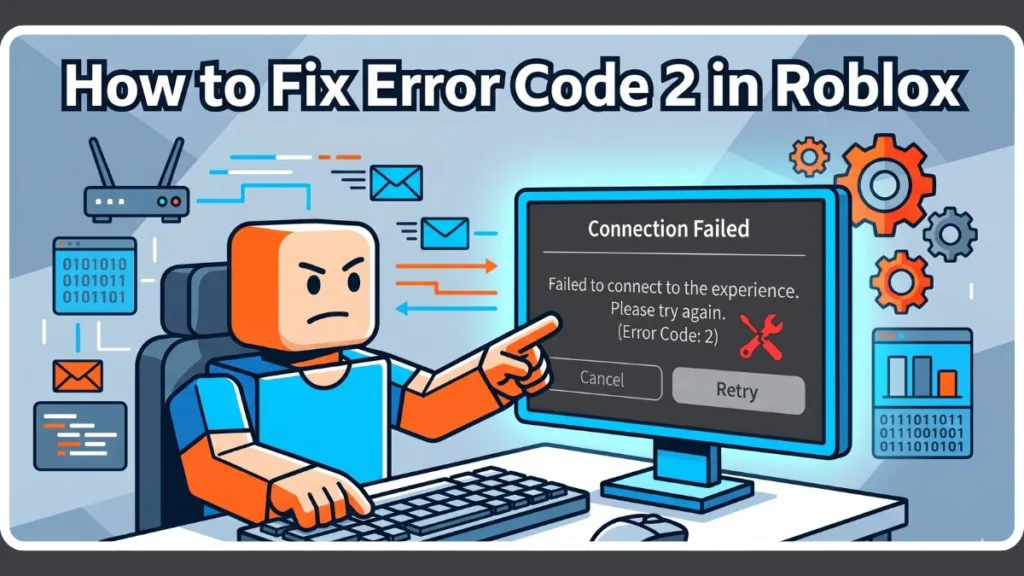
What Is Error Code 2 In Roblox?
When this popup abruptly kicks you out of an experience or prevents you from joining one in the first place, it typically displays one of two specific messages:
- “Failed to connect to the experience. Please try again. (Error Code: 2)”
- “We’re sorry, Roblox is temporarily unavailable. Please try again later. (Error Code: 2)”
This is fundamentally a connection or initialization failure. Your device—whether it is a high-end PC or a mobile phone—is failing to properly communicate with the specific game instance you are trying to load.
What Does Error Code 2 Mean In Roblox?
Historically, this specific set of network conditions triggered a different popup: Error Code 256. For reasons Roblox has not officially documented, the system now frequently displays Error Code 2 instead. Functionally, they mean the exact same thing: the server has closed, or your client cannot initialize the connection.
There is, however, a very specific nuance that causes panic in the community.
If you are playing completely alone in a private server or an empty game instance and a moderator or game developer bans you, shutting down your connection effectively shuts down that entire solo server. Roblox’s system misinterprets this “player kick” as a “server shutdown,” resulting in Error Code 2.
While this makes it feel like a “shadow ban,” it is vital to remember that in the vast majority of cases, it is simply a temporary network failure.
Why Is My Roblox Game Not Loading?
It can be incredibly confusing when Roblox works flawlessly on your phone but refuses to launch on your PC, or vice versa. When your game stops loading and throws this error, it means the handshake between your local app data and the cloud servers has been interrupted. Corrupted temporary files, outdated app versions, or restrictive device firewalls can all sever this connection locally.
Why Is Roblox Not Working?
Before you tear apart your computer’s settings, you need to look at the bigger picture: the game might be broken for everyone.
In most instances, Roblox is not working because the platform’s backend servers are experiencing an outage or undergoing routine maintenance. When millions of players try to connect to a struggling server simultaneously, the system rejects the connections, spitting out Error Code 2 across the board.
What Should I Do If I Get A Roblox Error Code?
Do not panic and do not immediately uninstall your game. Start with the simplest, least invasive checks to isolate the root cause of the disconnection.
| Troubleshooting Step | Action Required | Why It Works |
| Check Server Status | Visit status.roblox.com. | Confirms if the issue is a widespread outage. If servers are down, you simply have to wait. |
| Check Your Internet | Switch from WiFi to mobile data. | Rules out localized routing issues or an unstable home network. |
| Test for Local Bans | Try joining a completely different game. | If other games work, you may have been banned from that specific experience by its developer. |
| Refresh Your Session | Log out of your account entirely, then log back in. | Clears minor authentication hiccups (ensure you know your password first!). |
How To Get Rid Of Error 2 In Roblox?
If the official servers are fully operational and your internet connection is stable, the problem is localized to your specific device. At this stage, you need to clear out bad data and establish a clean network route.
How To Solve Error 2?
Follow these technical steps to systematically eliminate the barriers blocking your connection.
1. Clear the App Cache and Temporary Files
Corrupted local data is the leading cause of persistent initialization failures. You must wipe the slate clean.
- Windows PC: Press
Win + R, type%localappdata%\Roblox, and press Enter. Delete all folders and files inside this directory. - Android: Open Settings > Apps > Roblox > Storage > tap Clear Data and Clear Cache.
- iOS (iPhone/iPad): Open Settings > General > iPhone Storage > Roblox > tap Offload App. This removes the app but safely keeps your login data intact. Reinstall it afterward.
- Chrome Browser: Click the three dots > Settings > Privacy and security > Third-party cookies > See all site data > Search for “Roblox” > Click the trash icon to clear.
2. Change Your DNS Settings
Your Internet Service Provider might be struggling to route your connection to Roblox’s servers. Switching to Google’s highly reliable public DNS can bypass this roadblock.
- Open your device’s WiFi network settings.
- Navigate to “IP settings” and change it from DHCP to Static.
- Set DNS 1 to
8.8.8.8. - Set DNS 2 to
8.8.4.4. - Save your changes and reconnect.
3. Adjust Private Server Visibility
If you are specifically getting this error when trying to access private instances, your account privacy settings might be too restrictive.
- Open the Roblox app and go to Settings.
- Select Privacy.
- Scroll to “Visibility and private servers” (or “Other Settings”).
- Change the private server permissions to Everyone.
4. Allow Roblox Through Your Firewall and Antivirus
Overly aggressive security software often flags game engines as threats, blocking them from accessing the internet.
- Open your Windows Defender or third-party antivirus settings.
- Locate the “Exceptions” or “Allowed Apps” menu.
- Add both
RobloxPlayerLauncher.exeandRobloxPlayerBeta.exeto the whitelist.
5. Route Through a VPN
If your regional network is experiencing localized routing drops, a Virtual Private Network can tunnel your connection through a stable server in a different country. Connect to a reputable service like ProtonVPN or Cloudflare’s 1.1.1.1, and try launching the game again.
Is Error 267 A Ban?
Because Error Code 2 occasionally acts as a “shadow ban” in solo servers, players often confuse it with Error 267.
Yes, Error 267 is a ban or a kick. It specifically means you were booted from a game using a developer-inserted admin script.
This usually happens if your account is under 30 days old (a common anti-bot measure in popular games), if you broke a specific rule within that experience, or if the developer’s anti-cheat system flagged your account.
Unlike Error Code 2—which is primarily a network outage or a server crash—Error 267 is an intentional action taken against your account by the creator of that specific game instance.
Still Facing A Roblox Error Code?
Sometimes, a standard cache clear is not enough to repair deeply corrupted installation files. If you have exhausted all the network routing options and your connection is still failing, you need to take a heavier approach.
What To Do When Roblox Not Working Or Roblox Game Not Loading Persists
Perform a Clean Reinstallation
If you are on a PC, your current installation method might be causing conflicts.
- Open the Windows Control Panel, go to “Uninstall a program,” and completely remove Roblox.
- If you originally downloaded the game directly from the Roblox website, open the Microsoft Store app on your PC, search for Roblox, and install that version instead.
- If you were already using the Microsoft Store version, do the reverse: uninstall it, go to
roblox.com/download, and select “Download Windows app” to run theRobloxPlayerInstaller.
Contact Roblox Support
If absolutely nothing resolves the issue, your account may be caught in an unresolvable backend loop. Visit the official Roblox support page on your browser, or open the mobile app, navigate to More > Settings > Help and Safety > Help, and submit a detailed ticket. Mention that you have already cleared your cache, flushed your DNS, and verified your internet connection so they do not reply with an automated checklist.
Visit Our Post Page: Blog Page
Discover more from Izoate
Subscribe to get the latest posts sent to your email.