
Want to upgrade your PC safely in 2026? Learn how to find your motherboard model using CMD. From PowerShell to System Info, control your hardware compatibility.
Upgrading your PC, troubleshooting hardware, or getting your system ready for resale? You will need to know exactly what components you are working with. Your motherboard dictates what RAM you can install, which processors are supported, and whether your system can handle new upgrades.
Also, installing the wrong BIOS file can cause system failure, making accurate identification critical.
Opening your PC case to physically check the board is an option, but it is rarely the most convenient—especially if your desktop is tucked under a desk. Fortunately, you can easily check motherboard model in Windows without reaching for a screwdriver. Using the motherboard model command prompt utility is the fastest way to pull these details.
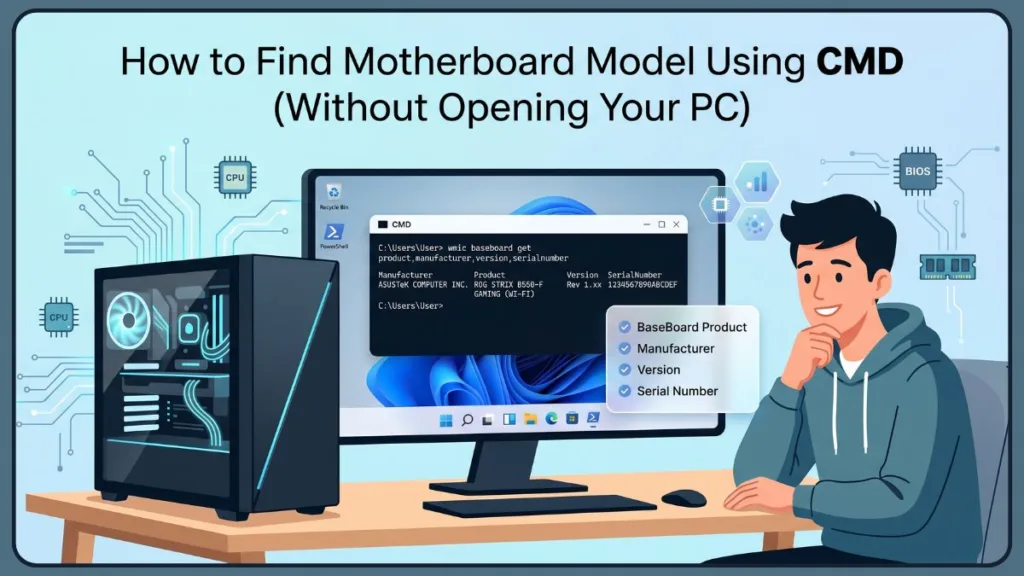
Let’s walk through how to find motherboard model cmd step-by-step, along with modern PowerShell alternatives and simple Windows graphical tools.
Method 1: Find Motherboard Model Using CMD in Windows
Using the Command Prompt is the quickest way to check your hardware without installing any extra software. Windows features a built-in tool called Windows Management Instrumentation Command-line (WMIC) that pulls up your exact hardware specifications.
CMD Command to Check Motherboard Model
To use the cmd command for motherboard model, open your Start Menu, type cmd, and hit Enter to launch the Command Prompt. Type the following command exactly as it appears and press Enter:
DOS
wmic baseboard get product,manufacturer,version,serialnumber
Here is a simple breakdown of what this command is asking your system to reveal:
- Product: Your specific motherboard model name (for example, PRIME X370-PRO or B650 TOMAHAWK). This is the core piece of information you need for upgrades.
- Manufacturer: The company that made the board, such as ASUS, MSI, ASRock, or Gigabyte. This represents your motherboard manufacturer cmd output.
- Version: The hardware revision number of your board, which is occasionally needed if a manufacturer releases multiple versions of the same product.
- Serial Number: The unique factory ID for your specific board. Finding your motherboard serial number cmd is helpful if you ever need to register your product or file a warranty claim.
What the WMIC Baseboard Output Means
When you run the command, the window will populate with columns for your BaseBoard Product and BaseBoard Manufacturer. Armed with these two details, you can head straight to the manufacturer’s website to download drivers, verify CPU compatibility, or grab the latest BIOS update.
Occasionally, the fields might be blank or display the message “To be filled by O.E.M.” This simply means the company that assembled your PC skipped programming the board’s naming data into the firmware before shipping it. It does not mean your computer is malfunctioning.
What to Do If CMD Does Not Show Motherboard Information
If you find your motherboard info missing in cmd, or the screen returns an error, there is no need to panic. Here are the most common reasons:
- WMIC Not Recognized: Microsoft is actively phasing out WMIC, disabling it by default in Windows 11 24H2. If you see an error, your WMIC not working is perfectly normal. You will simply need to use PowerShell instead, which we cover in Method 2.
- Blank OEM Data: If your board shows up as “Unknown,” the manufacturer left those fields blank at the factory. Try using the built-in Windows System Information tool (
msinfo32) next. - Manufacturer Restrictions: Locked-down office computers sometimes block command-line hardware queries for security.
If you are wondering why CMD does not show motherboard model, grab a free diagnostic tool like CPU-Z. These third-party apps bypass Windows entirely and talk directly to the hardware. If software fails, you can always open the case and look for the model name printed right on the circuit board.
Other Useful CMD Commands to Check PC Hardware
The Command Prompt can identify almost everything inside your PC. Try these additional CMD commands for PC specs:
Check CPU Model Using CMD
DOS
wmic cpu get name,description
Check RAM Capacity in CMD
DOS
wmic memorychip get capacity
Find BIOS Serial Number Using CMD
DOS
wmic bios get serialnumber
Check Graphics Card Information in CMD
DOS
wmic path win32_videocontroller get name
Use Systeminfo Command to See Full PC Specifications
DOS
systeminfo
(Tip: Type
systeminfo > hardware_info.txtto export all your hardware info cmd data into a convenient text file).
Keeping these Windows hardware commands handy makes troubleshooting much easier.
Method 2: How to Find Motherboard Model in PowerShell
With Microsoft transitioning away from WMIC in newer Windows 11 builds, PowerShell is the native replacement. It performs the exact same job, making it the perfect WMIC alternative Windows 11.
PowerShell Command to Check Motherboard Details
To check motherboard model PowerShell, open your Start menu, type PowerShell, and hit Enter. Run the following command:
PowerShell
Get-CimInstance -ClassName Win32_baseboard
This PowerShell motherboard command queries your system and pulls the exact same information that WMIC does.
What the PowerShell Baseboard Information Means
Instead of spaced-out columns, PowerShell delivers the output in a clean, easy-to-read list.
- Product field: Displays your exact motherboard model.
- Manufacturer field: Displays the specific brand (MSI, Gigabyte, Asus, ASRock, etc.).
- Serial number availability: Just like with CMD, if the PC builder did not input the serial number, this field might appear blank.
Do not worry if some details appear incomplete; the Product and Manufacturer fields are usually the only pieces of data you need to confidently shop for upgrades.
Method 3: Check Motherboard Model Using System Information
If you prefer clicking through menus instead of typing commands, the system information motherboard check is the easiest way to check motherboard model without cmd.
- Open the Start menu.
- Search for
msinfo32or type “System Information” and hit Enter. - Keep the left-hand navigation panel on the default System Summary selection.
- Scroll down the right-hand panel to locate BaseBoard Product and BaseBoard Manufacturer.
Where to Find BaseBoard Product and Manufacturer
In the System Summary screen, the BaseBoard Manufacturer identifies the brand, and the BaseBoard Product reveals your exact model. You might also notice a “BaseBoard Version” listed below it.
If this Windows tool also defaults to “To be filled by O.E.M.”, it is time to rely on third-party software.
What Other Methods Can You Use to Find Motherboard Model?
When built-in Windows utilities fall short, third-party hardware info utilities serve as a fantastic backup. PC builders and repair technicians rely on these tools every day.
Check Motherboard Details Using CPU-Z
CPU-Z is one of the best motherboard checker tools available because it is free, lightweight, and pulls details straight from your hardware. Download CPU-Z. Once installed, simply open the app and click the “Mainboard” tab to view your manufacturer, model, chipset, and BIOS version.
Find Motherboard Information with HWiNFO64
This is a diagnostic app that provides real-time readings on temperatures and power voltages. Download HWiNFO64 here. When you launch it, the main summary window features a dedicated “Motherboard” section containing everything you need to know about your board.
TechSpot
Use Speccy to See Motherboard Model
Developed by the team behind CCleaner, this motherboard info software offers a clean, visual snapshot of your PC. Download Speccy here. Click the “Motherboard” tab on the left navigation bar to review your board’s specifications alongside helpful temperature readouts.
How to Find Motherboard Model in BIOS or UEFI
Your system’s BIOS natively understands what hardware is installed.
- Restart your PC.
- Tap your setup key (usually F2, DEL, or F12) repeatedly while the computer powers on.
- Once the firmware menu loads, your motherboard model in BIOS is almost always printed clearly at the top of the main dashboard. This remains a foolproof way to check motherboard in UEFI.
How to Identify a Motherboard Without CMD
If your PC refuses to turn on, you can identify motherboard without opening PC by checking the original retail box or by digging up your old email order receipts from retailers like Amazon or Best Buy.
If those are lost to time, you will need to find the motherboard model physically. Unplug the PC, remove the side panel, and look inside. The model name is generally printed right onto the circuit board. It is typically positioned directly below the primary graphics card slot, wedged near the RAM modules, or next to the metal heatsink. This visual inspection is a very common method for prebuilt PC motherboard identification.
Why CMD Results Often Fall Short on Laptops and Prebuilt Desktops
Finding a laptop motherboard model or checking a prebuilt desktop works the exact same way in CMD, but the results you get are not always as helpful. The commands will successfully execute, but instead of a standard product name, you will often just receive a custom part number.
Why Proprietary Boards From Dell, HP, and Lenovo Restrict Your Upgrades
Brands like Alienware, HP, and Lenovo engineer custom boards to fit perfectly inside their specific laptop shells and specialized cases. Because these boards feature unique shapes and proprietary power connectors, you usually cannot swap them out for an off-the-shelf ATX motherboard. Therefore, simply knowing the Dell motherboard model or HP motherboard information won’t help you buy a replacement board from a standard retailer.
How to Use the Service Tag Method to Find Guaranteed Compatible Parts
Instead of hunting for the motherboard name, your most effective strategy for these devices is to locate the “Service Tag” or “Serial Number” sticker affixed to the bottom or back of your computer chassis.
Type that code into the manufacturer’s official support website. The portal will instantly identify your system, provide a list of compatible upgrades, and offer the correct BIOS updates explicitly tailored for your exact machine.
Frequently Asked Questions
What is the CMD command to find motherboard model?
Open Command Prompt and type: wmic baseboard get product,Manufacturer. This will instantly return your motherboard’s exact make and model.
Can I run a PowerShell command directly inside CMD without switching windows?
Yes, you can simply type powershell inside your Command Prompt window and press Enter, then paste your PowerShell command directly into the terminal.
Is WMIC still available in Windows 11?
Microsoft is actively phasing WMIC out in newer Windows 11 updates. If it does not work on your computer, use the PowerShell Get-CimInstance command instead.
Does the WMIC command work on Windows 11 24H2?
No, starting with the Windows 11 24H2 update, WMIC is disabled by default. You will need to use PowerShell.
What if CMD does not recognize WMIC?
If you get an error saying WMIC is not recognized, it means the feature has been removed from your version of Windows. Just open Windows PowerShell instead.
Why does my CMD say wmic is not recognized as an internal or external command?
This error appears because Microsoft has removed WMIC from the default command-line tools in recent Windows 11 updates (like 24H2). Using PowerShell is the correct alternative.
Why does WMIC show “To be filled by O.E.M.”?
This just means the manufacturer (like Asus or HP) did not type the board’s name into the system’s firmware before shipping the computer to you.
Why does my motherboard show Unknown instead of a model name?
This occurs when the manufacturer leaves the fields completely blank at the factory. It does not mean your motherboard is broken.
What should I do if CMD returns Unknown for my motherboard model?
If CMD returns an Unknown or blank value, use the Windows System Information tool (msinfo32) or download a free third-party utility like CPU-Z to bypass Windows and read the hardware directly.
Can I find motherboard serial number using CMD?
Yes. Open CMD and type wmic baseboard get serialnumber. Keep in mind that some boards might return a blank value if the manufacturer skipped programming it.
Is the motherboard model number the same as the serial number?
No. The model number identifies the specific type of board you have (e.g., Prime X370-Pro), while the serial number is a unique code tied to your specific physical unit for warranties.
What does BaseBoard Version actually mean and do I need it?
The BaseBoard Version refers to the physical hardware revision of the board (such as rev 1.0 or rev 1.1). You usually only need to know this if the manufacturer released multiple versions of the same board that require different BIOS files.
What is the difference between the motherboard model chipset and socket?
The model is the brand’s name for the board, the chipset defines its core feature set (like B550 or Z790), and the socket is the physical shape where the CPU is seated (like AM4 or LGA 1700).
How do I check motherboard compatibility?
Once you have your BaseBoard Product name via CMD, search for it on the brand’s official website. Click on the Support or Specs tab to find exactly what CPUs and RAM will work with your board.
Does updating the BIOS require knowing the motherboard model?
Yes, absolutely. Installing the wrong BIOS file can cause system failure, making it critical to know your exact motherboard model before attempting to update.
Where exactly do I download BIOS updates once I know my model?
Take your exact model name, search for it online, and navigate to the official manufacturer’s website. Look for a Support or Downloads tab on that product page to find your verified files.
How do I find the right drivers after I get my motherboard model from CMD?
Just like BIOS updates, search your exact motherboard model to find its official product page on the manufacturer’s website. Under the Support section, there will be a list of correct audio, LAN, and chipset drivers.
What can I actually upgrade on a prebuilt PC once I know the motherboard details?
For prebuilt laptops and proprietary desktops (like Dell or HP), you can typically only upgrade the RAM, storage drives, and sometimes the Wi-Fi card. Standard motherboard upgrades are usually not possible.
Can I find motherboard details without opening my PC?
Absolutely. You can use Command Prompt, PowerShell, the Windows System Information tool (msinfo32), or check your original purchase receipts.
Are third-party tools like CPU-Z and Speccy safe to download and use?
Yes, as long as you download them directly from their official developer websites. They only read your hardware sensors and do not alter your system files.
Can I check my motherboard model remotely using PowerShell?
Yes, network administrators can use remote commands to pull hardware details from other PCs on the same local network.
Can these CMD methods find the motherboard model on a laptop not just a desktop?
Yes, the CMD and PowerShell commands work exactly the same on a laptop. However, because laptops use highly customized boards, knowing the exact model is usually less helpful for upgrades than it is on a desktop.
Why does my Dell or HP show a part number instead of a real motherboard name?
Brands like Dell, HP, and Lenovo use custom-shaped boards designed specifically to fit their unique computer cases. They use internal part numbers instead of standard commercial model names.
Where exactly is the model number printed on a motherboard?
The model number is usually the largest text printed directly onto the circuit board. It is typically found below the primary graphics card slot, near the RAM slots, or next to the metal heatsink.
Conclusion
Figuring out exactly what is inside your PC is the first step to any successful hardware upgrade or troubleshooting session. Using CMD to pull this data is the absolute fastest way to get there, with PowerShell stepping in as the modern backup for newer Windows systems. If command lines aren’t your preference, built-in Windows menus and highly reliable free tools like CPU-Z serve as excellent alternatives.
Taking a quick minute to check motherboard information quickly ensures your next PC project goes smoothly. Now that you know exactly how to find motherboard model cmd, you are fully prepared to download the correct drivers, safely flash your BIOS, or shop for new parts with confidence.
Visit Our Post Page: Blog Page
Discover more from Izoate
Subscribe to get the latest posts sent to your email.