
Left your Facebook account logged in on a public computer or lost device? Learn how to log out Facebook from other devices and remotely sign out all active sessions instantly.
You’re walking to your car, you pat your pockets, and the worst-case scenario happens: you realize you left your Facebook account logged in on a library computer or a friend’s iPad. Now you’re frantically searching, “how do you log out Facebook from other devices?” With over 429 million social media accounts hacked globally in 2025 alone, realizing your profile is exposed on an unfamiliar device is a valid reason to panic.
Can You Log Out Facebook From Other Devices in 2026?
Let’s answer that question immediately: yes, you absolutely can force a remote logout on Facebook. Once you realize an unknown or inaccessible device has access to your account, you don’t need to physically hold that device to secure your profile. The “remote logout” method everyone is looking for is actually the process of terminating active sessions through Meta’s unified Accounts Center. Since Meta began heavily consolidating its platforms under the Accounts Center hub over the last couple of years, this single dashboard now controls your active sessions for Facebook, Instagram, and even Messenger all in one place.
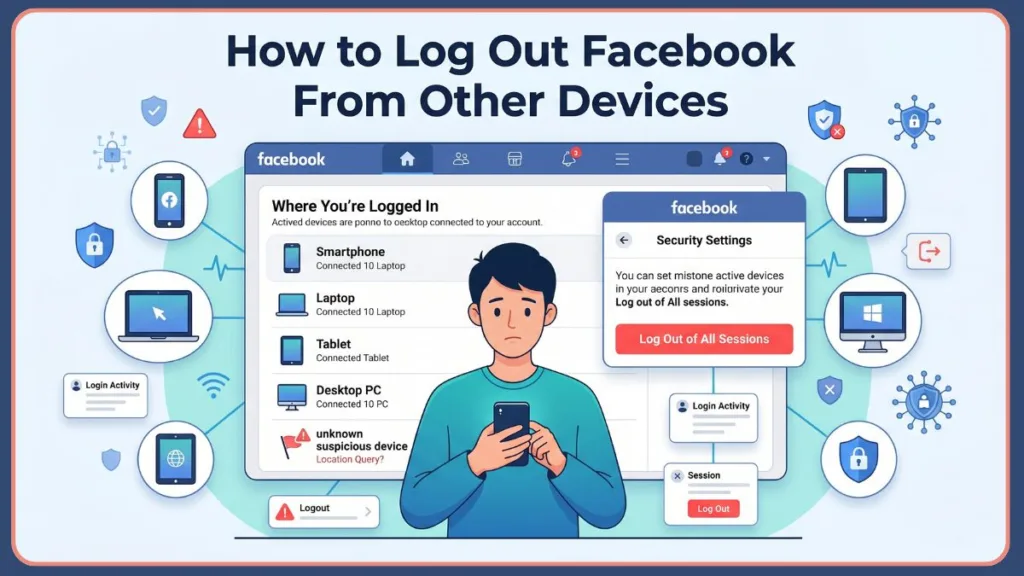
This guide will show you exactly how to do that, explain what happens when you terminate a session, and provide strategies to manage your account security gracefully. It covers both mobile and desktop, clearly separates logging out specific devices from hitting the “select all” panic button, and includes tips for managing unrecognized login alerts.
How to “Force Log Out” a Device You Left Active
Realizing your account is exposed can feel panic-inducing, but the only reliable way to “retract” that access is by ending the session from your Accounts Center. This method instantly kicks the device offline, requiring your password for them to get back in.
Step-by-Step on Mobile (iPhone & Android)
- Open your Facebook app and tap the Menu icon (the three horizontal lines) in the top or bottom corner.
- Scroll down, expand Settings & Privacy, and tap Settings.
- At the top, tap See more in Accounts Center.
- Scroll down to the Account settings section and select Password and security.
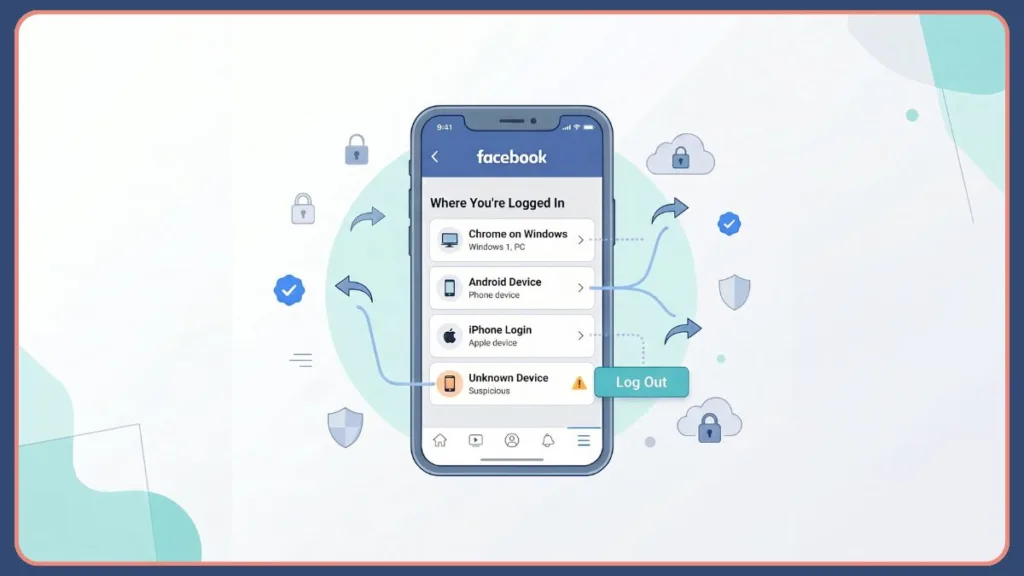
- Under Security checks, tap Where you’re logged in and choose your Facebook profile.
- Scroll to the bottom, tap Select devices to log out, hit Select all (or pick a specific device), and tap Log Out.
If you are using Facebook Lite or an older version of the app that hasn’t fully integrated the Accounts Center UI, you can usually find this by going straight to Settings > Security and Login > Where you’re logged in.
Tip: Acting quickly minimizes the chance that someone will access your private messages or make unauthorized posts before the session is killed.
Step-by-Step on Desktop
- Click your profile picture in the top right corner of the Facebook homepage.
- Navigate to Settings & privacy > Settings.
- On the left sidebar menu, click See more in Accounts Center.
- Click Password and security, then click Where you’re logged in.
- Select your Facebook account.
- Click Select devices to log out, choose the unrecognized sessions, and hit the Log Out button to confirm.
If you are logging in from a mobile web browser (like Safari or Chrome on your phone) rather than the official app, the interface mimics this desktop layout. You will tap the gear icon for Settings and follow the exact same Accounts Center path outlined above.
Tip: This desktop method provides a much clearer view of the map and timestamps, making it easier to review multiple login locations at a glance.
What to Do After You Remotely Log Out
Even after logging out all devices, you might still feel anxious about your account’s safety. Here’s how to handle the situation with confidence:
- Change Your Password: The ultimate nuclear option. If someone actually knows your password, logging them out only stops them temporarily. Changing your password completely locks them out.
- Enable Two-Factor Authentication (2FA): Set up an authenticator app or SMS text codes. This acts as a deadbolt on your account—even if they have your password, they can’t get in without your phone. Security experts strongly recommend using an app like Google Authenticator or Duo over SMS text codes, as text messages are increasingly vulnerable to SIM-swapping attacks.
- Review Recent Activity: Check your sent messages and your profile timeline to ensure no spam links or weird posts were published while you were exposed. Additionally, check your contact information in the Accounts Center to ensure no unknown email addresses or phone numbers have been added by a hacker as a backdoor recovery method.
Tip: Speed and thoroughness are the best tools when dealing with a compromised account. Don’t just log out; secure the perimeter.
If a suspicious login has you worried about your overall privacy settings, you might also want to learn how to restrict someone on Facebook to control who sees your future posts without unfriending them.
How to Manage Unrecognized Logins and Alerts
Facebook occasionally flags login attempts from new browsers or locations. If Facebook detects a highly suspicious login attempt, they will send an official security alert to your registered email. These emails contain a critical “This wasn’t me” or “Secure your account” link that can instantly lock down the profile and reverse any recent unauthorized password changes. Controlling these alerts prevents security anxiety while keeping you informed:
- Turn on Login Alerts: Go to Settings > Accounts Center > Password and security > Login alerts. Choose to get in-app notifications or emails if a new device logs in.
- Review connected apps: Sometimes a third-party app (like a game or Spotify) will trigger a strange location login because of where their servers are hosted.
- Beware of VPNs: If you use a Virtual Private Network on your phone, Facebook might think you are logging in from another country.
Tip: Regularly clearing out old devices you no longer own from your Accounts Center keeps your “Where you’re logged in” dashboard clean and makes it easier to spot an actual hacker.
FAQs About Logging Out of Facebook
- How do I log out of Facebook on all devices in the latest app? Use the Meta Accounts Center under Settings > Password and security > Where you’re logged in to force close all sessions.
- Will logging out of all devices log me out of Messenger? Yes — terminating the session for a specific device usually kills both the Facebook app and the Messenger app on that hardware. Because Meta has integrated these backend systems, logging out of a device via the Accounts Center strips the authentication token for all linked Meta apps on that specific phone or tablet.
- Why does Facebook say I’m logged in somewhere else? Cellular data networks and VPNs often route your IP address through different cities. If the device type (e.g., iPhone 14) matches yours, it is likely just a geographic error.
- How do I remove a device from my Facebook permanently? Use the “Where you’re logged in” page to log the device out, then immediately change your password so that device cannot reconnect.
- What does the “Select all” button do? It instantly terminates every active login session worldwide, except for the exact device you are currently holding in your hand.
Conclusion: Efficiently Managing Facebook Logins
Keeping track of where your Facebook is logged in is a vital digital hygiene practice, and managing it effectively is key to a secure social experience. The Meta Accounts Center is the most reliable method for auditing your active sessions, while changing your password works perfectly for a total account lockdown.
By following this guide, you can stay in control of your account access, handle lost devices gracefully, secure your profile against snooping, and block unauthorized users. Regularly reviewing your “Where you’re logged in” page ensures your Facebook interactions remain private, safe, and stress-free.
Tip: Check your Accounts Center frequently to maintain a clean device list, minimize security risks, and manage your digital footprint like a pro.
Visit Our Post Page: Blog Page
Discover more from Izoate
Subscribe to get the latest posts sent to your email.