
Stuck on the Amazon Vine error displaying product details? Learn why the infinite spinning wheel happens and discover easy ways to resolve loading error today.
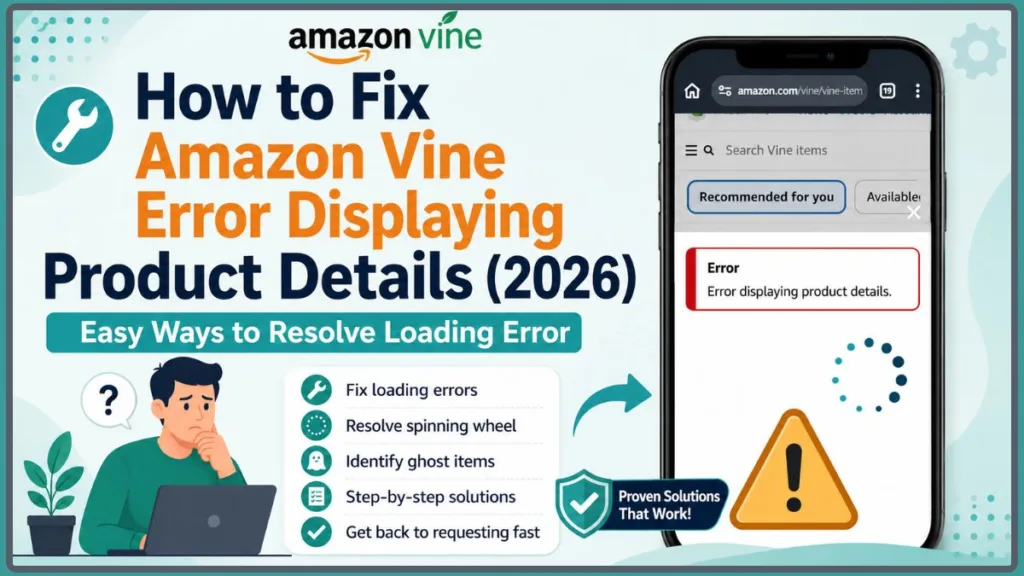
You finally spot a high-value product you would absolutely love to review through Amazon Vine. The excitement kicks in, but when you click See Details, instead of the product information loading smoothly, you are met with the incredibly frustrating message:
“Error Displaying Product Details.”
Or perhaps the details window never loads at all. Instead, you are left staring at an infinite spinning wheel, completely unable to request the item before someone else grabs it.
If you are seeing this error while trying to request a Vine product, take a deep breath and do not assume there is something wrong with your account. You have not suddenly been thrown into “Vine jail,” and you have not been shadowbanned.
In many cases, this issue is entirely temporary and affects multiple Vine members at the exact same time. It is often caused by a temporary Amazon Vine outage, a broken product listing on the seller’s end, or a simple browser-related conflict.
In this comprehensive guide, you will learn exactly why the Amazon Vine error displaying product details occurs. More importantly, we will help you determine whether it is a platform-wide problem or an isolated listing issue, and walk you through the most effective troubleshooting steps to get you back to requesting products with confidence.
Amazon Vine Error Displaying Product Details at a Glance
When you are in a rush to claim a limited-quantity item, you need answers fast. Before we dive into the technical details, use this quick diagnostic table to immediately point yourself in the right direction based on exactly what you are experiencing.
| Symptom | Most Likely Cause | Best Action |
| Every product fails | Temporary Amazon Vine outage | Wait and check community reports |
| Only one product fails | Ghost item or broken listing | Skip the listing and try another product |
| Works in another browser | Browser cache, cookies, or extensions | Clear cache or disable extensions |
| Works on another device | Local browser or network issue | Troubleshoot your browser or network |
Before You Begin
Troubleshooting technical issues can sometimes lead you down a rabbit hole of changing settings that do not actually need to be changed. Before diving into our deeper troubleshooting methods below, run through this quick, stress-free checklist to set yourself up for success and rule out the simplest mistakes:
- Confirm you are securely signed into the correct Amazon account associated with your Vine membership.
- Test several different products in your queue to see if the error is isolated to just one item.
- Refresh the Vine page at least once to clear any momentary connection hiccups.
- Check whether other Vine members are reporting the exact same issue on community forums or social media.
- Switch to a desktop browser if you are currently using the Amazon app or a mobile browser.
Why Am I Seeing “Error Displaying Product Details” on Amazon Vine?
To fix the problem, it helps to understand what the platform is actually doing behind the scenes. When you click the See Details button, the Amazon Vine portal attempts to retrieve the product’s information directly from Amazon’s main retail product catalog.
If that digital connection cannot be completed—whether due to a temporary platform server issue, a broken listing from the seller, or a localized browser-related problem on your computer—the Vine portal simply cannot display the product details. Instead of the item variations, it shows an error message or an infinite loading spinner.
You will usually see this error trigger when you are:
- Clicking the See Details button on a product card in your queue.
- Opening the product popup window to view sizes or colors.
- Trying to finalize a request for a specific Vine item.
This disconnect generally occurs because of:
- Temporary Amazon Vine server issues
- Broken or unavailable product listings
- Ghost items
- Browser session problems
- Network interruptions
Is Amazon Vine Down? Check This First
When faced with a loading error, your first instinct might be to start clearing your cookies or restarting your router. However, before you touch a single browser setting, you need to find out if the problem is actually on your end. Platform-wide outages are incredibly common on Vine.
Checking the platform’s health first will save you hours of wasted troubleshooting. Test several different products across your Recommended for You (RFY), Available for All (AFA), and Additional Items (AI) queues.
If every single item you click shows the exact same error, it is almost certainly an Amazon-side outage. You can quickly verify this by checking community hubs like Reddit (such as r/AmazonVine) or Vine Discord servers to see if other members are reporting widespread issues. If they are, you can relax—simply wait until Amazon restores the service.
Tip: If every See Details button fails across multiple categories, the problem is probably on Amazon’s end—not yours. Save yourself the headache, step away from the computer, and take a break from refreshing.
Common Causes of Amazon Vine Error Displaying Product Details
Now that you know what happens behind the scenes, let’s look at the specific triggers that disrupt the Vine portal. Understanding what is causing the hiccup will help you choose the right fix moving forward. Here are the usual suspects.
Temporary Amazon Vine Server Outage
The Vine portal relies heavily on Amazon’s massive product catalog to display item information accurately. If that connection is interrupted due to a temporary platform issue or a broken database link, the product details may completely fail to load. When this backend connection struggles, the entire Vine portal can freeze, resulting in frustrating errors for everyone currently logged in.
Ghost Items or Expired Vine Inventory
Sometimes, an item is already fully claimed by other quick-moving reviewers, or the seller’s available Vine inventory is completely exhausted. However, the system’s database lags and fails to remove the product card from your queue immediately. Clicking on these broken Vine listings will always result in a loading error because the item technically isn’t there anymore.
Corrupted Browser Cache or Cookies
To make your internet experience faster, your web browser stores temporary website files (like images and scripts) to speed up page loading. If this saved data becomes outdated or corrupted over time, it can cause session authentication problems. This prevents the complex Amazon website scripts from running correctly, leaving you stuck on a loading screen.
Browser Extensions or VPN Interference
We all love our browser add-ons, but aggressive ad blockers, privacy extensions, or Virtual Private Networks (VPNs) can sometimes be too strict. They might accidentally block the specific JavaScript Amazon uses to load the product popup windows, interpreting them as pop-up ads rather than essential site features.
Temporary Network Issues
Unstable internet connections or brief drops in your Wi-Fi signal can interrupt the digital request being sent from your computer to Amazon’s servers. If the signal drops for even a second while loading, the process can time out, leaving the spinning wheel permanently stuck on your screen.
How to Fix Amazon Vine Error Displaying Product Details
If you are accessing Amazon Vine through the Amazon mobile app or a mobile web browser on your phone, we highly recommend switching to a desktop browser before you begin troubleshooting. The Vine portal is notoriously finicky and generally works best on a desktop environment. This simple switch solves many loading problems immediately.
Work through these steps in order, starting with the fastest diagnostic checks before moving on to deeper, more involved troubleshooting.
Method 1: Check Whether the Error Affects Every Product ⭐
Difficulty: ⭐ Easy
Time Required: Less than 1 minute
Success Rate: ⭐⭐⭐⭐⭐
Why it works: This is the most crucial first step because it immediately diagnoses whether the issue is isolated to a single broken item, or if it is a platform-wide failure. By testing multiple data points, you prevent yourself from trying to “fix” an Amazon server outage that is completely out of your control.
When to use it: Always make this your very first step the moment you see the error message.
- Open your Vine dashboard.
- Click See Details on the item you want to request.
- If it errors out, click See Details on three or four completely different items in different categories (e.g., switch from Electronics to Grocery).
- Compare the results to determine if the issue is platform-wide.
Expected Result: If only one item fails, you are dealing with a broken listing or a ghost item. If they all fail to load, Amazon is likely experiencing an active server outage.
Method 2: Refresh the Amazon Vine Page
Difficulty: ⭐ Easy
Time Required: Less than 1 minute
Success Rate: ⭐⭐⭐⭐
Why it works: Sometimes, your browser simply misses a line of code during the initial page load due to a tiny network blip. A simple refresh forces your browser to discard the stalled attempt and request a completely fresh copy of the page from Amazon’s servers.
When to use it: Try this immediately if you suspect a temporary glitch or a momentary drop in your Wi-Fi signal.
- Close the broken product details popup window.
- Click your browser’s Refresh button (or press F5 on Windows / Cmd + R on Mac).
- If a standard refresh fails to change anything, perform a hard refresh by pressing Ctrl + F5 (Windows) or Cmd + Shift + R (Mac) to bypass the local cache.
- Click See Details again.
Expected Result: A temporary network timeout or misloaded script will be cleared, and the window will load normally.
Method 3: Wait and Try Again Later
Difficulty: ⭐ Easy
Time Required: Varies
Success Rate: ⭐⭐⭐⭐⭐
Why it works: If you determined in Method 1 that the issue is affecting every product and is platform-wide, there is no local fix you can perform on your computer. Amazon’s engineers need time to resolve database sync issues on their end. Walking away for an hour or two is often the most effective, stress-free solution during a known outage.
When to use it: Use this when community forums confirm an outage, or when every single item in your queue refuses to load.
Expected Result: Eventually, Amazon will patch the server disconnect, and your dashboard will return to normal without you needing to change any settings.
Method 4: Sign Out and Back Into Amazon
Difficulty: ⭐ Easy
Time Required: 1 minute
Success Rate: ⭐⭐⭐
Why it works: Amazon uses digital “session tokens” to keep you logged in and verify your Vine status. If this token expires unexpectedly or becomes corrupted, the system might quietly block your access to product details without fully logging you out. Signing out forces Amazon to generate a brand-new, authenticated session token for your account.
When to use it: If refreshing doesn’t work, but the platform seems to be functioning for other Vine members.
- Hover over your Account & Lists menu at the top of the Amazon screen.
- Click Sign Out at the very bottom of the dropdown list.
- Close your web browser completely to ensure the session ends.
- Reopen the browser, log back into your Amazon account securely, and return to the Vine portal.
Expected Result: Any invisible authentication glitches causing the details window to block your access will be fully reset, restoring your permissions.
Method 5: Clear Browser Cache and Cookies
Difficulty: ⭐⭐ Moderate
Time Required: 2 minutes
Success Rate: ⭐⭐⭐⭐
Why it works: Browsers hoard temporary files to load familiar pages faster. If Amazon recently updated the Vine portal’s code, but your browser is stubbornly trying to use old, saved files from last week, the conflicting data will break the page. Clearing this data removes outdated files that might be causing conflicts with Amazon’s current page code.
When to use it: When the error persists on your main browser, but other Vine members are not reporting any platform outages.
- Open your browser’s main settings menu.
- Navigate to the Privacy and Security section.
- Select Clear browsing data (or a similarly named option).
- Check the specific boxes for Cookies and other site data and Cached images and files.
- Click Clear Data, then restart your browser completely.
Expected Result: Your browser will be forced to download clean, up-to-date files directly from Amazon, resolving any corrupted session errors and allowing the scripts to run smoothly.
Method 6: Try Incognito Mode or Another Browser
Difficulty: ⭐⭐ Moderate
Time Required: 2 minutes
Success Rate: ⭐⭐⭐⭐
Why it works: Incognito (or Private) mode temporarily disables most extensions and completely ignores your existing cookies, giving you a perfectly clean slate to test with. Testing a different browser entirely (like moving from Chrome to Edge, Firefox, or Safari) helps you rule out deeply embedded, browser-specific bugs that clearing cache didn’t fix.
When to use it: If you want a fast way to verify if your primary browser is the root cause of the problem without altering your saved settings just yet.
- Open a new Incognito or Private Browsing window in your current browser.
- Log securely into Amazon Vine.
- Attempt to load the product details for the stuck item.
Expected Result: If the item details load perfectly in Incognito or a different browser, you know with absolute certainty that your primary browser’s settings, cache, or extensions are to blame.
Method 7: Disable VPN or Browser Extensions
Difficulty: ⭐⭐ Moderate
Time Required: 2 minutes
Success Rate: ⭐⭐⭐
Why it works: VPNs constantly change your IP address, which can occasionally trigger Amazon’s automated security and anti-bot filters, blocking page elements. Similarly, ad blockers might accidentally misidentify the product popup script as an intrusive advertisement and aggressively block it from rendering on your screen.
When to use it: If Incognito mode worked flawlessly, indicating that one of your active extensions is the likely culprit.
- Turn off your VPN connection temporarily if you are using one.
- Go to your browser’s extension or add-on manager.
- Temporarily disable any active ad blockers, privacy filters, or Amazon-specific extensions.
- Refresh the Vine page and try to open the details again.
Expected Result: With the interference removed, the product details will load smoothly, allowing you to identify which specific extension was causing the conflict.
Method 8: Try Another Device
Difficulty: ⭐⭐ Moderate
Time Required: 5 minutes
Success Rate: ⭐⭐⭐
Why it works: Sometimes the issue isn’t just your browser; it is your device’s specific network configuration, firewall, or operating system state. Testing on a completely different piece of hardware isolates the problem and rules out issues with your specific computer or mobile device.
When to use it: When you have tried multiple browsers on your main computer, but the error stubbornly persists while other users report the platform is working.
- If you are on a desktop computer, open the web browser on your smartphone or a secondary laptop.
- Log securely into your Amazon account.
- Navigate to the Vine page and tap or click the broken item.
Expected Result: If it loads perfectly on a secondary device but not your primary one, you know your main device’s network settings or local browser environment is the specific culprit you need to investigate further.
Method 9: Contact Amazon Vine Support
Difficulty: ⭐⭐⭐ Moderate
Time Required: 5+ minutes
Success Rate: ⭐⭐
Why it works: Customer support representatives have access to backend tools that we do not. If a specific listing is permanently glitched on Amazon’s side, support can manually investigate the ASIN. Keep in mind, however, that support cannot magically fix platform-wide outages or instantly grant you a ghost item.
When to use it: Use this only as a last resort if you have exhausted all other options, and a specific, high-value item remains stuck in your queue for days while other items work perfectly fine.
- Click the Contact Us link located at the top right of the Vine portal.
- Provide the exact product link or ASIN (if you can locate it in the URL or page code).
- Include the specific browser you are using and the exact date and time the issue started.
- If possible, attach a clear screenshot of the error message.
Expected Result: While they may not fix it immediately, Vine Support can verify if the listing is permanently broken on the seller’s end and manually remove it from the queue if necessary, preventing future frustration.
What Are Ghost Items in Amazon Vine?
If you spend enough time on the platform, you will inevitably encounter the term “ghost item.” A ghost item is a listing that remains prominently and teasingly visible in the Vine portal even though it is no longer actually available to be requested. When you click See Details on a ghost item, the product details simply will not load, resulting in an infinite spinning wheel or a direct error message.
Understanding why these occur can save you a lot of unnecessary troubleshooting. This usually happens for a few key reasons:
- The available Vine inventory has already been fully claimed by other fast-acting reviewers, but the system hasn’t caught up.
- The seller manually removed the product or abruptly canceled their Vine enrollment.
- The original listing was merged, updated, or drastically changed on the backend by the merchant.
- The Vine portal has simply not yet refreshed to reflect current database availability across Amazon’s servers.
Important: Because these products technically no longer exist in the available Vine inventory pool, these errors cannot be fixed by users. When you correctly identify a ghost item, you must realize that no amount of local troubleshooting will force it to load. Your best and only option is to simply skip the broken listing and focus your attention on finding another great product.
How to Tell Whether the Problem Is With Amazon or Your Account
When you are frustrated, it is easy to lose track of what you have tested. Use this quick reference matrix to clearly figure out where the problem lies and avoid unnecessary worry about your account standing.
| Scenario | Amazon Problem | Your Device Problem |
| Every product fails | Yes | No |
| Only some products fail | Yes (Ghost Items) | No |
| Other Vine members report it | Yes | No |
| Only you experience it | No | Yes |
| Appeared suddenly | Yes | Sometimes |
| Started after browser changes | No | Yes |
| Fixed by waiting | Yes | No |
| Fixed by clearing cache/switching browsers | No | Yes |
What NOT to Do
Effective troubleshooting is about working smart, not hard. When you are worried about missing a great item, panic can lead to mistakes. Prevent unnecessary frustration by avoiding these extremely common pitfalls:
- Do not keep refreshing the same broken listing repeatedly. This will not force a ghost item to appear and may temporarily rate-limit your connection.
- Do not assume you are in “Vine jail” without clear evidence. Account reviews or restrictions are almost always accompanied by a clear, undeniable banner message at the top of your screen.
- Do not panic if multiple users report the exact same error on community forums. This is confirmation that you are safe and the platform is at fault.
- Do not spend hours changing complex, deep-level browser settings or network configurations during a known Amazon outage.
Important: If the issue is caused by a widespread platform outage or a verified ghost listing, absolutely no amount of local troubleshooting on your computer will resolve it. Save your time, save your energy, and simply wait it out.
Frequently Asked Questions
If you still have lingering concerns, you are not alone. Here are the most common questions Vine members ask when encountering this frustrating error.
Why does Amazon Vine say “Error Displaying Product Details”?
This happens when the Vine portal cannot successfully retrieve the product information from Amazon’s main catalog. This failure is usually due to a broken listing from the seller, a temporary server timeout on Amazon’s end, or a localized browser cache issue preventing the script from running.
Is Amazon Vine down?
If you cannot load the details for any product across all of your queues, and other users on social media or forums are reporting the exact same problem, the platform is highly likely experiencing a temporary, widespread server outage.
Can I still request the item later?
If the error is due to a temporary server glitch or outage, yes. Once Amazon’s engineers restore the database connection, the item will be requestable again. However, if the listing is a ghost item, it is permanently gone, and you will not be able to claim it.
What is a ghost item?
It is a product that visually shows up in your queue but has actually completely run out of available Vine inventory or been removed by the seller. It leaves a broken, unclickable link behind that the system hasn’t cleaned up yet.
Does this mean my Vine account is restricted?
No. This error is almost always a technical glitch regarding the specific product listing or the backend server connection. It does not indicate an account-level penalty, restriction, or impending removal from the program.
Should I contact Amazon Vine Support?
You should only contact them as a last resort for a specific, individual item that remains stuck in your queue for days while everything else works perfectly. Support cannot fix platform-wide outages for you, nor can they instantly resolve or grant you a ghost item.
Fixing the Details Error
Running into sudden loading errors on Amazon Vine can feel like a stressful race against the clock, especially when you are trying to grab high-value items before they disappear. But panicking and wildly clicking around won’t get you any closer to claiming them.
To get back on track quickly and efficiently, keep these essential troubleshooting principles in mind:
- Most “Error Displaying Product Details” issues are entirely temporary. They will resolve themselves with a little patience.
- The error usually does not indicate that your Vine membership has been restricted. Your account is highly likely perfectly safe.
- Your first priority should always be determining whether the issue affects one single listing or the entire platform.
- If it is a platform-wide issue, waiting it out is often your best and only solution. Do not waste time fixing things that aren’t broken on your computer.
- If the error is limited to one specific listing, it is highly likely a ghost item or a broken link that you should immediately skip.
- If the problem is isolated strictly to your browser or device, calmly work through the troubleshooting methods in order.
By taking just a moment to accurately diagnose the root cause first before assuming the worst, you can save yourself hours of unnecessary stress and needless technical tweaking. Understanding the clear difference between platform outages, lingering ghost items, and local browser conflicts empowers you to respond correctly every single time.
Stay patient, keep your browser healthy and up to date, and you’ll be confidently back to requesting your favorite Vine items in no time.
Visit Our Post Page: Blog Page
Discover more from Izoate
Subscribe to get the latest posts sent to your email.