
Getting the “Claude code process exited with code 1” error? Don’t panic. Here is the complete 4-step guide to fix it immediately and get back to work.
If you are currently trying to use Anthropic’s Claude Code in an editor like VSCode or Cursor to generate code and suddenly encounter a roadblock, you are certainly not alone.
Many users report seeing the specific, frustrating message below:
“Claude code process exited with code 1”
This specific Claude extension crash often strikes without warning. It can appear even when your code editor looks normal and your internet connection is perfectly stable.
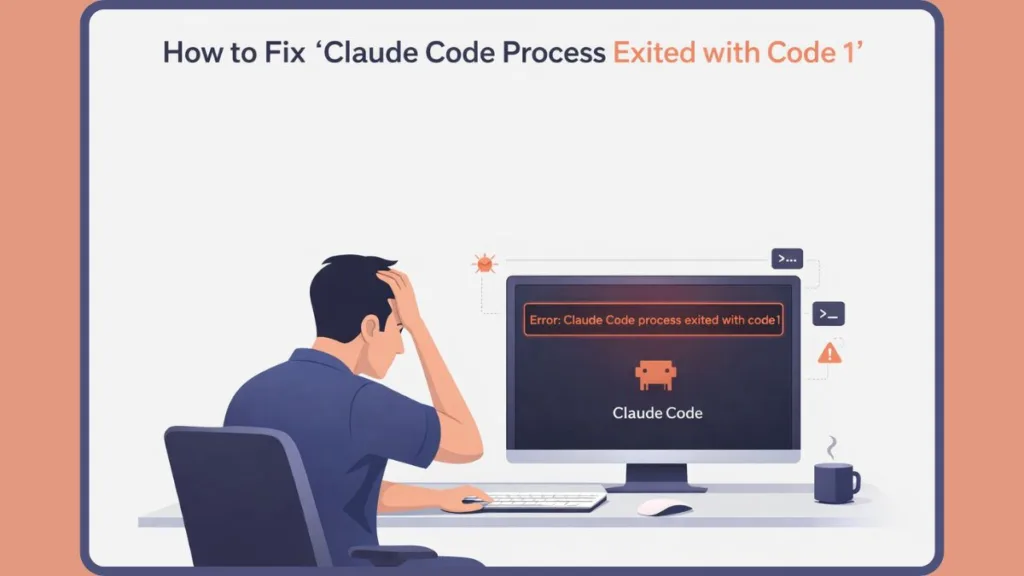
While it disrupts your workflow, the good news is that this issue is usually fixable with a few quick adjustments. Furthermore, it rarely results from a permanent failure, so you haven’t broken anything permanently.
In this comprehensive guide, we will walk you through exactly what this error means, why the Anthropic CLI might fail to initialize, and the specific steps you must take to fix it quickly.
What Does “Claude code process exited with code 1” Mean?
To better understand the problem, we must first define what the error actually signals.
This message means the Claude Code process was unable to initialize or authenticate your specific environment at startup. It does not automatically indicate an account ban, a broken IDE, or that the Anthropic API server has crashed completely.
Think of it like trying to enter a secure building; the building is open, but your badge isn’t scanning properly or you are at the wrong door. In most cases, the error points to one of the following specific triggers:
- A pending user agreement: The backend is momentarily blocking access until you accept new terms.
- A session or authentication problem: Your digital “key” inside the integrated terminal failed to prompt.
- A corrupted local environment: Your local file path or installed dependencies are confusing the Node.js process.
Additional Technical Context: Behind the scenes, the Claude Code binary attempts to spawn a local background process to handle your Model Context Protocol (MCP) servers. If it encounters a fatal error during this immediate “loading config cache” phase—such as a locked ~/.claude/.credentials.json file—the system immediately aborts, throwing the exit code 1 to prevent further execution errors.
Users commonly experience this Claude not working error in different ways. You might see it instantly upon opening VSCode, or it might silently fail when you attempt your first prompt. Although this inconsistency can be confusing, it effectively helps us narrow down the cause.
Why This Error Happens
Based on verified community troubleshooting and technical analysis, this error usually stems from one or more of the specific reasons below.
1. Pending Terms of Service Updates
Sometimes, Anthropic updates its backend policies. Even if your API key is valid, unaccepted new terms policies on the web dashboard will silently block the API on the backend, causing the CLI tool to fail immediately. This frequently occurs when shifting between Claude Pro subscriptions, Team billing tiers, or transitioning to third-party cloud providers like Amazon Bedrock or Google Vertex AI.
2. Authentication or Session Problems in the Terminal
If your secure session inside the editor fails to sync properly, Claude Code will reject your requests. The visual extension interface sometimes fails to trigger the login prompt, leaving the system unauthorized. Your local machine stores these credentials in the macOS Keychain or a localized .credentials.json file; if your editor cannot read these encrypted files due to permissions, the process dies instantly.
3. Directory Path Errors (The EEXIST Error)
A confusing file system structure can cause the error to repeat instantly. If your project is located on a remote drive or inside a folder that has spaces in its name, the system cannot parse the absolute path, resulting in an EEXIST error. The process keeps sending “confused” path data, which the system consistently rejects. Verified GitHub bug reports confirm that Node.js will throw a fatal EEXIST error if the CLI attempts to automatically create (mkdir) a configuration directory at a root path that already exists but is misread by Windows or Git Bash.
4. Missing Dependencies or Environment Conflicts
Crucial system tools are required for the background processes to run. For example, accidentally uninstalling Git for Windows breaks the bash paths that Claude relies on, mimicking a severe crash. Additionally, if you install Git Bash in a non-standard directory (e.g., D:\Programs\Git), Claude Code may fail to detect the correct terminal profile, triggering a silent collapse.
Quick Checks Before You Try Fixes
Before you dive deep into troubleshooting settings, you should quickly run through this diagnostic checklist to save time:
- Does the error happen only in VSCode, or does it also occur if you try the terminal?
- Is your current project folder located in a path with spaces in the name?
- Did you recently uninstall Git or change your environment variables to save space?
- Have you logged into the claude.ai dashboard directly in your browser today?
- Are you running multiple simultaneous background agents that may have locked your
.claude/settings.jsonfile?
If you answered “yes” to any of these questions, the issue is likely environment or session-related rather than a deep technical failure.
How to Fix Claude “Process Exited with Code 1”: 4 Step Guide
To resolve this efficiently, follow these steps in order. We strongly recommend that you do not skip ahead, as the simpler fixes often work best.
Step 1: Accept New Terms Policies on the Claude.ai Dashboard
In many cases, the API quietly blocks requests if user agreements are outdated.
- Open your browser and log in directly to the claude.ai dashboard portal.
- Look for a popup or banner prompting you to accept the new terms of service.
- Accept them, then restart your code editor. This step alone fixes a large number of sudden crashes.
- If you are utilizing an API-based billing setup, you must also log into the Claude Developer Console and verify that your workspace admin has fully authorized your specific email address for Team usage.
Step 2: Force Claude CLI Authentication in the Terminal
If the extension UI isn’t prompting you to log in, you need to bypass it.
- Open a new integrated terminal directly inside VS Code (or Cursor).
- Type the
claudecommand manually and hit enter. - This forces the underlying MCP server connection to display the necessary login link. Follow it to authenticate securely.
- If the prompt still fails to appear, press
Cmd+Shift+P(Mac) orCtrl+Shift+P(Windows), type “Developer: Reload Window”, and try launching the CLI natively from an external PowerShell or Terminal window.
Step 3: Eliminate Spaces in Your File Structure Path
If the error appears immediately every time you load a specific project, a pathing conflict is likely the culprit.
- Check if your project is on a remote drive or in a folder with spaces (e.g.,
C:\My Documents\Code). - Move the entire project folder to a simple path, such as the root of the C: drive (e.g.,
C:\MyProject). Reload the window to clear the error. - Advanced Workaround: You can also define a custom environment variable named
CLAUDE_CONFIG_DIRand point it to a specific subfolder (likeC:\Users\<USER>\.claude_data). This prevents the initialization logic from clashing with existing root directory restrictions.
Step 4: Reinstall Git and Verify Dependencies
If you are switching between a Debian WSL environment and a standard Windows extension, missing dependencies will crash the process.
- Verify that Git is currently installed and active on your system.
- If you recently uninstalled it, re-download and install Git to restore the correct terminal paths.
- If Git is installed in a custom location, you must add the
CLAUDE_CODE_GIT_BASH_PATHenvironment variable to your VSCode settings to point the Anthropic binary to your specific executable.
Is Claude Code Down Right Now? How to Tell
Claude Code can experience partial service issues where the web interface works, but the developer tools fail.
You should check the official Anthropic Status Page first. Additionally, checking the GitHub Anthropics repository issues tab or the Reddit r/ClaudeCode community can provide real-time user reports.
However, strong signs of a wider issue include:
- The error appears for every prompt you attempt across different projects.
- None of the fixes work across both VSCode and Cursor.
- You are receiving an API Error 500 alongside the exit code 1.
- Your Claude Desktop application shows repeated
[CCD CycleHealth] unhealthy cyclefailures in its internalmain.logfile.
When this happens, waiting is often the only effective solution, as the engineering team works to restore the API service.
Why the Status Page May Still Look Normal
Status indicators typically track core systems, not local developer environments. They may not reflect:
- Authentication failures affecting the CLI login flow.
- Local Node.js spawning errors.
- Rate limiting specific to your Claude Team account API usage.
- Custom MCP servers failing to connect over HTTP or stdio transports, causing localized timeouts.
That is why you can see an error locally even when everything appears “operational” on the official dashboard.
Can This Error Affect Cursor IDE Users?
Yes, absolutely. While Cursor IDE handles some AI calls natively, running the specific Anthropic CLI inside it can still trigger these environment crashes.
However, many developers find that switching to Cursor provides a more stable integration compared to the standalone VSCode extension, as it bypasses some of the local terminal profile conflicts. Because Cursor natively isolates terminal dependencies differently than standard VSCode, it is highly recommended for developers who frequently suffer from local bash configuration errors.
How to Prevent This Error in the Future
While you cannot prevent all service-side issues, you can significantly reduce the chances of seeing this error again by maintaining good development environment hygiene.
To keep your connection stable:
- Avoid using spaces in your root project folder names.
- Keep your Git and terminal dependencies fully updated.
- Periodically log into the web dashboard to clear any pending policy updates.
- Monitor your API usage limits, especially if using a shared team account.
- Regularly clear your temporary code caches by running
claude mcp listto check for hanging background servers that may be hogging system resources.
These steps help maintain a clean, stable environment and prevent “exit code 1” errors from interrupting your work.
FAQs
Why does Claude Code keep exiting with code 1?
Because the background process failed to initialize, usually due to pending terms of service, terminal authentication failures, or file paths containing spaces.
How do I authenticate the claude cli in my terminal?
Simply open your IDE’s integrated terminal, type claude, and hit enter. Click the generated link to log in.
What happens when git bash paths block claude code?
It triggers a Node.js pathing error (EEXIST), causing the background process to crash immediately upon opening the editor because it cannot create a necessary configuration folder.
Is this an account issue or a local issue?
Most of the time, it is a local environment issue or a pending terms of service update—not a permanent ban or problem with your specific account.
What to Do If Nothing Works
If you have tried every fix listed above and the error still appears, the best option is to stop retrying, ensure you haven’t hit your API usage limits, and wait.
If your weekly limit is exhausted (especially on team accounts), the system may silently reject connections. We recommend checking your developer console, and if everything looks fine, revert to using the standard web interface to get back to your work seamlessly while the CLI issues resolve.
Visit Our Post Page: Blog Page
Discover more from Izoate
Subscribe to get the latest posts sent to your email.