
Opened a message by mistake on Facebook Messenger? Learn how to turn off read receipts in 2026, why the “Seen” status appears, and how to manage Messenger privacy across Android, iPhone, and desktop.
We’ve all been there. You’re in the middle of a busy day, a notification pops up on Messenger, and you’re dying to know what it says—but you’re just not ready to reply yet. The moment you open that chat, the dreaded “Seen” status appears, and the clock starts ticking. The pressure to respond immediately can be exhausting.
If you’ve searched for a way to hide read receipts, you’ve likely found a mess of outdated advice. While Meta has finally introduced some official settings in 2026, the truth is that there is no 100% consistent “off” switch that works across every device and every chat. In this guide, we’re going to look at what actually works right now, which myths you should ignore, and how to finally reclaim your digital peace of mind and Messenger privacy.
Can You Really Turn Off Read Receipts on Messenger?
The short answer is: Not exactly. While there is now an official toggle in the Facebook Messenger app settings, its performance is considered Available but Unreliable. Depending on your region, your app version, or even whether the chat is end-to-end encrypted, the Facebook seen status might still trigger unexpectedly.
Important Note: Most of the “hacks” you see online are actually “race-condition” tricks. You aren’t truly disabling the feature at a server level; you are trying to view the message before the app has a chance to tell Facebook’s servers to Disable Messenger seen status.
Why Messenger Doesn’t Let You Disable “Seen”
It might feel like a missing feature, but it’s actually an intentional design choice by Meta. Facebook is built for real-time engagement. By showing a delivered vs seen status, the app creates a psychological “loop” that encourages users to reply faster to avoid looking rude.
Even with the latest Meta Privacy Center updates and End-to-end encryption (E2EE), the “Seen” status remains a core part of the platform’s engagement mechanics. Meta understands that Messenger read receipts keep users active. However, as a user, this can feel like an invasion of your Messenger privacy.
Disabling Read Receipts on Facebook Messenger: A Step-by-Step Guide
Disabling Read Receipts on Facebook Messenger can be a double-edged sword, offering transparency but also pressure. However, with recent updates, users can now Hide read receipts, enhancing their privacy and control over their messaging experience.
Why Disable Read Receipts?
When you Disable Messenger seen notifications, you gain the freedom to read messages without notifying the sender. This provides you with the freedom to manage your conversations at your own pace. This feature is particularly useful for those who prefer not to feel pressured into immediate responses or for maintaining Facebook Messenger privacy.
Steps to Disable Read Receipts for All Conversations (Available but Unreliable)
To disable read receipts for all your conversations on Facebook Messenger, follow these detailed steps. Note: This feature is rolling out globally but may behave inconsistently across devices.
- Open the Facebook Messenger App: Launch the app on your device (iPhone, iPad, or Android). Ensure you are on the home screen where your chats are listed.
- Access the Menu: Look at the top left corner. Tap the menu icon (three horizontal lines ≡). A side panel will slide out.
- Navigate to Settings: In the top right corner of that side panel, you will see a gear icon (Settings ⚙️). Tap it to enter your account’s core configuration.
- Select Privacy and Safety: Scroll down through the settings list until you find the “Privacy and Safety” section. This is the hub for all your Messenger privacy controls.
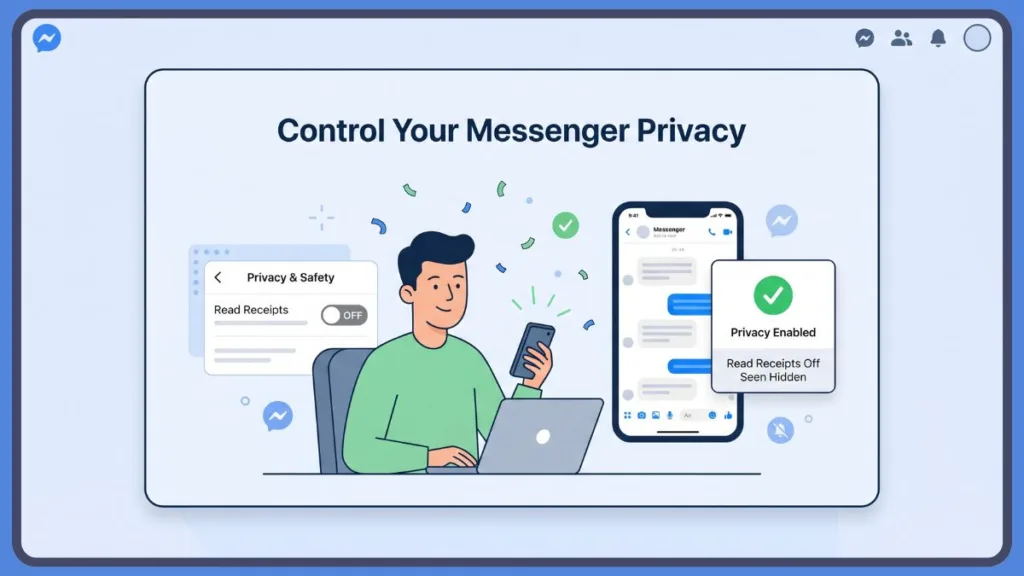
- Locate Read Receipts: Scroll down to the “What People See” section and tap on “Read Receipts.”
- Toggle Off Read Receipts: Tap the switch labeled “Show Read Receipts” to toggle it off. Once disabled, neither you nor the sender will see the blue circle checkmark icon update to a “Seen” status.
Steps to Disable Read Receipts for a Specific Chat
If you prefer to Hide read receipts for a specific conversation rather than everyone, follow these guided steps:
- Open the Facebook Messenger App: Launch the app and navigate to the specific conversation with the person you want to Disable Messenger seen for.
- Access the Conversation Settings: Look at the very top of the screen. Tap the person’s profile name or the ⓘ (information) icon at the top right to open their specific options menu.
- Navigate to Read Receipts: Scroll down past the media and files section until you reach “Privacy and Support.” Tap on “Read Receipts.”
- Toggle Off Read Receipts: Tap the switch labeled “Show Read Receipts” to toggle it off. This ensures that for this specific person, you can Read Facebook messages without being seen.
Alternative & Tested Methods: The “Ninja” Workarounds
Since official settings are often unreliable, these tested community methods provide a secondary layer of Messenger privacy.
1. The “Restrict” Chat Trick (Most Reliable)
Instead of blocking, use Restrict. This is the most effective way to stop Messenger from showing seen status.
- How to do it: Open the chat > Tap their name > Scroll down and select Restrict.
- Why it works: The conversation moves to your Restricted list. You can read messages without notifying the sender, and they will never see a read receipt.
- The Catch: You won’t get notifications for their messages until you unrestrict them.
2. Airplane Mode Trick (The Classic “Ninja” Move)
Use Airplane Mode for a temporary way to read Facebook messages secretly.
- Enable Airplane Mode: Swipe down your control panel and turn on Airplane Mode before opening the app.
- Read the Message: Open the conversation and read it.
- Close the App: Force Close the Messenger app so it isn’t running in the background.
- Disable Airplane Mode: Turn off Airplane Mode. The sender will not receive a Facebook seen status notification.
3. Notification Preview Method
The simplest way to stop Messenger seen notifications is to never actually “open” the app.
- How to do it: Read the message directly from your phone’s notification pull-down menu.
- Pros: This is 100% safe and never triggers a sync.
- Cons: Limited to short messages.
Method Comparison Table (Quick Glance)
| Method | Reliability | Best Use Case | Risk / Trade-off |
| Official Toggle | Medium (Unreliable) | Universal Privacy | May not sync to PC/Desktop |
| Restrict Mode | High | Specific Contacts | You won’t get active alerts |
| Airplane Mode | Medium | Quick “Peeking” | Fails if app syncs early |
| Notification Preview | Safe | Short Messages | Can’t see full long messages |
Methods That Don’t Work (Common Myths)
Don’t waste your time on these—they will not help you Hide read receipts:
- Turning Off Active Status: This only hides your “Green Dot.” It does not disable read receipts. You can appear offline and still trigger a Facebook seen status.
- Mark as Unread: This is a major confusion point. It only changes the look of the inbox for you. The sender still sees the profile picture icon next to the message.
- Third-Party Apps & Extensions: Be wary of apps like “Unseen” or “Ghost Mode.” They often pose privacy risks and can compromise your End-to-end encryption.
Why Workarounds Sometimes Fail
Even the best tricks can fail because of Cross-Device Syncing. If you have Messenger open on your tablet or your laptop (Messenger.com web privacy), that device might “see” the message and sync the status to the server before you even pick up your phone. Messenger is aggressive with its syncing, especially in Group Chats.
Best Practical Strategy (Realistic Advice)
Instead of chasing a perfect technical solution, the best approach is a psychological one: Reclaim your time.
- Use Notification Previews for a quick glance.
- Use the Restrict feature for high-pressure contacts.
- Accept the “Seen”: It’s okay to read and reply later. Most people in 2026 understand that a “seen” doesn’t mean “available this very second.”
FAQs
How do I turn off read receipts on Facebook Messenger?
Go to Settings > Privacy & Safety > Read Receipts. Toggle it off, but remember it may not work in every chat or on every device.
Why did Messenger turn on read receipts automatically?
When Meta updates the app or moves a chat to End-to-end encryption, settings can sometimes reset to default.
What does the empty blue circle mean on Messenger?
It means the message is still sending. A filled blue circle means it’s sent, and a blue circle with a checkmark means it’s been delivered to their phone.
Final Verdict: Taking Back Your Digital Control
In 2026, Facebook Messenger privacy settings are better, but they aren’t perfect. You cannot truly Disable Messenger seen status with 100% certainty across all platforms simultaneously. Your best bet is to use the Restrict feature for targeted privacy and the Notification Preview for everything else.
Disabling Messenger read receipts is a significant milestone for users, providing the flexibility and privacy you desire in your digital life. Remember, your time is your own—don’t let a tiny blue checkmark tell you otherwise. Take a deep breath, toggle those settings, and enjoy the relief of a “seen-free” inbox.
Visit Our Post Page: Blog Page
Discover more from Izoate
Subscribe to get the latest posts sent to your email.