
Stuck on Crunchyroll error code PL8 or PL18? Stop wasting time restarting your router. Find the exact troubleshooting steps to get your anime playing again.
There is nothing quite as frustrating as settling in for a Spy x Family or Jujutsu Kaisen marathon, only to have your video stop loading right in the middle of a major scene. If your screen has suddenly gone dark and served you error code PL8 or the closely related PL18, you are not alone.
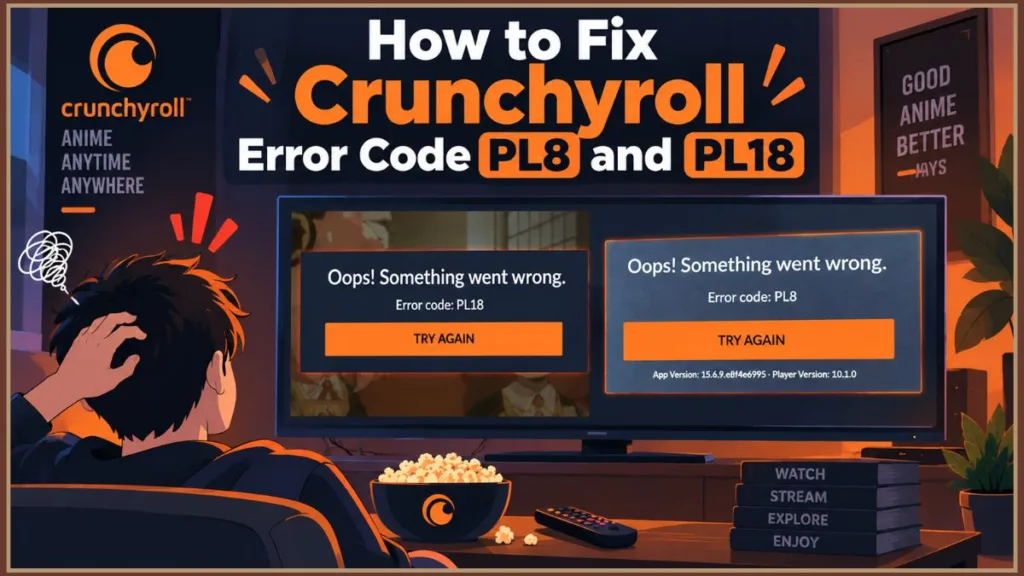
Both of these playback errors are incredibly common, but they stem from completely different issues. While PL8 is typically a straightforward app cache or connectivity glitch, PL18 has become a notorious headache—especially for people using Samsung Smart TVs—because standard troubleshooting steps rarely work.
If your Crunchyroll app is not loading video and you just want to get back to your anime, here is a complete guide to diagnosing and fixing both of these frustrating errors.
What Is Error Code PL8 on Crunchyroll, and How Do I Fix It?
If you are dealing with a standard PL8 message, your device is essentially struggling to communicate with Crunchyroll’s servers. When your Smart TV, Roku, or phone requests the video file, the server either takes too long to respond or the request gets scrambled. When the app times out, it throws the PL8 error.
This usually happens because of a temporary server outage, a corrupted app cache on your local device, or an outdated app version. Run through these four quick, step-by-step fixes to clear the communication pipeline:
1. Verify Crunchyroll’s Server Status
Before you start digging into your TV settings or resetting your router, make sure the problem isn’t on Crunchyroll’s end.
- Open a web browser on your phone or computer and go to a service outage website to check the live status of Crunchyroll’s servers.
- Look at the live outage graph on the screen. If you see a massive spike in user reports, the servers are experiencing a global outage.
Note: If the servers are down globally, local device troubleshooting will not help. You simply have to wait it out until Crunchyroll resolves the server issue.
2. Power Cycle Your Hardware
Sometimes, a quick memory refresh is all your hardware needs to re-establish a solid connection. Do not just use the power button on your remote to put the TV to sleep—you need a full restart.
- Walk up to your Smart TV, Roku, or streaming stick and unplug the power cable directly from the wall outlet.
- Next, walk over to your Wi-Fi router and unplug its power cable as well.
- Wait a full 30 seconds to let the residual power drain completely from the internal components.
- Plug your router back in first, wait for the lights to turn solid green or white, and then plug your TV back in.
- Open the Crunchyroll app and try loading the video again.
3. Clear the App Cache
Corrupted temporary files are one of the biggest culprits for streaming playback errors. Clearing the cache forces the app to pull fresh, uncorrupted data from the server.
For Smart TVs & Android Devices:
- Press the Home button on your remote to go to your main dashboard.
- Navigate to the gear icon to open your Settings menu.
- Scroll down and select Apps (or Applications).
- Scroll through your installed app list and select Crunchyroll.
- Navigate down to Storage or Device Care (depending on your TV brand), press enter, and finally, select Clear Cache. (Make sure you select clear cache, not clear data, so you stay logged in).
For iOS Devices (iPhone/iPad):
- Apple doesn’t offer a direct clear cache button, so you will need to offload the app. Open your Settings app.
- Tap General, then tap iPhone Storage.
- Scroll down the list of installed apps until you see Crunchyroll and tap it.
- Tap the blue Offload App button and confirm your choice.
- Once the app finishes offloading, the button will change to say Reinstall App. Tap it to download fresh data.
4. Force an App Update by Reinstalling
If clearing the cache doesn’t resolve the PL8 error, the app software itself might be bugged.
- Navigate to your device’s home screen, highlight the Crunchyroll app, and open the options menu (usually the asterisk
*button on Roku or a long-press on mobile/Smart TVs). - Select Uninstall, Remove, or Delete and confirm.
- Open your device’s App Store (like the Google Play Store or Apple App Store).
- Search for Crunchyroll, click Download, and log back into your account. This ensures you are running the most up-to-date, bug-free software.
Why Am I Getting Error Code PL18 on My Samsung TV?
If you are seeing error code PL18, you have probably already realized that the standard fixes above do absolutely nothing. This specific error heavily affects Samsung Smart TV users, and thanks to the Crunchyroll Reddit community, we know exactly why: network-level ad blockers.
Here is what is actually happening behind the scenes: If you are watching on a free-tier Crunchyroll account, the app is required to serve you advertisements before your video starts. However, if your home Wi-Fi network uses an ad-blocker (like a Raspberry Pi running Pi-hole, or built-in router security), it actively intercepts and blocks the Crunchyroll app from connecting to those ad servers.
Because the app is forced to play an ad it cannot load, it panics, crashes the video player, and spits out the PL18 error.
What NOT to Do When Fixing PL18
Because this is a network-blocking issue, doing standard device troubleshooting is a waste of your time. If you suspect an ad-blocker is causing your issue, avoid doing these things:
Warning: Do not factory reset your TV. It won’t bypass the ad-blocker on your router, and you will just lose all your customized TV settings. Also, avoid obsessively reinstalling the app—some Samsung TV users have reported a frustrating glitch where the Samsung app store temporarily refuses to let them reinstall it after deletion.
- Do not rely on basic router reboots. Turning your router off and on again will not change your DNS blocking rules.
Proven Workarounds for the PL18 Playback Error
To fix PL18, you need to allow the Crunchyroll app to successfully communicate with its ad providers. Follow these step-by-step instructions to bypass the network block.
1. Whitelist the Ad Domains (For Custom DNS Users)
If you manage a custom DNS ad-blocker like Pi-hole, you can easily fix this by telling your network that Crunchyroll’s ad servers are safe.
- Open a web browser on your computer and log into your ad-blocker’s admin dashboard.
- Look at your left-hand sidebar and click on the Whitelist or Domains section.
- In the domain entry field, type in
Googlesyndication.comexactly as written, and click Add to Whitelist or Save. - Repeat the exact same process and add
DoubleClick.netto the whitelist.
Quick Tip: Once you whitelist these domains, be sure to restart your TV to clear out any old connection attempts. The ads should now load normally, allowing your anime to play immediately afterward.
2. Check for Router-Level Ad Blocking
Many modern Wi-Fi routers (particularly brands like ASUS or TP-Link) come with built-in network security features toggled on by default. You may not even realize your router is blocking ads.
- Find your router’s IP address (usually printed on a sticker on the back of the router, such as
192.168.1.1). - Type that IP address into your web browser’s URL bar and hit enter.
- Log in using your router’s admin username and password.
- Look through your menu tabs for a section labeled Security, Advanced Settings, or AIProtection.
- Locate the toggle switch for Network Shield, Cyber Security, or Disable Ads.
- Click the toggle to flip it to the Off position, hit Apply or Save Changes, and test the Crunchyroll app again.
3. Run a Quick Mobile Network Test
If you aren’t sure if your home Wi-Fi is the actual culprit, you can run a fast diagnostic test using your phone.
Diagnostic Test:
- Swipe down from the top of your smartphone screen to open your quick settings.
- Tap your Wi-Fi icon to turn it off, ensuring your phone switches over to your 5G or LTE cellular data.
- Open the Crunchyroll app and tap on a show to play it.
If the video plays perfectly on cellular data but fails with PL18 the second you reconnect to Wi-Fi, you have successfully confirmed that your local router network is blocking the stream.
4. The Premium Subscription Workaround
Because the PL18 error is entirely triggered by the app failing to fetch commercials, upgrading to a Crunchyroll Premium account bypasses the issue altogether.
- Open the Crunchyroll app or go to the official Crunchyroll Premium page to explore the subscription tiers.
- Once your account is upgraded, restart your app. Because Premium accounts do not request ads from the server, your network ad-blocker never gets triggered, and the PL18 error vanishes entirely.
Still Can’t Get Your Anime to Load?
If you have carefully followed the steps to clear your cache, verified your internet connection, checked your network for hidden ad-blockers, and are still staring at a broken video player, the issue might be a highly specific bug with your exact device model.
At this point, your best bet is to submit a direct ticket to the official Crunchyroll Help Center detailing exactly what you have already tried.
Visit Our Post Page: Blog Page
Discover more from Izoate
Subscribe to get the latest posts sent to your email.