
Wondering whether to turn Hardware-Accelerated GPU Scheduling (HAGS) on or off? Learn what it does, how it affects gaming, and how to change the setting in Windows.
You open your Windows graphics settings and spot a toggle called Hardware-accelerated GPU scheduling. One guide calls it free performance, another blames it for stutter, and your favorite game forum can’t agree either. The setting has been around since 2020, and people are still arguing about it. Some swear it fixed their stuttering, others say it hurt their frame rate, and most quick guides just say “turn it on” without telling you why or who it actually helps.
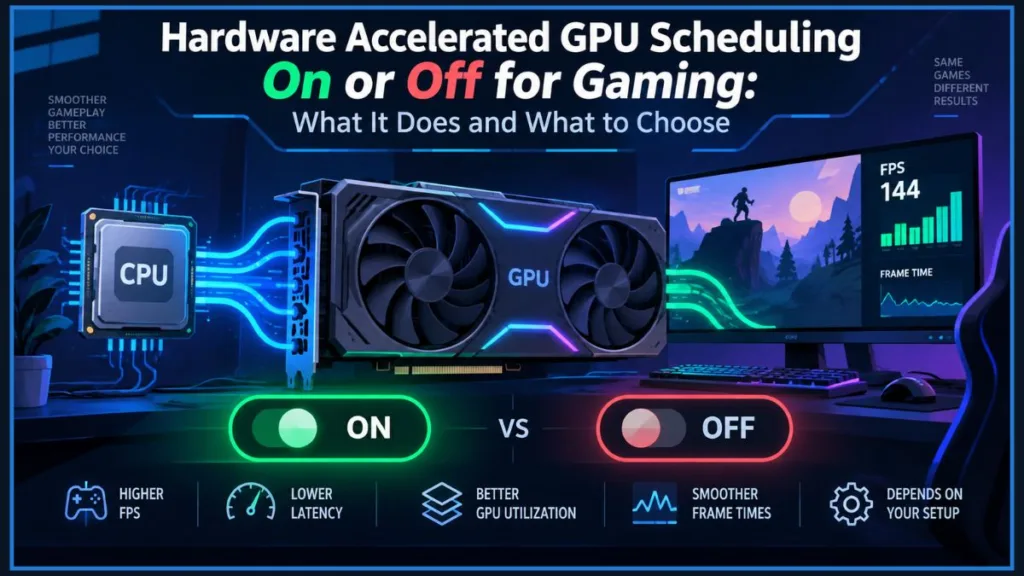
This guide gives you the plain answer first, then explains what the setting does, which graphics cards support it, and how it behaves in games like Valorant, CS2, Fortnite, and VR. You’ll also get step-by-step instructions for changing it, a simple way to test it on your own PC, and fixes for the problems people run into.
Quick answer: If you have an NVIDIA RTX 40 or 50 series card, turn HAGS on. It’s required for DLSS Frame Generation, and it won’t hurt you. On any other modern GPU running Windows 11 with up-to-date drivers, leaving it on is usually the right call, since it lowers CPU load and can tighten frame times. Turn it off, or at least test it, if you’re on a card with 8GB of VRAM or less and seeing stutter, or if you do video editing, rendering, or streaming and your workload slows down. For everyone else, the change in average FPS is small, so let your own testing decide.
What Is Hardware Accelerated GPU Scheduling and What Does It Do?
How GPU Scheduling Works Without HAGS
Every game you play sends the GPU a constant stream of work. Normally, your CPU and Windows handle the traffic control. They gather frame data, decide what needs to be rendered, line up the rendering commands, and hand them to the graphics card in batches. The GPU renders that batch, and then the CPU prepares the next one.
That back-and-forth adds delay. The GPU sometimes sits waiting for the CPU, and the CPU has to stop what else it’s doing to manage the queue. On a system with a slower CPU and a fast GPU, that handoff can become a real bottleneck.
What Changes When HAGS Is On
Hardware-accelerated GPU scheduling (HAGS for short) changes who does that job. A dedicated scheduling processor on the graphics card takes over most of the queue management and memory management, so the CPU no longer sits in the middle of every step. The CPU hands off a larger block of work up front and stops managing each frame, while the GPU decides its own order of operations. One guide describes the GPU using a portion of its own video memory as a scheduling buffer for this, which is the reason HAGS costs some VRAM (more on that below).
In theory, that means lower CPU overhead, more consistent frame delivery, and lower input latency, because there’s less waiting between your click and the frame that reflects it. It’s most relevant when your CPU is working hard, such as in fast competitive games or heavy workloads on an older processor. If your system is already comfortable, you may never notice it.
Where HAGS Came From
Microsoft introduced this with the Windows 10 May 2020 update (version 2004). It was the first big change to GPU scheduling in Windows in a long time. The old model dated back to the Windows Display Driver Model 1.0, which arrived almost 14 years earlier. Microsoft described the new scheduler as a foundation for future graphics features, and NVIDIA’s Frame Generation is one example of a technology built on it.
It needs a GPU with the right hardware and a WDDM 2.7 driver that exposes it, and Microsoft noted that support would arrive only after vendors had tested their drivers thoroughly. That’s why support rolled out at different times for different brands and generations.
What the Companies Promise vs. What You’ll See
There’s a gap between what the companies promise and what you’ll see. Microsoft has said HAGS shouldn’t cause performance regressions, while NVIDIA and AMD have said it could improve performance and latency. In practice, one guide found cases where HAGS gave a noticeable boost for free and other cases where it caused instability and crashes. The real result depends on your hardware, your driver, and the game.
Is HAGS the Same as Hardware Acceleration in Browsers and Apps?
If you searched something like “should I turn off GPU hardware acceleration,” you may be looking for a different setting altogether. Browsers, Discord, Steam, and other apps have their own hardware acceleration options, which control how that app uses your GPU. Opera, for example, has its own version of hardware acceleration that’s unrelated to the Windows feature.
HAGS is a Windows-level setting that changes how the operating system schedules GPU work across everything you run. Turning it off won’t change your browser’s hardware acceleration, and switching off acceleration in an app won’t change HAGS. One Microsoft support thread shows how easily people mix the two up: a user tried disabling GPU acceleration in Steam and Discord while chasing a GPU usage problem.
For gaming, HAGS is the one that can affect performance directly. An app’s own acceleration option mostly changes how that app draws itself, so if one app misbehaves, that app’s settings are the place to look.
Quick way to tell them apart: HAGS lives in Windows Settings under the Graphics page. App-level hardware acceleration lives inside the app’s own settings menu.
Does Your PC Support HAGS? Windows and GPU Requirements
Windows and Driver Requirements
Before you go hunting for the toggle, make sure your system can offer it. You need Windows 10 version 2004 (the May 2020 update) or newer, or any version of Windows 11. Your graphics driver also needs to support WDDM 2.7 or higher, otherwise the setting won’t appear. HAGS also needs a supported GPU and an up-to-date driver, so a capable card with an old driver can still hide the option.
Which GPUs Support HAGS
Support also depends on your graphics card, and the brands differ.
- NVIDIA support starts with the GTX 10 series and newer. One guide cites the GeForce 450 driver as the starting point, so if you’re on a current driver you’re well past it. Get drivers through GeForce Experience or NVIDIA’s own driver download page.
- AMD is less clear. Some guides list Radeon RX 5600, 5700, or newer, and one says RX 5000 series and newer. Another guide says RX 7700 and above on Windows 11 only. Newer Radeon cards generally have the best driver support, so check AMD’s notes for your exact model. You can update through AMD Software: Adrenalin Edition or AMD’s support page.
- Intel is also unclear. One guide says Arc and recent integrated graphics are supported, while another says Intel isn’t supported yet. Treat it as “maybe” and check your own PC.
Tip: Because the support lists disagree, your own PC is the most reliable test. Update your graphics driver, restart, and open the Graphics page. If the Hardware-accelerated GPU scheduling toggle appears, your setup supports it.
What About Older Graphics Cards?
Cards older than the GTX 10 series (NVIDIA) or the RX 500 series (AMD) are a different story. Driver support is either missing or too immature, and forcing the setting can cause instability. If the option doesn’t show up in Windows settings on an older card, that’s Windows telling you your hardware doesn’t meet the requirements. If you want to use the feature, upgrading the graphics card is the only real route. And if you don’t see the toggle at all, jump ahead to the troubleshooting section below.
Should You Turn On Hardware Accelerated GPU Scheduling for Gaming?
What HAGS Actually Improves
For most people with a modern GPU and current drivers, turning it on is a good idea. But it helps to know what “good” means here, because it isn’t a big FPS boost, and it definitely won’t raise your synthetic benchmark score. Puget Systems’ synthetic testing found very little impact from HAGS, so if you’re hoping to impress friends with a higher score, this setting won’t do it.
Independent testing generally shows your average FPS barely moves, roughly between a 2% loss and a 3% gain across modern hardware. That range comes from a single guide, and the same guide cites a January 2025 test that found an average gain of only 0.3%. Small changes like that sit inside the margin of error, so what matters more is spotting outliers, cases where performance changes significantly in specific situations.
The more consistent improvement shows up in your 1% lows and 0.1% lows, which are the slowest frames in a session, along with frame-time consistency. Those numbers decide how stuttery or smooth a game feels. A game averaging 90 FPS but dropping to 45 FPS regularly feels choppy, while one averaging 90 with lows around 75 feels smooth. HAGS can help tighten that second number.
The input latency benefit is real but small. HAGS reduces the CPU work involved in GPU scheduling, which can shave a few milliseconds off system latency in games where the CPU was the bottleneck. In a competitive shooter at 240Hz, a few milliseconds matters. In a single-player game at 60 FPS, you probably won’t feel it.
Real Test Results: Gains, Losses, and Variation
In one set of RTX 4090 tests on a Ryzen 7 5800X, most games landed within the margin of error, but two stood out. Far Cry 6 dipped as low as 62 FPS, almost unplayable, and with HAGS on the 1% lows improved to 82 FPS. Gears 5 went from 107 to 118 average FPS, with 1% lows jumping from 62 to 90. Those are single-source results, so treat them as an example of what’s possible, not a promise.
Note: Resizable BAR is a separate setting from HAGS. The tester behind those RTX 4090 numbers paired the two and called the combination a nearly free improvement, so don’t credit HAGS alone for gains like these.
Results can also swing the other way. Some testing has shown differences of around 15% in either direction in the same game on different architectures. That’s why anyone promising a 20% FPS boost from HAGS alone is probably testing something that was broken before, using a very specific setup, or crediting the wrong setting. Overall, the evidence says the worst case is losing a percent or two, while the best case is a noticeably smoother game.
When HAGS Can Hurt: VRAM Limits
The most common trouble is VRAM. HAGS can use up to around 1GB of extra video memory. On cards with 12GB or 16GB, that’s not an issue. On cards with 8GB or less, it can matter. If a game normally uses 7.5GB of an 8GB card, HAGS could push it to 8.5GB, and once you go over the limit the system starts using slower system RAM as overflow. You’d see that as stutter, but the cause is memory pressure, not HAGS itself. A 2026 guide also points out that many budget and mid-range cards still ship with 8GB, which makes this more relevant than it used to be.
That’s why the claim that “HAGS causes stuttering” is only partly true. If you have VRAM headroom and current drivers, it’s more likely to reduce stutter than cause it. The stutter tends to show up when your card is already running close to its limit.
Older Systems and Compatibility Issues
Older systems are the other risk area, and here it helps to separate two situations. A slower CPU paired with a capable GPU is where HAGS has the most room to help, since it reduces the scheduling work your CPU does. An old GPU with immature driver support is where it’s most likely to cause trouble. One guide suggests that on an older computer with limited resources, GPU scheduling can add latency between frames or even stutter, and recommends turning it off and trying other ways to speed up the PC. Another says the effect is barely noticeable even then. Both agree it’s a matter of testing.
There are other reports to be aware of. Some people see odd behavior or crashes in older games, and some see problems with remote streaming tools like Parsec or RDP. None of this means you should avoid HAGS. It means your first move after enabling it should be to play normally for a while and watch for anything new.
DLSS Frame Generation Requires HAGS on RTX 40 and 50 Series
There’s one case where the on-or-off question is already answered. If you own an NVIDIA RTX 40 or 50 series card, DLSS Frame Generation only works with HAGS turned on. That applies to both DLSS 3 and DLSS 4. If HAGS is off, Frame Generation won’t activate in any game, no matter what you set in the game menu or the NVIDIA app. A game developer notes that Windows 11 has the option on by default, while Windows 10 users need to switch it on themselves.
That changes the calculation for anyone with an RTX 4070, 4080, 4090, or any RTX 50 series card. Turning HAGS off means giving up one of the most significant features your GPU offers, which is rarely a good trade. HAGS is also useful alongside other latency-focused features such as NVIDIA Reflex, and it can help AMD’s FSR too.
Note: If you turn HAGS off to fix a crash or stutter in one game, you also lose Frame Generation in every game until you switch it back on and restart. Some players accept that trade for a stubborn crash, but it’s worth knowing before you flip the setting.
Quick Guide: Which Setting Fits Your Setup?
| Your setup | Suggested HAGS setting | Why |
|---|---|---|
| NVIDIA RTX 40 or 50 series | On (required) | DLSS Frame Generation won’t work without it |
| NVIDIA RTX 30 series with 16GB+ VRAM | On | Good driver support, VRAM headroom, better frame times |
| NVIDIA GTX 10, RTX 20, or RTX 30 series with 8GB VRAM | On, but test first | Usually fine, but watch for stutter in VRAM-heavy games |
| AMD RX 7000 or 9000 series | On | Mature RDNA 3 and 4 driver support, consistent gains |
| AMD RX 5000 or 6000 series | On, but test first | Supported with minor benefit, and some older driver versions had issues |
| Any GPU with 8GB or less that’s stuttering | Try off | HAGS uses extra VRAM and may push you over the limit |
| Video editing, rendering, or streaming | Test both | Can slow some creative workloads |
| GPU older than GTX 10 or RX 500 | Off, or unavailable | Driver support is missing or immature |
HAGS On or Off in Valorant, CS2, Fortnite, VR, and Other Setups
The base advice is the same everywhere: test it and judge by your 1% lows. This section covers what’s different for specific games and setups.
Valorant and CS2: Fast Shooters Where Frame Times Matter
Both are fast, competitive shooters that often run into CPU limits, which is the situation where reducing scheduling overhead has room to help. One guide goes as far as calling HAGS almost a necessity in CPU-bound scenarios, though that’s a strong claim from limited testing. Frame consistency also matters more than raw FPS in games like these, especially at high refresh rates where a few milliseconds are noticeable.
For Valorant, one tester reported 1% lows improving by almost 100 FPS and frame rates rising from about 500 to 600 in some scenarios. For CS2, the same tester’s runs after the June 2024 patch showed consistently better averages and lows on an RTX 3060 12GB with a Ryzen 7 5700X, along with a flatter frametime graph. Those are one YouTuber’s results, so treat them as anecdotal.
Other testing points the opposite way. One Windows 11 CS2 benchmark on an i5-12400F and GTX 1660 Ti found HAGS off gave better frametimes, with no difference in average FPS. The two tests used different hardware and different game versions, which is exactly why there’s no universal answer. If you play either game competitively, run the test in the section below and let your own numbers decide.
Fortnite: Smooth Frames vs. VRAM Pressure
Fortnite sits between two of the points above. It’s a competitive game where smooth frame delivery and low latency matter, but it can also be demanding at higher quality settings, which is where VRAM pressure comes in. Both sides of the HAGS trade-off apply, so the VRAM check from the section above is worth doing if you’re on an 8GB card.
There isn’t much dependable head-to-head testing for HAGS in Fortnite, so this is a testing recommendation, not a promise. Pick a repeatable scene, such as a replay or a practice map, and keep your graphics settings identical between runs. Compare your 1% lows and how it feels, not just the FPS counter. If your card is an RTX 40 or 50 series and your Fortnite settings offer DLSS Frame Generation, remember it needs HAGS on.
VR Gaming: Lower Latency Hopes vs. Stability Risks
VR is latency-sensitive, so HAGS’s promise of lower latency is understandably tempting. It’s also the area with the most caution flags and the least solid testing.
One roundup relays a user report that HAGS caused SteamVR to crash on Windows 11, and other guides mention possible issues with remote streaming tools. The general pattern from testing is that HAGS can occasionally cause crashes, particularly with older titles. Treat that as a reason to test carefully, not as proof that HAGS breaks VR. Turn HAGS on, spend a full session in your usual game, and watch for crashes, stutter, or drops in tracking smoothness. If anything gets worse, turn it off, restart, and retest. Comfort and stability matter more than a small theoretical gain.
AMD Radeon GPUs: Mixed Results by Card and CPU
On AMD, results have been mixed, and one tester described an ongoing tug of war between HAGS on and off. They attributed some of the difference to hardware differences between AMD’s RDNA 3 architecture and NVIDIA’s Ada Lovelace.
In their tests, a slower Ryzen 5 7600X with an RX 7700 XT delivered slightly worse performance with HAGS on. At both 1080p and 4K the average FPS was a touch lower and the 1% lows didn’t improve. A 1-2% drop is within the margin of error, but the headline was that this setup saw no notable improvement. A Ryzen 7 7700X with an RX 7900 XTX went the other way, with better 1% lows at 4K and 1440p and a marginal regression at 1080p.
The takeaway is that newer Radeon cards (RX 7000 and 9000) generally have the more mature support and are worth leaving on, while RX 5000 and 6000 series cards are a “test first” situation. Your CPU and resolution also change the result. Remember the support floor differs between guides, so check AMD’s documentation for your exact card.
Streaming and Creative Work: Different Rules Apply
HAGS was designed with gaming in mind. Games render frames in rapid succession, while creative applications often have bursty, sequential workloads that depend heavily on VRAM bandwidth. So the gains in games don’t necessarily carry over.
Puget Systems’ testing, as reported in one of the reference articles, showed how mixed the picture is. After Effects had a consistent lead with HAGS on, up to about 10%. Blender with OptiX ran up to about 7% faster on systems with extra GPU headroom. Photoshop went the other way, running about 8% better without HAGS on an AMD Threadripper PRO 5995WX and RTX 4080 system. Unreal Engine 5.2 results were mostly within the margin of error, and Blender in CPU mode saw little to no difference. Across those tests, the range ran from roughly a 10% gain at one extreme to a 5% loss at the other.
Not everything improves. Neat Video reports that HAGS slows its NVIDIA denoising by about 30%, and that may vary with your CPU and memory. OBS has also had periods of poor interaction with HAGS, so update OBS first if you stream, then retest. Some creators report export times going up with HAGS on, while others notice no difference at all.
The practical answer is to benchmark your own workflow. Run a typical export or render and time it, switch HAGS, restart, and run the same job again. If you game and do creative work on the same PC, HAGS on is probably still the better default, since the gaming benefits are more consistent, but that export test will tell you whether you’re paying a real cost.
How to Turn HAGS On or Off in Windows 11 and Windows 10
Windows 11 Steps
- Press Windows + I to open Settings.
- Go to System, then Display. (You can also type “Graphics” in the Settings search bar and pick Graphics settings.)
- Scroll down and click Graphics.
- Click Change default graphics settings.
- Switch the Hardware-accelerated GPU scheduling toggle on or off.
- Restart your PC. The change won’t apply until you do, and skipping the restart is the most common reason people think nothing changed.
After the restart, reopen the same page to confirm the toggle stayed where you left it. Windows 11 generally enables HAGS by default on supported configurations, but it’s worth rechecking after major Windows updates and graphics driver reinstalls, since both have occasionally reset the setting. If the toggle isn’t there, your GPU or driver may not support it (see the troubleshooting section).
Windows 10 Steps
You’ll first want to confirm you’re on version 2004 or later. Press Windows + R, type winver, and press Enter to check. Then:
- Press Windows + I and go to System, then Display.
- Scroll down and click Graphics settings.
- Switch on Hardware-accelerated GPU scheduling. If you don’t see it on that first screen, click Change default graphics settings.
- Restart your PC.
The wording can differ slightly between Windows builds. Unlike Windows 11, Windows 10 often doesn’t have HAGS enabled by default, so you may need to switch it on yourself. That’s also why Windows 10 owners with RTX 40 series cards sometimes find Frame Generation greyed out until they flip this setting.
Registry Method (HwSchMode) for When the Toggle Is Missing
This is a backup option for Windows 10 or for when the toggle is missing from Settings but your hardware should support it. It’s also useful if you want to script the change.
Warning: Editing the registry can cause problems if you change the wrong thing. Back it up first, and don’t use this to force HAGS on a GPU that doesn’t support it. If the option isn’t in Settings on unsupported hardware, the registry won’t make it work properly.
- In the Registry Editor, open File > Export and save a backup.
- Press Windows + R, type regedit, and press Enter.
- Go to
HKEY_LOCAL_MACHINE\SYSTEM\CurrentControlSet\Control\GraphicsDrivers. - Look for a value named HwSchMode. If it’s missing, right-click in the right pane, choose New > DWORD (32-bit) Value, and name it exactly that.
- Double-click it and set the value to 2 to turn HAGS on, or 1 to turn it off.
- Restart your PC.
After the restart, check the Graphics page again to see whether the toggle now shows your setting. This won’t work on every system. One user added the value manually on an up-to-date system and saw no change at all, which usually means the hardware or driver simply isn’t offering it.
How to Test HAGS On vs. Off on Your Own PC
What to Measure Besides Average FPS
Guessing by feel is unreliable, and looking only at average FPS misses the point. Track four things: average FPS, 1% lows (and 0.1% lows if your tool shows them), frame-time consistency, and VRAM usage. Higher average FPS with worse 1% lows can actually feel worse in your hands. The differences you’re looking for are outliers, since small gains or losses of a percent or two fall inside normal test-to-test variation.
Step-by-Step Testing With MSI Afterburner
MSI Afterburner is a popular free option for this. Tools like RTSS, CapFrameX, GPU-Z, and MangoHud are also commonly used to record frame rates, 1% lows, and VRAM usage.
- Pick a couple of your usual games and choose a scene you can repeat, such as a benchmark run, a replay, or the same practice area. Choose your most demanding game for at least one of the tests, because that’s where VRAM problems show up first.
- In Afterburner, enable the readouts you care about, such as frame rate, frame time, GPU usage, and memory usage, and turn on the on-screen display. Exact menu labels can vary by version.
- With HAGS off, run your scene three times and note the results.
- Restart, switch HAGS on, and run it three more times.
- Compare your 1% lows and how smooth the frame-time graph looks, then keep whichever setup wins.
Keep the same graphics settings and resolution throughout, and if you can, use each setup for a few days before deciding. If you’d rather keep it simple, play your usual game for about twenty minutes with HAGS on. If it feels the same or better, leave it on.
How to Read Your Results
If new stutters appear, check your VRAM usage first, and pay special attention during your heaviest game.
Tip: If your memory usage sits at 95-100%, try HAGS off and see whether the stutter improves. If you have comfortable headroom, leave HAGS on.
Also watch older games closely. Crashes are the worst outcome testing has turned up, and they show up most often in older titles.
If you suspect stutter and your VRAM looks fine, check your monitoring tools before blaming HAGS.
Tip: One forum user suggests that sensor polling in tools like HWiNFO or Afterburner can itself cause stutter, so disabling GPU polling options is worth trying. That’s one person’s suggestion, so treat it as a quick experiment rather than a rule.
Fixing HAGS Problems: Missing Option, Stutter, and Crashes
HAGS Option Missing or Greyed Out
If the toggle isn’t there, work through these in order:
- Check your Windows version. You need Windows 10 version 2004 or newer, or Windows 11, so run Windows Update first.
- Check your graphics card. Integrated graphics often lacks support, and some Intel and AMD integrated chips won’t offer it. One Microsoft support thread involved a handheld with integrated AMD graphics that couldn’t turn it on. Cards older than the GTX 10 series or RX 500 series usually won’t offer it either.
- Update your graphics driver through the official route: GeForce Experience or NVIDIA’s driver page, AMD Software: Adrenalin Edition or AMD’s support page, or Intel Driver & Support Assistant. Avoid third-party driver updater tools.
- Restart and check the Graphics page again.
If the toggle still isn’t there after a driver update, your hardware most likely doesn’t support it, and the registry method won’t change that. Windows is telling you your GPU doesn’t meet the requirements, so the honest fix is a supported card.
Stuttering After Turning HAGS On
If a game that used to run smoothly now hitches, start with VRAM, since memory pressure is the most common cause. Watch your memory usage in Afterburner or GPU-Z, and if you’re sitting close to your card’s limit, try turning HAGS off and retesting.
Then check the display settings around it. V-Sync combined with HAGS on Windows 11 has caused stutter for some people, so check V-Sync, variable refresh rate, and frame caps as well. If you’re on an older GPU or older machine, HAGS itself may be the issue, so turning it off and looking at other ways to speed up your PC is a reasonable move. Keep your drivers current, and if the stutter is new since you enabled HAGS, turn it off, restart, and retest.
Crashes and Freezes After Enabling HAGS
If a game or your whole system starts crashing after you enable HAGS, turn it off and restart first. Older games are the most likely culprit, so if only one title is affected, you can switch HAGS off just for those sessions and back on afterward, remembering that each change needs a restart. Some users also report Windows 11 freezes, where the screen locks up but the mouse still moves, linked to this feature, so it’s a reasonable thing to rule out.
If problems continue, a clean graphics driver install is the next step. Also think about what’s running alongside your game: SteamVR, OBS, and remote tools like Parsec or RDP are the ones most often flagged. Turn HAGS off, restart, and see whether the problem goes away.
DLSS Frame Generation Greyed Out in a Game
If the option is greyed out on an RTX 40 or 50 series card, turn HAGS on, restart, and check again. As covered earlier, Frame Generation won’t activate without it, and that applies to both DLSS 3 and DLSS 4 regardless of the in-game or NVIDIA app settings.
Related Windows Graphics Settings Worth Checking
Variable Refresh Rate (VRR): Should You Keep It On?
Variable refresh rate (VRR) lets your display match its refresh rate to the frames your GPU is producing, which reduces tearing without the input lag some people associate with V-Sync. It matters here because it’s one of the first things to check when you get stutter after enabling HAGS, and it sits in the same family of Windows gaming settings.
Tip: If you’re chasing stutter, change one thing at a time. Turn VRR off, test, then turn it back on, so you know which setting made the difference.
Optimizations for Windowed Games: Should You Turn It On?
Windows 11 also has an Optimizations for windowed games option, aimed at games running in windowed or borderless mode. Guides often group it with HAGS, Game Mode, and VRR when covering Windows 11 gaming settings. Game Mode in particular is often paired with HAGS as a baseline setup.
The same one-change-at-a-time rule applies: toggle one setting, test with the same scene, and keep what helps. These settings are worth their own guides, and they don’t change the core HAGS advice above.
Frequently Asked Questions About HAGS
Should I leave GPU scheduling on or turn it off?
For most modern GPUs with current drivers, on. Test it if you’re on 8GB of VRAM, doing creative work, or seeing stutter. If you have an RTX 40 or 50 series card, leave it on regardless.
Will HAGS give me more FPS?
Only slightly, if at all. Independent testing shows an average change of roughly -2% to +3%. Its benefit is more consistent frame delivery, better 1% lows, and lower CPU overhead, not a big jump in average FPS.
Does HAGS cause stuttering?
Sometimes, but usually only when your VRAM is already nearly full and HAGS pushes usage over the limit. On modern hardware with enough VRAM, it’s more likely to reduce stutter than cause it. Older GPUs and older machines are the other place trouble shows up.
Should I turn off GPU hardware acceleration?
It depends which setting you mean. HAGS is a Windows setting, while browsers and apps like Discord have their own hardware acceleration options. Changing one doesn’t change the other.
Is GPU acceleration good for gaming?
HAGS is the version that matters directly for games, and it’s a net positive on modern hardware. App-level acceleration mostly affects how that app itself renders.
Is HAGS required for DLSS Frame Generation?
Yes. RTX 40 and 50 series cards need it on, for both DLSS 3 and DLSS 4, and Frame Generation won’t activate without it.
Does HAGS use more VRAM?
Yes, potentially up to around 1GB more, which matters most on 8GB cards. On GPUs with 12GB or more it’s usually negligible.
Should I use HAGS for video editing or streaming?
Test both. HAGS was built with gaming workloads in mind, and creative results are mixed: some apps gain, some lose. Time the same export or render with HAGS on and off, and restart between runs.
Is HAGS turned on by default in Windows 11?
Generally yes, on supported configurations, but it’s worth checking, especially after major Windows updates or driver reinstalls.
Is HAGS worth enabling on an AMD GPU?
On newer Radeon cards usually yes, while RX 5000 and 6000 series cards are worth testing first. Your CPU and resolution can change the result.
Can I use HAGS on an old graphics card?
Not really. On hardware older than the GTX 10 series or RX 500 series, driver support is missing or too immature, and forcing it can cause instability. If the option isn’t in Settings, don’t try to force it through the registry.
The Bottom Line: Leave It On, Test When Unsure
Five years ago, the honest answer to whether HAGS was worth using was “probably, but the evidence is thin.” Driver support was young and the benefits were inconsistent. Today the answer is cleaner. On a modern GPU with current drivers, the average FPS change is basically nothing, but frame delivery gets more consistent and CPU overhead drops. Overall, the evidence says turning it on does you more good than harm, with a worst case of a percent or two lost, or a crash in an older game.
Leave it on if you have a recent GPU, and treat it as mandatory if you use DLSS Frame Generation on an RTX 40 or 50 series card. Test it if you’re on 8GB of VRAM, streaming, or editing video, and turn it off if you hit stutter or crashes. Changing it takes a minute and a restart, so there’s little risk in trying.
The simplest process is to check the setting, restart, and play your usual game for twenty minutes. If it feels the same or better, keep it. If new stutters appear, look at your VRAM usage first.
What’s your GPU, and which game did you test HAGS in? Did it help, hurt, or change nothing? Share your results in the comments, since real-world numbers from other players are often the most useful part of a guide like this.
Visit Our Post Page: Blog Page
Discover more from Izoate
Subscribe to get the latest posts sent to your email.