
Can’t log into Diablo 4 because you’re stuck on the authentication error? Discover how to fix Diablo 4 error code 75, update your game, and resolve login issues on PC, Xbox, and PlayStation.
Error code 75 in Diablo 4 happens when your game client is outdated and fails to authenticate your account.
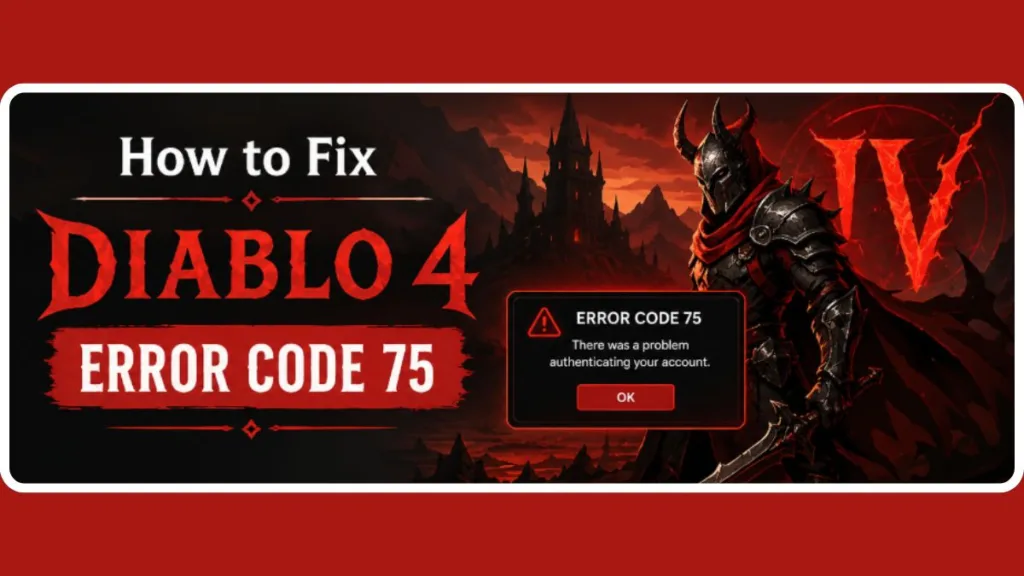
If you are staring at this screen right now, take a deep breath. The fastest fix is simply to update the game and restart your device. Let’s walk through exactly why this happens and how you can get back to slaying demons.
What Is Diablo 4 Error Code 75?
When you launch the game, ready to jump into a Helltide or tackle a Nightmare Dungeon, and the screen suddenly warns you that there is a “problem authenticating account,” it is easy to panic. You might immediately wonder, what does “problem authenticating account” mean in Diablo 4? Have you been hacked?
Fortunately, this is not an actual account issue. You have not been banned, and your characters and hard-earned loot are perfectly safe. The error simply means that your local game client is missing a recent patch and is out of sync with the live servers.
Because the Blizzard server only accepts connections from fully updated clients, it actively rejects your login attempt to prevent gameplay bugs.
Important Insight: This error tends to spike massively during major content drops—such as the launch of a new seasonal update or a massive DLC expansion like Vessel of Hatred. When millions of players are trying to log in, and Blizzard is pushing out rapid live patches, the chances of your personal game client falling behind by even a fraction of a version number increase dramatically.
Whether you are playing on a high-end PC, an Xbox, or a PlayStation, if you find your diablo 4 stuck on authentication error, it is almost always due to missing or delayed updates. If you are asking yourself, why am i getting error code 75 in diablo 4, the answer is right in your download queue.
Why You’re Getting Error Code 75 in Diablo 4
Outdated Game Version (Main Cause)
Blizzard frequently pushes background hotfixes and small patches to balance gameplay, adjust seasonal mechanics, or fix minor bugs. Even the absolute smallest micro-patch will trigger Error Code 75 if your client has not downloaded it yet.
The servers require a 1:1 version match to let you through the gates. Because Diablo 4 is a live-service game, Blizzard often pushes these tiny background updates to the servers without taking the whole game offline for maintenance.
If you are playing right when a hotfix goes live, your game client will instantly desync from the server, booting you out and hitting you with Error 75 the moment you try to log back in.
Hidden or Delayed Updates (Reddit Insight)
A common frustration noted by players on community forums like Reddit is that these crucial updates do not always show up immediately on your dashboard or launcher. Your console or PC might not realize a new update is available until you forcefully restart the device.
This action pings the servers anew and reveals the hidden download that is holding you back.
Console Tip: If you are playing on an Xbox, features like Quick Resume can actually trap your game in an outdated state. Your console essentially freezes the game in time, meaning it never realizes it needs to ping the server for a fresh patch. By forcefully quitting the game from your dashboard and clearing your console’s temporary cache with a hard restart, you break that cycle.
Auto-Update Not Working Properly
Many of us rely on automatic downloads to keep our libraries ready to play, and we are caught completely off guard when they fail. If your system is asleep, in a low-power state, or the launcher simply glitches out, the auto-update can fail silently without notifying you.
This leads to players desperately searching for a diablo 4 won’t update error 75 fix when they realize the background download never actually initiated.
How To Quick Fix for Error Code 75 in Diablo 4
If you just want to get back into Sanctuary as fast as possible and bypass the technical details, here is a quick “how-to” on exactly how to fix authentication error in diablo 4:
- Restart your device: Fully power down your PC or console and turn it back on. This is the most crucial step to refresh your network connection.
- Check for updates manually: Open your game launcher or console dashboard and force it to search for Diablo 4 updates. Do not wait for it to happen automatically.
- Relaunch the game: Once the patch successfully installs, open the game to authenticate your account successfully.
How to Update Diablo 4 Manually (All Platforms)
How to Update Diablo 4 on Battle.net (PC)
If you are wondering how to update diablo 4 manually battle.net, the process takes only a few clicks.
- Open your Battle.net launcher and click on the Diablo 4 game tab.
- Right next to the big blue “Play” button, you will see a gear icon.
- Click that gear icon and select “Check for Updates” from the drop-down menu.
PC Troubleshooting Tip: If nothing happens and you find yourself asking why won’t diablo 4 update on battle.net, you need to fully close the launcher. Make sure you check your Windows system tray (the small icons near your clock) to ensure it isn’t still running in the background. Once it is completely closed, reopen it to refresh the connection to Blizzard’s servers.
How to Update Diablo 4 on Steam
For those of you using Steam, navigate to your Library and right-click on Diablo 4 in your list of games.
- Select “Properties” from the menu and go to the “Updates” tab.
- Ensure the game is set to “Always keep this game updated.” You can also exit Steam entirely (again, check the system tray) and reboot it to force the platform to check for pending patches.
How to Update Diablo 4 on Xbox
To apply the diablo 4 error 75 xbox fix, press the glowing Xbox button on your controller and go to “My games & apps.” * Navigate down to “Manage” and select “Updates.” > Xbox User Tip: If Diablo 4 does not appear in this list, you need to restart your console completely. As noted by many Xbox players on Reddit, a hard reset is often required to make the pending update visible to your system.
How to Update Diablo 4 on PlayStation
Applying the diablo 4 error 75 ps5 fix (and this works exactly the same for PS4) is very straightforward.
- From your main home screen, hover over the Diablo 4 game tile.
- Press the “Options” button on your controller (the small button to the right of the touchpad) and select “Check for Updates” from the side menu that pops up.
The system will ping the PlayStation Network and immediately add the required patch to your download queue.
What If Diablo 4 Won’t Update?
Sometimes technology absolutely refuses to cooperate. If you are looking for a diablo 4 won’t update error 75 fix because the download is stuck at 0%, looping, or simply won’t trigger, try the following troubleshooting steps:
- Restart your system: A full system reboot clears out cached data and forces a fresh connection to the update servers.
- Check your internet connection: Ensure your device is properly connected to your network and has a stable signal. If you are on Wi-Fi, try plugging in an Ethernet cable temporarily.
- Force the update manually: Use the exact platform-specific steps outlined in the section above rather than waiting on automatic queues.
- Reopen the launcher: PC players should fully exit Battle.net or Steam using the Task Manager to kill all background processes, then relaunch the application as an administrator to ensure it has the necessary permissions to write new files.
Download Queue Trick: If the servers are experiencing incredibly heavy traffic during a new update launch, the Battle.net download agent can sometimes get stuck in a queue loop. A great trick here is to repeatedly pause and resume the download. This rapid action often forces the client to grab a fresh connection slot to the Blizzard update servers.
How to Verify Diablo 4 Game Files
If your launcher insists the game is completely up to date but you still cannot log in, your local files might be corrupted or missing a tiny data fragment. You will need to know: how do i verify my diablo 4 game files?
- Battle.net: Click the gear icon next to the “Play” button and select “Scan and Repair.” Let the bar fill up entirely.
- Steam: Right-click the game in your library, go to “Properties,” select the “Installed Files” tab, and click “Verify integrity of game files.”
This forces your system to meticulously check your local files against the live servers and download any corrupted or missing data.
Are Diablo 4 Servers Down Right Now?
If you have updated the game, verified your files, restarted your router, and still cannot get in, you might be wondering: are the diablo 4 servers down right now?
While Error 75 is almost always a client-side update issue, severe global outages can sometimes cause widespread login blockades that mimic authentication errors. To check the actual server status, visit the official Blizzard Customer Support social media channels (like their account on X) or use third-party tracking sites like DownDetector.
Server Error Guide: It is also worth noting that if the servers are genuinely offline or overloaded, the error code you see usually changes. Instead of Error 75, you might start seeing Error Code 300202 (which means the servers are temporarily at maximum capacity) or Error Code 34202 (which indicates the servers have been taken offline completely for maintenance).
If you only see Error 75, the ball is entirely in your court to update your files. If it is a global server issue affecting thousands of players, you simply have to sit back and wait for Blizzard to resolve it on their end.
Diablo 4 Error Code 75 After Update (Why It Still Happens)
It is incredibly frustrating to experience a diablo 4 error code 75 after update installations. If you just watched the patch download, hit play, and are still getting the exact same error, it usually means the update didn’t install correctly, or there is a lingering patch mismatch in your system’s cache.
Often, the game client requires a full system restart to properly apply the downloaded files to your hard drive. Restart your PC or console, verify the game files using the steps mentioned earlier, and try launching the game again.
How to Prevent Error Code 75 in Diablo 4
To minimize interruptions to your valuable gaming time, you can take a few proactive steps to prevent this error from popping up in the future:
- Enable auto-updates: Double-check that your console or PC launcher is actively set to automatically download patches in the background.
- Restart after patches: If you know a major seasonal update or mid-season patch just dropped, make it a habit to restart your system before trying to log in.
- Keep your launcher active: On PC, leaving Battle.net or Steam running quietly in the system tray allows hotfixes to install while you are working or away from the keyboard.
- Monitor updates: Keep an eye on official Diablo 4 community channels or patch notes so you are never caught off guard by sudden hotfixes.
FAQ
How do I fix error code 75 in Diablo 4? Close the game, check your platform’s dashboard or launcher for a pending manual update, install it, and relaunch Diablo 4. Restarting your device first can help force the update to appear if it is hidden.
What does “problem authenticating account” mean in Diablo 4? It means your specific game client is outdated and does not match the live server version. It is a connection protection measure; it is not a ban or an actual issue with your account standing.
Why won’t Diablo 4 update on Battle.net? The launcher might be frozen or experiencing a temporary caching issue. Fully close Battle.net, end the background process in your Task Manager, and relaunch it to trigger the required update.
Are the Diablo 4 servers down right now? Error 75 is usually a local update issue on your specific machine, not a global server outage. However, you can always check the Blizzard CS Twitter account or DownDetector to confirm if there are widespread server problems preventing logins.
Final Thoughts
Encountering Error Code 75 in Diablo 4 is a very common but incredibly easy-to-fix issue. It is almost always solved by simply updating your game and ensuring your client version exactly matches the live servers.
Because Diablo 4 is a massive live-service game that receives frequent hotfixes and balance tuning, this error may return with future patches. Just remember to manually check for updates, give your system a quick restart when necessary, and you will be right back to exploring Sanctuary in no time.
Visit Our Post Page: Blog Page
Discover more from Izoate
Subscribe to get the latest posts sent to your email.