
Can’t find the pin comment option on Facebook? Learn why it’s missing and how to pin comments on posts, pages, and groups easily.
Have you ever scrolled through a lively Facebook comment section and noticed one specific comment sitting perfectly at the very top, marked with a tiny pushpin icon? That positioning is not an accident—it is a highly strategic move designed to guide the conversation, highlight crucial information, and ultimately boost the overall engagement of the post.
Pinning a comment is one of the most powerful moderation tools at your disposal. Instead of letting a valuable insight, a hilarious joke, or an important link get buried under hundreds of newer replies, pinning ensures it remains the absolute first thing your audience sees.
In this comprehensive guide, we are going to walk you through the exact steps to pin a comment on both desktop and mobile devices. However, if you are reading this because you went to pin a comment and discovered the option has completely vanished, you are not alone. We have been tracking a widespread platform shift. We will explain exactly why that button is missing, debunk a popular but useless “fix,” and show you where the feature still works in 2026.
How to Pin a Comment on Facebook (Desktop)
If you are managing your Facebook presence from a web browser on your PC or Mac, highlighting a comment takes just a few quick clicks. Here is how to lock a comment to the top of your thread:
- Navigate to the Post: Log in to your Facebook account via your preferred web browser and head straight to the specific post on your Page or Group.
- Find the Target Comment: Scroll through the existing thread and locate the exact comment you want to highlight. Remember, you can pin your own comment or a comment left by someone else.
- Click the Menu Icon (⋯): Hover your mouse over the target comment. Right next to it, you will see a small icon with three horizontal dots. Click this to open the moderation menu.
- Select “Pin Comment”: Choose the “Pin Comment” option from the drop-down list.
Immediately, the page will refresh slightly, and that comment will jump to the very top of the thread, permanently displaying a small pin icon next to the timestamp.
How to Pin a Comment on Facebook (Mobile App)
Managing your community on the go? The process on the Facebook mobile app (for both iOS and Android) is just as simple, though the interface requires a different gesture.
- Launch the Facebook App: Open the app on your smartphone and ensure you are logged into the correct account with admin privileges for the post.
- Locate Your Post: Navigate to the specific post and tap on the comment icon to fully open the comment section.
- Long-Press the Comment: Find the comment you wish to highlight. Instead of looking for a three-dot menu, simply press and hold your finger down on the text of the comment for about two seconds.
- Tap “Pin Comment”: A menu will slide up from the bottom of your screen. Tap “Pin Comment.” Your chosen comment is now securely anchored to the top, ensuring maximum visibility for mobile users scrolling through their feeds.
Why Can’t I Pin a Comment on Facebook?
If you just read the steps above, tried them on your own post, and only saw options to “Edit” or “Delete”—take a deep breath. Your app isn’t broken, and your account hasn’t been restricted.
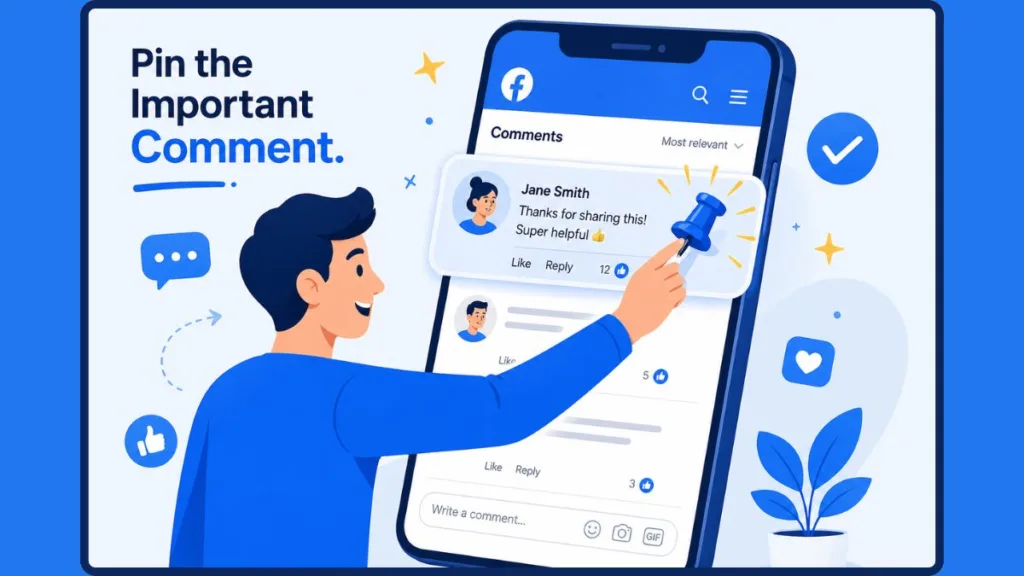
There is a widespread, deeply frustrating reality facing users right now: Meta has quietly restricted the ability to pin comments on standard personal profile posts.
Users across Android, iOS, and Windows desktop browsers have flooded tech forums confused by this unannounced UI change. If you are posting to your personal feed (not a Business Page or a Group), the pinning functionality has largely been phased out.
Debunking the “Most Relevant” Myth
If you search for a solution to this missing button, you will inevitably find articles or forum comments telling you to dive into your account’s privacy settings and toggle on the feature that says, “Show most relevant comments first.” Do not waste your time. We have extensively tested this supposed workaround, and it does absolutely nothing to restore the missing “Pin” button on personal profiles. Changing how comments are sorted algorithmically does not give you manual pinning controls back.
Where the Pin Feature Actually Works
While the feature is missing from standard personal timelines, Meta has preserved it for community management and professional tools. You can still seamlessly pin comments if you are operating within:
- Facebook Pages: Business, brand, and creator Fan Pages still have full pinning capabilities.
- Facebook Groups: Group Admins and Moderators retain the power to pin comments to manage their communities, enforce rules, or highlight helpful member contributions.
Pro Tip: If you need to highlight crucial information on a personal post but cannot pin a comment, your best workaround is to edit the main caption of the post itself and add your update at the very top or bottom.
5 Best Practices for Pinned Comments (For Pages & Groups)
If you are running a Page or managing a Group where the pin feature is fully functional, you should be using it strategically. You can’t just pin any random thought; you need to leverage the space to keep your comment section lively and productive.
1. Pin Positive Comments to Build Social Proof
Human psychology dictates that we often match the energy of the room we walk into. The same goes for comment sections. If you pin a thoughtful, enthusiastic, and highly positive comment to the top of your post, new readers will instantly clock that vibe. Highlighting this visible social proof builds immediate trust and encourages others to leave similarly positive, high-value reactions.
2. Pin Helpful Answers to Reduce Repetitive Questions
Have you ever posted a tutorial or an event announcement, only to have fifty people ask the exact same question in the comments? If one user leaves a comment asking a vital question (e.g., “What time do the doors open?”) and you reply with a clear answer, pin their question! This stops repetitive inquiries in their tracks, provides immediate value to readers, and keeps your comment section from becoming cluttered with identical queries.
3. Pin Your Own Comment to Spark Conversation
Don’t wait for your audience to start the discussion—take the lead. Immediately after publishing a post, drop a thoughtful insight, a polarizing question, or a prompt in the comments, and pin it. When viewers scroll down, seeing a direct question from the creator shows that you are actively listening and ready to interact. It is an incredible way to showcase your brand’s personality and jumpstart community engagement.
4. Use Pinned Comments to Share Important Updates
Did you run out of stock on a product you just posted about? Did a link break? Do you have a flash coupon code to share? Use the pinned comment as an emergency broadcast system. Users who have clicked into the comment section are already highly engaged; speaking to them directly with exclusive updates or promo codes is a fantastic way to convert engaged scrollers into loyal customers.
5. Pin Customer Testimonials
A pinned comment acts as a massive credibility signal. If a customer leaves an organic, glowing review about your product or service on a recent post, pin it immediately. Viewers curious enough to read the comments are often one step away from making a purchasing decision. If the very first thing they see is a verified, positive testimonial from a real user, you have already won half the battle.
How to Unpin a Facebook Comment
Eventually, a pinned comment will outlive its usefulness. The event passes, the coupon code expires, or the conversation naturally shifts in a new direction. Unpinning a comment is just as easy as pinning one:
- Locate the currently pinned comment sitting at the top of the thread.
- Click the three dots (⋯) next to it on the desktop, or long-press the comment on your mobile app.
- Select “Unpin Comment” from the menu.
The comment will immediately lose its pin icon and drop back down into its natural, chronological position within the thread, allowing the discussion to flow organically once again.
Frequently Asked Questions (FAQ)
How many comments can I pin on Facebook?
You can only pin one comment per Facebook post at a time. If you already have a comment pinned and you select “Pin Comment” on a new one, the old comment will be automatically unpinned and replaced by the new one.
Can I pin a comment on someone else’s post?
No. You can only pin comments on posts that you own, or on posts within a Page or Group where you hold Admin or Moderator privileges. You cannot go to a friend’s personal post and pin your own comment to the top of their thread.
Can I pin comments on Facebook Ads?
No. While you can actively reply to, hide, or delete comments on active Facebook ad campaigns, Meta currently does not support the ability to pin comments on sponsored ad posts.
Does Facebook notify someone when you pin their comment?
No, Facebook does not send a dedicated push notification or alert to a user letting them know their comment was pinned. However, if they return to the post to view the thread, they will clearly see the pin icon attached to their name.
Visit Our Post Page: Blog Page
Discover more from Izoate
Subscribe to get the latest posts sent to your email.