
Getting the frustrating Error 400 Bad Request on Gmail? Learn what causes this issue and discover 5 proven steps to fix it on desktop and mobile quickly.
If you are currently trying to check your emails, access an important Google Drive document, or reply to an urgent work thread and suddenly encounter a roadblock, you are certainly not alone. There is nothing quite as frustrating as being locked out of your own digital workspace when you need it the most.
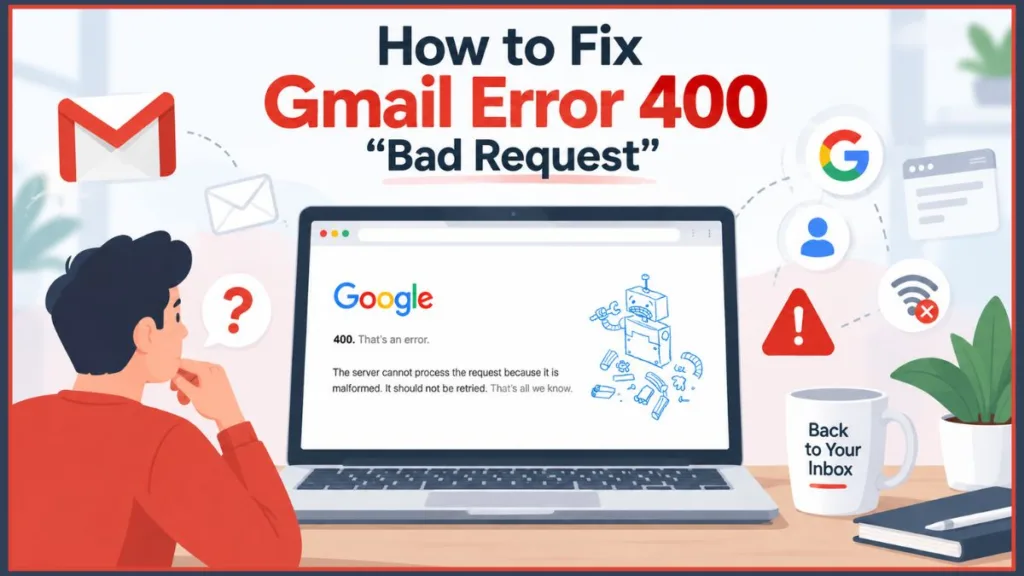
Many users report seeing the specific, frustrating message below:
“Error 400 (Bad Request) !!1 — The server cannot process the request because it is malformed. It should not be retried.”
This specific google Gmail error 400 often strikes without warning. It can appear out of nowhere, even when the Gmail interface looks completely normal right up until you click a button, and even when other websites load perfectly fine on the next tab.
While it severely disrupts your workflow, the good news is that this issue is almost always temporary. Furthermore, it rarely results from user error—so take a deep breath, because you haven’t broken anything, and your emails are completely safe.
In this comprehensive, step-by-step guide, we will walk you through exactly what this error means, why your inbox might fail to load, and the specific, actionable steps you must take to find a Gmail error 400 fix quickly and get back to your day.
What Does Error 400 Mean in Gmail?
To better understand the problem and how to solve it, we must first define what the error actually signals in the background of your web browser.
What is error 400? In web development, an HTTP 400 status code is known as a “Client Error.” This message means Google’s servers were unable to process your specific request at that exact moment because the data sent by your web browser (the “client”) was corrupted, incomplete, or formatted incorrectly. It does not automatically indicate an account ban, a deleted inbox, a hacked password, or that the Gmail server has crashed completely.
Think of it like handing a postal worker a letter with a smudged, completely unreadable address. The post office itself is working perfectly fine, but they cannot process your specific envelope because the instructions are flawed. In most cases, the Gmail error 400 bad request points to one of the following specific triggers:
- A corrupted browser session: Your browser is sending expired, mismatched, or “confused” login data.
- An extension conflict: A third-party add-on is improperly modifying the page code before it reaches Google.
- A blocked background request: Your computer’s security or antivirus software is aggressively stopping Google from securely downloading necessary background scripts.
Why This Error Happens
Based on real usage patterns, community support threads, and technical analysis, this google error 400 bad request usually stems from one or more of the specific reasons below. Understanding the “why” helps you pinpoint the exact google 400 error fix you need.
1. Browser Session and Cookie Corruption
A corrupted browser session can cause the error to repeat instantly. We often leave Gmail tabs open for days or weeks at a time. When Google updates its background services, your old cookies can conflict with the new requirements. In these cases, refreshing alone won’t help because the stored data itself is bad. The browser keeps sending invalid, outdated cookies to the server, which the server consistently rejects.
2. Extension Interference
Sometimes, an outdated ad-blocker, a strict privacy shield (like Privacy Badger), or even a grammar-checking extension alters the web traffic between your browser and Gmail. When the Google server receives this modified, heavily filtered traffic, it flags it as a “malformed request” and instantly drops the connection to protect your account.
3. Antivirus or Network Restrictions
Aggressive antivirus software—Kaspersky is famously known to cause this specific issue, though Avast and Bitdefender can occasionally do it too—can prevent secure background requests from reaching Google correctly. When your security software blocks a silent background download required by Google Chrome to run Gmail efficiently, it triggers the error.
4. Partial Outage or Capacity Issues
Occasionally, if Google Workspace experiences immense backend congestion or is deploying a massive global update, the system might trigger a vague error message like this instead of a standard, user-friendly loading screen.
Quick Checks Before You Try Fixes
Before you dive deep into troubleshooting your browser settings, you should quickly run through this diagnostic checklist. Doing this takes less than a minute and can save you hours of unnecessary troubleshooting:
- The Private Window Test: Does the error still appear when you switch to Incognito Mode or Private Browsing? (If it works here, your extensions or cookies are the problem).
- The Browser Swap Test: Does the same issue occur on another browser? For example, if it’s broken in Google Chrome, try opening Mozilla Firefox or Microsoft Edge.
- The Device Test: Does the problem happen on your phone, requiring a Gmail error 400 mobile fix, or is it completely isolated to your desktop computer?
If you answered “yes” to most of these questions, the issue is likely a wider network-related problem or a server-side outage rather than a simple browser glitch. If the problem is isolated to just one browser, proceed to the steps below.
How to Fix Gmail Error 400: 5 Step Guide
To resolve this efficiently, follow these steps in order. We strongly recommend that you do not skip ahead, as the simpler fixes often work best and are the least invasive.
Step 1: Refresh and Retry After a Few Minutes
In many cases, the error resolves on its own as a temporary network hiccup clears up. Waiting a short time (3–5 minutes) before retrying often works, especially during brief service interruptions.
- Standard Refresh: Click the circular reload arrow next to your URL bar or simply press
F5on your keyboard. - Hard Refresh (Cache-Busting): If a standard refresh doesn’t work, force your browser to completely ignore its saved cache for that specific page and fetch fresh data from Google. On Windows, press
Ctrl + F5. On a Mac, pressCmd + Shift + R.
Step 2: Clear Browser Cache and Cookies
If the error appears immediately every time you load mail.google.com, this is the ultimate, most successful fixing 400 error Gmail solution. Over time, your browser stores temporary files to make websites load faster, but when these files become corrupted, they break the site entirely.
For Google Chrome (Desktop):
- Click the three-dot menu icon located in the top right corner of your Chrome window.
- Select Settings from the drop-down menu.
- On the left-hand sidebar, click Privacy and security.
- Click on Clear browsing data (Alternatively, you can bypass these steps by pressing
Ctrl + Shift + Deleteon Windows orCmd + Shift + Deleteon Mac). - A pop-up window will appear. In the Time range drop-down menu, you must select All time for this fix to be effective. Selecting just the last hour won’t delete the older, corrupted files.
- Check the boxes specifically for “Cookies and other site data” and “Cached images and files.”
- Click the blue Clear data button. Close completely out of Chrome, reopen it, and log back into Gmail.
For Mozilla Firefox (Desktop):
- Click the three-line menu (hamburger icon) in the top right.
- Select Settings, then click Privacy & Security on the left.
- Scroll down to the Cookies and Site Data section and click Clear Data.
- Ensure both boxes are checked and click Clear.
For Safari (Mac):
- Open Safari and click the word Safari in the top menu bar, then select Settings (or Preferences on older macOS versions).
- Go to the Privacy tab and click the Manage Website Data button.
- Search for “Google” or “Gmail” in the top right search bar, select the entries that appear, and click Remove.
- To clear the cache, go to the Advanced tab, check the box at the bottom for “Show Develop menu in menu bar,” then click the new Develop option in the top menu bar and select Empty Caches.
(You can also refer to Google’s official guide on clearing cache and cookies for more details).
Step 3: Try Incognito Mode and Disable Extensions
If completely clearing the cache fails, you need to test if a third-party extension is actively breaking the page by blocking essential scripts.
- Open an Incognito Window: In Chrome, press
Ctrl + Shift + N(Windows) orCmd + Shift + N(Mac). This opens a secure private window where all extensions are disabled by default. - Test Gmail: Go to Gmail.com and log in. If your inbox loads perfectly here, an extension is definitively the culprit.
- Isolate the Extension: Close the Incognito window and go back to your normal browser window. Type
chrome://extensions/into your URL bar and hit Enter. - Disable and Test: Toggle off every single extension using the blue slider buttons. Refresh your Gmail tab. If it loads, begin turning your extensions back on one by one, refreshing Gmail after each one. Once the error returns, you have found the culprit. Leave that specific extension disabled or remove it entirely.
Step 4: Check Antivirus Software
If you use Kaspersky or another strict third-party antivirus suite, check your web protection and SSL scanning settings. Security software can sometimes overreach, intercepting secure traffic to scan it, which Google interprets as a “Bad Request.”
- Open your Antivirus software dashboard from your system tray or applications folder.
- Look for the Settings, Preferences, or Protection menu (often represented by a gear icon).
- Navigate to the Network Settings, Web Anti-Virus, or Encrypted Connections Scanning section.
- Ensure you disable the blocking of background downloads from
google.com, or manually addmail.google.comto your software’s Trusted URLs / Whitelist / Exclusions list. - Save your changes, restart your computer to ensure the antivirus service resets, and try accessing Gmail again.
Step 5: Try Another Device (Mobile vs. Desktop)
Testing your account on a completely different device helps isolate whether the issue is tied to your specific hardware. If the mobile app works flawlessly on the same Wi-Fi, your computer’s local network or browser settings likely need adjustment. If you are experiencing this on a smartphone, here is your specialized tutorial:
For Android Users:
- Open your phone’s central Settings app.
- Tap on Apps or App Management (this varies slightly depending on your phone manufacturer).
- Scroll down the list of all apps and tap on Gmail.
- Tap Storage & cache.
- Tap Clear Cache. Try opening the app. If it still fails, go back and tap Clear Data (Don’t worry, this will not delete your actual emails from the server, it merely resets your local login session and app preferences).
For iPhone/iOS Users:
- iOS does not feature a universal “Clear Cache” button for individual apps like Android does. Locate the Gmail app on your iOS home screen or App Library.
- Press and hold the app icon until a pop-up menu appears.
- Tap Remove App, then specifically select Delete App to completely wipe the local data.
- Open the App Store, search for Gmail, and reinstall it to establish a completely fresh, uncorrupted connection to Google’s servers.
Is Gmail Down Right Now? How to Tell
Sometimes, no amount of troubleshooting on your computer will fix the issue because the problem isn’t on your end at all. Gmail can experience partial service outages where some features fail while others remain accessible. This means you might still see your inbox list, but you cannot open individual emails, view attachments, or send new messages without seeing the 400 error.
To confirm if the issue is a genuine outage rather than a localized error on your machine, you should bypass rumors and check the official Google Workspace Status Dashboard. This dashboard provides real-time, verified updates on the health of all Google services, including Gmail, Drive, and Calendar. A green checkmark means everything is operational, while an orange or red icon indicates a known, active disruption.
Additionally, checking third-party community services like DownDetector can provide real-time user reports. If you navigate there and see a massive, immediate spike in reports for Gmail, you can comfortably confirm that thousands of others are facing the exact same outage. You can also search “Gmail down” on social platforms like X (formerly Twitter) or Reddit to see if users are currently complaining about the same error code.
However, strong signs of a wider server issue include:
- The error appears for every single email you attempt to open or send.
- None of the 5 fixes above work, even across entirely different browsers, devices, and internet networks.
- The issue starts suddenly and persists without any change for more than 15 to 30 minutes.
How to fix Gmail temporary error 500 / 400?
While a standard error 400 is typically a client-side issue (meaning a corrupted request originating from your specific browser), an error 500 is almost exclusively a server-side failure. If you are seeing error 500 alongside error 400, or if the Google Workspace Status Dashboard shows a confirmed disruption, the problem is entirely rooted on Google’s end.
When this happens, there is no magical Gmail error 400 server status fix or browser tweak you can apply locally to force the server to work. The only effective solution is to wait patiently for Google’s engineering team to restore the service infrastructure.
However, if you are experiencing a temporary error 500 that seems stubbornly isolated to your account (and there are no reports of a wider outage), you can try one advanced trick: Sign out of your Google account entirely, close your browser, wait a few minutes, and log back in. This discards your stale authentication token, which can occasionally resolve persistent server-side glitches that have gotten stuck in an endless authentication loop.
FAQs
What does Gmail error 400 mean?
It means your web browser sent a request to Google’s servers that was considered malformed, corrupted, or actively blocked. Because the server could not securely read the request, it prevented the server from loading your inbox to protect your data.
How to fix Gmail error 400 invalid_request?
This specific “invalid_request” API and login variation usually occurs when your Google account authentication tokens fall out of sync. It is usually fixed by completely logging out of all Google accounts on your browser, clearing “All time” cookies specifically for Google domains, restarting the browser, and logging back in from scratch.
What is the best Gmail error 400 mobile fix?
If you see this error on a mobile device (Android or iPhone), the quickest fix is to force quit the Gmail app from your multitasking menu. If that fails, Android users should clear the app’s cache in the phone’s system settings. iPhone users should completely uninstall and reinstall the Gmail app to force a fresh connection.
What to Do If Nothing Works
Troubleshooting tech issues is rarely fun, but you have options. If you have patiently tried every single fix listed above—from clearing your cache to disabling your antivirus—and the error still stubbornly appears, the best option is to stop retrying and simply wait.
Repeatedly mashing the refresh button or attempting to log in dozens of times during a temporary Google server issue won’t speed things up, and can sometimes trigger automated security lockouts that complicate things further. We recommend that you step away, focus on another task, and come back later to try again once network conditions stabilize. In the vast majority of cases, the error resolves itself seamlessly behind the scenes without any further action required on your end!
Visit Our Post Page: Blog Page
Discover more from Izoate
Subscribe to get the latest posts sent to your email.