
HSR Error Code 19 stopping your Honkai: Star Rail update? Learn why downloads get stuck at 0.01 MB and follow proven fixes for solve error 19 for PC, Android, iPhone, and PS5.
You’ve waited patiently for the latest Honkai Star Rail game update to finish downloading. The progress bar inches forward, you get ready to board the Astral Express, and suddenly it freezes with only 0.01 MB remaining. Then, the dreaded HSR Error Code 19 pops up on your screen.
Take a deep breath and don’t panic. You aren’t the only Trailblazer dealing with this annoying glitch right now.
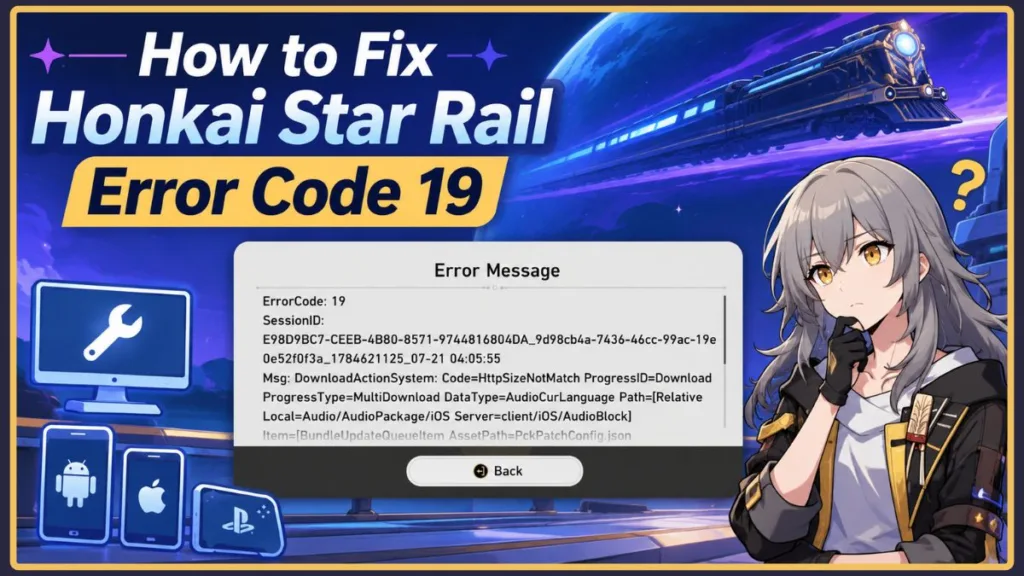
Your account is perfectly safe, your progress is intact, and your device likely has plenty of free storage space despite what the error might suggest. Based on player reports and the way the launcher behaves, Error Code 19 usually appears when downloaded game resources cannot be verified or completed. We are going to walk through the most reliable, community-tested ways to fix the problem across PC, Android, iPhone, and PS5 so you can get back to your game.
Quick Answer
Although HoYoverse hasn’t publicly documented Error Code 19, community reports suggest it is commonly associated with a patch download getting stuck at the very end due to an interrupted download or server congestion. To quickly fix it on a PC, open the HoYoPlay Launcher, navigate to the launcher settings menu, and select the option to clear downloaded resources. If you are playing on a mobile device, force stop the app, check your storage, and briefly switch from Wi-Fi to mobile data to kickstart the final megabyte of the game resources download.
Check Whether the Problem Is Server-Side
Before diving into device settings, it helps to verify if the issue is actually on your end. Error Code 19 HSR often appears immediately after large version updates. When thousands of players attempt downloading game resources simultaneously, the HoYoverse servers can experience temporary resource verification delays.
Before trying complex fixes, check Honkai Star Rail Server Status to see if the servers are currently congested or under maintenance. You can also look at official HoYoverse announcements, their official social media channels, or community hubs like Reddit to see if others are reporting the exact same resource download failed message. If the servers are struggling, simply waiting an hour is often more effective than repeatedly reinstalling your game.
What Exactly is HSR Error Code 19?
Although HoYoverse hasn’t publicly documented Error Code 19, community reports suggest it is commonly associated with interrupted downloads or resource verification problems. The game launcher usually downloads almost all the new patch files, but trips over the very last piece of data.
When a temporary file becomes damaged during a network transfer, the launcher detects that one or more downloaded files are incomplete or cannot pass the verification process. It immediately stops the installation to prevent a faulty game update.
This behaves very similarly to connection bugs you might encounter while updating Genshin Impact or Zenless Zone Zero. The launcher simply keeps trying to verify the broken data and fails. Your files just need a gentle nudge in the right direction to complete the download verification.
How to Fix Error 19 in Honkai Star Rail (Step-by-Step)
HoYoverse’s official troubleshooting guidance generally recommends checking your network stability, verifying game files, ensuring sufficient storage space, keeping the launcher updated, and reaching out to support if the issue persists. Reinstalling the game is treated strictly as a final step.
Meanwhile, players have discovered specific workarounds that effectively push the update through. Start from the top of this list and work your way down.
1. Clear the Downloaded Resource Cache (PC & Mobile)
When your download freezes with exactly 1 MB or 0.01 MB remaining, clearing out the temporary files is incredibly effective. Many affected players reported success after clearing the downloaded resource cache.
Why it works: The HoYoPlay Launcher temporarily stores partially downloaded patch files. If one of these chunks becomes corrupted, the launcher keeps attempting to verify the damaged copy. Clearing the launcher cache forces the system to delete the broken file and pull a completely fresh download directly from the HoYoverse servers.
How to do it on PC:
- Open the HoYoPlay Launcher and look for the settings gear icon.
- Depending on your launcher version, its location may vary slightly, but it is typically found by clicking the Settings icon and checking under the Advanced or General tab.
- Locate and click on the option to Clear downloaded resources cache.
- Confirm your choice, restart the launcher, and try the download again.
How to do it on Android:
- Open your phone’s Settings app and tap on Apps.
- Find and select Honkai: Star Rail.
- Tap Force Stop at the bottom of the screen.
- Tap on Storage, then select Clear Cache (Do not tap Clear Data).
- Relaunch the game.
A quick note for Android users: Some Android devices aggressively restrict background activity to save battery. Ensure Honkai: Star Rail isn’t being interrupted by battery optimization settings, and check that the app has the proper storage permissions to write the new game resources to your device.
How to do it on iPhone (iOS):
iOS doesn’t provide a dedicated cache-clearing option for Honkai: Star Rail. To clear temporary data, you will need to approach it differently:
- First, fully force close the app by swiping it away from your multitasking screen.
- Restart your iPhone to clear the system memory.
- Check your available storage in Settings to ensure you have enough space for the unpacked files.
- If the problem continues, navigate to Settings > General > iPhone Storage, select Honkai: Star Rail, and tap Offload App. Reinstall it afterward to force a fresh download while keeping your account data safe.
Tip: If the download keeps stopping at exactly the same percentage, clearing the downloaded resource cache usually works better than repeatedly pressing the Retry button.
2. Run the “Repair Game Files” Tool
If clearing the cache didn’t work, your actual game installation files might have an error. HoYoverse provides an official, built-in tool specifically for this scenario.
Why it works: The repair game files tool systematically scans every single file on your hard drive and cross-references them against the official server’s master list. If it detects missing or damaged game resources, it automatically downloads and replaces them, fixing the broken update without requiring a full reinstall.
How to do it on PC:
- Open the HoYoPlay Launcher.
- Look for the Repair Game Files option. Depending on your launcher version, it is typically found by clicking the menu icon (three horizontal lines) directly next to the Start Game button.
- Select Repair Now from the drop-down list.
- Let the verification process run uninterrupted.
Expected result: The launcher will attempt to fix the interrupted download. Depending on the speed of your hard drive, this process can take anywhere from five to fifteen minutes. Move to the next fix only if the repair tool finishes but the error pops up again.
3. Restart and Force Close the Game
Never underestimate a simple reboot. Sometimes the game client gets stuck in a loop and needs to be forcefully shut down.
Why it works: Force closing the application instantly clears the active system memory and kills any background processes that might be clinging to a network port or locking a file, allowing the launcher to establish a fresh connection.
How to do it on PC:
- If the game or launcher is completely frozen on the error screen, press Alt + F4 on your keyboard to force it closed.
- If that doesn’t work, press Ctrl + Shift + Esc to open the Task Manager, find the HoYoPlay launcher, and click End Task.
- Relaunch the game.
How to do it on Mobile:
- Swiping to your home screen isn’t enough. Open your device’s multitasking view (swipe up and hold on modern phones).
- Swipe the Honkai Star Rail app completely off the screen to kill the process.
- Tap the app icon to start completely fresh.
4. Toggle Your Network Connection
Sometimes the local routing from your Internet Service Provider (ISP) experiences a micro-interruption, preventing that final file from coming through.
Why it works: Switching to a completely different network forces your device to establish a brand-new connection path to the HoYoverse servers, bypassing whatever local DNS cache or ISP routing block was causing the network interruption.
How to do it:
- If you are playing on an iPhone or Android device, turn off your Wi-Fi.
- Turn on your mobile data (cellular connection).
- Open the game and let it download the final few megabytes.
- Once you are successfully on the login screen, you can safely switch back to Wi-Fi.
- If you are dealing with HSR Error Code 19 in PC or HSR Error Code 19 in PS5, try connecting your system to your phone’s mobile hotspot just long enough to finish the update.
What to Do If HSR Error Code 19 Persists
If you have tried all the steps above and you are still staring at a stuck progress bar, you are likely dealing with a larger issue.
Update the HoYoPlay Launcher
Before reinstalling the entire game, ensure your client itself isn’t out of date.
Why it works: Newer game patches sometimes require the latest launcher version to handle background file unpacking properly. Older launcher builds may experience compatibility issues or fail the download verification process.
How to do it:
Close the client completely, then reopen it. If a launcher update is available, a prompt will usually appear immediately. Allow the launcher update to install completely, then relaunch the game to see if the error clears.
Reinstall the Game
Consider this the nuclear option. If corrupted installation files are causing the problem, reinstalling often resolves issues that repairing game files cannot.
Completely uninstalling the game and downloading a fresh version directly from the HoYoPlay launcher, the App Store, or Google Play takes time, but it completely removes any trace of the corrupted files causing the headache.
Methods You Can Probably Skip
When you are desperately searching for a fix, you might see advice suggesting complex network changes. You can generally skip these:
- Using a VPN: Virtual Private Networks produce mixed results. While they may help in rare ISP routing issues, they don’t consistently resolve Error Code 19 and shouldn’t be one of your first troubleshooting steps.
- Changing DNS Settings: Modifying your router’s DNS is a hassle and rarely solves a simple corrupted launcher cache issue.
- Disabling Windows Firewall or Antivirus: Unless your security software explicitly quarantines a game file, your standard Windows Firewall isn’t suddenly blocking an update for a game you’ve played for months.
| Method | Best Used When | Typical Success | Why It Helps | Time Required |
| Clear Download Cache | Corrupted patch files | High | Forces a completely fresh download of the broken temporary file. | 1 minute |
| Repair Game Files | Missing or damaged resources | High | Scans and replaces incomplete game files automatically. | 5–15 minutes |
| Switch Networks | ISP routing issues | Moderate | Bypasses local network interruptions. | 2 minutes |
| Wait for Server Congestion | Patch-day traffic | High (server-related) | Gives official servers time to stabilize under heavy load. | 30–120 minutes |
| Reinstall Game | Severe installation corruption | High | Clears all old data to start from a perfectly clean slate. | 1+ hour |
Note: Typical Success ratings reflect official HoYoverse troubleshooting guidance paired with widespread community reports.
When to Contact HoYoverse Support
If you have exhausted all your options, it is time to reach out to the development team. We highly recommend using the official HoYoverse Support Center first. Submitting a ticket through the web portal or in-game menu is generally the fastest way to get your account reviewed by their technical team.
- The Repair Game Files tool repeatedly fails or crashes.
- The download always stops at the exact same percentage, regardless of the network you use.
- Reinstalling the game completely does not resolve the error.
- Your launcher client logs show repeated network failures.
You can also email official support directly at hsrcs_en@hoyoverse.com. To help them investigate faster, include your platform (PC, Android, iOS, or PS5), your HoYoPlay launcher version, the specific patch version you are trying to download, your in-game UID, a clear screenshot of the error, and a brief list of the troubleshooting steps you already tried.
Frequently Asked Questions
Why is my Honkai Star Rail download stuck at 0.01 MB?
Your launcher successfully downloaded the bulk of the update, but the final temporary file likely became corrupted or disconnected. The launcher detects that the downloaded file is incomplete and stops the installation to prevent a faulty game update.
Does Error Code 19 mean my storage is full?
No. While it looks like a capacity issue, community reports show this error frequently happens even when players have ample free space. It is commonly a file verification and network problem, not a storage limitation.
How do I clear the launcher cache for Honkai Star Rail?
Open the HoYoPlay Launcher, navigate to the launcher settings menu (usually a gear icon), and look under the Advanced or General tab for the “Clear downloaded resources cache” option.
Can a VPN fix HSR Error Code 19?
Usually, no. While it helps in rare cases of strict regional ISP blocking, most players find that using a VPN during this specific error produces mixed results or causes the launcher to drop the connection entirely.
How long do HoYoverse servers take to fix download errors?
If the issue is caused by patch-day server congestion, temporary download failures typically resolve themselves within one to two hours as the initial wave of player traffic subsides.
Will repairing game files delete my progress?
Absolutely not. Your Honkai Star Rail save data and account progress are stored safely on HoYoverse’s cloud servers. Repairing game files only fixes the local application files installed on your hard drive.
How do I fix Honkai Star Rail Error Code 19 on iPhone?
Force close the app and restart your phone. Check your iPhone Storage in Settings to ensure you have enough space. If that fails, temporarily switch off Wi-Fi and use cellular data, or choose the Offload App option in your storage settings to safely force a fresh download.
Conclusion
Getting hit with an error screen right before you jump into a new patch is incredibly frustrating, but HSR Error Code 19 is highly manageable.
If this error popped up immediately after a major game update, remember that server congestion heavily contributes to download failures. Simply walking away and waiting an hour before retrying the resource verification can sometimes save you from an unnecessary reinstall.
Remember to work through the troubleshooting steps in order. Don’t jump straight to a massive, time-consuming full reinstall when a simple two-minute cache clear might solve the problem. Open up your HoYoPlay settings, find the option to clear your downloaded resources, and let the launcher force a fresh file verification. If you’re on a phone, fully force close the app, restart your device, and try a quick network switch. In the vast majority of cases, these simple steps are all it takes to clear out the corrupted files and get you back on the Astral Express.
Visit Our Post Page: Blog Page
Discover more from Izoate
Subscribe to get the latest posts sent to your email.