
Frustrated by the Vanguard VAN 128 error in VALORANT or League of Legends? Discover how to easily fix driver conflicts and get back into your match today.
If you’ve just been booted from a ranked match in VALORANT or League of Legends because of a Vanguard crash, you know exactly how annoying this is. The Vanguard VAN 128 Error usually pops up right after you press “Play,” completely blocking you from logging in and forcing the client to close.
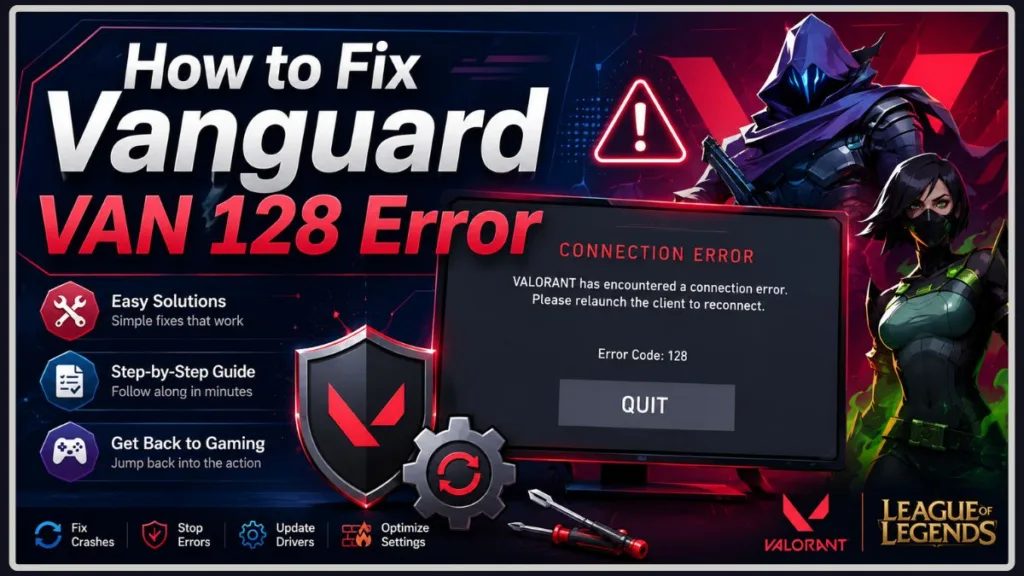
While waiting for a Riot Support ticket can sometimes take days, people dealing with the same problem often find that a few quick driver or Windows settings tweaks can fix this issue in minutes.
Here is a breakdown of what might be happening to your system and the steps you can take to get back into your game.
What Does the VAN 128 Error Mean?
According to Riot Games, VAN 128 means Riot Vanguard failed to start or couldn’t complete its system trust checks.
Riot Vanguard is a kernel-level anti-cheat system. This means it operates at the deepest level of your Windows 10 or Windows 11 operating system to prevent hackers from tampering with the game. For Vanguard to approve your login, it needs to boot up perfectly cleanly. If something blocks its startup sequence, Vanguard will usually shut down the game and throw a Vanguard startup error.
Why Are You Getting the VAN 128 Error?
Vanguard is strict. Some of the most common potential causes of this specific Riot Client error include:
- Vanguard driver conflict: A background application (like an audio mixer or recording software) might be trying to load before Vanguard, which can sometimes trigger a security fail-safe.
- Windows Security Settings: Your PC might be running debugging modes or test environments that Vanguard doesn’t trust.
- Antivirus Interference: Third-party antivirus programs can sometimes falsely flag Vanguard as malicious malware and quarantine its files.
- Corrupted Game Files: Your vgc service (Vanguard’s background process) may be damaged or missing files, causing it to crash on launch.
Before You Begin Troubleshooting
Before diving into the technical fixes, do these two things:
- Check Riot Status: Look at the official Riot Games Server Status page. If the servers are down for maintenance, you might get a Riot Vanguard Error 128 that has nothing to do with your PC.
- Restart Your PC: This sounds basic, but restarting clears your RAM and forces a fresh Windows startup. If the error persists after a reboot, move on to the fixes below.
How to Fix Vanguard Error VAN 128 (Step-by-Step)
Troubleshooting Tip: We recommend starting with the first troubleshooting method and following these fixes in order. Try to avoid skipping directly to a full game reinstall, as many players resolve the VAN 128 error using the earlier, simpler fixes!
1. Disable Virtual Audio Mixers (The Most Common Community Fix)
Why it works: While Riot doesn’t explicitly highlight this in their main guides, community reports suggest that virtual audio software can sometimes conflict with Vanguard for system priority. Sonic Studio Virtual Mixer (an ASUS driver) and the NVIDIA Virtual Audio Device are frequently mentioned as potential culprits.
Note: This solution is based on numerous community reports and troubleshooting discussions rather than official Riot documentation. While it has resolved VAN 128 for many players, it may not address every underlying cause.
Step-by-step instructions:
- Whether you are using Windows 10 or Windows 11, press your Windows key and search for Device Manager, then press Enter.
- Scroll down your list of devices and click the arrow next to Sound, video and game controllers to expand the menu.
- Look closely for Sonic Studio Virtual Mixer. If you don’t have it, look for NVIDIA Virtual Audio Device (Wave Extensible).
- Right-click the conflicting audio device and select Disable device.
- Restart your PC so Vanguard can launch properly on a fresh boot.
Pro Tip: If this fixes your Valorant VAN 128 error, you can usually leave the audio mixer disabled. It rarely impacts your standard headset audio or microphone performance.
2. Set the Vanguard (vgc) Service to Automatic (Official Fix)
Why it works: Riot officially recommends checking your Windows services. Sometimes, the Vanguard service (vgc) is set to “Manual” and fails to wake up when you launch the Riot Client, leaving you with a Riot Vanguard not working prompt.
Step-by-step instructions:
- Press the Windows Key + R to open the Run dialog box.
- Type
services.mscand press Enter. - Scroll down the alphabetical list until you find vgc.
- Right-click vgc and select Properties.
- Find the Startup type dropdown menu and change it to Automatic.
- Click the Start button to run the service right now.
- Click Apply, then OK, and launch your game.
3. Disable Debug Memory Dumps (Official Fix)
Why it works: According to official Riot Games Support documentation, certain Windows debugging settings can sometimes stop Vanguard from verifying your PC. You may need to turn these developer settings off.
Step-by-step instructions:
- Press your Windows key, type
sysdm.cpl, and press Enter. - Click on the Advanced tab at the top.
- Under the Startup and Recovery section, click Settings.
- Look for the Write debugging information dropdown menu.
- Change this setting to (none).
- Click OK and restart your computer.
4. Check for Antivirus and Third-Party Software Conflicts
Why it works: Third-party antivirus programs and deep system tools can occasionally clash with Vanguard, potentially creating a driver conflict. Sometimes even built-in Windows Security features might flag Vanguard updates by mistake.
Step-by-step instructions:
- Open your third-party antivirus software or Windows Security.
- Navigate to the “Exceptions,” “Allowed Apps,” or “Firewall” settings.
- Add the entire Riot Vanguard folder (usually located at
C:\Program Files\Riot Vanguard) to the safe list. - If you have partition software like EaseUS installed, consider temporarily uninstalling it, as some users have reported it as a potential trigger for the League of Legends VAN 128 error.
Warning: Do not leave your PC completely unprotected. If you temporarily disable your antivirus to test this fix, remember to turn it back on afterward!
5. Run Riot Client as Administrator
Why it works: Vanguard requires deep, kernel-level access to your system to function properly. Sometimes, standard user profiles lack the necessary permissions to launch Vanguard cleanly. Running the client as an administrator grants it the authority it needs. This is a great, quick troubleshooting step to try before reinstalling software.
Step-by-step instructions:
- Locate your Riot Client shortcut on your desktop or in your Start menu.
- Right-click the shortcut.
- Select Run as administrator.
- Click Yes when Windows prompts you for permission.
- Try launching your game to see if the error is resolved.
6. Update or Reinstall Graphics Drivers
Why it works: Outdated or corrupted graphics drivers can sometimes contribute to Vanguard startup issues. Whether you use NVIDIA, AMD, or Intel, performing a clean installation of your GPU drivers can often resolve these deep-level system conflicts.
Step-by-step instructions:
- Identify your graphics card manufacturer (NVIDIA, AMD, or Intel).
- Go to the manufacturer’s official website and download the latest drivers for your specific card (NVIDIA, AMD, or Intel).
- Run the installer.
- Look for an option to perform a Clean Installation (in NVIDIA’s installer, this is under “Custom (Advanced)”). Selecting this will wipe old, corrupted driver profiles before installing the new ones.
- Once the driver updates are finished, restart your PC.
7. Reinstall Vanguard, Riot Client, or Your Game
If the above methods fail, your game files or Vanguard installation might be corrupted. Follow this logical troubleshooting progression so you don’t delete massive game files unnecessarily.
Step 1: Reinstall Riot Vanguard Only
In some cases, Riot Vanguard files may become corrupted after an interrupted update or installation. Reinstalling Vanguard alone often resolves startup issues without forcing you to redownload your entire game.
- Open your Windows Control Panel and go to Uninstall a program.
- Find Riot Vanguard, right-click it, and select Uninstall.
- Open your Riot Client and click “Update” on your game. The client will automatically download a fresh copy of Vanguard. Restart your PC when prompted.
Step 2: Reinstall the Riot Client
If the issue persists, the Riot Client itself may not be triggering Vanguard properly.
- Go back to your Control Panel and uninstall the Riot Client.
- Download a fresh installer from the official Riot Games website.
- Install the client and see if your game launches.
Step 3: Perform a Complete Game Reinstall
Only if both previous methods fail should you move to this final troubleshooting step.
- Uninstall League of Legends or VALORANT completely.
- Delete any leftover files by navigating to your
C:\Riot Gamesfolder and deleting it. - Re-download and install your game from scratch.
How to Know VAN 128 Is Fixed
Once you’ve applied these fixes, how do you know you’re finally in the clear? You can confirm the issue is resolved when:
- Riot Vanguard launches seamlessly in your system tray without showing any errors.
- VALORANT or League of Legends opens normally after clicking “Play.”
- The VAN 128 popup no longer appears on your screen.
- You can successfully log in and enter matchmaking without being disconnected.
Vanguard VAN 128 vs. Other Errors
It is easy to mix up Vanguard errors. Here is a quick breakdown so you know you are troubleshooting the right problem:
| Error Code | Common Cause | Recommended Fix |
| VAN 128 | Vanguard failed startup checks due to driver conflicts. | Disable virtual audio mixers, set vgc service to Automatic, or update graphics drivers. |
| VAN 1067 | Windows 11 Secure Boot or TPM 2.0 requirements are not met. | Enable Secure Boot and TPM 2.0 in your motherboard BIOS. |
| VAN 152 | Hardware HWID Ban (You are blocked from playing). | Contact Riot Support to appeal or clarify the ban. |
| VAN 84 | Connection issue between the client and Riot servers. | Restart your router or flush your DNS in the Windows Command Prompt. |
What to Do If Vanguard VAN 128 Error Still Persists
If you have tried every step in this guide and are still running into issues, it may be time to reach out to the player support team. You should generally contact Riot Support only after all recommended troubleshooting has been completed.
Consider submitting a ticket if:
- The VAN 128 error continues after trying every fix.
- Riot Vanguard repeatedly fails to install or update.
- The error appears immediately after performing a fresh, clean installation of your game.
- You suspect an account-related or hardware-specific issue might be at play.
- Riot Support automated troubleshooting requests diagnostic logs.
When you contact support, make sure to include:
- Your Riot logs and Vanguard logs
- Your current Windows version (e.g., Windows 10 or Windows 11)
- Screenshots of the error message
- A brief description of the troubleshooting steps you have already attempted
How to Prevent Vanguard VAN 128 Error from Coming Back
Once you get your game working again, you want to keep it that way. To prevent the VAN 128 error from returning, follow these practical tips:
- Keep Windows updated: Install Windows updates promptly so your system meets Vanguard’s security standards.
- Keep Riot Vanguard updated: Always allow the Riot Client to finish updating Vanguard before rushing into a game.
- Update graphics drivers regularly: Ensure your NVIDIA, AMD, or Intel drivers are always running the latest versions.
- Remove unused virtual audio devices: If you aren’t actively using Sonic Studio or other audio mixers, leave them disabled in your Device Manager.
- Avoid running multiple audio-routing applications: Running too many background audio apps increases the chance of driver conflicts.
- Restart your PC after updates: Whenever Windows or Riot pushes a major update, a quick reboot ensures Vanguard initializes properly.
Frequently Asked Questions
Can I disable Riot Vanguard permanently?
Riot Vanguard is required to play supported Riot games. While you can temporarily disable or uninstall it, doing so will prevent your games from launching until Vanguard is re-enabled or reinstalled and your PC is restarted.
Does reinstalling Riot Vanguard delete my game files?
No. Reinstalling Riot Vanguard only removes the anti-cheat software itself. It does not delete your League of Legends or VALORANT game files, meaning you won’t have to redownload the entire game.
Can Windows Defender cause VAN 128?
Windows Defender generally works seamlessly with Riot Vanguard. However, unusually strict firewall settings, advanced security features, or third-party antivirus software can occasionally interfere with Vanguard’s background processes. If startup problems persist, it is worth checking your Windows Security and firewall settings to ensure Vanguard is allowed through.
Do I need to enable Secure Boot for VAN 128?
Typically, no. Secure Boot and TPM 2.0 requirements usually trigger VAN 1067 or VAN 9003 on Windows 11. Vanguard Error 128 is usually related to software conflicts and background drivers, not your BIOS settings.
Why does this error happen randomly after an update?
Windows updates and graphics driver updates often reinstall or reactivate virtual audio devices in the background. If you previously fixed VAN 128 and it suddenly came back, check your Device Manager again to ensure your virtual mixers didn’t turn back on.
Vanguard VAN 128 Error: Final Troubleshooting Tips and Next Steps
Encountering the Vanguard VAN 128 Error is incredibly frustrating, but it is almost always a solvable issue usually caused by software conflicts preventing Riot Vanguard from starting correctly.
By disabling conflicting virtual audio drivers, ensuring your vgc service is set to run automatically, whitelisting Vanguard in your antivirus, and keeping your graphics drivers updated, you can often clear the error and get back to your matches.
If you have carefully followed all the troubleshooting steps in this guide and are still experiencing crashes, we recommend reaching out directly to Riot Support. When submitting your support ticket, be sure to include your Riot and Vanguard logs so their technical team can pinpoint exactly what is blocking your game from running.
Visit Our Post Page: Blog Page
Discover more from Izoate
Subscribe to get the latest posts sent to your email.