
Getting the “Error Code 1001” error on Pokémon Champions? Don’t panic. Here is the complete 6-step guide to fix it immediately and get back to battling.
If you are currently trying to use Pokémon Champions to play a VGC match or link your account and suddenly encounter a roadblock, you are certainly not alone.
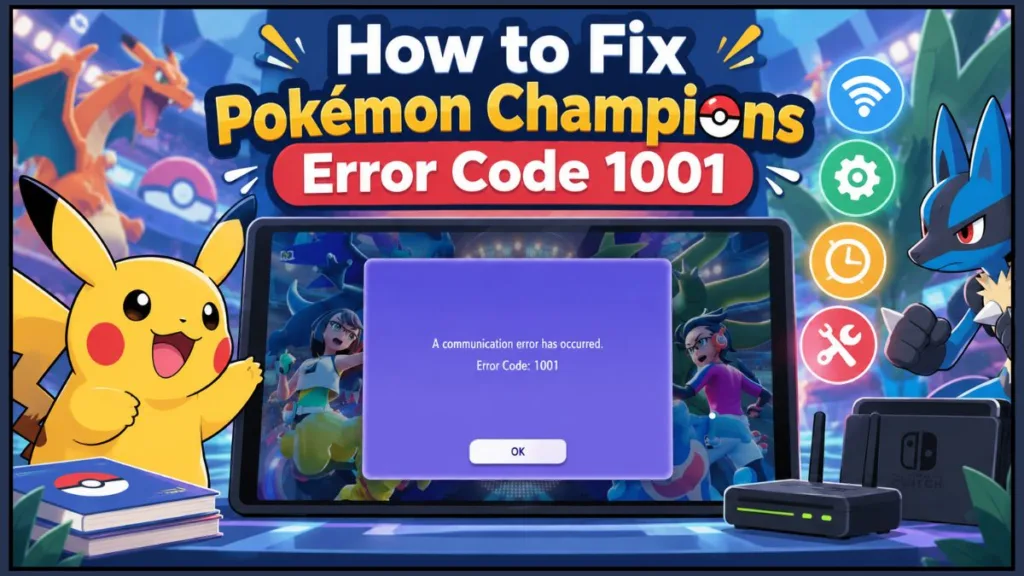
Many users report seeing the specific, frustrating message shown in the file image_c74621.png below:
“A communication error has occurred. Error Code: 1001”
This specific Pokémon Champions error 1001 (often displaying as Error 10000 on mobile devices or accompanied by 2-ALZSA-0000 on Switch) often strikes without warning. It can appear even when the interface looks normal and your Wi-Fi connection works perfectly for other online games.
While it disrupts your gameplay, the good news is that this issue is usually temporary. Furthermore, it rarely results from user error, so you haven’t broken anything—your save file is perfectly safe, and you are not banned.
In this comprehensive guide, we will walk you through exactly what this error means, why the Pokémon Champions servers might fail to respond, and the specific, step-by-step tutorial you must follow to fix it quickly.
What Does “Error Code 1001” Mean in Pokémon Champions?
To better understand the problem, we must first define what the error actually signals.
This message means the Pokémon Champions game client was unable to establish a secure handshake with the Nintendo or Google login servers at that exact moment. It does not automatically indicate an account ban, a corrupted save file, or that the servers have crashed completely.
Think of it like handing a mismatched digital passport to a security guard; your console and the server disagree on the time or session status, so your entry is denied. In most cases, the error points to one of the following specific triggers:
- A console clock desynchronization: Your system is living in the “past” or “future.”
- An aggressive mobile RAM manager: Your phone is killing the login process.
- A backend server block or regional routing issue: Your requests are failing to reach the server.
Users commonly experience this Pokémon Champions not working error in different ways. You might see it as an infinite loop at the title screen, an immediate crash right after finishing the tutorial, or sudden connection drops during mid-match matchmaking.
Why This Error Happens
Based on real player troubleshooting and technical analysis, this error usually stems from one or more of the specific reasons below.
1. Console Date & Time Desynchronization If you play on the Nintendo Switch, manual clock adjustments—often left over from time-skipping exploits in older games like Pokémon Sword and Shield—break the server’s timestamped security token.
2. Mobile RAM Management (Error 10000) On Android and iOS, linking your Nintendo account redirects you to a web browser. Mobile operating systems often aggressively kill the Pokémon Champions app in the background to save memory. By the time you log in and return, the session token has expired.
3. Network Routing & IPv6 Conflicts Unstable Wi-Fi, regional ISP restrictions (like widespread title screen blocks reported in Russia), or active IPv6 settings can block the specific network ports the game requires to connect.
4. Browser Session Corruption When linking accounts on mobile, a conflicting default browser (especially Google Chrome on Android) often fails to close itself properly, refusing to hand the authentication token back to the game app.
5. Server Maintenance or Outage Occasionally, the sheer volume of players or the routine Wednesday server maintenance window will trigger this error globally, mimicking a local failure.
Quick Checks Before You Try Fixes
Before you dive deep into troubleshooting settings, you should quickly run through this diagnostic checklist to save time:
- Does the error happen immediately on the title screen before the main menu even loads?
- Are you trying to link your Nintendo account on a mobile device when the loop occurs?
- Have you recently changed your console’s system clock manually for another game?
- Does the same issue occur if you switch from your home Wi-Fi to a mobile hotspot?
If you answered “yes” to most of these questions, the issue is likely a temporary or local sync issue rather than a deep technical failure on the developer’s end.
How to Fix Pokémon Champions Error 1001: Detailed Step-by-Step Tutorial
To resolve this efficiently, follow these exact steps in order. We strongly recommend that you do not skip ahead, as the simpler fixes often work best.
Step 1: Resync Your Console’s System Clock
This is the #1 fix for Nintendo Switch users. If you have ever manually changed the time on your console for an exploit, the server will reject your connection.
- Press the Home button on your controller to access the main dashboard.
- Select the System Settings (gear icon) at the bottom.
- Scroll all the way down the left sidebar and select System.
- Select Date and Time. (Note: You may need to enter your Parental Controls PIN).
- Highlight Synchronize Clock via Internet and toggle it to ON.
- Hold the power button on the top of your Switch for 3 seconds, select Power Options, and hit Restart.
Step 2: Adjust Mobile App Settings for Background RAM
For mobile players stuck in Error 10000 login loops, your phone’s OS is killing the game while you type your password in the browser.
- Enable Developer Options: Go to your phone’s Settings > About Phone > Software Information. Tap the Build Number 7 times rapidly until it says developer mode is enabled.
- Adjust Window Settings: Go back to the main Settings menu, scroll down to Developer Options. Toggle ON “Force activities to be resizable” and ensure “Don’t keep activities” is turned OFF.
- Unrestrict Battery: Go to Settings > Apps > find Pokémon Champions. Tap Battery and select Unrestricted.
- Split-Screen: Open the game and your web browser simultaneously in multi-window mode to force your phone to keep both apps running in the RAM while you log in.
Step 3: Switch Your Default Mobile Browser
Google Chrome frequently struggles to hand the login token back to the game app, causing an infinite loop.
- Open your phone’s Settings.
- Navigate to Apps > Default apps (or “Choose default apps”).
- Tap on Browser app.
- Change the selection from Google Chrome to a native alternative like Samsung Internet, Mi Browser, or DuckDuckGo.
- Launch the game and link your account. Once successful, you can change your default browser back to Chrome.
Step 4: Disable IPv6 or Route Through a VPN
If the clock resync failed, your router may be blocking the game’s specific network ports.
- Disable IPv6 (Switch): Go to System Settings > Internet > Internet Settings. Select your current Wi-Fi network and choose Change Settings. Scroll down to IPv6 Setup and toggle it Off. Save and test the connection.
- Use a VPN Hotspot: If you are in a geo-restricted region, download a secure VPN (like NordVPN or ExpressVPN) on your PC or smartphone. Connect to a server, enable your device’s Mobile Hotspot, and connect your Switch to that newly created network.
Step 5: Clear the Game Cache
Clearing the cache eliminates corrupted session data that causes the title screen to crash. Note: Do not delete your actual save data. Extensive community testing confirms that deleting save data does not resolve Error 1001 and is an unnecessary risk.
- On Switch: Go to System Settings > System > Formatting Options > Reset Cache. Select your user profile and confirm.
- On Mobile: Go to Settings > Apps > Pokémon Champions > Storage > tap Clear Cache (Do not tap “Clear Data”).
Step 6: Adjust Advanced Network Settings (MTU)
If you contact official support, they will advise this specific tweak to stabilize packet loss.
- Go to your Switch System Settings > Internet > Internet Settings.
- Select your active Wi-Fi network and choose Change Settings.
- Scroll down to MTU. The default is usually set to 1400.
- Select it and change the numerical value to 1500.
- Save the settings and reboot the game.
Is Pokémon Champions Down Right Now? How to Tell
Pokémon Champions can experience partial service issues where the servers struggle to keep up with player volume.
You should check official Pokémon support social channels and third-party sites like DownDetector first. However, strong signs of a wider issue include:
- The error appears across multiple devices (both mobile and Switch) simultaneously.
- None of the local fixes work across browsers or networks.
- The issue starts suddenly and persists without change.
Why the Status Page May Still Look Normal
Status indicators typically track core Nintendo Switch Online systems, not necessarily the specific regional matchmaking servers dedicated to Pokémon Champions. That is why you can see an error even when everything appears “operational” on the official dashboard.
Can This Error Affect VGC Battles or Pokémon HOME?
Yes, absolutely. Authentication or connection drops mid-match due to this bug will negatively affect your VGC competitive battles ranking.
More severely, players have reported a massive Pokémon HOME transfer glitch. If the Error 1001 crash occurs exactly while you are syncing data, it can temporarily leave your pokemon stuck in limbo pokemon home champions, unable to be accessed in either application until the servers catch up.
How to Prevent This Error in the Future
While you cannot prevent all service-side issues, you can significantly reduce the chances of seeing this error again by maintaining good gaming hygiene.
To keep your connection stable:
- Avoid manual time-skipping or clock manipulation on your console.
- Keep mobile battery optimization explicitly off for heavy gaming apps like Champions.
- Do not use the “Guest Login” feature on mobile as a temporary workaround. Users report this traps you in a bugged state with permanent black screens during matches, making it difficult to link your real account later.
- Use a wired LAN connection over Wi-Fi when participating in ranked matchmaking to ensure smooth data transmission.
These steps help maintain a clean, stable session and prevent these communication errors from interrupting your work.
FAQs
Why am I getting a pokemon champions error 1001 after update?
Updates often reset network compatibilities or server syncs. Resync your console’s clock or wait for the update servers to stabilize.
How do I fix a communication error has occurred 10000?
This is almost exclusively a mobile RAM management issue. Follow the multi-window and default browser fixes detailed in Step 2 and 3 above.
Does deleting my save file fix the pokemon champions communication error?
No. Reddit community testing proves that deleting your save data does not resolve Error 1001. Do not risk losing your data.
What is Error 2-ALZSA-0000?
This is simply the full, console-specific prefix for Error 1001 on the Nintendo Switch and Switch 2. It requires the exact same troubleshooting steps.
What to Do If Nothing Works
If you have tried every detailed fix listed above and the error still appears, the best option is to stop retrying and wait.
Repeated attempts during a temporary backend issue won’t speed things up and can be incredibly frustrating. Official support tickets often reply with generic network steps that don’t solve this specific server loop. We recommend you come back later and try again after the developers’ scheduled Wednesday server maintenance, as background patches usually clear out these persistent handshake errors.
Visit Our Post Page: Blog Page
Discover more from Izoate
Subscribe to get the latest posts sent to your email.