
Want to turn off Restricted Mode on YouTube in 2026? Learn how to disable it, restore hidden comments, and fix network administrator restrictions with simple steps.
Watching YouTube is usually as simple as opening the app or website and choosing a video. But sometimes, your normal viewing experience changes. A video may not be available, certain content may disappear from search, or the comments section may suddenly be missing.
You may even see this message:
“Restricted Mode has hidden comments for this video.”
In many cases, YouTube Restricted Mode is responsible.
Restricted Mode is an optional YouTube setting that helps filter potentially mature or inappropriate content. It can be useful on shared devices or when you want a more filtered viewing experience, but enabling it can also change which videos and comments you see.
The important part is figuring out where Restricted Mode is active. YouTube can apply this setting at the browser or device level, so your experience in Chrome on a computer may not be the same as what you see in the YouTube app on your phone.
If Restricted Mode is controlled by your own settings, turning it off is usually straightforward. However, if the setting is locked, greyed out, or controlled by someone else, you’ll need to determine where the restriction is coming from.
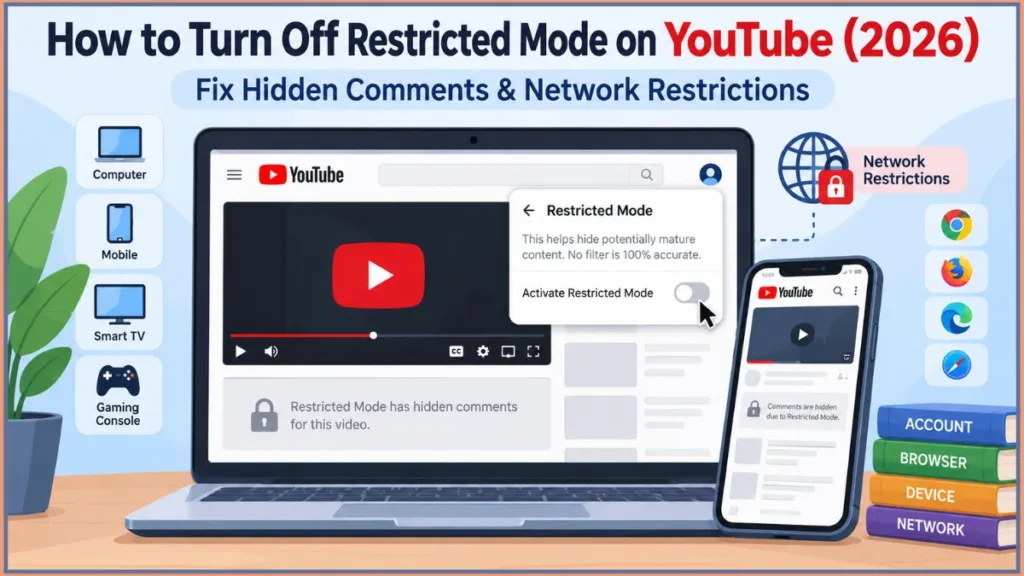
Let’s walk through the different ways to disable Restricted Mode, restore hidden comments, and troubleshoot restrictions you can’t change yourself.
What Does Restricted Mode Do on YouTube?
Restricted Mode is a YouTube content-filtering feature designed to screen potentially mature or inappropriate material.
When deciding what content may be filtered, YouTube considers signals such as video titles, descriptions, metadata, Community Guidelines reviews, and age restrictions.
YouTube also notes that its filtering system isn’t perfect. Because Restricted Mode relies on multiple signals, its filtering quality can vary depending on the content, language, and other factors.
It is also important not to confuse Restricted Mode with age-restricted content.
These are two separate YouTube systems. Turning Restricted Mode off does not remove an age restriction that YouTube has separately applied to a video.
Restricted Mode can affect more than video playback. When enabled, YouTube may hide comments on videos and limit comments or live discussions in other viewing environments. It can also filter explicit music and videos in YouTube Music.
Another important detail is where the setting applies. Restricted Mode works at the browser or device level, so it isn’t always one setting that controls every YouTube session you use.
For example, you can turn Restricted Mode off in Chrome on your computer and still find it enabled when using Firefox, another browser profile, or the YouTube app on your phone.
Restricted Mode is available across languages, but filtering accuracy may vary by language and region because YouTube relies on different signals and available review data.
Tip: Think of your YouTube setup as YouTube account → browser or app → device → current profile → network. Checking these pieces separately makes persistent Restricted Mode problems much easier to understand.
How to Disable Restricted Mode on YouTube
If Restricted Mode is controlled by your own YouTube settings, you can turn it off directly through YouTube.
Before making the change, make sure you’re checking the same browser, app, device, and account where you noticed the restriction. Otherwise, you might turn Restricted Mode off in one location while it remains active somewhere else.
Turn Off Restricted Mode on a Computer
If you’re using YouTube through a desktop browser such as Chrome, Firefox, Safari, or Edge, follow these steps:
- Open your preferred web browser.
- Go to YouTube.com.
- If you aren’t already signed in, click Sign in in the upper-right corner.
- Enter your Google account details.
- Click your profile picture in the upper-right corner.
- Look through the account menu and select Restricted Mode. On some layouts, this option may appear near the bottom of the menu.
- Find the Activate Restricted Mode switch.
- Click or select the switch so that it changes to the off position.
- Close the account menu.
- Refresh the YouTube page by clicking the browser’s reload button or pressing Ctrl+R on Windows or Command+R on Mac.
- Reopen the video you were trying to watch.
- Check whether the missing content or comments are now available.
If the switch is unavailable, greyed out, or immediately turns back on, the setting may be controlled by a network administrator, parental-control service, browser profile, or device-management policy.
Tip: If you use more than one browser or browser profile, repeat these steps in each one. Turning Restricted Mode off in Chrome doesn’t necessarily change its status in Firefox, Edge, Safari, or another Chrome profile.
Turn Off Restricted Mode on Android
Your Android phone or tablet has its own YouTube app environment, so you need to make the change inside the app.
- Open the YouTube app on your Android phone or tablet.
- Tap your profile picture in the upper-right corner.
- Tap Settings.
- Select General.
- Scroll through the settings until you find Restricted Mode.
- Tap the switch next to Restricted Mode to turn it off.
- Return to the YouTube home screen.
- Search for the video again or open it from your watch history.
- If the comments still don’t appear, close the YouTube app completely:
- Open Android’s recent-apps screen.
- Swipe the YouTube app away.
- Open YouTube again.
- Open the video one more time and check the comments section.
If the switch is locked or the setting turns back on, check whether Family Link, Android parental controls, a managed Google account, or a network filter is enforcing the restriction.
Turn Off Restricted Mode on iPhone or iPad
If you’re using YouTube on an iPhone or iPad, you can change the setting through the YouTube app.
- Open the YouTube app.
- Tap your profile picture in the upper-right corner.
- Tap Settings.
- Open the General section.
- Find Restricted Mode in the list.
- Tap the switch to turn it off.
- Return to the video you were watching.
- If the video page was already open, close it and search for the video again.
- If the comments remain hidden, force-close YouTube:
- Swipe up from the bottom of the screen and pause, or double-click the Home button on older iPads and iPhones.
- Find the YouTube app in the app switcher.
- Swipe the YouTube app upward to close it.
- Reopen YouTube and test the video again.
If content is still being filtered, the YouTube app may not be the only setting involved. Device-level or parental controls can also affect what you’re able to access.
On an Apple device, you can also check:
Settings → Screen Time → Content & Privacy Restrictions
If these controls are protected by a Screen Time passcode or managed by a parent, you may need that person’s permission to change them.
Turn Off Restricted Mode on a Smart TV or Game Console
You can also manage Restricted Mode through the YouTube app on supported smart TVs, streaming devices, and game consoles.
- Turn on the TV, streaming device, or console.
- Open the YouTube app.
- Use the remote or controller to open the left-side navigation menu or your account menu.
- Select Settings.
- Look for Restricted Mode.
- Select the setting and change it to Off.
- If YouTube asks you to confirm the change, select Confirm or Turn off.
- Return to the YouTube home screen.
- Open the video again and check whether the comments or previously unavailable content now appears.
- If the change doesn’t appear right away, exit the YouTube app and reopen it. If necessary, restart the TV, streaming device, or console.
The exact menu may vary depending on the platform, so look inside the YouTube app settings rather than the device’s general settings.
If you use YouTube without signing in on a TV or console, the setting may apply only to that device or app session. Check the setting again after signing in to the account you normally use.
You may also be able to manage Restricted Mode in some YouTube environments without signing in, but the setting may apply only to that browser, device, or app session. Signing in helps you compare the same account across devices.
Why Does YouTube Say “Restricted Mode Has Hidden Comments for This Video”?
One of the most common Restricted Mode messages you’ll encounter is:
“Restricted Mode has hidden comments for this video.”
When Restricted Mode is enabled, YouTube hides comments on the videos you watch.
That can make the situation confusing because it may look as though the creator has disabled comments. However, the message means Restricted Mode is preventing comments from appearing in your current YouTube environment.
You may still be able to watch the video while the comments remain unavailable.
The message also doesn’t necessarily mean that the video itself has been removed, that your account has been suspended, or that the creator has blocked you. It usually points to a filtering setting active in the browser, app, device, or network you’re using.
How to See YouTube Comments Again
If Restricted Mode is responsible for the missing comments, turn it off in the browser, app, or device where you’re watching the video.
Use the following process:
- Identify where you saw the hidden-comments message.
- Check whether it was on a computer browser, mobile app, smart TV, streaming device, or game console.
- Open Restricted Mode settings in that same environment.
- Turn off Activate Restricted Mode or move the Restricted Mode switch to Off.
- Return to the video page.
- On a computer, refresh the page using the reload button.
- On a phone or tablet, close and reopen the YouTube app if the page does not update.
- On a TV or console, exit and relaunch the YouTube app.
- Scroll below the video player and look for the comments section.
- If comments are still missing, open a different video that normally has comments.
- If comments appear on the second video, the original creator may have disabled comments or the video may have a separate comment restriction.
- If comments are missing on multiple videos, check Restricted Mode again and test another browser, device, or network.
If Restricted Mode was the only reason the comments were hidden, they should appear again.
The same issue can also affect live YouTube content, where comments or live discussions can appear continuously during a stream.
Tip: Make the Restricted Mode change in the same YouTube environment where you saw the hidden-comments message. Turning it off on another device may not change the device you’re currently using.
Is the Video Creator Hiding the Comments?
Not necessarily.
If YouTube specifically displays “Restricted Mode has hidden comments for this video,” the missing comments are connected to Restricted Mode in your current viewing environment.
That’s different from a creator choosing to disable comments on a video.
Before assuming there’s a problem with the video itself, check Restricted Mode first.
You can also use a simple comparison:
- Turn off Restricted Mode in the current browser, app, or device.
- Refresh or reopen the video.
- Check whether the comments section returns.
- Open another video from a different channel.
- If comments are visible on other videos but not the original one, the creator may have disabled comments or YouTube may have applied a separate comment restriction.
- If comments are missing everywhere, continue troubleshooting Restricted Mode or another account, device, or network restriction.
Comments may also be unavailable for reasons unrelated to Restricted Mode, such as the creator disabling comments, YouTube limiting comments on certain content, or a separate account or age-related restriction.
Why Won’t Restricted Mode Turn Off?
If you’ve turned Restricted Mode off but YouTube still appears restricted, don’t keep switching the same setting repeatedly.
First, confirm that the change was made in the same browser, app, device, or profile where you noticed the problem.
Then work through these checks:
- Return to the Restricted Mode setting.
- Confirm that the switch is still off.
- Refresh the YouTube page or restart the YouTube app.
- Sign out of YouTube and sign back in if the setting does not appear to save.
- Open the same video again.
- Test another video to see whether the restriction affects all content or only one video.
- Try the same account in another browser or on another device.
- Compare the results over Wi-Fi and mobile data.
If Restricted Mode is greyed out, locked, or keeps coming back, the restriction may be coming from somewhere outside the normal YouTube setting.
Possible sources include:
Family Link → parental controls → managed device → organization network → DNS filtering → mobile network filtering
Instead of repeatedly changing the YouTube toggle, determine what is controlling Restricted Mode.
Identify Where the Restriction Comes From
Restricted Mode can be configured separately for different browsers, devices, and supported profiles.
Suppose you turn Restricted Mode off while watching YouTube in Chrome on your Windows PC. Later, you open YouTube in Firefox or on your Android phone and discover that content is still filtered.
That doesn’t necessarily mean the setting failed.
When troubleshooting YouTube, compare the complete environment you’re using:
YouTube account → browser or app → device → current profile → network
To determine where the difference is coming from:
- Confirm that you’re signed in to the same Google account.
- Check whether Restricted Mode is enabled in that specific browser or app.
- Check whether the devices are connected to the same Wi-Fi or mobile network.
- Note whether the restriction appears on one device or on every device.
- If only one browser is affected, test another browser on the same computer.
- If every device on one Wi-Fi network is affected, test YouTube using mobile data or another network.
- If the restriction follows the account across different networks, review account-level or supervised-account settings.
This comparison can help you determine whether you’re dealing with a browser-specific issue, a device setting, an account restriction, or something being enforced by the network.
Check YouTube Content Restrictions
YouTube provides a Content Restrictions page that can help identify where the restriction is coming from.
Go to:
https://www.youtube.com/check_content_restrictions
For the most useful result, check the page from the same environment where you experienced the restriction.
- Open the link in the same browser or device.
- Make sure you’re connected to the same Wi-Fi, wired network, or mobile network.
- Sign in to the Google account you use for YouTube.
- Review the results for account-level restrictions.
- Look for information about organization, network, or DNS restrictions.
- If the page identifies an organization or network restriction, understand that changing the normal YouTube setting may not override it.
- If possible, repeat the check on another network, such as mobile data.
- Compare the results to determine whether the restriction follows your account or stays with a particular network.
The page can show whether restrictions are connected to your personal account or an organization network. It can also indicate whether network-level or DNS restrictions are involved.
Check the page while connected to the same network where you experienced the problem. This gives you a clearer idea of whether you’re dealing with an account-level restriction or something being applied by the connection you’re using.
What Does “Restricted Mode Is Turned On by Your Network Administrator” Mean?
Things are different when YouTube tells you to check your network administrator restrictions or when the Restricted Mode setting cannot be changed.
In that situation, the restriction may not be coming from your YouTube account.
A school, university, workplace, library, public institution, managed device, or other organization can enforce Restricted Mode for people using its network or equipment.
You can still sign in to your personal YouTube account, but the network may control which YouTube content is available.
For example, YouTube might work normally on your personal mobile connection but become restricted when your laptop connects to a school or workplace network.
To check whether the network is responsible:
- Note the restriction while connected to the current network.
- Disconnect from that Wi-Fi or wired connection.
- Connect to a different network, such as mobile data or a trusted home network.
- Open YouTube in the same browser or app.
- Sign in to the same account.
- Check whether Restricted Mode is still locked or whether the content becomes available.
- If the restriction disappears on the second network, the original network is likely enforcing it.
- Contact the network administrator if you need the policy reviewed.
The key distinction is that your YouTube account and the network you’re connected to are separate parts of the viewing experience.
Can You Disable Restricted Mode Set by a Network Administrator?
Usually, not through the normal YouTube setting.
If a school, workplace, library, university, or another managed network is enforcing the restriction, the appropriate solution is to contact the network administrator and ask whether the restriction can be changed.
Before contacting the administrator, gather enough information to explain what you’re experiencing:
- Record the exact message YouTube displays.
- Note the device, browser, and network you were using.
- Check whether the same restriction appears on another network.
- Visit the YouTube Content Restrictions page and record the result.
- Explain whether the restriction affects one device or multiple devices.
- Ask whether the network has a content-filtering policy that includes YouTube Restricted Mode.
The same principle applies when the setting is controlled by a parent or account supervisor.
If the restriction is imposed outside your YouTube account, changing your personal YouTube preference won’t override that policy.
How Family Link Can Lock Restricted Mode
Google Family Link can control Restricted Mode for an eligible child’s account.
When a parent enables Restricted Mode through Family Link, the child can’t change the setting on devices where they’re signed in.
This can make Restricted Mode appear unavailable even though the child is using their own YouTube account.
When Family Link is responsible, the person supervising the account needs to manage the setting.
If you’re the parent or account supervisor:
- Open the Family Link app.
- Select the child’s profile.
- Open the controls for the child’s Google or YouTube account.
- Review the content restrictions and YouTube settings.
- Change the relevant setting if you want to allow broader YouTube access.
- Have the child close and reopen YouTube on the affected device.
- Test the same video again.
The exact Family Link menu may vary by device and account type. If the child is using a school-managed account or device, an organization policy may still apply even after a Family Link setting is changed.
What If DNS or Mobile Network Filtering Is Restricting YouTube?
Not every network restriction comes directly from a school or workplace administrator.
Some mobile network providers offer content filters that limit the type of web content available through their networks.
Similarly, DNS-level filtering can affect YouTube even when there is no obvious restriction in your YouTube account.
If YouTube’s Content Restrictions page shows a DNS restriction and the filtering level is moderate or strict, content filtering may be active.
You can investigate it by comparing the network you’re using:
- Open the YouTube Content Restrictions page.
- Check the results while connected to the affected network.
- Record whether the page mentions DNS or network filtering.
- Switch temporarily to another trusted connection.
- Open YouTube again and compare the results.
- If the restriction appears only on one network, review that network’s parental-control or content-filtering settings.
- If the filter comes from a mobile provider, sign in to your provider account or contact customer support.
- If the filter comes from a home router or DNS service, review its administrator dashboard.
In this situation, the setting may need to be managed through the relevant network or mobile provider rather than through YouTube.
How to Fix YouTube Restricted Mode That Won’t Turn Off
If you’ve ruled out a normal account setting and there isn’t an obvious administrator restriction, a browser, device, or network setting may be interfering.
Work through these checks one at a time. After each change, reopen YouTube and test the same video so you can identify which step affects the result.
Disable Browser Extensions and Add-ons
Browser extensions can sometimes interfere with websites or content settings.
To check whether an extension is involved:
- Open your browser’s extensions or add-ons page.
- Review extensions that can modify websites, block content, filter searches, or manage privacy.
- Disable the extensions temporarily instead of uninstalling them.
- Close the YouTube tab.
- Open a new tab and sign in to YouTube again.
- Check Restricted Mode and open the affected video.
- If the restriction disappears, re-enable extensions one at a time.
- Test YouTube after each extension is re-enabled to identify the one causing the conflict.
This is especially useful when Restricted Mode behaves differently between browsers.
Clear Your Browser Cache and Cookies
Old cached information or saved cookies can sometimes prevent a browser from reflecting an updated setting correctly.
Before clearing this data, remember that deleting cookies may sign you out of websites.
In Chrome:
- Click the three-dot menu in the upper-right corner.
- Select More tools.
- Choose Clear browsing data.
- Select a time range, such as All time, if the issue has been occurring for a long time.
- Select Cookies and other site data.
- Select Cached images and files.
- Click Clear data.
- Close all YouTube tabs.
- Reopen Chrome and go to YouTube.
- Sign in again if necessary.
- Check Restricted Mode and test the video.
Other browsers have similar options under their privacy, history, or browsing-data settings.
Check Device and Parental Controls
Your device may have additional controls that affect YouTube.
On Apple devices, check Screen Time when appropriate. On Android devices, review parental controls and Family Link.
To check these controls:
- Open the device’s main Settings app.
- Search for parental controls, Screen Time, Family Link, or content restrictions.
- Open the relevant control panel.
- Review whether web content, apps, or mature content is being filtered.
- Check whether YouTube is included in the restricted apps or content categories.
- Change the setting only if you are authorized to do so.
- Reopen YouTube and test the affected video.
If a parent or account supervisor manages those controls, you may not have permission to change the restriction yourself.
Check Security and Web-Filtering Software
Antivirus programs, firewalls, and other security software can sometimes include web-content filtering.
To test whether security software is involved:
- Open the security software installed on your computer or device.
- Look for settings such as Web protection, Web shield, Parental controls, Content filtering, or Safe browsing.
- Review whether YouTube or video content is being filtered.
- If you are authorized to do so, temporarily pause only the relevant web-filtering feature.
- Reopen YouTube and test Restricted Mode.
- Turn the security feature back on immediately after testing.
- If the feature caused the problem, adjust its YouTube or content-filtering rule instead of leaving protection disabled.
Avoid leaving security features disabled unnecessarily. The purpose of this test is simply to determine whether the software is contributing to the problem.
Check Your Router’s Parental Controls
If YouTube works normally on one connection but remains restricted on another, check your router’s parental controls and content-filtering settings.
Some routers can restrict websites or categories of content for connected devices.
To investigate:
- Connect to the affected Wi-Fi network.
- Open the router’s administration app or web interface.
- Sign in with the router administrator credentials.
- Look for Parental Controls, Access Control, Content Filtering, Safe Browsing, or DNS settings.
- Check whether the affected device is assigned to a restricted profile.
- Review whether video, social media, or mature-content categories are blocked.
- Change the setting only if you manage the network and are authorized to do so.
- Save the changes.
- Restart the router if it requests a restart.
- Reconnect the device to Wi-Fi and test YouTube again.
This is especially relevant when multiple devices on the same Wi-Fi connection experience the same YouTube restriction.
Check Your Mobile Network
Try comparing YouTube over Wi-Fi and mobile data.
- Open YouTube while connected to Wi-Fi and note whether Restricted Mode is enabled or locked.
- Turn off Wi-Fi from your device’s quick settings or network settings.
- Make sure mobile data is enabled.
- Reopen YouTube and test the same video.
- If the restriction disappears, the Wi-Fi network may be filtering YouTube.
- If the restriction remains only on mobile data, your mobile provider may have a content filter enabled.
- Check your provider account for parental-control or content-filtering options.
- Contact the provider if you cannot change the filter yourself.
Some mobile providers offer content-filtering services that can affect the websites and content available through their network.
Try YouTube on Another Browser or Device
Testing another environment can help you figure out where the problem begins.
Use a controlled comparison rather than changing several settings at once:
- Open the affected video in your usual browser or app.
- Record whether Restricted Mode is enabled, locked, or hiding comments.
- Open the same video in another browser on the same device.
- Sign in to the same YouTube account.
- Check whether the result changes.
- If possible, open the video on another device connected to the same network.
- Then test it on a different network.
- Compare the results:
- If only one browser is affected, check its extensions, cookies, and profile settings.
- If only one device is affected, check its parental controls and security software.
- If every device on one network is affected, check the router, DNS, or organization policy.
- If the restriction follows your account across networks, review account-level or Family Link settings.
For example, if YouTube works normally on your phone but Restricted Mode remains locked on your computer, that points more toward something on the computer, its browser, or the network it’s using than toward your YouTube account alone.
Likewise, if several devices connected to the same Wi-Fi network experience the same restriction, the network becomes a more likely source.
The goal is to determine which part of your setup is enforcing the restriction.
Why Does YouTube Restricted Mode Keep Turning On?
If Restricted Mode keeps returning after you’ve switched it off, look for the setting that is enforcing it instead of continuing to toggle the feature.
Persistent restrictions can come from Family Link, parental controls, managed devices, organization networks, DNS filtering, router settings, browser extensions, security software, or mobile network filters.
To investigate the recurring behavior:
- Turn Restricted Mode off.
- Close and reopen YouTube.
- Check whether the setting changed immediately or only after reconnecting to a network.
- Test YouTube on another browser or device.
- Compare Wi-Fi and mobile data.
- Check the Content Restrictions page.
- Review Family Link, Screen Time, device-management, router, and security-software settings.
- Note which change causes Restricted Mode to return.
YouTube’s Content Restrictions page is a useful place to start because it can help separate an account-level restriction from an organization or network-level restriction.
Why You May Not Be Able to Remove Restricted Mode Yourself
Not every YouTube restriction belongs to the person using the device.
If you enabled Restricted Mode yourself, you can normally switch it off.
However, if the setting is being enforced by a parent, school, employer, library, university, organization, or network provider, you may not have the permissions needed to change it.
That’s why a perfectly valid YouTube account can work normally on one connection while showing restricted content on another.
Once you identify the source, the next step becomes much clearer: change the setting when you control it, or contact the person or provider responsible when you don’t.
Restricted Mode vs. Age-Restricted Videos
It’s easy to confuse these two YouTube features because both can prevent you from accessing certain content.
Restricted Mode is a filtering option that screens potentially mature content.
Age restrictions are separate limitations applied to particular videos.
So, turning Restricted Mode off does not guarantee that every video will become available. A video can remain restricted because of its own age rating or another YouTube limitation.
If a video remains unavailable after you disable Restricted Mode:
- Confirm that Restricted Mode is off in the current browser, app, or device.
- Refresh or reopen the video.
- Check whether YouTube displays an age-restriction message.
- Confirm that you’re signed in to an account that meets the video’s age requirements.
- Remember that Restricted Mode cannot override a separate age restriction.
Frequently Asked Questions About YouTube Restricted Mode
Does Restricted Mode affect YouTube Music?
Yes. It can filter explicit music and videos in YouTube Music. If explicit content is unavailable there, check Restricted Mode in the YouTube or YouTube Music environment where the problem occurs.
Is Restricted Mode available in every language?
Restricted Mode is available across languages, but filtering accuracy may vary by language and region because YouTube relies on different signals and available review data.
Why are comments missing on only one YouTube video?
If comments appear on other videos, the creator may have disabled comments on that video, or YouTube may have applied a separate comment restriction. If YouTube displays the hidden-comments message on multiple videos, check Restricted Mode in the current browser, app, device, or network.
Can I turn off Restricted Mode without signing in?
You may be able to manage Restricted Mode in some YouTube environments without signing in, but the setting may apply only to that browser, device, or app session. Signing in also helps you compare the same account across devices.
Does clearing YouTube history turn off Restricted Mode?
No. Clearing watch or search history does not normally disable Restricted Mode. Manage Restricted Mode directly through YouTube settings, or investigate parental, device, account, or network controls if the setting is locked.
Why does Restricted Mode work on mobile data but not Wi-Fi?
That pattern usually suggests that the Wi-Fi network, router, DNS service, or organization connected to that network is enforcing a filter. Compare the YouTube Content Restrictions page on both connections and contact the network administrator if necessary.
Can a VPN fix YouTube Restricted Mode?
A VPN may change the network path, but it does not remove account-level, Family Link, device-management, or parental-control restrictions. It may also be blocked or prohibited by a school, workplace, or network policy. Identify the source of the restriction instead of relying on a VPN as a general fix.
Final Thoughts on How to Turn Off Restricted Mode on YouTube
YouTube Restricted Mode can look like a simple on/off setting, but the experience can depend on your account, browser, app, device, parental controls, and network.
When you control the setting yourself, turning Restricted Mode off should usually restore the normal YouTube experience. If YouTube says “Restricted Mode has hidden comments for this video,” disabling the feature can also make those comments available again.
When the toggle is locked or greyed out, or YouTube tells you to check network administrator restrictions, the problem is likely outside the normal YouTube menu.
Start with the Content Restrictions page and then work through the part of your setup that is actually enforcing the restriction.
The most useful way to approach the problem is:
Normal YouTube setting → browser/device → account or parental controls → network → administrator/provider
Once you know where the restriction comes from, you can use the appropriate solution instead of repeatedly changing settings that you don’t actually control.
Visit Our Post Page: Blog Page
Discover more from Izoate
Subscribe to get the latest posts sent to your email.