
Is your PS4 showing error NP-36006-5 when you try to launch a game? It can stop an entire user account from playing games, making a trophy-related message feel more serious than it first appears.
PS4 error codes don’t always come with clear explanations, and fixes shared online range from simple checks to drastic resets. Some take only a minute; others delete a user or wipe the console. Without preparation, those steps can cost you your saved games. In most cases, work through the fixes in the right order.
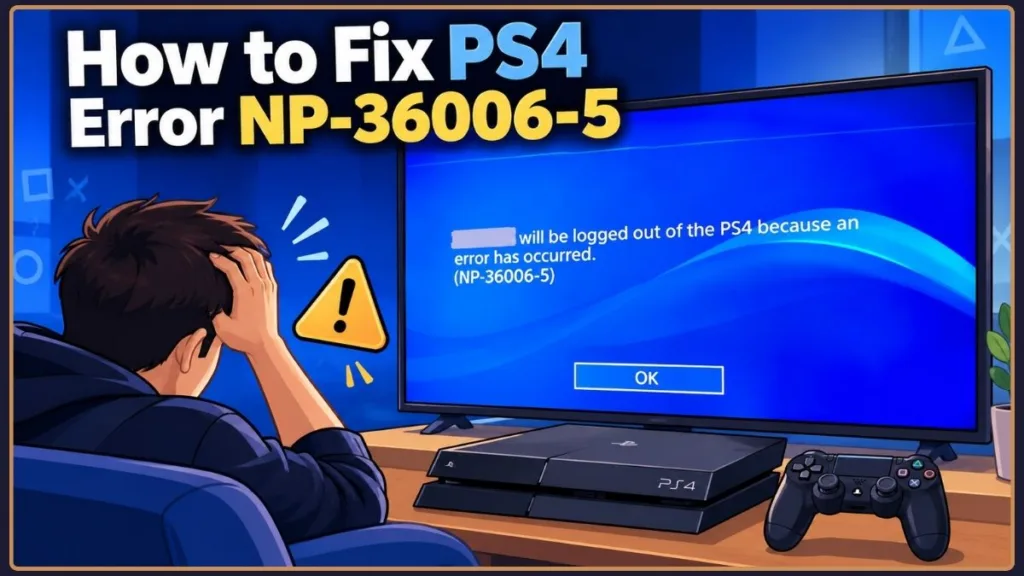
This guide explains what NP-36006-5 means, what may trigger it, how to identify the situation you’re facing, and how to work through the fixes step by step. You’ll also learn how to protect your data, what to do if the error returns, and how to reduce the chance of seeing it again.
What NP-36006-5 Means on Your PS4
Sony’s official support page for NP-36006-5 gives a brief explanation: your trophy data may be corrupted. Trophy data records the trophies you’ve earned in each game. According to Sony’s PS4 guide, earned trophies are saved on the console and automatically synchronized with the PlayStation Network (PSN) server. If the local record becomes damaged or inconsistent, the console may be unable to read it correctly, which can prevent the affected user from starting games. You may also see the code written as np 36006 5 or np360065; both refer to the same error.
Two terms help explain the fixes below. A local user is the profile stored on your PS4, including that person’s saved data, screenshots, video clips, and settings. Your PSN account is your online identity, including your PSN ID, purchases, friends, and synced trophies. Removing a local user deletes that profile’s data from the console, but it does not close or delete your online PlayStation account. That distinction makes Sony’s official fix possible: you create a new local profile and sign back in to the same PSN account.
Sony lists NP-36006-5 among its PS4 error codes, and corrupted trophy data is its official explanation. However, that cause hasn’t been proven in every case, and player reports vary. Some community guides also mention a damaged system database or changed default settings. For that reason, the fixes below begin with the least disruptive options and progress to the more drastic ones.
When the Error Usually Appears
NP-36006-5 commonly appears in a few situations:
- When launching a game or app: The code appears as you start software. It may affect multiple games on the same user account.
- After an unexpected shutdown: A power cut, forced shutdown, or turning off the console at the wrong moment is a commonly reported trigger.
- After a failed or stalled trophy sync: Some players encounter the error around the same time they’re unable to sync trophies with PSN.
- Alongside wider system problems: If the console has been freezing or crashing, other data may have been damaged as well.
Your situation might not match any of these examples exactly. You can still follow the steps below. Use the next section to match your symptoms to a situation and decide how far to go.
What May Be Causing the Error
Knowing what might cause the error helps you choose the right level of fix. Here are the possible causes covered in this guide.
Corrupted Trophy Data
Sony identifies this as the cause but doesn’t explain exactly how trophy data becomes corrupted. An interruption can leave this type of record unreadable. If the console checks the record when you launch a game and finds a problem, it may block that user from starting games.
What to try: Begin with the trophy-focused workaround in Fix 1. If it doesn’t help, move on to Sony’s official steps.
An Unexpected Shutdown
Turning off the console or losing power while it’s writing data can leave files incomplete. One troubleshooting guide specifically connects this error with a console being switched off or power-cycled at the wrong time. It’s a commonly cited trigger for smaller data problems and one of the easier causes to prevent.
What to try: Use the fixes below to clear the error, then change how you shut down the console to reduce the chance of a repeat.
A Damaged System Database
The PS4 maintains a database of the content stored on its drive. If that database becomes damaged, some features can behave unpredictably, and players have reported seeing this error alongside other glitches. This isn’t Sony’s official explanation for NP-36006-5, but it’s a possible cause worth checking.
What to try: Rebuild the database in Safe Mode. Sony says this process scans the drive and creates a new database of your content; it’s included in Fix 2.
Changed Default Settings
Some guides list altered default settings as another possible factor. The evidence for this is limited, but resetting the settings is a straightforward check. Sony says Restore Default Settings doesn’t delete games, apps, screenshots, video clips, or saved data, making it a low-risk option.
What to try: Select Restore Default Settings in Safe Mode, as explained in Fix 2.
Protect Your Data Before Troubleshooting
Important: Some of the fixes below remove a user or erase the console. Prepare before trying them so an error you can fix doesn’t turn into permanent data loss.
What you’ll need:
- A USB drive formatted as FAT32 or exFAT. Sony supports both formats for backups and copies of saved data.
- A PlayStation Plus subscription if you plan to use online storage. Sony requires a subscription to upload saved data to online storage, and cloud storage is included in every PlayStation Plus tier, starting with Essential. USB backups don’t require a subscription.
- Your PSN email address, password, and two-step verification method so you can sign in again later.
- A USB cable for your controller, which is required in Safe Mode.
- A PC or Mac, but only if you reach option 7 in Fix 4. No extra software is needed because the built-in file manager is enough.
The three tutorials below prepare your console for the fixes. Complete Tutorials 1 and 2 before Fix 3, and complete Tutorial 3 before Fix 4. Tutorial 1 is also used in Fix 1, so start there.
Tutorial 1: Sync Your Trophies With PSN
- From the PS4 function screen, select Trophies.
- Press the OPTIONS button.
- Select Sync Trophies. Depending on your system software version, Sony’s trophies guide may call this Sync with PlayStation Network.
What to expect: Your PS4 uploads its trophy data to PSN. Sony lists this as the first step in its backup process, and it matters because trophies aren’t included in the backup file. If the sync fails or gets stuck, check the PlayStation Service Status page first. A PSN outage can look like a trophy-data problem. If PSN is working normally, a failed sync is useful information because it points back toward the trophy data. Either way, continue with the rest of the preparation.
Tutorial 2: Copy Your Saved Games Before Deleting a User
Deleting a local user removes that user’s saved data, screenshots, and video clips from the console. Copy your saves to a safe location first, using a USB drive, cloud storage, or both. Sony’s guide to managing PS4 storage space covers the same menus.
Tip: Sony’s pages use both Application Saved Data Management and Application Data Management for this menu. Both names lead to the same place. If one label isn’t shown on your console, look for the other.
Option A: Copy saved data to a USB drive
- Connect the USB drive to your PS4.
- Open Settings > Application Saved Data Management > Saved Data in System Storage > Copy to USB Storage Device.
- Select the saved data you want to copy, or choose Select All, then select Copy.
- If the console asks whether to overwrite saved data already on the USB drive, select Yes only if you want to replace the older copy.
What to expect: The copied data is stored on the USB drive by game. Sony notes that you must have signed in to PSN at least once to use this feature.
Tip: Some USB drives may not be compatible because of their shape or design, so make sure the drive is fully inserted.
Option B: Upload saved data to PlayStation Plus online storage
- Select your local user, then open Settings > Application Saved Data Management > Saved Data in System Storage > Upload to Online Storage.
- Select the saved data you want to upload, then select Upload.
- To check the progress, open Notifications from the function screen.
What to expect: Sony’s PS4 online storage guide says online storage supports up to 100 GB of PS4 saved data and up to 100 GB of PS5 saved data, with a limit of 1,000 PS4 saved-data files. You can also upload saves from the home screen: highlight a game, press OPTIONS, and choose Upload/Download Saved Data.
Tutorial 3: Create a Full PS4 Backup
Sony’s PS4 backup and restore guide provides the full instructions. The steps below follow that guide.
- Connect your USB drive. Sony says it needs at least twice as much storage space as the backup file.
- Open Settings > System > Back Up and Restore.
- Select Back Up, then confirm which data to include. Make sure saved data is selected. If you’re short on space, Sony says you can leave out application data—the games and apps themselves—which usually takes up the most space.
- Name the backup file, select Back Up, and wait for the process to finish.
- Remove the USB drive when the backup is complete.
What to expect: The backup includes games and apps, saved data, screenshots, video clips, and settings. It doesn’t include trophies.
Warning: Don’t turn off the console while a backup is running. Sony warns that doing so can cause data loss or corruption, or damage the console or USB drive.
Once you’ve finished preparing, identify which situation best matches your console. That will help you decide how far down the fix list you need to go.
Check Which Symptoms Match Your Console
NP-36006-5 can behave differently depending on how widely the problem affects your console. These categories are practical guides, not definitive diagnoses.
- Only one game fails: Before changing console settings, check whether that game is the only one affected. If other games launch normally, the issue may be limited to that title or its data.
- Several games fail with NP-36006-5: This fits Sony’s description of a trophy-data problem affecting a user. Work through the fixes in order, starting with Fix 1.
- The whole console freezes, or Settings also crashes: This suggests a problem beyond trophy data. Fixes 1 to 3 may help, but if the symptoms continue, skip to the section on persistent problems instead of repeating the same steps.
Work Through the Fixes in Order
The fixes move from least disruptive to most disruptive. Test a game after each one, and stop as soon as the error clears.
Fix 1: Try Syncing Trophies With a 0% Game
Players and tech sites have shared this workaround because it targets the suspected cause directly. It isn’t included in Sony’s official instructions for this error, so treat it as a quick, low-risk attempt—not a guaranteed solution. The idea is to trigger a fresh trophy sync, which may replace the damaged local record with clean data from your account.
Good to know: Sony’s trophies guide says you can delete trophy information for a game only when you haven’t earned any trophies in it. This means the workaround can’t delete trophies you’ve already earned.
- Sign in to the user account showing the error.
- Select Trophies from the function screen.
- Find and highlight a game with 0% progress.
- Press the OPTIONS button, select Delete, and confirm.
- If you don’t have a game at 0%, download a free game from the PlayStation Store and launch it once. Then repeat steps 2–4 for that game.
- Run Sync Trophies by following Tutorial 1, and wait for it to finish.
- Launch the game that was failing.
What to expect: The game with 0% progress disappears from your trophy list, and syncing may clear the error. If the game launches normally, you’re done. If NP-36006-5 still appears, you haven’t lost anything and can continue to the next fix.
If this didn’t work: Move to Fix 2.
Start Your PS4 in Safe Mode
Safe Mode starts the PS4 with only its most basic functions running. Sony’s Safe Mode guide covers every PlayStation console.
Warning: Some Safe Mode options delete data. Don’t select an option unless you’ve read what it does in this guide.
- Turn off the console by holding the power button for three seconds. The power indicator will blink for a few moments, then turn off.
- After the console is off, press and hold the power button again. Release it when you hear the second beep. The first beep sounds as soon as you press the button; the second comes about seven seconds later.
- Connect the controller with the USB cable and press the PS button.
What to expect: The Safe Mode menu appears with numbered options. On PS4, Sony lists them as: 1 Restart System, 2 Change Resolution, 3 Update System Software, 4 Restore Default Settings, 5 Rebuild Database, 6 Initialize PS4, 7 Initialize PS4 (Reinstall System Software), and 8 Set HDCP Mode (PS4 Pro only).
If Safe Mode won’t start: Sony’s Safe Mode troubleshooting guide recommends checking the cables first. If Safe Mode doesn’t appear on screen, the HDMI cable may not be connected properly. Try starting Safe Mode again after changing one cable at a time so you can identify which cable is causing the issue. If it still won’t start, power-cycle the console, reconnect everything, and try again. If the console keeps starting in Safe Mode by itself, turn it off completely by holding the power button. If it still starts in Safe Mode afterward, choose Rebuild Database. If you can’t enter Safe Mode at all, use PlayStation Repairs, as described in the section on recurring errors.
Fix 2: Restore Default Settings and Rebuild the Database
If the trophy workaround fails, try the non-destructive Safe Mode options next. Sony doesn’t list these in its specific steps for this error, but it confirms that neither option deletes your content. They check the possible database and settings issues mentioned above, so the main cost is time.
- Start the PS4 in Safe Mode using the steps above.
- Select 4. Restore Default Settings and confirm.
- When the console restarts, test the game.
- If the error remains, start Safe Mode again and select 5. Rebuild Database.
- Wait for the rebuild and restart to finish, then test the game again.
What to expect: Restore Default Settings returns the system settings to their factory defaults without deleting games, apps, screenshots, video clips, or saved data. Rebuild Database scans the drive and creates a new database of its contents.
Tip: The rebuild may take some time if you have a lot installed, so let it finish without interrupting it.
If this didn’t work: Don’t keep repeating these options. Some players report that rebuilding the database doesn’t fix the error, so move on to Fix 3.
Fix 3: Create a New Local User
This is the main part of Sony’s official fix—and the point where your preparation becomes important. You’ll replace the affected local profile with a new one while keeping the same PSN account. Complete Tutorials 1 and 2 before starting.
Part A: Delete the affected user
- Go to Settings > Login Settings > User Management > Delete User.
- Select the user showing the error, choose Delete, and confirm.
Warning: Some guides report that when you delete the first user created on a console, the PS4 may ask you to initialize the console instead of simply deleting the user. If that prompt appears and you haven’t completed Tutorials 1–3, cancel and go back. If you have completed them, you’re effectively moving on to Fix 4, so continue with Part A of that fix.
What to expect: The user disappears from the login screen, and that profile’s saved data, screenshots, and video clips are removed from the console. Your PSN account itself is not deleted.
Part B: Create a new user and sign in
- At the login screen, select New User, then Create a User.
- Accept the terms, then choose to sign in to PlayStation Network with your existing PSN account. Don’t create a new account.
- Enter your email address, password, and two-step verification code, then finish the setup screens.
- If this is the console you usually play on, go to Settings > Account Management > Activate as Your Primary PS4. Sony’s primary PS4 guide explains that activation allows other users on the console to use your purchased apps and PlayStation Plus benefits. If the option says Activate, select it.
What to expect: The new local user is linked to the same PSN identity, so your purchases, friends, and synced trophies belong to that account. Check that your games still appear in your library and storage.
Part C: Restore your trophies and saved data
- Run Sync Trophies as the new user by following Tutorial 1.
- To restore saves from online storage, open Settings > Application Saved Data Management > Saved Data in Online Storage > Download to System Storage. Select the data and confirm. Your PlayStation Plus subscription must be active for this option.
- To restore saves from USB, connect the drive and open Settings > Application Saved Data Management > Saved Data on USB Storage Device > Copy to System Storage. Select the data and confirm. An overwrite prompt means that save already exists on the console.
- Launch the game that was failing.
What to expect: Your trophy list repopulates from PSN, and each game resumes from the saves you restored. If the error has disappeared, you’re done.
Warning: Sony says restoring a full backup erases everything currently on the console and can’t be undone, even if you cancel partway through. Don’t use a full restore to move saves onto the new user. Keep it as an emergency rollback option.
If this didn’t work: Sony’s next step is initialization through Safe Mode, covered in Fix 4.
Fix 4: Initialize the PS4 Only as a Last Resort
If the error remains after creating a new user, Sony’s next recommended step is a deeper Safe Mode reset. Its guidance for this error is to try option 6 first and use option 7 only if option 6 fails.
- Option 6, Initialize PS4: Deletes all user data and returns the console to its original state.
- Option 7, Initialize PS4 (Reinstall System Software): Deletes all user data and removes the PS4 system software.
Warning: Both options erase everything. Make sure Tutorials 1–3 are complete before selecting either one.
Part A: Try option 6 first
- Start the PS4 in Safe Mode.
- Select 6. Initialize PS4 and follow the prompts to confirm.
- After the process finishes, complete the first-time setup and sign in to PSN.
- Check Settings > Account Management > Activate as Your Primary PS4, as explained in Fix 3, Part B.
What to expect: The console returns to its original state and removes all users and data, so you’ll have to go through the initial setup again. Then run Sync Trophies, restore your saves using Part C of Fix 3, and test the game.
Part B: Use option 7 only if option 6 fails
Option 7 removes the system software, so you must prepare a USB drive with Sony’s reinstallation file on a PC or Mac before starting. This is the only step in this guide that requires a download. The file is Sony’s own PS4 system software and tells the console how to reinstall itself. Without it, option 7 leaves the console with nothing to boot from.
- Format a USB drive as FAT32 or exFAT.
- On the drive, create a folder named PS4, then create a folder named UPDATE inside it.
- Open Sony’s PS4 system software page, scroll to “How to reinstall the PS4 console system software,” and select the PS4 console reinstallation file button. Save the file in the UPDATE folder as PS4UPDATE.PUP. Don’t select the update file button above it; that is a different file for a different purpose.
- Connect the USB drive to the PS4 and start Safe Mode.
- Select 7. Initialize PS4 (Reinstall System Software) and follow the prompts.
- When the console restarts into first-time setup, finish the setup. Then go to Settings > System Software Update to install the latest update.
What to expect: The PS4 reinstalls its system software from the USB drive, then restarts at the first-time setup screen. Sony notes that some applications or content may not work until the system software is updated, which is why step 6 is important. If the console doesn’t recognize the file in step 5, check that the folder names and file name are correct and written in uppercase.
Warning: Sony lists three precautions for this process. Use only the official file from Sony’s website, because files from other sources can stop the console from working properly and may void the warranty. Don’t turn off the console during installation, as interrupting the process can damage the system. Also, don’t install system software shortly before or after a power outage. The official file downloads from a playstation.net address, which is a quick way to check that you have the correct file.
Restore your data after initialization
Once the console has been wiped, you can restore your data in one of two ways. You can sign in, sync trophies, and restore saves for each game (Fix 3, Part C). Or you can restore your full backup:
- Connect the USB drive containing your backup.
- Go to Settings > System > Back Up and Restore.
- Select Restore PS4, choose the backup file, and select Yes.
What to expect: The console is restored to the contents of the backup, but you still need to sync trophies because they aren’t included in the backup. If the error returns after a full restore, set up the console again from scratch and restore saves one game at a time instead. This avoids bringing the old profile back with the data. It’s a practical suggestion, not a recommendation stated by Sony.
Why this is the last resort: Initialization removes anything on the software side that might be causing the issue and gives you a clean start. That’s why it belongs at the end of the fix list.
If this didn’t work: Continue to the next section.
If the Error Keeps Returning
If you’ve tried every fix and the error still returns—or the console also freezes, crashes across different games, or struggles to open Settings—stop repeating the same steps. These symptoms may point to something beyond a trophy-list problem, such as a storage-drive or other hardware issue. An error code alone can’t confirm the cause, and having plenty of free storage space doesn’t rule it out.
At this stage, use PlayStation Repairs, Sony’s diagnostic tool for next steps and repair arrangements, or select the Contact PlayStation Support button on Sony’s NP-36006-5 page. Another initialization is unlikely to help, and each attempt puts your data at risk.
How to Reduce the Chance of the Error Returning
After the error is fixed, a few habits can lower the chance of it returning.
Shut Down the PS4 Properly
Use the power menu or Rest Mode instead of holding the power button or unplugging the console while it’s on. Since unexpected shutdowns are a commonly reported trigger, letting the console finish writing data helps avoid one of the likeliest causes.
Sync Your Trophies Regularly
Earned trophies sync automatically, but you can sync them manually as well. Doing this from time to time keeps your PSN record up to date. If the local data is damaged later, there’s less at stake and recovery is less stressful.
Keep Your Backups Up to Date
Regular USB backups, alongside cloud storage for saves if you have PlayStation Plus, can turn a future error into a short recovery task instead of lost progress. Sony’s online storage guide also explains Auto-Upload (Settings > Application Data Management > Auto-Upload), which automatically sends saved data from your primary PS4 to online storage. That means you don’t have to remember to upload it yourself.
Tip: Backups are useful only when they’re current, so set this up before a problem occurs.
Keep the PS4 System Software Updated
Updates help keep your console in step with PSN and address known issues. Sony’s system software page explains how to update through Settings > System Software Update. If automatic downloads keep failing, Sony recommends updating with a USB drive and a PC or Mac rather than repeatedly retrying the download.
Protect the Console From Power Loss
If your electricity supply is unreliable, use a surge protector or uninterruptible power supply to help prevent sudden shutdowns. Losing power while the console is saving data is exactly the kind of situation that can damage it.
Can This Error Damage Your PS4?
The error itself doesn’t mean your console or account is in danger. It indicates that the trophy data couldn’t be read properly, and Sony’s guidance doesn’t suggest that the code itself damages hardware. The real risk comes from the troubleshooting steps: deleting a user or initializing the console can erase data if you haven’t prepared first. Syncing your trophies and backing up your saves beforehand makes the process manageable.
Questions Players Often Ask About NP-36006-5
How can I fix NP-36006-5 on my PS4?
Start by syncing your trophies and protecting your saved data. Next, try the less disruptive options: use the 0% trophy-game workaround, then choose Restore Default Settings and Rebuild Database in Safe Mode. If neither works, follow Sony’s official steps by deleting the local user, creating a new one, and signing in to PSN. Use Safe Mode initialization only as a last resort.
Why won’t my PS4 user launch games?
When the error is NP-36006-5, Sony says your trophy data may be corrupted, and the console may prevent the affected user from launching games. If other users on the same console can start games normally, the issue is likely connected to your profile rather than the hardware. If every user and the system menus are misbehaving, the problem may be more widespread.
What might cause this error?
Sony identifies corrupted trophy data as the cause. Unexpected shutdowns are a commonly cited trigger, while some guides also mention a damaged system database or changed settings. None of these causes has been confirmed in every case, so the fixes progress from the least disruptive to the most disruptive.
Can I fix the error without deleting my user?
Possibly. The 0% trophy-game workaround and the non-destructive Safe Mode options may clear the error without deleting anything. Results vary between players, though, and Sony’s official fix includes deleting the local user. If the simpler fixes don’t work, prepare your data properly and follow the official steps rather than repeating the same attempts.
Can I delete a trophy list to trigger a sync?
No. Sony says you can delete a game’s trophy information only if you haven’t earned any trophies in that game. That’s why the workaround uses a game at 0% progress, and why it can’t remove trophies you’ve already earned.
Will deleting my PS4 user erase my saved games?
Yes. It removes that user’s saved data, screenshots, and video clips from the console, and the deletion can’t be undone.
Important: Copy your saves to USB or upload them to online storage before deleting the user.
Your PSN account remains active, and your trophies sync back when you sign in.
What if the PS4 asks to initialize when I delete a user?
Some guides report this can happen when you delete the first user created on the console. Don’t confirm the initialization unless you’ve completed the trophy sync, saved-data copy, and full backup, because initializing wipes the console. If you’ve finished all three, treat it as Fix 4, Part A, and restore your data afterwards. If you haven’t, cancel the prompt, finish preparing, and try again.
Do I need PlayStation Plus to back up data to USB?
No—not for USB backups. Copying saved data to a USB drive and creating a full backup both work without a subscription. Sony says online storage does require PlayStation Plus, and every plan includes it. If you don’t subscribe, use the USB method.
Will I lose my trophies while fixing the error?
Trophies sync with your PSN account and aren’t included in the backup file, so sync them before making changes. After you sign in with a new user, the trophies should be linked to your account again. Skipping the sync is the main way to run into trouble here.
Does initializing the PS4 erase everything?
Yes. Both Safe Mode initialization options delete all user data. Option 6, Initialize PS4, returns the console to its original state, while Option 7, Initialize PS4 (Reinstall System Software) also removes the system software, which you must reinstall from a USB drive using Sony’s reinstallation file. Treat both as last-resort options, and use them only after syncing trophies, backing up your data, and storing saved games somewhere else.
What’s the difference between Safe Mode options 6 and 7?
Option 6, Initialize PS4, deletes all user data and returns the console to its original state. Option 7, Initialize PS4 (Reinstall System Software) does the same and also removes the system software. Sony’s guidance for this error is to try option 6 first and use option 7 only if option 6 doesn’t fix the problem.
Can this error appear on PS5?
Sony lists NP-36006-5 among PS4 error codes, and no official PS5 page for this code was found. If a similar message appears on a PS5, check PlayStation Support for the exact code shown on your screen rather than assuming the PS4 steps also apply.
Why didn’t rebuilding the database fix the error?
Rebuilding the database addresses problems with the content database, but it won’t necessarily repair damaged trophy data in your user profile. It’s worth trying once because it doesn’t delete your content. If it doesn’t work, repeating it is unlikely to help, so move on to the next fix.
What should I do if the error keeps returning?
If the error returns after you create a new user and initialize the console—or if the PS4 also freezes and crashes in other games or menus—stop troubleshooting at home. Use PlayStation Repairs diagnostics or contact PlayStation Support. Repeating the same steps wastes time and puts your data at risk without addressing the underlying cause.
Get Back to Gaming Safely
Error NP-36006-5 can prevent a PS4 user from launching games, but it’s often linked to trophy data and has a clear troubleshooting path. Sync your trophies and protect your saved data first. Then check how widely the issue affects your console and work through the fixes from least disruptive to most drastic. Follow Sony’s official steps when needed, and contact PlayStation Support if the error continues alongside freezes or crashes.
Follow the steps in order and test your games after each fix. Most players can get back to their games without losing anything they care about.
Visit Our Post Page: Blog Page
Discover more from Izoate
Subscribe to get the latest posts sent to your email.