
Want to add a link to a Facebook post image? Learn how to share photos with website links on iPhone, Android or desktop—and what to do if the image itself isn’t clickable.
You’ve created the perfect image, written a caption, and prepared the page you want people to visit. There’s just one problem: you want someone to click your Facebook photo and land directly on your website, but you can’t find an option to attach a link to the image.
The good news is that you have several ways to share a photo and a clickable website link on Facebook. The important thing is understanding how each method works.
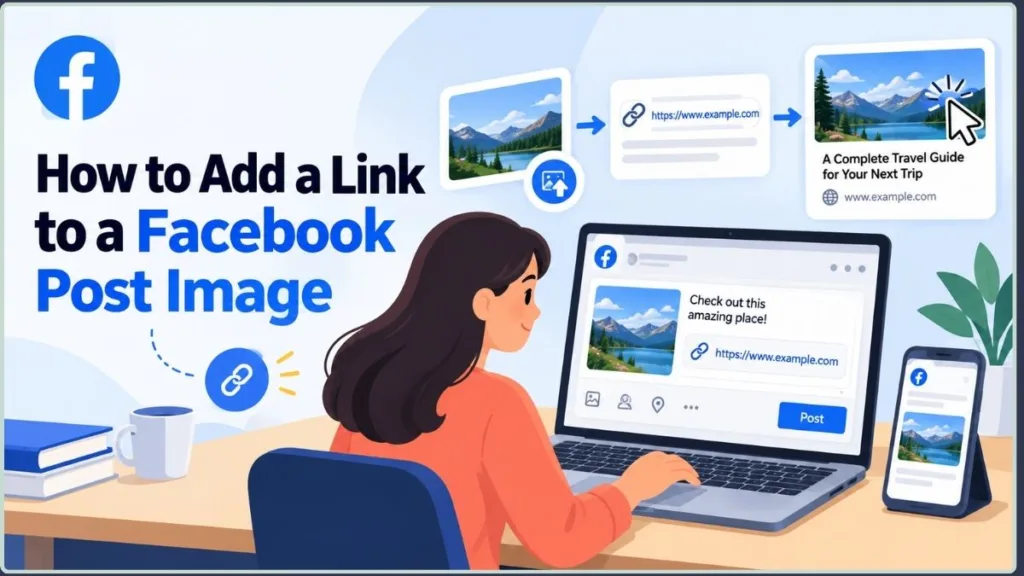
Facebook doesn’t let you directly hyperlink an uploaded photo in a standard organic photo post. However, you can add a clickable URL to the caption, publish a link preview with a clickable image, or use a Facebook ad with a destination URL.
This guide explains how to add a link to a Facebook post image on mobile and desktop, how to remove an unwanted link preview, how to track clicks, and what to know about Facebook’s reported 2026 link-post restrictions.
Quick answer: To share a photo with a clickable website link, create a Facebook post, upload your image, and paste the complete URL into the caption. If you want the preview image itself to open your website, create a link post instead. A regular uploaded photo and a link-preview image work differently. Facebook’s Help Center explains how to share links and how link previews may appear in posts.
Tip: Decide whether you want people to click the URL or the preview image before creating your post. Choosing the right format first can save you from having to delete and republish it.
Why Add a Link to a Facebook Photo Post?
A photo can grab someone’s attention while a website link gives them a clear next step.
For bloggers, creators, and businesses, this combination can help promote new articles, introduce products, announce events, and direct interested readers to a website.
For example, a blogger can publish an image related to a new tutorial and include the article URL in the caption. A store can share a product photo alongside a link to its product page.
The image makes the post visually appealing, the caption explains why it matters, and the link lets interested readers take action.
The key is making the next step obvious. A good image may earn attention, but readers still need a clear and convenient way to reach the destination.
Tip: Make sure the image and caption match the page you’re linking to. When readers know what to expect before clicking, they can decide more easily whether the destination is relevant to them.
What Are the Different Ways to Add a Link to a Facebook Post Image?
When people search for how to add a link to a Facebook post image, they often mean one of three things:
- A photo post with a link: You upload an image and put the website URL in the caption.
- A clickable link preview: You share a webpage URL, and Facebook may display a preview card containing an image, headline, and website information.
- A directly linked image in an advertisement: You create a Facebook ad with an image and a destination URL.
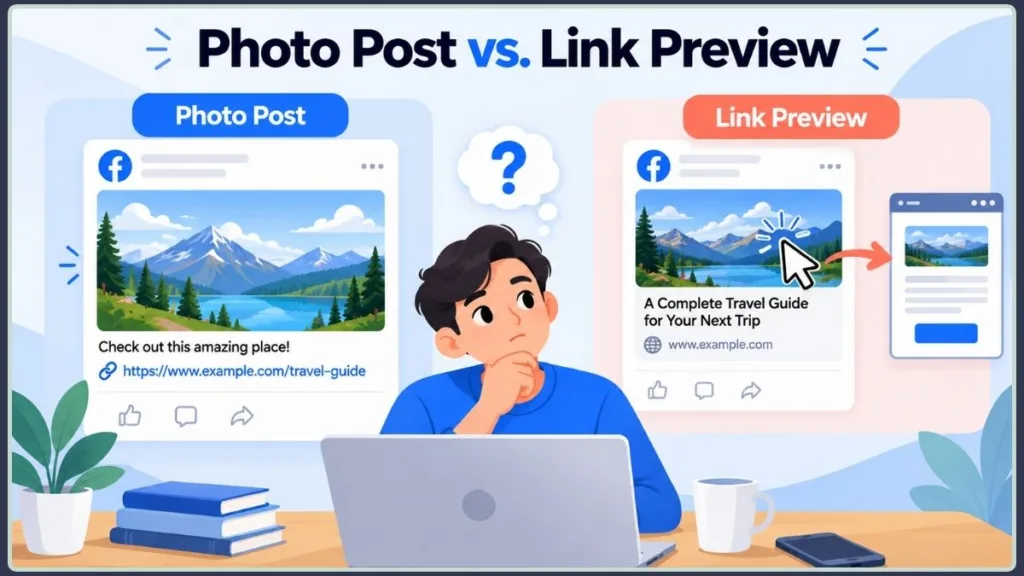
These options aren’t interchangeable.
A URL in a photo caption can be clickable, but that doesn’t automatically make the uploaded photo a hyperlink. A link-preview image can lead to the destination page, while an ad can be configured with a destination URL.
You can also publish a photo and add the website link in the first comment. However, people may not notice the comment, and reported link-post restrictions could affect this approach on some accounts.
Choose the method that best matches your goal before creating the post.
Tip: Before publishing, check the finished post from a viewer’s perspective. Identify exactly where someone needs to click or tap to reach your website, rather than assuming the entire post is clickable.
Facebook’s 2026 Link-Post Limits: Who Is Affected?
Before publishing website links from a Facebook Page, it’s worth checking whether your account is affected by Facebook’s reported link-post restrictions.
Meta’s Help Center now documents limits on links in organic Facebook Page posts and comments, while noting that the restrictions may not apply to every Page. You can read the current information in Meta’s Help Center article about links in organic Facebook Page posts and comments.
Who Is Affected by Facebook’s Monthly Link Limit?
The two-link monthly allowance has been reported for certain Facebook Pages participating in Meta’s test.
According to a support update published by Sprout Social on October 1, 2026, Pages included in the test without a qualifying Meta One subscription can include links in up to two organic posts or comments per calendar month. The same update says the current test applies to Facebook Pages rather than personal profiles or Groups. Because this is an active test, its conditions may change.
The earlier test, reported in December 2025, affected some Facebook Pages and profiles using professional mode. Meta confirmed that earlier experiment to TechCrunch. The scope described in current reporting on the expanded test is narrower, so don’t assume the original rules still apply to every account.
Keep these points in mind:
- The limit is not universal. Meta says the restrictions may not apply to all Pages.
- Check the post composer. If your Page is affected, Facebook may display a notice showing the link-post allowance remaining for the month.
- Comments may count. Under the current reported test, link-containing organic comments can use the same allowance, so don’t rely on the first-comment method as a guaranteed workaround.
- Some links are excluded. The current reporting identifies links in ads and links to Meta’s own apps among the exceptions.
- Subscription details vary. Features and availability depend on the plan, region, app, and account.
Meta announced Meta One on September 15, 2026. Its announcement identifies the Advanced business and creator plan, starting at $49.99 per month, as including links in organic posts and Reels, alongside additional publishing and analytics features. The announcement does not establish a universal monthly link allowance for every plan and account.
Check the current plan details inside your own account before subscribing. Don’t assume that every paid plan offers the same link-publishing allowance.
Practical tip: Continue publishing useful photo posts even when you’re saving your available link posts for your website’s most important articles, products, or campaigns.
Tip: Before purchasing a subscription specifically to publish more links, check the restrictions shown in your account and confirm that the subscription includes the feature you need.
How to Add a Website Link to a Facebook Post Image
The following methods explain how to share a photo and website URL, create a clickable link preview, and choose the option that best fits your needs.
Method 1: Add a Website Link to a Facebook Photo on iPhone and Android
This is the simplest method when you want to upload your own image and place a clickable website link in the caption.
Step 1: Open the Facebook App
Open the Facebook app on your Android phone or iPhone and sign in to your account.
Navigate to your profile or the Facebook Page where you want to publish the post.
Step 2: Start a New Facebook Post
Tap What’s on your mind? or the equivalent post-creation option displayed in your app.
Facebook’s interface can change, so look for the Create Post option if the wording or layout differs.
Step 3: Upload Your Photo to Facebook
Tap Photo/Video and select the image you want to share from your phone.
Check that you’ve selected the correct photo before continuing.
Step 4: Write Your Facebook Post Caption
Add a short description explaining the image and why someone might want to visit your website.
For example, you might write:
“Looking for a step-by-step guide? Find the complete instructions here.”
Keep your message focused and make the next step easy to understand.
Step 5: Add Your Website URL to the Caption
Copy the complete URL of the page you want to share and paste it into your caption.
For example:
https://yourwebsite.com/your-article
Use your actual webpage address rather than the example URL above.
Place the link near the beginning or end of the caption so readers can find it quickly.
Step 6: Review and Publish Your Facebook Photo Post
Choose the appropriate audience, such as Public or Friends, depending on your account and publishing options.
Review the image, caption, and URL. Then tap Post.
After publishing, open the post and test the link to make sure it leads to the correct webpage.
Important: The URL in your caption is clickable, but the original uploaded photo does not automatically become a direct hyperlink. If Facebook generates a preview attachment when you paste the URL, check which publishing format you want before posting.
Tip: Copy the URL directly from the destination page instead of typing it manually. This reduces the chance of a missing character or spelling mistake, and testing the published link confirms that it opens the intended page.
Method 2: Add a Website Link to a Facebook Photo Post on Desktop
If you prefer using a computer, you can follow a similar process through Facebook’s website.
Step 1: Open Facebook on Your Computer
Visit Facebook in your preferred browser and sign in.
Navigate to your personal profile or the Facebook Page you manage.
Step 2: Create a New Facebook Post
Click What’s on your mind? or the relevant post-creation option.
Step 3: Upload Your Photo From Your Computer
Select Photo/Video and upload the image you want to publish.
Wait for the image to finish loading before proceeding.
Step 4: Add Your Caption and Website URL
Write your caption and paste the full website link into the text field.
Keep the message concise and explain what readers will find after opening the link.
Step 5: Publish and Test Your Facebook Link
Review the post and click Post.
Once it appears on your timeline or Page, open the link to confirm that it works correctly.
Desktop publishing can be particularly convenient when you’re copying long URLs, writing longer captions, or preparing several posts for a campaign.
Facebook’s official instructions for sharing a post provide the general publishing workflow. The exact controls shown can vary across devices and account types.
Tip: If you’re publishing from a computer, keep the destination page open in another browser tab. You can quickly compare the URL, check the page title, and make sure the post directs readers to the correct destination.
Method 3: Create a Facebook Link Post With a Clickable Website Image
Do you want the image displayed in a Facebook link preview to lead visitors to your website?
In that case, create a link post rather than uploading a regular photo as the main post attachment.
Step 1: Copy the Website URL You Want to Share
Open the article, product page, or other destination you want to share.
Copy its complete URL.
Step 2: Create a New Facebook Link Post
Open Facebook and start a new post on your profile or Page.
Paste the webpage URL into the post text field.
Step 3: Wait for the Facebook Link Preview to Load
Facebook may generate a link-preview card containing an image, title, and website information.
Wait for the preview to load, then check that it represents the correct page.
A preview isn’t guaranteed for every URL. The result depends on the webpage and Facebook’s available preview information. Facebook’s instructions for sharing a Page link explain that a preview may be included.
Step 4: Add a Caption to Your Link Post
Write a short introduction above the URL if you want to provide additional context.
Explain what readers can learn, discover, or do after visiting the page.
Step 5: Publish and Test the Clickable Link Preview
Publish the post and test the preview to make sure it opens the intended destination.
Why this method works: A link-preview card is generated from the webpage you’re sharing. Its image can act as part of the clickable preview, unlike a separately uploaded photo in a standard photo post.
How to Change the Image in a Facebook Link Preview
Facebook may select an image from the webpage’s metadata. If the wrong image appears, check your website’s social-sharing settings.
For many websites, the preview image is controlled by Open Graph metadata, including the og:image property.
To troubleshoot the preview:
- Open your website’s SEO plugin or social-sharing settings.
- Check the image configured for the webpage.
- Confirm that the page has the correct Open Graph title, description, and image.
- Use Meta’s Sharing Debugger to inspect the information Facebook reads from the URL.
- Refresh the preview information through the debugger if needed.
Meta’s Sharing Debugger is particularly useful when Facebook continues to show outdated preview information after you’ve updated a webpage’s metadata.
If you’ve already published a post, updating the webpage’s metadata may not automatically change the existing preview.
Where Facebook offers a refresh-share or attachment-refresh option for the post, use it to request an updated preview. If that option isn’t available, check the current editing controls before attempting to publish the URL again.
Tip: Before sharing an important article, check its link preview while you still have time to correct the title, description, or image on your website. Don’t assume that changing the page’s metadata will automatically update a preview on a post you’ve already published.
Method 4: Add a Website Link to the First Facebook Comment
Some creators prefer to keep their photo captions short and place their website link in the first comment.
This can be useful when the image and caption are intended to stand on their own, with the URL providing an additional resource.
How to Add a Link in the First Comment on Facebook
- Create and publish your photo post with an engaging caption.
- Open the published post.
- Add a comment containing your complete website URL.
- If appropriate, mention the comment in your caption, such as “Find the full guide in the comments.”
Check that the URL is clickable and leads to the correct page.
Advantages and Limitations of Facebook Comment Links
A link in the first comment keeps the main caption visually simple. However, some readers may never open the comments, which can reduce the visibility of the URL.
Important for 2026: On Pages affected by Meta’s current link-limit test, organic comments containing links may count toward the same monthly allowance as link posts. This means placing a URL in the first comment is not a guaranteed way to avoid the restriction. Check Meta’s current Help Center guidance.
Test the publishing options available to your own account before building an entire campaign around this approach.
Tip: If you place your URL in a comment, tell readers where to find it in the caption. After publishing, check that the comment is visible to the intended audience and that the link works.
How to Copy a Facebook Post Link on Mobile
Sometimes you don’t need to add a link to a photo. You simply need to copy the URL of an existing Facebook post so you can share it elsewhere.
Menu labels can differ across Facebook app versions, but these are the usual steps.
How to Copy a Facebook Link on iPhone
- Find the Facebook post you want to share.
- Tap Share.
- Select Copy link, if available.
You can now paste the copied link into a message, email, or another post.
How to Copy a Facebook Link on Android
- Open the Facebook post.
- Tap Share.
- Look for Copy link, More options, or a similar option.
- Copy the link to your clipboard.
Depending on your app version, the copy option may also appear in the post’s three-dot menu.
These steps copy a link to the Facebook post itself. They do not create a hyperlink on the image or copy the URL of an external website mentioned in the caption.
Tip: Paste the copied link into a message draft or browser address bar to check that it points to the post you intended to share before sending it to anyone.
How to Make Facebook Image Links More Effective in 2026
Sharing a URL is only one part of creating a useful Facebook post.
Your image should attract attention, your caption should explain the value of the link, and the destination should deliver what the post promises.
Reporting based on Meta’s Widely Viewed Content data indicates that the share of U.S. organic Feed views involving posts with links fell from 9.8% in 2022 to 1.3% in the first quarter of 2026. These figures concern views of organic Feed content in the United States, not all Facebook activity or a link’s click-through rate.
Those figures don’t mean external links are useless. They do suggest that publishing a link alone is unlikely to be enough.
To make each post more useful:
- Lead with an image that communicates the subject clearly.
- Explain why the linked page is worth visiting.
- Use a short caption that works on mobile.
- Give readers a clear next step.
- Check performance instead of assuming every post will generate traffic.
Algorithm tip: Write for the person reading your post, not just for the click. A useful caption gives people a reason to visit the link and enough context to understand what they’ll find there.
Tip: Review results across several posts instead of judging your strategy by a single update. A post’s reach and clicks can vary, so compare similar content before deciding which image or caption works better.
How to Add a Link to a Facebook Page Post
The basic photo-and-link methods also work for many Facebook Pages, although the available publishing options can vary.
To create a Page post containing a photo and a website link:
- Switch to the Facebook Page you manage.
- Start a new post.
- Upload your photo if you’re creating a standard photo post.
- Add your caption and complete URL.
- Review the post and publish it.
Alternatively, share a webpage URL and allow Facebook to generate a link preview if that option is available.
Before publishing multiple external links, check whether your Page displays any monthly limit or subscription prompt.
How to Add a Facebook Page Call-to-Action Button
A Page can also have a call-to-action button that directs visitors to an appropriate destination.
Depending on the Page and available features, button options may include actions such as Learn More or Contact Us.
To configure one, Meta’s current help instructions provide this general route:
- Open Facebook and switch to the Page you manage.
- Navigate to your Page.
- Look below the cover photo for the action button or editing option.
- Select Edit action button, then Change button, where those controls are available.
- Choose an available button and follow the on-screen instructions.
- Save your changes and test the button.
The exact options depend on your Page and its available features. See Meta’s instructions for editing a Page’s action button.
This is a Page-level feature, not a link attached to an individual photo.
For ongoing publishing and performance tracking, you can also explore Meta Business Suite, which provides management and insights tools for eligible Pages and business accounts. For additional guidance, see Izoate’s guide to editing scheduled Facebook posts.
How to Add Your Website Link to a Facebook Page
A link in a post can disappear into the feed over time. You can make important destinations easier to find by adding your website to the appropriate Page information fields or featuring a relevant post.
Consider using:
- Your Page’s About or contact information.
- The website field, where available.
- A pinned or featured post, if supported by your Page.
These options provide additional ways for visitors to find your website without relying on a single post.
Tip: Give important destinations more than one appropriate path to discovery. A Page website field or featured post can help visitors find your site even after an individual post moves down the feed.
How to Post a Facebook Photo With a Link but No Preview
Sometimes you want to upload your own image and include a URL without displaying a large link-preview card.
The exact options depend on Facebook’s current composer and account settings.
How to Remove a Facebook Link Preview Before Publishing
When Facebook generates a preview after you paste a URL, look for an X or another option to remove the preview attachment.
If that option is available:
- Create a post and paste your website URL.
- Wait for the preview card to appear.
- Click or tap the option to remove the preview.
- Review the remaining post content.
- Publish the post if the result looks correct.
Removing the preview may leave the URL in your post text, but the image and link will still be separate elements.
What to Do If You Can’t Remove the Facebook Link Preview
If the option doesn’t appear, try another approach:
- Create a photo post first and put the URL in the caption.
- Add the URL in a comment if that suits your audience and account limits.
- Try Facebook on desktop if the mobile interface doesn’t offer the option you need.
A shortened URL may change how a link is displayed, but it isn’t a guaranteed way to prevent Facebook from generating a preview.
Always test the finished post before relying on it for a campaign.
Tip: If you need a clean photo post, upload the image first and add the URL in the caption. Preview the final post before publishing to make sure you haven’t accidentally created a link card you don’t want.
How to Track Clicks on a Facebook Image Link
Adding a link helps people reach your website, but tracking helps you understand whether the post is actually bringing in visitors.
You can measure link performance with UTM parameters, a link-shortening service, or the insights available to your Facebook Page.
Method 1: Add UTM Tracking Parameters to Your Facebook URL
UTM parameters are tracking values appended to a URL. They help analytics tools identify where website traffic originated.
For example:
https://yourwebsite.com/your-article/?utm_source=facebook&utm_medium=social&utm_campaign=image-post
The example includes:
utm_source=facebookto identify Facebook as the source.utm_medium=socialto identify the social channel.utm_campaign=image-postto identify the campaign.
Use a consistent naming convention across your social posts.
Your website analytics tool can then report visits associated with those parameters, provided tracking is configured correctly. Google Analytics explains how UTM parameters identify campaign traffic.
Note: UTM parameters track incoming website visits; they don’t automatically tell you the total number of people who saw or clicked a Facebook post.
Tip: Use a different campaign name for each campaign you want to compare, but keep your naming format consistent. This makes it easier to distinguish traffic from separate Facebook promotions in your analytics reports.
Method 2: Track Facebook Link Clicks With Bitly
Services such as Bitly offer short links and click analytics on supported plans.
A shortened link can be convenient when you want to share a long URL. Depending on the service and plan, you may also be able to review click totals and other performance information.
Before using a short-link service, check that the destination is correct and that the service provides the analytics you need.
Method 3: Track Facebook Post Performance in Meta Business Suite
Facebook Page administrators may be able to review post reach, engagement, and other available performance information in Insights or Meta Business Suite.
Open the relevant analytics area and look for the metrics available for your account and post type. Metric names and availability can change.
For website visitor counts, your own analytics tool and correctly configured UTM parameters can provide additional information beyond Facebook’s engagement measurements. Don’t assume that a single Meta metric represents all website visits or completed actions.
Which Facebook Link-Tracking Method Should You Use?
| Tracking method | Best use | Difficulty |
|---|---|---|
| UTM parameters | Measuring website traffic from a campaign | Easy |
| Link shortener with analytics | Reviewing clicks on a shortened URL | Easy |
| Meta Business Suite Insights | Understanding Page and post performance | Beginner-friendly |
For a blog or business website, combining UTM parameters with your website analytics is a useful starting point. Page insights can provide additional context about how people interact with the original Facebook post.
Tip: Test your tracking URL before sharing it publicly. Open the link, confirm that it reaches the right destination, and check that the tracking parameters remain in the address.
Best Tools for Creating and Tracking Facebook Image Posts
A few tools can help you create more effective visuals, organize links, and troubleshoot sharing problems.
1. Canva: Create Facebook Post Images
Canva offers templates and design tools for creating Facebook graphics.
Use it to prepare clear images for article promotions, product announcements, events, or other posts. Keep your text readable and avoid filling the graphic with too much information.
2. Bitly: Shorten and Track Facebook Links
Bitly provides link-shortening tools and analytics features on supported plans.
It can help you manage shorter URLs and review their performance, depending on the plan you use.
3. Meta Sharing Debugger: Fix Facebook Link Previews
Meta’s Sharing Debugger helps inspect how Facebook reads webpage information for link previews.
It can be especially useful when the preview displays an outdated image, incorrect title, or unexpected description.
4. Meta Business Suite: Manage Facebook Page Posts
Meta Business Suite offers tools for managing eligible Facebook Pages, publishing content, and reviewing performance.
Available functions and metrics depend on the account and the current interface.
5. Linktree: Share Multiple Website Destinations
Services such as Linktree provide a landing page that can collect multiple destinations under one URL.
This can be useful for a creator or business that wants a single destination for several articles, products, or contact options.
These tools don’t make an uploaded Facebook photo directly clickable. They help with the image, the destination, the publishing workflow, or tracking.
Tip: Choose tools based on the problem you’re solving. You don’t need a link shortener for every post, and you don’t need a separate design tool if your image is already ready to publish.
Best Image Size for Facebook Link Posts and Photo Posts
The ideal image dimensions depend on whether you’re sharing a link preview or uploading a regular photo.
Recommended Image Size for Facebook Link Previews
An image around 1200 × 630 pixels, with an aspect ratio close to 1.91:1, is a common starting point for webpage link previews.
Treat these dimensions as a practical recommendation, not a guarantee that Facebook will always display the image at exactly that size. The final appearance depends on the preview format, source image, webpage metadata, and placement.
Before preparing graphics for an important campaign, check the current Meta Sharing Debugger and preview your actual URL.
Recommended Image Size for Regular Facebook Photo Posts
Regular photo posts can use a range of image dimensions. Choose a high-resolution image that suits the subject and the placement.
For best results:
- Keep important text and visual details away from the edges.
- Avoid putting essential information where a crop could remove it.
- Preview the image on a phone as well as a computer.
- Use a suitable image format, such as JPG or PNG, based on your design.
Facebook may crop images differently across placements, so don’t assume an image will look identical in every view.
Image tip: Keep faces, important text, and the main subject near the center when a crop could affect the design.
Tip: Before publishing, preview the image at the size and placement your audience is likely to see. A graphic that looks clear on a large monitor may be harder to read on a phone.
How to Fix a Facebook Link That Isn’t Clickable or Showing
If your link doesn’t work as expected, the issue may be the URL, the publishing method, the preview, or an account restriction.
Try these fixes in order.
1. Check the Complete Facebook URL
Make sure the link includes the correct address and begins with https:// where applicable.
Look for missing characters, extra spaces, and typing mistakes.
2. Test the Website Link Outside Facebook
Open the URL in your browser.
Confirm that it loads the intended page and doesn’t lead to an error, an unexpected redirect, or a private page that other people cannot access.
3. Check Whether the Facebook Photo or Link Preview Is Clickable
A regular photo post and a link-preview post work differently.
If you’ve uploaded a photo and pasted the URL into the caption, test the URL itself rather than assuming the photo will open the website.
If you want the preview image to lead to the page, use a link post when available.
4. Refresh the Facebook Link Preview
If Facebook displays the wrong title, description, or image, check the webpage’s Open Graph metadata.
Use Meta’s Sharing Debugger to inspect the information available to Facebook. If you change the metadata, you may also need to refresh the preview information.
5. Update the Facebook App
If the publishing interface behaves unexpectedly, update the Facebook app and try again.
You can also compare the options available on the mobile app and desktop website.
On Android, clearing the app cache may help with certain local display problems.
6. Check Whether Facebook Is Blocking or Restricting the URL
Facebook may restrict links it considers unsafe or otherwise unsuitable.
If you believe a legitimate website has been blocked incorrectly, review Facebook’s available help and reporting options.
7. Check Whether You’ve Reached Facebook’s Monthly Link Limit
If you’re publishing from a Page and see a notice about a link allowance, check the message displayed in the composer.
Don’t assume that every account has the same limit or that moving the URL into a comment will bypass it. Consult Meta’s current Page link-limit guidance.
8. Try Facebook on Another Device
If the problem continues, sign out and back in, or test the same workflow on another supported device.
This can help distinguish a temporary app issue from a problem with the URL or the account’s publishing options.
Why isn’t my Facebook link clickable? Common reasons include an incomplete URL, a typing mistake, a problem with the destination page, or a restriction affecting the link. Check the address first, then test the publishing method and account settings.
Why did Facebook replace my image with a link preview? Pasting a webpage URL can cause Facebook to generate a preview card. If you want to use your own uploaded photo instead, create a photo post and place the URL in the caption.
Why can’t I publish another link from my Page? Your account may be displaying a link-post restriction. Check the notice in the composer and confirm which options are available to your account.
Troubleshooting tip: Change one thing at a time when testing a broken link. Start with the URL, then check the destination page, preview, and publishing method. That makes it easier to identify the actual problem.
How to Use Facebook Image Posts to Drive Website Traffic
Image-and-link posts can support several goals.
Promote new content: Share an image related to a new tutorial or article and give readers a clear route to the complete guide.
Introduce products: Publish a product photo with a caption containing the product-page URL.
Announce events: Use an event graphic and link to the relevant registration or information page.
Encourage sign-ups: Share a useful visual and direct interested people to a suitable landing page.
In each case, the purpose is to make the journey from noticing a post to reaching the intended destination as simple as possible.
If your Page is affected by link-post restrictions, save your available link posts for the destinations that matter most and use regular photo posts for content that doesn’t need an external URL.
Tip: Give every link post one clear purpose, such as promoting an article, presenting a product, or collecting registrations. A focused post makes it easier for readers to understand the next step and for you to evaluate its performance.
Best Practices for Facebook Photo Posts With Website Links
Follow these practical guidelines to make your post clear and easier to use.
- Choose a strong image: Use a high-quality visual that communicates the subject quickly.
- Write a clear caption: Explain the purpose of the post without making readers work through unnecessary text.
- Make the next step obvious: Tell people what they’ll find if they open the link.
- Place the URL where people can find it: Avoid burying it in the middle of a long caption.
- Keep the post focused: One main destination is usually easier to understand than several competing links.
- Preview on mobile: Check that the image, caption, and link display properly on a phone.
- Test the destination: Make sure the URL works before publishing.
- Measure performance: Use tracking where appropriate to understand which posts bring visitors to your website.
Tip: Read your caption once before publishing and ask yourself whether someone unfamiliar with your website would understand what the link offers. If the value isn’t clear, make the caption more specific.
How to Make Facebook Image Posts Accessible With Alt Text
Your image should communicate its purpose to people who can’t see it clearly or who use assistive technology.
Facebook may generate automatic descriptions for images, but you can check the available accessibility options and provide a more useful description when supported.
Meta’s photo-editing help documentation includes an Add alternative text option in the publishing workflow on supported interfaces. See Facebook’s photo-editing instructions.
How to Add Alternative Text to a Facebook Photo
- Select your photo in the post composer or open the photo’s available editing options.
- Look for Edit Alt Text, Alternative Text, or a similar setting.
- Write a short, accurate description of the important visual information.
- Save your changes.
The exact menu and wording can differ between desktop and mobile.
For example, instead of writing “Photo,” use a description such as:
“A laptop on a desk displaying a blog homepage, with a coffee mug beside it.”
Good alternative text describes the relevant content without stuffing keywords or repeating the entire caption.
Accessibility tip: Describe the important information shown in the image, not every decorative detail. If the graphic contains essential text that isn’t repeated in the caption, consider including that information in the post text as well.
Facebook Link Safety and Privacy Tips
Before publishing a website link, check both the destination and the post’s privacy settings.
Avoid suspicious URL-shortening services you don’t recognize. Confirm that shortened links lead to the page you intend to share.
Review the audience selector before publishing. A post intended for everyone may need a Public audience, while a personal update may be more appropriate for Friends.
Don’t share private document links, account pages, or URLs that expose information you don’t intend to make public.
Finally, double-check the link. A small URL mistake can send visitors to the wrong destination or prevent the page from opening.
Safety tip: If you’re using a shortened URL, test where it leads before sharing it. Never publish a private or restricted destination when you intend the post to be accessible to the public.
Common Facebook Image-Link Posting Mistakes to Avoid
A few common mistakes can make a Facebook image post less useful:
- Forgetting part of the website URL.
- Burying the link where readers may miss it.
- Assuming an uploaded photo automatically becomes a hyperlink.
- Using an image that gets cropped in an important area.
- Leaving out a clear call to action.
- Publishing without testing the destination.
- Ignoring link tracking when traffic measurement matters.
- Sharing outdated or broken URLs.
- Assuming all accounts have the same monthly link allowance.
- Relying on a first-comment link without checking whether your audience will see it or whether your Page’s link allowance includes it.
Fixing these issues before publishing can make your posts more reliable and easier to use.
Tip: Use a short pre-publication check: verify the URL, confirm the audience, inspect the image crop, and test the link. These few checks can catch the most avoidable posting mistakes.
Pro Tips to Get More Clicks on Facebook Image Links
Make the link easy to find. Place it near the beginning or end of a caption rather than hiding it in a long paragraph.
Use a clear call to action. Phrases such as “Read the full guide,” “Explore the details,” or “View the product” tell readers what to do.
Publish when your audience is active. Check your Page insights for information about when your followers interact with your content.
Respond to comments. Answer relevant questions and engage with people who respond to your post.
Keep important links visible. If you place a URL in a comment, use a pin or feature option where Facebook makes it available.
Compare different visuals. Test alternative images or captions for similar content and compare the results.
Prioritize your most valuable links. If your account displays a monthly restriction, use your available link posts for your highest-priority pages.
Tip: Keep your call to action specific to the destination. “Read the full tutorial” works better for a guide, while “View the product” is clearer when you’re sharing a product page.
Facebook Post Caption Ideas With Website Links
A useful caption connects the image with the destination. Adapt these examples to your topic.
Direct: “Read the complete guide here: [your link]”
Curiosity-driven: “Want to know what’s behind this? Explore the full details here: [your link]”
Promotional: “Our latest article is live. Visit the full guide here: [your link]”
Short and simple: “Find the step-by-step instructions here: [your link]”
Helpful: “Save this post for later and use the complete guide when you’re ready: [your link]”
Replace the example URLs with your actual destination. Make sure the caption accurately describes what people will find after clicking.
Caption tip: Avoid promising something the destination doesn’t deliver. A clear, accurate caption helps people decide whether to click and sets the right expectation before they leave Facebook.
Can You Add a Link to a Facebook Story or Reel?
Facebook Stories and Reels have different publishing options from regular photo posts, and the available features can depend on your account.
Meta’s September 2026 announcement identifies links in organic posts and Reels as a feature of its Advanced business and creator subscription plan. It does not establish that every Facebook account has a clickable link sticker in Stories. See Meta’s official Meta One announcement.
To check the options available for a Facebook Story:
- Open the Story creator.
- Add your image or other content.
- Open the sticker or editing options.
- Look for a Link option if available.
- Follow the on-screen prompts to add and test the destination.
If you don’t see a link option, it may not be available in your account’s current Story workflow. Don’t assume that Instagram’s link-sticker instructions apply identically to Facebook.
Reels also have their own publishing options, so check the features available to your Page and subscription before planning a campaign around a Reel link.
Tip: Test the destination from the published Story or Reel before sharing it widely. A link that works in the editing screen should also be checked from the viewer’s side.
FAQs About Adding a Link to a Facebook Post Image
How Do I Add a Link to a Facebook Post Image?
Create a post, upload your photo, and paste the complete website URL into the caption. The URL can be clickable, but the uploaded photo itself does not automatically become a hyperlink.
Can I Add a Clickable Link Directly to a Facebook Photo?
A standard organic photo post doesn’t provide the same direct image-to-destination URL setting as an advertisement. You can include a clickable URL in the caption or create a link-preview post whose image leads to the webpage.
How Do I Add a Link to a Facebook Post on an iPhone?
Open Facebook, start a post, select Photo/Video, choose your image, and paste the complete URL into the caption. Review the post and tap Post.
How Do I Add a Link to a Facebook Post on a Computer?
Open Facebook in your browser, create a new post, upload your photo, and place the website URL in the caption. Publish the post and test the URL.
How Do I Create a Facebook Post With Both a Photo and a Link?
You can upload a photo and add a URL in the caption, or share a webpage URL to generate a clickable link preview. Choose the method based on whether you need the uploaded photo or the preview card to lead to the destination.
How Can I Post a Facebook Link Without a Preview?
If Facebook generates a preview card, look for an option to remove it before publishing. If that option isn’t available, upload your photo first and include the URL in the caption.
How Do I Track Clicks on a Facebook Image Link?
Use UTM parameters with your website analytics, a link-shortening service with click analytics, or the relevant performance metrics in Meta Business Suite. The best option depends on whether you want to measure website visits, link clicks, or overall Page engagement.
What Size Should an Image Be for a Facebook Link Post?
An image around 1200 × 630 pixels is a common starting point for link previews. Regular photo posts support different dimensions. Preview your design and check Meta’s current tools before publishing important campaigns.
How Do I Copy a Facebook Link on Mobile?
Open the post, tap Share, and choose Copy link or the equivalent option. On some Android versions, the copy action may appear under More Options or the post’s menu.
Why Isn’t My Facebook Link Clickable?
Check that the full URL is present and correct. Test the destination in your browser, then confirm that the post is using the publishing method you intended. Account restrictions or link problems can also affect the result.
Is Facebook Limiting the Number of Links I Can Post?
Meta’s Help Center documents link-post restrictions that may apply to certain Facebook Pages. Current reporting on the expanded test describes an allowance of up to two organic posts or comments containing links per calendar month for affected Pages without a qualifying subscription. The restriction isn’t necessarily applied to every account. Check the notice in your composer and Meta’s current Help Center guidance.
Final FAQ tip: Facebook’s interface and account-specific features can change. When a setting isn’t where you expect it, check the options currently available in your own app or Page before relying on an older tutorial.
Final Thoughts: adding a Link to a Facebook Post Image Successfully
Learning how to add a link to a Facebook post image becomes easier when you understand the difference between a photo post, a clickable URL in a caption, and a link-preview card.
For a simple photo post, upload your image and add the full website URL to the caption. If you want a clickable preview image, share the webpage URL and check the card Facebook creates. For paid promotions, use an advertising format that supports a destination URL.
Once your post is live, test the link and track its performance where appropriate. If you manage a Facebook Page, also check whether your account displays any link-post restrictions before planning your next campaign.
The goal is simple: choose an image that earns attention, give readers a clear reason to click, and make sure the link takes them exactly where you promised.
For your next post, try one improvement—such as moving the link closer to the start of the caption, adding a clearer call to action, or tagging the URL for analytics—and compare the results.
Visit Our Post Page: Blog Page
Discover more from Izoate
Subscribe to get the latest posts sent to your email.