
Getting Rainbow Six Siege Error 49666? Learn how to fix the “Something went wrong when trying to move the current executable before staging” anti-cheat error.
Are you encountering Rainbow Six Siege Error 49666 when trying to launch or play the game? This error is associated with an anti-cheat issue that can prevent players from accessing Rainbow Six Siege X. It can be particularly frustrating when restarting the game, reinstalling anti-cheat components, or verifying game files does not resolve the problem.
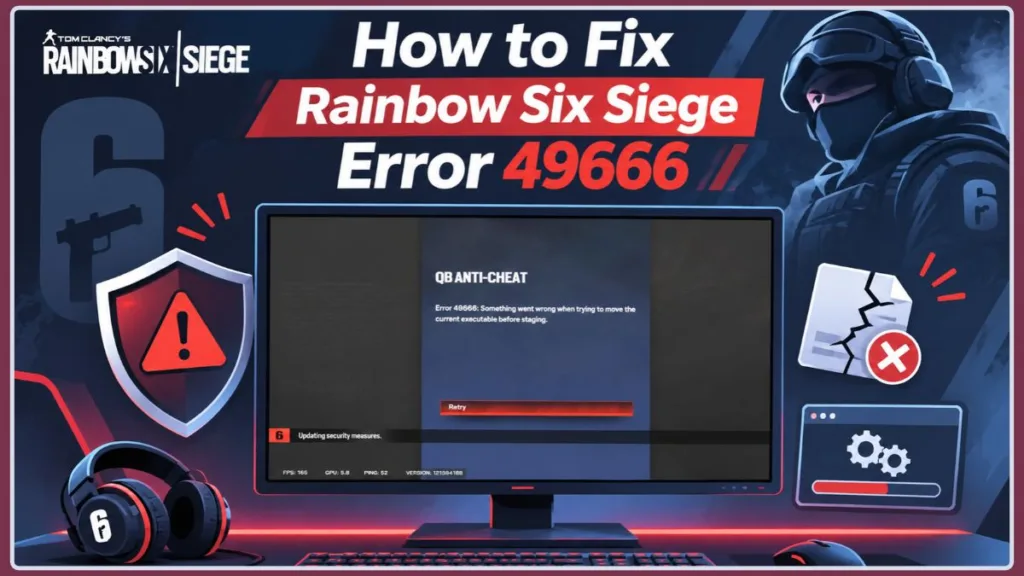
In this guide, we’ll explain what Rainbow Six Siege Error 49666 means, why it occurs, and how to fix it using practical troubleshooting methods. Whether you’re looking for a Rainbow Six Siege Error 49666 fix, trying to fix Error 49666 in R6 Siege, or experiencing an R6 anti-cheat error.
What Is Rainbow Six Siege Error 49666?
Rainbow Six Siege Error 49666 is an anti-cheat-related error that can prevent players from launching or accessing the game. It became a reported problem following the Rainbow Six Siege X update, with affected players encountering the error when attempting to play.
Why Am I Getting Error 49666 in Rainbow Six Siege?
There isn’t one confirmed cause for every Error 49666 occurrence. However, the reported cases and Ubisoft’s troubleshooting recommendations point to several possible factors behind the Rainbow Six Siege anti-cheat error 49666.
Here are some potential reasons you’re encountering this R6 Error 49666 anti-cheat issue:
The error may occur due to several factors, including corrupted Ubisoft cache files, different installation drives for Steam and Ubisoft Connect, antivirus interference, conflicting background applications, damaged Windows system files, or problems with the game’s anti-cheat components.
The error can also appear after a major game update, as reported by players following the Siege X update. However, this does not necessarily mean the update itself is responsible.
Before Troubleshooting Error 49666: Try These Quick Checks
Before trying the main solutions, close and restart Rainbow Six Siege. Exit Ubisoft Connect (formerly known as Uplay) completely, reopen it, and sign in to your account. If you’re playing through Steam, restart the launcher as well. Make sure Rainbow Six Siege and its launchers are up to date.
Check the official Rainbow Six Siege server status page to see whether Ubisoft is experiencing service disruptions.
If you’re also encountering a Rainbow Six Siege server connection error, check whether an ongoing service disruption could be responsible. If there is an outage, wait until services recover before attempting advanced troubleshooting.
The official Rainbow Six account on X (@Rainbow6Game) has also shared another troubleshooting method, noting that some players have found it helpful. It involves clearing the contents of the game’s multiexe folder from the Rainbow Six Siege installation directory.
How to Clear the Rainbow Six Siege multiexe Folder
First, close Rainbow Six Siege completely and open its installation directory. Depending on where you installed the game, navigate to one of these locations:
Ubisoft Connect installation:
C:\Program Files (x86)\Ubisoft\Ubisoft Game Launcher\games\Tom Clancy's Rainbow Six Siege\multiexe
Steam installation:
C:\Program Files (x86)\Steam\steamapps\common\Tom Clancy's Rainbow Six Siege\multiexe
Open the multiexe folder and delete its contents. Make sure you delete only the files inside this folder, not the entire Rainbow Six Siege installation directory. If you’ve installed the game in a custom location or another Steam library, navigate to that actual installation directory instead.
Once you’ve cleared the folder, relaunch Rainbow Six Siege and check whether the problem is resolved.
If Rainbow Six Siege Error 49666 continues appearing, try the following troubleshooting solutions.
Rainbow Six Siege Error 49666: How to Fix It
If you’re looking for a Rainbow Six Siege Error 49666 fix, these methods cover Ubisoft Connect, game-file verification, anti-cheat repair, and Windows troubleshooting. Error 49666 in R6 Siege has been reported as an anti-cheat-related issue, although its exact cause has not been confirmed for every player. The original Steam discussion about Error 49666 also includes Ubisoft’s recommendations for checking installation locations, testing antivirus interference, performing a Clean Boot, and scanning Windows system files.
Reset the Ubisoft Connect Cache
Ubisoft Connect stores temporary data in cache folders to help the launcher access frequently used information. If these files become problematic, clearing the cache may help resolve certain launcher issues. Ubisoft recommends renaming the cache folders rather than deleting the entire Ubisoft folder.
How to Rename the Ubisoft Connect Cache Folders
First, log out of Ubisoft Connect and close the application completely. Make sure it is no longer running in the background. Open File Explorer and navigate to:
C:\Program Files (x86)\Ubisoft\Ubisoft Game Launcher\
Find the folder named cache, right-click it, and rename it to cache_backup. Next, press Win + R, type %localappdata%\Ubisoft Game Launcher, and press Enter. If this location exists, find its cache folder and rename it to cache_backup as well.
After renaming the available cache folders, reopen Ubisoft Connect and sign in to your account. The launcher will automatically create new cache folders. If either location does not exist on your PC, skip it rather than creating a folder manually. Make sure you rename only the specified cache folders instead of deleting the entire Ubisoft or Ubisoft Game Launcher directory.
For the exact cache locations and instructions, follow Ubisoft’s official guide to clearing the Ubisoft Connect PC cache.
Verify Rainbow Six Siege Game Files
Missing or corrupted game files can interfere with Rainbow Six Siege and its supporting components. Verifying the installation can help identify and restore problematic files. You can perform a Steam file integrity check or use the repair option in Ubisoft Connect.
How to Verify Game Files on Steam or Ubisoft Connect
Before starting, restart your PC and open Steam again. Navigate to Library, right-click Tom Clancy’s Rainbow Six Siege, and select Properties. Open Installed Files and click Verify integrity of game files. Wait for Steam to complete the verification and allow it to download or restore any files that need replacing. The process may take several minutes, depending on your installation.
Steam notes that one or more files may sometimes fail verification because they are local configuration files that should not be replaced. This can be normal and does not necessarily mean the verification has failed. You can follow the official Steam instructions for verifying game-file integrity if you need additional guidance.
If you use Ubisoft Connect, open the Library tab, select Rainbow Six Siege, click the cog icon beside the Play button, and choose Verify files. You can also refer to Ubisoft’s instructions for verifying game files in Ubisoft Connect. If you own the game through Epic Games, use its available verification option instead.
Once verification finishes, launch Rainbow Six Siege and check whether Error 49666 still appears. This process may resolve problems caused by missing or corrupted game files, although it is not guaranteed to fix every R6 anti-cheat error.
Repair or Reinstall Ubisoft Anti-Cheat
If Rainbow Six Siege Error 49666 continues after verifying the game files, the Ubisoft Anti-Cheat installation may need attention. Ubisoft provides a repair and reinstall option through the anti-cheat installer included with supported games.
How to Run the Ubisoft Anti-Cheat Repair Tool
First, locate your Rainbow Six Siege installation folder. Inside the game’s folder, open the Sentinel folder and look for UbisoftAntiCheatInstaller.exe. The default parent directory for Ubisoft Connect installations is:
C:\Program Files (x86)\Ubisoft\Ubisoft Game Launcher\games
Your actual game installation location may be different, especially if you installed the game through Steam or Epic Games.
Right-click UbisoftAntiCheatInstaller.exe and select Run as administrator. When the installer opens, choose Repair and allow the process to finish. Restart your PC and launch Rainbow Six Siege to check whether the error is resolved.
If repairing the component does not help, open the same installer again and select Install to reinstall Ubisoft Anti-Cheat. Do not manually delete unidentified anti-cheat files from the game directory. Use Ubisoft’s installer or its official support instructions instead.
For additional repair instructions and anti-cheat troubleshooting, refer to Ubisoft’s official guide to resolving Ubisoft Anti-Cheat technical issues.
Check Whether Steam, Ubisoft Connect, and Rainbow Six Siege Are on the Same Drive
An Ubisoft support representative recommended checking whether Steam, Ubisoft Connect, and Rainbow Six Siege are installed on the same drive, preferably the Windows drive. This recommendation was made in response to an Error 49666 report, although different installation drives have not been established as the cause of every occurrence.
How to Check the Installation Drive for Each Application
Open Steam and navigate to Library. Right-click Tom Clancy’s Rainbow Six Siege, select Properties, and open Installed Files to check the game’s installation location. Then check the installation locations of Steam and Ubisoft Connect using their respective Windows shortcuts or installation settings.
If the applications are installed on different drives, note their locations before making any changes. Consider moving or reinstalling them on the same drive only if necessary. Avoid reinstalling all three applications as an initial troubleshooting attempt. Restart your PC after making any installation changes and test the game again.
Additional SOlution for R6 Siege Error 49666
If the previous solutions haven’t resolved Rainbow Six Siege Error 49666, try these additional Windows and security-related checks.
Check Whether Antivirus Software Is Blocking Rainbow Six Siege
Third-party antivirus software may sometimes block Rainbow Six Siege or its anti-cheat components. Before temporarily disabling protection, check your security software’s quarantine, Protection History, or Threat History section to see whether a game or Ubisoft file has been blocked.
How to Check for Antivirus Interference
Open your antivirus application and review its quarantine or protection history. Check whether a Rainbow Six Siege, Ubisoft Connect, or Ubisoft Anti-Cheat file has been blocked or quarantined. If you use Microsoft Defender, open Windows Security, select Virus & threat protection, and open Protection history to review recent detections.
Do not restore or allow a quarantined file unless you have verified that it is legitimate. If you cannot determine whether a file is safe, leave it quarantined and contact Ubisoft Support or your antivirus provider.
As a temporary diagnostic test, you can briefly disable third-party antivirus protection, launch Ubisoft Connect and Rainbow Six Siege, and check whether Error 49666 still appears. Re-enable protection immediately after testing. If the error disappears, investigate the specific blocked component rather than leaving antivirus protection disabled.
Only consider a narrowly scoped exception for the official Ubisoft Anti-Cheat executable when you have verified the file and have evidence that security software is blocking it. Avoid excluding the entire game folder or drive without a clear reason. For more details, see Microsoft’s instructions on checking Protection History in Windows Security.
Find Background App Conflicts With a Windows Clean Boot
A Windows Clean Boot starts your PC with essential services and a limited set of startup applications. It can help identify whether background applications or Windows services are interfering with Rainbow Six Siege or its anti-cheat components.
How to Perform a Clean Boot in Windows
Before starting, sign in to Windows using an administrator account and note which services and startup applications you disable. Press Win + R, type msconfig, and press Enter to open System Configuration. Go to the Services tab, check Hide all Microsoft services, and then click Disable all.
Next, open the Startup tab and select Open Task Manager. Disable the nonessential startup applications listed there, keeping a record of the changes. Close Task Manager, return to System Configuration, and click Apply and OK. Restart your PC to enter the Clean Boot environment, then launch Rainbow Six Siege and check whether Error 49666 persists.
If the game works in this environment, a background application or service may be causing the conflict. Re-enable the disabled services and startup applications gradually, restarting and testing the game to identify the problematic item. After testing, restore your normal Windows startup settings and re-enable the remaining applications and services.
A Clean Boot is intended as a temporary diagnostic test, not a permanent way to run Windows. Follow Microsoft’s official instructions for performing and reversing a Clean Boot to restore your usual startup configuration.
Repair Windows System Files With DISM and SFC
Unlike the previous fixes, which focus on game and anti-cheat files, DISM and System File Checker (SFC) check and repair Windows system components. These tools may help if corrupted or missing Windows system files are affecting applications, but they are not guaranteed fixes for Rainbow Six Siege Error 49666.
How to Run DISM and SFC in Windows
Open the Windows Start menu and search for Command Prompt. Right-click the result and select Run as administrator. First, enter the following command and press Enter:
DISM.exe /Online /Cleanup-Image /RestoreHealth
Wait for DISM (Deployment Image Servicing and Management) to complete the repair operation. This process may take several minutes and uses Windows Update as a source for the files needed to repair the Windows component image.
After DISM finishes, enter the following command:
sfc /scannow
Press Enter and allow the System File Checker to scan your protected Windows system files. Do not close the Command Prompt window until verification reaches 100%.
If SFC successfully repairs corrupted files, restart your PC and test Rainbow Six Siege. If it reports no integrity violations, Windows has not detected problems with protected system files.
Frequently Asked Questions About Rainbow Six Siege Error 49666
How Do I Fix Error 49666 in Rainbow Six Siege?
To fix Error 49666 in Rainbow Six Siege, check Ubisoft’s server status, clear the Ubisoft Connect cache, verify the game files, and repair Ubisoft Anti-Cheat. If the error continues, investigate antivirus interference and background software conflicts. You can also try a Windows Clean Boot and run DISM and SFC scans.
Why Am I Getting Anti-Cheat Error 49666 in R6 Siege?
Rainbow Six Siege Error 49666 has been reported as an anti-cheat-related error, but its exact cause has not been confirmed for every player. Potential areas to investigate include Ubisoft Connect cache problems, anti-cheat installation issues, security software interference, and background application conflicts. These are troubleshooting possibilities, not confirmed causes in every case.
Can Verifying Game Files Fix Rainbow Six Siege Error 49666?
A Steam file integrity check can restore missing or corrupted game files that may interfere with Rainbow Six Siege. It is worth trying when investigating Error 49666, but it does not guarantee a fix. If verification does not resolve the problem, try repairing Ubisoft Anti-Cheat and checking for software conflicts.
Why Does Error 49666 Affect Only One Ubisoft Account?
Some players have reported that Rainbow Six Siege Error 49666 occurs on one Ubisoft account but not another account using the same PC. The available reports do not establish a confirmed cause. Make sure you’re signed in to the correct Ubisoft account and that your game is linked to the intended account. If another account works on the same PC while yours continues to show the error, contact Ubisoft Support and explain that the issue appears to be account-specific.
Is Error 49666 the Same as a BattlEye Update Failed Error?
Not necessarily. Error 49666 has been reported as an anti-cheat-related issue, but the available report does not identify BattlEye as the component responsible. Ubisoft also provides separate repair instructions for Ubisoft Anti-Cheat. If you’re experiencing an R6 anti-cheat not updating message or a specific BattlEye update failed error, follow the troubleshooting guidance for that component rather than assuming it is the same problem. Similarly, Rainbow Six Siege Error 49667 is a separate error code and should not automatically be treated as an identical issue.
Still Experiencing Error 49666? Contact Ubisoft Support
If none of these solutions works, contact Ubisoft Support for Rainbow Six Siege. Include a screenshot of the exact Error 49666 message, the launcher you use, your Windows version, and the point at which the error appears. Explain whether the issue happens with every Ubisoft account or only one, and list the troubleshooting methods you’ve already tried.
Including these details will help Ubisoft investigate the issue more efficiently.
Visit Our Post Page: Blog Page
Discover more from Izoate
Subscribe to get the latest posts sent to your email.