
Getting the “problem sending data” error code 262 on Roblox? Don’t panic. Here is the complete step-by-step guide to fix it immediately and get back into the game.
You’re finally sitting down to grind out a few levels or join a raid with your friends, the loading screen pops up, and then everything halts. Instead of spawning into the game, you are hit with a gray box and a frustratingly vague message: “There was a problem sending data, please reconnect. (Error Code: 262).”
If you have been playing Roblox for any significant amount of time, you already know that the last thing you want to see is an error code that lacks a clear solution. It is easy to panic and assume you’ve been banned, or that your computer’s firewall has suddenly decided to block the game.
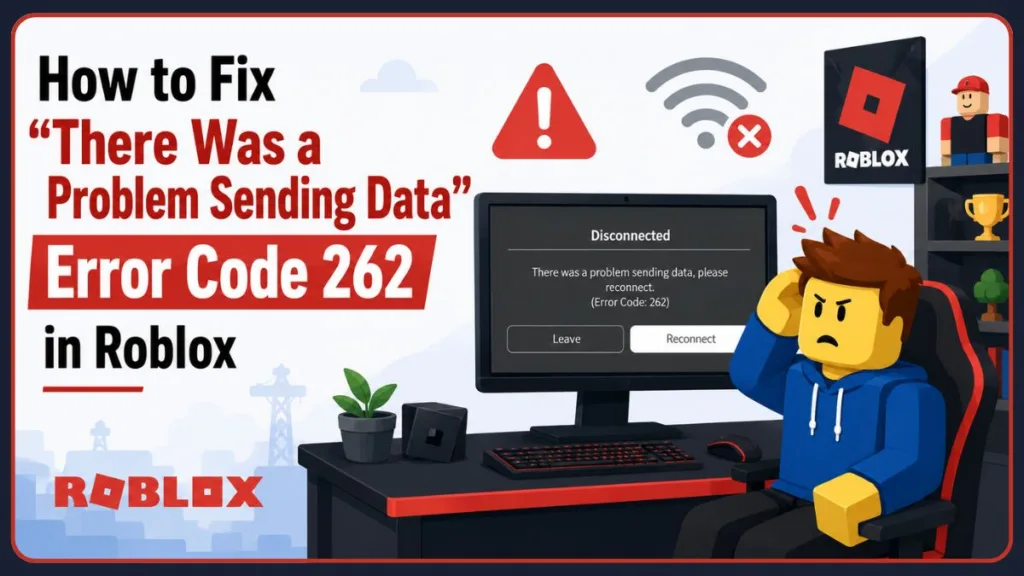
Fortunately, this is not a permanent account strike, nor is it a sign of failing hardware. As a seasoned player, I can tell you that this specific bug is actually a very well-documented software hiccup. In this guide, we are going to skip the generic, unhelpful advice you usually find online and dive straight into the actual technical solutions that will get you back onto the servers.
What Does Error Code 262 Actually Mean? (The Version Desync)
To fix the problem, you first need to understand the “Problem sending data” verbiage. Whenever you launch a Roblox experience, your local application (the client) performs a digital “handshake” with the official Roblox servers. They exchange data packets to confirm your account, your assets, and most importantly, your game version.
Error 262 is fundamentally a Client Version Desync.
Roblox pushes updates constantly. Usually, these happen silently in the background when you launch the Roblox Player. However, if that background auto-updater fails to trigger, your local client remains on an outdated build. When your outdated client tries to talk to the fully updated Roblox servers, the data packets do not match. The server refuses to let you in because you are speaking an older version of the game’s code, resulting in the literal “problem sending data” disconnect.
Why Restarting Your Router Won’t Fix It
If you search for solutions to network errors, 90% of the guides out there will tell you to restart your router, switch your Wi-Fi network, or flush your DNS. While that is great advice for high ping or general latency, it will not fix Error 262.
Extensive testing by developers and community members on the official forums has completely debunked the myth that this is an internet issue. Players have documented switching from their home Wi-Fi to a mobile hotspot, rebooting their modems, and altering their IP addresses—all to no avail.
Why? Because your internet connection is perfectly fine. The issue is a local software version mismatch. Your router cannot force a broken Roblox application to update itself.
The Cross-Device Diagnostic (The 2-Minute Test)
Before we start clearing out system files, you should perform a quick comparative login test. This takes two minutes and proves definitively whether the issue is isolated to your current device.
- Leave the errored device as it is.
- Grab a different device that is connected to the exact same Wi-Fi network. (Your smartphone with the Roblox mobile app is perfect for this).
- Log into your account on the second device and try to launch the exact same experience.
If the game loads flawlessly on your phone but continues to throw Error 262 on your PC, you have just successfully isolated the issue. The servers are up, your internet is working, and your account is safe. The problem is 100% tied to the corrupted Roblox installation on your primary device.
Step-by-Step Fix for Error Code 262
Now that we know the auto-updater is stuck, we need to manually force the client to synchronize with the servers. Here is the technical breakdown of how to clear the block.
Fix 1: Forcing the Auto-Updater to Run (Windows PC)
Often, a “ghost” instance of Roblox gets stuck running in your system’s background. Because the system thinks the game is already open, it blocks the auto-updater pop-up from appearing.
- Press Ctrl + Shift + Esc to open your Task Manager.
- Scroll through the Processes tab and look for anything labeled Roblox Game Client or Roblox Player.
- Right-click the process and select End Task. Make sure all instances are completely closed.
- Press your Windows key, type Roblox Player, right-click the application, and select Run as Administrator.
Running the program with administrative privileges bypasses standard local restrictions and often forces the grey “Updating Roblox” prompt to finally appear.
Fix 2: The “Clean Reinstall” (The Nuke Option)
If forcing the update doesn’t work, you need to perform a clean reinstall. Simply clicking “Uninstall” in your Windows settings is not enough, as this leaves corrupted cache files hidden deep in your system directories. The next time you download the game, it will just read the old, broken data.
Here is how to completely wipe the slate clean:
- Press the Windows Key + R to open the Run dialog box.
- Type
%localappdata%and hit Enter. This opens your hidden local application data folder. - Scroll down until you find the folder named Roblox.
- Right-click the Roblox folder and hit Delete. (This completely removes all cached data, settings, and the outdated client).
- Navigate to your Windows Settings > Apps > Installed Apps and officially uninstall the Roblox Player.
- Restart your PC.
- Open your browser, head to the official Roblox website, log in, and click Play on any game to trigger a fresh, fully updated installation directly from the servers.
Fix 3: Mobile & Mac Specific Solution
If you are encountering Error 262 on a different ecosystem, the logic remains the same: you must clear the cached version data.
- For Mac Users: Do not just drag the Roblox application from your Applications folder to the Trash. You also need to open Finder, press Command + Shift + G, type
~/Library, and delete the Roblox folder located inside the Caches directory. Afterward, empty the Trash and reinstall. - For Mobile (Android/iOS): Delete the app entirely. Do not just offload it. On Android, go to Settings > Apps > Roblox > Storage and tap Clear Data and Clear Cache before uninstalling. Head to the App Store or Google Play Store to download the latest build.
Is It Just You, or Is Roblox Down? (Server Outages)
What if you have performed the clean reinstall, cleared your AppData, and the “problem sending data” error still persists?
In rare cases, the version desync is not happening on your end; it is happening on Roblox’s end. If the backend servers are struggling to authenticate connection handshakes globally, everyone will receive data transfer errors.
Before pulling your hair out, check the infrastructure. Visit the official Roblox Status page or check third-party outage monitors like Downdetector. If you see a massive spike in reported outages, the fix is out of your hands. You simply have to wait it out until the engineering team resolves the server-side glitch.
People Also Ask (FAQ)
Core Troubleshooting Questions
What does error code 262 mean on Roblox? Error code 262 means “There was a problem sending data, please reconnect.” It indicates a communication failure between your device and the server, most commonly caused by your local Roblox client being an outdated version that failed to auto-update.
Does clearing the Roblox cache fix error 262? Yes. Clearing the Roblox cache (specifically the %localappdata%\Roblox folder on Windows) forces the game to abandon any corrupted or outdated version files and download a fresh, updated package directly from the servers.
Can a VPN or adblocker cause Roblox error 262? While rare, it is possible. If a VPN routes your connection through a node that experiences severe packet loss, the server may interpret the dropped connection as an inability to send data. If a clean reinstall fails, try temporarily disabling your VPN to see if the connection stabilizes.
Accounts, Devices, and Bans
Does Roblox Error Code 262 mean I got banned? No. This error is strictly a technical communication failure between your device and the server. It has absolutely nothing to do with account suspensions, warnings, or bans.
Why does Error 262 only happen on one device? / Why can I play Roblox on my phone but not my PC? This happens because the error is tied to the local files on a specific machine. If your PC has a corrupted cache or an outdated client, it will fail to connect. Your phone, running a different and properly updated instance of the app, will connect without any issues.
Why does Roblox work on another account but not mine? While Error 262 is mostly device-specific, occasionally a corrupted avatar asset or saved data tied to your specific account can cause data transfer failures. Try unequipping recently purchased accessories or playing on a blank avatar to see if the connection stabilizes.
Firewalls, Disconnects, and Permanent Fixes
Can antivirus or firewall settings cause Error 262? Yes. Occasionally, an overly aggressive firewall or antivirus program can block the background updater from running. If the client cannot ping the server to check for updates, it results in a version desync, triggering the error. You may need to whitelist the Roblox Player executable in your security settings.
Why does Roblox keep disconnecting me while joining a game or immediately after loading? This occurs when the initial connection is made, but the data packet handshake fails mid-transfer. Your client attempts to load the game assets, but the server rejects the request due to the version mismatch, forcibly dropping your connection to protect server stability.
Why does Roblox Error Code 262 keep coming back, and how do I permanently fix it? If the error is recurring, it is likely because you are launching the game from a pinned shortcut that bypasses the auto-updater. To permanently fix this, always launch games directly from the Roblox website browser plugin rather than clicking a desktop icon. This forces the client to check for the newest server-side updates every single time you play.
Visit Our Post Page: Blog Page
Discover more from Izoate
Subscribe to get the latest posts sent to your email.