
Accidentally deleted an important email in Outlook in 2026? Learn how to recover deleted emails in Outlook using simple step-by-step methods. From restoring messages in Deleted Items to recovering permanently deleted emails from Recoverable Items and Exchange servers. Get your lost emails back quickly.
Accidentally deleting an important email in Outlook can instantly make your heart race, especially if that message contains crucial business details, a client contract, or personal information.
Take a deep breath. You can usually recover this.
A lot of people assume that once you clear out messages from your standard trash folder, they are gone for good. In reality, Outlook utilizes a multi-step deletion process that acts as a built-in safety net. Even if you hold Shift + Delete or manually empty your Deleted Items folder, Microsoft Exchange server keeps your data in a hidden folder for a limited time—giving you a window to restore your lost messages.

Whether you are using the classic desktop client, the new Outlook app, or the web version, time is the most critical factor. Let’s walk through the exact steps to locate your missing files, restore permanently deleted emails, and get your inbox back in order right now.
Where Do Deleted Emails Go in Outlook?
Before you start troubleshooting, it helps to know exactly where are deleted emails stored in Outlook. Deleting an email does not wipe it from Microsoft’s servers instantly. Instead, it moves through two distinct stages.
- The Deleted Items Folder: This is your first line of defense. When you hit “Delete” on an email, it moves here. It acts just like the Recycle Bin on your computer. This is considered a temporary deletion.
- The Recoverable Items Folder: If you empty your Deleted Items folder, or if you highlight an email and press Shift + Delete, the email undergoes permanent deletion. However, it isn’t truly gone. It is moved to a hidden system directory called the Recoverable Items folder.
Outlook retention periods dictate how long files stay in this hidden directory. While emails sit comfortably in your standard Deleted Items folder, they are fully recoverable. Once they hit the Recoverable Items folder, the clock starts ticking.
According to official documentation, the default retention period for the Recoverable Items folder in Exchange Online is 14 days, but Exchange administrators can easily increase this window to a maximum of 30 days (Microsoft Support: Change how long permanently deleted items are kept for an Exchange Online mailbox). Understanding this server vs. client relationship is vital when you are figuring out how to recover deleted emails in Outlook. Your local desktop client might show a folder as entirely empty, but the Microsoft Exchange server is actually retaining the data temporarily to prevent catastrophic, unrecoverable data loss.
How to Recover Deleted Emails from the Deleted Items Folder
Checking your standard trash is the fastest recovery method. If you just accidentally deleted a message, start here.
Classic Outlook Desktop
- Open Outlook and look at your left-hand folder list. Click on the Deleted Items folder.
- Locate the email you want to restore. Use the Outlook Search bar or filter by “Date” if your folder is crowded.
- Right-click the message, hover over Move, and select Inbox (or your preferred destination).
- Pro Tip: To restore multiple emails at once, hold the Ctrl key while clicking each message, then click the Move button located in the Home tab on your ribbon.
New Outlook App
- Click on the Deleted Items folder in your left navigation pane.
- Browse your list of discarded emails.
- Hover over the messages you need and check the circular box that appears next to each one.
- Click the Restore button located on the top ribbon. The new Outlook is smart—it will attempt to place the email right back into the original folder it was deleted from.
Outlook Web App
- Open your web browser and navigate to your Outlook left panel. Click Deleted Items.
- Check the boxes next to the emails you wish to rescue.
- Click Restore on the top menu bar. Alternatively, simply drag and drop the selected emails directly back into your Inbox.
Outlook for Mac
- Open the Outlook for Mac application and locate the Deleted Items or Trash folder in your left-hand navigation pane.
- Find the missing message. Use the search bar in the top right to filter by a secondary keyword, LSI keyword, or the sender’s name to speed up the process.
- Right-click (or Control-click) the specific email, select Move, and choose Choose Folder… to send it right back to your Inbox.
Outlook Mobile App (iOS and Android)
When you are on the go, you can still retrieve deleted emails in Outlook directly from your smartphone.
- Open the Outlook mobile app and tap your profile icon or the home menu button in the top left corner of your screen.
- Select the Deleted folder (often marked with a distinct trash can icon).
- Tap and hold the email you want to restore to enter selection mode. Alternatively, tap the three dots (More options) located on the specific email.
- Select Move to Folder and tap Inbox to rescue your data.
How to Recover Permanently Deleted Emails in Outlook
If your email is no longer sitting in the Deleted Items folder, you have officially entered the permanent deletion phase. Do not worry. As long as you are within your organization’s retention window, you can recover deleted emails from the server via the hidden Recoverable Items folder.
Recover Deleted Emails in Classic Outlook
- Go to your Deleted Items folder.
- Look at the top of the Home ribbon in the Actions group and click Recover Deleted Items from Server. (Alternatively, click the link at the top of your email list that says Recover items recently removed from this folder).
- A new window will pop up displaying all your recoverable items—including emails, calendar appointments, and contacts (all marked with an envelope icon).
- Select the emails you need. Hold Ctrl to click multiple, or click Select All.
- Ensure the Restore Selected Items radial button is checked, then click OK.
Note: Restored items in the Classic app will drop back into your Deleted Items folder. From there, you must manually move them to your Inbox.
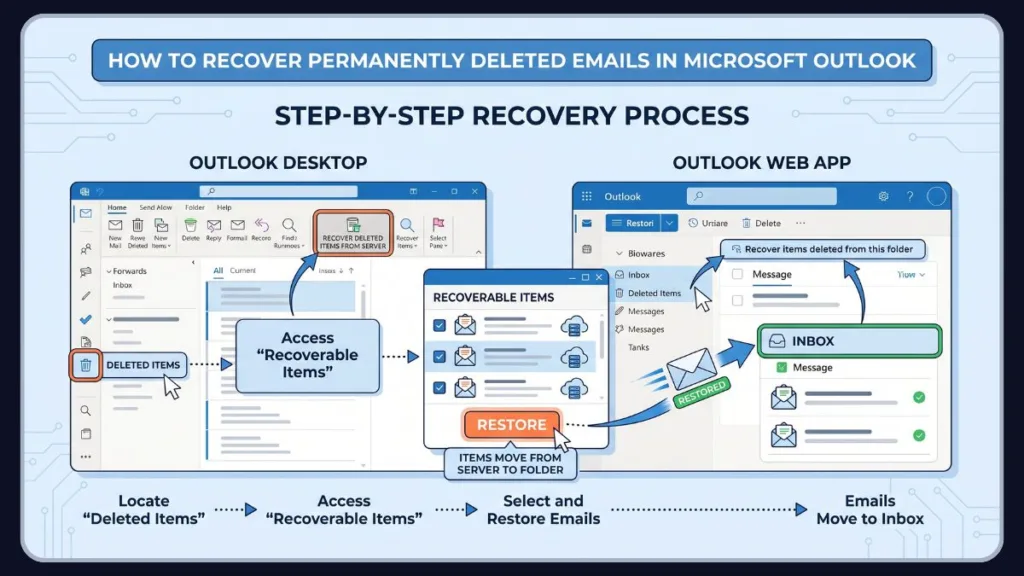
Recover Deleted Emails in New Outlook
- Open the Deleted Items folder.
- At the top of your message list, click the highlighted text: Recover items deleted from this folder.
- Select the messages you want to retrieve. To get everything back at once, check the main Deletions checkbox at the top.
- Click Restore on the Home ribbon.
Recover Deleted Emails in Outlook Web
- Navigate to the Deleted Items folder in your left panel.
- Click Recover items deleted from this folder at the top of the screen.
- Select the circle next to your lost emails.
- Click Restore. Just like the new desktop app, the web client will automatically return these emails to their original folders. If the original folder was deleted, the emails will default to your Inbox.
Recover Permanently Deleted Emails in Outlook for Mac
If you need to recover permanently deleted emails in Outlook while using an Apple machine, the process relies on the server connection.
- Select the Deleted Items folder in the left pane of your Mac application.
- Look for the Recover Deleted Items button located on the top ribbon. If you do not see it there, click the Tools menu at the very top of your macOS menu bar and select Recover Deleted Items.
- A dialog box will appear. Select the messages you need to rescue and click Restore.
How Long Does Outlook Keep Deleted Emails?
If you are wondering why an email isn’t showing up in the recovery window, it comes down to retention policies. Time limits depend heavily on your specific account type and IT admin settings.
| Account Type | Temporary Deletion (Deleted Items) | Permanent Deletion (Recoverable Items) |
| Outlook.com (Personal) | Automatically removed after 30 days. | Recoverable for 14 to 30 days. |
| Microsoft 365 (Work/School) | No automatic expiration (unless set by IT). | Recoverable for 14 days (Admins can extend to 30). |
| Exchange Accounts | No automatic expiration. | 14 to 30 days based on corporate policy. |
| POP Accounts | 30 days before permanent removal. | No Recoverable Items folder. Gone permanently. |
| IMAP Accounts | Syncs with server. | Usually unrecoverable unless hosted via Exchange. |
Note: Junk email acts differently. Spam is purged after 10 days for personal Outlook.com accounts, and 30 days for web/work accounts.
It is also critical to understand that In-Place Holds or Litigation Holds actively override these standard retention windows. If your organization’s legal or human resources team has placed a compliance hold on your specific mailbox, items inside the Recoverable Items folder are preserved indefinitely or for the exact duration specified by that hold (Microsoft Learn: eDiscovery and In-Place Holds). This powerful backend feature means that even if you are trying to figure out how to recover deleted emails in Outlook past the standard 30-day limit, your IT department might still have full access to them.
Why You Cannot Find Deleted Emails in Outlook
If you followed the steps above and still cannot locate your messages, one of these troubleshooting scenarios is likely the culprit:
- The Retention Period Expired: If more than 30 days have passed since the email was cleared from your Deleted Items folder, it has been purged from the hidden Recoverable Items directory.
- The Email Was Moved, Not Deleted: The message might have been dragged into an Archive or custom folder by mistake. Use the search bar and filter by “Subject” or “From” across All Mailboxes.
- Synchronization Delay: If you deleted the email on your phone, it might not immediately sync to your desktop. Manually refresh or force a send/receive update.
- POP Account Limitations: If you route your email through a POP3 server without Exchange, the “Recover Deleted Items” option simply will not exist. Once you empty the trash, it is gone.
- Corrupted OST or PST Files: Sometimes the email is technically still on your machine, but a damaged local data file prevents the client from displaying it. Running the built-in Microsoft Inbox Repair Tool (
SCANPST.EXE) can sometimes fix these frustrating syncing issues and reveal hidden or supposedly lost emails. - Aggressive Auto-Archive Settings: Strict auto-archive rules might bypass the standard trash folder entirely. In this case, Outlook recover deleted items tools won’t work because the system moved older emails directly into an archive .pst file stored locally on your hard drive. Always check your local Documents folder for archived Outlook Files.
Can Permanently Deleted Outlook Emails Still Be Recovered?
Yes, but it depends heavily on your environment.
If you are a consumer using a personal Outlook.com address and the 30-day Recoverable Items window has closed, the email is truly unrecoverable.
However, if you are using a corporate Microsoft 365 or Exchange account, your IT administrator holds the keys to advanced recovery possibilities. Admins can bypass standard retention policies by pulling data from server backups or utilizing Microsoft’s eDiscovery tools, especially if a “Litigation Hold” or “In-Place Hold” is active on your mailbox.
Using Microsoft Purview eDiscovery, compliance admins can actively search for and export emails that users have completely purged. As long as the mailbox is housed under an active compliance retention policy or a litigation hold, the data remains searchable on the backend. This provides a robust, fail-safe solution for retrieving deleted emails in Outlook during legal audits, HR investigations, or catastrophic data loss scenarios.
How to Recover a Deleted Folder in Outlook
Deleting an entire folder takes all the nested messages down with it. Fortunately, restoring it is incredibly simple if you catch it early.
- Expand your Deleted Items folder by clicking the small arrow next to it in the left navigation pane.
- Locate your accidentally deleted folder nested inside.
- Click and hold the folder, then drag it directly back to your Inbox or main directory. Alternatively, right-click the folder, select Move, and pick its proper destination.
Limitation: If you permanently delete a folder (bypassing the trash), you cannot restore the folder structure itself. You will have to go into the Recoverable Items menu and restore the individual emails, then manually rebuild the folder.
Advanced Recovery Methods (For IT Admins and Businesses)
When the standard built-in tools fail, corporate environments require escalation. If you manage an IT department or need to know what to ask your helpdesk for, here are the advanced methods.
Restoring from Exchange Server Backups
Admins can access the Exchange Admin Center (EAC) or use Exchange Management Shell (PowerShell) to mount database backups. By pinpointing the exact time of deletion, IT can extract specific mailbox data and inject it back into the user’s active inbox. This is the primary method for recovering data past the 30-day mark.
Using PST/OST Data Recovery Software
If you rely on local PST files rather than cloud sync, a corrupted or deleted local file requires third-party intervention. Tools like Stellar Repair for Outlook or SysTools Outlook Recovery can run deep scans on your hard drive to scrape local data fragments. Close Outlook completely before running these tools, point the software at your .pst file, and export the recovered items.
Requesting Support from Microsoft
If a critical compliance or legal issue is at stake and internal backups have failed, IT admins can open a support ticket through the Microsoft 365 Admin Center. Microsoft engineers have access to deeper diagnostic and server-level recovery tools, though success is not guaranteed if the data has been physically overwritten.
Using PowerShell for Mailbox Recovery
For seasoned Exchange administrators, utilizing PowerShell offers the absolute fastest and most granular route to recovering purged items without having to navigate clunky GUI menus.
- First, connect securely to Exchange Online PowerShell.
- Utilize the
Search-MailboxorNew-ComplianceSearchcmdlets. This allows admins to locate the missing items based on the user’s specific reports (such as a forgotten subject line, sender, or narrow date range). - Once located, export the results directly or safely copy them to a dedicated discovery mailbox using the
New-MailboxExportRequestcommand.
Tips to Prevent Losing Emails in Outlook Again
The best recovery strategy is never needing one in the first place. Implement these preventative steps to safeguard your data.
- Create Logical Folder Structures: Organize your inbox by client, project, or date. Using color-coded categories and flags reduces the visual clutter that leads to accidental bulk deletions.
- Enable Exchange Online Archiving: Go to your Exchange Admin settings and enable archive mailboxes. This automatically moves older emails into a dedicated, searchable storage space without clogging up your daily inbox.
- Stop Using Shift + Delete: Break the habit of permanently deleting emails. Just use the standard delete key and let your Deleted Items folder act as the safety net it was designed to be.
- Export PST Backups: If you use desktop Outlook, routinely export your mailbox to a PST file and save it to a secure external drive or an encrypted cloud backup system like OneDrive.
- Implement Compliance Retention Policies: For business owners and IT managers, configuring organization-wide compliance retention policies is a game-changer. This ensures that critical communications are never truly lost, even if an employee makes a mistake or maliciously empties their Recoverable Items folder before leaving the company.
Frequently Asked Questions
Can I recover permanently deleted emails in Outlook after 30 days?
For personal accounts, no. Once the 30-day window in the Recoverable Items folder passes, the data is purged. For work or school accounts, your IT administrator may be able to restore it from an Exchange server backup.
Where do recovered Outlook emails go?
In Classic Outlook, recovered messages drop back into the Deleted Items folder. In the New Outlook and Outlook on the web, the system attempts to put them back in the exact folder they were deleted from. If that folder is gone, they go to your Inbox.
Why is Recover Deleted Items missing in Outlook?
If you do not see the option to recover deleted items from the server, you are likely using a POP or IMAP account instead of a Microsoft Exchange account. Those account types do not support server-side recovery.
Are deleted emails stored on Microsoft servers?
Yes. When you delete an email, it stays on Microsoft Exchange servers in your Deleted Items folder, and then moves to a hidden Recoverable Items sector on the server for an additional 14 to 30 days before being permanently overwritten.
Can I recover emails deleted from Trash?
If you have a third-party account (like Gmail or Yahoo) synced to Outlook, you will see a “Trash” folder instead of “Deleted Items.” If you empty the Trash folder for these third-party accounts within Outlook, the emails are permanently deleted and cannot be recovered using Outlook’s tools.
Where do permanently deleted emails go in Outlook?
When you permanently delete an email, it moves from your visible Deleted Items folder to a hidden system directory called the Recoverable Items folder on the Microsoft Exchange server. It safely stays there for a limited retention period (usually 14 to 30 days) before the system permanently purges it.
How do I recover a deleted folder and its contents in Outlook?
If the missing folder is simply sitting in your standard Deleted Items, you can easily drag and drop it back to your Inbox. However, if the folder was permanently deleted, you cannot restore the folder structure itself; you must use the “Recover Deleted Items from Server” tool to restore the individual emails, and then recreate the folder manually.
Why can’t I find my emails in the Recoverable Items folder?
If your emails are missing from the Recoverable Items folder, it usually means one of three things: the retention period (14-30 days) has unfortunately expired, you are using a POP/IMAP account that does not support backend server-side recovery, or the email was accidentally moved to an archive folder instead of being deleted.
Can I recover an email deleted months ago in Outlook?
For personal consumer accounts, no. For corporate Microsoft 365 or Exchange accounts, it is only possible if your IT administrator has proactively configured long-term server backups, or if your specific mailbox is under a stringent Litigation Hold or compliance retention policy.
What is the difference between the Deleted Items and Recoverable Items folders?
The Deleted Items folder is your standard, visible trash bin where temporarily deleted emails initially go. Conversely, the Recoverable Items folder is a hidden server-side directory that acts as a secure, second-stage safety net for emails that have been emptied from the standard Deleted Items folder or shift-deleted.
Visit Our Post Page: Blog Page
Discover more from Izoate
Subscribe to get the latest posts sent to your email.