
Is YouTube showing error 151 when you try to play a video? Learn what YouTube error code 151 means and how to fix it, with step-by-step instructions for viewers, administrators, and website owners.
YouTube is one of the most reliable places to find a video, which is exactly why a bare error number feels so unhelpful. It tends to strike at the worst moment too, like when a video is part of a Google Slides presentation, a class lesson, or a meeting that starts in ten minutes. The good news is that error 151 usually points to an access setting rather than a broken device, so it can often be sorted out quickly once you know where to look.
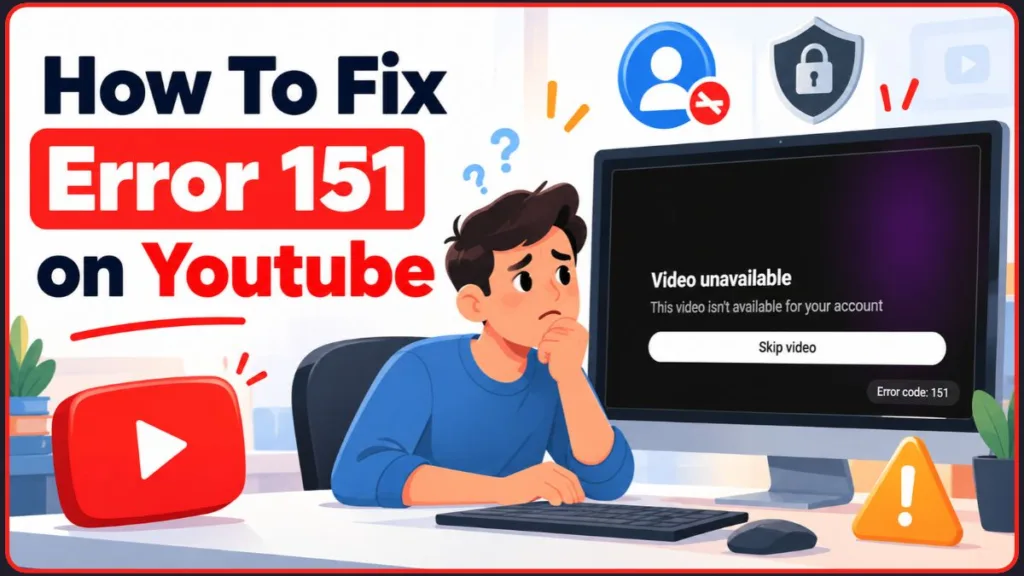
If you’ve seen this message in Google Slides, on a school account, or on one signed-in account only, you’re in the right place. This guide covers what the error means, when it shows up, what causes it, how to fix it step by step whether you’re a viewer, an administrator, or a site owner, and how to avoid it next time.
What Does YouTube Error Code 151 Mean?
YouTube error code 151 appears when a video can’t play because a filter or access restriction is blocking it. In most reports, the cause is a content-filtering setting, not a problem with the video file, your internet connection, or your device.
According to PiunikaWeb’s report on Google’s known-issues page, Google treats error 150 as a copyright-related problem and error 151 as a content-filtering or restriction problem. That’s a helpful way to tell them apart. Error 150 is generally about the video owner’s embedding permissions, while error 151 is more about who is allowed to watch the video and under which settings.
The number is most often reported on embedded videos, especially in Google Slides, as Windows Report’s guide to the error notes. YouTube hasn’t published a full definition covering every case, so the exact trigger can differ between situations. That’s why this guide helps you work out which situation you’re in first, then walks you through the matching fix.
Note: Some low-quality websites describe “Google Slides error 151” as a corrupted-file or file-size problem. That doesn’t match what Google and most reports describe, so don’t spend time repairing or compressing your presentation unless other symptoms point there.
When Does YouTube Error 151 Appear?
Error 151 can look different depending on where you’re watching. These are the situations people run into most:
- In Google Slides: The video plays fine on YouTube.com, but the same video fails when you press play on a slide.
- On a school or work account: The error shows up only on an account managed by an organization, and may disappear on a personal account.
- On embedded videos on websites or learning platforms: The page loads normally, but the video player inside it shows the error.
- When signed in: The video plays when you’re signed out or in a guest window, but fails on your account.
- On certain videos only: Most videos work, but a few (often music, mature-themed, or age-restricted ones) fail every time.
- On phones, tablets, and apps: The same error can appear in the YouTube app or in Google Slides on mobile, because account-level rules follow you from device to device.
Matching your situation to one of these is the quickest way to narrow down the cause.
Common Causes of YouTube Error Code 151
Restricted Mode or Organization-Level YouTube Settings
This is the most commonly reported cause. Google Workspace administrators can control which YouTube videos signed-in users in their organization are allowed to watch. Google’s admin help page lists three restriction levels: Strict Restricted, which is the most limiting but still doesn’t block every video; Moderate Restricted, which makes a much larger set of videos available; and Unrestricted, which turns both restricted modes off. A fourth permission, Can approve videos, lets designated approvers allow extra videos. Users without unrestricted access see an alert telling them the video isn’t available.
YouTube says Restricted Mode uses many signals to decide what to filter, including a video’s title, description, metadata, Community Guidelines reviews, and age restrictions. Because an automated system makes that call, it can occasionally catch a video that looks perfectly harmless. Some users have reported that error 151 continued on certain videos even after their organization moved from Strict to Moderate.
What to Do: If you’re on a school or work account, only your administrator can change this setting, so jump to the administrator section below. On a personal account, check whether Restricted Mode is switched on in your browser or app.
A Managed School or Work Account
Error 151 can appear when a managed account has limits on which videos it can open. That’s why a video can work for a colleague on a personal account but fail for you, or why a presentation behaves differently on a school Chromebook than it did at home.
What to Do: If your organization allows it, test the video on a personal Google account. If it plays there, the restriction is tied to the managed account.
Warning: Don’t try to work around your school’s or employer’s restrictions. Ask your administrator to review the YouTube settings instead.
Supervised Accounts and Family Settings
Some parents report that a video their teen watched the day before suddenly fails on a supervised account, while it plays on the parent’s account or when signed out. These are individual reports, not an official explanation, but they fit the same pattern: content settings tied to the account. YouTube’s Restricted Mode help page explains that when a parent turns Restricted Mode on through Family Link, the child can’t change it on any device they’re signed in to.
What to Do: Ask the parent or account manager to review the account’s content settings with you. Adjusting what’s allowed is a better approach than removing supervision altogether.
Network or Mobile Provider Content Filters
Restrictions don’t always live in your account. According to YouTube’s help page, some mobile network providers offer content filters that limit what you can access while connected to their network, and computers in libraries, universities, and other public places may have Restricted Mode turned on by a network administrator.
What to Do: Run YouTube’s content restrictions check (steps in the fix section below). It shows whether the restriction comes from your account, an administrator, or your network.
Age-Restricted or Embedding-Limited Videos
YouTube’s embedding help page says age-restricted videos can’t be watched on most third-party websites and redirect viewers back to YouTube instead. A video’s owner can also turn off embedding altogether. In both cases, the direct YouTube link may work while the embedded version in a slide or webpage doesn’t. YouTube also notes that Restricted Mode isn’t the same as age-restricting a video, so the two can cause different problems.
What to Do: Open the video directly on YouTube. If it plays there but not in your slide or page, the embed is the limitation, so choose a different video or ask the owner whether embedding is allowed.
A Private or Unavailable Video
A video may have been deleted, made private, or restricted by its owner, which can look a lot like an account-specific error. Google’s admin help page adds an important detail for schools: private YouTube videos aren’t playable in Google Workspace for Education services such as Classroom or Google Slides, even if the video is shared directly with an account, and you may see a message saying the video is private. Switching the video to unlisted makes it playable without making it searchable.
What to Do: Paste the direct video link into a private (incognito) window while signed out. If it doesn’t play there either, the video itself is probably unavailable or private.
A YouTube-Side Issue
Occasionally the problem sits on YouTube’s end, which can make videos fail for many people at once. This is less common than a restriction, but it’s worth ruling out if error 151 appears suddenly on videos that worked an hour ago.
What to Do: Check whether other videos, and other people, are affected. Look at the YouTube Help Community for reports of a wider problem, and try again after a little while.
A Temporary Glitch or Stale Browser Data
Now and then, a short-lived glitch or outdated browser data interferes with embedded playback. Some users say the error cleared on its own or after clearing app data, though that doesn’t work for everyone and may only be temporary.
What to Do: Try the quick fixes in the next section, but don’t spend too long on them if the pattern points to an account or admin setting.
How to Fix YouTube Error Code 151
The right fix depends on your role, so start with the section that matches yours. The steps run from quickest to most involved, which means you can stop as soon as the video plays.
Before you start, gather three things: the account you’re signed in with (personal, school, or work), the direct link to the video, and the exact error message you see. If you manage your organization’s Google settings, you’ll also need an account with the YouTube administrator privilege.
Tip: Change one thing at a time and retest after each step. That way you’ll know which fix worked, and you won’t alter settings you didn’t need to touch.
Fixes for Viewers and Presenters
Open the Video Directly on YouTube
- Copy the video’s link, or search for its title on YouTube.
- Open it in your browser at YouTube.com.
- If it plays, go back to Google Slides or the page where you first saw the error and try again.
What to Expect: If the video plays on YouTube but not in your slide, the problem is the embed or your account’s settings, not the video itself. If it fails on YouTube too, the video may be private or removed, or your network may be blocking it.
Why It Helps: This one test splits the problem in two, so you know which of the next steps to follow.
Compare Signed-In and Signed-Out Playback
- Open a private (incognito) window.
- Paste the direct video link without signing in.
- Try the same link in your normal window while signed in.
What to Expect: If the video plays signed out but fails when signed in, an account-level setting is the likely cause. If it fails in both windows, the video may be private, removed, or blocked by your network.
Tip: Google’s admin help page says Admin console restrictions don’t apply to signed-out users, so a restriction set by your school or workplace fits the “works signed out, fails signed in” pattern.
Why It Helps: It saves you from clearing caches and reinstalling apps when the real cause is a content-access setting.
Find Out What Is Restricting Your Account
- Sign in to YouTube with the account that shows the error.
- Go to YouTube’s content restrictions page.
- Look for a check mark beside any restriction listed, and read the text below it for the restriction level.
What to Expect: The tool tells you whether an administrator set up the restriction or whether it’s on your personal account. According to YouTube’s help page, if DNS restrictions are on and set to moderate or strict, content filtering is active, which can come from a mobile network provider. In that case, contact the provider to manage the filter.
Why It Helps: It shows you who controls the setting, so you don’t waste time changing something that isn’t yours to change.
Turn Off Restricted Mode on Your Own Account
Warning: Use these steps only on a personal account. If an administrator, a network, or a parent set Restricted Mode, ask them to review it instead of trying to bypass it.
On a computer:
- Sign in to YouTube and click your profile photo at the top right.
- At the bottom of the menu, click Restricted Mode.
- In the box that opens at the top right, click Activate Restricted Mode to switch it off.
In the YouTube app on Android:
- Sign in and tap your profile photo at the top right.
- Tap Settings, then General.
- Turn off Restricted Mode.
On the mobile site (m.youtube.com):
- Tap your profile photo at the top right.
- Tap Settings, then Account.
- Turn off Restricted Mode.
On iPhone and iPad, choose the iPhone & iPad tab on YouTube’s Restricted Mode help page for the matching steps, since menu names can differ slightly between devices and app versions.
What to Expect: Reload the video afterward. Restricted Mode hides comments, so seeing the comment section reappear is a good sign it’s off. TVs and smart displays have their own Restricted Mode setting too.
Tip: Restricted Mode works per browser and per profile, so repeat the steps in every browser or profile you use.
Common Problem: If the setting is locked, greyed out, or switches itself back on, someone else is controlling it. Run the content restrictions check above to find out who.
Why It Helps: Restricted Mode can filter out videos that are perfectly fine, and it’s one of the few causes you can fix yourself.
Reinsert the Video in Google Slides
- Open your presentation and click the slide where the video belongs.
- Click Insert, then Video.
- Choose Search YouTube or By URL, then pick or paste the video.
- Select the video to insert it, then run the slideshow to test it.
These are the options Google’s own Docs Editors help page lists for adding a video to a presentation.
What to Expect: The video appears on the slide as a player. If it plays now, the original insertion had a problem. If it still shows error 151, a restriction is the cause, so move on to the account and administrator steps. If a video can’t be played in Google Workspace for Education services and YouTube.com is available to you, you might be offered a link to open it on YouTube instead.
Why It Helps: It rules out a bad or outdated embed before you involve anyone else.
Test With a Personal Account, If Allowed
- Check that your school or workplace permits you to use a personal Google account for this.
- Open the same video on that personal account.
What to Expect: If it plays, the restriction is tied to your managed account. Send your administrator the video link and the exact error message.
Why It Helps: It separates an account restriction from a problem with the video.
Reload, Restart, and Try Another Browser or the App
- Reload the page, then close and reopen your browser.
- Try a different browser. If you don’t have one, you can get Google Chrome from the official download page.
- On a phone or tablet, test the video in the YouTube app. YouTube’s mobile app help page explains how to install it and notes that Android 9.0 or later is required. If you present from your phone, you can also get the Google Slides app for Android or iPhone and iPad.
- If the problem continues, clear your browser’s cache and cookies and test again.
What to Expect: If the video works in another browser or in the app, stale browser data was the issue. If the error follows your account across browsers and devices, the browser isn’t the problem and you can stop troubleshooting it.
Why It Helps: Corrupted browser data can occasionally interfere with embedded playback, and this step quickly rules it out.
Turn Off Your VPN Temporarily
- Disconnect your VPN.
- Reload the video.
What to Expect: There’s no confirmed link between VPNs and error 151, but a VPN can change the region YouTube sees, which affects what some videos are available. If nothing changes, the VPN wasn’t the cause.
Why It Helps: It rules out location as a factor so you can focus on the real cause.
Fixes for Administrators and IT Teams
If a video works on YouTube but fails inside Google Slides for your users, the YouTube access level is the first place to look. You’ll need an account with the YouTube administrator privilege.
Note: The menus below come from Google’s admin help page. Menu names change from time to time, so check them against Google’s current documentation.
Check Whether the Restrictions Apply to the Affected Users
Google lists three conditions that must be true for Restricted Mode settings to apply: the user is signed in with their Google Workspace account, the user’s organizational unit has the YouTube service turned on, and the box for signed-in users to watch only restricted and approved videos is checked.
- Sign in to the Google Admin console.
- Go to Menu, then Apps, then Additional Google services, then YouTube.
- Click Content settings, then Setup.
- Check the state of the box labeled Signed in users in your organization can only watch restricted and approved videos.
What to Expect: If the box is checked, your restriction level is being applied to signed-in users.
Warning: Because the setting needs that box checked to apply, clearing it would stop restrictions for the whole organization. That’s a much bigger change than most schools and workplaces want, so adjust permissions for specific groups instead.
Why It Helps: It confirms the restriction is working as configured before you change anything.
Review and Adjust the Permission Level
- In the YouTube settings, click Settings for YouTube, then Permissions.
- In the side panel, select the organizational unit (or configuration group) the affected users belong to. Group settings override organizational units.
- Choose a permission level: Strict, Moderate, or Unrestricted.
- Click Save, or click Override if you’re changing an organizational unit that inherits its setting. To go back to the inherited value later, click Inherit (or Unset for a group).
What to Expect: Affected users get a larger set of videos at Moderate, and full YouTube access at Unrestricted. The change applies to everyone in that unit or group.
Tip: Apply Unrestricted only to roles that need it, such as teaching staff preparing lessons, and use Moderate for broader groups.
Why It Helps: Moving a group from Strict to Moderate can resolve the error for many affected users without opening YouTube up for everyone.
Approve Specific Videos Instead of Loosening Everything
- In the same YouTube settings area, assign the Can approve videos permission to the individuals or organizational units who should approve extra videos.
- Optionally, under Content settings, open Special approvers, check the box that lets verified Google Classroom teachers approve videos, then click Save.
- Ask approvers to share the approved videos by link.
What to Expect: Approvers see an option to approve the video below the player. Approved videos become viewable by signed-in users in the organization, but they won’t appear in YouTube search results, so they must be shared by link.
Why It Helps: A few trusted people can unblock specific videos while the broader restrictions stay in place.
Check Age-Based Access Settings for Education Accounts
Google’s help page says that since September 1, 2021, YouTube access for Google Workspace for Education users depends on age-based access settings. Make sure teachers and staff are identified as over 18 in the Admin console, or they can lose access to teaching content they created on YouTube. Google explains how this works in its guide to controlling access to Google services by age.
What to Expect: Correctly identified staff keep their YouTube access. Students can still view videos teachers share in Classroom, as long as YouTube is on for teachers, even if it’s off for students.
Why It Helps: A misidentified staff account can look like a random video error when it’s really an access setting.
Check for Network-Level Restrictions
For signed-in users, Google says Admin console settings override network or device settings. For example, a user on a network with Strict access whose organizational unit is set to Moderate gets Moderate access. Signed-out users are different: the Admin console doesn’t apply to them, including in incognito mode or when third-party cookies are blocked. To restrict those users, follow Google’s guide to restricting YouTube content available to users and update your network configuration.
What to Expect: If a user still sees restrictions that don’t match their Admin console settings, a network or device policy may be involved, so check those, too.
Why It Helps: It explains why the same video can behave differently signed in, signed out, or on different networks.
Retest on a Managed Account
- Have an affected user reload the Slides file or page.
- If the video still fails, ask them to sign out and back in.
- Test the video from their account, not yours.
What to Expect: The video should play. If it doesn’t and your settings look correct, contact Google Workspace support through the Admin console.
Why It Helps: Testing from the user’s point of view confirms the fix reached them, and it gives support useful details if you need to escalate.
Fixes for Website Owners and Creators
Test the Page While Signed Out and on a Personal Account
- Open your page in a private window without signing in.
- Open it again while signed in with a regular personal account.
What to Expect: If the video plays in one and fails in the other, viewers on restricted accounts will see error 151, which tells you the issue is account-based.
Why It Helps: Viewers see your content under their own account settings, so testing from several angles shows what they’ll actually experience.
Confirm the Video Allows Embedding and Isn’t Private
If you own the video, follow the steps in YouTube’s embedding help page:
- Sign in to YouTube Studio and open the video’s details.
- Select Show more at the bottom.
- Make sure the Allow embedding box is checked, then click Save.
If the video belongs to someone else, ask the owner to check this setting and the video’s privacy status.
Tip: If your viewers are on school accounts and the video is private, switch it to unlisted by following YouTube’s guide to changing video privacy settings. Unlisted videos can play inside Google Workspace for Education services without being searchable.
What to Expect: Videos with embedding on can play on other sites. Age-restricted videos still redirect viewers to YouTube on most third-party sites, so avoid them for pages that need to work everywhere.
Why It Helps: Embedding and privacy settings are the two most common reasons a video works on YouTube but not on your page.
Swap in a Video With Fewer Restrictions
- Pick an alternative from a source that clearly allows embedding.
- Test it on a restricted account before you publish.
What to Expect: A dependable video gives every viewer a consistent experience, including people on managed accounts.
Why It Helps: It removes the problem instead of depending on every viewer’s settings.
Add a Plain Link as a Fallback
- Place a direct YouTube link beneath the embedded player.
What to Expect: Viewers who can’t load the embed can still open the video in a new tab.
Why It Helps: It gives people a way forward even when their account blocks the embed.
Tips to Prevent YouTube Error 151 in the Future
Test Every Video on the Account You’ll Actually Use
Open your slides or page on the same account and device you’ll use later, and play each video once. If you present from a school or work account, test on that account specifically.
Why It Helps: A restriction that doesn’t show up on your personal account will only show up when you test on the right one.
Keep a Direct Link as a Backup
Save each video’s YouTube link in your speaker notes or a document you can open quickly.
Why It Helps: If an embed fails, you can open the video in a browser tab in seconds instead of scrambling.
Choose Videos Without Obvious Restrictions
Videos marked as mature, age-restricted, private, or with embedding disabled are the most likely to fail in a restricted setup. When you have a choice, pick the one that’s clearly open.
Why It Helps: Fewer restrictions on the video means fewer places the playback can break.
Check Restricted Mode on Each Browser, Profile, and Device
Because Restricted Mode works per browser and per profile, and TVs and smart displays have their own setting, check it wherever you plan to play the video.
Why It Helps: It prevents the confusing situation where a video works in one browser and fails in another on the same computer.
Talk to Your Administrator Ahead of Time
If you teach or present regularly from a managed account, ask your IT team how YouTube access is configured for your group, and whether videos can be pre-approved.
Why It Helps: Knowing the rules in advance means you can plan around them before they cause a problem.
Is YouTube Error 151 Dangerous?
No. This error doesn’t mean your device has a virus or your account has been hacked. It simply means a setting stopped the video from playing in that particular place. Once the restriction is changed, or you pick a different video, playback works normally again.
FAQ About YouTube Error Code 151
What Does YouTube Error Code 151 Mean?
It means a video couldn’t play because of a content filter or access restriction, such as Restricted Mode or an organization’s YouTube settings. Google’s known-issues page reportedly ties it to content filtering, as opposed to error 150, which is tied to copyright. YouTube hasn’t published a full definition for every case, so the exact cause can differ depending on where you see it. Matching your situation to the right fix is the best way to solve it.
Why Does YouTube Work but Google Slides Shows Error 151?
The video may play on YouTube.com but be blocked when embedded in a slide. This is most common on school or work accounts where an administrator has set a restriction level for YouTube. Private videos, age-restricted videos, and videos that limit where they can play can also fail inside Slides. Opening the video directly and comparing accounts will usually show which one applies.
Why Does a YouTube Video Work Signed Out but Not Signed In?
That pattern points toward an account-level setting. Restricted Mode, supervised content settings, or a managed-account policy can apply only when you’re signed in. Google’s admin help page says Admin console restrictions don’t apply to signed-out users, which is why the same link can behave differently. Network-level filters can still affect signed-out viewers, so if the video fails both ways, check your network too.
Why Does Error 151 Affect Only Certain Videos?
Restrictions are applied to individual videos based on their content, age rating, or the owner’s embedding choices. Restricted Mode relies on an automated system, so a few harmless videos may get blocked while most play fine. Some users report music videos being affected most often. If only one or two videos fail, the restriction is probably attached to those videos.
Can a VPN Cause YouTube Error 151?
There’s no confirmed link between the two. A VPN can, however, change your apparent location, and location affects which videos are available. If you’re troubleshooting, turn the VPN off temporarily and test again. If the error continues, the VPN wasn’t the cause.
Does Clearing the Cache Fix YouTube Error 151?
Sometimes, but not reliably. If the video works signed out and fails only on your account, or fails across several devices, clearing the cache is unlikely to help. It makes more sense as a later step, after you’ve checked the account and restriction settings. Think of it as a quick check rather than the main fix.
What Is the Difference Between YouTube Error 150 and 151?
Error 150 is generally tied to the video owner not allowing embedded playback, and Google reportedly lists it as copyright-related. Error 151 is more often tied to content filtering and access restrictions on the viewer’s side. That means 150 is usually about the video, while 151 is usually about the account or organization. If you see both on different videos, you may be dealing with two separate causes.
Why Can’t I Turn Off Restricted Mode?
If the setting is locked or turns itself back on, someone else is controlling it. YouTube says Restricted Mode can be set by an administrator at a school, library, or workplace, by a parent through Family Link, or by a mobile network provider’s content filter. Run YouTube’s content restrictions check to see which one applies. Then contact the administrator, parent, or provider to review it.
Should I Turn Off Supervision or Restricted Mode to Fix Error 151?
Only on your own account, and only if you understand what the setting does. For supervised or organization-managed accounts, the parent, guardian, or administrator should review the settings with you. Parents can find the controls in the Family Link Restricted Mode settings. Removing supervision just because someone online said it worked isn’t a good idea, because a settings review is the safer route.
Can I Upload the Video to Google Drive and Use It in Slides Instead?
Only if you own the video or have permission to use it. In Google Slides, go to Insert, then Video, then Google Drive, and pick the file. A Drive file doesn’t depend on YouTube’s embedding rules, but viewers still need access to the file.
Warning: Don’t download other people’s YouTube videos to get around a restriction. It can breach YouTube’s terms.
Is Error 151 the Same as the Firefox 151 Black Screen Problem?
No. Firefox has used version numbers around 151, and some users have reported a black or empty YouTube player after updating the browser. That’s a separate playback problem and not the same as YouTube error code 151. In those reports, users said turning off a content-blocking extension restored playback, but that’s individual feedback, not a confirmed fix. If you see a blank player instead of an error message, update your browser and disable extensions one at a time to find the conflict.
What Should I Do If Nothing Works?
Write down the exact error message, the video link, when the problem started, which accounts and devices you tested, and whether the video plays signed out. Send those details to your administrator, or post them in the YouTube Help Community. A clear record helps others find the cause faster. It also keeps you from repeating steps that don’t apply.
Conclusion
YouTube error code 151 is confusing because the number says very little, but the pattern behind it is usually easy to spot. If a video works on YouTube but fails in Google Slides, or plays when you’re signed out but not on your account, you’re most likely dealing with an access restriction rather than a technical fault.
Start by opening the video directly, comparing signed-in and signed-out playback, and checking what’s restricting your account. If you’re on a school or work account, bring your administrator in early, since they control the settings that matter most. For anything important, test every video in advance on the right account and keep a backup link ready.
Follow these steps and you should get your video playing again, or at least know exactly who needs to change what.
Visit Our Post Page: Blog Page
Discover more from Izoate
Subscribe to get the latest posts sent to your email.