
Is VALORANT disconnecting every 5-10 minutes with the VAN 5001 error? Learn how to fix the VALORANT VAN 5001 error with easy troubleshooting steps.
VALORANT runs with Riot Vanguard, Riot’s anti-cheat system, to keep matches fair. When the connection between VALORANT, Vanguard, and Riot’s servers is interrupted, the game can suddenly close and show a VAN error.
One of the most frustrating examples right now is the VALORANT VAN 5001 error. Players report getting kicked out of matches repeatedly, often every few minutes.
If you’re dealing with the same problem, it can feel like your PC suddenly broke. But many players report seeing the issue around the same time, so your setup isn’t necessarily the cause.
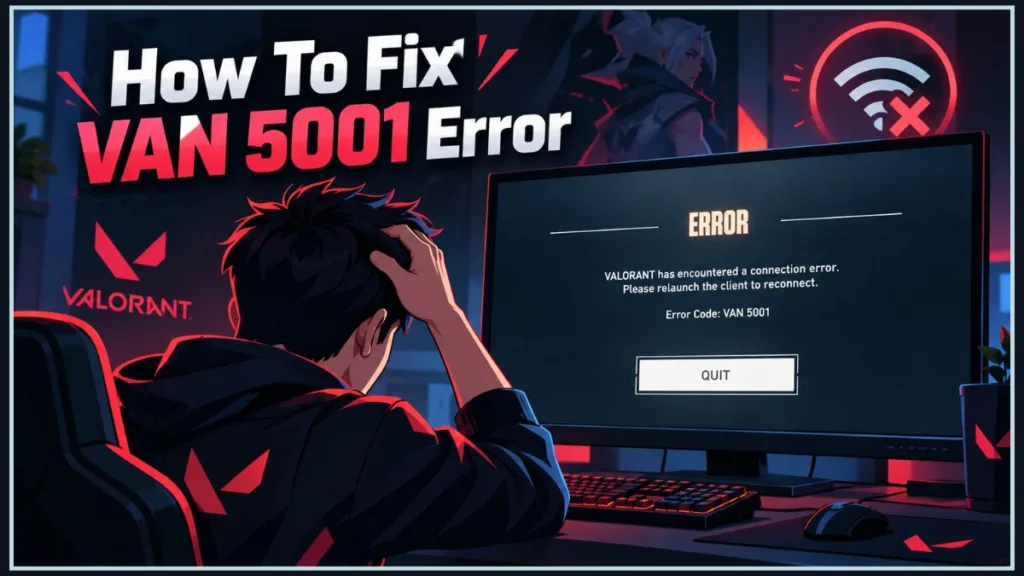
The repeated disconnects can also cost you rank rating, XP, or queue time, making VAN 5001 more than a simple inconvenience.
In this guide, you’ll see what VAN 5001 looks like, why it may be happening, how to fix it step by step, and what to do about the penalties it can trigger.
What Does the VAN 5001 Error Actually Mean?
Riot Vanguard installs a background service called vgc that starts with Windows, along with a driver called vgk.
VALORANT needs both to stay in contact with Vanguard while you play. Errors that begin with “VAN” generally mean something went wrong in that chain, either with Vanguard itself or with the connection around it.
VAN 5001 is not among the codes in Riot’s published error list that I could find. Riot’s current Vanguard Error Codes page lists supported VAN errors, including VAN 185 and VAN 193, but not VAN 5001.
Riot’s Error Codes and Solutions in VALORANT page also currently carries a notice saying the list is out of date because a recent issue is causing VALORANT errors to display incorrectly. Riot recommends submitting a ticket while the problem is being fixed.
So, there is no official definition of VAN 5001, and the number shown on your screen may not point to one exact cause.
The causes and fixes in this guide combine Riot’s general connection and Vanguard guidance with what players are reporting.
In practical terms: VAN 5001 means VALORANT lost its connection or crashed during a session. That’s the problem the rest of this guide is designed to solve.
Because Riot suggests submitting a ticket for this kind of error, you don’t have to finish every fix before contacting support. You can send a ticket early using Fix 14 while you continue troubleshooting.
What Will You See When VAN 5001 Appears?
Player reports describe a consistent set of symptoms:
- Repeated mid-match disconnects: Players are kicked out every few minutes, and some say it happens several times in a single game.
- Disconnects soon after loading in: Some players see the error almost as soon as a match starts.
- Other codes appearing together: VAN 5001 is often reported alongside VAN 193, VAN 139, VAN 185, or VAL 0.
- Different game modes: Reports cover competitive, Team Deathmatch, and custom-game queues.
- Fixes that didn’t stick: Several players say restarting, updating graphics drivers, and reinstalling Vanguard did not stop the problem.
If that sounds familiar, the fixes below are built around the same pattern.
Why Does the Disconnect Keep Returning Every 5-10 Minutes?
The most common description is a disconnect roughly every 5 to 10 minutes.
Players report finishing a round or two, getting thrown out, rejoining, and then getting kicked again.
That regular timing usually points to something intermittent rather than something permanently broken. Examples include an unstable network route, a service that keeps stopping, or interference from VPN or security software.
It also explains why a restart can sometimes seem to help for one match and then fail again.
The possible causes below are based on this pattern.
What Could Be Causing the VAN 5001 Disconnects?
Several things can interrupt the connection between VALORANT, Vanguard, and Riot’s servers.
Any of the following could be behind the error, and sometimes more than one problem is involved.
Your Internet Connection May Be Unstable
Because VAN 5001 appears as a disconnect, your connection is the first thing to check.
Wi-Fi interference, packet loss, or poor routing between your internet provider and Riot’s servers can all end a session early.
A few players say the problem stopped when they switched to a mobile hotspot or Ethernet, while their regular Wi-Fi connection continued disconnecting.
What to do: Work through the network basics, then test Ethernet and a hotspot using Fixes 3 to 5. If either one stays stable, your regular network is the likely culprit, and DNS may help with Fix 6.
For Riot’s broader network checks, see the official VALORANT Network Connection Troubleshooting guide.
Vanguard May Not Be Staying Connected
If the vgc service stops, fails to start, or becomes corrupted, VALORANT can lose its connection with Vanguard and close.
This is more likely if the error started right after an update.
What to do: Confirm that the service is set to start automatically and that Vanguard is running using Fix 2. If that doesn’t help, repair the game files and then reinstall Vanguard using Fixes 12 and 13.
Riot’s Vanguard support documentation is the official reference for Vanguard-related errors.
Another App Could Be Interfering
Riot’s own network guide says that VPNs and proxies can cause connection problems and should only be used if absolutely necessary.
Firewalls and security software can also block or filter VALORANT’s traffic and cause dropped sessions.
What to do: Disable any VPN or proxy and check your firewall and antivirus permissions using Fixes 7 and 8.
Your Network Settings or Drivers Could Be the Problem
A stale DNS cache, damaged network configuration, outdated network driver, or router that blocks game traffic can cause intermittent drops that look like a game problem.
If other online apps are also stuttering or dropping on the same PC, this is a strong candidate.
What to do: Reset your network settings, update your drivers, and restart your router using Fixes 9 and 10. If your router might be blocking traffic, port forwarding is an advanced option covered in Fix 11.
The Problem May Be Wider Than Your PC
Many players say VAN 5001 started after a recent VALORANT update, and the same pattern appears across different communities.
That doesn’t prove Riot’s update caused the problem, but it suggests the issue may not be specific to your computer.
What to do: Work through the fixes below, check Riot’s status channels in the section on server problems, and send Riot a ticket with the details using Fix 14.
You can also check Riot’s VALORANT Game Updates page for the latest official patch information.
Now that you know what could be behind the error, it’s time to fix it.
Fix VAN 5001 in VALORANT
Riot has not published a fix specifically for VAN 5001.
The steps below combine Riot’s own connection, firewall, repair, and Vanguard guides with checks that players have found useful.
They move from the quickest and least disruptive fixes to the more involved options.
Before You Start Troubleshooting
- Use a Windows account with administrator rights. Several steps change system settings or run commands that require administrator access.
- Know your install location. The file paths in this guide assume VALORANT is installed in the default
C:\Riot Gamesfolder. If you installed it somewhere else, substitute your own location. - Menu names can vary slightly. Windows 10 and Windows 11 label some settings differently. If you can’t find an option, use the shortcuts provided or the Windows Settings search box.
- Test after every fix. Because the error appears every 5 to 10 minutes, one quick match proves very little. Play for at least 20 to 30 minutes without a disconnect before calling a fix successful, and avoid ranked while you test.
Keep notes. Write down which fixes you tried and what happened. You’ll need those details if you contact Riot.
1. Start With a Clean Restart
- Close VALORANT and the Riot Client.
- Look at the system tray in the bottom-right corner of your screen. If the Riot Client icon is still there, right-click it and choose Exit.
- Restart your computer. Don’t use Sleep or Hibernate, which can keep old sessions alive.
- When Windows loads, look for the red Riot Vanguard icon in the system tray.
- Launch the Riot Client and VALORANT and play for a while.
What to expect: You should get a clean start, with the Vanguard icon showing in the tray. Riot’s standard first advice for connection errors is to restart VALORANT and the Riot Client.
Why it’s worth doing: It clears temporary glitches and reloads Vanguard from scratch because Vanguard starts with Windows.
2. Make Sure the vgc Service Is Running
This is a community-recommended check rather than an official Riot step, but it takes a minute and rules out a stopped service.
- Press Windows + R.
- Type
services.mscand press Enter. - Scroll down to vgc and double-click it.
- Set Startup type to Automatic.
- If Service status says Stopped, click Start.
- Click Apply, then OK, and restart your PC.
What to expect: The service should show as Running.
If vgc is missing from the list, or Start returns an error, Vanguard is likely missing or damaged. Skip ahead to Fixes 12 and 13.
Why it’s worth doing: If the service isn’t running, VALORANT can’t stay connected to Vanguard, and the match ends.
3. Check Your Connection and Run Windows’ Network Troubleshooter
Riot’s own network guide starts with simple checks and then uses a built-in Windows tool. Its current guide covers Wi-Fi, Ethernet, Windows updates, VPNs and proxies, public DNS, IP renewal, firewall settings, and port forwarding.
- Check that your connection is actually healthy. If you’re using Wi-Fi, confirm it is switched on and make sure your network name and password haven’t changed.
- Make sure the Ethernet cables between your router and modem are firmly connected.
- Install any pending Windows updates. Riot notes that Windows sometimes ships connectivity fixes in its updates.
- Open Settings > Network & Internet > Status.
- Scroll to Advanced network settings and click Network troubleshooter.
- Pick your network if asked.
- Let it run and read the result.
For additional Windows-specific help, see Microsoft’s Fix Wi-Fi connection issues in Windows guide.
What to expect: The troubleshooter gives a diagnosis and a possible fix, and sometimes fixes the problem itself.
If it reports nothing, that’s fine. It simply rules out a basic fault.
Why it’s worth doing: It catches simple causes such as a disabled adapter or a changed Wi-Fi password before you start changing deeper settings.
4. See Whether Ethernet Stops the Disconnects
Before you start: You need an Ethernet cable and a free port on your router and PC. If your PC has no Ethernet port, go to Fix 5.
- Connect one end of the cable to your router and the other to your PC.
- Turn off Wi-Fi on the PC so Windows can’t switch back to it.
- Wait a few seconds until Windows shows the connection as connected.
- Launch VALORANT and play for 20 to 30 minutes.
What to expect: If the disconnects stop, Wi-Fi interference was at least part of the problem, and you have a stable way to play.
Riot says that a wired connection is both faster and more stable than Wi-Fi.
If the disconnects continue, keep going.
Why it’s worth doing: It removes Wi-Fi from the equation. Some players report this works, but it isn’t an official VAN 5001 fix.
5. Use a Different Network as a Quick Test
Before you start: You need a phone with a data plan and hotspot support. Use the hotspot for testing only. Don’t download game updates over it because patches can use a lot of data.
- Turn on your phone’s mobile hotspot.
- Disconnect your PC from your home Wi-Fi or Ethernet and connect it to the hotspot.
- Launch VALORANT and play for 20 to 30 minutes.
What to expect:
Stable on the hotspot: Your home network or provider’s routing is the likely cause. Continue with Fixes 6 to 11 and consider contacting your internet provider.
Same disconnects: The cause is more likely on your PC, in Vanguard, or on Riot’s side. Focus on Fixes 7, 8, 12 and 13 and send a ticket using Fix 14.
Why it’s worth doing: It separates a network problem from a PC or Vanguard problem within minutes.
6. Try a Different DNS
Before you start: Take a screenshot of your current adapter settings so you can undo the change.
Riot warns that some internet providers block third-party DNS servers, so if you lose internet access after changing DNS, revert to your original settings.
- Press Windows + R.
- Type
ncpa.cpland press Enter.
This opens the same adapter list as Riot’s path:
Settings > Network & Internet > Status > Change adapter options
- Right-click your active connection, either Wi-Fi or Ethernet, and select Properties.
- Select Internet Protocol Version 4 (TCP/IPv4) and click Properties.
- Choose Use the following DNS server addresses.
- Enter one of these pairs:
Google: Preferred 8.8.8.8, Alternate 8.8.4.4
Cloudflare: Preferred 1.1.1.1, Alternate 1.0.0.1
- Click OK.
- Back in the adapter’s Properties window, find Internet Protocol Version 6 (TCP/IPv6).
- Untick it to disable it, then click OK.
- Launch VALORANT and test.
What to expect: Your connection may blink off for a moment, then websites should load normally.
If they don’t, reopen the window, switch back to Obtain DNS server address automatically, and tick IPv6 again.
Why it’s worth doing: Riot says your provider’s default DNS isn’t always ideal for gaming, and public servers can improve stability and reliability.
One player also reported that Cloudflare’s 1.1.1.1 stopped VAN 5001, although that isn’t guaranteed to work for everyone.
7. Remove Any VPN or Proxy From the Connection
- Quit any VPN or “gaming booster” apps completely.
- Check the system tray and Task Manager (
Ctrl + Shift + Esc) to make sure they aren’t still running. - Open Settings > Network & Internet > VPN and disconnect or remove any VPN connection you don’t need.
- Open the Proxy settings in the same area and switch off any proxy you didn’t set up on purpose.
- Restart the Riot Client, launch VALORANT, and test.
Warning: If you’re on a workplace or school network, a proxy may be required. Ask the network administrator before turning it off.
What to expect: Your traffic goes straight from your PC to the internet.
Riot recommends playing without a VPN or proxy unless it is 100% necessary.
Why it’s worth doing: It removes a common source of dropped connections.
8. Make Sure Security Software Isn’t Blocking VALORANT
These steps follow Riot’s firewall guide. See Riot’s official Firewall and VALORANT guide for the supported application entries.
- Type Windows Defender Firewall into the Windows search bar and open it.
- Click Allow an app or feature through Windows Defender Firewall, then Change settings.
- Remove any existing VALORANT and Riot Client entries.
- Add fresh ones using the Allow another app button.
- Click Browse and select:
C:\Riot Games\VALORANT\live\VALORANT.exe
- Add it and make sure both Private and Public boxes are ticked.
- Repeat for:
C:\Riot Games\Riot Client\RiotClientServices.exe
- Repeat for:
C:\Program Files\Riot Vanguard\vgc.exe
- Click OK.
If you use third-party antivirus or firewall software, open its exceptions or exclusions list and add the same files.
Riot’s list also includes VALORANT-Win64-Shipping and UnrealCEFSubProcess.exe, located in the VALORANT live folders. Check your antivirus software’s help pages for the exact menu name.
Warning: Don’t leave your firewall switched off. If you turn it off for a quick test, turn it back on afterward.
What to expect: The entries appear in the allowed list with both Private and Public boxes ticked.
Why it’s worth doing: A blocked or filtered connection can look exactly like a random disconnect.
9. Refresh Your Windows Network Configuration
Before you start: Close your browsers and other apps. Your internet connection will drop briefly while you do this.
- Press the Windows key.
- Type cmd.
- Right-click Command Prompt and choose Run as administrator.
- Type:
ipconfig /release
Press Enter.
Riot says a block of text will appear, which means your current IP address has been released.
- Type:
ipconfig /renew
Press Enter.
You should see another block of text, which means a new address was assigned.
- Type:
ipconfig /flushdns
Press Enter.
Windows should confirm that the DNS Resolver Cache was flushed.
- Optional, if the steps above don’t help, type:
netsh winsock reset
Press Enter.
Windows should say the Winsock catalog was reset and that you must restart.
- Restart your PC.
Warning about step 5: This isn’t part of Riot’s guide, but it is a standard Windows network reset. It requires administrator rights and removes network add-ons installed on top of Winsock, so VPN, firewall, or proxy software may need reinstalling afterward. Wi-Fi may also need to be reconnected.
What to expect: After the restart, your connection should come back normally.
Riot describes renewing your IP address as a way to fix minor glitches and troubleshoot network errors.
Why it’s worth doing: It clears stale or corrupted network data without changing any of your normal settings.
10. Update Your Network Drivers, Windows and Router
- Press Windows + X and open Device Manager.
- Expand Network adapters and note the name of your Wi-Fi or Ethernet adapter.
- Visit your PC or adapter manufacturer’s support site, download the latest driver for that model, and install it.
- Run Windows Update and install anything pending.
- Unplug your router’s power cable for about 30 seconds.
- Plug it back in and wait until all its lights settle.
- Restart your PC and test VALORANT.
For Windows updates, use Microsoft’s official Windows Update guidance.
For drivers, use the manufacturer’s official support page rather than a third-party driver-downloader utility:
NVIDIA: Use the official NVIDIA Drivers page for current driver downloads and manual driver search.
AMD: Use AMD’s official Drivers and Support page for current driver downloads and supported hardware detection.
Intel: Use Intel’s official Download Drivers & Software page for graphics, wireless, Ethernet, and other Intel hardware drivers.
Practical advice: For a network adapter driver, use the support page for your PC, laptop, motherboard, or adapter manufacturer when possible. The correct driver depends on the exact hardware model.
What to expect: Your connection may be unavailable for a minute or two while the router restarts.
Could Your Graphics Driver Be the Real Problem?
If VALORANT also freezes, shows a black screen, or closes without any disconnect message, the cause may be your graphics setup instead.
Riot’s current VALORANT crash troubleshooting guide covers graphics-driver troubleshooting and other causes of game crashes.
Riot’s crash guide has you:
- Press Windows + R.
- Type
dxdiag. - Open the Display tab to identify your graphics card.
- Update the driver from AMD, NVIDIA, or Intel.
Why it’s worth doing: It rules out outdated drivers and a router that has been running too long.
11. Try Port Forwarding Only as an Advanced Step
Most players won’t need this step.
Only do it after Fixes 3 to 10 haven’t helped.
Riot says your router might be blocking access to its servers, in which case port forwarding may help.
Use Riot’s current Port Forwarding guide for the current ports and protocols rather than relying on an old list.
Before you start: You need your router’s login details.
If you’re on a school, dorm, or workplace network, ask the network administrator instead of changing anything yourself.
- Open Command Prompt.
- Type
ipconfigand press Enter. - Note your Default Gateway and IPv4 Address.
- Type the default gateway address into a web browser and sign in to your router.
- Look for a page called Port Forwarding, Virtual Servers, NAT, or Application.
Important: Port triggering is not the same thing.
- Open Riot’s current port forwarding article on its support site and copy the ports and protocols from its table.
They can differ by region and service, so don’t rely on a list from memory.
- Create the rules, entering the same range in the internal and external fields.
- Save the settings.
- Restart your router and test VALORANT.
Warning: Only forward the ports Riot lists. Forwarding extra ports can expose your PC unnecessarily.
What to expect: Your router should show the new rules as active.
If nothing changes, you can delete the rules.
12. Repair VALORANT Before Reinstalling It
The Riot Client Full Repair Tool is built into the Riot Client and is designed to repair missing or corrupted game files. Riot’s current instructions are to open the Riot Client, select Settings, choose the game, and select Repair.
See Riot’s official Riot Client Full Repair Tool page for the current instructions.
- Close VALORANT and make sure you’re logged in to the Riot Client.
- Click the profile icon in the upper-right corner and select Settings.
- Choose VALORANT from the game list.
- Click Repair and follow the prompts.
- Wait for it to finish, then launch VALORANT.
What to expect: Riot says its repair tool can fix problems by repairing missing or corrupted files.
The time it takes depends on your connection and how much needs replacing.
What If the Riot Client Won’t Open?
Use the standalone Riot Repair Tool (RRT) from Riot’s support site.
Riot’s current Riot Repair Tool page provides the official tool and explains how it gathers logs for VALORANT and other Riot games.
On Windows, right-click it and choose Run as administrator.
Why it’s worth doing: It’s much less disruptive than a full reinstall and covers damaged game files.
13. Reinstall Vanguard and VALORANT Only When Needed
Before you start: Use an administrator account.
Riot’s current Uninstall and Disable Vanguard guide covers normal and manual Vanguard removal and explains how Vanguard is reinstalled when you launch a Vanguard-dependent game.
Without Vanguard, you can’t launch most Riot games until it is reinstalled, which Fix 13 completes at the end.
- Close every Riot game and the Riot Client.
- If the Riot Client is still in the tray, right-click it and choose Exit.
Remove Vanguard From the System Tray
Right-click the red Vanguard icon, choose Advanced, then Uninstall Vanguard and follow the prompts.
Remove Vanguard From Windows Settings
Search for Add or remove programs, find Riot Vanguard, and uninstall it.
- Restart your PC.
Riot says Vanguard is fully uninstalled if its icon no longer shows in the system tray after a restart.
- Launch the Riot Client or VALORANT.
Vanguard reinstalls automatically when you launch a Vanguard-dependent game. Restart your PC again if prompted.
- Play a few matches to test.
If Vanguard Refuses to Uninstall
Riot’s manual method uses an administrator Command Prompt.
- Close all Riot software.
- Run:
sc delete vgc
- Then run:
sc delete vgk
- Restart your PC.
- Open File Explorer.
- Go to:
C:\Program Files
- Delete any remaining Riot Vanguard folder.
- Launch the Riot Client to reinstall Vanguard.
What If VALORANT Also Needs a Fresh Reinstall?
Use the official VALORANT download page rather than a third-party download site.
For connection-type errors, Riot’s guidance in its error list is to uninstall both Vanguard and VALORANT and perform a fresh reinstallation of both.
Why it’s worth doing: A corrupted Vanguard installation can cause this kind of disconnect.
It comes late because it’s the most disruptive step, and several players say it didn’t fix VAN 5001 by itself.
14. Send Riot Support Everything You Have
Riot recommends a ticket for this class of error, so you can do this at any point, not only after everything else has failed.
Use Riot’s current Submit a Support Ticket page to send the issue.
Before you start: You need to be signed in to your Riot account to submit a ticket.
Write down:
Every code you see: VAN 5001, 193, 139, 185, VAL 0
When it happens: Record roughly when the errors appear.
Any penalties: Note any AFK warnings, penalties, or restrictions.
Fixes you’ve tried: Keep your troubleshooting notes.
Collect Your Logs Before You Submit the Ticket
The easiest method is to download the Riot Repair Tool, run it as administrator, choose VALORANT, and let it finish.
It creates a ZIP file that you can attach to your ticket. The tool’s logs also include your Vanguard logs.
See Riot’s Gathering Logs With Riot Repair Tool guide for the current process.
You can also gather them manually. Riot’s current Gathering Logs in VALORANT guide covers user logs, Riot Client logs, Vanguard logs, process lists, NetworkInfo logs, and DxDiag.
Zip the Logs folder at:
%localappdata%\VALORANT\saved
Then the Logs folder at:
%localappdata%\Riot Games\Riot Client
And the Logs folder inside:
C:\Program Files\Riot Vanguard
To create a DxDiag file:
- Press the Windows key.
- Type
dxdiag. - Click Save All Information.
- Save the file.
Open Riot’s ticket page at:
support.riotgames.com/hc/requests/new
Describe the problem, including your notes.
Attach the logs and submit the ticket.
What to expect: You’ll receive a reply from Riot Player Support, which may ask for further information such as a screenshot. Response times vary.
Why it’s worth doing: Specific details help support narrow down the cause.
If many players report the same thing, those tickets can also help Riot identify a wider problem.
Seeing VAN 193, VAN 139, VAN 185 or VAL 0 Too?
Many players see more than one code at the same time, which can make the problem look bigger than it is.
Since Riot has said its error display is currently unreliable, these numbers may all describe a single underlying issue, such as a dropped connection to Vanguard or Riot’s servers.
You don’t need to chase each code separately.
Apply the same fix order above, and list every code you saw in your support ticket so Riot can see the full pattern.
Can Repeated VAN 5001 Disconnects Trigger AFK Penalties?
Repeated disconnects have real consequences, so this deserves its own section.
VAN 5001 itself isn’t described as a penalty, but being disconnected in the middle of a match can be treated like leaving the game.
Riot’s Penalties and Bans FAQ covers the consequences that can apply to disruptive or AFK behavior, including warnings, XP denial, rank rating deductions, queue timers, ranked restrictions, and temporary game bans depending on the circumstances.
Players in a Reddit thread about this error reported 10-minute penalties and short suspensions after repeated disconnects.
How to Check Your Current Penalty Status
- Open the VALORANT client.
- Look above your Riot ID for a warning.
- Click it to see the details.
Riot calls these At-Risk Alerts.
The alert itself doesn’t apply a penalty. It means your account is close to one, and the details show what could follow.
If you already have a penalty, the client shows its details and how long it lasts.
If you believe you were penalized unfairly because of VAN 5001, write down the dates and times and include them in your ticket.
Riot’s support guidance has said it forgives AFK penalties incurred during problems on its own end, so it’s worth asking for a review.
Practical advice: Until the error is under control, it’s sensible to avoid ranked matches, since each disconnect can add up.
How Can You Tell Whether Riot or Your PC Is the Problem?
It could be either, which is why testing matters.
Many players reporting the same code in the same period suggests a wider issue, but Riot has not confirmed a cause for VAN 5001, and your own setup can still play a part.
Here’s how to separate the possibilities.
Check Riot’s Service Status
Go to Riot Games Service Status and check VALORANT for incidents or maintenance affecting your region.
Select VALORANT and look at your region for any incidents or maintenance.
Check Riot’s Official Announcements
Riot recommends watching its Discord and the banners on its Support Site for emerging issues.
You can also use the official VALORANT Discord.
Test From Another Network
Use a different connection, such as a phone hotspot, using Fix 5.
What the Results Mean
An active incident on Riot’s channels: Wait for Riot’s fix and mention the issue in your ticket if you were penalized.
Fine on a hotspot, failing at home: Focus on your home connection using Fixes 4 to 11.
Failing on every network with no announcements: The cause is more likely Vanguard or your PC. Focus on Fixes 2, 8, 12 and 13, then send a ticket.
Keep VAN 5001 and Other Disconnects From Coming Back
Once you’ve found a setup that works, a few habits can help keep it stable.
Use Ethernet When the Match Matters
A cable removes Wi-Fi interference, which is one of the most common causes of dropped sessions.
If you can only use Ethernet for ranked matches, that is still worth doing.
Why it matters: Ranked disconnects carry the biggest penalties, so that’s where stability matters most.
Turn Off VPNs and Proxies Before Playing
Turn them off before launching VALORANT, and don’t leave them running in the background.
Why it matters: They add an extra hop that can drop or delay your connection to the game servers.
Keep Windows and Network Drivers Updated
Install Windows updates and check your network adapter driver every few months.
Why it matters: Small fixes in newer drivers can remove the intermittent drops that cause errors like this.
Check Vanguard Before You Queue
Make sure vgc is set to Automatic and that the red Vanguard icon appears after each restart.
If it doesn’t, fix that before queuing.
Why it matters: VALORANT depends on Vanguard being active from the moment Windows starts.
Close Apps That Use a Lot of Bandwidth
Pause downloads, cloud backups, and video streams on your network while you play.
Why it matters: Heavy background traffic can cause packet loss, which can look like a game error.
Restart Your Router Regularly
A router that has been running for weeks can slow down or drop connections.
A quick power cycle clears it.
Why it matters: It’s a simple way to head off random drops before they cost you a match.
Is VAN 5001 a Risk to Your PC or Account?
Nothing in the player reports suggests VAN 5001 harms your computer or files.
It describes an interrupted connection, not a security threat.
Account bans in VALORANT come with their own messages, and reports of VAN 5001 describe disconnects, not bans.
The real risk is indirect.
Repeated disconnects can trigger AFK penalties, which is why it’s worth fixing sooner rather than later.
Once the underlying issue is resolved, you can play as normal.
VAN 5001 Questions Players Commonly Ask
What Is VAN 5001 in VALORANT?
VAN 5001 is an error code players see when VALORANT disconnects or closes during a session, usually in the middle of a match.
It isn’t in Riot’s published list of error codes, so there is no official definition.
Riot has also said its error display may currently be showing incorrect codes.
Treat it as a repeated-disconnect problem and troubleshoot your connection and Vanguard.
What’s the Best Way to Fix VAN 5001?
Start by restarting VALORANT, the Riot Client, and your PC, then check that the vgc service is running.
After that, work through the network checks:
Windows’ network troubleshooter → Ethernet → a hotspot test → a public DNS → turning off any VPN or proxy
Then check your firewall, renew your IP address, update drivers, and restart your router.
If the error persists, repair the game through the Riot Client, reinstall Vanguard, and submit a ticket with your logs.
Do You Need to Contact Riot Support Immediately?
You can.
Riot’s error-code page says its list is out of date because of an issue that displays errors incorrectly, and it recommends submitting a ticket for help while the problem is fixed.
There is no harm in sending one early while you keep troubleshooting.
Include:
Every code you’ve seen → the times → any penalties → the steps you’ve tried
Why Does VALORANT Keep Disconnecting Every 5-10 Minutes?
That timing is the pattern most players with VAN 5001 describe.
It usually points to something intermittent, such as an unstable network route, a Vanguard service that keeps stopping, or VPN or firewall interference.
Testing on a different network is the fastest way to tell these apart.
If the disconnects follow you to every network, the problem is more likely on your PC or on Riot’s side.
Can Ethernet Stop VAN 5001?
For some players, it does, and it’s one of the simplest things to test.
A wired connection removes Wi-Fi interference, and Riot itself recommends it for connection trouble.
If the disconnects continue on Ethernet, move on to DNS, VPN, and firewall checks, because the cause is probably elsewhere.
Will Changing DNS Fix VAN 5001?
One player reported that switching to Cloudflare’s 1.1.1.1 stopped the error, and Riot recommends public DNS servers for connection stability in general.
It isn’t guaranteed to work for everyone, but it takes a couple of minutes and is easy to undo.
If your connection stops working after the change, set it back to automatic, since some providers block third-party DNS servers.
Is Reinstalling Vanguard Worth Trying?
Yes, but do it after the network and service checks and a repair through the Riot Client, not before.
A corrupted Vanguard installation can cause disconnects, so reinstalling is a valid fix.
However, several players say it didn’t solve VAN 5001 on its own, so it’s best used once the quicker steps have been ruled out.
For the supported uninstall and reinstall process, use Riot’s official Vanguard guide.
What If VAN 5001 Comes Back After Reinstalling Vanguard?
If it returns, the cause is probably not a damaged Vanguard file.
Go back to your network:
Test Ethernet and a hotspot → try a public DNS → disable VPNs → check your firewall → restart your router
If you’ve covered all of those, submit a ticket to Riot with your codes, timing, the steps you tried, and your logs.
A persistent error across many players can point to a wider problem that needs Riot’s attention.
Why Are VAN 5001 and VAN 193 Appearing Together?
They are often reported together and probably describe the same dropped connection, especially as Riot’s error display is currently unreliable.
You don’t need separate fixes for each.
Follow the same fix order and mention both codes in your support ticket.
How Do You Check Whether VALORANT Servers Are Having Problems?
Check Riot Games Service Status and select VALORANT, then look at Riot’s Support Site banners and its official Discord for announcements.
You can also test your PC on a different network, such as a phone hotspot.
If the error disappears there, the cause is probably your home connection.
If it happens everywhere, and many other players report it at the same time, a wider issue is more likely.
Can VAN 5001 Get Your Account Banned?
The error itself isn’t described as a ban, and the reports describe disconnects, not account bans.
However, repeated mid-match disconnects can trigger AFK penalties, and these can include temporary restrictions.
Practical advice: If it keeps happening, avoid ranked games until it’s resolved, check for an At-Risk Alert in the client, and tell Riot Support about any penalties you received.
Final Thoughts
The VALORANT VAN 5001 error is frustrating because it hits in the middle of a match and can cost you rank rating, XP, and queue time.
There is no official explanation yet, and Riot has said its error list may display incorrect codes. So the best approach is to treat VAN 5001 as a repeated-disconnect problem.
Start by testing your connection, confirm that Vanguard’s service is running, and work through the fixes in order.
Leave the repair and reinstall steps until later.
Because Riot itself recommends a ticket for this class of error, don’t wait too long to send one.
Collect your codes, times, logs, and the steps you’ve tried, then send them to Riot Support.
Those details can help Riot identify a wider problem and can also support your case if you need AFK penalties reviewed.
Visit Our Post Page: Blog Page
Discover more from Izoate
Subscribe to get the latest posts sent to your email.