
Locked out of Valorant by Vanguard error 84? Learn how to fix the VAN 84 connection error quickly with our 5 proven network and service solutions.
You are finally ready to queue up for a match, hanging out with friends on Discord, but right as you load in, you get hit with a highly frustrating pop-up: “Riot Vanguard an unexpected error has occurred.”
Instead of jumping into the game, you are looking at a Valorant error code 84 and your client completely closes.
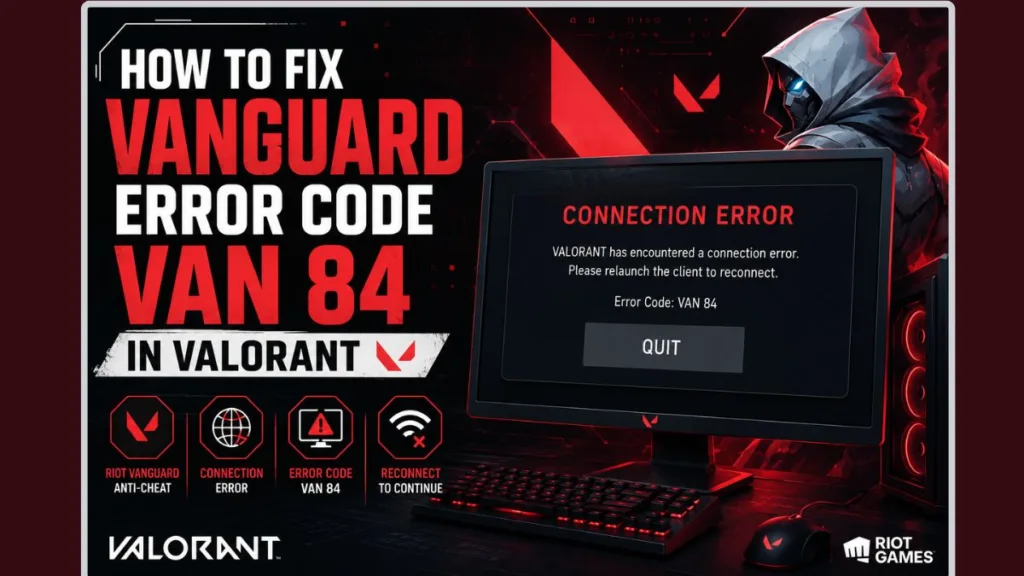
If you’re experiencing this issue, you are definitely not alone. The VAN 84 connection error is a notorious roadblock for both Valorant and League of Legends players. Fortunately, you can easily resolve this network breakdown by following the practical steps below. Let’s get your system properly configured so you can get back to playing.
What Exactly is Vanguard Error Code VAN 84?
To understand how to fix it, it helps to know why it happens. Think of Riot Vanguard as the strict security guard for your game. When the local Vanguard service (a background process called vgc running on your PC) fails to establish a secure handshake with Riot’s authentication servers, the system panics. To protect the game from potential exploits, it immediately kicks you out.
If you find yourself wondering, “why does Vanguard keep closing my client?”, the culprit is usually a sudden loss of communication. This often happens if you encounter a Vanguard error 84 after a Windows update, if your antivirus software is aggressively blocking the connection, or if your local internet service provider (ISP) experiences a momentary routing hiccup.
Important Tip: Before diving into complex network resets, always double-check if your system recently installed a background Windows or driver update. A simple PC restart is often the quickest way to realign a disrupted Vanguard service!
How to Fix Vanguard Error 84 (5 Proven Methods)
You can try the following steps in order. We have organized them from the easiest, most common fixes to slightly more advanced network adjustments.
1. Check Riot Server Status Before Changing Settings
Before you start tweaking your computer’s settings, you need to make sure the problem isn’t actually on Riot’s end. Sometimes, when Valorant has encountered a connection error VAN 84, it is simply because the game servers are down.
- Visit the official Riot Games Service Status page to check for ongoing maintenance and select your specific game and region.
- Check community hubs like DownDetector for Valorant to see if other players are reporting real-time outages and are currently locked out.
- If the servers are down, you simply need to wait it out. If everything is green, move on to step two.
2. Force the VGC Service to Run Automatically
Often, the anti-cheat software simply fails to boot up alongside your operating system. If you want to know how to restart the vgc service in Windows, follow these quick steps:
- Press the Windows Key + R on your keyboard to open the Run dialog box.
- Type services.msc and press Enter.
- Scroll down the alphabetical list until you find vgc.
- Right-click on vgc and select Properties.
- Look for the Startup type dropdown menu and change it to vgc service automatic.
- Click the Start button to run the service immediately, then click Apply and OK.
Troubleshooting Tip: If you ever notice the “Start” button is grayed out or throws an error, make sure you are logged into an Administrator account on your Windows PC.
3. Flush Your DNS and Reset Network Proxies
A corrupted local network cache can easily block the authentication handshake between your PC and Riot. Flushing out the old data gives your system a clean slate to connect.
- Click your Windows Start menu, type cmd, right-click on Command Prompt, and select Run as administrator.
- Type ipconfig /flushdns and press Enter.
- Next, type netsh winsock reset and press Enter.
- Finally, type netsh winhttp reset proxy and press Enter to clear out any lingering proxy conflicts.
- Restart your computer to apply the network reset.
4. Switch to Google DNS and Disable IPv6
Sometimes your ISP’s default routing struggles to maintain a stable connection with Vanguard’s strict security protocols. Choosing to change your DNS to Google Public DNS and turning off IPv6 is one of the most reliable fixes for this specific League of Legends Vanguard error 84.
- Open your Windows Settings and navigate to Network & internet.
- Click on Advanced network settings and choose your active Wi-Fi or Ethernet adapter.
- Scroll down and click Edit on your More adapter options (or Properties).
- Uncheck the box to disable the IPv6 network adapter (Internet Protocol Version 6).
- Highlight Internet Protocol Version 4 (TCP/IPv4) and click Properties.
- Select Use the following DNS server addresses.
- Enter 8.8.8.8 as your Preferred DNS and 8.8.4.4 as your Alternate DNS.
- Save your changes and reboot your system.
Bonus Tip: Switching to a reliable public DNS like Cloudflare doesn’t just help with gaming errors—it can also speed up your general web browsing experience on platforms like Microsoft Edge or streaming apps like Spotify!
5. Allow Vanguard Through Windows Defender Firewall
Your computer’s built-in security—or third-party antivirus software like Norton or McAfee—might mistakenly flag Vanguard’s deep-system monitoring as a threat. You need to configure Windows Defender Firewall exceptions to guarantee the connection isn’t being blocked.
- Type Firewall & network protection into your Windows search bar and hit Enter.
- Click on Allow an app through firewall.
- Click the Change settings button (you will need admin privileges).
- Click Allow another app, select Browse, and navigate to your Riot Vanguard installation folder (usually located at
C:\Program Files\Riot Vanguard). - Select both vgc.exe and vgtray.exe, add them to the list, and ensure the boxes for both Private and Public networks are checked.
Still Experiencing the Connection Error? Try a Clean Reinstall
If you have tried all the network fixes above and are still getting disconnected, you may be dealing with corrupted anti-cheat files. At this stage, your best bet is a completely fresh installation.
- Ensure the game is fully closed. Perform a Riot Client task manager restart by opening Task Manager (Ctrl + Shift + Esc) and forcefully ending all Riot-related tasks.
- Go to Add or remove programs in your Windows settings and completely uninstall Riot Vanguard.
- Once removed, simply launch your Valorant or League of Legends client. The Riot Client will automatically detect the missing software and prompt a fresh, clean download of Vanguard.
- Restart your PC one final time to finalize the new installation.
By systematically checking your services, refreshing your network cache, and adjusting your DNS, you can permanently squash this error and enjoy your matches uninterrupted.
Visit Our Post Page: Blog Page
Discover more from Izoate
Subscribe to get the latest posts sent to your email.