
Getting the Vanguard error VAN 2266 in League of Legends? Don’t panic. Here is the complete step-by-step guide to fix it immediately and get back into the game.
If you are currently trying to start a League of Legends match and suddenly encounter a roadblock, you are certainly not alone.
Many users report seeing the specific, frustrating message below:
“Vanguard error VAN 2266”
This specific Riot Vanguard error often strikes without warning. It can appear even when the League client looks perfectly normal and your champion select finishes without a single hitch.
The most frustrating part is that League of Legends may work normally right up until the match actually starts. Some players have also reported the error returning even after a temporary fix seems to work, making it especially frustrating to troubleshoot.
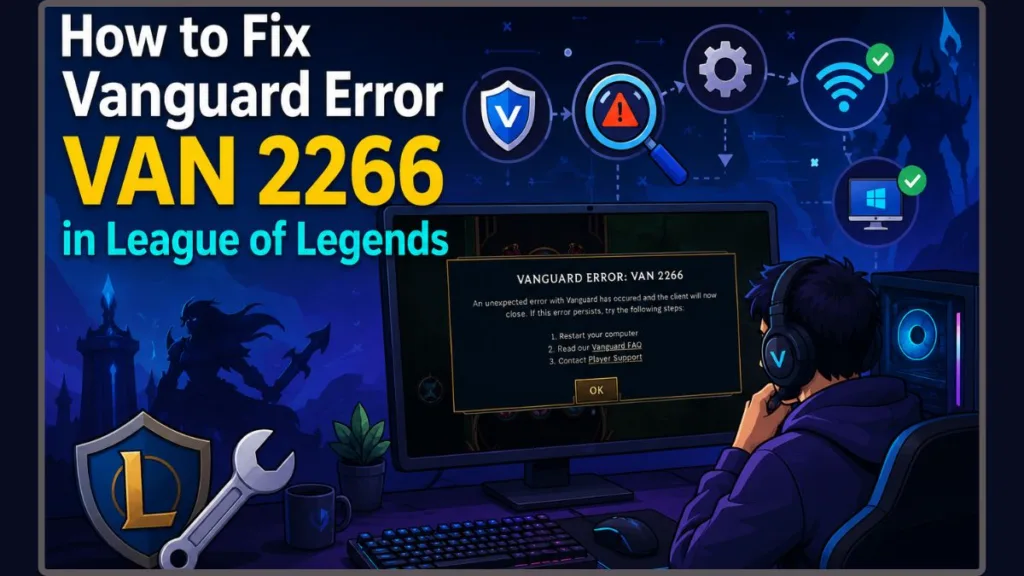
While it disrupts your gameplay, the good news is that this issue is often fixable and does not mean your account is banned.
In this comprehensive guide, we will walk you through exactly what this error means, why Vanguard might fail to respond, and the specific steps you must take to fix it quickly.
Quick answer: Start by restarting your PC and checking the vgc service. If VAN 2266 returns, try enabling Close Client During Game, temporarily disabling IPv6, checking your network, and updating Windows. If the error continues, move on to Vanguard/Riot Client reinstallation and advanced system troubleshooting.
Tip: If VAN 2266 has already forced you to leave a champion select, don’t immediately test fixes in Ranked or Normal queues. Use a Custom Game first to confirm the problem is gone.
What Does Vanguard Error VAN 2266 Mean?
To better understand the problem, we must first define what the error actually signals.
VAN 2266 is a Riot Vanguard error that can prevent League of Legends from successfully entering a match. Riot Vanguard is Riot Games mandatory anti-cheat software used by League of Legends to ensure fair play.
The exact cause of this specific error is not always obvious. The problem often appears just as the game attempts to transition from the Riot Client into the match itself. However, it is highly important to note that VAN 2266 does not mean your account is banned—it is strictly a technical issue.
In most cases, the error points to one of the following specific troubleshooting areas:
- Vanguard: The background anti-cheat software.
- The Riot Client: The game launcher itself.
- Your network configuration: How your computer connects to the internet.
- Windows: Your operating system environment.
- System software: Your drivers, BIOS, or background utilities.
Why This Error Happens
Based on real usage patterns and technical analysis, there is no single universally confirmed cause for VAN 2266, which means troubleshooting involves checking several different areas of your PC.
This error usually stems from one or more of the specific reasons below.
1. Vanguard or VGC Service Problems
For the anti-cheat system to function correctly, its background service (known as vgc) must be running constantly. If this service stops unexpectedly or fails to start with Windows, Vanguard may forcibly close your game.
2. Network or Connection Problems
Network stability can play a major role in triggering Vanguard errors. Troubleshooting often involves looking at:
- Unstable Wi-Fi connections.
- Poor network routing to Riot’s servers.
- DNS misconfigurations.
- Brief internet connection interruptions during champion select.
3. IPv6 Configuration
Some players have reported improvement after disabling IPv6 on their network adapters. However, this is not a guaranteed solution for everyone, though it remains a reasonable step to test during troubleshooting.
4. Windows or Driver Problems
In some cases, outdated system software may contribute to compatibility problems with games. This can include:
- An outdated Windows OS.
- Old system drivers.
- Outdated BIOS firmware.
- Outdated motherboard chipset drivers.
5. Riot Client Problems
Problems with the Riot Client installation or its background interaction with Vanguard can also be worth investigating, particularly when the error keeps returning after a temporary fix.
6. Conflicting Background Software
Community reports suggest that certain programs might accidentally interfere with Vanguard’s security checks. These conflicting programs may include:
- Third-party antivirus or security software.
- Hardware control utilities (such as custom fan or RGB lighting software).
- System monitoring applications or in-game overlays.
Quick Checks Before You Try Fixes
Before you dive deep into changing your system settings, you should quickly run through this diagnostic checklist to save time:
- Does VAN 2266 appear every time you start a game?
- Does it happen immediately after champion select?
- Does restarting Windows temporarily fix it?
- Does the error return after playing two or three games?
- Are you also seeing another Vanguard error, such as VAN 185?
- Does the problem happen on Wi-Fi but not on another network?
- Does it happen in a Custom Game?
- Did the problem begin immediately after a League of Legends, Vanguard, or Windows update?
If you answered “yes” to most of these questions, you can use your specific answers to narrow down the potential cause as you proceed through the guide.
How to Fix Vanguard Error VAN 2266: 10-Step Guide
To resolve this efficiently, follow these steps in order. We strongly recommend that you do not skip ahead, as the simpler fixes often work best and can save you unnecessary technical headaches.
Step 1: Restart Your PC
In many cases, the error resolves on its own or with a simple reboot. Some Reddit users reported that restarting temporarily cleared the error, giving the system a fresh slate.
- Open your Start menu and use Restart, not simply Shut Down.
- Allow Windows to boot completely before launching any background apps.
- Launch the Riot Client and start League of Legends.
- Test your connection in a Custom Game.
If restarting fixes VAN 2266 but the error returns later, don’t keep restarting repeatedly. Continue with the next troubleshooting steps for a permanent fix.
Step 2: Check Whether Vanguard Is Running
Here is how to safely check whether the Vanguard service is running correctly in the background:
- Press the Windows key, type Services, and press Enter to open the Windows Services menu.
- Scroll down and find vgc in the list of local services.
- Check whether its status is currently listed as Running.
- If it is not running, right-click it and select Start.
- If a restart is necessary, use Restart if that option is available, or use Stop followed by Start.
- Restart Windows afterward to ensure the changes take effect.
Step 3: Enable “Close Client During Game”
This is a community-reported workaround worth trying, although it is not a confirmed fix from Riot Games. Some players reported that keeping the Riot Client from running simultaneously during the game reduced recurring Vanguard errors.
- Open League of Legends.
- Click the gear icon in the top right to open your Settings.
- Navigate to the General tab.
- Look for the option to Close Client During Game and enable it.
- Test the game again in a custom lobby.
Step 4: Reinstall Riot Vanguard
If Vanguard isn’t working correctly, reinstalling it can give you a clean installation to test and remove potentially corrupted files.
- Close League of Legends and completely exit the Riot Client from your system tray.
- Open your Windows settings and remove Riot Vanguard through your apps menu.
- Restart Windows.
- Launch League again and allow Vanguard to automatically reinstall.
- Restart your PC if prompted by the installer, then test the game.
Reddit users have reported temporary improvements after reinstalling Vanguard, though some experienced VAN 2266 again after a few games.
Step 5: Disable IPv6 Temporarily
Some players have reported that disabling IPv6 resolved VAN 2266 after troubleshooting with Riot Support. However, other players reported no improvement, so treat this as a troubleshooting step rather than a guaranteed fix.
- Open your Windows Control Panel.
- Go to Network and Internet, then open the Network and Sharing Center.
- Select Change adapter settings on the left menu.
- Right-click your active connection (Wi-Fi or Ethernet) and select Properties.
- Find Internet Protocol Version 6 (TCP/IPv6) in the list and temporarily uncheck the box.
- Click OK, restart your PC, and test League.
If disabling IPv6 does not help, make sure to turn it back on afterward.
Step 6: Check Your Internet Connection and DNS
Network consistency is important for Vanguard to stay connected without timing out.
- Restart your router by unplugging it for a few seconds.
- Try using an Ethernet cable instead of a wireless Wi-Fi connection.
- Open Command Prompt as an administrator.
- Run the command
ipconfig /flushdnsand press Enter. - Restart your PC before testing League again.
- Temporarily disable any active VPNs.
- Test whether the error occurs on a mobile hotspot.
If VAN 2266 disappears when you use a mobile hotspot, that points toward a problem with your usual network, router, ISP routing, DNS configuration, or another local network setting rather than League itself.
Step 7: Update Windows
Keeping your operating system current is a good baseline troubleshooting step for any software. Some users reported improvement after installing Windows updates, which supply essential backend frameworks.
- Open Windows Update from your Start menu.
- Click Check for updates and install any pending ones available.
- Restart your system and test League again.
Step 8: Update BIOS and Chipset Drivers
In some cases, outdated BIOS or chipset drivers may contribute to compatibility problems with games and security software. One Reddit user reported that updating an old BIOS and chipset drivers stopped VAN 2266, making this a useful advanced troubleshooting step.
- Check your BIOS information using
msinfo32in the Windows search bar. - Visit your PC or motherboard manufacturer’s official support page (e.g., HP, Dell, Lenovo, MSI, ASUS).
- Download the correct BIOS and chipset updates.
- Follow the manufacturer’s instructions carefully.
Important: BIOS updates are manufacturer-specific. Only update your BIOS after identifying the exact PC or motherboard model and following the manufacturer’s official instructions.
If your PC is working normally and you are uncomfortable updating the BIOS, you can skip this step and continue with the other troubleshooting methods.
Step 9: Close Conflicting Apps and Check Antivirus
Community reports suggest checking whether certain background applications are interfering with Vanguard. These can include:
- In-game overlays (like Discord or GeForce Experience).
- Hardware monitoring tools.
- RGB control utilities.
For antivirus software, use this specific testing order:
- Check whether the security software has a game mode, exclusion, or allow-list feature.
- Make sure the Riot Client and Vanguard are not being actively blocked by your firewall.
- Temporarily pause third-party security software only if you know how to do so safely, and re-enable it immediately after testing.
- Check Windows Firewall permissions.
Step 10: Reinstall League of Legends, Riot Client, and Vanguard
If reinstalling Vanguard alone doesn’t help, a full clean installation of the entire Riot ecosystem is the next logical step.
- Uninstall League of Legends, Riot Vanguard, and the Riot Client from your system.
- Restart Windows.
- Download the latest League installer from the official website.
- Install League and allow Vanguard to install alongside it.
- Restart Windows one final time.
- Test your fresh installation in a Custom Game.
What Fixes Have Worked for Other Players?
The following results come from player reports and should be treated as anecdotal rather than guaranteed solutions.
| Fix | What players reported | Evidence type |
| Restarting Windows | Temporary improvement | Community report |
| Disabling IPv6 | Worked for some users | Riot Support + community report |
| BIOS/chipset update | Helped some users | Community report |
| Full reinstall (League + Client + Vanguard) | Longer-term improvement reported | Community report |
| Closing the Riot Client during games | Community-reported workaround | Community report |
| Switching to Ethernet | Helped some users | Community report |
These are community reports rather than guaranteed fixes, so your results may vary.
VAN 2266 Troubleshooting by Symptom
If you aren’t sure exactly where to start, you can use this practical troubleshooting guide based on common symptoms:
| If you notice… | Try this first |
| Error appears immediately | Restart PC + check VGC |
| Error appears after champion select | Custom Game + Vanguard troubleshooting |
| Restart fixes it temporarily | Continue with Vanguard/network troubleshooting |
| Error returns after several games | Investigate Vanguard/Riot Client/network/system issues |
| IPv6 seems involved | Temporarily disable IPv6 |
| Error disappears on hotspot | Investigate home network/ISP/DNS |
| Windows is outdated | Install pending Windows updates |
| PC has very old BIOS | Check manufacturer BIOS/chipset updates |
| VAN 185 appears first | Restart and avoid matchmaking until tested |
| Nothing works | Collect details and contact Riot Support |
Is VAN 2266 Fixed After Restarting but Keeps Coming Back?
A system restart or Vanguard reinstall can sometimes provide a temporary recovery. However, if the error returns after several games, it highly suggests the underlying problem may still exist.
If this happens, don’t keep repeating the same temporary fix. Move forward to the network, Windows, Riot Client, and system-level troubleshooting steps in this guide to find a long-term solution.
Can VAN 185 Happen Before VAN 2266?
Some players have described seeing VAN 185 shortly before VAN 2266, but there is no established evidence that VAN 185 is an official warning for VAN 2266.
If you see VAN 185, stop queueing for another match. Instead, take these precautions:
- Restart Windows.
- Check Vanguard’s service status.
- Test your connection in a Custom Game.
- Continue troubleshooting if the errors return.
Does VAN 2266 Happen During Champion Select?
What’s especially frustrating is that champion select may finish completely normally before VAN 2266 suddenly appears as the game starts loading. Because of this specific timing, it is always safest to verify any potential fix in a Custom Game first rather than risking a real match.
Can VAN 2266 Cause a Queue Penalty?
Because VAN 2266 can interrupt a match during or immediately after champion select, some players have reported receiving queue or matchmaking penalties afterward.
The exact penalty duration depends heavily on Riot’s automated systems and your personal account history. Always test your fix in a Custom Game before returning to matchmaking to avoid risking further penalties on your account.
Is Riot Vanguard Down Right Now? How to Tell
VAN 2266 can sometimes be confused with a broader Riot or Vanguard service issue. You should check Riot’s official service status, the League server status, or community forums to see if others are experiencing the same problem.
Signs of a wider issue include:
- Multiple players reporting errors simultaneously.
- Problems appearing across entirely different networks.
- The Riot Client behaving abnormally for various users.
Why the Status Page May Still Look Normal
Status indicators typically track core systems, not every individual feature. They may not reflect:
- A partial service problem affecting only certain users or regions.
- Local network routing issues.
- Frontend or interface-level problems.
That is why the status page may occasionally look perfectly normal even during an active issue.
Does VAN 2266 Affect VALORANT Too?
Yes, absolutely. Riot Vanguard is also used by VALORANT, so VAN 2266 searches can easily include VALORANT players as well. However, this specific guide focuses specifically on the League of Legends troubleshooting scenario, particularly errors that occur around champion select and entering a match on Summoner’s Rift.
How to Prevent Vanguard Error 2266 From Coming Back
While you cannot prevent all system-side issues, you can significantly reduce the chances of seeing this error again by maintaining a clean system environment.
To keep your connection and game stable over time:
- Keep Windows, League of Legends, and Vanguard fully updated.
- Keep your chipset and system drivers current.
- Avoid unstable VPN connections and use a stable network.
- Don’t repeatedly reinstall Vanguard without actively investigating the underlying issue.
- Keep unnecessary conflicting utilities closed while troubleshooting your games.
- Always test after system updates before entering Ranked.
- Keep your BIOS reasonably current according to your PC manufacturer’s safe recommendations.
These steps help maintain a stable environment and prevent Vanguard errors from needlessly interrupting your matches.
FAQs
What is Vanguard Error VAN 2266?
It is a Vanguard error that can prevent League of Legends from entering a match. It often occurs as the game transitions from champion select to the active loading screen.
How do I fix VAN 2266 in League of Legends?
Start by restarting your PC, checking the vgc service, and disabling IPv6 temporarily. If the error continues, update Windows and consider a clean reinstall of League and Vanguard.
Why does VAN 2266 keep coming back?
VAN 2266 may return when the underlying Vanguard, network, Windows, or software issue remains unresolved. If restarting or reinstalling Vanguard only fixes the problem temporarily, continue with the network and system-level troubleshooting in this guide.
Does disabling IPv6 fix VAN 2266?
Some players reported that disabling IPv6 resolved the issue, while others saw no difference. It is a recommended troubleshooting step, but not a guaranteed fix for everyone.
How do I restart the Vanguard service?
Open Windows Services, locate the service named vgc, and check its status. If it is stopped, right-click and select Start, or choose Restart if it is already running.
Can reinstalling Vanguard fix VAN 2266?
Reinstalling Vanguard can help, but community reports note that it sometimes only provides temporary relief. A full reinstallation of the Riot Client and League of Legends may be necessary for a long-term fix.
Why do I get VAN 2266 after champion select?
VAN 2266 can appear after champion select, when the game is preparing to enter the match. The exact cause isn’t always clear, so troubleshooting may involve Vanguard, the Riot Client, your network, Windows, or other system software.
Can Windows Update fix VAN 2266?
Yes. Some users have reported improvements after installing pending Windows updates, making this a highly reasonable troubleshooting step.
Can a BIOS update fix VAN 2266?
Some community reports suggest updating outdated BIOS or chipset drivers can help. However, BIOS updates must be performed carefully using the exact instructions for your specific hardware to avoid system issues.
What is VAN 185?
VAN 185 is another Vanguard error code. Some players have reported seeing it right before experiencing VAN 2266, though this is a community observation rather than an official Riot rule.
Can VAN 2266 give me a queue penalty?
Because the error disconnects you as the game starts, some players have reported receiving temporary queue or matchmaking restrictions as a result.
Should I test VAN 2266 in Ranked?
No. You should always test your troubleshooting steps in a Custom Game first to safely confirm the error is gone.
Does VAN 2266 mean my League account is banned?
No, the error code itself points to a technical or software issue, not an account ban or suspension.
What to Do If Nothing Works
If you have tried every fix listed above and the error continues to disrupt your games, the best option is to escalate the issue rather than blindly repeating steps.
Stop testing in Ranked or Normal queues immediately and use a Custom Game instead. Repeated attempts to join matches may actually trigger further queue penalties, making the overall experience far more frustrating.
Be sure to document the issue carefully:
- Record exactly when the error occurs.
- Note whether VAN 185 appears beforehand.
- Record whether reinstalling Vanguard provides only temporary relief.
Once you have this information gathered, we recommend you contact Riot Support and provide them with the detailed behavior and the troubleshooting steps you have already completed.
Visit Our Post Page: Blog Page
Discover more from Izoate
Subscribe to get the latest posts sent to your email.