
Getting War Thunder Connection Error 81110013? Don’t panic. Here is the complete guide to fix the Failed to Load Player Profile error and get back into battle.
If you have launched War Thunder only to be greeted with Connection Error 81110013 or a message saying “Failed to Load Player Profile,” you’re not alone. This is one of the most common login and authentication errors reported by War Thunder players.
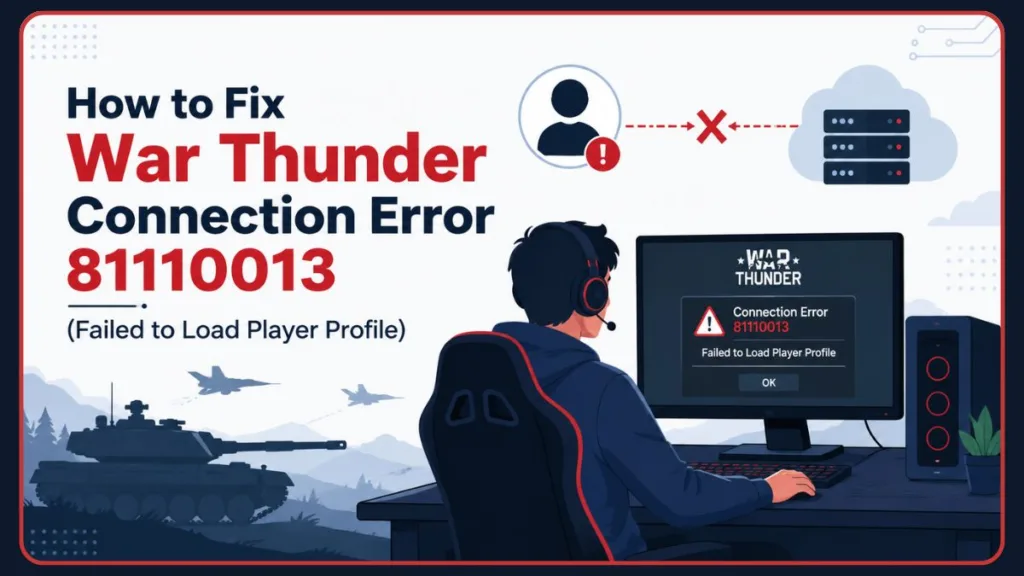
The good news is that in many cases, the problem is not caused by anything you’ve done. Error 81110013 is often linked to authentication server issues, maintenance periods, or temporary outages on War Thunder’s side. However, there are also situations where local network settings, antivirus software, Steam authentication problems, or firewall restrictions can prevent the game from loading your profile correctly.
In this guide, you’ll learn what War Thunder Error 81110013 means, why it happens, and the most effective solutions you can try to get back into the game.
What Is War Thunder Connection Error 81110013?
War Thunder Connection Error 81110013 occurs when the game cannot successfully load your player profile from the authentication servers.
When you launch the game, War Thunder attempts to verify your account information and retrieve your profile data. If this process fails, the game displays an error message such as “Failed to Load Player Profile,” “Unable to Load User Profile,” “Connection Error 81110013,” or “Authentication Failed.” This error can affect players using the standalone launcher as well as those launching the game through Steam.
Common Symptoms
If you’re experiencing Error 81110013, you may notice that War Thunder gets stuck on the login screen or encounters repeated authentication failures. Players often experience profile loading errors, login attempts timing out, or general server connection issues. This ultimately results in an inability to access your account despite entering correct credentials.
Why Does War Thunder Fail to Load Your Player Profile?
There are several reasons why War Thunder may fail to load your profile.
1. Authentication Server Issues
The most common cause is a problem with War Thunder’s authentication servers. During server outages, maintenance windows, or security incidents, players may experience widespread login failures. In some cases, War Thunder’s authentication infrastructure has been targeted by malicious attacks, resulting in spikes in login errors and server disconnects. When authentication servers are unavailable, no local troubleshooting method may resolve the issue until services are restored.
2. Steam Authentication Problems
Some players report receiving Error 81110013 only when launching War Thunder through Steam. In these situations, the Steam login process may fail while direct login through the standalone launcher continues to work normally.
3. Antivirus Software Interference
Certain antivirus programs inspect encrypted SSL connections. This can interfere with War Thunder’s ability to communicate securely with authentication servers, causing profile loading failures.
4. Firewall Restrictions
Blocked network ports can prevent the game from establishing required connections with War Thunder servers. If essential TCP or UDP ports are restricted, authentication requests may fail.
5. Network Configuration Issues
Problems with DNS settings, router configuration, VPN services, or corrupted network settings can also contribute to login errors.
Check War Thunder Server Status First
Before making any changes to your PC, verify whether the issue is affecting other players. This is the most important troubleshooting step because Error 81110013 is frequently caused by server-side problems.
How to Check War Thunder Server Status
To check the status, you can review official War Thunder announcements and look for maintenance notifications. It is also highly effective to visit community forums, look at Steam discussion boards, check social media updates from the developers, or search for recent outage reports.
Important: If War Thunder’s authentication servers are experiencing outages, maintenance, or attacks, you may simply need to wait until the developers restore service. If many players are reporting the same issue at the same time, local fixes are unlikely to help.
Restart War Thunder and Your PC
Temporary launcher glitches can sometimes prevent successful authentication. A full restart forces War Thunder to establish a fresh connection.
Steps
- Close the War Thunder game client completely by clicking the exit option in the interface or using the Alt + F4 key shortcut on your keyboard.
- Open your Windows Task Manager utility by pressing the Ctrl + Shift + Esc keys simultaneously.
- End all War Thunder and launcher processes by scanning through the active background tasks, right-clicking any remaining entries associated with the game, and clicking End Task to terminate them fully.
- Restart your computer by opening the Windows Start menu, selecting the Power icon, and choosing the Restart command to completely wipe your active system memory cache.
- Launch the game again using your standard application shortcut to verify if a fresh network handshake succeeds.
Troubleshooting Note: This simple fix often resolves temporary session-related issues.
Check for War Thunder Updates
Running an outdated version of War Thunder can sometimes trigger connection problems.
Update the Standalone Launcher
- Exit the launcher completely by right-clicking the Gaijin updater tray icon on your taskbar and choosing close to ensure no files remain in use.
- Restart the launcher by right-clicking its desktop shortcut icon and selecting the Run as Administrator configuration option.
- Allow it to download and install available updates by waiting for the built-in system verification bar to scan the integrity of your directory files and download missing data fragments.
- Launch the game again by clicking the red Play button once the file analysis bar transitions to an active ready state.
Update Through Steam
If you play through Steam:
- Close the active War Thunder application window to release any ongoing processes.
- Exit the Steam desktop application completely by selecting the Steam menu options located in the upper left corner of the platform layout and clicking Exit.
- Restart the Steam client software from your application list to force a brand new verification scan against the central content distribution servers.
- Wait for updates to install completely by viewing your active download queue and ensuring the file validation process reaches completion.
- Launch the game environment by pressing the blue Play button located on the specific library product page.
Troubleshooting Advice: A fresh update may resolve authentication conflicts caused by version mismatches.
Fix Steam Authentication Issues
One particularly effective solution reported by players involves bypassing Steam authentication. Some users experiencing Error 81110013 discovered that War Thunder worked correctly when launched outside Steam.
Try Launching the Standalone War Thunder Launcher
If you normally use Steam, exit the Steam program environment completely to stop active platform validation checks. After doing that, open your local file explorer and locate the standalone War Thunder launcher executable within your installation root directory path. Sign in manually using your unique Gaijin account credentials and then attempt to load your player profile directly through their dedicated service pipeline.
Tip: Several players have reported that switching from Steam authentication to the standalone launcher immediately resolved the “Failed to Load Player Profile” error. If the standalone launcher works while Steam does not, the issue may be related to Steam authentication rather than your War Thunder account.
Disable Antivirus SSL Scanning
Some antivirus programs inspect encrypted network traffic. While intended for security purposes, this can occasionally interfere with online games.
Why SSL Scanning Causes Problems
War Thunder relies on secure communication with authentication servers. If your antivirus modifies or inspects these encrypted connections, profile authentication may fail.
What to Do
- Open your dedicated third-party antivirus software control utility screen from your taskbar or program list.
- Locate the advanced network protection panel or core threat settings to find the specific category designated for SSL scanning or encrypted connection scanning.
- Temporarily disable the feature by switching the operational toggle to the off position or including an explicit network exception rule for War Thunder.
- Restart your War Thunder launcher interface to apply the revised system data parameters.
- Test the login process again by inputting your profile credentials to check if the security software conflict has cleared.
Note: This issue is frequently reported by users running Kaspersky and similar security suites.
Warning: Only disable SSL scanning temporarily for testing purposes. Re-enable your security settings afterward if the issue persists.
Configure Firewall Settings for War Thunder
Your firewall may be blocking required network traffic. War Thunder requires specific ports to communicate with its servers.
Open Windows Defender Firewall
- Open Windows Defender Firewall by opening your Windows Control Panel search option, typing firewall, and selecting the security interface icon.
- Select Advanced Settings located within the options list on the left navigation bar panel.
- Click Inbound Rules in the top-left section of the advanced management console directory tree.
- Choose New Rule from the specific actions pane positioned on the right edge of the screen layout.
- Select Port as your preferred structural rule template option and click Next to step forward.
- Create rules for the required ports by following the exact protocol parameters and inputting the necessary values outlined below.
Required TCP Ports
Open the following TCP ports by marking the TCP selection box and inputting these specific digital values into the local port text box field: 80, 443, 5222, 7850, 7851, 7852, 7853, 7854, 7800, 7801, 7802, 6881, 8090, and the 27022-27042 range.
Required UDP Ports
Open the following UDP ports by starting a new port rule wizard instance, picking the UDP option checkbox, and typing the corresponding numbers: the 20000-30000 range, 3478, 3479, 3480, and 16172.
Recommendation: After applying the changes, restart War Thunder and test your connection.
Verify War Thunder Game Files
Corrupted game files can occasionally trigger authentication or profile-loading problems.
Verify Files Through Steam
- Open your Steam software engine on your computer device desktop.
- Navigate to your personal Library folder section by clicking the dedicated menu tab located near the top interface bar.
- Right-click the War Thunder title entry listed within your gaming catalog sidebar list.
- Select the Properties menu option located at the bottom of the contextual choices drop-down window.
- Open the Installed Files parameter tab located inside the left navigation column layout.
- Click the option labeled Verify Integrity of Game Files to initiate an automated system comparison check against the official global distribution records.
Note: Steam will scan your installation and replace any damaged files.
Verify Files Using the Standalone Launcher
If you use the standalone launcher, use any built-in repair or file-checking options available by opening the launcher tool options configuration menu via the wrench icon at the top corner and clicking the Check Files button to systematically trace local data corruptions.
Check Your Date and Time Settings
Incorrect system time can sometimes interfere with secure authentication systems.
Sync Windows Time
- Open your Windows Settings app configuration screen by hitting the Windows Key + I button command on your keypad.
- Go to the Time & Language configuration area category selection link.
- Select the Date & Time options segment category displaying on the screen list.
- Enable the feature toggle switch that is designated to Set Time Automatically.
- Enable the secondary system toggle switch configured to Set Time Zone Automatically.
- Click the Sync Now operational command button located underneath the synchronizing clock header settings to match your desktop clock with the Microsoft cloud server network.
Troubleshooting Advice: After synchronizing your clock, restart War Thunder and attempt to log in again.
Flush DNS Cache
Corrupted DNS records may cause connectivity problems.
How to Flush DNS
Open the Windows Command Prompt as Administrator by typing cmd in the Windows search bar, right-clicking the application tool, and selecting Run as Administrator. Once the interface windows populates, enter the following text sequence exactly as displayed and hit the Enter key to purge old system addresses:
DOS
ipconfig /flushdns
Best Practice: Restart your computer afterward. This refreshes DNS information and may help restore proper communication with War Thunder servers.
Reset Winsock
Winsock corruption can affect network connections and authentication services.
Reset Winsock
Open the Windows Command Prompt as Administrator by typing cmd into the taskbar system search, right-clicking the desktop application icon, and picking the Run as Administrator authorization choice. Once the text tool is available, input this command line configuration and hit Enter to rebuild the base communication driver pathways:
DOS
netsh winsock reset
Best Practice: Restart your computer after executing the command. This rebuilds important Windows networking components.
Temporarily Disable VPN Services
If you’re using a VPN, try disconnecting it. Some VPN servers may block authentication requests, trigger automated security systems, or increase your latency. They can also route your traffic through problematic locations that disrupt game services.
Recommendation: Testing without a VPN can help determine whether it is contributing to the problem.
Sign Out and Back Into Your Gaijin Account
Account session issues can occasionally prevent successful authentication. You can try signing out of your Gaijin account and closing the launcher completely. After doing that, restart your PC and sign in again to completely refresh your authentication session.
Reinstall War Thunder as a Last Resort
If every other solution fails, reinstalling the game may help.
Reinstall Steps
- Backup important settings if necessary by locating your custom control layouts, custom game localization scripts, and personalized hardware key-bindings files and transferring them to an external storage drive.
- Uninstall the War Thunder program entirely from your local desktop structure using either the Windows application configuration menu utility or the uninstall function tool inside your Steam app dashboard list.
- Restart your PC immediately following the removal process to ensure all background residual directories, cache data clusters, and temporary installation registry files are permanently cleared from system storage.
- Download the latest version from scratch by accessing the official download repository page on the developer website platform or using your freshly initialized Steam directory interface.
- Perform a clean installation onto your local storage system, verify default file paths are correct, and complete the set up configuration sequence before launching the clean client platform.
Warning: Because Error 81110013 is often server-related, reinstalling should generally be considered a final troubleshooting step rather than the first solution.
When Should You Contact Gaijin Support?
You should contact support if Error 81110013 persists for several days while the server status appears completely normal to the rest of the community. Reach out if other players can log in successfully, none of the troubleshooting steps in this guide work, or you strongly suspect an account-specific issue. Providing screenshots and detailed error information can help speed up the troubleshooting process.
Frequently Asked Questions
What does Error 81110013 mean in War Thunder?
Error 81110013 indicates that War Thunder was unable to load your player profile, usually because authentication with the game’s servers failed.
Is War Thunder Error 81110013 a server-side issue?
In many cases, yes. Authentication server outages and maintenance periods are among the most common causes.
Can Steam cause Error 81110013?
Yes. Some players report that the error only occurs when using Steam authentication and disappears when launching the standalone War Thunder launcher.
Can antivirus software block War Thunder?
Yes. Antivirus programs that inspect encrypted SSL traffic can interfere with authentication requests.
Which ports does War Thunder use?
War Thunder requires several TCP and UDP ports, including TCP 80, 443, 5222, and UDP 20000-30000.
Should I reinstall War Thunder?
Only after trying simpler fixes such as checking server status, updating the launcher, verifying files, and adjusting firewall or antivirus settings.
How do I know if War Thunder servers are down?
Check official announcements, community forums, Steam discussions, and social media channels for reports of outages or maintenance.
Final Thoughts
War Thunder Connection Error 81110013 can be frustrating, especially when you’re eager to jump into battle. Fortunately, the error is often linked to authentication server issues rather than a serious problem with your account or PC.
Start by checking whether War Thunder servers are experiencing outages or maintenance. If the servers are operational, work through the troubleshooting steps in this guide, including updating the launcher, testing the standalone login method, verifying game files, adjusting antivirus settings, and checking firewall rules. In many cases, one of these solutions will restore access to your player profile and get you back into the game quickly.
Have you fixed Error 81110013 using a different method? Share your experience and help other War Thunder players find a solution faster.
Visit Our Post Page: Blog Page
Discover more from Izoate
Subscribe to get the latest posts sent to your email.