
Getting the WoW Forever BLZ51901016 error? Check server status first, then try these fixes for login issues, disconnections, and network problems.
World of Warcraft: Forever brings players back to the original Azeroth experience, but technical issues can sometimes get in the way. One frustrating problem is the BLZ51901016 error, which disconnects you from the game with a simple message: “You have been disconnected.”
The message does not explain what went wrong. Your internet connection might be working, your PC might be running normally, and Battle.net might open without any problems. Yet WoW: Forever still refuses to connect.
The good news is that you do not need to start by reinstalling the entire game. The error can occur because of server maintenance, login congestion, network problems, outdated game files, or issues with your local setup. The key is to identify the likely cause before trying every fix in sight.
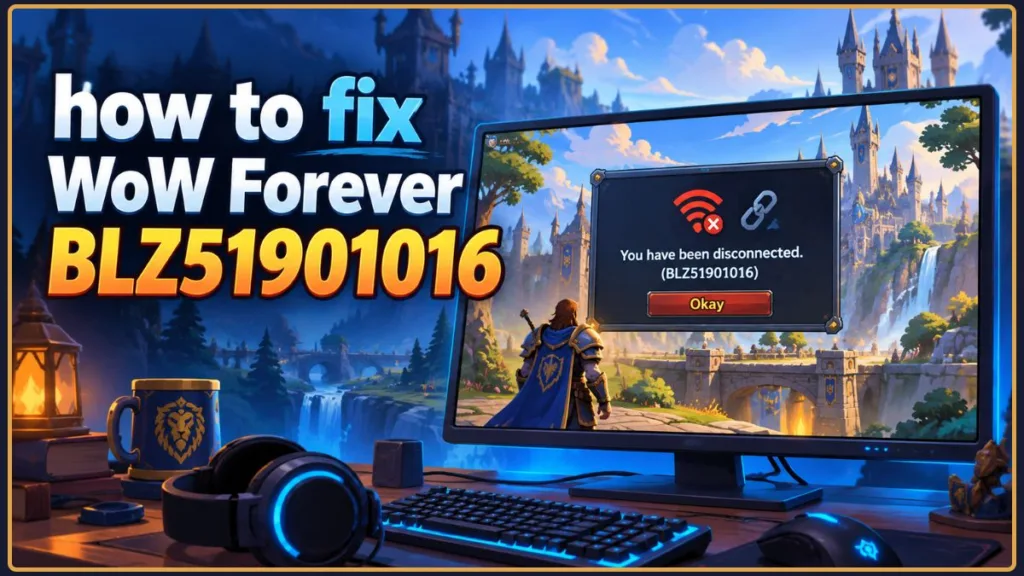
This guide explains what the WoW Forever BLZ51901016 error means, when it appears, and how to troubleshoot it step by step, starting with the quickest checks and moving toward more advanced solutions.
Quick answer: The BLZ51901016 error means WoW has lost its connection to Blizzard’s services or cannot establish one. In WoW: Forever, server maintenance, login congestion, and connection problems are among the possible causes. First, check Blizzard’s official announcements, see whether Retail or Classic still connects, and then troubleshoot Battle.net, game files, your interface, and your network.
For Blizzard’s general troubleshooting recommendations, see its official BLZ51901016 error support guide.
What Does the BLZ51901016 Error Mean in WoW Forever?
BLZ51901016 is a disconnection error that has appeared in World of Warcraft for years. Blizzard’s official support article for BLZ51901016 describes it as an error that can occur when you get disconnected or when the game stalls while retrieving the realm list.
Blizzard identifies connection problems and PCs that do not meet the game’s requirements as possible causes.
That explanation covers several situations, which is why the error can be difficult to diagnose. Your Wi-Fi might be unstable, your game files might be corrupted, or Blizzard’s login services might be experiencing problems. The same error can also appear when servers are offline for maintenance.
The error code identifies the connection problem, not necessarily its cause. It tells you that the game could not establish or maintain a connection to Blizzard’s services, but it does not tell you exactly where the connection failed.
WoW: Forever adds another detail. It is a separate version of the game that runs alongside modern WoW and Classic through the Battle.net desktop app. Battle.net handles game installation, updates, launching, and access to Blizzard’s services. You can get the launcher from the official Battle.net download page if you need to install it again.
The Forever version is realmless, so it does not use a traditional realm-selection screen.
If you encounter an error message that mentions retrieving the realm list, do not let that wording confuse you. The message may be carried over from older versions of WoW. The practical meaning remains the same: the game could not establish or maintain a stable connection to Blizzard’s login or game services.
When Does the BLZ51901016 Error Appear?
The point at which the error appears can help you determine where to start troubleshooting. Pay attention to what happens immediately before the disconnection.
Right After Clicking Play
You launch WoW: Forever through Battle.net, the game begins connecting, and the error appears almost immediately.
This can happen when the Forever servers are unavailable or being updated. Before changing any settings, check the official WoW: Forever Beta Discussion forum for maintenance announcements.
During or After a Login Queue
You wait in the login queue, reach the front, and then get disconnected.
This pattern can indicate heavy demand on Blizzard’s login services rather than a problem with your computer.
While Loading Your Characters
The game opens, but it hangs while retrieving your characters before disconnecting.
This can indicate a login or connection problem that prevents the game from completing the process.
After Heavy Lag or Rubber-Banding
Your character starts moving slowly, movement becomes inconsistent, or your character repeatedly snaps back to an earlier position. The game then disconnects.
During the beta, players outside the United States reported this type of experience while connecting to the US test servers.
Randomly During Gameplay
You are already playing when WoW: Forever suddenly disconnects you without warning.
In this situation, investigate an unstable internet connection, background software, or potentially corrupted interface files. Blizzard’s guide to optimizing your internet connection provides additional network troubleshooting advice.
Only in WoW: Forever While Other Versions Work
Retail or Classic connects normally, but WoW: Forever displays BLZ51901016.
Important clue: If other WoW versions connect successfully, the problem may be specific to the Forever beta, its servers, or its client rather than your entire PC or internet connection.
Common Causes of the BLZ51901016 Error
Why Am I Getting the BLZ51901016 Error in WoW Forever?
There is no single explanation for every BLZ51901016 error. Blizzard’s general guidance covers several possible causes, including connection issues and system requirements.
In practice, the problem can originate on Blizzard’s side or from your own computer and network. Identifying which side is responsible can save you from wasting time on fixes that will not help.
WoW: Forever Servers Are Down or Under Maintenance
Server maintenance is one of the first things you should check, yet it is easy to overlook when the game suddenly stops working.
The WoW: Forever beta began on September 17, 2026, and is scheduled to run through October 21, 2026. Blizzard has published these dates in its official WoW: Forever beta announcement.
During one maintenance window on October 1, 2026, the beta went offline for several hours before returning with an updated build, fixes, and a higher level cap.
When the servers are offline, the game may display a disconnection error instead of a clear maintenance notification.
What to do: Check Blizzard’s official WoW: Forever Beta Discussion forum and the October 1 beta maintenance announcement. Also check the Battle.net app for service alerts and update notices.
If Blizzard has announced maintenance, there is nothing you need to repair on your computer. Wait until the servers return.
Login Services Are Under Heavy Load
When the WoW: Forever beta opened, large numbers of players tried to log in at the same time.
Blizzard staff later explained that a protective system on the Battle.net side, designed to limit traffic and prevent its services from becoming overwhelmed, was responsible for many of the disconnects players experienced after clearing the login queue.
Major launches can create similar login surges.
WoW: Forever is scheduled to launch globally on November 4, 2026, at 3:00 p.m. Pacific time. Blizzard confirmed this timing in its official World of Warcraft: Forever announcement.
What to do: Check whether other players are reporting the same error at the same time. If the problem affects many people, give the login services time to recover.
Repeatedly trying to log in every few seconds will not speed up the queue and can make the experience more frustrating.
Long Network Routes to the Beta Servers
During the beta, players reported that the test servers were hosted in the United States. Some players outside North America experienced high latency, rubber-banding, and dropped connections during the early testing period.
Blizzard acknowledged routing problems affecting European testers in an official EU forum post. The company said it had implemented fixes to streamline the route while noting that some routing problems were outside its control.
A slow or unstable route between your computer and Blizzard’s servers can cause connection failures even when your regular internet connection appears to be working.
What to do: Use a wired Ethernet connection if possible, close applications that consume bandwidth, and check the official WoW: Forever forum for the latest network-routing updates.
Some players have tried using a VPN connected to a US location to improve their route. However, Blizzard has not endorsed this approach. Treat it as an optional test rather than a guaranteed solution, and see the VPN troubleshooting section below for more details.
This issue is particularly relevant to beta testing, so check Blizzard’s launch announcements for the latest server and routing information.
An Unstable or Congested Internet Connection
Because BLZ51901016 is a disconnection error, your own network is another possible cause.
Wi-Fi interference, a congested home network, or a router that has been running continuously for weeks can interrupt the connection between your computer and Blizzard’s services.
Your internet might appear normal when browsing websites or streaming videos, but that does not automatically rule out a problem with the connection used by the game.
What to do: Test the game with a wired connection if possible. Restart your modem and router before trying more complicated troubleshooting steps. Blizzard’s official internet connection guide explains how to power-cycle network equipment and test a more stable connection.
Corrupted Interface or Add-On Files
Blizzard specifically recommends resetting the user interface when troubleshooting this error.
Damaged cache files, interface settings, or add-on data can interfere with how the game behaves during login or gameplay. This can result in symptoms that look like a connection problem.
What to do: Reset the game’s interface folders using the instructions in the troubleshooting section below. You can also consult Blizzard’s Resetting the WoW User Interface guide.
Background Software and Overlays
Some background programs can interfere with the game, use too many system resources, or affect its connection.
Potential examples include screen overlays, recording tools, streaming software, VPNs, aggressive security programs, and extra copies of the game still running in the background.
Blizzard’s forum helpers have also recommended closing background applications and disabling overlays when players encounter this error.
What to do: Close applications you do not need and temporarily disable game overlays before trying to connect again. Blizzard’s general support advice is to close background applications to check for software conflicts.
Outdated Drivers, Windows, or Game Files
Compatibility problems can appear after a game update, particularly when the game client and server have moved to different builds.
An outdated network driver, an incomplete beta update, or damaged game files can interfere with the connection.
What to do: Install pending WoW: Forever updates, run Scan and Repair, and check for updates to Windows, macOS, and your relevant hardware drivers.
Your PC Does Not Meet the System Requirements
Blizzard lists unmet system requirements as another possible cause of the error.
This is less likely if you have been playing other WoW versions successfully, but you should still check your hardware if you are using an older computer.
Blizzard has confirmed that WoW: Forever requires a graphics card based on AMD Graphics Core Next 1 (2012), NVIDIA Maxwell (2014), Intel Skylake (2015), or a newer microarchitecture.
To check your graphics card in Windows:
- Open Settings.
- Select System, then Display, and open Advanced display.
- Alternatively, open Device Manager and expand Display adapters.
- Check the name of your graphics card against Blizzard’s official WoW: Forever GPU requirements.
WoW: Forever is available on Windows and macOS. Confirm the current system requirements through Blizzard’s official pages before troubleshooting further.
How to Fix the WoW Forever BLZ51901016 Error
Now that you know the possible causes, work through the following fixes in order. Start with the checks that require the least effort, then move to more involved troubleshooting only if the error continues.
Most steps take a few minutes, although some involve renaming folders or running commands. Keep access to your PC and administrator permissions available when needed.
Each step explains what to do and what result to look for. Stop when the error disappears.
1. Check for Maintenance and Server Announcements
Start here. A quick check can save you from spending the next hour changing settings on your computer.
Steps:
- Open the official WoW: Forever Beta Discussion forum. After launch, check the general World of Warcraft: Forever discussions as well.
- Look for the latest posts from Blizzard community managers.
- Read the newest announcements for maintenance schedules, server updates, or known login problems.
- Open the Battle.net desktop app and check the WoW: Forever page for service alerts or update notices.
What to expect: If Blizzard has announced maintenance or a known login issue, the error is likely related to the servers. Wait until Blizzard confirms that service has returned before trying again.
If there are no relevant announcements, continue to the next step.
Tip: Beta maintenance has primarily been announced in the official forums, so check there even if the Battle.net app does not show anything unusual. For example, Blizzard’s October 1 maintenance announcement explained that the beta would go offline for an updated build.
Why this helps: It quickly tells you whether the problem might be on Blizzard’s side. Trying to repair your PC while the servers are offline only wastes time.
2. Compare WoW: Forever With Retail or Classic
If you also play modern WoW or Classic, use those versions to help determine whether the issue is specific to Forever.
Steps:
- Close WoW: Forever completely.
- Open the Battle.net app.
- Launch modern WoW or Classic, whichever you have installed.
- Log in and check whether you can reach the character screen.
- Close that version and try launching WoW: Forever again.
What to expect: If Retail or Classic connects successfully but Forever still displays BLZ51901016, the problem is more likely related to the Forever client or its servers. Focus on troubleshooting the specific game client.
If other WoW versions also fail to connect, your internet connection or another shared component becomes a stronger suspect.
If you only have WoW: Forever installed, skip this test and continue to the next step.
Why this helps: Comparing versions is a quick way to distinguish a potentially beta-specific problem from a broader connection issue.
3. Check Whether Other Players Are Affected
You can use Blizzard’s official channels to see whether other players are experiencing the same issue.
Steps:
- Visit the official World of Warcraft forums and search for BLZ51901016.
- Open the newest discussions and check their publication dates.
- Confirm which game version each discussion concerns.
- Look for several recent reports describing the same issue within the last hour or two.
What to expect: A cluster of recent reports about WoW: Forever is a strong indication of a possible wider outage or login problem. If that is the case, wait for Blizzard to address it.
If you find no recent reports, continue troubleshooting your own setup.
Remember that this error has existed for years. Older posts about Retail or Classic do not confirm that WoW: Forever is currently experiencing an outage.
Why this helps: When many players encounter the same problem simultaneously, changing your local settings is unlikely to resolve it.
4. Restart WoW: Forever and the Battle.net App
Closing the game window does not always stop every related process. The game or launcher may remain active in the background and retain a problematic session.
If you need to install or reinstall the launcher, use the official Battle.net desktop download page. Battle.net manages Blizzard game launches, updates, and access to your installed titles.
Steps:
- Close WoW: Forever.
- Right-click the Battle.net icon in the system tray near the Windows clock, or in the Mac menu bar, and select the option to quit or exit the app.
- On Windows, press Ctrl + Shift + Esc to open Task Manager. Look for
Wow.exeorWowB.exe. - On a Mac, open Activity Monitor and look for any World of Warcraft process.
- If a game process is still running, select it and end the task.
- Open Battle.net again, select WoW: Forever, and click Play.
What to expect: Battle.net may check for updates when it reopens. That is normal.
If the game now reaches the character screen, a stuck process or launcher session may have caused the problem. If the error appears again, continue to the next step.
Why this helps: Ending leftover processes and starting the launcher cleanly can clear a stuck session or stale connection.
5. Update WoW: Forever and Run Scan and Repair
Beta builds can change frequently, so make sure you are running the latest available version before repairing the game.
Blizzard’s support documentation may refer to the Battle.net app as the Blizzard desktop app.
Steps:
- Open Battle.net and select WoW: Forever from your game list.
- If WoW: Forever appears under World of Warcraft, use the version selector to choose Forever.
- If the button says Update instead of Play, click it and wait for the update to finish.
- Click the cogwheel beside the Play button and select Scan and Repair.
- Click Begin Scan and leave the app open until the scan finishes.
- If Battle.net downloads replacement files, allow the download to complete.
- Once the Play button returns, launch WoW: Forever and test the connection.
The scan may finish in a few minutes, but repairing a larger number of files can take around half an hour.
What to expect: Battle.net will report when the scan is complete. If it finds and repairs damaged files, try connecting again. If the scan finds nothing to repair, your game files are more likely to be intact, and the cause may lie elsewhere.
Common problem: Scan and Repair keeps restarting.
If Battle.net repeatedly starts the scan again:
- Close Battle.net.
- Open the game’s folder using the cogwheel’s Show in Explorer option.
- In the folder window that opens, delete the Data folder.
- Restart Battle.net and let it update the game.
Be prepared for a longer download because the game will need to retrieve the data again.
If the scan loop continues, reinstall the Battle.net app itself using the official Battle.net download page, then try again.
Why this helps: Beta builds change frequently. A damaged file or a client running an older build can prevent the game from connecting even when your internet is working normally.
6. Restart Your Network and Refresh Your Connection Settings
Blizzard’s troubleshooting guidance for disconnection errors includes restarting network equipment and refreshing connection settings.
Work through the three parts below. If the error disappears after any part, you can stop. Blizzard’s official internet connection troubleshooting guide also explains why restarting your network and testing a wired connection can help.
Part 1: Power Cycle Your Modem and Router
Follow these steps to restart your network equipment properly.
- Shut down every computer connected to the modem or router.
- Unplug both the modem and the router. If your modem has a battery backup, remove the battery or press the modem’s reset button.
- Leave the equipment unplugged for 60 seconds.
- Plug the modem and router back in and turn them on.
- Wait until the modem’s front-panel lights show a steady connection.
- Start your computer and allow it to finish booting before opening Battle.net.
These steps follow Blizzard’s general power-cycling guidance.
Part 2: Test a Different Internet Connection
If you are using Wi-Fi, connect your PC to the router using an Ethernet cable if possible. You can also move closer to your router to reduce wireless interference.
For a quick comparison, connect your computer to a phone hotspot and try launching WoW: Forever again.
What to look for: If the game works on Ethernet or a hotspot but fails on your usual connection, the problem may be related to your home network or internet provider.
Check your router manufacturer’s instructions for a firmware update, or contact your internet provider if the problem continues.
Part 3: Release Your IP Address, Renew It, and Flush DNS
This step refreshes Windows network settings and clears cached DNS information.
Warning: These commands briefly interrupt your internet connection. Save anything you are working on before continuing. Blizzard notes that restarting your computer can have a similar effect if you do not want to use Command Prompt.
Steps on Windows:
- Press the Windows key and type
cmd. - Right-click Command Prompt and select Run as administrator.
- Type the following command and press Enter:
ipconfig /release - Type the next command and press Enter:
ipconfig /renew - Type the final command and press Enter:
ipconfig /flushdns - Windows should confirm that the DNS Resolver Cache was flushed.
- Close Command Prompt and launch the game again.
Steps on macOS:
- Open Terminal.
- Run the following command:
sudo dscacheutil -flushcache; sudo killall -HUP mDNSResponder - Enter your password if prompted.
- Try the game again.
The exact command can depend on your macOS version. If it fails, consult Apple’s guidance for your version.
What to expect: Your internet connection may drop briefly after the release command before returning. Once the connection is restored, test WoW: Forever again.
Why this helps: Restarting network equipment can clear stale connections, while flushing DNS removes cached address information that may be outdated. Testing another network also helps identify whether your regular connection is the weak link.
7. Reset the WoW: Forever Interface and Add-Ons
Blizzard identifies damaged interface and add-on files as possible causes of this error.
Resetting the interface gives the game a clean set of folders without permanently deleting your old configuration files. You can restore the previous folders later if the reset does not help.
For additional instructions, consult Blizzard’s official Resetting the WoW User Interface guide.
Before you start: Close any add-on manager you use. Blizzard warns that these tools can automatically restore removed add-ons and undo the reset.
Steps:
- Close WoW: Forever completely.
- Open Battle.net and select WoW: Forever.
- Click the cogwheel beside the Play button.
- Select Show in Explorer on Windows or Reveal in Finder on a Mac.
- Open the World of Warcraft folder if it is not already open.
- Navigate to the folder for the game version you are troubleshooting.Blizzard’s guide uses
_retail_and_classic_as examples for other versions. During the beta, WoW: Forever’s folder is named_classic_beta_. If the folder name changes after launch, open the folder that matches the Forever client. - Rename the following folders:
CachetoCacheOldInterfacetoInterfaceOldWTFtoWTFOld
- Launch WoW: Forever through Battle.net.
What to expect: The game will create fresh folders and start with default interface settings and no add-ons. That is normal.
If the error disappears, the old configuration or add-on files may have caused the problem. You can then restore your add-ons a few at a time to identify the one responsible.
If the error continues, restore your previous setup:
- Close the game.
- Delete the new
Cache,Interface, andWTFfolders. - Rename
CacheOld,InterfaceOld, andWTFOldback toCache,Interface, andWTF. - Continue to the next troubleshooting step.
If you can log in but still experience interface-related problems, Blizzard also suggests entering the following command in the in-game chat:
/console cvar_default
This resets console settings that an add-on may have changed.
Why this helps: A clean interface can rule out corrupted settings and add-on data. If the error persists, you can restore your old folders and move on without permanently losing your configuration.
8. Close Overlays and Background Apps, Then Check Your Firewall
Some programs can interfere with the game connection or interact with the game in ways that cause problems.
Test one change at a time so you can identify which, if any, resolves the error.
Steps:
- Close recording tools, chat overlays, streaming software, and other programs that display information over your games. Turn off overlay features in apps that offer them.
- If you use a VPN, disconnect it completely and test the game.
- Open your antivirus or firewall settings.
- Find the exception, allow, or exclusion list.
- Add the Battle.net app and WoW: Forever to the list, following your security software’s instructions.
- Restart Battle.net and launch the game again.
Menu names vary between security programs, so consult the relevant help documentation if you cannot find the correct setting.
What to expect: If the error disappears after one of these changes, you may have found the cause. Turn your other programs back on one at a time to determine which one needs to remain disabled or reconfigured.
What About VPNs for Players Outside North America?
The beta servers have been reported to be in the United States. Some players outside North America have said that routing through a US-based VPN reduced their lag.
However, Blizzard has not endorsed this workaround, and a VPN can introduce additional latency or connection problems.
Treat it as a test rather than a guaranteed fix. Try connecting with the VPN switched off and then on, and keep whichever setup provides the more stable connection. You do not need to download a new VPN just to test this step; only consider it if you already use one or have a separate reason to try a VPN.
Important: Do not leave your firewall or antivirus disabled to bypass the error. Add the necessary exceptions instead so your computer remains protected.
Why this helps: Background applications, VPNs, overlays, and security software can affect the connection or interfere with the game. Testing them individually helps narrow down the cause.
9. Update Your Drivers, Windows, and Wi-Fi Hardware
Outdated drivers and system software can cause connection problems, particularly after a game update.
Blizzard’s disconnection guidance also identifies outdated network drivers and router firmware as possible sources of trouble.
Steps:
- On Windows, open Settings, select Windows Update, click Check for updates, and install any available updates. Follow Microsoft’s official Windows Update guidance if you need help.
- On a Mac, open Software Update in system settings. Apple’s official macOS update guide explains how to check for and install compatible updates.
- On Windows, right-click the Start button and open Device Manager.
- Expand Network adapters.
- Right-click your Wi-Fi or Ethernet adapter and select Update driver.
- If Windows says the best driver is already installed, check your computer or network-adapter manufacturer’s official website for a newer version. Microsoft’s Device Manager driver guide explains how to update drivers automatically or manually.
For graphics drivers, use the official manufacturer that matches your graphics card:
- NVIDIA: The official NVIDIA driver download page provides current drivers and driver archives for supported graphics cards.
- AMD: The official AMD Drivers and Support page provides graphics drivers and related support software. Choose your exact GPU or use an available AMD detection utility if appropriate for your hardware.
- Intel: The Intel Driver & Support Assistant is an optional official utility that detects supported Intel hardware and identifies available driver and software updates. Download it only if you have relevant Intel hardware and need help identifying its updates.
- Check your modem or router manufacturer’s instructions for a firmware update.
- Restart your computer when the updates are complete.
What to expect: Updates may take several minutes and can require a restart. If everything was already current, you may not notice a visible change, but you will have ruled out a common source of compatibility problems.
Warning: Download drivers only from your hardware manufacturer’s official website or through Windows Update. Avoid third-party driver updater tools.
Why this helps: Updated network drivers and operating system components can resolve compatibility problems that otherwise appear as unexplained disconnections.
10. Reinstall WoW: Forever as a Last Resort
Reinstalling the game is the most time-consuming option. It can help if your game files are damaged beyond what Scan and Repair can fix, but it will not resolve a server outage or an overloaded login service.
Try this step only after the earlier fixes have failed and Blizzard’s servers appear to be operating normally.
Before you start: If you want to keep your settings and add-ons, copy the
InterfaceandWTFfolders from the game’s folder to your desktop. You can locate the folder using the interface-reset instructions above.Also, read the confirmation message Battle.net displays before uninstalling. WoW versions can share an installation, and uninstalling the wrong version may affect other versions you have installed.
Steps:
- Close WoW: Forever.
- Open Battle.net and select WoW: Forever.
- Click the cogwheel and select Uninstall.
- Restart your PC.
- Open Battle.net again and select Install for WoW: Forever.
- Choose an installation location with enough free space.
- Wait for the download and installation to finish.
- Launch the game and try logging in.
What to expect: The download may take a while, depending on your internet speed.
If the error still appears after a fresh installation and Blizzard’s servers are confirmed to be online, collect the information listed in the FAQ below and contact Blizzard support.
Tip: If the Battle.net app itself continues to fail, uninstall the app and download a fresh installer from the official Battle.net desktop download page before reinstalling the game. Use only the official page because look-alike download sites may bundle unwanted software.
For additional instructions, see Blizzard’s guide to uninstalling games through the Battle.net app.
Why this helps: A fresh installation replaces the game’s files, but it is a slow process and often will not help if the underlying problem is on Blizzard’s side. That is why you should save it for last.
Tips to Avoid the BLZ51901016 Error in the Future
You cannot prevent every disconnection. Server maintenance, login surges, and other problems on Blizzard’s side are outside your control. However, keeping your system and connection in good shape can reduce the number of issues caused by your own setup.
Play on a Wired Connection
Whenever possible, connect your computer to your router using an Ethernet cable.
A wired connection eliminates wireless interference and can provide a steadier connection during longer gaming sessions.
Why it helps: Removing wireless interference reduces the number of potential points of failure between your computer and Blizzard’s services.
For more advice, see Blizzard’s official guide to optimizing your internet connection.
Avoid Peak Login Times on Major Release Days
Launch days and the hours immediately after major patches can put additional pressure on login services.
If you can wait an hour or two before trying again, the initial queue and login congestion may have eased.
Why it helps: Disconnects caused by a sudden login surge can become less common as demand settles down.
Keep the Game and Launcher Updated
Allow Battle.net to complete pending updates before launching WoW: Forever. Restart the launcher periodically, particularly after major game updates.
Why it helps: Running an outdated game build against newer servers can cause connection and compatibility problems.
Keep Your System Clean and Up to Date
Keep Windows, network drivers, and relevant hardware software updated. Avoid running unnecessary overlays, recording tools, and other background applications while playing.
Why it helps: A well-maintained system leaves fewer opportunities for software conflicts and unexplained disconnections.
Is the BLZ51901016 Error Dangerous?
No. The BLZ51901016 error does not damage your PC, account, or characters.
It means the game lost its connection or could not establish one in the first place. Once the underlying problem is resolved—whether Blizzard’s servers return or you fix an issue with your own connection—you should be able to log in normally.
Security advice: If you see a separate message claiming that your account is locked or compromised, treat it as a different issue. Secure your account through the official Battle.net website rather than assuming it is part of the disconnection error.
FAQ About the WoW Forever BLZ51901016 Error
What Does BLZ51901016 Mean in WoW Forever?
BLZ51901016 is a disconnection error that appears when WoW loses its connection to Blizzard’s services or cannot establish one.
Blizzard’s official BLZ51901016 support article identifies connection problems and unmet system requirements as possible causes. In WoW: Forever, the error has also appeared during server maintenance and periods of heavy login demand.
The code describes the symptom, not the precise cause. Start by checking the servers, then troubleshoot your game client and connection if necessary.
Why Do I Get BLZ51901016 Only in WoW Forever and Not in Retail?
If Retail works but WoW: Forever does not, the problem may be specific to the Forever beta.
Forever’s servers can go offline for new builds, and its login services may experience congestion that does not affect Retail. An outdated Forever client can also fail to connect while other WoW versions continue working.
Compare the versions first. If Retail connects successfully, investigate Forever’s server status, client updates, and game files before making major changes to your computer.
Is the BLZ51901016 Error Caused by Server Maintenance?
It can be.
WoW: Forever’s beta servers have been taken offline for scheduled builds, including a maintenance window on October 1, 2026, that lasted several hours. Players reported the error around this period.
During maintenance, the game may display a disconnection message instead of a clear notification.
Check Blizzard’s official WoW: Forever Beta Discussion forum first. If maintenance is underway, changing settings on your PC will not resolve the problem. Wait for the servers to return.
Will Reinstalling the Game Fix BLZ51901016?
Sometimes, but reinstalling should not be your first step.
A fresh installation can replace damaged game files, but it cannot fix a server outage or overloaded login service. Reinstalling also takes longer than restarting the launcher, repairing the installation, or resetting interface folders.
Try the simpler fixes first. Reinstall WoW: Forever only if those steps fail and Blizzard’s servers appear to be running normally.
If you do reinstall, restart your PC before downloading the game again. Blizzard’s Battle.net game-uninstallation guide explains the official process.
Can a VPN Cause or Fix the BLZ51901016 Error?
A VPN can either help or make the problem worse.
Because a VPN routes your internet traffic through an additional server, it can increase latency and introduce connection instability. Test the game with the VPN disconnected to see whether your normal connection is more reliable.
During the beta, players outside North America reported high latency when connecting to what appear to be US-hosted test servers. Some said that using a US-based VPN reduced their lag.
Blizzard has not endorsed that approach, and a VPN can cause problems of its own. Test both configurations and use whichever provides the more stable connection.
How Do I Reset the WoW Forever Interface?
Close WoW: Forever completely, then close any add-on manager you use so it cannot automatically restore removed add-ons.
Open Battle.net, select WoW: Forever, click the cogwheel beside the Play button, and choose Show in Explorer on Windows or Reveal in Finder on a Mac.
Open the folder for the Forever client. During the beta, that folder is named _classic_beta_.
Rename the following folders:
CachetoCacheOldInterfacetoInterfaceOldWTFtoWTFOld
Launch the game again. WoW: Forever will create fresh folders with default settings and no add-ons.
If the error continues, close the game, remove the new folders, and rename the old folders back to their original names to restore your previous setup.
For additional details, use Blizzard’s official Resetting the WoW User Interface guide.
Can Wi-Fi Cause the BLZ51901016 Error?
Yes. A weak wireless signal, interference, or a congested home network can interrupt your connection long enough to disconnect the game.
This is particularly worth investigating if the error appears randomly during gameplay rather than immediately at login.
Try connecting through Ethernet to eliminate wireless interference as a possible cause. If you cannot use a wired connection, move closer to your router and pause other bandwidth-heavy downloads or streams while testing the game.
Is WoW Forever Still in Beta?
The beta began on September 17, 2026, and is scheduled to run through October 21, 2026. The full game is scheduled to launch on November 4, 2026, at 3:00 p.m. Pacific time, according to Blizzard’s official beta announcement.
Because release schedules can change, check Blizzard’s official announcements for the latest information before relying on these dates.
The same troubleshooting methods in this guide can remain useful after launch, although launch day may bring heavier login queues than the beta.
Do I Need to Pay to Play WoW Forever?
At launch, access to WoW: Forever is included with an active World of Warcraft subscription or game time, so a separate purchase is not required.
Beta access has been tied to optional paid editions, including the Skyborne Epic Pack and the Warcraft Forever Collection. Some content, such as the Skyborne race, requires an optional upgrade.
Check Blizzard’s official WoW: Forever page or the Battle.net Shop for the current access and pricing details.
How Do I Know If the WoW Forever Servers Are Down?
Start with Blizzard’s official sources.
Visit the WoW: Forever Beta Discussion forum, where community managers publish maintenance announcements. Also check the Battle.net app for service alerts and update notices.
You can look at recent community reports to see whether other players are experiencing the same error. A sudden cluster of fresh reports can indicate a wider problem.
Third-party outage trackers may show similar activity, but they rely on user reports and should be treated as clues rather than confirmation.
If Blizzard has announced downtime, waiting until service returns is the only fix.
Is the WoW Forever Login Error BLZ51901016 My Internet or Blizzard’s Servers?
The quickest test is to try another version of World of Warcraft.
If Retail or Classic connects normally but Forever does not, the problem is more likely to involve Forever itself, such as maintenance, an updated build, or heavy login demand.
If every version fails, your internet connection becomes a stronger suspect. The same applies if other devices on your network are experiencing connection problems.
Testing WoW: Forever through a phone hotspot is another way to compare connections.
Once you have a better idea of where the problem originates, you can skip fixes that are unlikely to help. Blizzard’s official connection troubleshooting guide is another useful resource if the issue appears to be network-related.
What Should I Do If Nothing Fixes the WoW Forever BLZ51901016 Error?
If you have worked through the troubleshooting steps and the error keeps returning, collect a few details before requesting help.
Include:
- The exact error code: BLZ51901016.
- The time when the error occurred.
- Your region.
- The WoW version you were trying to launch.
- The troubleshooting steps you have already attempted.
Post these details in the official WoW: Forever Beta Discussion forum or contact Blizzard Support.
A clear report gives support staff more useful information and can help Blizzard identify patterns affecting multiple players.
It is also worth trying again later if the problem appears to be server-related, since some connection issues resolve when service returns to normal.
Conclusion
The WoW Forever BLZ51901016 error can look intimidating, but it does not automatically mean something is wrong with your PC or internet connection.
In many cases, the problem may originate on Blizzard’s side, including scheduled maintenance, a new beta build, or a sudden increase in players trying to log in. When the issue is local, the solution may be as simple as restarting the launcher, repairing game files, resetting the interface, or switching to a more stable connection.
Start by checking Blizzard’s maintenance announcements, compare WoW: Forever with another WoW version, and then work through the troubleshooting steps in order. Save reinstalling the game for last.
If the error continues after all these checks, report the exact error code, time, region, and game version in the official WoW: Forever beta discussion area or contact Blizzard Support.
This approach helps you get back into the game without wasting time on unnecessary fixes—or recognize when the only remaining option is to wait for Blizzard to restore service.
Discover more from Izoate
Subscribe to get the latest posts sent to your email.