
Learn how to leave or unjoin a Facebook group on mobile or desktop, understand what happens after leaving, and see when to unfollow instead.
A Facebook group can be useful one day and completely irrelevant the next.
Maybe you joined a community for a hobby, local neighborhood, buying and selling, gaming, work, or a specific interest. Over time, the conversation changes, the group becomes full of spam, or your Facebook Feed starts filling with posts you no longer care about.
At that point, you may simply want to remove yourself from the group and stop being part of the community.
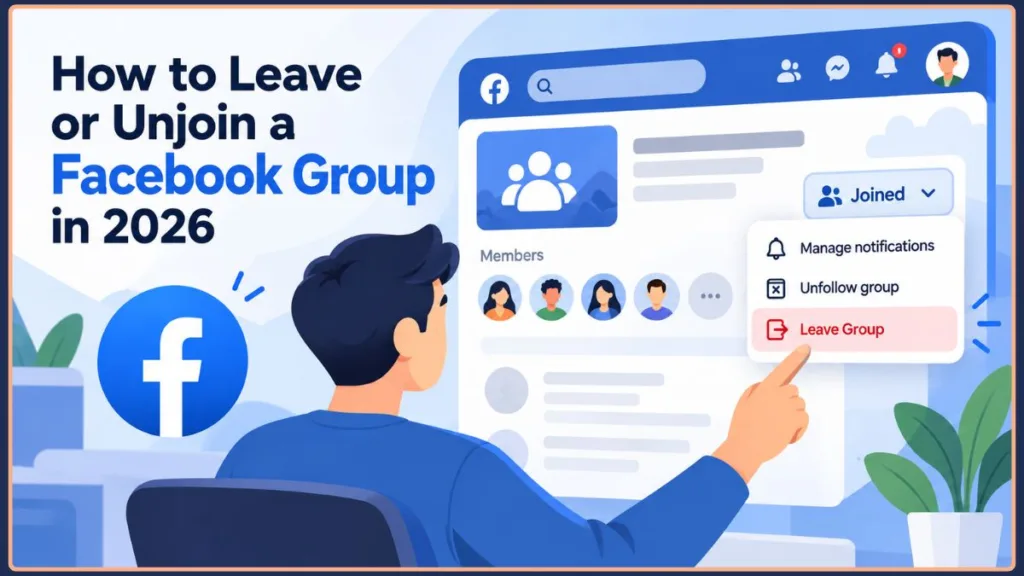
And this remains a common Facebook task. Meta said in 2024 that almost 1.8 billion people use Facebook Groups every month, with 25 million monthly active public groups. In September 2026, Meta also announced Forum, a dedicated Facebook Groups app being tested in the U.S. that syncs with users’ existing Facebook groups and is designed to make it easier to discover discussions and advice.
With so many communities on Facebook, it’s easy to accumulate groups that no longer have much value.
The good news is that leaving a Facebook group is usually straightforward.
Quick answer: Open the group, find the Joined or group membership/options control, select Leave Group, and confirm.
Before you do that, though, make sure leaving is actually the right move.
Facebook gives you separate controls for membership, Feed visibility, and notifications. Understanding the difference can prevent you from leaving a group when you only wanted to stop seeing its posts.
Leave, Unfollow, or Turn Off Notifications?
These options may all make a Facebook group less intrusive, but they do different things.
| What you want | Use this | What changes |
|---|---|---|
| You no longer want to belong to the group | Leave Group | Your membership ends |
| You want to remain a member but stop seeing group posts in your Feed | Unfollow Group | You stay in the group while its posts are kept out of your normal Feed |
| You still want the group but don’t want constant alerts | Notification Settings | You remain a member while controlling notifications |
| You want to shut down a group you manage | Group administration/deletion | A separate administrative process applies |
The easiest way to remember the difference:
Leave controls membership.
Unfollow controls Feed visibility.
Notifications control alerts.
For example, imagine you joined a neighborhood group because it occasionally posts road closures and local recommendations. You still want access to that information, but you don’t want dozens of unrelated discussions appearing every day.
In that case, unfollowing may be better than leaving.
If the group itself is no longer useful, leave it.
If the group is useful but your phone keeps sending alerts, adjust the notifications instead.
How to Leave a Facebook Group
To stop being a member, open the group’s main page and use its membership controls.
The general flow is:
Open the group → open the membership/options menu → select Leave Group → confirm.
Recent Facebook guides continue to show the Joined → Leave Group → confirmation flow across desktop and mobile, although the location of the controls can vary between interfaces and app versions.
One detail matters here: make sure you’re working with the group’s menu, not a menu attached to an individual post.
A post menu may offer options such as Hide Post, but hiding a post does not end your membership.
Important: Use the group-level membership controls when you want to leave. The menu attached to a post controls that post, not your membership in the group.
Leaving a Facebook Group from a Desktop Browser
The desktop website is particularly convenient when you’re working through a long list of memberships.
Step 1: Open Facebook
Sign in to Facebook from your desktop browser.
Open Groups from the navigation area.
Facebook also provides an area for viewing the groups you’ve joined, which can be useful when you’re cleaning up older memberships.
Step 2: Find the group
Open Your Groups or search for the group’s name.
If you’ve been on Facebook for years, searching directly can be much faster than scrolling through a long list.
You can also get to the group through one of its posts in your Feed.
Step 3: Open the group membership controls
Once the group page loads, look near the group header for Joined.
That control represents your current membership.
If your version of Facebook doesn’t show it in the same place as an older guide, look around the group’s header or main options menu.
The important thing is to find the group-level membership controls.
Step 4: Choose Leave Group
Open Joined or the equivalent group options menu and select Leave Group.
Facebook will normally ask you to confirm the decision.
Some versions may also show an option related to preventing people from adding you back. The supplied source identifies this as a possible part of the confirmation flow.
If Facebook shows a setting to prevent people from adding you back, review it before completing the exit if you want a clean break.
Step 5: Confirm
Select Leave Group again.
Your membership is then removed.
Leaving a Facebook Group from the Mobile App
The mobile app hides more controls behind menus, so the route can look different from desktop.
The underlying process is still the same.
Step 1: Open the Facebook app
Launch the Facebook app on your iPhone or Android phone.
Open the Menu.
Step 2: Open Groups
Tap Groups.
Depending on your app version, you may need to select See More before the option appears.
Then open Your Groups to see the communities you’ve joined.
Current guides report the same basic mobile path, although the position of the Menu and group controls can vary between versions.
Step 3: Select the group
Tap the group you want to exit.
If you’re dealing with a large number of memberships, searching for the group by name can save time.
If you know the group’s name, searching directly can be faster than scrolling through a large membership list.
Step 4: Find the membership controls
Look around the group header for Joined.
On some layouts, the relevant controls may instead be under the group’s three-dot/options menu.
Again, focus on the menu for the group itself.
Step 5: Select Leave Group
Tap Leave Group.
Facebook will display a confirmation prompt.
Step 6: Confirm
Tap Leave Group again.
Your membership is removed.
The supplied mobile source follows the same general sequence: Facebook app → Groups → Your Groups → select the group → open its options → Leave Group → confirm.
Important: Facebook changes its interface regularly. If the buttons don’t look exactly like an older screenshot, don’t assume the feature has disappeared. Look for the group’s Joined, membership, or options control.
Before You Leave a Facebook Group
The exit itself takes seconds.
The things that can cause problems later are usually the things you didn’t check beforehand.
Make sure you don’t need anything from the group
This is especially important with a private Facebook group.
Private groups restrict access to their members, so leaving can affect what you are able to access afterward.
If the group contains:
- Important advice
- Saved discussions
- Local information
- Files
- Photos
- Old conversations
review anything important before you leave.
If you may need a post or discussion later, deal with it before ending your membership.
Review your previous posts and comments
Leaving the group does not automatically erase your old activity.
Your previous posts and comments can remain after you leave. The supplied source specifically recommends reviewing them beforehand.
This matters if you’ve posted:
- Personal information
- Contact details
- Photos
- Business information
- Opinions you no longer want associated with the community
- Comments you would rather remove
If something needs to be deleted, handle it before leaving where Facebook allows you to do so.
Leaving ends your membership; it isn’t a command to erase your contribution history.
Think about whether you might return
You may be completely fed up with a group today and still need it six months from now.
This matters even more when a private group requires an approval process or membership questions.
If you’re only trying to get the group out of your Feed, unfollowing lets you keep your membership.
If you’re unsure whether you may need the group later, consider unfollowing it instead of leaving.
Check for a re-add option
Some versions of Facebook can present a setting during the confirmation process that prevents other members from adding you back.
If you see that option and want a clean break, read the confirmation screen before completing the exit.
Check the confirmation screen carefully if you want to prevent unwanted re-adding.
What Happens After You Leave a Facebook Group?
Leaving changes your membership status.
It isn’t the same thing as hiding a post or turning off notifications.
After leaving, you should generally expect:
- Your group membership ends.
- You’re removed from the current member list.
- The group is no longer part of your joined groups.
- Normal group activity notifications stop.
- You can no longer participate as a member.
- You need to join again to participate in the future.
- Your previous posts and comments are not automatically deleted.
The important distinction is:
Leaving changes your relationship with the group, not necessarily your historical activity within it.
That distinction is easy to miss, but it is one of the most important things to understand before you click Leave Group.
What Happens to Old Posts and Comments After You Leave?
Your previous activity doesn’t automatically disappear when your membership ends.
Posts, comments, and other contributions can remain in the group after you leave.
So if you are leaving because of a privacy concern, review your old activity separately.
For example, imagine you once posted your phone number in a local Facebook community.
Leaving that group is not the same as removing your phone number from the post.
Review sensitive or important contributions first. Then leave the group.
Private-group content needs extra attention
Leaving a private group can also affect your access to the group’s member-only content.
Meta made additional privacy changes in November 2025 for historical content in private Groups that are converted to public. Meta said posts, comments, and reactions created while the group was private remain protected for people who were members before the conversion, as well as admins and moderators.
That reinforces an important point: historical Group content and current Group membership are not the same thing.
Don’t assume that leaving, privacy changes, and historical content all follow one simple rule.
If a post, comment, file, or discussion matters to you, deal with it before you leave.
Can Other People Tell That You Left?
This is one of the most common concerns around leaving a Facebook group.
The answer isn’t a simple “yes” or “no.”
Facebook does not normally turn your departure into a public Feed post announcing that you have left.
However, your membership status changes.
That means an admin or another member could notice that you’re no longer listed as a member, especially in a small group where people know one another.
So, when people ask whether they can leave a Facebook group privately, the safest explanation is:
Your departure isn’t generally announced to the entire group, but that doesn’t make it completely invisible. Someone can still notice that your membership is gone.
The four source references provided for this article contain conflicting information about whether an admin can receive a direct departure notification in particular situations. Because of that inconsistency, it would be misleading to claim that administrators can never know.
The more useful rule is:
No public announcement does not mean guaranteed anonymity.
Should You Unfollow the Group Instead?
Sometimes you don’t actually want to leave.
You just want Facebook to stop putting the group’s posts in front of you.
That is where Unfollow Group makes more sense.
The supplied source specifically describes unfollowing as a way to remain a member while stopping the group’s posts from cluttering your Feed.
Meta’s current educational material likewise distinguishes unfollowing from leaving.
Leave vs. Unfollow: What’s the Difference?
| Feature | Leave Group | Unfollow Group |
|---|---|---|
| Remain a member? | No | Yes |
| Group posts in your normal Feed? | No because you left | Reduced/removed from normal Feed |
| Visit the group later? | Not as a member | Yes |
| Participate as a member? | No | Yes |
| Membership ends? | Yes | No |
The simplest distinction is:
Leave if you want to end the membership. Unfollow if you only want to reduce the group’s presence in your Feed.
When leaving makes sense
Leave when the group has no real value for you anymore.
For example:
You joined a gaming group for a title you stopped playing years ago and have no reason to return.
Keeping the membership serves little purpose.
When unfollowing makes more sense
Stay in the group when its information could still be useful.
For example:
You belong to a local community that occasionally posts important alerts, but most of its everyday discussions are irrelevant.
In that case, keeping the membership and unfollowing makes more sense.
How to Unfollow a Facebook Group Without Leaving
Open the group and use its membership/options controls.
Look for Unfollow Group.
Once selected:
- You remain a member.
- You can still visit the group.
- You can still participate.
- The group’s posts no longer fill your normal Feed in the same way.
This can be especially useful if joining the group required an approval process or membership questions that you don’t want to repeat.
If the group is still useful but the Feed is not, unfollowing is usually the less disruptive choice.
How to Stop Facebook Group Notifications Without Leaving
There’s a third situation where leaving would be unnecessary: the notifications are the problem.
If you still want the group and its posts, but you’re receiving too many alerts, change the group’s notification settings.
A typical route is:
- Open the Facebook group.
- Open the Joined or group options menu.
- Select Manage Notifications or the equivalent notification setting.
- Choose the level of alerts you want.
- Save the change if prompted.
The exact choices can vary, but notification controls are separate from group membership and Feed following.
Unfollow controls Feed visibility. Notification settings control alerts.
That means you can stay in a useful group without letting it dominate your Feed or your phone.
How to Leave a Facebook Group Quickly
If you’re already on the group’s page, you don’t need to work through Facebook’s broader settings.
Use the group’s membership control:
Joined → Leave Group → Confirm
If you know the group name, searching for it directly can also be faster than browsing your entire membership list.
And if you’re viewing a post from that group, open the group page before trying to leave.
The post menu may let you hide the post, but that won’t remove you from the group.
For a single group, opening the group directly and using its membership control is usually the quickest path.
Is there a one-click way to leave?
Not in the sense of instantly removing your membership without confirmation.
Facebook’s confirmation step is useful because it separates a permanent membership change from temporary Feed controls.
It’s also the last point at which you can realize:
“I don’t need to leave. I only wanted to unfollow this group.”
Can You Leave Multiple Facebook Groups at Once?
Leaving one group takes seconds.
Cleaning up a Facebook account with hundreds of memberships is a very different task.
Meta’s current Help Center says a person can belong to up to 6,000 Facebook groups.
That makes large-scale cleanup a realistic problem for long-time users.
What real users are trying to do
The supplied Reddit discussion shows users dealing with exactly this problem.
The original poster wanted to leave a large number of groups accumulated over time. Other users discussed faster membership-management methods and browser extensions, including reports of removing hundreds of groups and even reducing a list of more than 1,000 memberships to a much smaller number.
These are community reports, not official Meta statistics or recommended Facebook procedures.
The important insight is that there are really two different tasks:
Leaving one unwanted group
versus
Cleaning up years of accumulated group memberships.
A one-group exit and a large-scale membership cleanup are different problems and should be approached differently.
Does Facebook provide a “Leave All Groups” button?
I did not find official Meta documentation for a universal Leave All Groups command.
Meta documents the ability to manage your group memberships and allows membership in up to 6,000 groups, but that is not the same as having a one-click bulk departure option.
What about browser extensions?
Some users have turned to third-party extensions and automation tools.
Treat these as external software, not hidden Facebook functionality.
Before giving one access to your browser or account, consider:
- What permissions it requests
- What information it can access
- Who operates the extension
- Whether you can revoke access
- Whether it automates account actions
- Whether rapid activity could create security problems
The Reddit discussion also contains warnings about scams and unsolicited people offering to “fix” Facebook accounts.
For a few groups, manual removal is usually the simplest approach. For a large cleanup, investigate Facebook’s own controls before considering third-party automation.
How to Clean Up a Large Facebook Group List
You don’t necessarily need to leave everything.
A better approach is to divide your memberships into three categories.
Keep
Groups you actively use or genuinely expect to need.
Unfollow
Groups that still have value but don’t deserve regular space in your Feed.
Leave
Groups that no longer serve any purpose.
For example, suppose you have 300 group memberships.
You might decide:
40 → Keep
100 → Unfollow
160 → Leave
That’s more deliberate than blindly deleting every membership.
It also keeps useful communities available without forcing you to consume their content every day.
Good digital cleanup isn’t about removing everything. It’s about keeping the memberships that still serve a purpose.
Can You Stop People From Adding You Back?
Some versions of Facebook can display a prevent re-add option during the confirmation process.
If it appears and you don’t want other members adding you back, review and enable it before completing the departure.
This can be useful when:
- Someone repeatedly adds you to the group.
- You are intentionally leaving for good.
- You don’t want to repeat the process later.
- You want more control over future invitations.
The supplied source specifically identifies this as a possible option during the desktop and mobile leaving flow.
If the option appears, review it before confirming your departure if you want to avoid being added back.
Because the Facebook interface changes, don’t expect the setting to appear in one fixed location on every device.
Can’t Find the Leave Group Option?
When Facebook doesn’t show the button you expect, start by identifying which menu you’re actually viewing.
You only see “Hide Post”
You’re probably using the options for an individual post.
Hide Post affects the post.
It does not affect your group membership.
Return to the group’s main page and look for Joined or the group’s main options.
If you only see post-level options such as Hide Post, return to the group page and look for the group-level membership controls.
The Joined control isn’t where an older guide shows it
Don’t rely on the exact position shown in an old screenshot.
Look around the group header and its primary options.
What matters is finding the function that represents your current membership.
Look for the function, not the exact location from an old screenshot.
You reached the group through a notification
Open the group’s main page.
A notification can take you directly to a post without making the membership control obvious.
The group is difficult to find
Search for its name directly.
This is often faster when your account has accumulated a large number of memberships.
The mobile app isn’t exposing the option
Open Facebook in a desktop browser and check the group there.
Likewise, if the desktop interface is behaving strangely, check the mobile app.
Comparing the two interfaces can help identify whether you’re dealing with a UI difference rather than an account or group problem.
The app itself isn’t behaving normally
Update the Facebook app and restart it.
But treat this as a later troubleshooting step. First make sure you’re using the correct group-level membership menu.
You’re an admin
An admin has a different set of responsibilities from an ordinary member.
Before leaving, check whether your departure affects the group’s administration.
Common Mistakes When Leaving a Facebook Group
Mistake 1: Choosing Hide Post
Hide Post deals with a specific piece of content.
It doesn’t remove your membership.
Hide Post affects one post. Leave Group ends your membership.
Mistake 2: Turning off notifications and assuming you’ve left
Notification controls reduce alerts.
You remain a member.
Turning off alerts does not remove you from the group.
Mistake 3: Unfollowing when you wanted to leave
Unfollowing keeps you in the group.
Use Leave Group when you want to end the membership.
Unfollow is for reducing Feed exposure. Leave is for ending membership.
Mistake 4: Assuming old posts disappear
They may remain.
Review your previous contributions separately.
If you want old content removed, review it before leaving rather than assuming membership removal deletes it.
Mistake 5: Forgetting about private-group access
Leaving can affect your ability to access member-only content later.
Check anything important in a private group before leaving.
Mistake 6: Assuming you can instantly rejoin
Some groups can require approval or membership questions.
Leaving may be quick, but returning may involve another joining process.
Mistake 7: Using automation without considering account security
A browser extension that can perform hundreds of actions is powerful precisely because it has access to your account or browser.
Treat that access seriously.
Treat third-party automation as external account-access software, not as an official Facebook setting.
Can an Admin Leave a Facebook Group?
Yes, but the consequences can be different for an admin.
If several admins remain, one administrator leaving may be relatively straightforward.
The more important case is when you are the only admin.
Meta’s current Help Center says that when the only admin leaves, Facebook prompts them to invite a new admin. If no replacement is selected or no one accepts within 7 days, the group is automatically paused.
That means:
A sole admin should not treat leaving as a routine membership change.
Before leaving, make sure another person can take over the administrative role.
This matters because active communities may depend on admins to:
- Approve members
- Moderate posts
- Handle reports
- Enforce rules
- Manage settings
- Resolve disputes
- Keep the group operational
Meta continues to invest in Group administration and community tools, including the 2026 Forum test, which adds features for surfacing useful community answers and recognizing valuable contributors.
If the community should continue, administrative continuity matters.
Can You Leave a Facebook Group You Created?
Yes.
Creating a group does not mean you must remain a member forever.
But remember:
Leaving removes you from the group. It does not delete the group.
If other people still use the community, make sure it can continue to operate after you leave.
If you want to shut down the whole community, you’re looking for the separate group deletion process.
How to Delete a Facebook Group You Created
Deleting a group is a different task from removing yourself from it.
Think about the distinction this way:
Leave Group:
“I don’t want to participate anymore.”
Delete Group:
“I want this community itself to be shut down.”
This distinction covers searches relating to deleting a Facebook group, removing a group you created, or handling deletion as an admin.
Current guidance based on Facebook’s documented procedure indicates that creator/admin status matters, and the group must ultimately be emptied before deletion.
The important thing is not to confuse the two actions.
Leaving affects your membership. Deleting affects the group itself.
If you’re only trying to stop being a member, Leave Group is the control you want.
Can You Rejoin After Leaving a Facebook Group?
Often, yes.
But returning is not necessarily as simple as leaving.
Meta’s Help Center says a person can join up to 6,000 groups, while private-group membership can require admin approval unless limited membership is enabled.
Public groups
These may be easier to return to.
You can search for the group and use its Join Group control.
Private groups
You may need to send a new membership request and wait for approval.
Groups with membership questions
You may also have to answer the group’s questions again.
This is worth considering before you leave.
If you’re unsure whether you are finished with the community, unfollowing it can preserve your membership without keeping its posts in your Feed.
If there’s a realistic chance you’ll need the group again, consider unfollowing before you commit to leaving.
What Happens If You Leave and Then Rejoin?
Leaving and rejoining are separate membership events.
Your old membership doesn’t guarantee that returning will be automatic.
You may need to:
- Request membership again
- Answer group questions
- Wait for approval
- Accept the group’s current requirements
- Become visible as a current member again
The supplied source also notes that rejoining can be more noticeable than leaving because joining is a new membership action.
So if you’re thinking:
“I’ll leave now and return later.”
remember that “later” may involve another approval process.
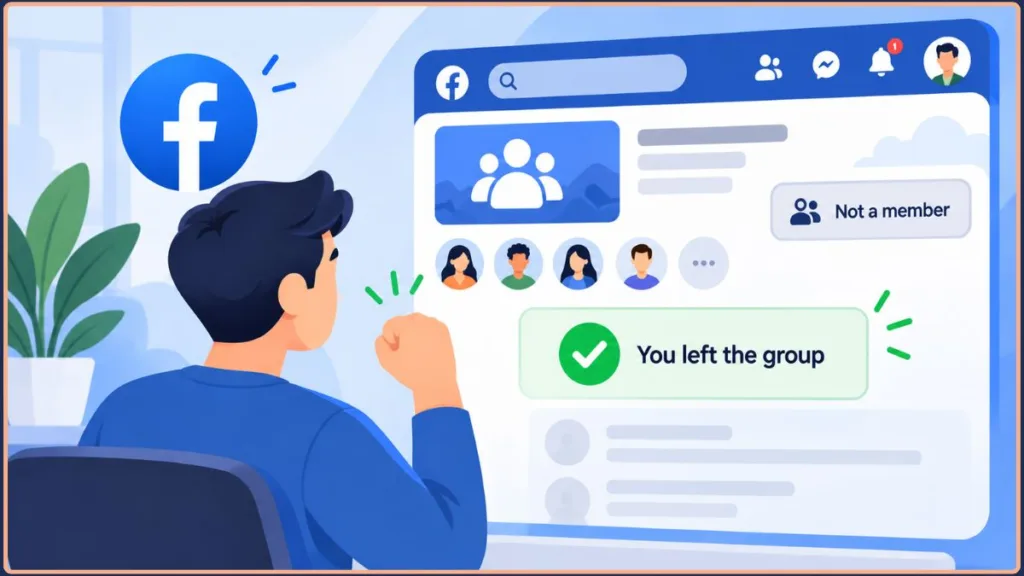
How to Check Whether You Successfully Left
After selecting Leave Group, verify the membership change.
The supplied source recommends checking whether the Joined state disappears and whether the group is no longer listed among your joined communities.
Look for these signs:
- The group is no longer listed among your joined groups.
- You’re no longer treated as a member.
- The Joined membership state is no longer active.
- Normal group activity no longer reaches you as a member.
- You cannot participate unless you join again.
If the group still appears as an active membership, open it again and check the current membership controls.
A successful exit should be reflected in your membership status, not just a confirmation message.
Does Leaving a Facebook Group Unfriend People?
No.
Leaving a group changes your relationship with the group, not your separate Facebook friendships.
It does not automatically:
- Unfriend people
- Block people
- Remove your other Facebook connections
You can leave a community and remain friends with the people you met there.
You may naturally interact with them less often because you are no longer participating in the same group, but leaving the group itself is not an unfriending action.
Leaving a group changes group membership; it does not automatically change your separate Facebook friendships.
What If You’re Being Harassed in a Facebook Group?
If harassment is the reason you’re leaving, consider more than simply exiting.
Report the behavior
Report the relevant content or behavior to the group administrator or Facebook where appropriate.
Block the person
Blocking can reduce further direct interaction.
Preserve useful evidence
If you may need to report the incident, keep relevant evidence before leaving.
Leave the group
If you no longer want to participate, remove yourself.
Meta has continued investing in Group safety and moderation tools designed to help communities manage harmful content and problematic behavior.
Leaving removes your membership. Reporting and blocking address the behavior itself.
If the situation involves threats, harassment, or persistent unwanted behavior, don’t rely on leaving alone.
Is There a Limit to How Many Facebook Groups You Can Join or Leave?
There is a documented limit for group membership.
Meta’s Help Center currently says a person can join up to 6,000 Facebook groups.
That is enough to create a substantial cleanup problem for long-time Facebook users.
There is not an equally clear public Meta rule in the reviewed sources stating that users can leave a specific number of groups per day.
Some community reports describe temporary restrictions after rapidly performing large numbers of group actions, but those are anecdotal reports, not an official Facebook limit.
So if you’re cleaning up a large list:
Don’t assume that automated bulk activity behaves exactly like normal manual use.
Facebook Group vs. Messenger Group: Use the Right Leaving Method
A Facebook Group and a Messenger group chat are not the same thing.
A Facebook Group is a community and membership space.
A Messenger group chat is a conversation.
They have different controls.
Meta maintains separate Help Center guidance for Messenger group chats.
There is also an important historical reason some older tutorials can be confusing: Meta announced that Community Chats in Facebook Groups would no longer be available after October 5, 2025, directing communities toward Messenger Communities and WhatsApp Communities instead.
So if you’re trying to leave a conversation in Messenger, don’t assume that leaving a Facebook Group will have the same effect.
If you mean a Messenger group chat
Open the conversation in Messenger and use the chat’s own settings to leave.
Use Facebook’s Leave Group control only when your actual goal is to end membership in the Facebook Group.
Make sure you’re leaving the right type of group. A Facebook Group membership and a Messenger group chat are separate things.
Why Facebook Group Tutorials Can Look Different in 2026
An old Facebook screenshot isn’t necessarily wrong—it may simply be outdated.
Meta is actively changing the Groups experience.
In September 2026, Meta announced Forum, a dedicated Facebook Groups app being tested in the U.S. on iOS and Android. Forum is synchronized with a user’s existing Facebook groups and includes features such as Ask, which surfaces answers from group posts and comments. Meta is also testing ways to recognize valuable contributors within groups.
That means a guide from several years ago may show a button in a different location or refer to a feature that has changed.
The better approach is to understand the function, not memorize the screenshot.
Look for the membership control, the Feed control, or the notification control you actually need.
For leaving, that usually means finding the Joined or equivalent membership menu and selecting Leave Group.
Facebook Group Privacy: Public vs. Private
Privacy is one of the biggest reasons people think twice before leaving.
Meta’s Facebook Group model distinguishes between public and private groups.
Public groups offer broader visibility.
Private groups restrict access to members.
That distinction can affect both your visibility within the group and what you can access after leaving.
What if a private group becomes public?
Meta’s November 2025 privacy update introduced additional protections for historical content.
When a private group is converted to public:
- Posts, comments, and reactions created while it was private remain protected.
- Historical content remains available to people who were members before the conversion, along with admins and moderators.
- The member list remains visible only to admins and moderators.
- New content posted after the conversion becomes public.
This is another reason to avoid treating all Facebook Group content as if it follows one universal visibility rule.
Historical Group content can be subject to different privacy treatment from content posted after a privacy change.
Frequently Asked Questions
Can I leave a Facebook group?
Yes. Open the group, access its membership/options controls, select Leave Group, and confirm.
What is the easiest way to remove myself from a Facebook group?
Open the group itself and use its Joined or group-level options menu to select Leave Group.
What does “unjoin” a Facebook group mean?
“Unjoin” is another way of describing leaving the group. Selecting Leave Group ends your membership.
Can I leave a Facebook group privately?
Your departure is not generally presented as a public announcement to the entire group, but someone can still notice that you are no longer a member.
Should I unfollow the group or leave it?
Stay and unfollow when you want to keep membership but remove the group’s posts from your Feed. Leave when you no longer want to belong to the group.
How do I unfollow a Facebook group?
Open the group, access its membership/options controls, and select Unfollow Group.
What is the fastest way to leave a Facebook group?
If you are already on the group page, use Joined → Leave Group → Confirm.
Can I leave a Facebook group without confirming?
Don’t expect an instant one-click departure. Facebook normally uses a confirmation step before ending membership.
Can I remove myself from several Facebook groups at once?
You can clean up multiple memberships, but I did not find official Meta documentation for a universal Leave All Groups command. Community users have discussed third-party tools for bulk cleanup, but those are not official Facebook features.
How many Facebook groups can I join?
Meta currently says you can belong to up to 6,000 groups.
Why is the Leave Group option missing?
Make sure you’re using the group-level membership menu rather than an individual post’s menu. If you see Hide Post, you’re probably looking at the wrong controls.
Can an admin leave a Facebook group?
Yes. If you’re the sole admin, Facebook may prompt you to find a replacement. If no replacement is selected or accepts within 7 days, the group can be paused.
Can I leave a group I created?
Yes. Leaving removes your membership, but it does not delete the group itself.
How do I delete a group I created?
Deleting a group is a separate administrative process. Creator/admin status and the group’s remaining membership can affect the deletion process.
Will my old posts disappear when I leave?
No. Leaving does not automatically delete your previous posts and comments. Review important content separately before leaving.
Can I return after leaving a Facebook group?
Often, yes. Depending on the group’s privacy settings, you may need approval or have to answer membership questions again.
Can I stop people from adding me back?
Some versions of Facebook can offer a prevent-readd option during the leaving confirmation. If it appears, review it before completing the exit.
Does leaving a Facebook group unfriend its members?
No. It changes your group membership, not your separate friendships.
Can I leave a Facebook group from an iPhone?
Yes. Open Facebook, go to Menu → Groups → Your Groups, choose the group, find its membership/options controls, select Leave Group, and confirm.
Can I leave a Facebook group from Android?
Yes. Open Facebook, go to Groups, select the group, find its membership/options controls, choose Leave Group, and confirm.
Can I leave a Facebook group from Facebook Lite?
Facebook Lite can use a different interface from the main Facebook app. Open the group, find its group options, and look for Leave Group.
How do I leave a Messenger group chat?
A Messenger group chat is different from a Facebook Group. Use the conversation’s own settings to leave the chat.
Does leaving a Facebook group delete the group?
No. Leaving removes you. It does not automatically delete the community.
What happens if I leave and then rejoin?
You become a member again through the group’s current joining process. Depending on its settings, you may need approval or membership questions.
What should I do if I’m being harassed in a Facebook group?
Consider reporting the behavior, blocking the person, preserving relevant evidence, and leaving the group if appropriate.
Final Takeaway
The easiest way to understand Facebook’s group controls is to separate membership, Feed visibility, and notifications.
Want to end your membership? Leave the group.
Want to stay but stop seeing its posts? Unfollow it.
Want to stay but reduce alerts? Change notifications.
To remove yourself from a Facebook group, open the group, find Joined or the group’s membership/options menu, select Leave Group, and confirm.
Before leaving, check your old posts and comments, especially if you’ve shared personal information or anything you may later want to remove. Your membership ending does not automatically erase your previous activity.
If the group is private, make sure you don’t need its member-only content.
And if there’s a reasonable chance you’ll want the community later, consider unfollowing it instead—especially when returning could require approval or membership questions.
If you’re cleaning up years of accumulated Facebook memberships, take a more deliberate approach.
Keep groups you still use.
Unfollow groups that remain useful but create too much Feed noise.
Leave communities that no longer have a purpose.
Meta currently allows membership in up to 6,000 Facebook groups, so large-scale cleanup can become a genuine account-management task.
Good cleanup isn’t necessarily about leaving everything. Keep what matters, unfollow what is useful but noisy, and leave what you no longer need.
And as Facebook continues evolving its Groups experience, older guides may not match the interface on your screen.
Don’t get stuck looking for one button in one exact location. Look for the function you need.
End membership → Leave Group.
Reduce Feed clutter → Unfollow Group.
Reduce alerts → Notification Settings.
Shut down a community → Admin/deletion controls.
Once you know which problem you’re actually solving, managing your Facebook Groups becomes much easier.
Sources and Further Reading
Meta / Facebook Help Center: Joining and managing Facebook Groups, including the current 6,000-group membership limit and private-group joining rules.
Meta Newsroom: Facebook Groups privacy update, covering protection for historical content when private groups are converted to public.
Meta Newsroom: Forum, the dedicated Facebook Groups app currently being tested in the U.S. in 2026.
Meta Newsroom: Facebook Groups privacy settings, explaining the distinction between public and private groups.
Facebook Help Center: Admin and moderator management, including what happens when a group’s only admin leaves and the 7-day replacement-admin window.
Reddit / r/facebook: Community discussion about leaving multiple Facebook groups, useful for understanding the real-world bulk-cleanup problem and third-party workarounds.
Visit Our Post Page: Blog Page
Discover more from Izoate
Subscribe to get the latest posts sent to your email.