
Getting the “We couldn’t sign you in to Xbox Live” error with code 0x80004005? Don’t panic. Here is the complete 8-step guide to fix it immediately and get back to gaming.
If you are currently trying to launch a PC Game Pass title, play Minecraft, or open the Xbox App and suddenly encounter a roadblock, you are certainly not alone.
Many users report seeing the specific, frustrating message below:
“We couldn’t sign you in to Xbox Live – Sorry, something went wrong. Try again in a while. (0x80004005)”
This specific Xbox app error often strikes without warning. It can appear even when your internet connection is flawless and other game launchers like Steam or Epic load perfectly.
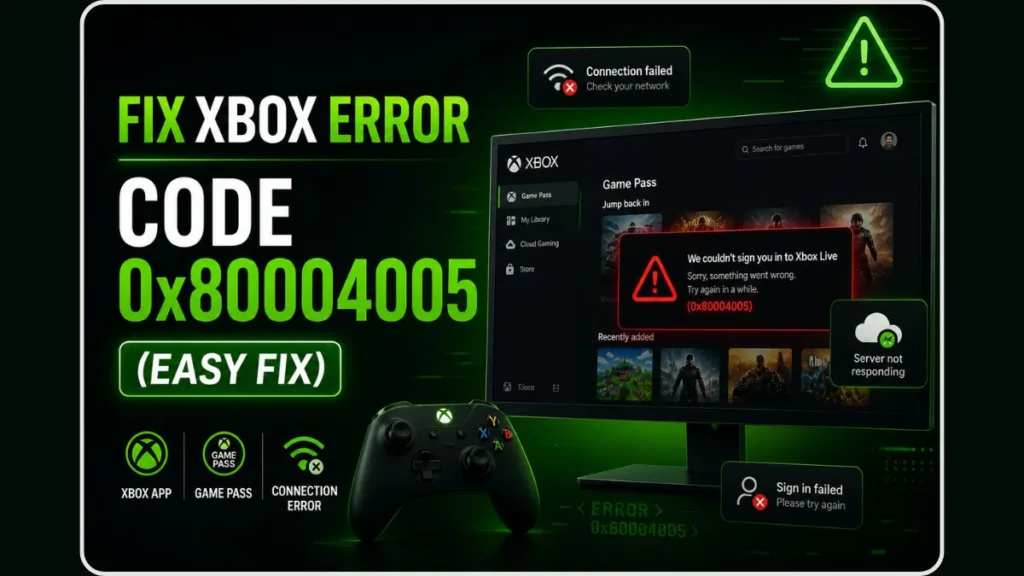
While it disrupts your gaming session, the good news is that this issue is usually fixable. Furthermore, it rarely results from anything you did wrong, so you haven’t broken your PC.
In this comprehensive guide, we will walk you through exactly what this error means, why the Xbox App or Microsoft Store might fail to authenticate you, and the specific steps you must take to fix it quickly.
What Does “Error Code 0x80004005” Mean in Xbox?
To better understand the problem, we must first define what the error actually signals.
This message means your Windows PC was unable to establish a secure handshake with Xbox Live servers at that exact moment. It does not automatically indicate a banned account, a hardware failure, or that your Game Pass subscription was canceled.
Think of it as a generic “Unspecified Error” in Windows. In most cases, the error points to one of the following specific triggers:
- A corrupted background service: The hidden “Gaming Services” app on your PC has stopped working.
- A session or authentication problem: Your digital “key” stored in Windows Credentials has expired or corrupted.
- A delayed or blocked request: Your PC’s cache is clogged, preventing the login request from reaching Microsoft.
Users commonly experience this error in different ways. You might see it right when you open the Xbox App, when clicking “Play” on a specific game, or repeatedly even after restarting your PC. Although this inconsistency can be confusing, it effectively helps us narrow down the cause.
Why This Error Happens
Based on real usage patterns and technical troubleshooting on community forums, this error usually stems from one or more of the specific reasons below.
1. Corrupted Gaming Services (Most Common)
Gaming Services is the background framework that allows Xbox games to run on Windows. If its files become corrupted or go out of sync with a recent Windows update, games simply cannot launch, triggering this error.
2. Microsoft Store Cache Issues
The Microsoft Store and the Xbox app share the exact same download cache. If this cache gets clogged with temporary files or conflicting data, it halts all Xbox app operations and prevents account authentication.
3. Authentication or Session Problems
If your secure login token expires or fails to sync properly, the Xbox app will reject your access. This often happens if you changed your Microsoft password recently, or if old, broken credentials are stuck in your Windows Credential Manager.
4. Incorrect Date & Time Settings
Security certificates rely on your system clock. If your PC’s date and time are even slightly out of sync with Xbox Live global servers, your connection will be automatically rejected for security reasons.
5. Partial Outage or Capacity Issues
Sometimes, Xbox Live servers experience backend congestion. Even if the main Xbox network appears available, specific login nodes for the PC app might temporarily fail.
Quick Checks Before You Try Fixes
Before you dive deep into troubleshooting settings or typing commands, you should quickly run through this diagnostic checklist to save time:
- Does the error happen for every single Game Pass game, or just one specific title?
- Can you successfully log into your account on the official Xbox.com website?
- Did the problem start suddenly right after a Windows update or a computer crash?
- Are you using a VPN that might be blocking Microsoft servers?
If you answered “yes” to most of these questions, the issue might be temporary, network-related, or tied to a quick sync issue rather than a deep technical failure.
How to Fix Xbox Error 0x80004005: 8-Step Guide
To resolve this efficiently, follow these steps in order. We strongly recommend that you do not skip ahead, as the simpler fixes often work best.
Step 1: The Cloud Gaming “Terms & Conditions” Bypass
Often, a hidden agreement prompt is blocking your desktop app.
- Go to Xbox.com in a web browser and sign in.
- Click on Play (Xbox Cloud Gaming) in the navigation bar.
- Accept the pop-up Terms & Conditions that appear.
- Close your browser and try logging into the desktop Xbox App again.
Step 2: Sync Date & Time Settings
This step alone fixes a large number of cases involving security certificate mismatches.
- Right-click the clock in your Windows taskbar and select Adjust date and time.
- Ensure Set time automatically is toggled ON.
- Click the Sync now button to force a server check.
Step 3: Clear Microsoft Store Cache (WSRESET)
If the error appears every time you open the app, clearing your cache eliminates corrupted session data.
- Press the Windows Key + R to open the Run dialog.
- Type
wsreset.exeand press Enter. - A black box will appear. Wait for it to close automatically, which will then launch a refreshed Microsoft Store.
Step 4: Fix Xbox Login & Credentials
Removing old stored credentials forces the app to generate a fresh, working login token.
- Open the Windows Start menu and search for Credential Manager.
- Click on Windows Credentials.
- Under Generic Credentials, delete any entries containing Xbl|DeviceKey, XblGrts, or XboxLive.
Step 5: Reinstall Gaming Services (The Heavy Hitter)
If the simpler fixes fail, you need to replace the core background app.
- Right-click the Windows Start button and open PowerShell (Admin) or Terminal (Admin).
- Paste this command and hit Enter:
get-appxpackage Microsoft.GamingServices | remove-AppxPackage -allusers - Restart your PC, open the Xbox app, and allow it to reinstall Gaming Services.
Step 6: Reset Xbox App & Microsoft Store
Switching the apps back to their factory defaults helps rule out app-specific corruption.
- Go to Windows Settings > Apps > Installed apps.
- Find the Xbox app, click the three dots, select Advanced options, and click Reset.
- Repeat this for the Microsoft Store.
Step 7: Switch Windows User Account
Testing the Xbox app on a different local account helps isolate whether the issue is tied to your main Windows profile.
- Go to Settings > Accounts > Your info.
- Click Sign in with a local account instead. Set it up, restart, and log into the Xbox app manually.
Step 8: The “Phantom File” Fix (For Error 193)
If you also see an “Error 193” in your system services, a bizarre Windows bug might be blocking you.
- Open your File Explorer and go to your *C:* drive.
- Look for a blank file simply named Program (with no file extension).
- If it exists, delete it and restart your PC.
Is Xbox Live Down Right Now? How to Tell
Xbox Live can experience partial service issues where multiplayer fails while store downloads remain accessible. This means you might still load the app framework, but logins won’t process.
You should check the official Xbox Status Page ([support.xbox.com/en-US/xbox-live-status](https://support.xbox.com/en-US/xbox-live-status)) first. Additionally, third-party services like Downdetector can provide real-time user reports to confirm if others are facing the same outage.
Strong signs of a wider issue include:
- The error appears for every single user in your household or Discord server.
- None of the local PC fixes work.
- You cannot log into the Xbox website via a browser either.
When this happens, waiting is often the only effective solution, as the engineering team at Microsoft works to restore the service.
Why the Status Page May Still Look Normal
Status indicators typically track core console systems, not every individual PC feature. They may not reflect:
- Regional access issues specific to your ISP.
- Authentication failures affecting only the Windows 11 desktop app.
- Problems specifically tied to the PC Game Pass validation servers.
That is why you can see an error even when everything appears “operational” on the official dashboard.
Can This Error Affect Minecraft or Cloud Gaming Users?
Yes, absolutely. Authentication or session issues affect the entire Xbox ecosystem on PC.
You may successfully boot up your PC but still encounter failures when launching the Minecraft Launcher, as it relies on the exact same Xbox Live credential system. In these cases, the same fixes—clearing credentials, reinstalling Gaming Services, or waiting out server issues—apply to your Minecraft installation.
How to Prevent This Error in the Future
While you cannot prevent all Microsoft server-side issues, you can significantly reduce the chances of seeing this error again by maintaining good system hygiene.
To keep your connection stable:
- Keep Gaming Services updated: Check the Microsoft Store library frequently for app updates.
- Avoid forced shutdowns: Do not turn off your PC manually while an Xbox game is installing or syncing cloud saves.
- Keep Windows updated: Ensure your OS has the latest security certificates installed.
- Manage your VPN: Avoid constantly changing VPN regions while the Xbox app is running in the background.
These steps help maintain a clean, stable environment and prevent “something went wrong” errors from interrupting your gaming.
FAQs
Why does the Xbox app keep saying “something went wrong”? Because your PC could not successfully authenticate your profile with Microsoft’s servers, usually due to corrupted Gaming Services or temporary server overloads.
Does error 0x80004005 mean I am banned? No. It is a generic connection and file error, not an account enforcement action.
How long does this error usually last? If it is a server issue, it usually lasts a few hours. If it is a local file corruption issue on your PC, it will persist until you apply the fixes listed above.
Is this a Windows 11 or Windows 10 issue? It happens on both operating systems, as they share the same Xbox app architecture and Gaming Services background processes.
What to Do If Nothing Works
If you have tried every single fix listed above—including reinstalling Gaming Services—and the error still appears, the best option is to stop retrying and wait.
Repeated login attempts during a temporary Microsoft server issue won’t speed things up and may actually trigger security lockouts on your account.
If days have passed and you are still locked out, you may need to look into running built-in Windows repair tools (like sfc /scannow in Command Prompt) or performing a Clean Boot of Windows to ensure no third-party antivirus software is blocking the Xbox app. In the majority of cases, however, a simple cache reset or a brief wait allows you to get back to gaming seamlessly.
Visit Our Post Page: Blog Page
Discover more from Izoate
Subscribe to get the latest posts sent to your email.