
Is your YouTube not working on Opera GX in 2026? Learn how to fix YouTube playback errors using simple troubleshooting steps.
There is nothing quite as frustrating as sitting down to watch your favorite creator, opening up YouTube on Opera GX, and being met with a sudden Opera GX YouTube playback error. Whether you are staring at a completely black screen, an infinite loading wheel, or the dreaded “This content isn’t available” error message, you are not alone.
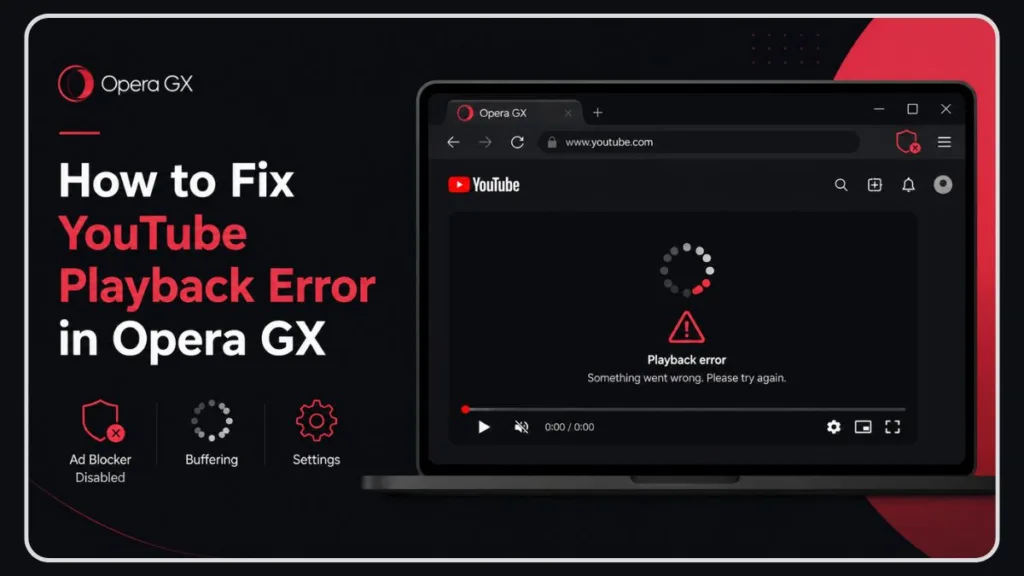
If you are experiencing YouTube videos not playing Opera GX, you have likely already tried the standard troubleshooting steps like reloading the page or completely restarting your computer, only to find the issue persists. This is because the root cause goes a bit deeper than a simple glitch: it is a direct result of YouTube’s ongoing and aggressive crackdown on ad blockers.
Fortunately, the Opera GX community has discovered several reliable workarounds. Here is exactly what to expect from this guide: we will break down the root cause and walk you through the most successful, community-tested fixes to get your videos playing smoothly again.
Quick Fixes That Work Most Often
- Disable Opera GX ad blocker
- Temporarily turn off uBlock Origin
- Clear YouTube cookies
- Refresh the page
- Enable Opera VPN
- Disable hardware acceleration
- Disable RGX “Enhance videos” setting (New 2026 Fix)
- Update uBlock Origin manually to v1.71+ (New 2026 Fix)
Common Signs of the Opera GX YouTube Playback Error
Before diving into the fixes, it helps to identify if you are experiencing the standard symptoms associated with this specific browser conflict. You likely have this error if you experience:
- Infinite buffering
- Black screen
- Videos not loading
- “This content isn’t available”
- Videos only work after refresh
- Audio plays without video
- The “Experiencing Interruptions” black screen bug (A highly reported symptom in May 2026)
Why is YouTube not working on my Opera GX browser? (The Root Cause)
To fix the problem, it helps to understand why it is happening. The primary reason for the Opera GX adblock YouTube error stems from a direct conflict between YouTube’s new backend scripts and Opera GX’s built-in privacy protection features.
Over the last few years, YouTube has significantly ramped up its YouTube ad blocker detection. The platform actively scans for elements that prevent advertisements from loading. Because Opera GX comes with a robust, native ad blocker—and because many users pair it with powerful third-party extensions like uBlock Origin—YouTube flags your browser. When it detects these blockers, YouTube’s anti-adblock systems can interfere with playback when certain filtering tools are detected, resulting in the errors you are seeing.
Why Opera GX YouTube Playback Error Often Appear After Browser or YouTube Updates
You might notice that YouTube works perfectly one day and breaks the next. This usually happens immediately following a software update. The main culprits include:
- Chromium Changes: Opera GX is built on the Chromium engine. When Chromium receives core updates, it can temporarily disrupt how video players interact with the browser.
- Adblock Filter Updates: Adblockers rely on filter lists. If YouTube updates its ad-delivery scripts before your adblocker updates its filter list, videos will break.
- YouTube Backend Changes: YouTube frequently pushes “silent” backend updates to its video player to stay ahead of adblockers, causing sudden playback errors.
- Extension Incompatibility: An outdated extension might suddenly become incompatible with the latest version of Opera GX, causing severe browser conflicts.
- Opera Backend Changes (May 2026 Update): Recently, Opera GX rebuilt the backend of its native ad blocker to support uBlock lists (
opera://settings/adBlockerLists). This massive shift temporarily created new detection vectors for YouTube’s anti-adblock systems, triggering fresh waves of playback errors.
How to Fix the Opera GX YouTube Playback Error (Proven Solutions)
Note: Because YouTube and browser updates change frequently, some community fixes may stop working over time.
Below is a step-by-step troubleshooting guide based on the most successful fixes shared by the Opera GX community. Start from the top, as the first few methods are the fastest to execute.
Preliminary Step: Test Whether the Issue Happens in Another Browser
Before starting, quickly try loading the same video in another browser like Chrome, Firefox, or Edge. This helps determine whether the issue is specific to Opera GX or related to your account or network. If the video plays fine elsewhere, proceed with the Opera GX fixes below.
1. The “Toggle” Method (Quickest Workaround)
This is currently the most popular trick on Reddit for bypassing the block instantly. It requires a bit of manual input but works almost every time.
- Step 1: Turn off your ad blocker (whether that is Opera’s built-in shield or a third-party extension).
- Step 2: Reload the YouTube page. Note: Refreshing the page can temporarily reload YouTube scripts before the anti-adblock detection fully initializes.
- Step 3: Wait for an advertisement to begin playing.
- Step 4: The moment the ad starts, immediately re-enable your ad blocker. The video should continue playing normally without further interruptions.
2. Configure uBlock Origin and Clear YouTube Cookies
If you use the uBlock Origin extension, its filters might be out of sync with YouTube’s latest updates.
- Step 1: Temporarily disable the uBlock Origin extension.
- Step 2: Close all active YouTube tabs in your browser.
- Step 3: Clear your YouTube-specific cookies (Settings > Privacy & security > Third-party cookies > See all site data and permissions > Search for “YouTube” and delete).
- Step 4: Reopen YouTube.
- Note: A few users in the community have reported that temporarily switching from uBlock Origin to Adblock Plus also resolves the issue while uBlock pushes out filter updates.
- Advanced Fix (Optional): As of May 2026, standard Chrome Store updates for uBlock might not be fast enough to bypass the “Experiencing Interruptions” bug. Advanced users can experiment with newer uBlock filters or manually install preview versions from GitHub, though these methods are entirely optional and may stop working as YouTube updates its detection systems. Only download extensions from official developer sources.
If disabling ad blockers did not help, the issue may instead be related to your browser session or routing configuration.
3. The Built-in VPN Trick
Sometimes, changing your routing bypasses the localized Opera GX free VPN conflict causing the block.
- Step 1: Toggle on Opera GX’s built-in free VPN via the address bar.
- Step 2: Refresh the stuck YouTube page to force the video to communicate with the server and load.
- Step 3: Once the video begins playing, you can turn the VPN back off (or simply leave it on) to continue watching.
4. Ensure Opera’s Built-in Ad Blocker is Off for YouTube
If you prefer to use a third-party extension but left Opera’s native blocker on, they might be conflicting.
- Navigate to Opera GX’s settings and find the Privacy protection section.
- Click on Manage Exceptions under the Ad blocker settings.
- Add
youtube.comto the list of allowed sites to ensure the browser’s native blocker is completely paused for YouTube. - Important Warning: Running multiple ad blockers at the same time can create script conflicts that break YouTube playback. Make sure you only have one active at a time.
5. The “Keep Tabs Open” Restart Hack
This is a clever community workaround that forces YouTube to load the video player before the ad-block detection script can fully catch it.
- Go to Opera GX Settings and scroll down to the On startup section.
- Select Retain tabs from previous session.
- Leave your stuck YouTube video tab open and completely close the Opera GX browser.
- Reopen Opera GX. It will launch directly onto the YouTube tab, often forcing the video to bypass the block entirely.
6. Disable Hardware Acceleration (and RGX Settings)
If your issue is strictly a visual bug rather than an ad-blocker penalty, hardware acceleration might be to blame.
- Navigate to Settings and search for “Hardware Acceleration.”
- Toggle off “Use hardware acceleration when available.”
- Relaunch your browser. This is a common way to disable hardware acceleration Opera GX and effectively fix YouTube infinite loading Opera GX bugs that cause black screens.
- Disable RGX “Enhance Videos” (Lucid Mode): In addition to hardware acceleration, Opera’s RGX feature is a massive culprit for the infinite refreshing loop. Type
opera://settings/lucidModeinto your address bar and completely disable the “Enhance videos” setting. This single fix has solved the infinite reload loop for countless users in 2026.
7. Test YouTube in Opera GX Private Mode
Opening a Private Window is one of the most useful browser troubleshooting methods.
- Press Ctrl + Shift + N to open a Private Window and try playing the video.
- Why this works: Private Mode temporarily turns off your extensions and ignores your saved cache. If YouTube works perfectly in Private Mode, you likely have a conflicting extension or a corrupted cache file causing the error in your main window.
Can GX Control Cause YouTube Playback Problems?
Opera GX is famous for its GX Control panel, which allows gamers to limit browser resources. However, if these limiters are set too strictly, they can throttle YouTube’s ability to load video streams.
- CPU Limiter: If enabled and set too low, your browser may not have enough power to run high-resolution video, causing black screens.
- RAM Limiter: Restricting memory can prevent YouTube from buffering ahead, leading to stuttering or infinite loading.
- Network Limiter: If you have capped your browser’s bandwidth, YouTube may default to the lowest resolution or fail to load entirely.
- Fix: Temporarily turn off all GX Control limiters to see if video playback is restored.
What to Do If YouTube Still Won’t Play?
If you have tried all the steps above and are still staring at a loading wheel, here are your final troubleshooting options:
- Check for Browser Updates: Go to the Opera GX logo in the top left > Update & Recovery to ensure you have the latest patches installed.
- Disable All Extensions: Turn off every extension temporarily to rule out random interferences from non-ad-blocker plugins.
- The Ultimate Fallback: The cat-and-mouse game between ad blockers and YouTube is constant. If all else fails, temporarily switch to an alternative browser (like Chrome, Firefox, or Edge) for a few hours while you wait for Opera GX or your extension developers to push out a new filter update.
Frequently Asked Questions (FAQs)
Why Do YouTube Videos Infinitely Load or Buffer on Opera GX?
Infinite loading is usually triggered by YouTube detecting an ad blocker and refusing to send the video data. Alternatively, it can be caused by a faulty hardware acceleration setting, a conflict with your active VPN routing, or the RGX “Enhance videos” setting interrupting the video stream.
Does the Opera GX Ad Blocker Stop YouTube Videos From Playing?
Yes. Because YouTube strictly enforces its rules around ads, its detection scripts routinely flag Opera GX’s built-in ad blocker. When flagged, YouTube’s anti-adblock systems may interfere with playback until the ad-filtering tools are paused.
How Do I Fix the “This Content Isn’t Available” Error on YouTube Using Opera GX?
To bypass this specific error message, temporarily disable your ad blocker, reload the webpage so an advertisement can begin playing, and then immediately turn your ad blocker back on. Clearing your YouTube-specific cookies and cache can also force the video player to reset.
How Do I Clear My Cache and Cookies in Opera GX?
Click the Opera GX logo in the top left corner and go to Settings. Navigate to “Privacy & security” and click on “Clear browsing data.” Select “Cookies and other site data” along with “Cached images and files,” choose your time range, and click “Clear data.”
- Pro Tip for Targeted Clearing: Instead of wiping your whole browser, type
opera://settings/content/allinto your address bar, search foryoutube.com, and click “Delete displayed data”. This clears YouTube’s cache without logging you out of every other website!
Final Thoughts
To summarize, ad blockers are by far the most common cause of this playback error. However, system and browser updates can temporarily break compatibility, and native Opera GX settings (like GX Control or Lucid Mode) can also interfere with playback. Fortunately, the community fixes listed above usually work quickly to get you back to watching.
Visit Our Post Page: Blog Page
Discover more from Izoate
Subscribe to get the latest posts sent to your email.