
Want to automatically pin posts on your FB Page? Learn how to schedule pinned posts on Facebook Page, pin comments after publishing, and use the best Meta Business Suite workaround in 2026.
Managing a Facebook Page requires a lot of planning, and scheduling content in advance with a content calendar is an absolute lifesaver for creators and social media managers. But what happens when you have an important announcement, a time-sensitive promotion, or a major event that you want to keep at the very top of your feed?
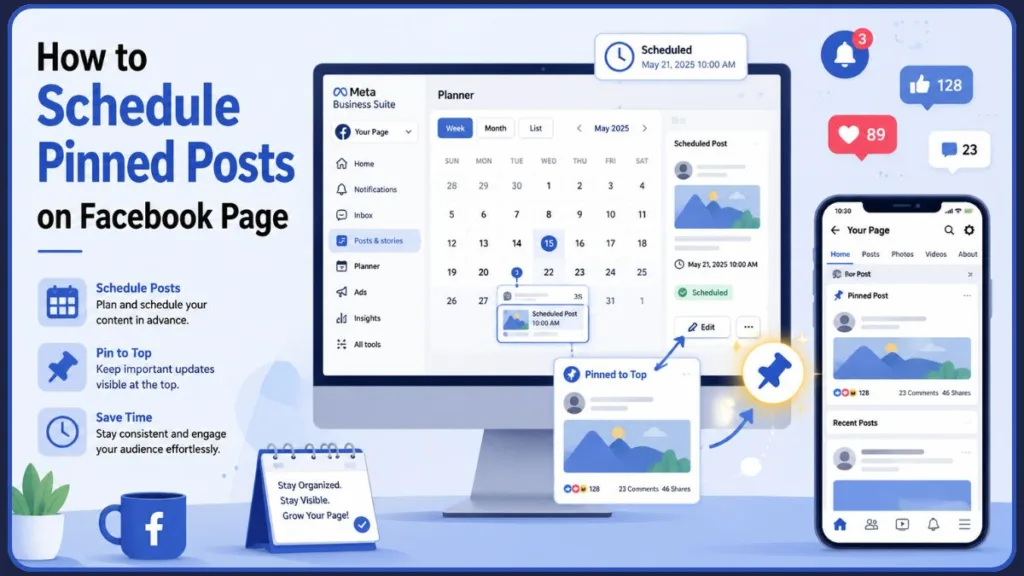
Naturally, you look for a way to learn how to schedule pinned posts on your Facebook page.
However, you’ve likely hit a frustrating roadblock: when you go to schedule your post, the “pin” option is nowhere to be found.
Let’s address the elephant in the room right now—Meta Business Suite does not currently have a native feature to auto-pin a scheduled post the moment it goes live. You also cannot pin a comment on a post while it is still in the scheduling phase.
Don’t panic! In this guide, we will cover the best workarounds to ensure your scheduled Facebook posts get pinned. Plus, we will share a secret mobile-app hack to successfully pin comments on those posts, a major pain point for many page admins.
Can You Schedule a Pinned Post on Facebook? No. Facebook currently does not support automatically pinning scheduled posts. You must wait until the post is published, then manually pin it to the top of your Facebook Page.
What Is a Pinned Post on Facebook?
A pinned post is a specific status update that stays at the very top of the Page timeline, regardless of how many new updates you publish afterward. This feature is commonly used for announcements/promotions, welcoming new visitors, or highlighting key details. It is important to note that only one post can be pinned to the top of a Facebook Page at any given time.
Why Meta Business Suite Cannot Auto-Pin Scheduled Posts
If you are trying to figure out how to automate pinned posts on Facebook, the limitation comes down to how Meta Business Suite handles its publishing tools.
Within the Facebook ecosystem, a post must be actively “live” or “published” on your Facebook Page timeline before the interface allows you to manipulate its position. Because a scheduled post technically doesn’t exist on the public timeline yet, the system cannot attach a “pin” command to it.
This strict rule applies to both the posts themselves and the comments beneath them. You cannot pin a scheduled post on Facebook, nor can you pin a comment to it, until the publication timer hits zero.
The Workaround: Scheduled Facebook Post Pinning
Since you cannot use a Facebook auto pin post feature natively, you have to rely on an efficient manual workflow. Here is the best way to manage this without missing a beat:
- Schedule your post: Draft your content using Meta Business Suite, Creator Studio, or your preferred third-party social media automation tools. Set your desired publication date and time.
- Set a reminder: Set a calendar reminder or a phone alarm for 1 to 2 minutes after your scheduled publication time.
- Navigate to your timeline: Once the post is officially live, go directly to your Facebook Page timeline.
- Pin it: Click the three dots (
...) in the top right corner of the newly published post and select “Pin to top of Page.”
While it requires a manual step, this ensures your important post secures its spot at the top of your feed immediately after going live.
How to Pin Comments on Facebook Posts You Scheduled
Many page admins want to schedule a post and immediately add a pinned comment (often to share external links without hurting the post’s organic reach). But as noted, Meta won’t let you pin comments in advance.
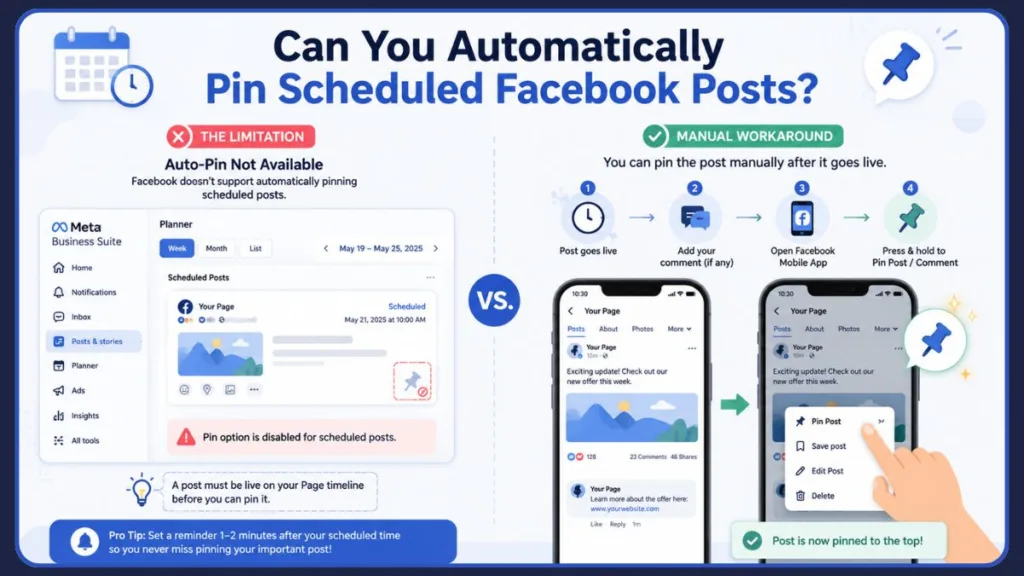
Recently, social media managers on Reddit discovered a highly effective “Mobile App Hack” to solve this exact problem. Here is the step-by-step workaround:
- Wait for Publication: Let your scheduled post officially publish.
- Add Your Comment: Add your desired comment to the post using the Meta Business Suite Inbox or a desktop browser.
- Switch to the Mobile App: Open the Facebook Mobile App on your Android or iOS device. Crucial detail: Ensure you are acting as your Page profile, not your personal profile.
- Locate the Post: Find the live post on your mobile app. (Tip: You can message the link to yourself from your desktop to open it faster on your phone).
- Pin the Comment: Go to the comments section, press and hold your comment on your phone screen until a menu pops up. Tap the “PIN comment” option.
- Verify: Refresh your desktop browser, and you will now see the pin icon next to your comment!
Best Practices for Facebook Pinned Posts
To get the most out of your Meta Business Suite pin post strategy, keep these tips in mind:
- Rotate pinned posts regularly: Keep your page feeling fresh by swapping out the pinned post as campaigns end.
- Use clear CTAs: Ensure the post at the top of your page directs users exactly where you want them to go.
- Avoid outdated announcements: Leaving an old sale or a past event pinned makes your page look abandoned.
- Add branded visuals: A pinned post is often a visitor’s first impression; use high-quality, eye-catching graphics or video.
- Keep links relevant: If you pin comments on Facebook posts to share external URLs, regularly check that those links are not broken.
Can Third-Party Tools Automate Pinned Posts on Facebook?
You might be wondering if investing in premium social media automation tools like Hootsuite, Buffer, or Socinator can bypass this headache.
Unfortunately, because this is a limitation strictly enforced by Meta’s API restrictions, even advanced third-party tools generally cannot force a post to pin itself upon publishing. The manual follow-up method remains the most reliable way to secure a pinned post or comment.
The Data: Why Pinned Posts Matter in 2026
Recent social media marketing data highlights exactly why taking the time to manually pin your scheduled posts is worth the effort:
- The “Prime Ad Slot” Effect: Industry experts consider a pinned post to be the equivalent of a free, premium advertising slot. Because it purposefully overrides Facebook’s standard chronological feed, it guarantees constant exposure for your most critical content to all new profile visitors.
- Driving High Engagement: A strong social media engagement rate for a standard post often hovers lower in the feed, but any engagement rate over 6% is generally considered excellent by digital marketing professionals. By pinning highly engaging, evergreen content (like humor, polls, or high-value videos), you expose your best work to all traffic, dramatically increasing the likelihood of pushing your metrics past that benchmark.
- The “Timestamp” Warning: While pinning is powerful, digital marketing agencies warn against “set it and forget it” strategies. If a new potential customer lands on your page in 2026 and sees a pinned post timestamped from 2022 or 2023, it can give the false impression that your business is inactive or permanently closed. Regularly auditing and rotating your pinned content solves this.
Frequently Asked Questions
Can you schedule a pinned post on Facebook?
Not natively in one single step. You must first schedule the post to publish via Meta Business Suite (or a third-party tool). Once the post actually goes live on your timeline, you must manually click the menu on the post and pin it to the top of your page.
How do I automatically pin a post on my Facebook page?
Currently, there is no true “auto-pin” feature for Facebook Pages. The process requires you to publish the post first, and then manually apply the pin.
Why is the pin option missing on my Facebook page?
If you cannot find the option to pin a live post, it usually comes down to three things:
- You do not have the correct page admin permissions.
- You are interacting with the Page using your personal profile instead of your Page profile.
- You are trying to pin a post created by another user/visitor rather than a post authored by your Page.
How do I pin a post in a Facebook group?
Managing Facebook group announcements is slightly different than managing a Business Page. In groups, the pinning feature is usually referred to as “Mark as Announcement” or “Pin to Featured.” Only group admins and moderators have the ability to do this.
Can I pin a post on my personal Facebook timeline?
No, Facebook does not currently offer a traditional pinning feature for personal timelines. However, you can add posts, photos, or hobbies to your personal profile’s “Featured” section, which achieves a very similar visual effect.
How long does a pinned post stay on Facebook?
A pinned post stays at the top of your Facebook Page indefinitely until you manually unpin it, or until you choose to pin a different post (which will automatically replace the current one).
Can you pin multiple posts on Facebook?
No, you can only pin one post at a time to the top of a Facebook Business Page.
Does pinning a Facebook post increase engagement?
Yes. Because the pinned post is the first piece of content visitors see when they navigate to your Page, it typically receives significantly higher visibility, clicks, and engagement than standard timeline posts.
Can I pin Reels on Facebook?
Yes, you can pin a Facebook Reel to the top of your Page just like a standard photo or text post, provided it is published to your main feed.
Can I pin old posts on Facebook?
Absolutely. You can scroll back through your timeline at any time, click the menu on an older post, and pin it to the top of your Page to give it renewed visibility.
Visit Our Post Page: Blog Page
Discover more from Izoate
Subscribe to get the latest posts sent to your email.