
Want to share a post but worried about who might see it? Learn how to hide your Instagram Story without them knowing. No notifications, no awkward drama.
Take a Deep Breath, Your Secret is Safe
You’ve captured the perfect photo, typed out a hilarious caption, and you are just about to tap “share”—but then you freeze. You remember that one person who is definitely going to watch it. Maybe it is an ex-partner you need space from, a nosy coworker, or a family member who always has something critical to say about your weekend plans.
You want to share your day, but you don’t want the real-life drama of blocking them or unfollowing them. You are probably wondering: Can I stop one specific person from seeing my Instagram Story without them finding out?
The answer is yes. And here is the most important thing you need to know before we go any further: Instagram will never send them a notification when you hide your Story.
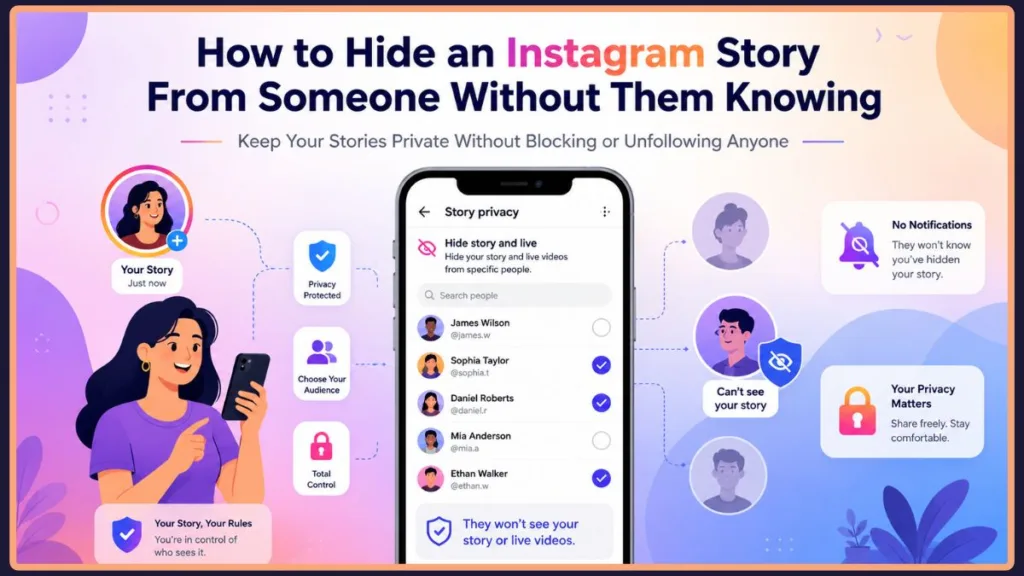
They will not get an alert, they will not see an error message, and they will not know you have changed your privacy settings. If you want to know how to hide your Instagram Story without blocking someone, you are in the right place. Here is the easiest, most conflict-free way to protect your peace of mind.
How to Hide Your Instagram Story Without Them Knowing
This is the quickest and most discreet method built right into the app. By using this setting, you can hide a story from one person on Instagram (or a few selected people) while keeping your relationship with them perfectly normal everywhere else on the platform.
Step-by-Step Instructions (Mobile App)
- Open your Instagram app and tap your profile picture in the bottom right corner.
- Tap the hamburger menu (☰) in the top right corner.
- Scroll down to the section labeled Who can see your content and tap on Hide story and live.
- Tap Hide story from.
- Use the search bar to find the specific person, and tap the circle next to their name to select them.
- Tap the back arrow or simply exit the menu. Your new settings are saved automatically.
How to Do It on Your Computer
If you happen to be browsing on your laptop, you can adjust these settings directly from your desktop browser. Any changes you make here will automatically sync to your mobile phone.
- Log into your account on the Instagram website.
- Click the More (three horizontal lines) button in the bottom left corner, then select Settings.
- Click on Privacy and security.
- Scroll down to Story Settings and click Edit story settings.
- Click on the number next to Hide story from.
- Type their username into the search box, select their account, and your preferences will be instantly applied.
What Exactly Happens When You Hide Your Story? (The Reassurance Check)
It is completely normal to feel anxious that you might accidentally share something you meant to hide. If you are worried about what the other person can actually see once you update your settings, here is exactly what happens on their end:
- They won’t see your daily Stories: Your profile picture will never light up with that colorful ring in their feed. To them, it will simply look like you haven’t posted any updates today.
- Your Highlights disappear: This is a crucial detail. Any past Stories you have saved to your profile as Highlights will instantly vanish from their view.
- They can still see your main feed: Your standard grid posts and Reels remain perfectly visible. This is brilliant because it maintains the illusion that nothing has changed between you two.
- They can still message you: Direct messages remain completely open. They can still send you a DM, and you can still reply, meaning there are no obvious red flags that you have restricted their access.
The “Close Friends” List: A Stress-Free Alternative
Sometimes, you don’t want to go through your follower list trying to hide your story from dozens of acquaintances. Instead of focusing on who shouldn’t see your content, you can flip the script and focus only on who should.
When comparing a Close Friends list vs hiding a story, Close Friends is often the more positive, anxiety-free workaround. Instead of actively hiding your content, you are exclusively sharing it with a trusted inner circle.
- Go to your profile, tap the menu (☰), and select Close Friends.
- Search and add the specific people you trust with your personal updates.
- When you are ready to post a new Story, tap the green Close Friends button at the bottom of the screen instead of sharing it with your general audience.
Note: Nobody is ever notified if you add or remove them from this list, making it a completely safe space to manage your audience.
Hide Story vs. Restrict vs. Block: Don’t Make This Mistake
Because the Meta platform offers so many different privacy features, it is incredibly easy to confuse them. If you use the wrong tool, you might accidentally broadcast a photo you meant to keep private. Let’s clear up exactly how these tools differ:
- Hide Story: This is the tool we covered above. It is best for keeping 24-hour updates private while maintaining a friendly, normal relationship everywhere else on the app.
- Restrict: This acts as a “soft block” to limit unwanted interactions. If you restrict someone, their comments on your posts will only be visible to them, and their DMs will go to a hidden request folder. However, a restricted account can still see your Stories. Do not use the Restrict feature if your main goal is hiding a Story!
- Block: This is the nuclear option. Blocking someone cuts off all contact entirely. They will not be able to find your profile, see your posts, or interact with you in any way.
Frequently Asked Questions
Can someone use a third-party app to see if I hid my Story? No. Instagram’s privacy API is highly secure. Third-party apps cannot bypass your settings to alert someone that they have been placed on your hidden list.
If I hide my Story, does it hide my Facebook Story too?
If you have your Meta Accounts Center set up to automatically share your Instagram Stories to Facebook or Messenger, you need to be careful. Hiding someone on Instagram does not automatically hide them on Facebook if you are cross-posting. If you are connected on both platforms, make sure to adjust your Facebook privacy settings separately, or turn off automatic cross-posting.
How will I know for sure they can’t see it? Once you tap their name in the “Hide story from” menu and see the checkmark appear, the restriction is active immediately. When you post your next update, you can check your story viewers list—you will notice they never appear at the bottom of the screen.
Take Back Control of Your Social Media
Managing your boundaries is a completely healthy and normal part of using social media today. You do not owe everyone a front-row seat to your daily life, and you certainly don’t need to endure real-world awkwardness just to protect your digital peace.
By utilizing the “Hide story and live” settings or curating a tight-knit Close Friends list, you remain fully in control of who sees your updates.
Do you prefer using the dedicated Hide feature to filter out specific people, or are you a bigger fan of just posting everything to your Close Friends list? Let us know in the comments below, and feel free to share your own tips for keeping your social media feeds stress-free!
Visit Our Post Page: Blog Page
Discover more from Izoate
Subscribe to get the latest posts sent to your email.