
Want to keep your private pictures secure in 2026? Learn how to hide photos on iPhone without using the Hidden Album using simple and safer methods. From locking images in Notes and Files to using Face ID and private vault apps, stay in control of your photo privacy today.
Imagine you are showing a friend a photo from your recent vacation. As they swipe through your gallery, a sudden wave of anxiety hits you—what if they swipe too far and see a private screenshot, a medical photo, or a surprise gift receipt? Most iPhone users immediately think of the native “Hidden Album” as the solution. However, the Hidden Album is far from a fortress.
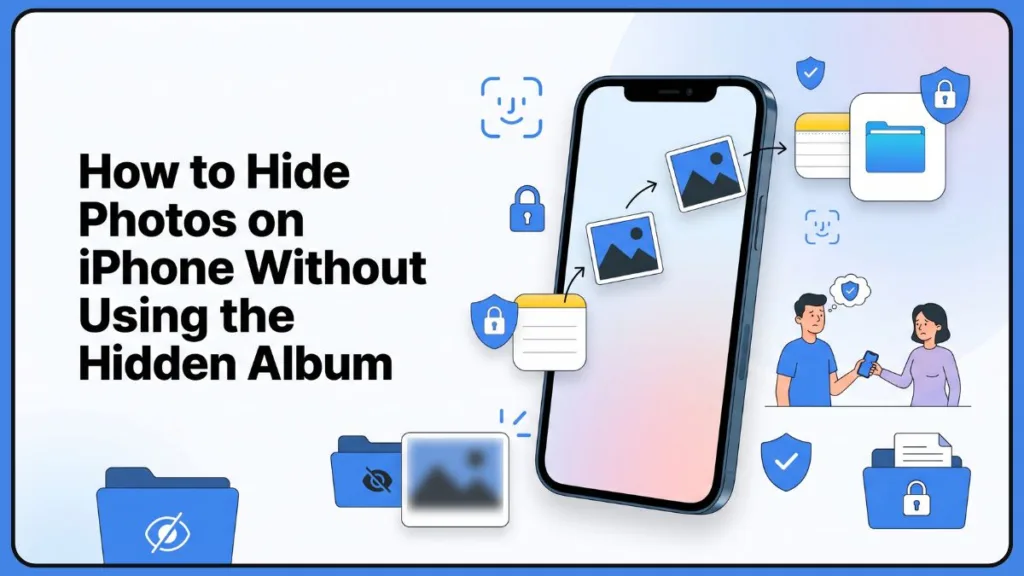
Because the Hidden folder is a standard feature of iOS, its existence is common knowledge. Anyone with even a basic understanding of an iPhone knows exactly where to look in the “Utilities” section of the Photos app. This “security through obscurity” fails when the method itself isn’t obscure. For users who share devices with partners, have tech-savvy children, or simply demand a higher tier of digital discretion, the default option feels like putting a “Do Not Enter” sign on a glass door.
If you are looking for a way to truly get images out of sight and under a different layer of digital armor, you aren’t alone. In fact, a deep dive into community discussions on platforms like Reddit reveals that power users rarely rely on the default settings. Here’s how to hide photos on iPhone without using the Hidden Album using safer and more private methods.
Why Many Users Avoid the Hidden Album on iPhone
The primary grievance with the native Hidden Album is its high discoverability. While Apple eventually added the ability to lock this album with Face ID or a passcode, the album title remains visible in the list of folders unless you dive deep into your system settings to toggle its visibility.
The Community Perspective
On privacy-focused subreddits, the sentiment is clear: “Hidden” does not mean “Private.” Users frequently express frustration that:
- It attracts unwanted attention: A locked folder labeled “Hidden” is a magnet for curiosity.
- The “Out of Sight” Problem: Users don’t just want to hide photos; they want them removed from the camera roll ecosystem entirely so they don’t appear in “For You” memories or photo widgets.
- Shared Device Vulnerability: If a child or partner knows your phone passcode, they can often bypass or prompt a passcode entry for the Hidden album if Face ID fails.
To achieve iphone photo privacy, you need a hidden photos alternative that moves the files into an environment where no one expects to find media.
Best Ways to Hide Photos on iPhone Without Using the Hidden Album
To achieve a truly secure photos iPhone setup, we have to look beyond the Photos app. The following methods leverage existing iOS infrastructure to create “decoy” locations or use high-encryption third-party vaults. We will cover:
- Native Apple Methods: Using productivity apps as a shield.
- No-App Solutions: Utilizing the system’s file management architecture.
- Face ID Protection: Ensuring your biometrics are the only key.
- Third-Party Vault Options: For those who need military-grade separation.
How to Hide Photos Using the Notes App
This is perhaps the most recommended trick within the Apple community. By repurposing the Notes app, you are essentially hiding your media in plain sight inside a document-based application.
Why the Notes App Is a Top-Tier Privacy Method
The Notes app is a “system app,” meaning its presence on your phone is completely normal. Unlike a third-party “Secret Vault” app, a locked note doesn’t scream “I’m hiding something.” It supports Face ID, allows for individual note passwords, and—most importantly—it stores the media within the note’s database rather than the photo gallery.
Step-by-Step Guide to Locking Photos in Notes
- Select Media: Open the Photos app and select the images or videos you wish to secure.
- Share to Notes: Tap the Share icon and select Notes.
- Save: You can add text to the note if you like, then tap Save.
- Lock the Note: Open the Notes app, find your new note, and long-press it. Select Lock Note.
- Authenticate: Set a password or enable Face ID. A padlock icon will appear.
- The Critical Step: Go back to the Photos app and delete the original photos.
- Purge: Open the “Recently Deleted” album in Photos and delete them again to ensure they are gone from the system.
Important Security Tip: If you do not delete photos from both the Camera Roll and the Recently Deleted folder, this method is ineffective as the files remain discoverable in your gallery.
Pros and Cons
- Pros: Totally free, native to iOS, supports Face ID, and acts as a perfect decoy.
- Cons: It can be manual and tedious for large batches; large video files may be inconvenient for the Notes database.
Move Photos to the Files App for Better Privacy
If you prefer a folder-based structure, the Files app is your best friend. It allows you to store private photos in Files rather than the media-centric gallery.
Why the Files App Works
The Files app is designed for PDFs and documents, making it an unlikely place for someone to go snoop for personal photos. Furthermore, you can create nested folders to bury your content deep within the directory.
Step-by-Step Tutorial
- Open the Photos app and select your images.
- Tap Share and scroll down to Save to Files.
- Choose a location (e.g., On My iPhone) and create a new folder with a mundane name like “Work Documents” or “Tax Receipts.”
- Delete the originals from your Photos app and the Recently Deleted folder.
Extra Privacy Tip: Use folder names that do not attract attention. You can also rename individual files to something boring like “Receipt_99.pdf” to further confuse anyone glancing at the file list.
How to Lock Private Photos on iPhone With Face ID
Apple has integrated Face ID across several layers of the OS. While the Hidden Album uses it, you can also leverage App Lock features found in newer versions of iOS to lock entire apps. However, for specific photos, the Notes lock feature remains the most robust.
The goal for most users isn’t just a lock; it’s less discoverability. By moving photos to Notes or Files, you are adding a manual barrier that requires both knowledge of the location and biometric authentication.
Use Third-Party Vault Apps for Maximum Privacy
If the native methods feel too “DIY,” dedicated private photo vault iOS apps offer a streamlined experience. These apps are built specifically to function as a digital safe.
Popular Apps Mentioned by the Community
- KeepSafe: Offers a PIN-protected gallery and the ability to “disguise” the app icon.
- PhotoSafe: Known for high-level encryption and a clean interface.
- Secure Folder: Provides a secondary “space” on your phone for all types of sensitive data.
Features and Risks
While these apps offer decoy passwords (showing a fake gallery if someone forces you to open the app), they come with risks. Many require monthly subscriptions, and others have been known to lose data during iOS updates.
Important Trust Angle: Many Reddit users preferred Apple-native methods over third-party apps because they trust Apple’s native security more than unknown third-party developers.
How to Remove Photos From Camera Roll Completely
The most common mistake users make is forgetting the “Ghost” files. Simply “hiding” or “moving” a photo does not always delete the original.
To truly secure your media:
- Move the photo to your chosen secure location (Notes, Files, or Vault).
- Delete the photo from the main gallery.
- Empty Recently Deleted: iPhone keeps deleted photos for 30 days.
Important Reminder: Many users forget that the Recently Deleted folder still stores photos for 30 days. If you don’t empty this folder, your “hidden” photos are still easily recoverable.
Best Method to Hide Photos: Comparison Table
| Method | Privacy Level | Face ID Support | Beginner Friendly | Best For |
| Notes App | High | Yes | Yes | Most users (Decoy strategy) |
| Files App | Medium-High | Yes | Yes | Organized, document-style storage |
| Vault Apps | Very High | Yes | Medium | Maximum secrecy / Large volumes |
| Hidden Album | Medium | Yes | Very Easy | Casual privacy (Friends swiping) |
Additional iPhone Privacy Tips
To ensure a fully secure image storage iOS experience, consider these mini tips:
- Disable Memories: Go to Settings > Photos and toggle off “Show Featured Content.”
- Turn off Photo Widgets: Remove widgets from your home screen that might pull random images.
- Hide Notifications: Ensure sensitive app notifications are hidden on the lock screen.
- Disable iCloud Syncing: Turn off iCloud syncing for specific private images to prevent them from appearing on other shared Apple devices.
Frequently Asked Questions
Can you hide photos on iPhone without Hidden Album?
Yes, you can use Notes, Files, or private vault apps to store photos outside the Photos app gallery.
What is the safest way to hide pictures on iPhone?
Locked Notes with Face ID is considered one of the safest native methods because it is built-in and less obvious than a vault app.
Can someone see hidden photos on iPhone?
If they have device access and know where the Hidden Album is located (and you haven’t locked it), they may find it. Using the Notes or Files methods significantly reduces this risk.
How do I lock photos on iPhone with Face ID?
You can lock individual Notes containing photos or use third-party vault apps that support Face ID authentication.
Do hidden photos stay in Recently Deleted?
Yes, unless you manually and permanently remove them from the Recently Deleted folder.
How do I make photos private on my iPhone?
Beyond using the default album, you can achieve true privacy by exporting your images to secure locations like locked Notes, the Files app, or by installing high-encryption third-party digital safes.
How do I put photos in a hidden folder?
Select your images, tap the Share icon, and choose “Hide” for the standard iOS method, or choose “Save to Files” to bury them in a custom, hidden system directory.
How do I hide photos from my gallery?
To completely strip an image from your main photo grid without relying on the native hide feature, you must relocate it to an entirely different application (like Notes) and then delete the original file from the gallery.
Can I hide photos without deleting them on my iPhone?
Yes. Using Apple’s native “Hide” button removes the image from your Camera Roll without permanently deleting the data from your device storage—it simply relocates it to the Hidden Album.
Can I hide all pictures of a person on my iPhone?
Yes. In the People & Pets album, you can select a specific face, tap the options menu, and choose “Feature This Person Less” to stop them from appearing in your widgets, slideshows, and curated memories.
Are hidden photos on iPhone actually hidden?
Not completely. While they are removed from the main grid, they are simply relocated to a folder explicitly labeled “Hidden,” which is easily discoverable in the Utilities menu unless actively guarded by your biometric locks.
How do I private a photo album on Apple so it doesn’t show up?
Apple does not currently allow you to lock or hide custom-created albums. You can only conceal the default hidden directory itself by going to Settings > Photos and turning off the “Show Hidden Album” option.
How to permanently hide the pictures in iPhone?
For permanent, impenetrable storage, export your media to a hardware-encrypted external drive or a heavy-duty cloud vault (like Mega or OneDrive’s Personal Vault), and then wipe the local files completely from your device.
How to super hide photos on iPhone?
To “super hide” media, lock it securely inside an Apple Note, delete the original image, clear your Recently Deleted folder, and then remove the Notes app from your Home Screen so it only exists hidden away in your App Library.
Can you hide a whole album of photos on an iPhone?
You cannot hide a custom folder itself. Natively, you must select all the individual photos within that album and move them to the default Hidden Album, or export the entire batch to a private folder in the Files app.
Can you put iPhone photos in a private folder?
Yes, by utilizing the Files app to create a custom, inconspicuous directory, or by downloading a dedicated vault application specifically designed for media compartmentalization.
How to hide hidden photos in gallery?
To make the default “Hidden” album invisible in your Utilities menu, navigate to Settings > Photos and toggle off the “Show Hidden Album” option. This removes the folder name entirely from the Photos app.
Conclusion
While the Hidden Album is a convenient tool for keeping your gallery tidy, it doesn’t offer the level of invisibility that many users require. By shifting your sensitive media to the Notes app for decoy-style protection or the Files app for organizational secrecy, you can ensure your private moments stay truly private.
The Golden Rule: Always verify that your photos are successfully moved and locked before deleting them from your camera roll—and never forget to empty that “Recently Deleted” folder!
Visit Our Post Page: Blog Page
Discover more from Izoate
Subscribe to get the latest posts sent to your email.