
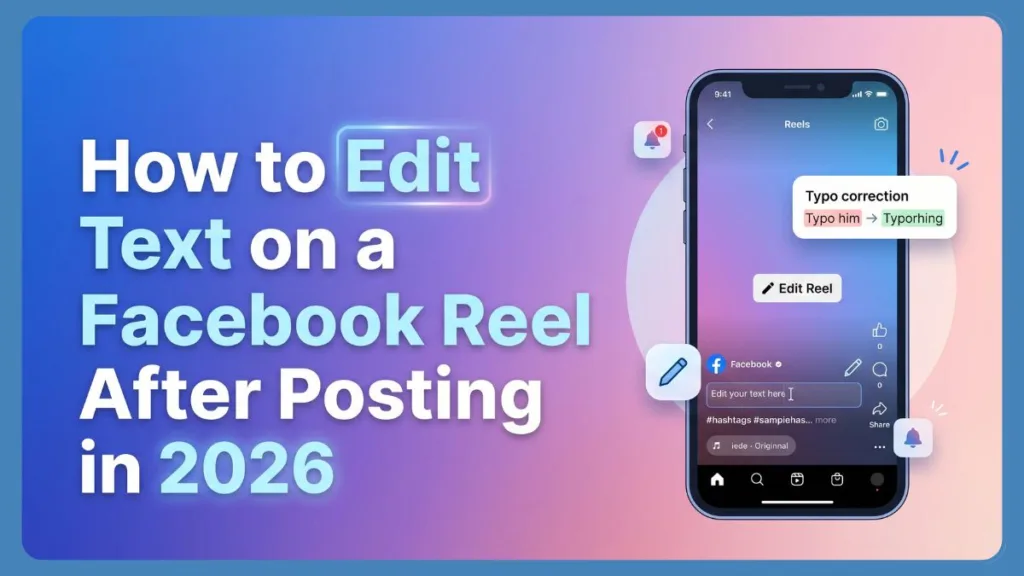
Spotted wrong text on your FB Reel? Learn how to edit text on Facebook Reel after posting in 2026 without reuploading. Fix your caption fast and keep your likes!
You noticed a typo right after posting your Facebook Reel. Maybe the caption looks off, the hashtags need fixing, or you accidentally wrote the wrong text. The good news is that Facebook now allows some post-publishing edits, including captions and privacy settings. However, in-video text overlays and effects still can’t be changed once the Reel goes live.
Take a breath—this happens to everyone, and you are in the right place. This guide will walk you through exactly how to fix your post in just a few minutes.
The reality of the creator economy in 2026 is that the snappy, dynamic nature of short-form video means creators are often balancing speed with accuracy. Whether you are a casual user sharing a funny moment or a brand manager utilizing the Meta Business Suite to manage a content calendar, human error is inevitable. You might have uploaded a video only to realize your call to action points to the wrong link, or you forgot that one crucial hashtag that categorizes your content. Understanding how to manage these post-upload adjustments is critical because Facebook Reels have rapidly evolved into a primary engine for organic reach. You do not want to sacrifice your hard-earned engagement just because of a misspelled word. Fortunately, the platform has matured to separate the core video file from the text that surrounds it, giving you a safety net for those last-minute corrections. Asking yourself how to edit text on facebook reel after posting is the first step toward recovering your content’s momentum gracefully.
Can You Edit Text on a Facebook Reel After Posting?
Yes, captions and descriptions can usually be edited, but no, text embedded directly inside the video cannot be altered. Editing options may vary slightly depending on your app version, but here is a quick breakdown of what you can and cannot change.
| Editable | Not Editable |
| Caption / Description | In-video text |
| Hashtags | Music / Audio |
| Privacy settings | Filters and Effects |
| Cover image (sometimes) | Video clips |
Why does this limitation exist? To put it simply, Facebook employs specific technical frameworks to maintain platform integrity. When a Reel is published, the core video file—including any in-video text overlay facebook reel users add via stickers or closed captions—is permanently locked. This prevents “bait-and-switch” tactics where a viral video could be completely altered to show something inappropriate or deceptive. Allowing users to swap the core video file would require re-scanning and re-indexing the content in real-time, which is computationally expensive at the scale of billions of daily uploads. Therefore, while the metadata (the text outside the video) remains flexible to help you categorize your content, the visual footprint is final the moment you hit publish. If you ever wonder, can you edit a facebook reel after posting, the answer always relies on distinguishing between the raw file and the platform data.
What You Can Edit on a Facebook Reel After Posting
Facebook gives creators a decent amount of flexibility when it comes to the metadata of a post. If you need to fix the context around your video, these options are available to you.
If you are managing professional accounts, you might find that your facebook app version reel editing capabilities differ slightly from what you see on desktop. However, the core elements you can modify remain consistent across personal and business profiles, allowing you to refine your message and improve discoverability.
Edit the Caption or Description
You can easily fix typos, change hashtags, update your Call to Action (CTA), or improve the overall clarity of your message. Importantly, updating this text helps maintain your search intent and SEO value if you missed a key keyword before hitting publish.
In fact, many digital marketers intentionally use this to their advantage. If you forgot to say a specific keyword aloud in the video, you can naturally weave it into the first sentence of your description later. The algorithm heavily indexes these descriptions to understand user intent, so a well-timed edit can actually revive a stalling post. When you change caption on facebook reel assets, you directly influence how the search engine categorizes your work for new viewers.
Change Privacy Settings
Managing your digital footprint is straightforward here. You can switch your Reel’s visibility to Public, Friends, or Only Me.
This is particularly helpful if you accidentally posted a personal family video to a public audience, or conversely, if a business post was accidentally restricted to just your friends list. Fixing this immediately ensures your content reaches the right eyes without having to start over.
Update the Cover Image
Depending on your specific Facebook app version, you can sometimes swap out the cover image or choose a different thumbnail frame to make the post more appealing on your profile grid.
A strong cover image acts as a digital billboard when your video appears in search results or on your main feed. If your initial upload grabbed a blurry mid-sentence frame, swapping it for a clean, highly legible shot can dramatically improve your click-through rates.
Add or Change Tags
If you forgot to credit a collaborator, you can still add creator or page tagging to ensure everyone gets their due recognition.
Proper tagging is not just about politeness; it is a vital networking tool. When you tag another creator or a brand, your video often appears in their notifications, increasing the likelihood that they will share it with their own followers, thereby expanding your audience reach exponentially.
What You Cannot Edit After Posting a Facebook Reel
If the mistake is inside the video itself, Facebook becomes much more restrictive.
You Cannot Edit In-Video Text
Text overlays, stickers, and closed captions generated inside the Facebook editor are baked into the exported Reel. Consequently, they cannot be altered once published.
This is why many experienced creators distinguish between burned-in captions and SRT (SubRip Subtitle) files. Burned-in captions are the colorful, animated text boxes you place directly over the footage before publishing—these are permanent. If you notice a misspelling in this type of text, you are stuck with it. This permanence is a trade-off for the creative control you get over fonts and animations.
You Cannot Change Music or Audio
If you selected the wrong trending audio or the mix is too loud, a re-upload is required.
Audio synchronization is deeply embedded into the video’s rendering process. You cannot swap a copyrighted song for a royalty-free track after the fact to avoid a strike, nor can you lower the background music volume if it is drowning out your voice. The sound profile is locked the second the upload completes.
You Cannot Replace Video Clips or Effects
Facebook treats the Reel as a finalized video file. As a result, you cannot trim, swap, or re-filter the footage.
There is no version control system for the visual data. You cannot shave off an awkward two-second pause at the end of the video, nor can you remove a beauty filter that looks unnatural. The platform is designed for rapid consumption, not post-production film editing. Recognizing these hard boundaries early saves you from frantically searching for a magical undo button that does not exist.
If your issue falls into one of these categories, your best option is usually deleting and reposting the Reel.
How to Edit Text on Facebook Reel After Posting (Step-by-Step)
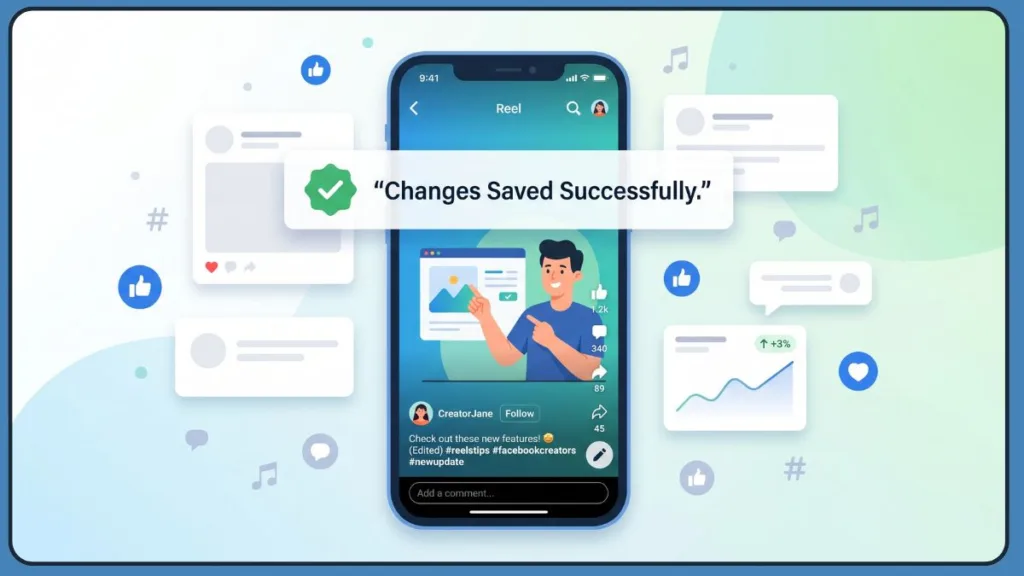
When you are ready to make your corrections, follow these quick steps.
Step 1 — Open Your Facebook Profile
Open the Facebook app, navigate to your profile, and tap the Reels tab.
If you are operating on a desktop computer, the process is very similar. You will navigate to your main profile page and click on the specific video tab to locate your published content.
Step 2 — Open the Reel You Want to Edit
Select the Reel that needs fixing, then tap the three-dot menu (⋯) in the corner of the screen.
Finding the facebook reel three dot menu is usually straightforward, though its placement can shift slightly from the bottom right to the top right depending on whether you are holding your phone vertically or viewing it on a wider tablet screen.
Step 3 — Tap “Edit Reel” or “Edit Post”
From the menu, choose Edit Reel or Edit Post. Keep in mind that the naming may vary slightly depending on your device.
The facebook reel edit post vs edit reel distinction often confuses users. On some Android builds, the system categorizes the video under the broader “Post” umbrella, while iOS updates might specifically label it as “Edit Reel.” Both buttons lead to the exact same metadata editing screen, so do not panic if the phrasing looks slightly different than expected.
Step 4 — Edit the Caption Field
Inside the caption field, fix your text, update your hashtags, and add any missing mentions.
This is your moment to update hashtags facebook reel algorithms use for categorization. Ensure you are staying under the platform’s limit—usually around 30 hashtags—and prioritize relevance over sheer quantity. If you are learning how to change hashtags on facebook reel after posting, the process is as simple as deleting the old text and typing the new ones directly into this box. It is the easiest way to edit description on facebook reel posts to better match current trends.
Step 5 — Tap Save
Once everything looks perfect, tap Save or Done.
Occasionally, you might experience a slight propagation delay depending on your network connection or the server load at Meta. If you do not see the changes instantly, simply refresh your profile page or close and reopen the app.
Your changes usually appear immediately after saving.
Why Can’t I Edit Text on My Facebook Reel?
If you are following the steps above but hitting a wall, one of these common culprits is likely to blame.
It is incredibly frustrating to ask yourself, “why can’t i edit my facebook reel?” when you know the feature exists. Troubleshooting this usually requires looking at the technical environment surrounding your specific account rather than a failure of the platform itself.
Your Facebook App Is Outdated
Older versions of the app lack the newest post-upload editing tools. Check your app store for an update.
App developers frequently push silent updates that alter user interface elements. If you are running an operating system from two years ago, the code required to access the editing sub-menus might literally not exist on your device yet.
The Edit Option Hasn’t Rolled Out Yet
Facebook often rolls out features in waves. That said, some accounts may simply not have the feature enabled yet.
This rolling availability is a standard tech industry practice to prevent server crashes. A user in one country might have full editing suites weeks before someone in another region sees the button appear.
You’re Trying to Edit In-Video Text
As mentioned earlier, the edit button only applies to the caption, not the text stamped onto the video footage.
If you are tapping the screen trying to highlight the colorful text boxes that appear during playback, the app will simply pause the video. The editing tools strictly govern the external description box.
The Reel Was Shared From Instagram
If you automatically cross-posted from Instagram to Facebook, you often have to make the edits on the Instagram side for them to reflect accurately.
Because Instagram is often treated as the “parent” platform in this cross-posting relationship, the data flows in one direction. Attempting to sever that link and edit solely on Facebook can sometimes result in error messages or grayed-out buttons.
Facebook Is Experiencing a Temporary Bug
Sometimes, the platform just glitches. Close the app, clear your cache, and try again in a few minutes.
If you are managing a brand page, you might also want to check the meta business suite reel editing interface. Sometimes the mobile app glitches, but the desktop dashboard remains fully functional, providing a reliable backdoor to make your necessary text adjustments.
The Best Workaround If Facebook Won’t Let You Edit the Reel
When native editing fails, you have to weigh your options. This usually comes down to deleting the video entirely or leaving it as is.
This is the moment of truth for many creators. You have discovered that you cannot simply edit facebook reel text without losing likes if the mistake is baked into the video file itself. You are now facing a strategic decision that pits accuracy against algorithmic momentum.
When Deleting and Reposting Makes Sense
You should delete the Reel if you have a major typo, wrong branding, a broken CTA, or incorrect information that could mislead your audience.
If a viewer is confused by your core message, they will simply scroll past. The delete and repost facebook reel strategy is the nuclear option, but it is necessary when the cost of the error outweighs the value of the current metrics. For instance, if you are a business promoting a sale with the wrong discount code stamped on the screen, keeping it live will actively hurt your reputation and customer service operations.
When You Should Keep the Original Reel
Keep the original post if it already has strong engagement, comments are actively building, or the issue is incredibly minor (like a slightly misspelled non-vital word).
Never delete a video that has already gained significant traction just to fix a minor visual error. Smart creators use a “patch” strategy instead. You can use the pinned comment feature to address typos or forgotten information directly in the comment section. This is often more visible than the description itself and shows your audience that you are engaged and transparent. Saying something like, “Edit: The correct date is actually Friday, not Thursday!” acknowledges the slip-up while preserving your viral reach.
Ultimately, if engagement is still low, reposting often gives the Reel a cleaner second chance.
Tips to Avoid Editing Problems Before Posting
Now that the immediate fire is put out, here is how you can save yourself the stress next time.
Building a bulletproof pre-publication routine is the hallmark of a professional creator. Rushing to hit the publish button is the number one cause of metadata mistakes. By slowing down your workflow, you eliminate the need to frantically edit facebook reel caption after posting at the last minute.
Preview the Reel Before Publishing
Always watch your video all the way through one last time before hitting share.
Look specifically at the safe zones on your screen. Ensure your text is not hidden behind the profile icon on the left, the interaction buttons on the right, or the description area at the bottom.
Double-Check Hashtags and Mentions
Ensure your tags are spelled correctly and point to the right pages.
A misspelled username sends your notification to the void, and an irrelevant hashtag can confuse the algorithm, limiting your reach to the wrong demographic.
Watch the Reel Once With Sound On
Make sure your audio didn’t misalign during the final export.
Audio drift is a common glitch in mobile editing apps. Verifying that your lip-sync matches the track prevents embarrassing uploads that cannot be easily fixed later.
Save Drafts Before Posting
Step away for five minutes. Coming back to a saved draft with fresh eyes is the best way to catch errors.
This cognitive break breaks your tunnel vision. When you stare at an editing timeline for an hour, your brain autocorrects typos. Returning after a quick walk makes glaring mistakes obvious before they go public.
Keep Important Text in the Caption Instead of the Video
If a piece of text (like a link or a price) might change, put it in the caption. Captions are flexible; videos are permanent.
This is the golden rule of short-form content management. Treat the video as the emotional hook and the description as the factual anchor. If the facts need updating, you want them housed in the editable section of the platform.
Does Editing a Facebook Reel Affect Views or Engagement?
A common worry is that touching a live post will kill its momentum. Fortunately, minor caption edits usually do not hurt performance. Correcting a typo or adding a highly relevant hashtag can even help.
Many social media strategists refer to the “Golden Hour” rule. Making a swift adjustment to fix typo facebook reel errors within the first hour of posting can actually assist the recommendation engine. If you add highly specific categorization tags that you initially forgot, you provide the system with better data while it is still in its initial testing phase with your audience. However, heavily modifying a description days after it has peaked in viewership can sometimes trigger a re-indexing process, which may temporarily stall its ongoing distribution. The key is to make your corrections decisively and quickly. If you must delete and start over, try to alter the new file slightly—perhaps by trimming half a second off the end—so the system does not flag the fresh upload as duplicate content.
Furthermore, major reposts (deleting and uploading again) will reset your engagement entirely. While Facebook does not publicly explain the algorithm fully, the general consensus is that fixing metadata is safe, but constantly deleting and reposting the same file can trigger spam filters.
Frequently Asked Questions
Can you edit text on a Facebook Reel after posting?
Yes, you can edit the post caption and description, but you cannot edit text placed directly onto the video.
This duality is the most crucial concept to grasp. You must differentiate between the structural video file and the external text fields that accompany it in the feed.
Can you edit in-video text on Facebook Reels?
No. Once the Reel is published, in-video text and stickers become a permanent part of the video file.
To change anything visually embedded on the screen, you will have to rely on external video editing software to fix the original raw file and then execute a complete re-upload.
Why is the Edit Reel option missing?
You may be using an outdated version of the app, experiencing a temporary bug, or the feature hasn’t been rolled out to your specific region yet.
Additionally, check if you are logged into the correct page profile. Sometimes, administrative permissions restrict certain editing capabilities if you are viewing the content through a standard personal lens rather than the dedicated business management view.
Can you change hashtags after posting a Reel?
Yes. You can add, remove, or change hashtags by selecting “Edit Reel” from the three-dot menu.
It is highly recommended to refine your tags if you notice the video is not reaching your intended demographic. Swapping out generic terms for hyper-specific niche tags can pivot the algorithm’s focus mid-flight.
Does deleting a Reel remove likes and comments?
Yes. Deleting a Reel permanently erases all views, likes, comments, and shares associated with it.
There is no archive or recovery bin for this metric data. Once you confirm the deletion, that engagement history is wiped from the servers entirely, which is why it should only be used as a last resort.
Can you edit Facebook Reels on iPhone and Android?
Yes, the ability to edit the caption and privacy settings is available on both major mobile operating systems.
While the exact wording on the menu might differ slightly between Apple and Android environments, the functional capability to alter your post’s metadata is supported universally across the current iterations of the mobile application.
Can you change music on a Facebook Reel after posting?
No. The audio track is locked in once the video goes live. You will need to delete and repost to change the music.
Because audio licensing and copyright scanning happen during the initial upload phase, allowing users to swap tracks dynamically would break the platform’s legal compliance frameworks. The sound you choose at export is final.
Does reposting a Reel hurt engagement?
It resets your engagement to zero. However, if the original post had very few views, reposting gives it a fresh opportunity to succeed.
If you accidentally uploaded a video at 3:00 AM and it flopped, pulling it down and re-uploading it with a polished description during peak afternoon hours can be a valid strategy to reclaim lost potential.
You can edit certain parts of a Facebook Reel after posting, especially captions, hashtags, and privacy settings. However, Facebook still doesn’t allow changes to in-video text, music, or effects once the Reel is live. If the mistake is minor, a quick caption edit usually solves it. If the issue is inside the video itself, reposting may still be the cleanest fix.
Mastering these nuances allows you to navigate the pressures of modern content creation with confidence. Whether you are quickly fixing a typo from your phone or adjusting a broad campaign strategy from a desktop dashboard, knowing exactly what tools are at your disposal prevents panic. By keeping your vital information in the flexible metadata fields and reserving your locked video file for pure visual entertainment, you build a workflow that is both highly engaging and entirely forgiving of human error.
If Facebook changes its Reel editing tools again, we’ll keep this guide updated.
Visit Our Post Page: Blog Page
Discover more from Izoate
Subscribe to get the latest posts sent to your email.