
Think someone blocked you on Facebook Messenger in 2026? Learn how to know for sure using simple steps. From checking message status to profile visibility and call behavior. Confirm the truth and avoid confusion today.
You’re scrolling through your messages, looking for an old conversation, and suddenly you notice it: a blank profile picture and the words “Facebook User” where a friend’s name used to be. Or perhaps you’ve sent a flurry of messages that have sat on “Delivered” for three days straight. We’ve all been there, and it’s usually at this point that you start frantically searching, “How can I tell if I’m blocked on Messenger?”
Can You Know for Sure If Someone Blocked You on Messenger 2026?
Let’s answer that question immediately: Facebook does not send a notification when you are blocked. There is no “You have been blocked” banner that pops up to confirm your suspicions. Instead, you have to decode the silence yourself. The “confirmation” everyone is looking for is usually found by cross-referencing your messaging status with their profile visibility.
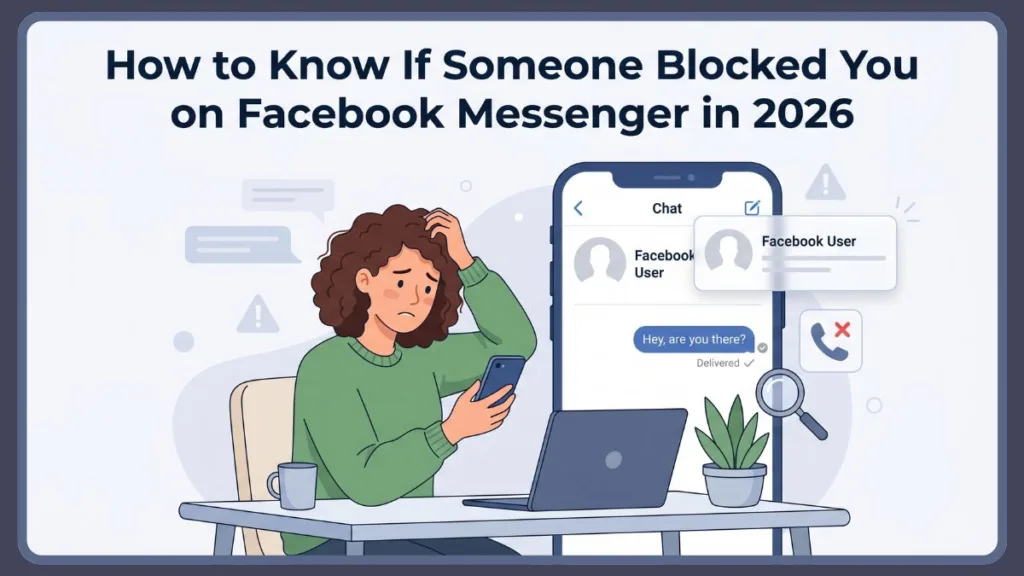
In this guide, we are going to show you exactly how to do that. We’ll break down the difference between a “Hard Block” and the more subtle “Restricted” mode, and I’ll provide some strategies to help you handle the situation without losing your cool. This covers the latest 2026 mobile app updates and the desktop interface, clearly separating technical glitches from intentional social boundaries.
Quick Answer: Are You Blocked?
If you’re looking for the short version, you are likely blocked on Messenger if you notice a few specific things happening at once. Generally, you’ll find that you cannot send messages at all—the text box is either gone or gives you an error. You might also see that their profile name has changed to “Facebook User,” and they simply won’t show up if you try to find them in a search. Finally, if you try to call them and it fails instantly without a single ring, that’s a very strong indicator.
7 Clear Signs You Are Blocked on Messenger
To make it easier for you to scan through your own situation, here is a checklist of the most common red flags that users are reporting in 2026. If you notice more than three of these, a block is highly probable.
- The Input Box Vanishes: This is the big one. You’ll find that you can no longer type or send messages to the person at all.
- “Facebook User” Identity: Their name suddenly disappears and is replaced by this generic, automated label.
- Search Blackout: When you use the search bar, they don’t appear in the results, even though you’re certain they haven’t deleted their account.
- Instant Call Failure: Your voice or video calls end immediately or show a “Call Failed” alert without ever ringing.
- Profile Picture Removal: Their personalized photo is replaced by a default gray silhouette or a completely blank icon.
- The “Unable to Send” Bubble: You might see a yellow exclamation mark appear next to your messages along with a technical error message.
- Mutual Group Chat Ghosting: You can still see their activity in a shared group, but if you try to click their private profile, it’s totally inaccessible to you.
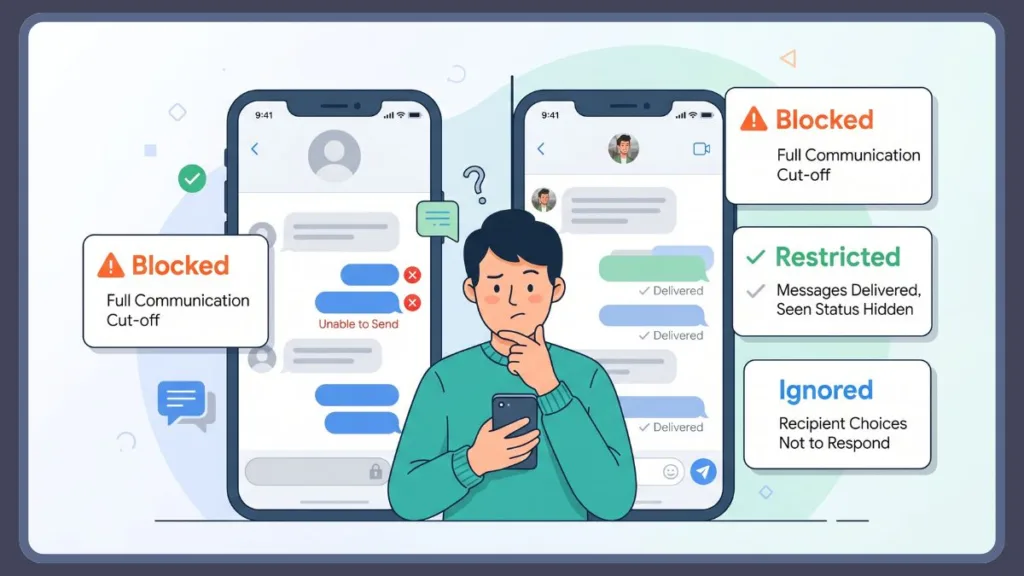
Blocked vs. Restricted vs. Ignored: The Comparison Table
Understanding the nuances between these settings can save you from a lot of unnecessary stress. You can use this table to diagnose exactly what state your conversation is currently in.
| Feature | Blocked | Restricted | Deactivated | Ignored / Muted |
| Profile Picture | Generic “Grey Man” | Visible & Current | Generic “Grey Man” | Visible & Current |
| Message Status | “Unable to Send” | Stuck on “Delivered” | Message Box Gone | Stuck on “Delivered” |
| Active Status | Permanently Hidden | Hidden from You | Offline/Hidden | Visible (if active) |
| Call Outcome | Fails Instantly | Rings (Usually) | Fails Instantly | Rings Normally |
| Group Chats | Can See Messages | Can See Messages | “Facebook User” | Can See Messages |
How to “Confirm” a Block (Step-by-Step)
While you can’t see a “Blocked” status in your settings, the only reliable way to confirm a block is by checking your Activity Log and the Search Dashboard. These methods will help you determine if the person has vanished from your digital world entirely or if they have just muted your presence for a while.
Step-by-Step on Mobile (iPhone & Android)
- Checking the Message Box: Start by opening your chat history. If the text input area is replaced with “This person is unavailable on Messenger,” you have a very strong sign that you’ve been blocked.
- The Search Bar Test (Search Dashboard): Next, tap the Search icon at the top of your home feed and type their full name. If they don’t appear in your results—but they do appear when you search from a friend’s phone—you can be sure you’ve been blocked.
- The Group Chat Hack: If you share a group chat, open it up and tap the list of members. If you can see their name in that group list but clicking their profile leads to a blank page, they have blocked you on an individual level.
- Checking your past history (Activity Log verification): Finally, go to Settings > Activity Log > Interactions. Find an old post where they tagged you. If that tag has turned into plain text instead of a clickable blue link, the connection has been severed.
Tip: Keep in mind that in 2026, Meta’s End-to-End Encryption (E2EE) can sometimes cause messages to stay on “Sent” for hours at a time. We always recommend waiting at least 24 hours before assuming a block based on delivery status alone.
Step-by-Step on Desktop
- Checking their profile link directly (URL direct-hit): You can try typing
facebook.com/[username]directly into your browser. If you get a “Content Not Found” page while logged in, but the profile looks fine in an Incognito or Private window, the block is confirmed. - Check the “Video Call” Icon: Open up your chat window. If the Video and Phone icons in the top right corner are grayed out or missing entirely, it means your communication permissions have been revoked.
- The Archive Check: Sometimes we overthink things. Navigate to Messenger > Archived Chats. It’s possible you didn’t get blocked and just accidentally swiped the conversation into your archive!
What to Do After You Discover a Block
Finding out you’ve been blocked can feel like a digital punch to the gut, but how you react matters. Here’s how to handle the situation with maturity and confidence:
- Do Nothing: Believe it or not, this is your most powerful response. In the social media world of 2026, a block is a clear boundary. Respecting it immediately shows much more character than trying to find a way around it.
- Avoid the “Burner” Trap: Don’t try to create a fake account just to message them. Meta’s “Security Check” algorithms are very good at detecting this now, and it can lead to your own primary account being flagged for harassment.
- Audit Your Own Circle: Use this as a prompt to check your own Restricted List. We all block or restrict people and forget about it sometimes; it’s possible this was just mutual “ghosting” that was never actually intentional.
Managing the “Four States” of Messenger
Social media interactions aren’t just “On” or “Off” anymore. In 2026, there is a whole spectrum of silence that you might encounter.
1. The Hard Block
When this happens, you’ll see the “Facebook User” name and no profile picture. You’ll get an “Unable to send” error every time you try to reach out. It is a complete communication blackout.
2. The Restricted Mode (The “Invisible” Block)
This is a bit more subtle. Your messages will show as “Delivered” (that filled blue circle), but they will never change to “Seen”. You can still see their profile, but you’ll never see their “Active Now” status again. Essentially, they see your messages in a “Requests” folder, but you have no idea if they’ve read them.
3. The Mute/Ignore
In this case, everything looks normal, but there’s just no reply. They haven’t blocked you; they simply haven’t opened the app or are intentionally choosing not to reply right now. Your messages are just sitting in their main inbox.
4. The Deactivated Account
This looks almost identical to a block—you’ll see the gray silhouette and the “Facebook User” name. However, the big difference is that it appears this way to everyone, not just you. The person has simply taken a break from the platform entirely.
FAQs About Being Blocked on Messenger
1. How do I know if I’m blocked in the latest 2026 app version?
The most telling sign in the current version is that “Yellow Exclamation” bubble. If you try to send a message and it immediately returns that yellow “Unable to Send” icon, you can be fairly certain the system has blocked the transmission.
2. Can I see if a blocked person is “Active Now”?
No, you can’t. Once a block is in place, all “Active Status” data is hidden from you. If you can still see them as “Active” but they aren’t replying, you are likely Restricted or Muted, but not actually blocked.
3. Does “Delivered” mean I am not blocked?
Yes, it does. If the circle is filled with blue (Delivered), you are not blocked. You might be restricted, but the message has successfully reached their device.
4. Why did their profile picture turn into a gray silhouette?
This happens whenever a connection is broken. It occurs during a block or a deactivation, but it can also happen if they increased their privacy settings to “Friends Only” and then removed you from their friends list.
5. Can I still see our old photos and videos?
Yes, you can. Blocking prevents new interactions, but your shared media and message history usually remain visible in your chat log unless they manually deleted the entire conversation on their end.
6. What is the “Restricted” folder?
This was introduced to help with digital well-being. It allows users to move a conversation away from their main feed without notifying the sender. The recipient can read the messages without ever triggering a “Seen” receipt.
7. How do I remove a “Restricted” person if I accidentally added them?
Just go to Privacy & Safety > Restricted Accounts in your Messenger settings. From there, you can see everyone you’ve limited and just tap “Unrestrict” to move them back to your main inbox.
Conclusion: Navigating Digital Boundaries
Between pokes, blocks, and restrictions, Messenger is a complex place to navigate in 2026. While the Activity Log and the Search Method are your most reliable ways to find the truth, it’s always important to remember that a digital status doesn’t always tell the whole story of a real-world relationship.
By following this guide, you can stay in control of your digital environment. You’ll be able to tell the difference between a technical encryption glitch and an intentional block, helping you manage your social interactions with much more clarity. Just remember to regularly check your Archived Chats and Restricted List to keep your Messenger experience organized and stress-free.
Pro Tip: If a message stays on “Sent” (the empty circle) for a full week, they haven’t necessarily blocked you. It usually just means they’ve uninstalled the app or turned off their data. Don’t take the silence personally until the “Delivered” or “Unable to Send” icons confirm what’s really going on.
Visit Our Post Page: Blog Page
Discover more from Izoate
Subscribe to get the latest posts sent to your email.