
Learn to manage GPU power settings to reduce power consumption and heat. Explore power limits, Windows power plans, and gaming optimization best practices.
Buying an expensive graphics card does not guarantee you are getting peak performance or efficiency right out of the box. Modern GPUs are incredibly powerful, but their factory configurations are often heavily over-volted to account for worst-case silicon variances.
GPU power management settings are the software and OS-level controls that dictate how much electricity your graphics card is allowed to draw and how it behaves under load. Managing these settings directly impacts your raw gaming performance, GPU lifespan, hardware temperatures, and energy efficiency.
Instead of relying on a “plug and play” mentality that leaves tremendous optimization on the table, taking manual control allows you to tailor your hardware to your specific machine. Tuning built-in features like Game Mode, hardware-accelerated GPU scheduling (HAGS), and power plans takes just a few minutes but delivers long-lasting benefits. Let’s explore how to safeguard your system’s efficiency and unlock its true potential.
Recommended GPU Power Settings for Most Gamers
For those who want immediate, practical guidance to optimize GPU power consumption, start with this baseline configuration:
- Power Limit: ~80%
- Windows Power Plan: Balanced
- HAGS: Enabled
- Game Mode: Enabled
- FPS Cap: Refresh Rate – 3 FPS
- ReBAR: Enabled
- G-Sync/FreeSync: Enabled
Why You Might Want to Adjust GPU Power Settings
There’s nothing wrong with wanting to maintain a little efficiency—especially when high-end gaming PCs draw massive amounts of power.
Here are the most common diagnostic indicators that you need to manage your GPU power settings:
- GPU Runs Hot During Gaming: If your graphics card consistently hits temperatures above 80°C to 85°C, it is drawing more power than the cooler can dissipate. If you are asking how do I fix GPU thermal throttling, lowering the power limit is the most direct solution.
- Fans Are Constantly Loud: When fans spin up dramatically the moment you launch a game, the GPU is aggressively compensating for a massive influx of wattage.
- Battery Drains Too Quickly: For laptop gamers, a rapidly draining battery often indicates the dedicated GPU is staying awake during basic desktop tasks.
- FPS Fluctuates Frequently: If your frame rate jumps wildly from 140 FPS down to 70 FPS, your GPU is likely hitting thermal limits and aggressively throttling its clock speeds to protect itself.
- GPU Uses Excessive Power at Idle: Users frequently ask, why is my GPU power consumption so high when idle? If your card pulls 40 to 60 watts on the Windows desktop, an incorrect global power mode or rogue background process is preventing a low-power idle state.
What Are GPU Power Settings?
GPU power settings act as a communication bridge between your hardware and software. A tiny onboard processor constantly monitors current, voltage, and temperature, communicating with your operating system to decide exactly how much electricity is needed at any given millisecond.
How GPU Power Management Works
- Power limits: A hard cap on the maximum wattage the GPU can draw, directly related to its TDP (Thermal Design Power).
- Power targets: The baseline power draw the GPU aims for during standard operation.
- Voltage control: The specific electrical pressure (millivolts) fed to the GPU core at various clock speeds.
- Dynamic clock speeds: The GPU’s ability to ramp its frequency up or down using Dynamic Voltage and Frequency Scaling (DVFS).
- Thermal throttling: A protective mechanism where the GPU forcefully lowers clock speeds and voltage to prevent physical damage.
The GPU is constantly bound by three main walls: the voltage limit, the power limit, and the thermal limit. Whichever wall the GPU hits first becomes the bottleneck.
Why GPU Power Settings Matter
- Gaming performance: Consistent power delivery stabilizes 1% low framerates, preventing micro-stutters.
- GPU lifespan: Lower voltages reduce the physical degradation of silicon and thermal paste.
- Power efficiency: Proper clock gating reduces energy consumption and system strain.
Optimizing these settings also benefits your entire computer. A cooler GPU means the ambient air inside your PC case is cooler, which gives your CPU cooler more thermal headroom to boost higher and longer.
Understanding GPU Power Modes and Power Limits
What Is a GPU Power Limit?
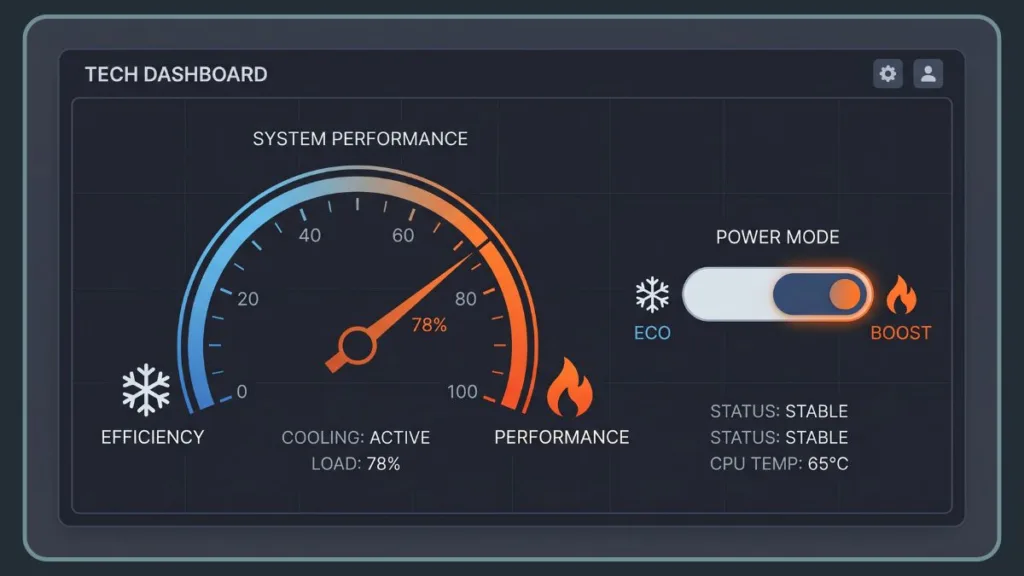
The Power Limit (PL) or Power Target (PT) is usually represented as a percentage in software, with the factory default set at 100%. Adjusting this slider dictates the maximum power envelope the card can use without forcing it to run at that maximum constantly.
Should You Reduce Your GPU Power Limit?
Does lowering the GPU power limit affect FPS? For most gamers, the answer is yes, but the reduction is minimal compared to the massive gains in efficiency.
Dropping your power limit to 80% is highly effective because the top 10% to 15% of a GPU’s power draw operates on a curve of diminishing returns. Manufacturers push immense voltage into the chip to squeeze out a final 50 to 100 Megahertz of clock speed, which offers very little real-world benefit.
For context, in Cyberpunk 2077 at 4K resolution, an RTX 3080 at a 100% power limit might pull 570 watts to achieve 42 FPS. By moving the slider to 80%, the system outputs 40 FPS (a mere -4.8% loss), but power draw plummets to 480 watts (-15.8% energy savings). Similar metrics apply to AMD hardware, making this a highly recommended “one-click” optimization.
How to Manage Power Settings on NVIDIA GPUs
Step-by-Step Guide to Change NVIDIA Power Management Mode
Open the NVIDIA Control Panel and navigate to Manage 3D settings. Under the Global Settings tab, look for Power management mode.
- Optimal Power: The default setting. It saves energy by rendering fewer frames when nothing is changing on screen.
- Normal: Allows the GPU to clock down when idle but scales up dynamically during heavier loads.
- Prefer Maximum Performance: Forces the GPU to maintain high clock speeds even under light workloads.
Recommendation: Set the global profile to Normal. This ensures your system remains power-efficient while browsing the web.
When to Use Maximum Performance Mode
Should I set NVIDIA to ‘Prefer Maximum Performance’ globally? The answer is no. Use this strictly on a per-game basis via the Program Settings tab for older or poorly optimized titles (like heavily modded DirectX 9 games). In these games, the GPU might mistakenly think the workload is light and drop clock speeds, causing severe visual stutter.
Adjust GPU Power Limit Using MSI Afterburner
This serves as a basic MSI Afterburner power limit guide:
- Download and open MSI Afterburner.
- Locate the Power Limit (%) slider on the main screen.
- Drag the slider from 100 down to 80.
- Click the checkmark to apply, and click the Windows icon to apply these settings automatically at startup.
- Save this configuration to a numbered profile slot (1 through 5) and click the lock icon.
MSI Afterburner works flawlessly with virtually all NVIDIA GeForce graphics cards (ASUS, Gigabyte, EVGA, Founders Edition). The software communicates directly with the GPU’s internal BIOS to set a firm, safe limit.
How to Manage Power Settings on AMD GPUs
Open AMD Adrenalin Performance Tuning
Right-click your desktop and open AMD Software: Adrenalin Edition. Navigate to the Performance tab and select Tuning. AMD provides a comprehensive, modern solution natively within their driver software for AMD Radeon power tuning.
Use the key combination Alt+R to call up the overlay feature directly over your game, allowing you to monitor thermals and tweak settings on the fly.
Adjust Radeon Power Limit Settings
Change the tuning control from Preset to Custom. Enable GPU Power Tuning to reveal the Power Limit slider.
Drag the Power Limit slider to -20% (which equates to an 80% power limit). This nets massive efficiency gains with negligible performance loss across Radeon RX 5000, RX 6000, and RX 7000 series cards. After clicking apply, use the built-in driver stress testing within the Adrenalin Tuning tab to verify stability before loading into a game.
Power Saving vs Performance Profiles
AMD also offers quick presets. For users who prefer automated solutions, Radeon Chill dynamically regulates framerates based on character and camera movements. It boosts framerates during intense action and instantly drops them (e.g., to 45 FPS) when you stand still, saving immense amounts of power.
Configure Windows Power Settings for Better GPU Performance
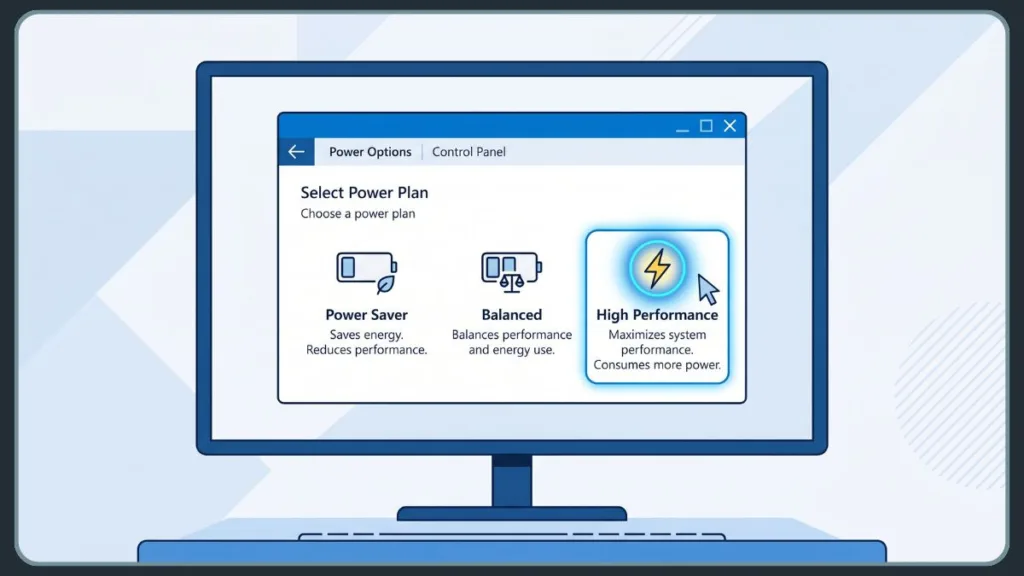
Choose the Right Windows Power Plan
Press Win + R, type control powercfg.cpl, and hit Enter.
- Balanced: The best choice for 95% of users. It allows hardware to idle properly.
- High Performance: Prevents CPUs from parking cores. Good for dedicated gaming rigs but unnecessary for casual desktop use.
High Performance vs Balanced Mode
Balanced mode allows your CPU to drop its frequency to roughly 5% when idle. High Performance often locks it near 100%. For gaming, the difference in maximum frame rates is almost zero, but High Performance draws significantly more idle power, which inadvertently heats up your PC case and GPU.
If you prefer tighter control, select High Performance, click ‘Change advanced power settings,’ navigate to Processor power management, and manually set the Minimum processor state to 5-10% (allowing it to rest when idle) and the Maximum processor state to 100%.
PCI Express Link State Power Management Explained
This setting, known as Active State Power Management (ASPM), dictates whether PCIe devices can enter low-power states when idle.
In your advanced power plan settings under PCI Express, setting Link State Power Management to Off prevents the PCIe bus from throttling communication to the GPU. When a GPU suddenly renders a complex scene, it requires an immediate, massive data transfer. If those lanes are in a low-power state, the milliseconds it takes to “wake up” can cause a jarring hitch. Disabling this ensures a permanent, unthrottled communication lifeline to your CPU and RAM.
Enable Hardware-Accelerated GPU Scheduling (HAGS)
What Is HAGS?
Hardware-Accelerated GPU Scheduling offloads high-frequency memory management tasks from your CPU directly to the GPU’s dedicated scheduling hardware in order to reduce latency and overhead.
Benefits of Hardware-Accelerated GPU Scheduling
HAGS is an absolute strict prerequisite for using modern Frame Generation technologies like NVIDIA DLSS 3 or AMD FSR 3. Frame generation analyzes past and present frames using AI hardware to artificially generate new frames. This requires rapid-fire scheduling that traditional CPU management cannot provide.
How to Enable HAGS in Windows 11
- Go to Settings > System > Display > Graphics.
- Click Change default graphics settings.
- Toggle on Hardware-accelerated GPU scheduling.
- Restart your PC. (A reboot is absolutely required).
When Should You Disable HAGS?
If you play older DX11 titles or use specific VR headsets and experience severe crashing or stuttering immediately after enabling HAGS, turn it off. If a game exhibits black screens or pacing issues, reverting HAGS is your first diagnostic step.
How to Change Graphics Performance Preferences in Windows
For multi-GPU setups (like laptops with both integrated and dedicated chips), you must manually change preferred graphics processor assignments:
- Go to Settings > System > Display > Graphics.
- Select an app or click Browse to find its
.exefile. - Click Options and select High Performance to force the application to use your dedicated graphics card.
Use Game Mode and Graphics Preferences for Gaming
Enable Windows Game Mode
Go to Settings > Gaming > Game Mode and toggle it On. This pauses Windows updates, restricts background indexing, and prioritizes your active game by reserving CPU and GPU resources exclusively for it. Always ensure your graphics drivers and system are fully up to date via Windows Update or vendor utilities to get the most out of Game Mode.
Gaming Laptop GPU Settings
Setting per-app graphics preferences is mandatory for gaming laptops to ensure a game bypasses weak integrated graphics (like AMD’s APUs or Intel UHD). If a game runs at 15 FPS when it should hit 60 FPS, open Task Manager, navigate to the Performance tab, and verify which GPU is bearing the load. Using the Windows Graphics settings or a hardware MUX switch guarantees the correct hardware is engaged.
Reduce GPU Power Consumption Without Sacrificing Performance
Cap FPS Below Refresh Rate
Unlimited frame rates waste power. Pushing 200 FPS on a 144 Hz monitor offers no visual benefit but spikes heat, increases power draw, and ruins frame pacing. Cap your frame rate slightly below your monitor’s maximum:
- 141 FPS for 144Hz
- 117 FPS for 120Hz
Imposing a strict limit gives your graphics card breathing room, drastically lowering power consumption and keeping the flow of the game incredibly smooth. When paired with adaptive sync like G-Sync, FreeSync, or Intel’s VESA Adaptive-Sync, the experience is tear-free and controlled.
Optimize Display Refresh Rate and Battery Saver
On laptops, drop your refresh rate from 144Hz to 60Hz when unplugged. Ensure Windows Battery Saver (or Energy Saver in Windows 11) is set to turn on automatically at 20% or higher to dim the screen, halt background syncing, and restrict telemetry operations.
Undervolting Your GPU for Better Efficiency
What Is GPU Undervolting?
Undervolting involves manually altering the voltage-frequency curve in MSI Afterburner or your card’s native software. You instruct the GPU to achieve its target clock speed using significantly less voltage than the factory default to shave off unnecessary power draw.
Undervolting vs Lowering Power Limit
Lowering the Power Limit is a blunt instrument that simply caps maximum power. Undervolting is surgical—it flattens out the top end of the voltage curve, allowing you to hit exact clock speeds with less electricity. While undervolting takes careful stress testing and benchmarking to perfect, it acts as the cleanest “set it and forget it” tweak you can make to maintain 100% of your performance while dropping power draw.
Is GPU Undervolting Safe?
Yes. Unlike overvolting, which can fry hardware, the worst-case scenario of a bad undervolt is a harmless game crash or system reboot. If you encounter visual artifacts or “clock stretching,” simply open MSI Afterburner, raise the voltage by 15mV, and try again until stable.
Advanced GPU Optimization Settings
Enable Resizable BAR (ReBAR)
ReBAR allows your CPU to access the entire GPU memory buffer at once, rather than chunking data into small 256MB pieces, yielding a meaningful performance boost in supported titles. Enable “Above 4G Decoding” and “Resizable BAR” in your motherboard BIOS settings.
Verify ReBAR Is Working
Enabling it in BIOS is not enough. Download the free utility GPU-Z and check the main screen to verify ReBAR is actively marked as “Enabled.”
Increase Shader Cache Size
To fight modern traversal stutter, open the NVIDIA App or Control Panel and increase the Shader Cache Size from Default to 10GB or even 100GB. This allows the GPU to permanently store translated visual instructions, preventing the game from constantly recompiling assets mid-game. If you use NVIDIA beta app features, enabling Auto Shader Compilation allows your GPU to quietly compile shaders while your PC is idle.
Disable USB Selective Suspend Only If Necessary
In your Power Options, the USB selective suspend setting allows Windows to suspend idle USB devices. Leave this enabled for normal power savings, but disable it if a USB mouse, audio interface, or controller disconnects randomly.
Common GPU Power Management Problems and Fix
- GPU Running Too Hot: Drop the Power Limit, ensure case fans are unobstructed, and cap your frame rates.
- High GPU Power Consumption: Check the NVIDIA Control Panel and ensure global power management is set to “Normal,” not “Prefer Maximum Performance.”
- Low GPU Utilization: Ensure Game Mode is on, HAGS is enabled, and background tasks are not unduly consuming CPU I/O in Task Manager.
- FPS Drops After Changing Power Settings: Revert changes back to factory default, benchmark your game to establish a baseline, and re-apply tweaks one by one to isolate the issue.
Mastering built-in Windows diagnostic tools via powercfg commands can also save hours of frustration:
- Run
powercfg /lastwakeas an administrator to see which peripheral triggered your PC to wake up. - Run
powercfg /requeststo identify if a specific app or background service is blocking sleep mode. - Run
powercfg /energyto initiate a 60-second analysis for identifying devices preventing efficient power use. - Run
powercfg /batteryreportto generate an HTML file charting your laptop battery’s design capacity versus its current full-charge capacity.
Final Thoughts on Managing Power Settings for GPU
While hardware manufacturers have set default profiles for broad compatibility, proactive optimization yields a stabler, quieter, and more reliable gaming experience. Use the Power Limit slider in MSI Afterburner or AMD Adrenalin, utilize global profiles responsibly, cap your frame rates, and ensure features like HAGS and ReBAR are active. These methods ensure your system remains highly efficient, your thermals stay under control, and your hardware longevity is protected.
Useful Official Resources for Managing GPU Power Settings
If you want reliable, manufacturer-backed information about managing GPU power settings, the following official resources are worth reviewing. They cover how performance tuning works, how to configure advanced power modes, and how to monitor or troubleshoot your graphics card safely.
- Setting Power Management Mode – Official Support Guide: NVIDIA’s official knowledge base article explaining how and when to adjust global power management modes from normal to maximum performance.
- NVIDIA Control Panel 3D Settings – Official Help Documentation: Detailed documentation outlining the specifics of adjusting 3D settings and power management directly within the NVIDIA Control Panel.
- AMD Adrenalin Performance Tuning – Official Overview: The official hub for understanding AMD’s built-in performance tuning metrics, overclocking, and undervolting features.
- How to Tune GPU Performance – Official Support Guide: AMD’s step-by-step FAQ for configuring custom tuning profiles and setting power limits using the Adrenalin software.
- Configuring AMD Switchable Graphics – Advanced Guide: Essential documentation for laptop users on how to manage power profiles and assign applications to the dedicated high-performance GPU.
- Changing Graphics Power Settings – Community Support: A highly useful ASUS ROG community thread detailing how to manage graphics power settings specifically on gaming laptops and notebooks.
- MSI Afterburner – Official Download & Overview: The safest and only official source to download the industry-leading GPU tuning utility for adjusting power limits, fan curves, and undervolting safely.
- Use Game Mode on Your PC – Official Support Guide: Microsoft’s official documentation on how Windows Game Mode prioritizes your gaming experience and restricts background processes.
- Powercfg Command-Line Options – Advanced Reference: A technical breakdown from Microsoft detailing exactly how to use the built-in
powercfgdiagnostic tool for troubleshooting sleep, idle states, and battery issues.
Visit Our Post Page: Blog Page
Discover more from Izoate
Subscribe to get the latest posts sent to your email.