
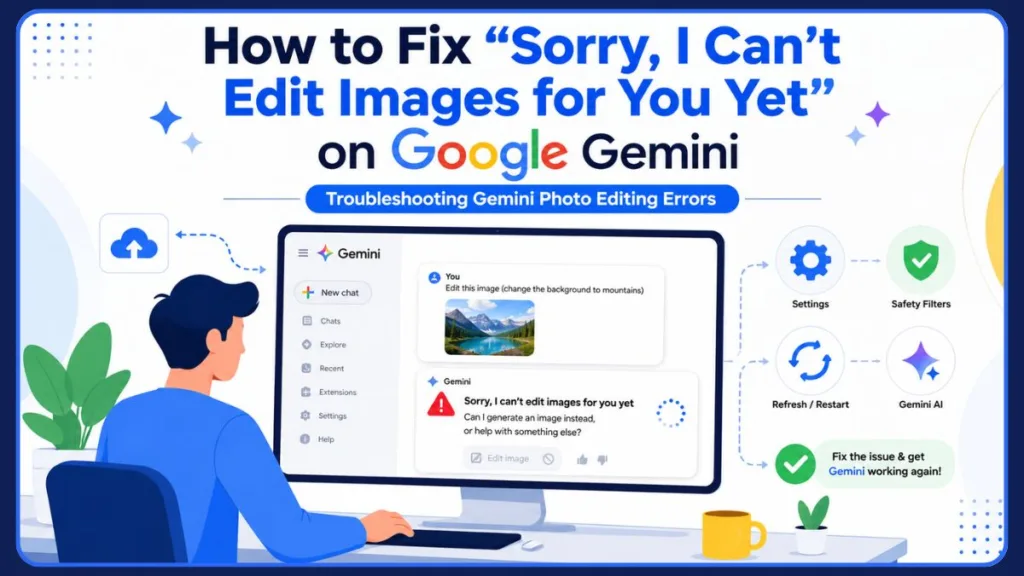
Seeing “Sorry, I Can’t Edit Images for You Yet” on Google Gemini? Don’t worry. Follow this complete troubleshooting guide to fix Gemini photo editing error and get image editing working again.
It is incredibly frustrating. You upload a photo to Google Gemini, ask for a simple tweak, and are instantly hit with this brick wall of a message:
“Sorry, I can’t edit images for you yet. Can I generate an image instead, or help with something else?”
If you are seeing this error in 2026, you are not alone. While Google’s official documentation heavily promotes the powerful image editing pipelines inside Gemini, real-world users frequently find themselves stuck in a loop of rejections.
This guide will explain exactly why Gemini is blocking your request, what triggers the safety filters, and the proven workarounds from the Gemini community to get your edits working again.
In 2026, Google introduced new image generation and editing models like Gemini 3.1 Flash Image and Gemini 3 Pro Image. These models theoretically bring incredible capabilities, allowing users to modify existing images, change backgrounds, or blend elements seamlessly. However, as the underlying AI has become more powerful, Google’s safety guardrails have also become significantly more restrictive. This tension between powerful capabilities and strict safety filters is exactly why so many users encounter the dreaded “can’t edit images” error.
Can Gemini Actually Edit Photos?
Before diving into the errors, it is important to understand what the official documentation says Gemini is actually capable of doing. Officially, Google supports several image editing workflows:
- Uploaded Image Editing: You can upload an image from your device and prompt Gemini to alter it (e.g., changing colors, removing background objects, or applying artistic styles).
- Generated Image Editing: If Gemini generates an image from text, you can ask it to iteratively refine and edit that specific creation.
- Multi-Image Editing: You can upload multiple reference photos and ask Gemini to blend them into a new scene.
Under normal circumstances, the editing process is meant to be highly conversational. If you upload a photo of a living room, you should be able to type, “Change the couch to blue,” and the AI will analyze the image, mask the couch, and replace its color while maintaining the original lighting and shadows. For generated images, this process is called “multi-turn image editing,” allowing you to tweak an AI creation step-by-step until it matches your vision.
However, many users experience limitations because these capabilities are not universally rolled out. Access depends on your region, the type of Google account you use, your age verification status, and strict safety guardrails that can silently block specific requests.
Why Can Gemini Generate Images but Not Edit Uploaded Images?
A common source of confusion is when Gemini flawlessly generates a highly detailed image from a text prompt but immediately throws an error the second you upload a photo to edit.
This happens because generating an image from scratch and modifying an existing image carry very different risks. Text-to-image generation creates fictional scenarios. However, uploading a real photo introduces the risk of manipulating real people, locations, or copyrighted material. To prevent the creation of deepfakes, misinformation, or non-consensual alterations, Gemini applies a much stricter set of safety filters to uploaded files than it does to text prompts. If an uploaded image flags any of these heightened security boundaries, the system defaults to offering a newly generated image instead of touching your original file.
Think of it this way: when Gemini creates an image of a “dog sitting on a park bench” from a text prompt, it uses its training data to build a completely new, mathematically unique image. No actual dog or park is involved. But when you upload a photograph of your dog on a bench, you are providing a real-world document. Google’s Trust & Safety protocols treat uploaded files with extreme caution. The AI must scan the image for identifiable human faces, protected intellectual property, and potentially harmful scenarios. Even a tiny, blurred face in the background of your photo can trigger a safety halt, causing Gemini to reject the edit and offer a generated alternative instead.
Why Does Gemini Say “I Can’t Edit Images for You Yet”?
When Gemini refuses to edit an image, it usually is not a glitch. In most cases, it is a deliberate block by Google’s backend systems. Here is what is actually happening under the hood.
Strict Safety Filters and the “Real Person” Restriction
Gemini is heavily guarded against generating deepfakes or engaging in non-consensual image manipulation. Gemini may refuse certain edits involving real people, particularly when requests could modify identity, facial features, or other sensitive attributes. Even a harmless prompt—like asking to put a friend in a different setting—will often trigger this generic refusal message.
Google’s hardcoded policy prevents the system from acting as a deepfake generator. This means any prompt that attempts to alter a real human’s appearance—such as changing their clothes, altering their body shape, or placing them in a new environment—will be flagged. Community reports show that the safety filter often over-corrects; users have been blocked from simply changing the color of a shirt on a mannequin or modifying 2D cartoon sprites because the AI mistakenly identified them as “real people.”
Image Model & Workflow Glitches
Gemini image editing relies on specialized image-generation and editing models. If Gemini falls back to a text-focused workflow or encounters a temporary service issue, image editing requests may fail even though image generation remains available.
In the background, Gemini uses a combination of large language models (LLMs) to read your prompt and specialized visual models (like Gemini 3 Pro Image) to perform the edit. Sometimes, the connection between these two systems breaks down. If the image model fails to initialize, the text model receives your request but doesn’t have the tools to complete it. Because the text model cannot edit images, it responds with the generic “I can’t edit images for you yet” message. If you encounter a numbered error code instead of a text refusal during these model initialization problems, you might be dealing with a broader server-side session conflict, such as Gemini Error 1099.
Account and Regional Limitations
Image editing capabilities are not distributed equally.
- Account Types: Some Google Workspace accounts, school accounts, or accounts with age restrictions may have image generation and editing permanently disabled.
- Regional Laws: Certain countries have strict AI compliance laws, meaning full editing access may be geo-blocked even if you pay for the Gemini Pro or Advanced tiers.
Here is a closer look at these limitations:
- Age Verification: Google restricts all image generation and editing features to users 18 and older. If your Google account does not have a verified birthdate, or if the system flags you as a minor, the feature is silently disabled.
- Workspace Restrictions: If you use a company or school email address, your Google Workspace administrator controls your access to AI tools. Many organizations disable image features by default for data security reasons.
- Regional AI Compliance: Due to evolving AI regulations, users in the European Economic Area (EEA), the UK, Switzerland, and other specific regions often experience delayed feature rollouts or permanent restrictions on generative AI editing capabilities.
The Weird Bugs: What Happens When Gemini Tries to Edit
According to hundreds of user reports, Gemini’s editing behavior can be highly unpredictable even when it does not outright refuse you.
- Total Hallucination: Instead of modifying your uploaded image, Gemini might ignore your request completely and generate a brand-new, fictional person or scene that vaguely resembles your prompt. This is often a silent safety bypass.
- The Infinite Loop: You ask for a change, Gemini apologizes and promises to fix it, and then spits out the exact same unedited image repeatedly. In some cases, this infinite loop or sudden context stalling can trigger a Something Went Wrong Error in Gemini if the system times out while trying to sync your request.
- Inconsistent Rejections: You might successfully edit one image, only for the next, nearly identical image to be flagged and rejected as a policy violation.
Beyond the official documentation, the Gemini community has noticed a few frustrating patterns when these bugs occur:
- The Trigger Word Halt: Many users on community forums have discovered that Gemini’s safety filters evaluate the text of your prompt before ever looking at the image. If your prompt includes words that trigger safety policies—such as “kids,” “child,” or “minor”—the text model will block the request entirely, even if the image is just a harmless cartoon or an empty room.
- Working on One Account, Failing on Another: A widespread community frustration is the account lottery. Users frequently report that their older, personal Google accounts can edit images perfectly, while their brand-new, paid Gemini Advanced accounts fail completely. This inconsistency highlights how Google frequently tests features in staggered rollouts, leaving some users behind.
How to Fix the Gemini Image Editing Error
If you are stuck staring at the refusal message, try these community-verified troubleshooting steps to force the system to cooperate.
- Verify the Image Tool is Active: In your message bar, tap the Plus (+) or Tools icon and ensure that the image creation tool is actively selected. If it is turned off, Gemini defaults to text-only mode.
- Start a Fresh Chat: Gemini frequently suffers from context “stalling” in long threads. Starting a brand-new chat forces the system to reload all plugins and tools from scratch.
- Reword Your Prompt: Do not use the word “edit.” Instead, try phrasing your request as: “Generate a new version based on this image.” Providing highly specific, detailed instructions rather than vague commands helps the AI understand exactly what you want changed without triggering safety alarms.
- Clear Your Cache: If you previously had access to editing and it suddenly vanished, your browser cache might be holding onto an outdated configuration. Clear your cache or try an incognito window to rule out interference from browser extensions.
- Test a Different Account: To determine if your account has been shadow-restricted, log into an older, personal Google account. If it works there, your primary account (especially if it is a Workspace account) likely has administrative blocks. While troubleshooting account or connection-specific issues, you might encounter other platform disruptions like Gemini Error 1152. If you see these numbered errors instead of the standard photo edit refusal, following dedicated network troubleshooting steps is required.
Detailed Step-by-Step Fixes by Device
For Desktop/Browser Users:
- Hard Refresh and Cache Clear: The Gemini web interface relies heavily on browser data. If the editing pipeline fails, press
Ctrl + F5(Windows) orCmd + Shift + R(Mac) to force a hard refresh. If that fails, go to your browser settings, search for “Clear browsing data,” and clear your cached images and files. If clearing your browser data doesn’t resolve unexpected crashes and you see a persistent numeric code, refer to our advanced troubleshooting Gemini Error 1076 guide, which specifically addresses browser conflicts and Workspace account communication breakdowns. - Check Gemini Extensions: Click on the “Settings” gear icon in Gemini, navigate to “Extensions,” and ensure that all necessary integrations (like Google Workspace and Google Photos) are toggled ON. Sometimes, disabling and re-enabling these extensions can reset your permissions.
For Android Users:
- Clear the App Cache: Since the Gemini app runs as a layer over the Google app, conflicts often arise. Go to your device Settings > Apps > Gemini. Tap Storage & cache, then select Clear cache. Do not select “Clear data” unless you want to log back in.
- Update the Google App: Because Gemini shares backend architecture with the main Google app, ensure both apps are fully updated in the Google Play Store. An outdated Google app can break Gemini’s image editing features.
- Force Stop: If the app is stuck in the “infinite loop” bug, go back to Settings > Apps > Gemini and tap Force Stop. Relaunch the app and start a new chat.
For iPhone/iOS Users:
- Reinstall the App: iOS handles app cache differently than Android. The fastest way to clear persistent bugs in the Gemini iOS app is to uninstall it completely from your iPhone, restart your device, and reinstall it from the App Store.
- Check Age Verification via Safari: Sometimes, iOS privacy settings block Gemini from verifying your account details. Log into your Google account via the Safari browser, navigate to your account settings, and ensure your date of birth is correct and verified.
Alternative Workarounds (When Gemini Flat-Out Refuses)
If you are trying to edit a photo of a real person, the chatbot interface may simply block you. You will need to step outside the standard chat.
- Use Google Photos Magic Editor: Depending on the requested modification, Google Photos Magic Editor may provide more consistent results than Gemini Chat. It is natively built to handle edits on real photos, such as erasing background objects, changing skies, or altering lighting.
- Dedicated Inpainting Tools: For precise control over specific parts of an image without altering the subject, look for AI generators that offer dedicated “inpainting” features. These allow you to mask and change exact areas of a photo without the AI attempting to redesign the entire image.
- Professional AI Image Suites: If you require heavy modifications to uploaded images—such as seamlessly replacing a product’s background, altering clothing on a model, or fixing old, damaged photos—commercial software like Adobe Photoshop’s Generative Fill or Canva’s Magic Studio are far more forgiving than Gemini’s chat interface. They are designed for creators rather than conversational querying, meaning they have fewer restrictive safety triggers regarding general photo manipulation.
Related Gemini Error Guides
While the “I can’t edit images for you yet” message is typically tied to safety restrictions or model limitations, some Gemini issues may be related to broader platform errors rather than image-editing restrictions. If you encounter a numbered “Something went wrong” message, these are usually caused by backend failures, service outages, or network conflicts.
For advanced troubleshooting on specific numeric error codes, check out our dedicated Izoate guides:
- How to Fix Gemini Error 13: This Gemini Troubleshooting Guide helps users fix timeout issues and connection errors when the chat window fails to sync with Gemini’s backend.
- How to Fix Gemini Error 1152: Learn how to resolve this specific network-related disruption and get your AI on Google Search working smoothly again.
- How to Fix Gemini Error 1099: Discover the necessary Gemini AI Error Fixes for this “context overflow” or session conflict error that often occurs when trying to process too much conversation history.
- How to Fix Gemini Error 1076: A step-by-step guide for resolving communication breakdowns and cached data conflicts, particularly useful for Google Workspace users experiencing connection issues.
Frequently Asked Questions
Does Gemini edit photos of real people?
Gemini can edit some photos containing people, but requests involving facial changes, identity modifications, or sensitive content may be restricted.
Why is the Edit Image option missing in Gemini?
The option may be missing if you are using a restricted account (like a school or Workspace account), if you do not meet age requirements, or if the feature has not been fully rolled out to your specific region or device yet.
Why does Gemini say “Content is not permitted”?
This error means your prompt or the uploaded image has triggered Google’s strict safety guidelines. It often occurs if the system detects potential copyright violations, sensitive material, or restricted modifications to real people.
Why does Gemini replace the person in my photo?
If your edit request gets too close to a safety boundary regarding identity modification, Gemini will often abandon the edit entirely. Instead of altering the real person, it bypasses the restriction by generating a completely new, “safe” fictional person that matches the vibe of your prompt.
Why does Gemini generate a different image instead of editing mine?
Similar to replacing people, if any part of the image or prompt triggers a safeguard, Gemini will opt to generate a brand-new fictional image from scratch rather than risk violating policies by altering the original file.
Why does Gemini image editing work on one account but not another?
Access to image editing features depends heavily on account age, verification status, and type. Google Workspace accounts often have stricter administrative limitations compared to standard personal accounts.
Why is Gemini image editing unavailable in my country?
Due to varying international laws regarding AI, privacy, and content generation, Google disables certain generative features in specific regions to maintain compliance with local regulations.
Is Gemini image editing region-restricted?
Yes. Users in certain countries may find the editing features disabled, often resulting in the generic refusal error, even if they are traveling or using a paid subscription.
Does Gemini Advanced include image editing?
Yes, Gemini Advanced includes the latest image editing pipelines. However, paying for the service does not bypass the strict safety filters regarding real people and sensitive content.
How do I force Gemini to edit an uploaded image?
You cannot force Gemini to break its safety protocols. However, you can increase your chances of success by sanitizing your prompt. Remove any words related to age, violence, or sensitive topics. Be hyper-specific about what you want changed, and try using commands like “restyle this image” instead of “edit this.”
Why did Gemini stop editing images suddenly?
If Gemini previously edited images for you but suddenly stopped, it is likely due to a backend update, a server outage with the image model, or a corrupted browser cache. Google frequently pushes updates to its AI models, which can temporarily break specific features like the editing pipeline. Clearing your app cache or browser cookies is the best first step.
Can I use Gemini to restore old photos?
While you can ask Gemini to apply a “restored” or “enhanced” style to an old photo, it is not a dedicated photo restoration tool. If the photo contains real faces, Gemini will likely refuse the request or generate a new face entirely to avoid violating its identity modification rules. You are better off using the Google Photos Magic Editor or dedicated restoration apps for this task.
Is Gemini image editing free?
Yes, basic image generation and some editing capabilities are available to free tier users in supported regions. However, Gemini Advanced subscribers often receive priority access to the newest image models, faster generation times, and earlier access to experimental editing features.
Visit Our Post Page: Blog Page
Discover more from Izoate
Subscribe to get the latest posts sent to your email.