
Trying to recover your old Facebook account? Learn how to find your profile, reset your password, and regain access without your old email or phone in 2026.
The search may start with a specific clue: an old email, a forgotten username, or a photo from 2012 that brings back memories. Suddenly, you want your old Facebook account back. Use that clue to identify the profile first; recovery is easier to troubleshoot when you know which account you are trying to reopen.
The old profile may contain tagged photos, birthday wishes, group chats, posts, and connections you cannot easily recreate elsewhere. The recovery problem is more specific: Facebook needs to identify the right profile and verify that it belongs to you. A forgotten password, an inaccessible email address, a changed phone number, and a disabled account are different situations, so start by identifying the profile and checking which recovery route remains available.
This guide explains how to open an old Facebook account, find a profile you have forgotten about, and work through recovery if you have lost your password, email address, or phone number. It also covers new phones and devices, two-factor authentication, hacked or disabled accounts, common recovery problems, and the steps to take once you regain access.
Quick answer: Start with Facebook’s Find Your Account page. Search for your profile using an email address, mobile number, name, or other information Facebook accepts. Select the correct account and follow the verification steps shown. If you no longer have access to the original email or phone number, look for alternative recovery options or try a device you previously used to log in. The options available vary by account, and recovery is not guaranteed if Facebook cannot verify that you own it.
Choose Your Recovery Route Before You Retry a Password
This quick decision aid is an editorial checklist based on the official routes described in this guide. It is not a Meta recovery score and cannot predict whether Facebook will approve a recovery request.
| What you can see or access | Start with this route | Important limitation |
|---|---|---|
| You can identify the profile and still access its linked email or phone number. | Use Find Your Account and choose a verification method Facebook displays. | A code may not be offered for every account or situation. |
| You can find the profile but cannot access the old email or phone number. | Try another identifier, a device where you are still signed in, or an alternative option if Facebook displays one. | Do not assume you can always add a new email during recovery. |
| You think someone changed the password, email, or phone number without permission. | Use Facebook’s hacked-account recovery page. | A standard password reset may not address a takeover. |
| Facebook says the account is disabled. | Follow the appeal or review route shown in the login flow or Help Center. | Resetting the password does not reverse a disablement decision. |
| You deactivated the account yourself. | Try signing in to reactivate it. | You may still need to complete login verification. |
| You requested deletion recently. | Sign in and look for the cancellation option while the applicable cancellation window remains open. | Meta says the window varies by region; deletion-completion timing is a separate issue. |
| Facebook says deletion is complete. | Review the official deletion guidance rather than repeating recovery attempts. | A permanently deleted account cannot be restored. |
PRACTICAL RULE — “Old” describes how long you have been away; it does not tell you whether the account is deactivated, disabled, hacked, pending deletion, or permanently deleted. Use the account status and the recovery options on screen to choose your next step.
Why People Want to Open an Old Facebook Account Again
Throwback posts, resurfaced Facebook Memories, and “remember when” conversations can prompt you to revisit an old profile. That profile may feel like a personal archive—a version of your life from before you moved to newer apps. For recovery, though, the useful evidence is not the memory that brought you back; it is the profile identifier, the contact methods or devices you can still access, and the account status Facebook shows.
An old Facebook account can contain tagged photos, old conversations, school memories, birthday wishes, posts from friends who are no longer active elsewhere, and details that may not exist on another platform. People therefore search for phrases such as “lost my old Facebook account” years after they last logged in. For recovery, the key question is whether you can identify that profile and still reach a linked contact method or complete another verification option.
Common reasons for wanting the account back include:
- Nostalgia: Finding old photos, school-year memories, and milestones you cannot replace.
- Reconnecting: Reaching friends, family, classmates, and communities that are difficult to find elsewhere.
- Pages and groups: Regaining access to business Pages, groups, Marketplace history, or other activity tied to the old profile.
- Forgotten login details: Trying to recover an account after changing email addresses, phone numbers, and passwords over the years.
What Does It Mean to Find, Recover, or Restore an Old Facebook Account?
These terms are often used interchangeably, but they describe different tasks:
- Finding an account means confirming that the profile still exists and identifying the correct one.
- Recovering an account means proving that it belongs to you and regaining access, often through a password reset or another verification method.
- Restoring an account usually means reactivating a deactivated profile or following the relevant process for an account that has been locked, disabled, or scheduled for deletion.
You may also see searches such as “install my old Facebook account.” You do not install an account. You install the Facebook app and sign in to the account you already have. Your profile, friends, photos, and posts are stored on Facebook’s systems, so moving to a new phone does not automatically mean you need a new account.
A Practical Three-Anchor Check
Use these three checks to work out what information is missing before spending more time on resets. This is an editorial troubleshooting framework, not a Meta tool or an official eligibility test.
- Profile anchor: Can you identify the exact profile using an old email, phone number, username, profile link, or a friend’s help locating the public profile?
- Access anchor: Can you still open a linked email address or phone number, or are you signed in on any device that may let you update account details?
- Status anchor: Does Facebook show an ordinary login/password problem, a security lock, a disabled-account notice, a deletion warning, or no account at all?
Write down which anchor is missing. If the profile is found but no contact method is accessible, focus on the official alternative options that Facebook displays. If the account is disabled or suspected to be hacked, use the corresponding recovery route instead of repeating an ordinary password reset.
First, Work Out What Happened to Your Old Account
Start by matching the message Facebook shows to the account’s current status. A password reset can help with forgotten credentials, but it will not by itself reverse a disablement or restore an account that has been permanently deleted. Use this table to select the relevant route.
| Account status | What it means | Can you get it back? |
|---|---|---|
| Deactivated | The account was temporarily turned off by you or someone with access to it. | Generally, yes. Logging in can reactivate it, although you may need access to the email address or mobile number used to log in. |
| Scheduled for deletion | A deletion request was made, but the cancellation window may still be open. | You may be able to cancel the deletion by logging in during the applicable window. Meta generally describes a 30-day period, but the length can vary by region. |
| Permanently deleted | The deletion process has completed. | No. Once the account has been permanently deleted, it cannot be reactivated and its content cannot be retrieved through the account. |
| Disabled | Facebook disabled the account, often for a policy or identity-related reason. | Sometimes. Check the message shown at login and follow any appeal or review option offered. Eligibility and deadlines depend on the case. |
| Locked or hacked | Facebook restricted access for security reasons, or someone else took control of the account. | Recovery may be possible through identity checks or the official hacked-account process. It depends on whether Facebook can verify ownership. |
For official details, see Facebook’s guidance on deactivation and deletion and permanently deleting an account. Meta says the deletion process may take up to 90 days to finish removing content from its systems. That processing period does not extend the cancellation window: once the applicable cancellation period has passed, the account cannot be restored.
Izoate 2026 Update: The fact that an account has been unused for years does not, by itself, tell you whether it can be recovered. What matters is what happened to it. If Facebook displays a “scheduled for deletion,” “disabled,” or security-lock message instead of an ordinary login error, follow the process associated with that status rather than repeatedly resetting the password.
ACCOUNT-STATUS NOTE — Identify the account state before choosing a recovery route. Deactivated, deletion-pending, permanently deleted, disabled, and hacked accounts are not interchangeable, so use the process that matches the message on your screen.
How Facebook Account Recovery Works in 2026
Meta’s December 2025 and March 2026 announcements describe adaptive account-recovery flows, recognition of familiar devices, and expanded support options. These are descriptions of Meta’s own products, not an independent evaluation of recovery success, and they do not mean every person will see every option. Meta says its recovery systems can use signals such as a device you usually use and familiar locations. Meta has also expanded recovery options to include an optional video selfie in cases where that method is offered. Depending on the situation, Facebook may ask for an ID or offer a video selfie that can be compared with profile photos on the account. Facebook’s current Help Center says an ID request may require one government ID showing your name and either your date of birth or a photo. If you do not have a government ID, Facebook may accept two non-government documents with your name, with at least one showing your date of birth or a photo; the name should match your profile. Follow the instructions on the actual recovery screen and review Facebook’s ID requirements.
In an announcement updated on March 20, 2026, Meta reported that new account hacks on Facebook and Instagram had fallen by more than 30% globally over the previous year, while the relative success rate for hacked-account recovery had risen by more than 30% in the United States and Canada. These are Meta-reported results, not an independently audited industry-wide benchmark. The announcement does not provide enough methodology to treat the figures as the expected recovery rate for an individual account.
For your recovery attempt, treat these updates as context—not a promise that a particular option will appear. The practical steps are:
- A familiar device may help. Try a phone, computer, or browser that you previously used to log in.
- Recovery options can differ. Two people recovering accounts may see different screens and verification choices.
- Identity checks may be offered. Follow the options Facebook actually presents to you; an ID upload or video selfie will not be available in every situation.
- There is no guaranteed shortcut. If Facebook cannot establish that the account belongs to you, recovery may not be possible.
HOW TO INTERPRET THE STATISTICS — Meta-reported results describe specific periods and markets; they do not predict whether an individual account can be recovered. Treat every recovery attempt as case-specific.
If you believe someone else took over your account, go directly to Facebook’s hacked-account recovery page. If the person also changed your email address or password, see Izoate’s more specific guide to recovering a hacked Facebook account after the email and password were changed. Meta also describes its updated recovery tools in its official account-support announcement.
A note on settings names in 2026: Meta announced in April 2026 that Accounts Center would gradually transition to Meta Account over the following year. During the rollout, some users may still see “Accounts Center,” while others may see “Meta Account.” If a setting path below looks different, look for the equivalent account, password, or security setting.
How to Find Out Whether Your Old Facebook Account Is Still Active
Confirm the profile before cycling through recovery methods. A correctly identified account gives you a clearer starting point for choosing an email, phone, familiar device, or status-specific recovery route.
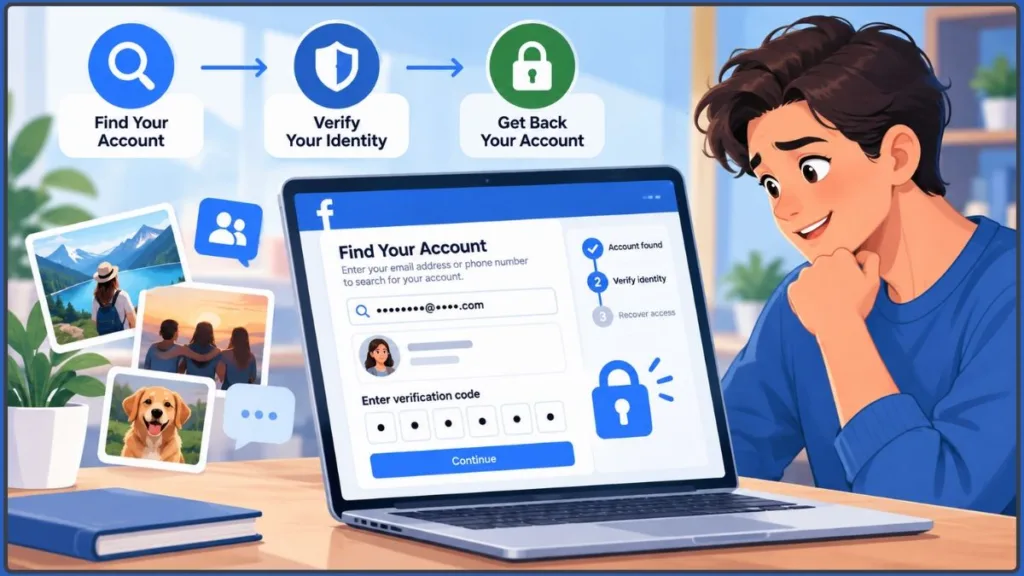
- Use Find Your Account. Visit facebook.com/login/identify and search for your account. When possible, do this from a computer or phone you have used with Facebook before.
- Search your old email inboxes. Look for messages from
facebookmail.comin personal, school, and work email accounts. Meta uses this domain for some Facebook notifications, so an old message may help you identify an email address linked to the profile. However, the sender line alone is not proof that an email is genuine. If you can sign in, check Facebook’s Recent emails area in Password and security; Facebook says it will not ask for your password by email or Facebook message. See Meta’s guidance on checking Facebook emails. - Ask a friend to find the profile. A friend may be able to open your old profile and send you its link. This can help you identify the correct account, but it does not let your friend verify ownership or recover the account for you. If your friend opens the profile on a computer, Izoate’s guide to copying a Facebook profile link on PC explains how to copy and share the URL.
- Pay attention to messages and warning signs. A “Page not available” message or a “no account found” result may mean the account was disabled or deleted, or that you are using a different name, email address, phone number, or username than the one associated with it.
Quick tip: Search your old inboxes for
facebookmail.combefore moving on. A notification from years ago may reveal which email address you used when you created the account. Treat the sender address as a clue, not proof; check Facebook’s Recent emails list when you can access the account.
Before You Start: Details That Can Help With Recovery
Before you request multiple reset codes, collect the account details you still have and record what Facebook displays. That makes it easier to compare recovery attempts and avoid repeating a method that has already failed. Gather whatever you still have access to:
- Old email addresses, including school and work accounts.
- Phone numbers that may have been connected to the profile.
- Your old username or profile link.
- A phone, computer, or browser where you previously logged in.
- Names of friends who were connected to the account.
- Saved two-factor authentication recovery codes, if you enabled two-factor authentication.
Create a Recovery Attempt Log
When an account has been unused for years, it is easy to lose track of which email address or phone number you already tried. Keep a short log so the next attempt is based on the previous result rather than guesswork.
| Date / device | Identifier tried (masked) | What Facebook showed | Next action |
|---|---|---|---|
| Example only: Oct. 22, 2026 / usual laptop | School email ending in …edu | The profile appeared, but the mailbox could not be opened. | Check whether an old phone or an existing signed-in session is still available; use an alternative recovery option only if Facebook displays one. |
Record the exact error message, method offered, and next step. Do not put passwords, one-time codes, full recovery codes, or copies of identity documents in the log. Mask identifiers when possible, especially if you store the note in a shared or cloud-synced document.
Izoate 2026 Update: Facebook’s recovery screens can vary according to your account, device, and app version. If a screen looks slightly different from the steps below, look for the closest matching option and follow the instructions Facebook provides.
PRIVACY REMINDER — Keep passwords, login codes, ID images, and recovery codes private. Submit sensitive information only through Facebook’s official app or recovery flow when asked.
How to Open an Old Facebook Account: Step-by-Step Methods
Method 1: Use the Find Your Account Tool
Start here when you can identify the profile using an old email address, phone number, name, or other detail Facebook accepts. The tool is available from mobile and desktop, but the recovery options it presents depend on the account.
- Open the Facebook app or visit Facebook in a browser.
- On the login screen, select Forgotten password? or the available Find your account option.
- Enter an email address, phone number, or name associated with your old account. Use the details you remember.
- Select the correct profile from the results.
- Choose one of the verification methods Facebook actually offers on your screen, such as email or SMS when available. Use WhatsApp or another method only if Facebook explicitly displays it in your recovery flow; do not assume the same options are available for every account.
- Enter the code or complete the verification instructions.
- If Facebook allows you to reset the password, create a strong new one and sign in.
Before selecting a profile, check more than the display name. Compare the profile photo, old username or profile URL, familiar friends, and any other details you independently recognize. Similar names are common, and choosing the wrong profile can send you down the wrong recovery path. A friend can help verify that a publicly visible profile looks like yours, but they should never receive or forward your login code.
After a password reset, Facebook may ask whether you want to remain logged in on other devices or log out elsewhere. The wording and available choices can vary. You may also need to confirm account details before reaching your profile.
SECURITY TIP — Enter a verification code only on Facebook’s official app or website. Do not send it to anyone who contacts you and claims they can help recover the account.
Recovery tip: Avoid requesting code after code. Repeated reset attempts or failed logins can trigger temporary security restrictions. Check the spam or junk folder, make sure your contact details are correct, wait a little, and then try again. If a security check tells you to wait longer, follow the wait period shown.
Method 2: Open Your Old Facebook Account on a New Phone
You do not need to have your old phone to sign in on a new one. You need to identify the account and complete whatever verification Facebook requires.
- Download and open the Facebook app on your new phone, or visit Facebook in your mobile browser.
- Tap Forgotten password? if you cannot remember the password.
- Enter the email address, phone number, or name linked to the old account.
- Select the correct profile and request one of the available verification methods.
- Enter the code or follow the instructions, then set a new password if prompted.
- If Facebook asks you to confirm the login, follow the on-screen steps.
What to expect: Your profile, photos, friends, and posts are associated with your Facebook account, not stored only on your old phone. If you recover the same account, that information should remain associated with it. If your phone number has changed, use the “without a phone number” guidance below. If two-factor authentication is enabled, see the dedicated section later in this guide.
Method 3: Open Your Old Facebook Account on a New Device or Computer
Facebook may ask for extra verification when you sign in from a laptop, tablet, or browser it does not recognize.
- Open Facebook in your browser.
- Enter the email address or phone number associated with your account and the password you remember.
- If Facebook asks you to approve the login from another device where you are still signed in, follow that prompt.
- If you cannot remember the password, choose Forgotten password? and complete the available reset steps.
What to expect: If Facebook offers login approval on a device where you are still signed in, you may be able to confirm the new login without resetting your password. The option is not available to everyone.
Quick tip: If you are still logged in on an old tablet, work computer, or browser, use that session to update your password and contact information before signing out. Do not log out of your only active session until you know how you will regain access.
Method 4: Try a Saved Login
On a device you used before, Facebook may display a saved profile on the login screen, allowing you to select it instead of re-entering every detail. This is a convenience feature, not proof that the account can bypass verification. Saved-login behavior can depend on the device, browser, app settings, and whether Facebook and Instagram accounts are linked through Accounts Center.
Try this method if:
- You still have your old phone, tablet, or computer.
- You previously linked Facebook and Instagram accounts or used connected account features.
- The login screen displays your old profile as a saved account.
Saved-login prompts vary by device and account state. Meta does not document one universal trigger that guarantees a saved Facebook profile will appear on Android. A Google account association is not a substitute for Facebook’s account-recovery process, and a saved login is not guaranteed to appear.
Be careful: A linked Instagram account does not independently recover a Facebook account. A connected-account or saved-login prompt may help on a familiar device in some situations, but you may still need to complete Facebook verification—especially if two-factor authentication is enabled or the device is unrecognized.
How to Open an Old Facebook Account With Two-Factor Authentication
Two-factor authentication can become a major obstacle if you enabled it years ago, changed phones, and no longer have the authenticator app that generated your login codes.
Try these options in order, whenever they are available:
- Approve the login from another device. If you are still logged in on another phone, tablet, or computer, check whether Facebook offers a login-approval prompt there.
- Use a recovery code. When you enabled two-factor authentication, Facebook may have provided backup recovery codes. Check old notes, screenshots, or your password manager for a saved code.
- Request an SMS code. If your account has a phone number enabled for text-message authentication and Facebook offers that method, request a code by text.
- Choose another authentication method. Look for Need another way to authenticate? or a similar option, then select Get More Help if it appears. Follow the recovery instructions presented for your account.
- Try a trusted browser or device. If you previously marked a browser as trusted, it may still let you sign in or reach account settings to update your two-factor authentication options.
If you have no device where you are logged in, no recovery codes, and no SMS or alternative authentication option, use Facebook’s account-recovery process and follow only the methods it offers. If none of the available checks can verify ownership, the process may not restore access. That is why it is important to save recovery codes somewhere safe before changing phones.
For official guidance, start from the Facebook Help Center and follow the login or two-factor authentication options available to you.
TWO-FACTOR BEST PRACTICE — Before replacing or resetting a phone, confirm that you can access your authenticator account and store recovery codes in a secure place separate from the device you could lose.
SECURITY GUIDANCE — CISA explains that multifactor authentication adds a second check, so a stolen password alone may not be enough to sign in. Not all methods provide equal protection: CISA identifies FIDO/WebAuthn as a widely available phishing-resistant approach. Use a passkey or security key where the service offers it; if an authenticator app is the available option, enable it and keep backup recovery methods safe. See CISA’s phishing-resistant MFA guidance.
Can You Recover an Old Facebook Account on Desktop and Mobile?
Yes. You can start on the Facebook app, a desktop browser, or a mobile browser. The steps are similar, although the layout and available options may differ.
| Where you sign in | How to start | What to know |
|---|---|---|
| Facebook app on iPhone or Android | Tap Forgotten password? on the login screen. | A phone you used with the account before may be useful during recovery. |
| Desktop browser | Visit facebook.com/login/identify. | A larger screen can be more convenient if Facebook asks you to complete a form or upload an image. |
| Mobile browser | Open the recovery page in Safari, Chrome, or another browser. | This is a useful backup if the app is not loading properly. |
When possible, start from a phone, browser, or computer you previously used with the account. Meta says trusted-device recognition is part of its updated recovery process, although using a familiar device does not guarantee success.
How to Open an Old Facebook Account Without Email
If you have lost access to the email address associated with your old account, you may still have options. None is guaranteed, because Facebook must be able to identify the profile and verify that it belongs to you.
- Try a linked phone number. If a current or old number is still associated with the account and you can access it, search for the account using that number and follow the available SMS steps.
- Search by name or username. Try your name, old username, or profile link in the Find Your Account tool and select the correct profile if it appears.
- Look for an alternative recovery option. If Facebook shows No longer have access to these? or similar wording, select it and follow the instructions. That option may not appear for every account.
- Check devices where you are already logged in. If you can still access Facebook on another phone or computer, update your contact details in settings before logging out.
- Complete identity confirmation if requested. Facebook may offer an ID upload, a video selfie, or another verification method, depending on the account and recovery flow.
What to expect: Without a working email, phone number, or recognized device, recovery becomes more difficult. Facebook’s older Trusted Contacts feature, which previously allowed selected friends to help with certain account-recovery situations, is no longer available; contemporary reporting documented its discontinuation in 2022 (WTOP/Data Doctors). Friends may still help you locate the profile link, but they cannot verify that the account belongs to you. Meta’s newer recovery tools provide additional options in some cases, but they do not guarantee that an account can be restored.
REALISTIC EXPECTATION — The alternative-contact option may not appear for every account. If it is unavailable, continue with the official options displayed for your profile; do not assume you can attach a new email directly.
How to Open an Old Facebook Account Without a Phone Number
If you changed your number or lost your SIM card, try these alternatives:
- Use your email address. If you can access an email linked to the account, use it to find the profile and follow the reset instructions.
- Try a recognized device. If you can still access the account on a phone or computer you have used before, update your contact information from within the account.
- Look for an alternative recovery option. Select No longer have access to these? or similar wording if Facebook offers it, then follow the prompts.
- Verify your identity. As a last resort, Facebook may offer an ID check or optional video-selfie verification, depending on your situation.
Once you regain access, add your current phone number and verify it if Facebook asks. Keeping current contact details on the account can prevent the same problem from happening again.
How to Open an Old Facebook Account Without a Password
If you can identify the account and still access a linked email address or phone number, a password reset is often the most straightforward route. If you cannot access either contact method, use the sections on recovery without email or phone instead. Before creating a new password, also check whether your device has already saved the old one.
Reset your password
- Select Forgotten password? on the Facebook login screen.
- Enter an email address, phone number, or name linked to the account.
- Select your profile from the results.
- Choose one of the recovery methods Facebook offers.
- Enter the code or complete the verification step.
- Create a strong new password and sign in.
Check for a saved Facebook password
Your browser or phone may already have saved your login details:
- Chrome or Google Password Manager: Search the saved passwords for Facebook. Google’s official guide to managing passwords in Chrome explains how to view passwords saved in Google Password Manager.
- iPhone or iPad: Open Apple’s Passwords app, or look under Settings > Passwords on older versions of iOS. Follow Apple’s instructions for finding saved passwords on iPhone and iPad.
- Mac: Check the Passwords app or System Settings, depending on your macOS version. See Apple’s instructions for finding saved passwords on Mac.
- Android: Check Google Password Manager, your browser’s saved-password settings, or your device’s autofill options using Google’s password-management instructions.
If you are still signed in to Facebook on another device, you may be able to update your password through settings. Avoid repeatedly guessing old passwords, because too many unsuccessful attempts can trigger a temporary security restriction.
PASSWORD-MANAGER TIP — If you recover a saved password, make sure it is still secure and unique. Remove stored credentials from devices you no longer control, and change any password reused on another service.
Password-reset steps at a glance: Select Forgotten password?, enter your email, phone number, or name, choose the right profile, select a verification method, enter the code if one is provided, and set a new password.
How to Open an Old Facebook Account With a New Email Address
You generally cannot sign in using an email address that was never connected to the account. However, Facebook may offer a way to verify your identity or provide new contact information through its recovery flow.
- Select Forgotten password? and find your account using an old detail you remember.
- If Facebook displays No longer have access to these? or a similar option, select it.
- Enter a new email address if Facebook’s instructions allow you to do so.
- Complete any identity-confirmation steps that appear.
- Once you are back in, update your email address in settings, make it the primary contact if that option is available, and make sure you can access it.
Quick tip: Choose an email address you expect to keep for years, rather than a school or work account that may be closed when you leave.
Facebook’s Help Center instructions for changing an email address explain how to add or update a contact address after you regain access. The exact route for adding a new email during recovery depends on the options shown for your account.
How to Open a Facebook Account for Someone Else
Only the account holder should enter the login details and verification codes. If you are helping someone, guide them through the official steps without collecting their password, one-time code, or identity documents.
- With their permission: Sit with the person while they complete the recovery steps themselves. They should enter their own details and receive their own verification codes.
- For a loved one who has died: You cannot simply log in to their account. Facebook offers options to memorialize an account or request its removal. Removal requires supporting information and must follow Facebook’s current eligibility requirements. No one can log in to an account that has been memorialized. See Facebook’s guidance on memorialized accounts.
- Without consent: Do not attempt to access someone else’s account without their knowledge and permission. It can violate Facebook’s rules and may violate the law, depending on where you live.
If the account is yours and you are locked out, use the official recovery process rather than trying to bypass its security checks.
I Already Created a New Account. Can I Merge It With My Old One?
Facebook says it does not offer a way to merge two separate personal accounts. Meta’s Help Center also says maintaining more than one personal account violates its rules; this is different from Facebook’s separate feature that lets one account have additional profiles. If you created a new profile before finding the old one, recover what you can, choose the personal account you intend to keep, and transfer or download information before closing anything. See Facebook’s guidance on merging accounts:
- Try recovering the old account first. Use the steps in this guide.
- Decide which account to keep. Consider which profile contains the history, connections, or activity you value most.
- Download the information you need. Save relevant photos, posts, and other data from the account you plan to close.
- Tell your friends which profile to follow. Make it clear which account you will use going forward.
- Close the other account only after checking everything. Do not delete a profile until you have saved what you need and confirmed that you can access the account you intend to keep.
Quick tip: Do not delete your old account just because you have created a new one. If deletion is requested, you can generally cancel it during the applicable cancellation window, but after permanent deletion the account cannot be restored.
BEFORE CLOSING AN ACCOUNT — Confirm that you can access the profile you plan to keep and have downloaded anything you need. Separate personal Facebook accounts cannot be merged.
Best Facebook Account-Recovery Methods Compared (2026)
| Recovery method | Best for | Important detail |
|---|---|---|
| Find Your Account tool | Forgotten password when you know an email address, phone number, or other identifying detail | Start at facebook.com/login/identify. Recovery options depend on the account. |
| Logging in from a familiar device | A new phone or computer, or an account that may still be accessible elsewhere | Meta says its recovery process can recognize familiar devices and locations. |
| Saved login or Accounts Center | A device that still remembers the account or has connected account features | A saved-login prompt may help, but it is not guaranteed and is not a replacement for identity verification. |
| Recovery codes or login approval | Lost access to an authenticator app | Use saved recovery codes or approve the login from another device if Facebook offers those options. |
| “No longer have access to these?” | Lost access to an old email address or phone number | This or a similar alternative may appear in some recovery flows, but not all accounts receive the same options. |
| ID or video-selfie verification | Recovery when ordinary contact methods are unavailable | These methods are conditional and appear only when Facebook offers them for the situation. |
| facebook.com/hacked | An account that has been hacked or taken over | Use the dedicated recovery flow for compromised accounts. |
| Facebook support hub or Meta AI support assistant | Finding help with login, account, or security problems | Availability and login-recovery capabilities vary by country and case. |
Additional Facebook Recovery and Security Tools in 2026
Recovering access is only the first step. It does not prove that an intruder has been removed, that old login sessions are safe, or that your contact details are current. Facebook and Meta have also announced support and security features that may help you recover access or make the account safer afterward. Availability can vary by location, account, device, and app version.
1. Meta’s Support Hub and AI Support Assistant
Meta announced a centralized support hub for Facebook and Instagram and has expanded its Meta AI support assistant. Meta says the assistant can help with tasks such as account support, password resets, managing privacy settings, reporting scams, and understanding appeal options. Meta says it can respond to requests in under five seconds; that is a company-reported performance claim, not a guaranteed response time for every case.
Availability depends on the task and whether you are logged in. Meta’s March 2026 announcement says the assistant is rolling out in countries and territories where Meta AI is available on supported Facebook and Instagram apps. That does not mean every user or region will see the same feature. The page describes action-oriented account-recovery tasks such as password resets as available on Facebook, with those actions coming to Instagram later. For people who are logged out and need account-access help, Meta says the rollout began with select cases in the United States and Canada. These rollout details can change, and not every user will see every feature.
Check the Help area in your app and Meta’s dedicated support-assistant page and official support announcement for current details.
2. Security Checkup
After you regain access, use Security Checkup on Facebook or Instagram to review potential risks and improve your account protection. Meta describes the redesigned tool as a way to find and fix security issues. You can also review login activity and other security settings.
3. Passkeys
Facebook and Messenger support passkeys, which can let you sign in using your fingerprint, face recognition, or device PIN instead of typing a password. In April 2026, Meta also announced that passkeys would work on Instagram as its Meta Account rollout progresses. Availability depends on the app, device, and account setup. A passkey can simplify future sign-ins, but it is not a substitute for account recovery if you are already locked out and cannot access the credential. See Meta’s Meta Account announcement.
4. A Password Manager
A password manager stores and fills login credentials, reducing the need to remember every password. After regaining access, save the new Facebook password in a reputable password manager and keep your recovery codes somewhere safe.
Fixes: Why Your Old Facebook Account Won’t Open
If you have tried the main recovery steps and still cannot get in, match the problem to the relevant fix below.
- The verification code is not arriving: Check spam and junk folders, make sure the email address or phone number is correct, wait a few minutes, and try another recovery method if Facebook offers one.
- Facebook says no account was found: Try other email addresses, old phone numbers, your username, or variations of your name. You may have registered using different details from the ones you remember.
- The account is temporarily unavailable: If Facebook displays that exact message rather than simply rejecting a password, follow Izoate’s guide to fixing Facebook’s “account temporarily unavailable” error in 2026, which focuses on troubleshooting that specific error.
- The account is disabled: Look for an appeal or review option on the login screen or in the Help Center. Submit accurate details and act promptly. Deadlines and eligibility vary by case. Meta says eligible appeal processes have been made simpler, with AI assistance in some cases, but not every disabled account can be appealed successfully.
- The appeal option is missing: Not every disabled account qualifies for a self-service review. Some enforcement decisions may not be reversible through an appeal flow.
- Someone changed your email address or password: Use Facebook’s hacked-account recovery page as soon as possible. For this specific case, Izoate explains how to recover a hacked Facebook account after the email and password were changed.
- You made too many attempts: Repeated failed logins or reset requests can lead to temporary restrictions. Stop retrying and wait for the period indicated in Facebook’s message; there is no single waiting period that applies to every case. Then try again from a familiar device if Facebook allows it.
- Your authenticator code does not work: Return to the two-factor authentication section above. Try a recovery code, login approval from another device, SMS if offered, or the alternative authentication instructions displayed on screen.
Make the error useful: When a recovery attempt fails, record the exact wording of the message, the page or step where it appeared, the date, and the device/browser you used. A message such as “account disabled” points to a different route from “code not received.” Keep screenshots private if they display your email address, phone number, profile details, or an identity-verification prompt.
If you cannot find your account, common reasons include using a nickname, a different surname, an old email address, or a phone number you no longer use. It is also possible that the account was disabled or deleted.
CHOOSE THE RIGHT RECOVERY ROUTE — For a forgotten password, begin with Find Your Account; for a suspected takeover, use facebook.com/hacked; for a disabled account, follow the appeal or review option Facebook displays. These paths solve different problems.
What If You Still Cannot Access Your Facebook Account?
If the same recovery attempt fails more than once, do not simply repeat it. Record the exact message, which identifier you entered, and whether Facebook offered another route; then use the matching action below. This makes the next attempt evidence-led instead of guesswork:
- Use Facebook’s official recovery and identity-confirmation options. If Facebook asks for an ID image or offers another identity check, follow the instructions on the official site or app.
- Check the support hub. The in-app Help area is a starting point for available account-support tools.
- Report a hacked or impersonated account. Follow the relevant reporting options in Facebook’s Help Center.
- Retry from a familiar device. A phone or browser you used with the account before may help with the recovery process, though it cannot guarantee access.
- Do not rely on friends to unlock the account. Facebook’s former Trusted Contacts recovery feature was discontinued in 2022, according to contemporary reporting; it is not a current recovery method. Friends can help find your profile link, but they cannot establish ownership for you. See WTOP’s 2022 report on the end of Trusted Contacts.
- Know when you may need to start fresh. If Facebook cannot verify ownership and none of its recovery options work, you may have to create a new account and use Facebook’s reporting process to address the inaccessible old one. This is not a guaranteed way to remove it.
If the old account managed a business Page or group: Losing a personal login can also interrupt access to a community or audience. If you create a replacement profile and can lawfully regain or establish the necessary Page access, communicate clearly with followers about where to find you. Keep Page-admin details and recovery information documented securely so one lost login does not unnecessarily interrupt your audience.
Example: Recovering a Facebook Account After 10 Years
This is an illustrative example, not a real case study.
Imagine you created a Facebook account in 2014 using a school email address. You no longer use that school email, and your phone number has changed twice since then.
A realistic recovery attempt might look like this:
- Search your inboxes for
facebookmail.com. You find an old Facebook notification in an email account you had forgotten about. - Open the Find Your Account tool from your current phone and select the old profile.
- If the email address still works, request a code and set a new password.
- If you cannot access that email, look for No longer have access to these? or a similar option. If Facebook offers it, follow the steps to provide a new contact method and complete any identity check.
- Once you are back in, update your email address and phone number, enable two-factor authentication, save the recovery codes, and run Security Checkup.
The practical lesson is to work in order: identify the correct profile, test a contact method or device you can still access, and then use an alternative verification route only if Facebook offers it. An old account is not necessarily lost; the missing piece may be an old email address, a forgotten account detail, or a recovery option you have not tried. Access still depends on Facebook being able to verify ownership, so no method is guaranteed.
How the Example Changes When the Old Contact No Longer Works
The example above begins with an old notification, but there are two materially different outcomes:
- Branch A — the old school inbox still works: Use it to receive the recovery code if Facebook offers that method, reset the password, update the email and phone number, review active sessions, and enable two-factor authentication. The key is to replace outdated recovery details while you still have access.
- Branch B — the school inbox is closed and no device is still signed in: Search for the right profile using the identifiers you remember, then check whether Facebook offers another verification route. If it does not, record the exact message and consult the official Help Center instead of repeatedly requesting codes. Recovery may not be possible if Facebook cannot verify ownership.
These are illustrative branches, not reports of real users or a claim that either route always succeeds. They make the decision point clear: once the account is identified, the next question is which ownership-verification method remains available.
Best Practices While Recovering an Old Facebook Account
Use these practices during the recovery attempt itself. The later post-recovery and ongoing-maintenance checklists cover what to secure after you regain access, so use this section to keep current attempts organized:
- Use a familiar device and network when possible. Meta says trusted-device recognition is part of its recovery improvements.
- Avoid repeated reset requests. Too many attempts can trigger delays or security restrictions.
- Use accurate, consistent details. Enter the name, birthday, email address, and other account details as accurately as you can remember them.
- Keep track of what you have tried. Note the email addresses, phone numbers, and recovery methods you have already attempted so you do not keep repeating the same failed step.
- Be patient with identity checks. A password reset may be quick, but account verification and appeals can take longer. Timing varies.
What to Do After You Get Your Old Facebook Account Back
Once you regain access, complete the security checks below before you finish the session—especially if you suspect someone else had control of the account.
- Set a strong, unique password. Store it in a password manager rather than reusing a password from another service.
- Log out of unfamiliar sessions. If you suspect the account was compromised, choose the option to log out of other devices when Facebook offers it after a password change.
- Review where you’re logged in. In the Password and security area, look for Where you’re logged in or the closest equivalent and sign out of devices you do not recognize. Menu names may vary by app version.
- Review connected apps and websites. Remove third-party connections you do not recognize or no longer use.
- Turn on two-factor authentication. Meta describes 2FA as requiring your password plus a code or another second factor, such as one generated by an authenticator app. An authenticator app is generally safer than SMS against SIM-swap attacks, but app-generated codes can still be phished; passkeys or security keys offer stronger phishing resistance where supported. Keep backup methods available. Follow Izoate’s step-by-step guide to adding Facebook to an authenticator app in 2026. The FTC’s two-factor authentication guide and CISA’s MFA guidance explain the differences.
- Save your recovery codes. Store them in a password manager or another secure place, not only on the phone you might lose.
- Update your email address and phone number. Use contact details you expect to keep and can access.
- Review old posts, photos, and privacy settings. A profile you have not used in years may have sharing settings that no longer match your preferences.
- Download a backup of your information. In Accounts Center—or Meta Account, if your account has moved to the new interface—look for Your information and permissions and choose Download your information. Menu names and placement may vary during Meta’s transition. See Facebook’s Help Center and Meta’s Meta Account announcement.
One more security check: If the old Facebook password was reused on email or another service, change it there too. The FTC advises people whose credentials were exposed to change reused passwords and enable two-factor authentication. Also secure the email account tied to Facebook: if someone else controls that mailbox, they may be able to interfere with future account-recovery messages. See the FTC’s guidance on what to do after a scam.
Why updated contact details matter: In its December 2022 account-security article, Meta reported that people were twice as likely to recover a Facebook account when the contact point on file was up to date. This is an older Meta-reported comparison, not a guarantee or a current global recovery rate. The practical action is to verify at least one email address or phone number you can still access after you regain entry.
The same 2022 article described a separate security risk: Meta said one in four compromised Facebook accounts in its analysis began with a contact point being taken over. That is not the same as simply forgetting an old inbox. If the email account linked to Facebook may be compromised, change its password, enable multifactor authentication if available, and review its recovery options too. These are company-reported figures, not a current, independently audited industry-wide estimate. See Meta’s 2022 account-security update.
Stay Safe: Avoid Facebook Account-Recovery Scams
People searching for account recovery can encounter fake support profiles, unsolicited direct messages, and paid “recovery” offers. The U.S. Federal Trade Commission reported that nearly 30% of people who reported losing money to a scam in 2025 said it began on social media, with reported losses reaching $2.1 billion. The FTC also found that Facebook was associated with the highest reported losses among social platforms. The reported total was about eight times the 2020 figure of $261 million. These are reported U.S. scam losses across social media—not a count of hacked Facebook accounts—and the FTC notes that many scams are never reported. See the FTC’s 2026 analysis of reported social-media scam losses. Be cautious of the following:
Scope and limitation: This is a measure of reported U.S. losses from scams that began on social media, not losses from Facebook account-recovery scams alone. The FTC also says reports were not collected during the 2025 government shutdown and that many scams are never reported. Treat the figure as risk context—not a complete incident count or a prediction of any one reader’s risk.
- Fake recovery experts: Do not trust anyone who claims they can hack you back into an account or guarantees recovery in exchange for payment.
- Phishing links: Fake login pages are designed to steal your password or verification codes. Start with the official Facebook app or recovery pages, such as facebook.com/login/identify and facebook.com/hacked.
- Requests for security codes: Never give your verification code or recovery code to another person, even if they claim to work for Facebook.
- Unofficial recovery services: Stick to Facebook’s Help Center and recovery tools instead of installing unknown software or handing over your credentials.
SECURITY WARNING — Do not pay a stranger who guarantees account recovery or share login codes with a third party. Start from official Facebook or Meta domains and avoid login links sent in unsolicited messages.
A Quick Test for a Fake Recovery Offer
A common warning pattern is: you post that you are locked out, an unfamiliar account replies or sends a direct message claiming to know a Meta employee, then asks for an upfront fee, a login code, your password, or remote access to your device. Stop at the first request for payment or login credentials. The FTC specifically warns that recovery scams ask for upfront payment and may impersonate organizations or helpers. Its advice is not specific to Facebook account recovery, but the same red flags are relevant here: verify support routes independently, never share one-time codes, and do not pay someone who guarantees an outcome. Read the FTC’s guidance on refund and recovery scams.
Is Facebook’s Video-Selfie Verification Safe?
If Facebook offers video-selfie verification, read the privacy explanation shown during the process before submitting it. Meta’s current Help Center says that, when facial-recognition verification is used, it creates numerical face representations (called embeddings) from a submitted video selfie or ID photo and compares them with profile photos; Meta says those embeddings are deleted after comparison. That statement concerns the embeddings, not necessarily the retention period for the original media. Instagram’s separate Help Center says video selfies submitted for Instagram login recovery are deleted within 30 days. For Facebook recovery, read the privacy notice shown in the actual flow before submitting anything. If you are uncomfortable with a video selfie, an ID upload may be offered as an alternative in some cases. Availability and options depend on your recovery flow.
For background, see Meta’s announcement about video-selfie verification, its Instagram video-selfie help article, and its later account-support and recovery update.
Official Facebook Recovery Links Worth Bookmarking
These are the primary routes to bookmark. Open the domain yourself rather than relying on a recovery link sent in an unsolicited message or a search ad for an unofficial service:
- Find Your Account: facebook.com/login/identify
- Hacked or taken-over account: facebook.com/hacked
- Facebook Help Center: facebook.com/help
- Meta AI support assistant information: meta.com/account-recovery-support/ai-support-assistant
- Meta account-support and recovery announcement: Making It Easier to Access Account Support on Facebook and Instagram
- Account deletion and cancellation: Permanently delete your Facebook account
- Email address settings: Add or remove an email address from your Facebook account
How This Guide Uses Data and Sources
For transparency, this guide distinguishes three kinds of evidence:
- Official account instructions: Facebook/Meta Help Center pages describe the recovery routes, verification options, account status, and settings that may be available.
- Company-reported security results: Meta publishes statistics about its own systems, such as changes in account hacks and relative recovery success. Those figures are attributed to Meta and are not treated as independent industry benchmarks.
- Reported consumer-fraud data: The FTC’s figures describe fraud reports and reported losses in the United States. They do not count every scam, and social-media scam losses are broader than Facebook account takeovers.
The article’s ten-year account scenario is explicitly illustrative. It is not presented as a customer case study, a test result, or a measured recovery rate. This distinction matters because account-recovery outcomes vary by status, reachable contact methods, past sessions, and the options Facebook provides.
Common Mistakes to Avoid
This checklist focuses on errors that can derail the recovery process. The later security checklist covers what to do after access is restored, while the ongoing-maintenance section focuses on preventing another lockout:
- Typing the wrong email address or making a mistake in your phone number.
- Creating a new account and forgetting to keep track of the old one.
- Ignoring the spam or junk folder, where recovery emails may land.
- Trusting third-party hacking or recovery tools.
- Giving up after one failed attempt, even when another official recovery option is available.
- Entering inconsistent details across recovery attempts.
- Enabling two-factor authentication without saving the recovery codes.
- Deleting the old account before downloading the information you need.
A related guide on Facebook account deletion can help explain what happens when you choose to close an account: read the official permanent-deletion guidance before proceeding.
Pro Tips to Avoid Losing Your Facebook Account Again
Use this as an ongoing maintenance checklist after the immediate post-recovery security review. The goal is to keep recovery routes usable months or years from now, not just to finish today’s login attempt:
- Keep recovery details current. Update your email address and phone number when they change.
- Save your two-factor recovery codes. They are a backup if you lose your phone or authenticator app.
- Back up your authenticator where supported. If your authenticator app offers a secure backup or transfer option, set it up before switching devices.
- Add a backup email address. An additional contact route can help if you lose access to your primary email.
- Turn on login alerts. Alerts can help you notice attempts to sign in from an unfamiliar device.
- Use a password manager. It can store your password and other recovery information securely.
- Keep a backup of your Facebook information. Download your information periodically, especially before making major account changes.
AFTER-RECOVERY CHECK — Before considering the account secure, update your contact details, change the password, review active sessions, enable two-factor authentication, and save recovery codes.
Related Search Questions: Quick Answers
The answers below are intentionally brief for readers who need a fast route. The more detailed FAQs that follow cover additional situations and edge cases.
How do I recover an old Facebook account?
Select Forgotten password? on the login screen, enter an email address, phone number, or name linked to the account, choose your profile, and follow the available verification steps. If Facebook permits a password reset, create a new password and sign in.
What if I can’t access my Facebook account?
Try No longer have access to these? or a similar option if Facebook offers it, use a device you previously signed in on, and complete identity confirmation if requested. Write down the exact message Facebook shows and the method you tried so your next step is deliberate. Follow the official recovery process, and remember that access is not guaranteed.
How do I find out whether my old Facebook account is still active?
Search with the Find Your Account tool, look through old inboxes for messages from facebookmail.com, or ask a friend to find your profile. Compare the profile URL, photo, and familiar connections where possible; a profile being publicly visible does not prove that login access remains available. A friend can help identify the account but cannot recover it on your behalf.
What does it mean to find an old Facebook account?
It means locating a profile you created in the past and confirming that it still exists. This is usually the first step before trying to recover access.
How do I get a Facebook account back after years?
The number of years since your last login is not the decisive factor. You may still be able to recover an account after several years if it has not been permanently deleted and Facebook can verify that it belongs to you. Try old email addresses, phone numbers, usernames, and a device you previously used; if Facebook labels the account disabled or deletion-complete, follow that status-specific guidance instead.
FAQs About Opening an Old Facebook Account
How do I open an old Facebook account?
Start with Facebook’s Find Your Account tool. Enter an email address, phone number, or name associated with the account, select your profile, and follow the verification instructions. Reset the password if Facebook offers that option.
How do I get my Facebook account back without email or phone number?
Try your name, username, or profile link in Find Your Account, check whether Facebook offers No longer have access to these?, and try a device where you are still signed in. You may be asked to confirm your identity. Success is not guaranteed if Facebook cannot verify the account.
Can I restore my old Facebook account if it was deleted?
It depends on whether the deletion is still pending. You can generally cancel deletion by logging in within the applicable cancellation window, which Meta often describes as 30 days but says can vary by region. If the account has been permanently deleted, it cannot be restored. A deactivated account is different and can generally be reactivated by logging in, subject to verification requirements.
Can I open an old Facebook account on a new phone?
Yes. Install the Facebook app or open Facebook in a browser, sign in with your account details, and reset the password if necessary. If two-factor authentication is enabled, try login approval, a saved recovery code, SMS if available, or another verification method Facebook offers.
I lost my authenticator app. How do I get in?
Try approving the login from another device, using a saved recovery code, or requesting a text code if you previously enabled SMS and Facebook offers it. You can also select Need another way to authenticate? and follow the recovery prompts. Available options depend on your account. Once you regain access, use Izoate’s Facebook authenticator-app setup guide to configure a replacement and save your recovery codes.
Can I recover an old Facebook account with a new email?
Possibly. Find the account using an old detail, then select No longer have access to these? or a similar option if Facebook offers it. Follow any identity-confirmation steps and update the contact details after you regain access.
Can I merge my old and new Facebook accounts?
No. Facebook does not offer a way to merge two separate personal accounts. Recover the old account if possible, decide which profile to keep, download any information you need, tell friends which profile to follow, and close the other account only after you have checked everything.
Can I use Instagram to recover my Facebook account?
Not on its own. A linked Instagram account or saved-login prompt may help with a connected-account experience on a familiar device, but it does not independently recover a Facebook account. Follow Facebook’s own recovery process if verification is required.
How many times can I try to reset my password?
Do not keep testing failed attempts. Repeated login or reset attempts can trigger temporary security restrictions. If you are blocked, wait for the time shown by Facebook, check that your contact information is correct, and then try from a familiar device. There is no universal retry count or cooldown you should assume for every account; use the instruction shown on screen.
Will I get my old posts and photos back?
If you regain access to the same account and it has not been permanently deleted, your content should remain associated with that profile. If the account was permanently deleted, it cannot be restored through the account-recovery process.
Where can I find saved Facebook passwords?
Check your browser’s password manager, Google Password Manager, Apple’s Passwords app, or your phone’s password and autofill settings. The exact location depends on your device and software version.
What are the Facebook password-reset steps?
Select Forgotten password?, enter an email address, phone number, or name, select the right account, choose an available verification method, complete the verification, and create a new password if permitted.
Can I open an old Facebook account for someone else?
Only with the account holder’s permission, and the person should complete the recovery steps themselves. For a deceased loved one, use Facebook’s memorialization or account-removal options rather than attempting to log in.
Is Facebook’s video-selfie verification safe?
Meta says its facial-recognition verification can compare a video selfie or ID photo with photos on the profile, and that the resulting face embeddings are deleted after comparison. Its Instagram Help Center separately says video selfies submitted for Instagram login recovery are deleted within 30 days. Do not assume the same raw-video retention rule applies to every Facebook recovery flow; read the privacy notice shown before submitting a selfie or ID. An ID upload may be offered as an alternative in some situations.
How long does Facebook account recovery take?
It varies. A straightforward password reset can be quick, while an identity check, security review, or appeal may take longer. Facebook’s timing and available options depend on the particular case.
Why can’t I find my old Facebook account?
You may be using a different name, nickname, surname, email address, or phone number from the one associated with the account. The profile may also have been disabled or permanently deleted. Try other details and the official Find Your Account page.
Can I use a new Facebook account if recovery does not work?
You may need to start a new account if Facebook cannot verify ownership and no recovery method works. A new account does not automatically recover or remove the old profile. Use Facebook’s official reporting tools for any remaining issue with the inaccessible account.
KEY TAKEAWAY — Start with Facebook’s official Find Your Account tool and choose the next step based on account status. No outside service can guarantee recovery if Facebook cannot verify ownership.
Conclusion: Bring Your Old Facebook Account Back
To recover an old Facebook account, first identify the correct profile, then use Facebook’s official recovery tool and follow the verification options shown for that account. That process may restore access to the photos, conversations, and connections you came back for, but the outcome depends on the account’s status and whether Facebook can verify ownership.
If you have lost access to your old email address or phone number, try a familiar device and any alternative recovery method Facebook offers. If the account was hacked, disabled, deactivated, or scheduled for deletion, follow the process for that specific situation. Stick to official resources, protect your verification codes, and remember that recovery is not guaranteed when Facebook cannot confirm ownership. Final tip: As soon as you regain access, update your email address and phone number, save your two-factor authentication recovery codes somewhere secure, review active sessions, and change any reused password on other sites. These steps reduce the chance that a stale contact detail or exposed password will block or compromise the account again.
Visit Our Post Page: Blog Page
Discover more from Izoate
Subscribe to get the latest posts sent to your email.