
Can’t find your clipboard on Windows? Learn how to open Clipboard History on Windows 11 and Windows 10, view copied items, and manage them with ease.
If you’re trying to find your clipboard on Windows, the fastest way is to press Windows + V. This opens Clipboard History, where you can see recently copied text, links, and images — all in one panel.
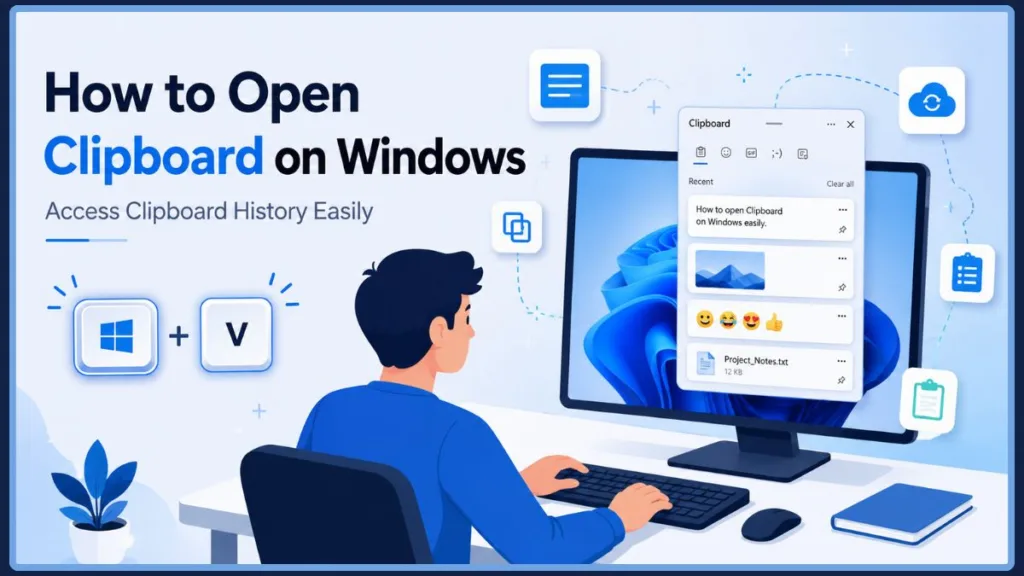
If it’s your first time, you may see a prompt asking you to turn the feature on. Just click Turn on, and you’re good to go.
This guide works for both Windows 11 and Windows 10, and covers everything from the basics to troubleshooting when things don’t go as expected.
Understand Clipboard History Before You Open It
Before diving into the methods, it helps to understand what the Windows Clipboard actually does — and why Clipboard History makes it so much more useful.
The Windows Clipboard is a temporary storage space built into every Windows PC. Every time you copy or cut something — a line of text, a URL, an image — Windows stores it on the clipboard so you can paste it somewhere else.
The traditional clipboard only holds one item at a time. Copy something new, and whatever was there before is gone.
That’s where Clipboard History comes in. Introduced in Windows 10 and refined in Windows 11, Clipboard History lets Windows store up to 25 recently copied items, so you can go back and paste older content without having to recopy it.
Here’s what the Windows Clipboard can store:
- Text — sentences, paragraphs, code snippets
- Images — screenshots, copied graphics
- Links — URLs and web addresses
Think of it as a short-term memory upgrade for your copy-paste workflow.
Method 1: Open Clipboard Instantly Using the Windows + V Shortcut (Recommended)
This is the quickest and most convenient way to access your clipboard on any Windows PC.
- Click inside any text field or document where you want to paste something.
- Press Windows + V on your keyboard.
- The Clipboard History panel will slide open, showing your recently copied items.
- Click any item in the list to paste it immediately.
If you see a message that says “Clipboard history is off,” just click Turn on. Windows will enable the feature right away and start saving your copied items.
Tip: You don’t need to be inside a text field to open the Clipboard panel — but you do need to be in one to paste. Open it anywhere, browse your history, and click to paste once you’re in the right spot.
This shortcut works the same way on both Windows 10 and Windows 11, making it the go-to method for most users.
Method 2: Access Clipboard Settings to Enable Clipboard History
If you’d rather set things up properly before using the shortcut, you can enable and manage Clipboard History directly from Settings. This is also the best method if the Windows + V shortcut isn’t responding.
- Press Windows + I to open Settings.
- Click on System.
- Select Clipboard from the left-hand menu.
- Toggle Clipboard history to On.
- From here, you can also adjust sync settings and clear your clipboard data.
Once you turn it on, go back and press Windows + V — your Clipboard History panel will now open as expected.
Tip: This Settings page is also where you’ll find the option to sync your clipboard across multiple Windows devices. More on that later.
Method 3: Find Clipboard Settings Quickly Using Windows Search
Don’t remember the keyboard shortcut? No problem. You can find Clipboard Settings directly through the Windows search bar in just a few clicks.
- Press the Windows key or click the Search icon on your taskbar.
- Type “Clipboard settings” in the search box.
- Click the first result that appears.
- The Clipboard Settings page will open, where you can toggle Clipboard History on or off.
This method is especially helpful if you’re setting up Clipboard History for the first time on a new PC, or if you’re helping someone else who isn’t familiar with keyboard shortcuts.
Learn How to Use Clipboard History Like a Pro
Now that you know how to open Clipboard, here’s how to actually use it day to day.
Copying items is the same as always:
- Press Ctrl + C to copy selected text or an image.
- Press Ctrl + X to cut selected content.
Accessing your history:
- Press Windows + V to open the Clipboard panel.
- You’ll see a list of everything you’ve recently copied, with the most recent item at the top.
- Click any item in the list to paste it into your current document or text field.
The key difference between Ctrl + V and Windows + V:
- Ctrl + V pastes the most recently copied item — just like standard pasting.
- Windows + V opens the Clipboard History panel, letting you choose which copied item to paste.
If you regularly copy multiple pieces of text — for example, while researching, writing, or filling out forms — Windows + V can save you a lot of time compared to switching between tabs and recopying things repeatedly.
Keep Important Clipboard Items Handy by Pinning Them
One limitation of Clipboard History is that it clears itself every time you restart your PC. But there’s a simple way to keep important items available even after a reboot — pinning.
To pin a clipboard item:
- Press Windows + V to open the Clipboard panel.
- Find the item you want to keep.
- Click the three-dot menu (…) next to the item.
- Select Pin.
Pinned items appear at the top of your Clipboard History and stay there permanently until you unpin or delete them. This is great for things you paste frequently — like your email address, a boilerplate paragraph, or a standard link.
To unpin an item, open the Clipboard panel, click the three-dot menu on the pinned item, and select Unpin.
Delete or Clear Clipboard History Whenever You Need
Clearing your clipboard is a good idea if you’ve recently copied sensitive information like passwords or personal data. There are two easy ways to do it.
Method 1: Using the Clipboard Panel
- Press Windows + V to open Clipboard History.
- Click the three-dot menu (…) at the top right of the panel.
- Select Clear all.
This removes all non-pinned items from your clipboard history instantly.
Method 2: Using Windows Settings
- Go to Settings > System > Clipboard.
- Scroll down to the Clear clipboard data section.
- Click Clear.
Tip (Advanced Users): If you want to clear just the current clipboard item via Command Prompt, you can type
echo off | clipand press Enter. This effectively replaces whatever’s on the clipboard with a blank value.
To delete a single item without clearing everything, press Windows + V, click the three-dot menu next to the item you want to remove, and select Delete.
Sync Clipboard Across Windows Devices for a Seamless Workflow
If you use more than one Windows PC — for example, a desktop at home and a laptop for work — you can sync your clipboard between them using your Microsoft account.
To set this up:
- Go to Settings > System > Clipboard.
- Under Sync across your devices, toggle the feature to On.
- Choose between Automatically sync text that I copy or Manually sync text that I copy.
With automatic sync, anything you copy on one device shows up in the Clipboard History of your other Windows devices almost instantly. The manual option lets you choose which items to sync by opening Clipboard History and clicking the sync icon on specific items.
Keep in mind:
- You need to be signed in to the same Microsoft account on all devices.
- Clipboard sync supports text only for cross-device use.
- Each item can be up to 4 MB in size.
This feature works on both Windows 10 and Windows 11, and is especially handy if you regularly move between devices throughout the day.
Why Windows + V Is Not Working
If pressing Windows + V doesn’t open the Clipboard panel, here are the most common reasons — and how to fix them. (If you need a deeper dive, check out our full tutorial on ways to fix Windows 11 clipboard history not working).
1. Clipboard History is turned off
This is the most likely cause. Go to Settings > System > Clipboard and make sure Clipboard history is toggled on. Then try the shortcut again.
2. Your PC needs a restart
Sometimes a fresh reboot is all it takes. Restart your computer and test Windows + V again after it boots up.
3. Windows Explorer needs to be restarted
The Clipboard panel is tied to Windows Explorer. If Explorer has crashed or frozen, the panel won’t open. To fix it:
- Press Ctrl + Shift + Esc to open Task Manager.
- Find Windows Explorer in the list.
- Right-click it and select Restart.
4. A keyboard shortcut conflict
Some third-party apps or keyboard remapping software can intercept the Windows + V shortcut. Check if any hotkey tools (like AutoHotkey) are running and temporarily disable them to test.
5. Windows is out of date
An older version of Windows 10 may have bugs affecting Clipboard History. Go to Settings > Windows Update and install any available updates, then restart.
Tips for Using Clipboard More Efficiently
Once Clipboard History is set up, these habits will help you get the most out of it:
- Pin your most-used snippets — things like your email signature, home address, or commonly used phrases. They’ll always be at the top of your list.
- Clear sensitive data after use — if you copy a password or ID number, remove it from clipboard history once you’re done pasting.
- Use Windows + V instead of switching tabs — instead of jumping back to a source document to recopy something, just pull it from your Clipboard History.
- Enable sync only if you need it — if you work across devices, sync is a great time-saver. If not, there’s no need to turn it on.
- Remember the 25-item limit — Windows only stores the last 25 copied items. If you need more, consider a free third-party clipboard manager like Ditto, which stores unlimited entries and even survives a restart.
Frequently Asked Questions About Windows Clipboard
How do I open a Clipboard in Windows 10?
Press Windows + V to open Clipboard History on Windows 10. If the panel doesn’t appear, go to Settings > System > Clipboard and turn on Clipboard History first.
How do I access Clipboard History in Windows 10?
Press Windows + V after enabling Clipboard History in Settings. You’ll see a list of recently copied text, images, and links you can click to paste.
How does the Windows Clipboard work? The Windows Clipboard temporarily stores anything you copy or cut using Ctrl + C or Ctrl + X. Clipboard History extends this by saving the last 25 items so you can paste any of them — not just the most recent one.
What is the shortcut to open Clipboard?
The shortcut is Windows + V. It opens the Clipboard History panel directly, where you can browse and paste previously copied items.
Where is my Clipboard on Windows 11?
Your Clipboard is accessible by pressing Windows + V, or by navigating to Settings > System > Clipboard. There’s no standalone app — it’s a built-in feature of Windows.
Where is the Clipboard on my laptop?
It works the same on laptops as on desktops. Press Windows + V to open it, or search for “Clipboard settings” in the Windows Search bar.
How do I retrieve something I copied?
Press Windows + V to open Clipboard History. Click on the item you copied previously to paste it wherever your cursor is placed. If the item isn’t showing up, Clipboard History may not have been turned on at the time you copied it.
How do I see copied items on Windows?
Press Windows + V. This opens the Clipboard panel, which shows all the text, images, and links you’ve copied recently — listed in order, with the most recent item at the top.
How do I set up Clipboard History?
Go to Settings > System > Clipboard and toggle Clipboard history to On. After that, press Windows + V anytime to view your copied items.
Can I sync Clipboard between computers?
Yes. Go to Settings > System > Clipboard, turn on Sync across your devices, and make sure you’re signed into the same Microsoft account on each Windows PC.
Can I clear Clipboard History?
Yes. Open Clipboard History with Windows + V, click the three-dot menu, and select Clear all. Or go to Settings > System > Clipboard and click Clear under the Clear clipboard data section.
Does Clipboard save files?
The Windows Clipboard can store text, HTML, and bitmap images — but not full files like documents or PDFs. It’s designed for content you copy, not complete files. If you copy a file in File Explorer, Windows stores a reference to it, but third-party clipboard managers handle files more comprehensively.
Final Thoughts on Opening and Using Clipboard on Windows
Opening your clipboard on Windows is simpler than most people realize. Press Windows + V, and you’ve got instant access to everything you’ve recently copied — no digging through menus required.
Clipboard History is one of those built-in Windows features that quietly saves time once you start using it. From pasting older copied items to pinning frequently used snippets, it turns the basic clipboard into a practical productivity tool.
Whether you’re on Windows 10 or Windows 11, the setup is the same: turn on Clipboard History, press Windows + V, and start working smarter with copy and paste.
If you run into any issues or have questions about the clipboard on your specific setup, check out our guide to fixing Windows 11 clipboard history issues, or drop a comment below — happy to help you sort it out.
Visit Our Post Page: Blog Page
Discover more from Izoate
Subscribe to get the latest posts sent to your email.