
Can’t open Clipboard History with Win + V? Learn How to Fix Windows 11 Clipboard History Not Working with 13 Proven Solutions that actually work.
If you rely on Win + V every day to quickly paste previously copied text, links, or images, you know exactly how frustrating it feels when Clipboard History suddenly stops working. One moment it’s there, and the next — nothing. The panel doesn’t open, your copied items don’t appear, or the history is completely empty no matter what you copy.
You’re not imagining things. Windows 11 Clipboard History not working is a surprisingly common issue, and it affects users across different versions — from the original Windows 11 release to the latest Windows 11 24H2 update.
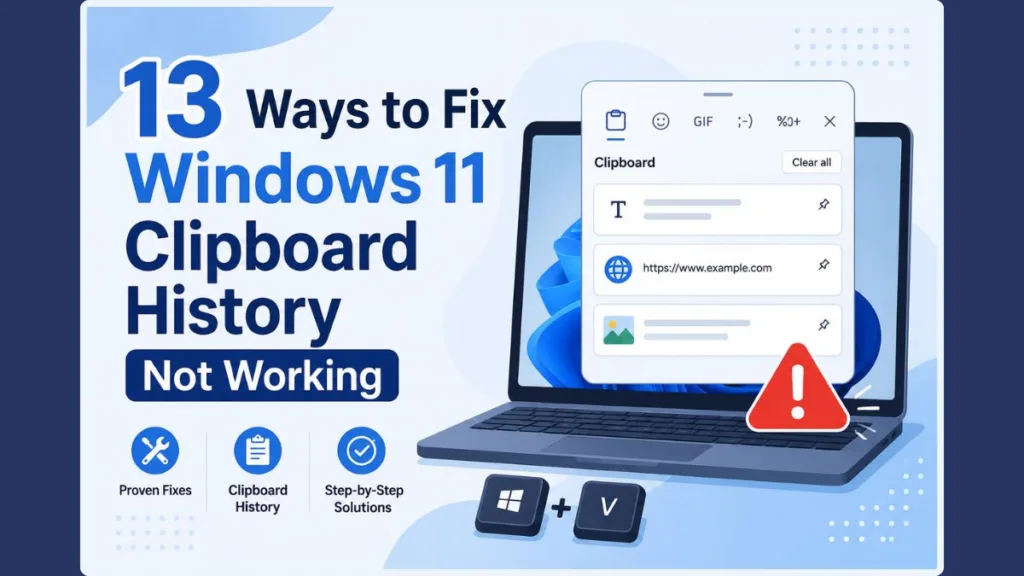
What makes this especially annoying is that Clipboard History is supposed to be one of Windows 11’s most useful productivity features. Unlike the standard clipboard that only holds one copied item at a time, Clipboard History stores up to 25 items — including text, URLs, and images — letting you go back and paste anything you’ve copied in your current session. That means no more re-copying the same paragraph, URL, or snippet repeatedly.
But when it breaks, you’re back to the old frustrating single-copy routine.
In this guide, you’ll find 13 proven solutions to fix Windows 11 Clipboard History not working, covering everything from the quick toggle check to Registry Editor fixes, Group Policy adjustments, system file repairs, and more. Whether you’re troubleshooting on a personal laptop, a work PC, or even a machine running Windows 10, you’ll find the answer here.
Why Is Windows 11 Clipboard History Not Working?
Before jumping into fixes, it helps to understand what’s actually going wrong under the hood. Here are the most common causes of clipboard history broken Windows 11 situations:
- Clipboard History is disabled — Windows 11 ships with this feature turned off by default. If it was never manually enabled, or if a Windows Update reset the toggle, it simply won’t work.
- Corrupted clipboard cache — The stored clipboard data can become corrupted, preventing new items from saving or the panel from loading.
- Windows Explorer glitch — Clipboard History is tightly linked to the Windows Explorer shell process. A crashed or frozen Explorer can silently kill the clipboard panel.
- Microsoft account sync issues — If you use Clipboard Sync across devices and there’s an account or internet connectivity problem, the history can misbehave.
- Windows Update bugs — Cumulative updates (especially around the Windows 11 24H2 cycle) have been known to break Clipboard History temporarily.
- Group Policy restrictions — On work PCs, school computers, or domain-joined machines, admins can disable Clipboard History through Group Policy.
- Registry changes — A value of
0in theAllowClipboardHistoryregistry key will silently block the feature, even if the Settings toggle looks fine. - Clipboard User Service (cbdhsvc) stopped — This background service handles storing and retrieving clipboard data. If it crashes or stops, your history becomes inaccessible.
- Corrupted system files — Damaged Windows components can break clipboard functionality in ways that simple restarts won’t fix.
- Third-party clipboard managers or privacy tools — Apps like CCleaner, privacy cleaners, or dedicated clipboard manager software can intercept or clear clipboard data automatically.
- Startup software conflicts — Certain apps that run at startup can interfere with the Win + V shortcut or the clipboard data storage process.
- Remote Desktop, Virtual Machines, or Sandbox sessions — Clipboard behavior works differently (or is disabled entirely) in these environments.
Symptoms vs Possible Causes — Quick Reference
Use this table to quickly identify the most likely cause of your specific problem before working through all 13 fixes. Matching your symptom to a root cause helps you jump straight to the most relevant troubleshooting method instead of starting from scratch.
| Symptom | Possible Cause |
|---|---|
| Win + V doesn’t open | Clipboard History is disabled |
| Clipboard History is empty | Corrupted clipboard cache |
| Clipboard History toggle is greyed out | Group Policy or Registry restriction |
| Clipboard clears automatically | Third-party privacy cleaner or clipboard manager |
| Clipboard works only sometimes | Windows Explorer or Clipboard User Service issue |
| Clipboard doesn’t sync | Microsoft account or Clipboard Sync issue |
Does Windows 11 Have a Clipboard History Feature?
Yes — Windows 11 absolutely has a built-in Clipboard History feature, and it’s quite powerful once you know how to use it.
Here’s what it includes:
- Win + V shortcut — Opens the Clipboard History panel over your current window. You can click any item to paste it directly.
- Multiple copied items — Stores up to 25 items per session, including text snippets, URLs, and images.
- Pin items — You can pin frequently used items so they survive a PC restart (unpinned items clear when you restart).
- Clipboard Sync — With a Microsoft account, you can sync copied text across multiple Windows devices in real time.
- Emoji, GIFs, Kaomoji, and Symbols — The Win + . (period) shortcut opens a related panel for inserting special characters and emoji.
The key difference between normal copy/paste (Ctrl + C / Ctrl + V) and Clipboard History is that the standard clipboard only holds your single most recently copied item. The moment you copy something new, the previous item is gone. Clipboard History breaks that limitation — it lets you scroll back through everything you’ve copied and paste anything from the list. For a more detailed walkthrough on accessing this feature, check out our guide on how to open Clipboard on Windows 11 and Windows 10.
Note: Clipboard History clears itself every time you restart your PC, unless you’ve pinned specific items. This is expected behavior, not a bug.
Before You Start
Take care of these quick checks before diving into troubleshooting:
- Make sure you’re running Windows 11 (any version, including 24H2). Open Settings → System → About to verify.
- Confirm you’re signed in with an Administrator account — some fixes require admin access.
- Save any important clipboard content before attempting fixes, since some steps will clear your clipboard data.
- Try a simple PC restart first — it solves more clipboard issues than you’d expect.
13 Ways to Fix Windows 11 Clipboard History Not Working
Method 1. Enable Clipboard History in Settings (How to Activate Clipboard History)
This is the single most common reason why clipboard history is broken in Windows 11 — the feature is simply turned off. Windows 11 doesn’t enable it out of the box, and Windows Updates sometimes reset the toggle without warning.
If you’ve been wondering “How do I enable clipboard history in Windows 11?” — here’s the answer.
When should you try this fix?
Try this method first if:
- Pressing Win + V does nothing at all, or the panel appears with a prompt to turn the feature on.
- You’ve never explicitly enabled Clipboard History on this PC before.
- The clipboard stopped working after a Windows Update and you haven’t checked the toggle.
- You’re setting up Clipboard History for the first time on a fresh Windows 11 installation.
Steps to activate Clipboard History:
- Press Win + I to open Settings.
- Click System in the left sidebar.
- Select Clipboard.
- Toggle Clipboard history to On.
- While you’re here, you can also enable Sync across devices if you’d like clipboard content to sync across your Microsoft account devices.
Test it: Copy some text with Ctrl + C, then press Win + V. If the panel opens and shows your copied item, you’re done.
If the Clipboard history toggle is grayed out and you can’t interact with it, this usually means a Group Policy or Registry restriction is in place. Jump to Method 6 or Method 7 for those fixes.
Tip: If you can see the Clipboard History panel when you press Win + V but it says “Turn on” — just click that button. It’s a shortcut to enable the feature without going into Settings.
Note: Some Windows 11 versions include a Suggested actions option under Settings → System → Clipboard. If Clipboard History continues to behave unexpectedly after enabling it, try temporarily turning Suggested actions off, restart your PC, and test Win + V again. While this isn’t a universal fix, some users have reported it resolves Clipboard History issues after certain Windows updates.
Method 2. Clear Clipboard Data to Fix Corrupted Clipboard Cache
When your Windows 11 clipboard history is empty even after enabling the feature and copying several items, a corrupted clipboard cache is often the reason. Clearing the cache forces Windows to start fresh, which frequently resolves the issue.
Why this works: The clipboard cache stores your copied items in memory. If that cache becomes corrupted — after a crash, a failed update, or data overflow — Windows struggles to write new entries to it. Clearing it resets the storage mechanism.
When should you try this fix?
Try this method if:
- Clipboard History is enabled in Settings but the panel shows “Nothing here” even after copying items.
- The Win + V panel opens but is consistently empty.
- Clipboard History worked earlier in your session but stopped saving new copies.
- You recently hit the 25-item limit by copying large files, images, or formatted content repeatedly.
Steps to clear clipboard data:
- Press Win + I → System → Clipboard.
- Scroll down to Clear clipboard data.
- Click the Clear button.
Alternatively, press Win + V to open the Clipboard History panel, then click the three dots (…) in the top-right corner and select Clear all.
Warning: This erases your entire clipboard history, including any unpinned items. Paste anything critical before clearing.
After clearing, restart your PC and test again with Win + V.
Method 3. Restart Windows Explorer
This fix sounds simple, but it’s remarkably effective. Windows Explorer is the shell process that powers your desktop, taskbar, and Start menu — and it’s also deeply connected to how Clipboard History renders its UI panel.
When Explorer gets stuck or crashes quietly in the background, pressing Win + V either does nothing or opens a blank panel. Restarting Explorer refreshes the connection between the clipboard service and the visual interface without requiring a full PC restart.
When should you try this fix?
Try this method if:
- Pressing Win + V opens a blank or transparent panel with no content.
- Clipboard History suddenly stopped working mid-session without any update or change.
- Your taskbar or Start menu has been behaving sluggishly or freezing.
- The issue appeared after your PC woke from sleep or hibernate.
Steps to restart Windows Explorer:
- Press Ctrl + Shift + Esc to open Task Manager.
- Go to the Processes tab.
- Scroll down and find Windows Explorer.
- Right-click it and select Restart.
- Your taskbar will briefly disappear and then reappear — this is normal.
Test Win + V again. In many cases, especially after a Windows Update or after your PC has been running for a while, this is all it takes.
Method 4. Check Clipboard Sync and Microsoft Account
If your clipboard history works intermittently — saving some items but not others — or if Clipboard Sync across your devices has stopped working, your Microsoft account sign-in or sync settings may be the culprit.
Clipboard Sync requires you to be signed in with a Microsoft account and have a stable internet connection. If your account session has expired, or if sync was accidentally disabled, the clipboard can behave unpredictably.
When should you try this fix?
Try this method if:
- Copied items appear on one Windows 11 device but not on another.
- Clipboard History saves items locally but the Sync across devices feature shows as unavailable or broken.
- You recently changed your Microsoft account password or re-signed in to Windows.
- Clipboard behavior has become inconsistent — working sometimes but not others — and you use multiple Windows devices.
Steps to fix clipboard sync:
- Press Win + I → System → Clipboard.
- Under Sync across devices, check your current status.
- If sync is off, toggle it On.
- If it’s already on, try toggling it Off, waiting 10 seconds, then turning it back On.
If you’re signed in with a local account (not a Microsoft account), Clipboard Sync won’t be available to you — but local Clipboard History should still function normally.
Note: Clipboard Sync works best when you’re signed in with the same Microsoft account across all Windows 11 devices and have a stable internet connection. If you’re on a metered or restricted network, sync can fail silently.
Method 5. Install the Latest Windows Updates
If your Windows 11 clipboard history stopped working after an update, it’s possible a recent cumulative update introduced a bug. Ironically, the fix for this is often the next cumulative update, as Microsoft frequently patches clipboard-related issues in monthly rollouts.
Real user reports on Microsoft Q&A confirmed, for example, that clipboard history stopped working after the 2024-09 Cumulative Update Preview for Windows 11 Version 24H2 (KB5043178) — and that installing the subsequent December 2024 update resolved it completely.
When should you try this fix?
Try this method if:
- Clipboard History stopped working directly after a Windows Update was installed.
- The issue began after upgrading to Windows 11 24H2 or any other major feature update.
- Clipboard History was working fine previously and broke suddenly without any other changes on your end.
- You haven’t checked for updates recently and your system may be running an older, buggy cumulative release.
Steps to check for Windows Updates:
- Press Win + I → Windows Update.
- Click Check for updates.
- Install any pending updates, including optional quality updates.
- Restart your PC when prompted.
After the restart, test your clipboard history with Win + V.
Tip: Even if you see “You’re up to date,” click Check for updates manually — Windows doesn’t always notify you about optional cumulative updates right away.
Method 6. Fix Clipboard History Using Group Policy Editor
If your clipboard history toggle is grayed out or says “This setting is managed by your organization,” a Group Policy restriction is blocking the feature. This commonly happens on work PCs, school computers, or domain-joined machines, but can also appear on personal PCs after certain Windows configurations or third-party “debloat” scripts.
Note: The Group Policy Editor (gpedit.msc) is only available on Windows 11 Pro, Enterprise, and Education. If you’re on Windows 11 Home, skip to Method 7 instead.
When should you try this fix?
Try this method if:
- The Clipboard History toggle in Settings → System → Clipboard is greyed out and you can’t interact with it.
- You see the message “This setting is managed by your organization” on a personal PC.
- You’re on Windows 11 Pro, Enterprise, or Education and suspect a policy is blocking the feature.
- A third-party Windows optimization or debloat script has been run on your machine recently.
Steps to enable Clipboard History via Group Policy:
- Press Win + R, type
gpedit.msc, and press Enter. - In the left panel, navigate to:
Computer Configuration → Administrative Templates → System → OS Policies- In the right panel, double-click Allow Clipboard History.
- Select Enabled.
- Click Apply, then OK.
- Also double-click Allow Clipboard Synchronization across devices and set it to Enabled if you use Clipboard Sync.
- Close the Group Policy Editor.
Now open an elevated Command Prompt (search cmd, right-click, Run as administrator) and run:
gpupdate /forceThen restart your PC.
Warning: On corporate or school devices, these settings may be pushed by your IT administrator and could revert after the next policy sync. If the setting keeps reverting, contact your IT department.
Method 7. Fix Clipboard History Using Registry Editor
If you’re on Windows 11 Home (which doesn’t include Group Policy Editor), or if Group Policy didn’t resolve the issue, you can achieve the same result by editing the Windows Registry directly.
This method is also useful if a previous registry change set AllowClipboardHistory to 0, blocking the feature at the system level.
When should you try this fix?
Try this method if:
- You’re on Windows 11 Home and the Clipboard History toggle is greyed out (since Group Policy Editor isn’t available on Home).
- The toggle is unresponsive despite the feature appearing to be enabled in Settings.
- You have reason to believe a registry value was changed — for example, after running an optimization script, debloat tool, or privacy cleaner.
- Method 6 (Group Policy) didn’t resolve the issue or isn’t available on your edition of Windows.
Understanding the Registry Values
Before editing anything, it helps to understand exactly what these two registry values control — and why they may already exist on your system.
- AllowClipboardHistory — This DWORD value controls whether the Clipboard History feature is permitted at the system (machine-wide) level. When set to
1, the feature is allowed. When set to0, Clipboard History is completely blocked — even if the toggle in Settings appears to be on, it won’t function. When this value is absent entirely, Windows falls back to its default behavior, which allows users to toggle the feature themselves. - AllowCrossDeviceClipboard — This DWORD controls whether clipboard content can sync across multiple Windows devices via a Microsoft account. Setting it to
1enables cross-device clipboard sync. Setting it to0blocks sync even if the option appears available in Settings.
These values may already exist on your system for several reasons:
- Windows configuration during setup — Some editions or OEM builds apply restrictive defaults.
- Local Group Policy — If Group Policy was previously configured (even by accident), it writes these values to the registry.
- Organization or MDM policies — Work and school PCs managed via Microsoft Intune or similar tools push these values remotely.
- Third-party privacy tools — Apps like CCleaner, O&O ShutUp10, or Windows privacy optimizers often set
AllowClipboardHistoryto0as part of a “reduce data collection” preset. - Windows debloat or optimization scripts — Scripts designed to strip down Windows 11 frequently disable Clipboard History by writing a
0value to this key.
Changing these values only restores Clipboard History if they were previously set to 0 intentionally or accidentally. If the values don’t exist, Windows uses its default permissive state, and the issue likely lies elsewhere.
Warning: Editing the Registry incorrectly can cause Windows issues. Before making changes, create a restore point: go to Control Panel → System → System Protection → Create.
Steps to fix Clipboard History via Registry:
- Press Win + R, type
regedit, and press Enter. Accept the UAC prompt. - In the Registry Editor address bar, paste the following path and press Enter:
HKEY_LOCAL_MACHINE\SOFTWARE\Policies\Microsoft\Windows\System- In the right pane, look for a value named AllowClipboardHistory.
- If it exists and is set to 0, double-click it and change the value data to 1.
- If it doesn’t exist, right-click in the empty right pane → New → DWORD (32-bit) Value → name it
AllowClipboardHistory→ double-click it and set the value to 1.
- Click OK.
- Now also check (or create) a second value: AllowCrossDeviceClipboard, and set its value to 1 as well.
- Close Registry Editor and restart your PC.
Tip: If the above path doesn’t resolve it, also check the user-specific path:
HKEY_CURRENT_USER\SOFTWARE\Policies\Microsoft\Windows\System— delete or setAllowClipboardHistoryto1there as well, as this location can override the machine-wide setting.
After restarting, go to Settings → System → Clipboard and confirm the toggle is now interactive and enabled.
Method 8. Restart the Clipboard User Service (cbdhsvc)
Behind the scenes, Windows 11 Clipboard History relies on a background service called the Clipboard User Service (also known internally as cbdhsvc). This service handles the actual storing, retrieving, and displaying of your clipboard items.
If this service crashes, is stopped, or fails to start properly — often after a Windows Update or system sleep/hibernate cycle — your clipboard history becomes completely non-functional even though the Settings toggle shows it as enabled.
When should you try this fix?
Try this method if:
- Clipboard History is enabled in Settings, but copied items are not appearing in the Win + V panel.
- The issue started after your PC woke from sleep, hibernation, or a long idle period.
- You’ve already restarted Windows Explorer (Method 3) and cleared the clipboard cache (Method 2) without success.
- Clipboard History works immediately after a fresh reboot but fails again after some time, suggesting the service is crashing in the background.
Steps to restart the Clipboard User Service:
- Press Win + R, type
services.msc, and press Enter. - In the Services window, scroll down and find Clipboard User Service.
- Right-click it and select Restart.
- If the option is grayed out, right-click and select Start instead.
- In the Properties (right-click → Properties), make sure Startup type is set to Manual (this service is dynamically managed per user session — Manual is correct).
- Click OK and close the Services window.
Test Win + V to confirm clipboard history is saving items again.
Note: The Clipboard User Service is a per-user dynamic service, which means it may appear with a suffix like
cbdhsvc_xxxxxin Task Manager rather than by its full name in Services. This is normal — Windows manages it automatically for each user session.
Method 9. Disable Third-Party Clipboard Managers, Privacy Tools, or Cleaners
If your clipboard history works right after you boot your PC but then empties itself or stops responding later in the day, a third-party application is almost certainly to blame.
Privacy tools (like CCleaner), system optimizers, anti-spyware apps, registry cleaners, and dedicated clipboard manager apps can all interfere with Windows native Clipboard History. Some are configured to clear the clipboard automatically on a schedule or when certain conditions are met. Others actually replace the clipboard entirely with their own system.
When should you try this fix?
Try this method if:
- Clipboard History works correctly right after startup but empties itself or stops saving items later in the day.
- You have a clipboard manager, privacy cleaner, or system optimizer installed (such as CCleaner, Ditto, ClipX, or O&O ShutUp10).
- Your clipboard clears automatically when switching applications or after a set period of time.
- You ran a Windows debloat or optimization script at any point, which may have disabled clipboard services as part of its routine.
Common culprits include:
- CCleaner (especially with “Drive Wiper” or auto-clean features)
- Privacy Cleaner Pro
- ClipX, Ditto, or other clipboard manager apps running simultaneously
- Windows debloat scripts that disable clipboard-related services
- Antivirus tools with data privacy modules
Steps to test for third-party interference:
- Temporarily disable or uninstall any clipboard manager or privacy/cleaning tools.
- If your clipboard manager has a setting to not override Windows native clipboard, enable that option instead of uninstalling.
- Restart your PC and test Win + V.
Tip: If Clipboard History works after disabling a tool, you’ve found your culprit. You can either keep the tool disabled when you need clipboard history, or look for a compatibility setting within the third-party app.
Method 10. Repair Windows System Files with SFC and DISM
If you’re still experiencing clipboard history problems in Windows 11 after trying the above methods, corrupted system files may be the underlying cause. When critical Windows components that manage the clipboard UI or Clipboard User Service become damaged — often from a bad update, sudden power loss, or hardware issues — even restarting services won’t help.
The solution is to run SFC (System File Checker) and DISM (Deployment Image Servicing and Management), two built-in Windows tools that scan for and repair damaged files.
When should you try this fix?
Try this method if:
- You’ve already tried Methods 1 through 9 and clipboard history still doesn’t work.
- The issue appeared after a sudden power loss, hard shutdown, or system crash.
- You notice other Windows features — beyond just the clipboard — behaving unexpectedly or failing.
- SFC or DISM haven’t been run recently, and your system may have accumulated corrupted files over time.
Steps to run SFC:
- Search for Command Prompt in the Start menu.
- Right-click it and select Run as administrator.
- Type the following command and press Enter:
sfc /scannow- Wait for the scan to complete (it can take 10–20 minutes). Do not close the window.
If SFC finds issues but can’t repair them — or if clipboard history is still broken after SFC — run DISM to repair the Windows image itself.
Steps to run DISM:
In the same elevated Command Prompt, run:
DISM /Online /Cleanup-Image /RestoreHealthThis process can take several minutes and may appear to “stall” at certain percentages — let it finish completely. After both tools complete, restart your PC and test clipboard history.
Tip: Run DISM first if you suspect major system corruption, then follow up with SFC for a thorough repair.
Method 11. Perform a Clean Boot
Some software that runs at startup quietly hijacks the Win + V shortcut or interferes with clipboard data storage before you even have a chance to notice. A Clean Boot starts Windows with only Microsoft’s essential services running, which helps you isolate whether a startup application is causing your clipboard history problems.
When should you try this fix?
Try this method if:
- Clipboard History worked fine previously but stopped working around the same time you installed new software.
- You suspect a startup application or background service is intercepting the Win + V shortcut.
- Clipboard History works in Safe Mode but fails in a normal Windows session.
- Methods 1–10 haven’t resolved the issue and you want to rule out software conflicts before attempting advanced repairs.
Steps to perform a Clean Boot:
- Press Win + R, type
msconfig, and press Enter. - Go to the Services tab.
- Check Hide all Microsoft services at the bottom.
- Click Disable all.
- Go to the Startup tab and click Open Task Manager.
- In Task Manager, disable all startup items one by one (right-click → Disable).
- Close Task Manager, then click OK in the System Configuration window.
- Restart your PC.
Test Win + V in the Clean Boot state. If clipboard history works now, a startup application was the problem.
To find the specific culprit, re-enable your startup apps in groups, restarting after each batch, until the issue returns. That batch contains your problematic app.
Note: After troubleshooting, remember to go back to
msconfigand re-enable your services and startup programs, then restart normally.
Method 12. Check Remote Desktop, Sandbox, Virtual Machines, or Work PC Restrictions
If you’re using Clipboard History inside a Remote Desktop (RDP) session, Windows Sandbox, a virtual machine (VMware, Hyper-V, VirtualBox), or a managed work/school PC, the behavior of Win + V can be very different from a standard local session.
When should you try this fix?
Try this method if:
- You’re accessing Windows through a Remote Desktop (RDP) connection and Win + V doesn’t work as expected in the remote session.
- You’re running Windows inside a virtual machine (VMware, VirtualBox, Hyper-V) and clipboard sharing between the host and guest isn’t functioning.
- You’re on a work or school PC where Clipboard History appears disabled and the toggle is inaccessible — suggesting an IT policy is in place.
- You’re using Windows Sandbox and copied items from inside the sandbox aren’t appearing in your host machine’s clipboard history.
Here’s what to know about each scenario:
- Remote Desktop (RDP): Clipboard Redirection between your local PC and the remote session must be explicitly enabled. In your RDP client, go to Show Options → Local Resources → Clipboard and ensure it’s checked. However, clipboard history within the remote session may still be limited by the remote machine’s own settings.
- Windows Sandbox: Clipboard sharing between the host and the sandbox is limited by design. Items copied inside the sandbox won’t appear in your host’s clipboard history.
- Virtual Machines: Clipboard sharing tools (like VMware Tools or VirtualBox Guest Additions) need to be installed and configured. Even then, clipboard history behavior can differ from the host OS.
- Work or school PCs: Your IT administrator may have used Group Policy or an MDM (Mobile Device Management) solution to disable Clipboard History organization-wide. In this case, you won’t be able to re-enable it without admin access. Confirm with your IT department.
If you’re in any of these environments and clipboard history doesn’t work, it may be an intentional restriction rather than a technical bug.
Method 13. Reinstall Clipboard Components or Use a Clipboard Manager
One thing worth clarifying: there is no standalone Clipboard app in Windows 11 that you can uninstall and reinstall. Clipboard History is embedded into the Windows shell itself, so “reinstalling clipboard” isn’t a direct option.
When should you try this fix?
Try this method if:
- You’ve worked through all 12 previous methods without success and clipboard history still refuses to function.
- Multiple Windows features — not just the clipboard — are broken, suggesting deep system-level corruption.
- You need a working clipboard solution immediately and can’t wait to troubleshoot further — a third-party clipboard manager provides an instant alternative.
- You’re prepared for more advanced steps like a Windows Repair Install or system reset.
However, if nothing else has worked, here are your remaining options:
Option A: Restart Windows shell components
Press Ctrl + Shift + Esc → find Windows Explorer → right-click → Restart. (You’ve done this in Method 3 — try it again at this stage in combination with restarting the Clipboard User Service from Method 8.)
Option B: Windows Repair Install (In-Place Upgrade)
You can reinstall Windows 11 over itself without losing your files, apps, or settings. Download the Windows 11 Installation Media from Microsoft’s website, run the setup, and choose Keep your files and apps. This repairs all Windows components, including clipboard functionality.
Option C: Reset Windows (Last Resort)
Go to Settings → System → Recovery → Reset this PC. Choose Keep my files to preserve personal data. This is a more thorough reset than the Repair Install.
Option D: Use a Third-Party Clipboard Manager
If Windows Clipboard History simply won’t cooperate, excellent alternatives exist:
- Ditto — Free, open-source, lightweight, and highly configurable.
- ClipboardFusion — Feature-rich with text transformations and sync options.
- Clipboard Manager (Microsoft Store) — A simple option for users who just want the basics.
These tools work independently of the Windows native clipboard service, so they keep functioning even when the built-in clipboard history is broken.
What If Windows 11 Clipboard History Is Still Not Working?
If you’ve tried all 13 methods and clipboard history still refuses to work, here are the advanced options:
- Windows Repair Install / In-Place Upgrade — Reinstall Windows 11 while keeping your files, apps, and settings. This fixes deep system corruption that SFC and DISM can’t always reach.
- System Restore — If you have a restore point from before the problem started (especially before a Windows Update), rolling back to it can resolve clipboard issues tied to that update.
- Create a new Windows user account — Sometimes the issue is profile-specific. Create a new local or Microsoft account on your PC and test clipboard history there. If it works, the problem is isolated to your original user profile.
- Reset Windows — A full Reset This PC (keeping your files) will reinstall Windows and resolve even the most persistent clipboard issues.
These are last-resort options, so only consider them after exhausting the 13 methods above.
Windows 10 Clipboard History Not Working
Good news if you’re still on Windows 10 — nearly every fix in this guide also applies to you. The core feature works the same way: Win + V opens the panel, and you enable it in Settings → System → Clipboard. If you need a refresher on how to access Clipboard History on Windows, that guide covers both Windows 11 and Windows 10 in detail.
To fix clipboard history not working in Windows 10:
The same methods apply: enable the feature in Settings, restart Windows Explorer, check Group Policy and Registry, restart the Clipboard User Service, run SFC and DISM, and perform a Clean Boot.
A few small differences to keep in mind:
- The Settings layout looks slightly different in Windows 10 — Clipboard is still under System, but the visual design of the Settings app varies.
- Windows Update versions differ — search for the most recent cumulative update for your Windows 10 version (21H2, 22H2, etc.).
- Group Policy paths are the same:
Computer Configuration → Administrative Templates → System → OS Policies. - Windows 10 Home users also lack the Group Policy Editor, so the Registry fix in Method 7 applies to them as well.
Windows 11 Clipboard History Not Working — What the Community Says
Across tech forums, Reddit threads, and Microsoft Q&A discussions, users have reported consistent patterns when their clipboard history stops working in Windows 11. Here’s a summary of the fixes that come up most often in community conversations:
- Restarting Windows Explorer is almost universally mentioned as a quick first step, especially when the Win + V panel goes blank after an update.
- Disabling clipboard managers (particularly older apps that haven’t been updated for Windows 11) comes up frequently, with users discovering these tools were silently hijacking the native clipboard.
- Installing the latest cumulative Windows Update has resolved clipboard issues for many users following specific update releases, particularly around the 24H2 rollout.
- The Registry fix (setting
AllowClipboardHistoryto1) is the go-to solution when the clipboard toggle is greyed out or the message “This setting is managed by your organization” appears on a personal PC. - Group Policy adjustments are commonly flagged on work or school PCs where Clipboard History was disabled by administrators.
- Running SFC and DISM is the community’s recommended path when none of the simpler fixes work and clipboard issues persist across reboots.
- Clean Boot troubleshooting often reveals startup software conflicts that were silently intercepting the Win + V shortcut.
Quick Troubleshooting Checklist
Use this table to quickly match your specific symptom to the most likely fix:
| Problem | Recommended Fix |
|---|---|
| Win + V doesn’t open anything | Method 1 — Enable Clipboard History in Settings |
| Clipboard History panel is empty | Method 2 — Clear clipboard cache |
| History disappeared suddenly | Method 3 — Restart Windows Explorer |
| Copying items but they don’t save | Method 4 — Check Sync and Microsoft account |
| Broke after a Windows Update | Method 5 — Install latest Windows Update |
| Toggle is grayed out (Pro/Enterprise) | Method 6 — Group Policy fix |
| Toggle is grayed out (Home) | Method 7 — Registry Editor fix |
| Works briefly then stops | Method 8 — Restart Clipboard User Service |
| Clipboard clears automatically | Method 9 — Disable third-party cleaners |
| Nothing works after trying basics | Method 10 — Run SFC and DISM |
| Specific app might be conflicting | Method 11 — Clean Boot |
| Using Remote Desktop or work PC | Method 12 — Check session/policy restrictions |
| All else failed | Method 13 — Repair install or clipboard manager |
Frequently Asked Questions
Why is my clipboard not working in Windows 11 24H2?
The Windows 11 24H2 update has been confirmed to cause clipboard history problems for some users, particularly around the September–November 2024 cumulative update cycle. The most effective fixes are to install the latest cumulative update (which contains patches for these bugs), toggle Clipboard History off and back on in Settings, and restart Windows Explorer. Some users also found that disabling Suggested Actions in the Clipboard Settings before re-enabling Clipboard History resolved the issue.
How do I enable clipboard history in Windows 11?
Press Win + I → System → Clipboard → toggle Clipboard history to On. Alternatively, press Win + V directly — if clipboard history is off, you’ll see a prompt to enable it with a single click. For a full step-by-step walkthrough, see our dedicated guide on how to open Clipboard History using Win + V on Windows 11 and Windows 10.
Does Windows 11 have a clipboard history feature?
Yes. Windows 11 includes Clipboard History as a built-in feature, accessible by pressing Win + V. It stores up to 25 copied items per session, supports text and images, allows pinning, and can sync across devices via a Microsoft account. It’s available on all editions — Home, Pro, Enterprise, and Education.
Why is Windows + V not working?
The most common reasons Win + V is not working are: Clipboard History is disabled in Settings, the Clipboard User Service has crashed, Windows Explorer needs to be restarted, or a Group Policy/Registry restriction is blocking the shortcut. Work through Methods 1–3 first, as they resolve the majority of cases.
Why is my Windows 11 Clipboard History empty?
If your clipboard history is empty despite copying items, the most likely causes are: the clipboard cache is corrupted (fix: clear it via Settings → System → Clipboard → Clear), a third-party tool is automatically clearing your clipboard, or the Clipboard User Service has stopped running. Methods 2, 8, and 9 directly address this.
Can Windows Update break Clipboard History?
Yes. Several cumulative updates — particularly around the Windows 11 24H2 release cycle — have been documented to break or reset clipboard history settings. The fix is almost always installing the next available cumulative update, which typically contains the patch. Check Settings → Windows Update → Check for updates and install everything available.
Can I reinstall Clipboard on Windows 11?
There is no standalone Clipboard app to reinstall separately. Clipboard History is built into the Windows shell. If you need to “reinstall” clipboard functionality, your options are to restart the Clipboard User Service, run SFC and DISM to repair system files, perform a Windows Repair Install (In-Place Upgrade), or reset Windows entirely. Method 13 covers all of these options.
How do I fix clipboard history not working in Windows 10?
The process is nearly identical. Enable it in Settings → System → Clipboard, restart Windows Explorer, check Group Policy and Registry, restart the Clipboard User Service, run sfc /scannow and DISM /Online /Cleanup-Image /RestoreHealth, and perform a Clean Boot if needed. All 13 methods in this guide apply to Windows 10.
Does Clipboard History work without a Microsoft account?
Yes. Clipboard History works perfectly with a local Windows account — you just won’t have access to Clipboard Sync (syncing clipboard content across multiple devices), which requires a Microsoft account sign-in.
Can third-party software disable Clipboard History?
Absolutely. Privacy cleaners, system optimizers, registry tools, and dedicated clipboard manager apps can all interfere with or override Windows native Clipboard History. If your clipboard works right after a restart but empties or stops saving later, a third-party tool running in the background is the likely culprit. Method 9 walks you through identifying and resolving this.
Conclusion
Dealing with Windows 11 clipboard history not working is frustrating, but the good news is that most cases are resolved quickly with just one or two of the methods above.
Here’s the recommended order to try:
- Start with Method 1 — Enable Clipboard History in Settings. This solves the issue for the majority of users.
- Method 2 and 3 — Clear the corrupted clipboard cache and restart Windows Explorer. Quick and low-risk.
- Method 5 — If the problem started after a Windows Update, install the latest available updates first.
- Methods 6 and 7 — If your toggle is greyed out, tackle the Group Policy or Registry restriction.
- Method 8 — Restart the Clipboard User Service if history still won’t save items.
- Method 9 — If clipboard clears automatically, a third-party tool is the culprit.
- Methods 10 and 11 — Run SFC/DISM or a Clean Boot for persistent, unexplained issues.
- Methods 12 and 13 — If you’re in a restricted session or nothing else worked, check your environment or consider a Repair Install.
The vast majority of clipboard history problems in Windows 11 are resolved within the first three or four methods. Registry changes, system file repairs, and Windows reinstalls are only necessary for persistent or unusual cases.
Have you found another fix that worked for you? Drop a comment below — your experience might save another reader hours of troubleshooting. And if you found this guide helpful, share it with anyone dealing with the same Win + V headache.
Quick Recap
- If Win + V doesn’t open at all, begin with Method 1 — enabling Clipboard History in Settings is the single most common fix.
- If Clipboard History is empty despite copying items, start with Method 2 to clear the corrupted cache.
- If the toggle is greyed out and unresponsive, go directly to Method 6 (Group Policy, for Pro/Enterprise users) or Method 7 (Registry Editor, for Home users).
- If Clipboard History stopped working after a Windows Update, try Method 5 first — the fix is usually the next cumulative update.
- If clipboard history clears automatically later in the day but works right after startup, Method 9 will help you track down the third-party tool responsible.
- If none of the methods resolve the issue, follow Method 13 for advanced repair options including a Windows Repair Install, system reset, or switching to a third-party clipboard manager.
The encouraging reality is that most Windows 11 clipboard history problems are solved by one of the first three or four methods. You’re unlikely to need a registry edit or system repair unless you’re dealing with a policy restriction or deep file corruption. Start simple, work through the list, and your clipboard will almost certainly be back in action before you reach the advanced fixes.
Visit Our Post Page: Blog Page
Discover more from Izoate
Subscribe to get the latest posts sent to your email.