
Trying to open Command Prompt during Windows Setup but nothing’s happening? Here’s why the shortcut fails on most laptops and how to fix it fast.
If you’re in the middle of installing Windows and Shift + F10 isn’t doing anything, you’re not alone. This is one of the most common frustrations during Windows Setup — and the fix is usually simpler than you’d expect.
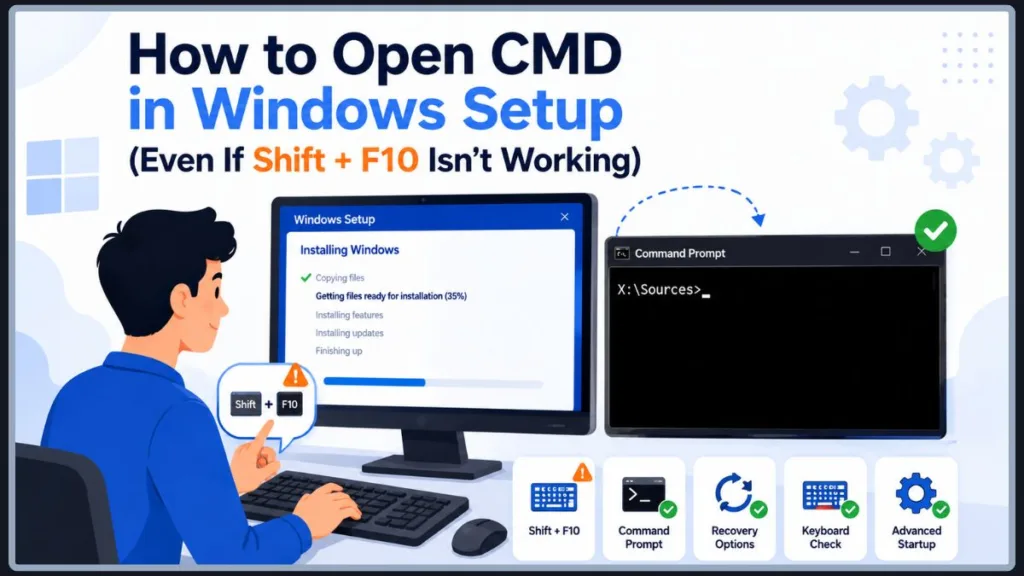
In this guide, you’ll learn exactly how to open Command Prompt during Windows Setup, why the shortcut sometimes appears broken, and what to do if it still won’t open. You’ll also find a list of the most common reasons people need CMD during installation, so you can get done what you actually came here to do.
Quick Answer: If you’re on a laptop, try Fn + Shift + F10 instead of just Shift + F10. Most laptops require the Fn key to activate function keys. That one change fixes the problem for most people.
Why Shift + F10 Is Not Opening CMD During Windows Setup
Before anything else — no, Microsoft did not remove Command Prompt access from Windows Setup. Shift + F10 still works in Windows 11, including version 22H2 and later. So if the shortcut isn’t responding, something else is going on.
The most common reason is your keyboard.
On most laptops, the F1 through F12 keys are shared with media controls, brightness adjustments, and other functions. By default, pressing F10 triggers whatever your laptop manufacturer assigned to that key — not the actual F10 function. To use the real F10, you need to hold the Fn key at the same time.
So when you press Shift + F10 during Windows Setup, your laptop might be reading it as Shift + [mute] or Shift + [brightness down] instead of the actual shortcut. Nothing happens, and you’re left wondering if something is wrong with Windows.
Desktop keyboards with a standard layout don’t usually have this problem. If you’re on a desktop and Shift + F10 still isn’t working, jump to the troubleshooting section below.
Tip: If you’re on a laptop, always try Fn + Shift + F10 first. It solves this problem in the majority of cases.
How to Open Command Prompt During Windows Setup: 4 Methods That Work
There are four ways to open CMD during Windows Setup. Start with the one that matches your setup.
Fn + Shift + F10 — How to Open CMD on a Laptop During Windows Setup
This is the fix most people need.
Steps:
- Wait for the Windows Setup screen to fully load
- Hold Fn, then hold Shift, then press F10
- Release all three keys
- The Command Prompt window should appear on screen
If your laptop has an Fn Lock key (sometimes labeled FnLock or shown as a padlock icon on the Fn key), you can press it first to toggle function key behavior permanently. After that, regular Shift + F10 will work without holding Fn.
Check your laptop’s manual or manufacturer website if you’re not sure where the Fn Lock key is.
Shift + F10 — How to Open CMD on a Desktop or Standard Keyboard During Windows Setup
If you’re on a desktop or a laptop with a standard keyboard layout, this is all you need.
Steps:
- Wait for the Windows Setup screen to fully load
- Hold Shift and press F10
- Command Prompt should open immediately
If it doesn’t open, your keyboard might still be initializing. Wait a few more seconds after the screen loads and try again.
How to Open CMD During Windows Setup Using the Accessibility Menu
Some setup screens include an Accessibility icon in the bottom-right corner. This gives you another path to open CMD on certain screens.
Steps:
- Look for the Accessibility icon in the bottom-right corner of the setup screen
- Click it to open the Accessibility menu
- On some Windows builds, you can use the on-screen keyboard to trigger shortcuts or navigate to additional options
Note: This method works on specific setup screens only and may not be available on every version of Windows. If you don’t see the Accessibility icon, use one of the other methods.
How to Open CMD in Windows Setup by Booting from a USB Drive
If none of the keyboard shortcuts are working, this method always works. You’ll need a Windows installation USB drive.
Steps:
- Boot your PC from the Windows installation USB
- On the first setup screen, click Next
- Click Repair your computer in the bottom-left corner
- Select Troubleshoot
- Select Advanced Options
- Click Command Prompt
CMD will open with full administrative access. This method is also the best option if you need CMD for recovery tasks like repairing boot files or running DiskPart.
Important: The Command Prompt that opens during Windows Setup has full administrative access. Any command you run takes effect immediately. Double-check commands before pressing Enter.
Which Windows Setup Screens Support the Shift + F10 Shortcut
Not always. Shift + F10 and Fn + Shift + F10 work on most standard Windows Setup screens, but there are a few situations where the shortcut may not respond.
It works reliably on:
- The language and region selection screen
- The OOBE (Out of Box Experience) screen — where Windows asks you to sign in
- The regional settings and keyboard layout screen
It may not work on:
- OEM-customized setup screens added by some PC manufacturers
- Screens that haven’t fully loaded yet — always wait a moment before pressing the shortcut
- Certain enterprise or kiosk configurations
Windows 11 22H2 and later versions all support the shortcut on standard setup screens. If you’re running a manufacturer’s custom version of Windows Setup, the behavior can vary.
Shift + F10 Still Not Working in Windows Setup: How to Fix It
If you’ve tried both Shift + F10 and Fn + Shift + F10 and CMD still won’t open, here’s what to check next.
| Problem | What to Try |
|---|---|
| Laptop Fn key behavior | Use Fn + Shift + F10 instead |
| Fn Lock is active | Press Fn Lock to toggle it off, then try again |
| OEM custom keyboard layout | Check your laptop manufacturer’s guide for Fn key behavior |
| External USB keyboard connected via hub | Plug the keyboard directly into a motherboard USB port |
| Shortcut pressed too early | Wait for the setup screen to fully load, then try |
| Windows S Mode device | CMD may be restricted — use the USB repair method instead |
| Setup screen not responding | Restart setup and try the shortcut again |
Tip: If you’re using a USB keyboard connected through a hub or USB switch, try plugging it directly into your PC. Some hubs delay input signals during early setup, which can cause keypresses to be missed.
If none of these fixes work, the USB boot method in Section 2 is your most reliable option. It bypasses keyboard shortcut issues entirely.
What You Can Do With Command Prompt During Windows Setup
Very few people open CMD just to see if it works. Most people need it to get something specific done. Here are the most common tasks CMD is used for during Windows Setup.
| Task | What It Does |
|---|---|
| DiskPart | Partition, format, or clean a drive before installation |
| bootrec /fixmbr | Repairs the Master Boot Record on older systems |
| bootrec /rebuildbcd | Rebuilds the boot configuration — useful when Windows won’t start |
| chkdsk | Checks a drive for errors before or after installation |
| drvload | Loads storage or RAID drivers that Windows Setup isn’t detecting |
| regedit | Opens the Registry Editor for advanced configuration |
| ipconfig / ping | Checks network status during setup |
| shutdown /r /t 0 | Restarts the setup process immediately |
Each of these is a legitimate setup or recovery task. If you’re here because something specific isn’t working during your installation, one of these commands is likely what you need next.
Want to Set Up Windows 11 Without a Microsoft Account?
This is the most common real reason people open CMD during Windows 11 setup. Windows 11 pushes you toward signing in with a Microsoft account, but there are valid reasons to use a local account instead — setting up an offline PC, configuring a shared lab or testing device, or simply preferring to keep things local.
Here’s what’s important to know.
Why some users prefer a local account:
- Privacy — a local account doesn’t sync activity to Microsoft’s servers
- Offline PCs — devices that will never connect to the internet don’t need a Microsoft account
- Shared or testing environments — IT professionals and developers often prefer local accounts for lab setups
- Personal preference — some users simply don’t want a Microsoft account tied to their device
How CMD is used in this context:
In some Windows builds, users have opened CMD during setup to run commands that allow setup to continue without a Microsoft account. Microsoft changes the setup experience regularly, so what worked in one version of Windows 11 may not work in a newer build.
Officially supported options:
- During setup, disconnecting from the internet before reaching the account screen has worked in some Windows 11 versions to trigger the local account option
- Windows 11 Pro gives you a “Set up for work or school” option that can be used to reach a local account path
Community-discovered workarounds:
Some users have found that entering specific placeholder email addresses during setup intentionally fails the Microsoft account verification, which then prompts Windows to offer a local account instead. These are community-discovered methods, not official Microsoft features.
⚠️ Note: Microsoft frequently updates the Windows 11 setup experience. Workarounds that worked in earlier builds may stop working after updates. Always verify whether a method still applies to your specific Windows version before relying on it.
The most reliable approach is to check Microsoft’s current documentation for your Windows 11 version to see what local account options are officially available.
How to Open CMD in Windows Setup — Quick Summary
In most cases, Command Prompt not opening during Windows Setup comes down to one thing — the Fn key on laptop keyboards. Try Fn + Shift + F10 and the Command Prompt window should appear right away.
If that still doesn’t work, booting from a Windows USB drive and going through Repair your computer → Troubleshoot → Advanced Options → Command Prompt is the most reliable method and works regardless of keyboard behavior.
Once CMD is open, you’re in a good position to handle whatever brought you here — whether that’s partitioning a drive with DiskPart, repairing boot files, loading a missing driver, or working through your installation setup.
Frequently Asked Questions About Opening CMD in Windows Setup
Does Shift + F10 still work in Windows 11?
Yes. Microsoft did not remove Shift + F10 from Windows 11 setup. If it’s not working, the most likely cause is laptop Fn key behavior. Try Fn + Shift + F10 instead.
Why is my Shift + F10 not working during Windows Setup?
On most laptops, F-row keys are mapped to media and system controls by default. You need to hold the Fn key to use the actual function key. Press Fn + Shift + F10 and it should work.
Can I open CMD during Windows 11 installation?
Yes. Shift + F10 or Fn + Shift + F10 opens Command Prompt on most standard Windows 11 setup screens. You can also access it through the repair options if you boot from a Windows USB drive.
What can I do with Command Prompt during Windows Setup?
You can use DiskPart to manage drives, run bootrec to repair boot files, use chkdsk to check disk health, load drivers with drvload, and open regedit for advanced configuration. CMD during setup has full administrative access.
How do I open CMD if the keyboard shortcut isn’t working?
Boot from a Windows installation USB, click Repair your computer, then go to Troubleshoot → Advanced Options → Command Prompt. This method works even when keyboard shortcuts fail.
Visit Our Post Page: Blog Page
Discover more from Izoate
Subscribe to get the latest posts sent to your email.