
Want to organize a Facebook event without getting stuck in confusing settings? This guide walks you through creating, promoting, and managing a Facebook event using the mobile app, desktop, Meta Business Suite, Facebook Pages, and Groups. You’ll also learn the recommended 2026 cover sizes and discover free ways to promote your event.
You’ve chosen a date, booked the venue (or grabbed a Zoom link), and told a couple of friends. Then you open Facebook, tap Create Event, and suddenly face a list of questions. Should the event be public or private? Should you create it from your Page or personal profile? And what size should the cover photo be?
That’s where this guide comes in.
Whether you’re organizing a birthday party, workshop, team meetup, or business launch, a well-organized Facebook event gives people one place to find the details, respond to your invitation, and keep up with updates.
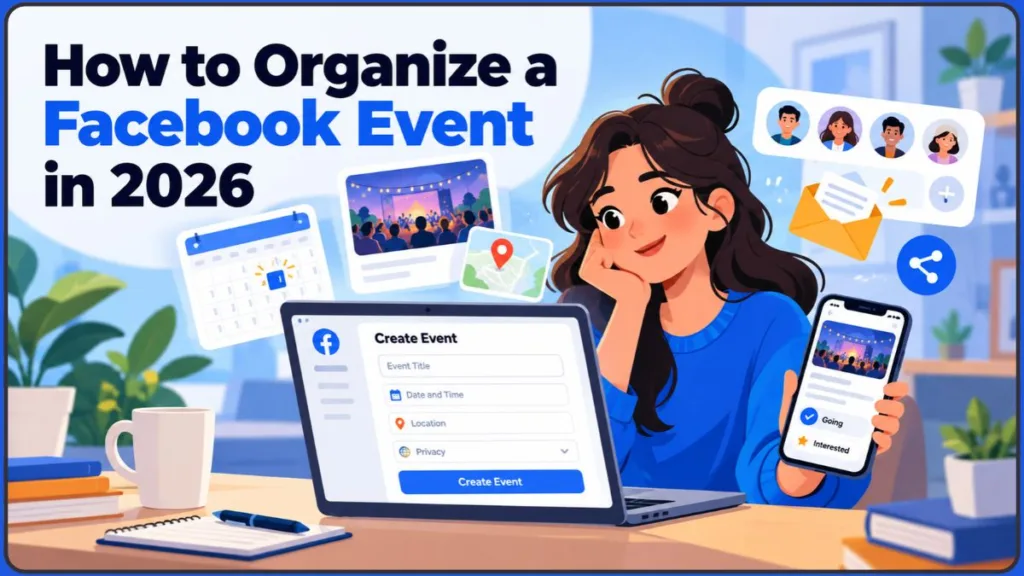
Here, you’ll learn how to create an event on different devices, troubleshoot the missing Events option, promote your gathering for free, and follow up with attendees to build lasting connections.
Why Facebook Events Are Still Useful in 2026
Group chats get buried. Calendar invitations get ignored. Facebook Events gives your gathering one central place for the important details, guest list, discussion, and updates—all on a platform where your audience may already spend time.
Here’s what you can use for free:
- Invites and shares help your event reach people beyond your own friends list.
- A guest list shows who plans to attend and helps build momentum.
- A discussion area gives guests a place to ask questions, share photos, and find updates.
- Going and Interested responses help you understand how people are responding to your event.
Key Insight: Commitment and social proof help explain why public RSVPs can influence other people’s decisions. When guests tap “Going” and their friends can see their responses, that visible commitment may make showing up more likely. It is a useful organizing principle, not a guarantee that people will attend.
Choose the Right Type of Facebook Event
A Facebook event is a dedicated page for a gathering, whether it takes place in person or online. It answers the questions guests need answered: What is happening? When and where is it happening? Who is organizing it? How can I attend?
You can create an event from several places:
- Your personal profile: Best for parties and private gatherings.
- A Facebook Page: Best for businesses, creators, and organizations.
- A Facebook Group: Best for communities and clubs.
- Meta Business Suite: Available for managing Page activity and related content, while direct event-creation options may vary.
Can Businesses Host Facebook Events?
Yes. Businesses can use Facebook Events to promote launches, sales, workshops, webinars, and open days.
There’s one important detail to remember: events hosted by Facebook Pages are always public. If you need an invite-only gathering, create it from a personal profile instead.
Meta confirms this distinction in its official event privacy guidance.
Should You Create an Event from a Facebook Page?
Choose the option that matches your goals.
A Facebook Page is the better choice when you want visibility, follower engagement, and a professional presentation. Use your personal profile when privacy matters. If you already have an active community, a Facebook Group may be the most suitable place.
Public, Private, and Group Events: What’s the Difference?
| Event Type | Who Can See It | Best For |
|---|---|---|
| Public | Anyone on or off Facebook | Open workshops, launches, and community events |
| Friends (profile events) | Your Facebook friends | Casual get-togethers |
| Private (invite-only) | Only people you invite | Parties, team events, and family gatherings |
| Group event | Depends on whether the group is public or private | Clubs, communities, and local meetups |
| Page event | Public, always | Business events and launches |
Izoate 2026 Update: Choose your event’s privacy setting carefully. Once you create the event, that setting is locked. You can’t switch a private event to public later. Meta confirms that an event’s privacy setting cannot be changed after creation.
Why RSVPs and Social Proof Matter More Than You Might Expect
Organizers often spend most of their time perfecting the event poster. However, the guest list can do more to persuade people to attend.
When someone opens your event page, they usually want to know two things: Is this worth my time? and Who else is going?
A guest list filled with familiar names can make an event feel more appealing. An event with no responses may seem less promising, even when the gathering itself offers something valuable.
A few practical steps can help you build momentum:
- Encourage early RSVPs. Ask a few close friends, co-hosts, or speakers to respond as soon as the event goes live.
- Use reminders instead of relying on memory. Many people who miss events haven’t necessarily changed their minds. They’ve simply forgotten.
- Make personal invitations. A message saying “I’d love to see you there” feels different from a general announcement.
- Treat “Interested” as an early lead, not a confirmed yes. Use an event update or direct message to encourage these people to change their response to “Going.”
Why it works: People rarely make decisions in isolation. Visible responses, a clear deadline, and a personal reminder help remove three common obstacles: uncertainty, forgetfulness, and the feeling of “I’ll see how I feel.”
Plan Your Facebook Event Before You Start Creating It
The easiest way to organize a Facebook event is to settle the main details before opening the app. A few minutes of preparation can save you from making changes later and confusing your guests.
Set a Clear Goal for Your Event
What do you want the event to achieve? Are you aiming to bring 30 people into a room, sell tickets, or attract new followers?
Your goal will influence the event title, cover image, and promotion strategy.
Confirm the Date, Time Zone, and Event Format
Before creating the event, make these decisions:
- Avoid scheduling it during holidays, major local events, or exam weeks.
- Always include the time zone, especially for online events.
- Decide whether the event will be in person, virtual, or hybrid.
- Choose who can see the event. Remember that you can’t change this setting after creation.
For a virtual event, Facebook asks you to choose the type of online gathering. You can select Facebook Live, which Meta suggests for events with more than 50 guests; an External Link for an event hosted outside Facebook; or Other, where you explain how people can participate.
If you use an external service such as Zoom, repeat the joining instructions in the event description. This gives guests another place to find the information they need. See Meta’s official instructions for creating an online event.
Use This Checklist Before Publishing
Work through this checklist before making your event public or inviting guests:
- Goal and audience: Both are clearly defined.
- Date, time, and venue: All details are confirmed.
- Privacy setting: The right audience has been selected.
- Cover image and description: Both are ready.
- Speakers, guests, or co-hosts: The relevant people are confirmed.
- Promotion schedule: Your planned posts and reminders are mapped out.
- Day-of plan: Check-in arrangements, links, and a contact person are ready.
- Follow-up plan: You know how you’ll thank attendees and stay in touch.
Planning a Conference or Larger Gathering
Larger gatherings require more structure than a casual meetup.
Prepare a short schedule, list your speakers, include a ticket or registration link, and add co-hosts so multiple people can manage event updates. You can also publish the agenda in the discussion section so guests understand what they’re signing up for.
Facebook Event Restrictions to Know Before Publishing
A few Facebook Event restrictions can catch you off guard once your event is already live. Keep these limitations in mind before publishing:
- Privacy is locked after creation. A private event cannot be changed to public.
- Page events are always public. Use a personal profile or a group with the appropriate privacy setting for anything invite-only.
- Cancelled events cannot be edited. If you only need to change the time or location, edit the event instead of cancelling it.
- Deleted events cannot be restored. You’ll have to create a new event. Meta confirms that a deleted event cannot be recovered.
- Cover images cannot be resized after upload. You can replace the image, but you cannot resize it afterward. Get the dimensions right before you publish.
- Invitations have a limit. Meta confirms that each person can send up to 500 invitations per event. It may temporarily restrict invitations if too many go unanswered.
- Events do not automatically sync with calendars. A calendar export or import may create a static copy. Whether updates sync depends on the calendar method and application being used.
- Mobile and desktop features can differ. Options such as recurring dates and alt text may be easier to access, or available only, on desktop.
You can check the official rules in Meta’s guidance on event invitations and cancelling or deleting an event.
Create Your Facebook Event on Mobile, Desktop, or a Page
Facebook regularly updates its menus, so some button names and locations may look slightly different on your screen.
Izoate 2026 Update: The Events option may appear in the main menu, behind See more, or inside a Page or Group’s own menus. If you can’t find it, use Facebook’s search bar and type “Events.”
Create an Event in the Facebook Mobile App
Creating an event through the Facebook mobile app is a quick option when you’re using your phone.
- Open the Facebook app.
- Tap the menu icon (three lines). It’s usually at the bottom right on iPhone and at the top right on Android.
- Tap Events.
- Tap Create or Create new event.
- Choose In person or Virtual.
- Enter your event name, date, time, and location.
- Upload a cover photo. If the option doesn’t appear during setup, you can add the photo later by editing the event.
- Write the description and select your privacy setting.
- Tap Create event.
- Tap Invite to send invitations to your guests.
Creating a Facebook event on Android: The steps are almost identical. The main differences are the menu icon’s location at the top right and the permission prompts you may see.
If your cover photo fails to upload, check your phone’s settings and confirm that Facebook has permission to access your photos.
What you should see: After creating the event, Facebook should open the new event page with the cover image, title, date, and place. You should also see options for inviting people and sharing the event. If the page appears blank or an error occurs, go back and check whether the event appears under Events > Your events.
Quick Tip: Write your event title like a search result. “Beginner Photography Workshop – Saturday, 10 AM” tells people more than “Workshop.”
Create an Event on Facebook Desktop
A desktop browser gives you more room to write and organize a detailed event description.
- Log in to facebook.com.
- Click Events in the left menu of your Feed. You may need to click See More first.
- Click + Create New Event.
- Choose In person or Virtual. The field may read “Is it in person or virtual?”
- Upload your cover photo and complete the event details.
- Click Who can see it? to choose your privacy setting. Add co-hosts if needed.
- Click Create event, then select Invite to invite your guests.
What you should see: The completed event page on desktop displays the full cover banner, the guest list area, and the discussion section where you can publish updates.
Create a Private Facebook Event
For birthdays, team gatherings, and other invite-only occasions, create the event from your personal profile and follow the steps above.
Then complete these additional steps:
- Under Who can see it?, select Private instead of Public, Friends, or Group.
- Invite only the people you want to attend.
- If Facebook gives guests the option to invite their own friends, consider turning that option off to keep control of the guest list.
What you should see: A private event won’t appear in public event discovery. Only the people you invite can find and open it.
Create an Event in a Facebook Group
To organize an event for an existing Facebook community, follow Meta’s official instructions for Group events.
On desktop, the documented process is:
- Open your Facebook Group.
- Click Write something…, then click Add to your post.
- Select Create event.
- Fill in the event details.
- If you want to invite all members, select Invite all members when the option appears. For private groups, invitations to group members depend on the available options.
- Click Create event.
The mobile interface may organize these controls differently.
Can’t find the option? A group admin may have disabled the relevant posting feature or restricted who can create events. Ask the admin to check the group’s settings.
What you should see: The event appears in the group’s Events area or event listing. Who can access it depends on the group’s privacy setting.
Create an Event from a Facebook Business Page
If you want to create an event for your Facebook business Page, follow the Page-hosted event workflow described in Meta’s official Page event instructions.
- Log in to Facebook and click your profile photo in the top right.
- Click See all profiles and select the Page you want to switch to.
- From your Feed, look for Events in the left menu. Select See more first if necessary.
- Click + Create new event.
- Enter the event name, date, and time. Choose In person or Virtual, then complete the remaining details.
- Click Create event.
You can also usually find Events through the More menu on your Page. Menu locations may vary.
Page events can include a ticket link that directs people to your ticketing website. Depending on the setup, an event or ad may display a Get Tickets button. Do not assume that every Page or ticketing setup supports checkout directly on Facebook. Check the options available for your event before promising guests an in-Facebook purchase.
What you should see: The event appears under your Page’s Events area. Depending on your settings and Facebook’s distribution, it may also appear in your followers’ feeds.
Set Up Recurring or Multi-Date Page Events
If you’re organizing something that repeats, such as a weekly class, look for a Recurring event or Schedule multiple events option while creating a Page event.
Guides report that daily and weekly options are available, with custom dates on some accounts. These options are generally reported more often on desktop than in the mobile app, so availability can vary.
If the option isn’t available, create the first event and duplicate its details for the next one.
Check Whether Meta Business Suite Offers Event Creation
Meta Business Suite helps you plan and schedule Page content in advance. However, direct event creation inside Business Suite is not consistently available across every account or interface.
Meta’s tools include post creation, scheduling, Planner, and insights. Its Business Suite scheduling guidance explains how to create and schedule content, while Page access determines which event-management tasks someone can perform.
Here’s how to proceed:
- Open Meta Business Suite on desktop and select your Page.
- Check the left menu or All tools for Events. If the option appears, follow the available instructions.
- If it doesn’t appear, create the event directly from your Page using the instructions above.
- In either case, use the Planner calendar to schedule Facebook and Instagram posts and stories so your countdown content is ready ahead of time. You can find more details in Meta’s Planner guidance.
Does It Cost Anything to Create a Facebook Event?
Creating a Facebook event is free.
Inviting people, sharing the event, posting in groups, and using the discussion tools don’t cost anything. The only optional expense is paid promotion, which you can skip.
Mobile vs. Desktop: Which Should You Use?
| Task | Mobile app | Desktop |
|---|---|---|
| Create a basic event | Fast; menu icon at the bottom right on iPhone or top right on Android | Left menu > Events; use See more if needed |
| Write a long description | Possible, but the screen can feel cramped | Easier |
| Recurring or multi-date events | Often missing | More likely to be available on Pages |
| Alt text for photos | Availability varies by app version | Available when posting photos |
| Boosting events | Possible for Page events | Easier to access and review all options |
Invite Guests, Including People Who Don’t Use Facebook
Creating an event page doesn’t automatically send invitations. You still need to invite people.
Follow these steps:
- Open your event and tap or click Invite.
- Select friends from the list. You can search by name.
- Add a short personal message if the option appears.
- Send the invitations.
Want to invite someone who isn’t on Facebook? Look for Invite by text or email, if the option is available, or copy the event link and send it through WhatsApp, email, or a text message.
Email and text invitations aren’t available in every event flow, and delivery isn’t guaranteed. Sending the event link directly is a useful backup.
Keep these points in mind when inviting people:
- Invitations are capped. Meta confirms a limit of 500 invitations per person per event. It may temporarily restrict invitations if many go unanswered. Ask co-hosts to invite people from their own circles.
- Private events: Only invited guests, along with anyone you allow to invite friends, can see the page.
- Public events: Guests can share the link themselves, so you don’t need to invite everyone individually.
Quick Tip: Start by inviting the ten people most likely to say yes. Their early responses can help make the guest list look active to everyone else.
Encourage Real Conversations When Promoting Your Event
Before promoting your event, it helps to understand how Facebook’s feed works. Think of the feed as a conversation filter rather than a megaphone.
Meta hasn’t published an event-specific ranking formula that establishes exactly how Facebook distributes event posts. The company explains that Feed ranking considers many signals, including people’s interests and interactions, and that engagement alone does not determine reach. Meta has also documented its efforts to demote engagement bait and reduce spammy content.
You can read more in Meta’s explanations of Feed ranking and meaningful interactions, its engagement-bait policy, and its more recent measures against spammy content.
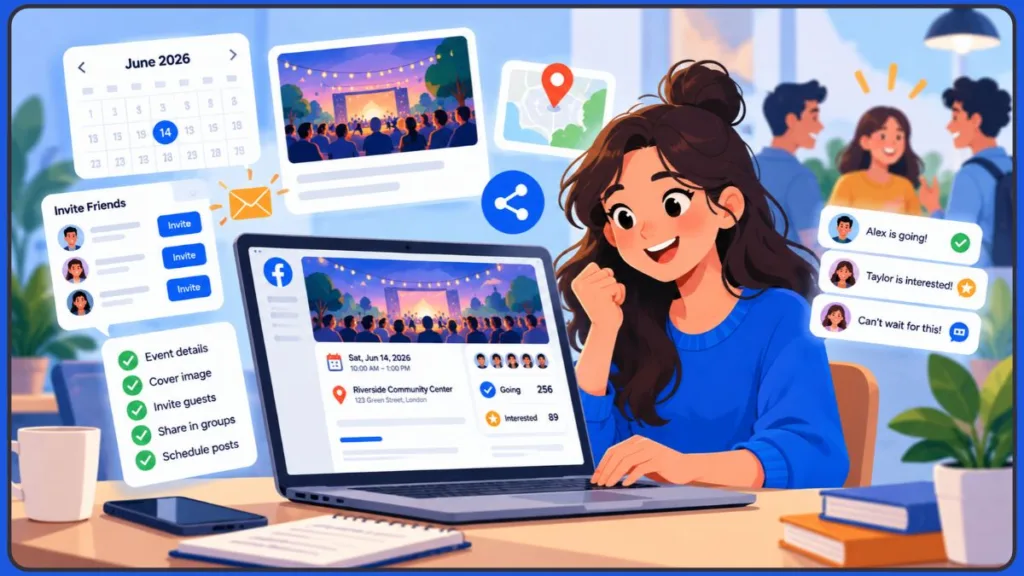
In practical terms, an event post that encourages genuine discussion may help you connect with interested people, but comments, saves, or shares do not guarantee wider distribution.
That’s why discussion posts, questions, and personal replies matter.
One more thing: don’t fake engagement. The algorithm is described as down-ranking “engagement bait”—posts that use formulaic prompts to demand likes, comments, or shares.
A genuine question such as “Which session are you most excited about?” is a better fit than “Comment YES if you’re coming!”
Algorithm Tip: Try to reply to every comment on your event page and event posts within a few hours. Genuine back-and-forth conversation helps you answer questions and keep guests engaged, even though no particular response time guarantees additional reach.
Make Your Facebook Event Page Clear and Easy to Find
Creating the event is only the starting point. The title, description, settings, and supporting details all help people decide whether to attend.
Write a Clear Event Title and Description
Your title should make it clear what the event is, who it’s for, and where or when it takes place.
Place the most important details in the first two lines of your description. Many people won’t tap See more, so don’t hide essential information further down.
After the key details, add the agenda, who should attend, what people need to bring, and how they can contact you.
Help More People Discover Your Event
If you want people outside your immediate circle to discover your event, give Facebook useful information about it:
- Choose a category and add tags when those fields are available. They may help connect your event with the right audience.
- Add an accurate location. Missing or vague location details make it harder for people to understand where an in-person event is taking place.
- Use a public event if you want it to be visible beyond your invited guests and eligible for public event discovery. Actual distribution and discovery are not guaranteed.
- Share the direct event link on your Page, in relevant groups, and across other platforms instead of relying entirely on Facebook search.
Review Your Event’s Posting and Approval Settings
While creating or editing an event, you may see options that control who can post and whether posts require approval.
For public events, limiting posts to hosts and co-hosts or requiring approval can help reduce spam in the discussion. The available settings and wording vary by event type, so review each option before publishing.
Meta lists these controls in its event privacy and settings guidance.
Add Co-Hosts, Accurate Locations, and Ticket Links
Co-hosts can introduce your event to their own audiences, giving you an opportunity to expand your reach for free.
A co-host invitation remains pending until the other person or Page accepts it. Follow up if you don’t see the co-host listed.
Remember that co-hosts can edit your event. Add only people and Pages you trust.
For in-person events, include precise location details such as the floor, entrance, and nearby landmark. If registration or payment is required, add a working ticket or registration link so guests know exactly where to go.
Examples of Facebook Event Posts You Can Adapt
Don’t publish the event and then leave it untouched. Regular updates give people more opportunities to learn about the gathering and make plans to attend.
Use these examples as a starting point:
- Announcement: “It’s official! Join us on [date] for [event]. Tap Going to save your spot.”
- Countdown: “Only 5 days left. Here’s what’s on the agenda…”
- Spotlight: “Meet [name], who’ll be sharing…”
- Behind the scenes: “Setting up for Saturday. Can you spot what’s new?”
- Last call: “Tomorrow’s the day! Here’s everything you need to know before you arrive.”
- Thank-you: “Thank you for coming! Photos are up. Tell us your favorite moment.”
Facebook Event Cover and Ad Image Sizes for 2026
A stretched or badly cropped cover image can make an event look less professional. Choosing the right dimensions before uploading helps you avoid that problem.
Recommended Facebook Event Cover Dimensions
The widely used third-party recommendation for a Facebook event cover is 1920 × 1005 pixels, with an aspect ratio of approximately 1.91:1. Canva recommends 1200 × 628 pixels as a minimum working size and 1920 × 1005 for sharper display on high-resolution screens.
However, Meta does not publish a definitive pixel specification for the Facebook event-page cover in its current event guidance. Treat these dimensions as design recommendations, not a guaranteed official minimum or acceptance threshold.
Canva provides its own recommendations in its Facebook event cover guide. Meta’s broader event-ad guidance covers the quality and relevance of creative used to advertise events; it should not be confused with an official event-page cover specification.
Older guides use 1920 × 1080 pixels, which is a different aspect ratio. Don’t assume that one size has officially replaced the other. Preview the cover in Facebook before publishing.
Izoate 2026 Update: At least one design-tool guide notes that Meta doesn’t publish a firm pixel specification for event covers. The 1920 × 1005 recommendation is therefore a widely used third-party standard rather than an official Meta requirement. Preview your cover on your own phone after uploading. Remember that you can replace an uploaded cover, but you can’t resize it afterward.
What Size Should Your Facebook Event Page Image Be?
Use 1920 × 1005 px as a practical cover canvas if you want to follow Canva’s high-resolution recommendation. Alternatively, use 1200 × 628 px, which Canva lists as its minimum recommendation.
These dimensions are design guidance, not a guarantee that Facebook will display every image without cropping. If you upload a smaller image, it may appear blurry when enlarged.
Keep Important Content Inside the Event Banner’s Safe Area
Facebook doesn’t publish an official safe-area measurement for event banners.
The practical approach is to keep important text and faces in the upper two-thirds of the image. The bottom portion can be partly covered by the event title, date, and buttons.
Desktop displays the full, wide banner, while mobile may crop the left and right edges. Keep your most important content near the center to reduce the risk of cropping.
Facebook Event Ad Image Dimensions
Event-page covers and paid-ad creatives serve different purposes, so don’t assume the same dimensions will suit every placement.
- Feed image ads: A vertical 4:5 ratio, such as 1080 × 1350 px, is a commonly used option. A 1:1 square image (1080 × 1080 px) is also supported. Higher-resolution 4:5 creatives, such as 1440 × 1800 px, may be recommended for sharper delivery in current Meta advertising guidance.
- Stories and Reels: Use a 9:16 vertical canvas, such as 1080 × 1920 px. Higher-resolution assets such as 1440 × 2560 px are also used for these placements. Keep text and important visuals clear of interface elements. Meta provides specific creative guidance for Facebook and Instagram Reels ads; safe areas and placement requirements can differ.
When preparing an ad, check the current requirements for the placements selected in Ads Manager instead of assuming one image will appear identically everywhere.
Facebook Event Image Sizes at a Glance
| Placement | Recommended Size | Notes |
|---|---|---|
| Event cover | 1920 × 1005 px (1.91:1) | Widely used third-party recommendation; not an official Meta specification |
| Feed ad (vertical) | 1080 × 1350 px (4:5) | Common working size; higher-resolution 1440 × 1800 px is also used |
| Feed ad (square) | 1080 × 1080 px (1:1) | Also supported |
| Story / Reel | 1080 × 1920 px (9:16) | Higher-resolution vertical creatives are also used; preview placement-specific safe areas |
JPG and PNG are common image formats for event covers. Keep the file reasonably small so your event page loads quickly for people using mobile data.
Promote Your Facebook Event Without Overspending
Creating the event is only half the job. Promotion helps turn the event page into actual attendance.
Free Ways to Promote a Facebook Event
You can promote your event without paying for ads. Start with these steps:
- Invite people personally. A direct invitation can be more effective than a general announcement.
- Share the event to your Feed. Use the event’s Share option and add a message of your own.
- Post in relevant Facebook Groups. Follow each group’s rules.
- Pin the event to the top of your Page or Group when the option is available.
- Ask co-hosts and speakers to share it with their own audiences.
- Post a short Reel or video teaser to introduce the event.
- Respond to every comment and question promptly.
Share Your Event in Groups Without Spamming
Check the group rules before posting your event.
Start by offering something useful related to the topic, then mention your event naturally where appropriate. A relevant, genuine post is more likely to be welcome than a copy-pasted link that adds no value to the discussion.
Can You Share a Facebook Event to Your Story?
Facebook offers a Share to Your Story option for eligible events, turning the event into a tappable sticker that viewers can open to see the details.
The documented sharing flow applies to upcoming public events. Availability can also vary by account, device, and app version. To check whether you have the feature, open the event and look under its Share button for Share to Your Story.
If the option doesn’t appear, share the event link in a regular post or message instead.
What to Know Before Paying to Promote an Event
If you have a small advertising budget, you can boost your event or run an event ad.
Meta’s event-ad best practices recommend using a relevant cover image or video, a clear event name, and a location.
Paid promotion is generally associated with events hosted by a Page rather than private events created through personal profiles. Keep that distinction in mind when deciding where to create your event.
Boost a Facebook Event Step by Step
The exact menu labels may change, but the general process is similar:
- Open your Page-hosted event or the Promote option on your Page.
- Select Boost event or Promote, if the option is available.
- Choose your objective. If your goal is to increase event responses, Ads Manager provides an Engagement objective with an Event responses option. Other objectives may be more appropriate when directing people to an external ticketing website. The available buttons and settings depend on your campaign and event setup.
- Select your audience, using factors such as location, age, interests, or connections to your Page.
- Set your budget and schedule. Make sure the schedule matches your event date so the ad doesn’t continue running after the event ends.
- Review the preview and confirm your choices.
For more control, create an event ad in Ads Manager. Meta’s current advertising guidance explains how the Engagement objective can be used for interactions such as event responses. You can also review Meta’s event-ad best practices.
If the boost option doesn’t appear, check whether the event was created from your Page rather than your personal profile.
One useful option for advertisers is to investigate whether their available audience settings support reaching people who previously responded Going or Interested to an event. The options available depend on the account, campaign configuration, and targeting features.
What Happened to Facebook’s 20% Text Rule?
The 20% rule was an older Facebook advertising restriction that limited text in ad images to roughly 20%. Facebook stopped enforcing the fixed limit in 2020, as reported at the time by Social Media Today.
The underlying advice still has value. Meta’s advertising guidance emphasizes creative that communicates clearly, and text should not obstruct the important visuals. Some placements also have specific creative requirements.
Keep the image simple and put supporting details in the caption.
How the 3-2-2 Facebook Ad Testing Method Works
The 3-2-2 method is a simple ad-testing setup built around:
- 3 creatives
- 2 primary texts
- 2 headlines
Together, these produce 12 combinations to compare.
This is a community framework, not an official Meta feature. Some versions use audiences or offers instead of headlines. For beginners, it offers a way to test different approaches without overspending.
Marketing Strategy: Test one element at a time. Start by changing the image, then test the headline. This makes it easier to identify what actually improved your results.
Share Your Event Across Other Platforms
Don’t depend on Facebook alone to reach your audience.
Share the event through Instagram Stories, WhatsApp groups and status, email newsletters, YouTube community posts, and LinkedIn for professional events. Include the event link wherever your intended audience already spends time.
Tools That Can Help You Design and Manage Your Event
Facebook’s built-in tools cover the essentials. A few additional tools can save you time and help your event look more professional.
Create Your Event Cover with Canva
Canva offers ready-made Facebook event cover templates. Its own Facebook event cover guidance recommends 1200 × 628 pixels as a minimum working size and 1920 × 1005 for sharper display on high-resolution screens.
These templates provide a quick way to create a correctly sized cover without measuring the dimensions yourself. Remember that these are Canva’s recommendations, not a published Meta event-cover specification.
Schedule Event Promotion with Meta Business Suite
Use the Planner calendar to prepare your announcement, countdown, and thank-you posts in one sitting. This helps you organize your promotion schedule instead of scrambling to create content every day.
Meta explains how to create and schedule content through its Meta Business Suite publishing guidance.
Handle Ticket Sales with Eventbrite or a Similar Tool
If your event requires paid tickets, a ticketing platform can handle payments while Facebook helps people discover the event.
Add your ticket link to the event page.
Older guides describe in-Facebook ticket purchases through partners such as Eventbrite. However, availability has changed over time, so check what your Page and ticketing setup actually offer before promising guests a one-tap checkout. An external ticket page is a practical alternative.
Compare the Main Tools for Facebook Events
| Tool | Best For | Key Feature |
|---|---|---|
| Canva | Eye-catching covers | Facebook event cover templates and size guidance |
| Snappa | Quick, correctly sized covers | Event cover templates and sizing tips |
| Meta Business Suite | Scheduling promotion | Planner calendar for Facebook and Instagram posts |
| Eventbrite | Ticketing | External ticket page linked from your event |
Keep Your Event Organized from Launch to Event Day
A good plan helps keep everything running smoothly without making event management unnecessarily stressful.
Follow This Simple Event Timeline
Use this schedule to organize your preparations:
- 4 weeks before: Create the event, finalize the cover image, and send the first invitations.
- 2 weeks before: Share speaker or guest highlights and post in relevant groups.
- 1 week before: Publish a countdown, answer questions, and send reminders.
- Day before: Share the final details, including the location, parking information, and links.
- Day of: Publish a “We’re live!” or “Doors open” update.
Manage RSVPs, Guest Questions, and Co-Hosts
Check your event page daily during the final week.
Answer questions publicly so other guests can benefit from the same information. For a larger event, assign one co-host to monitor comments.
Remember the 500-invitation limit per person per event confirmed by Meta. Facebook may temporarily restrict invitations if many go unanswered. Spread invitations across co-hosts and event shares rather than relying on one large invitation send.
Help Guests Add the Event to Their Calendar
Guests can usually add an event to their phone or Google Calendar from the event page. Look for the three-dot menu and the Add to calendar option.
However, calendar behavior depends on how the event is added. A one-time export or imported calendar file may create a static copy, whereas a supported calendar subscription can behave differently. Don’t assume that changes made on Facebook will automatically update every saved calendar entry.
If you change the time or location later, publish the update in the event discussion and ask guests to check their calendar entries.
See Facebook’s event management and calendar-related help for current event controls.
Edit, Cancel, or Delete Your Facebook Event
Plans can change. Knowing how to handle those changes helps you avoid confusing guests or losing an event you intended to keep.
Edit Your Event Details
Open the event and tap or click Edit to change its name, description, time, location, or cover image.
Remember two important restrictions: you cannot change the privacy setting after creation, and you cannot resize the cover image after uploading it. You can replace the cover, though.
Cancel vs. Delete: Know the Difference
| Cancel event | Delete event | |
|---|---|---|
| Event page stays | The event remains available as a cancelled event | No |
| Event discussion remains available | Posting availability may depend on the event’s status and settings | Event content is removed with the deleted event |
| Can you edit it afterward? | No | No |
| Can you bring it back? | Meta’s guidance does not clearly establish a general restore process | No; create a new event |
On a computer: Open the event and look under Options for the available cancellation or deletion control. Follow the confirmation prompts displayed by Facebook.
On the phone app: Go to Menu > Events, select your event, and look under Manage or the event’s options menu for the available edit, cancellation, or deletion controls. Exact labels and locations may vary by app version.
Meta’s official cancellation and deletion guidance confirms that a deleted event cannot be restored.
Guides based on Meta’s help information indicate that guests may be notified when an event is deleted, but the notification behavior for cancellation is less clearly documented. After cancelling, post a short update in the event and message your closest guests so they know what happened.
Quick Tip: If only the time or location has changed, edit the event instead of cancelling it. Cancelling locks the event, and you would need to create a new one to replace it.
Communicate Changes While Promoting Your Event
When something changes, edit the event details first, then publish an update in the discussion section.
Because the privacy setting cannot be changed after creation, you’ll need to create a new event if you realize the original should have been public. Share the new event link with your guests so they can find the correct page.
Use Facebook Events for Business, Teams, and Brand Building
Facebook Events aren’t just for parties. They can also help businesses and teams organize gatherings, connect with their audiences, and build relationships.
Organize Events for Customers and Followers
For launches, workshops, webinars, and sales, create the event from your Page.
Add a ticket or registration link, and make the benefit clear in the title. Publish regular updates and show the real people behind your brand.
If you organize a repeating class or meetup, check whether the Page event setup offers a recurring or multi-date option.
Organize Private Events for Your Workplace
For team meetups, training sessions, and office celebrations, use a private event created from a personal profile and invite only the relevant people.
Page events are always public, so they aren’t the right choice for internal gatherings. Before organizing company-wide events, check your workplace’s communication policies.
Marketing Strategy: A visible history of past events on your Page helps show that you’re active and trusted. Photos from previous gatherings can also make your next event easier to promote.
Check Event Performance in Meta Business Suite
After publishing your event posts, check Insights in Meta Business Suite for available reach, engagement, and response data.
Event-level figures can vary by account, and not every event metric is necessarily available in the same place. Some users report seeing blank event statistics in Business Suite, so check the figures on the event page itself as well.
Compare your results across events to identify what works best, including the timing, image style, and caption length.
Meta explains Page-management permissions and access to Insights in its Facebook Page access guidance.
Common Facebook Event Problems Organizers Discuss on Reddit
When looking through Reddit for Facebook event-organizing advice, several themes tend to come up repeatedly. These discussions are anecdotal rather than a representative survey, and they don’t establish how often each issue occurs.
Common problems people report:
- Low reach even after inviting many people.
- Plenty of “Interested” responses but few actual attendees.
- Invitation limits or difficulty inviting large lists.
- Email or text invitations to people outside Facebook that never arrive.
- Confusion about where the Events or invitation options went after an interface update.
Community-tested tips worth trying:
- Message your closest contacts personally instead of depending only on invitations.
- Post in relevant local groups, with permission and without spamming.
- Use a clear cover image and a short, easy-to-scan description.
- Send a reminder the day before the event.
For examples of these reports, see discussions about invitation problems and limits and changes to event invitation controls. These are user experiences, not official Meta policy statements.
Troubleshoot a Missing Facebook Event Option
Can’t find the Events option? Don’t worry. It’s a common problem, and a few simple checks may help you locate it.
- Update the Facebook app. Menus and features can change between versions.
- Look under See more. Meta’s menus and event controls may appear in different places across interfaces.
- Check which profile you’re using. To create a Page event, you need to switch into the Page first.
- Check the Group’s settings. Group admins can restrict who is allowed to create events.
- Try the desktop website. If the mobile app hides the option, the web version may show it.
- Clear the app’s cache on Android, then log out and back in.
- Check your internet connection. A weak signal can prevent pages from loading correctly.
Fix Other Common Facebook Event Problems
- Guests can’t see my event: Check the privacy setting first. A private event is visible only to invited people, and the setting cannot be changed. Create a new event with the correct setting and share its link again.
- My invitations didn’t arrive: Email and text invitations to non-Facebook users aren’t available in every event flow, and delivery isn’t guaranteed. Send the event link directly instead.
- I can’t invite more people: You may have reached the invitation limit or a temporary restriction. Ask co-hosts to invite their own contacts.
- My co-host isn’t listed: Their invitation may still be pending. Ask them to check and accept the invitation.
- My cover image looks cropped: Try a 1920 × 1005 px canvas, keep important content centered and in the upper two-thirds, and replace the cover if needed. Remember that these are design recommendations rather than official Meta dimensions.
- The boost option is missing: Check that your event is hosted by your Page rather than your personal profile, then check which promotion options are available for that event.
- Guests aren’t seeing changes in their calendars: Calendar copies don’t always sync automatically. Publish the update in the event discussion and ask guests to check their calendar entries.
Make Your Facebook Event Accessible to More People
In 2026, accessibility remains an important part of good event hosting. People with visual impairments may rely on screen readers to understand your posts and images.
Facebook can generate alt text for photos, but writing your own descriptions gives you more control over the information people receive.
To add custom alt text to a photo on desktop, follow these steps when the option is available:
- Click Photo/Video.
- Choose your photo.
- Click Edit on the thumbnail.
- Select Alternative Text.
- Choose Custom Alt Text, if offered.
- Enter the description and click Save.
Mobile options vary. If you can’t add alt text in the app, upload the photo from desktop or edit it afterward.
Meta’s official photo-editing instructions explain how to access alternative text while editing a photo.
Screen readers cannot reliably interpret text embedded directly into an image. For that reason, repeat the important details—date, time, and place—in your event description.
Example of good alt text: “Event poster with the title ‘Community Photography Workshop,’ a camera icon, and the date June 14.”
You should also mention step-free entry, accessible restrooms, seating, and parking when relevant. For online events, tell guests whether captions or recordings will be available.
Protect Guest Privacy and Event Details
Hosting an event can be fun, but it also comes with a few risks worth considering before you publish.
- Choose your audience carefully. Public events can be seen and shared widely, while private events remain restricted to your invite list.
- Protect your address. For private gatherings, share the exact address only with confirmed guests, either through a message or after they RSVP.
- Keep personal information out of public descriptions. Avoid including details such as your phone number or home address.
- Moderate the discussion. Remove spam, report suspicious accounts, and ask co-hosts to help manage larger events.
Follow Up After the Event to Build Lasting Connections
Your event doesn’t end when the last guest leaves. The follow-up is where you can build long-term value and encourage people to attend again.
- Thank everyone within a day of the event.
- Share photos and videos in the event itself. You can also post a photo album or a short highlights Reel. Tag people only with their permission.
- Ask for feedback through a poll or a simple question such as “What should we do next time?”
- Invite attendees to follow your Page or join your Group so they can hear about future events. This is how you can start turning attendees into fans.
- Reuse your best moments as social proof when promoting your next event.
A Final Checklist for a Better Facebook Event
Keep these practices in mind when creating and managing your event:
- Be specific. Make the title, date, time zone, and location impossible to miss.
- Use a sharp, correctly sized cover image. Skip posters crowded with text, and check the cover on mobile before promoting the event.
- Add co-hosts early to help widen your reach.
- Publish a few updates before the event instead of posting only once.
- Make the event inclusive. Describe your images and include relevant accessibility details.
- Reply to comments quickly. Conversations help keep the event active, and guests appreciate a responsive host.
Facebook Event Mistakes That Can Hurt Attendance
Watch out for these common mistakes when organizing your event:
- Using vague titles that don’t explain what the event is.
- Forgetting to include time zones for online events.
- Uploading incorrectly sized images that stretch or crop the cover.
- Choosing the wrong privacy setting, which cannot be changed later.
- Cancelling an event when editing would be enough, since cancelled events cannot be edited afterward.
- Publishing the event once and never updating it.
- Over-promoting in groups until people start tuning out.
- Ignoring comments and questions.
- Skipping the follow-up after the event.
Small Ways to Give Your Facebook Event More Reach
A few small improvements can help you keep your event visible and give people more reasons to engage.
- Choose a short, memorable hashtag for your event and use it consistently across posts.
- Schedule posts around important moments, such as paydays, weekends, or right after announcing a speaker.
- Use a real photo of the venue or host to help build trust.
- Turn event updates into a Reel. Short video teasers can reach people who skip text-based posts.
- Ask a genuine question in the discussion every few days to keep the conversation active.
Can You Create a Facebook Event on a Computer?
Yes. You can complete the event creation process on desktop. It’s often easier to write longer descriptions and find options such as recurring dates for Pages.
Follow the desktop instructions above to create your event. If the mobile app doesn’t show the Events option, try the desktop website instead.
Example: How a Local Workshop Attracted Attendees
This is an illustrative example, not a real business.
Imagine a local baker named Meera who wants to organize a weekend sourdough workshop.
She creates an event from her business Page, choosing a clear title, a warm cover photo, and a short description. She personally invites her regular customers, posts in two local food groups, and shares a behind-the-scenes Reel showing her kitchen.
Meera responds to every question within a few hours. She also adds a local ingredient supplier as a co-host, giving the supplier an opportunity to share the event with its own audience.
The workshop fills up.
Afterward, Meera publishes a photo album, thanks everyone for attending, and invites guests to follow her Page for the next class. Several people do, and her next workshop sells out faster.
Case Study Takeaway: The result doesn’t come from one magic trick. It comes from a clear event page, personal invitations, consistent updates, and thoughtful follow-up.
Facebook Event FAQs: Answers to Common Questions
How do I create a Facebook event?
Open the Facebook app or website, go to Events, and tap or click Create new event. Add your event details and cover photo, choose who can see it, and invite your guests. The available steps may differ slightly between mobile and desktop.
What’s the process for setting up an event on Facebook?
Choose an in-person or virtual event, enter the name, time, and location, select your privacy setting, and publish the event. Then promote it.
What should I do before planning an event on Facebook?
Set a goal, choose the date, time zone, and format, and decide who can see the event. Create the event page and prepare a posting schedule to promote it.
Can I create and share a Facebook event for free?
Yes. Creating and sharing Facebook events is free. Paid promotion costs money, but it is optional.
Can a business create its own Facebook event?
Yes. Businesses can create events from their Page to promote launches, workshops, sales, and other activities. Page events are public.
How do I set up a private Facebook event?
Create the event from your personal profile and select Private under “Who can see it?” Then invite only the people you want to attend.
Can I change a private Facebook event to public after creating it?
No. Meta says the privacy setting cannot be changed after the event is created. You would need to create a new event instead.
How can I invite someone who doesn’t use Facebook?
Use the event’s invite-by-text or email option if it appears, or copy the event link and send it directly. Email and text invitations aren’t available in every event flow, so sending the link is a useful backup.
How many guests can I invite to a Facebook event?
Meta confirms a limit of 500 invitations per person per event. Facebook may temporarily restrict invitations if many go unanswered.
Can I edit a Facebook event after publishing it?
Yes. You can edit details such as the name, description, time, location, and cover image. You cannot change the privacy setting or resize the cover after uploading it.
Should I cancel or delete a Facebook event?
Cancelling marks the event as cancelled, while deleting removes it. Meta confirms that a deleted event cannot be restored, so you would need to create a new one. Check the available controls and notification behavior before confirming either action.
Can I schedule a recurring Facebook event?
Some Page events offer recurring or multi-date options, mostly on desktop. Availability varies by account, so look for “Recurring event” or “Schedule multiple events” during creation.
How do I add a Facebook event to my calendar?
Open the event and look under the three-dot or More menu for Add to calendar, if available. A downloaded calendar entry may not update automatically. Whether updates sync depends on the calendar method and app you’re using.
What helps people discover my Facebook event?
Make the event public, choose a category and tags when available, add an accurate location, and share the direct event link. Public visibility helps make wider discovery possible, but doesn’t guarantee distribution.
How do I set up an event inside a Facebook Group?
Open the group and look for the event-creation option, often under the post composer or Add to your post menu. Select Create event and fill in the details. If the option doesn’t appear, an admin may have restricted event creation.
Can Meta Business Suite create Facebook events?
It depends on the account and available interface. Check for an Events option in Business Suite. If it isn’t available, create the event from the Page itself. You can use Business Suite to schedule announcement posts and other promotional content.
What is the best way to organize a Facebook event?
Set a clear goal, plan your date and format, create an informative event page, promote it consistently, engage with guests, and follow up afterward.
What are the recommended Facebook event cover dimensions for 2026?
A widely used third-party recommendation is 1920 × 1005 pixels (1.91:1). Canva recommends 1200 × 628 pixels as a minimum working size. These are design recommendations rather than an official Meta-published event-cover specification.
How much space should I leave around important content on an event banner?
There is no official measurement for the event-cover safe area. Keep important text and faces centered and within the upper two-thirds of the image, then preview the cover on mobile and desktop.
Which image dimensions should I use for Facebook event ads?
For Feed image ads, 4:5 (1080 × 1350 px) is a commonly used vertical format, while 1:1 (1080 × 1080 px) is also supported. Higher-resolution 4:5 canvases are used as well. For Stories and Reels, a 9:16 vertical canvas (1080 × 1920 px) is a common choice. Check Meta’s current ad guidance for the placements you select.
Does Facebook still have the 20% text rule for ads?
No. Facebook stopped enforcing the fixed image-text limit in 2020. Keep text readable and avoid covering important parts of the visual.
What does the 3-2-2 Facebook advertising method mean?
It is a popular testing setup using 3 creatives, 2 primary texts, and 2 headlines, giving you 12 combinations to compare. It’s a community framework rather than an official Meta feature.
How can I promote a Facebook event without paying for ads?
Invite people personally, share the event to your Feed, post in relevant groups, add co-hosts, and keep the discussion active.
Conclusion: Make Your Next Facebook Event Easier to Manage
Organizing a Facebook event effectively comes down to five habits: plan, create, promote, engage, and follow up.
You don’t need a big budget or advanced technical skills to get started. A clear title, a correctly sized cover image, personal invitations, and regular updates will take you a long way.
Whether you’re hosting a small get-together, a work event, or a business launch, the steps in this guide can help you organize the details, communicate with guests, and manage your event with more confidence.
Have you organized a Facebook event before? Share what worked for you—or where you got stuck—in the comments, and we’ll help you figure it out.
Final Tip: After every event, spend ten minutes reviewing the event page, guest list, and any available statistics. Note what worked and what didn’t. This small habit can make your next event noticeably better.
Visit Our Post Page: Blog Page
Discover more from Izoate
Subscribe to get the latest posts sent to your email.