
Learn how to order on Amazon with a gift card in 2026. Redeem your code, check your balance, pay at checkout, fix common errors, and buy or send gift cards.
You can order on Amazon with a gift card by redeeming its claim code to your account and applying the balance at checkout. If the balance does not cover the entire order, you may be able to pay the difference with an accepted payment method. You can also enter a gift card code during checkout when that option is available.
The process is simple once you know where to enter the code. The details that matter are which Amazon marketplace issued the card, which account receives the balance, and whether your purchase is eligible.
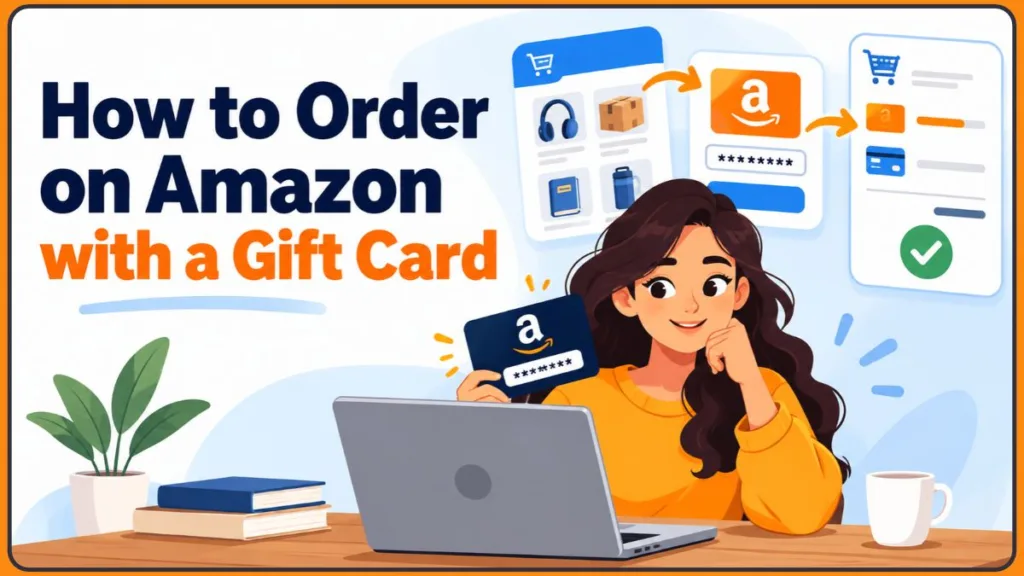
This guide primarily covers Amazon.com in the United States. Amazon.in uses a different Amazon Pay gift card system, so the relevant instructions for India are included separately. Gift card rules, payment options, and available features can vary by marketplace.
Important tip: Before redeeming your gift card, confirm that you’re signed in to the right Amazon account and using the correct regional store. These two checks can help prevent problems with accessing your balance later.
Can You Pay for Amazon Orders with a Gift Card?
Yes. An Amazon.com gift card can pay for eligible purchases on Amazon.com. After you redeem it, the value is added to your account’s gift card balance, which Amazon generally applies to eligible purchases during checkout.
If the balance covers the entire order, you can place the order without paying the remaining amount with another method. If the balance is insufficient, you will need an additional accepted payment method when Amazon requires one.
For example, suppose you have a $30 Amazon gift card balance and want to purchase an eligible item that brings your order total to $45. Your gift card can cover $30, leaving $15 to be paid through another accepted method. The actual amount depends on the final order total, including applicable taxes, shipping, and other charges.
Before you start, keep these rules in mind:
- The balance stays in your account: Once redeemed, the funds remain available for eligible purchases under the card’s applicable terms.
- The balance is usually applied automatically: Always check the payment section at checkout to confirm how much is being used.
- Some purchases are excluded: Amazon.com gift card balance cannot be used for certain transactions, including purchasing other gift cards and some prepaid or third-party gift cards.
- The issuing marketplace matters: An Amazon.com gift card generally cannot be redeemed as a balance on Amazon.in or another country’s Amazon store.
- Redeeming is not the same as placing an order: Adding money to your account does not automatically purchase an item. You still need to select the product and complete checkout.
For the current rules, review the Amazon.com Gift Card Terms and Conditions. This is the most relevant reference when you’re unsure whether a particular transaction qualifies, whether you can transfer redeemed funds, or which restrictions apply to your card. Check the terms for the marketplace that issued the card instead of assuming the same rules apply worldwide.
Important: An Amazon gift card balance does not guarantee that every item is eligible for purchase. Check the payment details at checkout and review Amazon’s gift card terms if the balance will not apply.
Amazon Gift Card Types: Digital, Physical, and Print-at-Home
Yes. Amazon offers digital gift cards and physical gift cards, with print-at-home options available for eligible products and marketplaces. The available formats, designs, denominations, and delivery methods depend on the country.
A digital card is useful when you need to send a gift remotely or schedule delivery for a particular occasion. A physical card works better when you want to hand someone a present in person. A print-at-home card can be convenient when you need a gift without waiting for shipping.
You can browse the options on Amazon’s official Gift Cards page. Use this page to compare the formats and designs currently offered for Amazon.com, rather than relying on a screenshot or an older third-party guide that may show options no longer available. Before purchasing, check the delivery method and make sure you have selected an Amazon gift card rather than a gift card for another brand.
Which Amazon Gift Card or Prepaid Card Do You Have?
Not every gift card sold on Amazon works the same way.
| Gift card type | How it works |
|---|---|
| Amazon.com gift card | Adds value to your Amazon.com gift card balance for eligible purchases. |
| Amazon Pay gift card on Amazon.in | Adds value to the relevant Amazon Pay balance under India’s terms. Eligible uses can extend beyond Amazon.in. |
| Visa, Mastercard, or American Express prepaid gift card | May work as a payment card if Amazon and the card issuer accept it for the transaction. |
| Third-party brand gift card | Usually must be redeemed with the named retailer or service, even when purchased through Amazon. |
This distinction helps prevent a common mistake: buying a gift card from another brand on Amazon does not turn it into Amazon.com balance.
For example, a brand gift card purchased through Amazon may still need to be redeemed through that brand’s website or app. A prepaid Visa gift card, by comparison, is entered as a payment card when the retailer accepts it. The logo on the card and its stated redemption instructions matter more than the website where you purchased it.
Tip: Check the card’s name and issuing marketplace before trying to redeem it. An Amazon gift card, an Amazon Pay gift card, and a Visa prepaid gift card can follow different payment rules.
Where Amazon Gift Cards Work—and Marketplace Restrictions
An Amazon gift card is not the same as cash or a general-purpose prepaid card. An Amazon.com gift card is intended for eligible purchases on Amazon.com and certain affiliated sites covered by its terms. It is not a general payment method for unrelated retailers.
Gift cards are also tied to the marketplace for which they were issued. A US Amazon.com card and an Indian Amazon Pay gift card have different redemption systems and permitted uses.
If you shop on Amazon.com, use the US redemption process below. If the card was issued for Amazon.in, follow the separate India instructions.
For Amazon.com, the key restrictions are that the card is intended for eligible purchases, cannot generally be converted into cash, and cannot be used to pay third-party merchants through Amazon Pay. See the Amazon.com gift card terms and Amazon Pay’s accepted payment methods.
The Amazon Pay payment-method guide is particularly useful if you have reached checkout on another website and see an Amazon Pay button. Amazon Pay is a payment service for participating merchants; it is not the same as shopping directly on Amazon.com. Amazon’s help page explicitly states that Amazon.com gift cards cannot be used as payment for orders made through Amazon Pay on third-party websites. This explains why a gift card balance that works on Amazon.com may not appear when you pay another retailer through Amazon Pay.
Important: Do not assume an Amazon gift card will work on every Amazon website or on other stores that offer Amazon Pay at checkout. Check the terms for the marketplace that issued the card.
How to Redeem an Amazon Gift Card Before Shopping
Redeeming the card first adds its value to your account so it is ready when you shop. You do not have to keep returning to the physical card or finding the original message every time you make an eligible purchase.
This is usually the most convenient option when you plan to use the balance for more than one order. It also lets you check the balance before choosing what to buy, which is useful when you want to spend a specific amount without guessing whether the card will cover the full order.
Redeem an Amazon Gift Card on a Computer
- Sign in to the Amazon account where you want the balance added.
- Open Amazon’s gift card redemption page.
- Enter the gift card claim code in the designated field.
- Select the option to apply the code to your balance.
- Wait for the confirmation message, then check your available balance.
Make sure you are signed in to the correct account before redeeming. Amazon.com gift card balances generally cannot be transferred between accounts after redemption.
For example, if you receive a $50 card intended for a family member, do not redeem it to your own account and assume you can move the funds later. Give the card or redemption instructions to the intended recipient instead.
If you cannot find the redemption field, open the official redemption link directly rather than searching through unrelated payment settings. This link takes you to the page for entering a claim code, so it is more direct than navigating through multiple account menus. You should still verify the account shown on Amazon before applying the code.
Important tip: Verify the account email or profile before selecting Apply to Your Balance. Once the card is redeemed, transferring the balance to another account generally is not an option.
Add an Amazon Gift Card in the Mobile App
You can also add a gift card using the Amazon shopping app:
- Open the Amazon app and sign in.
- Open the account or profile area.
- Look for Gift Cards, Payments, or Manage gift card balance.
- Select the available gift card redemption option.
- Enter the claim code, or use a scanning option if your app offers one.
- Apply the code and check for confirmation.
The menu names may differ across Android, iOS, regions, and app versions. If the exact option is missing, search for Gift Cards in the account area or open the official Amazon gift card redemption page in your mobile browser.
Do not assume a card has been redeemed until you see a confirmation or can verify the updated balance. If you use the browser route, make sure it opens the Amazon marketplace for which your card was issued and that you are signed in to the intended account.
Tip: If you cannot find the gift card option in the app, use Amazon’s official redemption page in your mobile browser. Check the balance afterward to confirm that the code was accepted.
Redeem an Amazon.in Gift Card to Amazon Pay
Amazon.in uses its own gift card and Amazon Pay balance system. A gift card intended for Amazon.com should not be expected to work on the Indian marketplace.
For an eligible Amazon.in gift card:
- Sign in to the Amazon.in account you want to use.
- Open Amazon.in’s gift card redemption page.
- Follow the instructions to enter or redeem the card details.
- Confirm that the value has been added to the relevant balance.
Depending on the card type and current interface, the option may appear under Amazon Pay, Gift Cards & Vouchers, or the gift card balance area.
Amazon India’s official gift card guide, updated on September 25, 2026, explains that Amazon Pay gift cards can be used for eligible shopping on Amazon.in and payments across more than 20,000 partner apps. The guide also lists Amazon Pay e-gift cards, physical cards, and other gift card formats. These features apply to the Indian system, not automatically to Amazon.com gift cards.
Read Amazon India’s official Amazon Pay gift card guide for the available formats and current terms. The guide is useful if you’re deciding what type of card to buy, how to send one, or whether a card is intended for Amazon shopping or payments through supported partners. It also distinguishes Amazon Pay gift cards from third-party brand gift cards: a brand card is generally redeemable with the brand named on it, not as unrestricted Amazon Pay balance.
Important: Amazon.com and Amazon.in use different gift card systems. Check the issuing marketplace before redeeming, especially when a gift card was purchased or received in another country.
Find Your Amazon Gift Card Claim Code
The location of the claim code depends on how you received the card.
- Physical gift card: Look on the back. The claim code may be covered by a peel-off sticker or scratch-off coating.
- Email or text gift card: Open the original message and follow the redemption link or instructions provided. Some electronic delivery formats use a redemption link rather than asking you to enter a code manually.
- Gift card purchased online: Open Your Orders, locate the gift card order, and review its order details or delivery message.
Keep the code private. Anyone who gets access to a usable claim code may be able to redeem the remaining funds, even without holding the physical card.
If you purchased the card online, the order details can also help you identify the format and delivery method you selected. That is often more useful than searching your inbox for the word “gift card” alone, especially if you have purchased several cards for different recipients.
Important tip: Treat an unused claim code like payment information. Do not post it in screenshots, public forums, or messages to people who offer to redeem the card on your behalf.
Amazon Gift Card 16-Digit Number: Which Code Should You Enter?
If your card displays a 16-digit number, check whether it is actually the claim code before entering it. A card may show more than one number, and a barcode or serial number is not necessarily the code used for redemption.
To avoid entering the wrong details:
- Use the number or alphanumeric code identified as the claim code.
- Watch for lookalike characters, such as the letter O and the number 0.
- Do not substitute a barcode or serial number for the claim code.
- If the code fails, compare it carefully with the original card or message before trying again.
If the code still will not redeem, use Amazon Customer Service. This is the appropriate next step when you have checked the code and account but the balance still does not appear. Keep the order confirmation, receipt, and relevant details available so support can help identify the purchase. Do not post the claim code in a public forum or send it to an unofficial account claiming to be Amazon support.
Tip: If a code is rejected, check that you entered the claim code rather than another number printed on the card. Avoid repeatedly trying random number combinations.
Find an Amazon Gift Card Code Online
If you cannot locate the code, go back to the method through which you received the card.
For a physical card: Check the back of the card and carefully reveal the area covering the claim code. Keep the receipt until the balance has been redeemed and confirmed.
For an email or text card: Find the original message in your inbox or messaging app and follow the redemption instructions. If you received a link rather than a visible claim code, use that link while signed in to the correct Amazon account.
For a gift card you purchased: Open Your Orders and select the gift card order. Review its details to find the delivery information or the available resend option.
If you received a gift card unexpectedly, verify that the message is legitimate before opening unfamiliar links or sharing any information. Amazon provides guidance on identifying fake text messages.
That guidance explains several warning signs, including unexpected messages about orders you did not place, links with misspelled or suspicious web addresses, and requests for personal or payment information. Amazon says it will not ask you by text message to provide gift card codes. If a message seems unusual, open the Amazon app or type the official website address yourself instead of using the message’s link.
Important: If a message asks for your gift card code or tells you to pay someone with an Amazon gift card, stop and verify the request. Never share an unused claim code just to prove that you own the card.
Check Your Amazon Gift Card Balance Online or in the App
Check your balance before placing an order when you need to know how much the card can cover.
On Amazon.com:
- Sign in to your account.
- Open Account & Lists and select Gift Cards, or visit Amazon’s gift card balance page.
- Review your available balance.
- Check gift card activity if you need to confirm when the funds were added or spent.
In the Amazon app, open the account area and look for Gift Cards or Manage gift card balance.
The balance page is useful when you need to verify a redemption, check whether previous orders have used any funds, or work out how much you have left for another purchase. If the amount is lower than you expected, review the gift card activity before assuming that the money has disappeared. If you have recently returned an item, check the refund details too, because the payment method used for a refund can depend on the order and Amazon’s refund process.
Consider this example: your balance shows $22, but the order total is $28. You should expect to need another accepted payment method for the difference, depending on the payment options available for that order.
The balance page tells you how much is available in your account; the checkout summary tells you how it is being applied to the current purchase. Check both when the numbers do not seem to match.
If your balance does not appear after redemption, confirm that the redemption succeeded and that you are signed in to the same account. You can also refresh the page or reopen the app before checking again.
Important tip: Your gift card balance and your order total are two different figures. Check the checkout summary before placing the order to confirm how much the gift card covers and whether another payment method is needed.
How to Pay with Amazon Gift Card Balance at Checkout
Once the card has been redeemed, you can use its balance for eligible purchases. The important step is to verify the payment breakdown before placing the order.
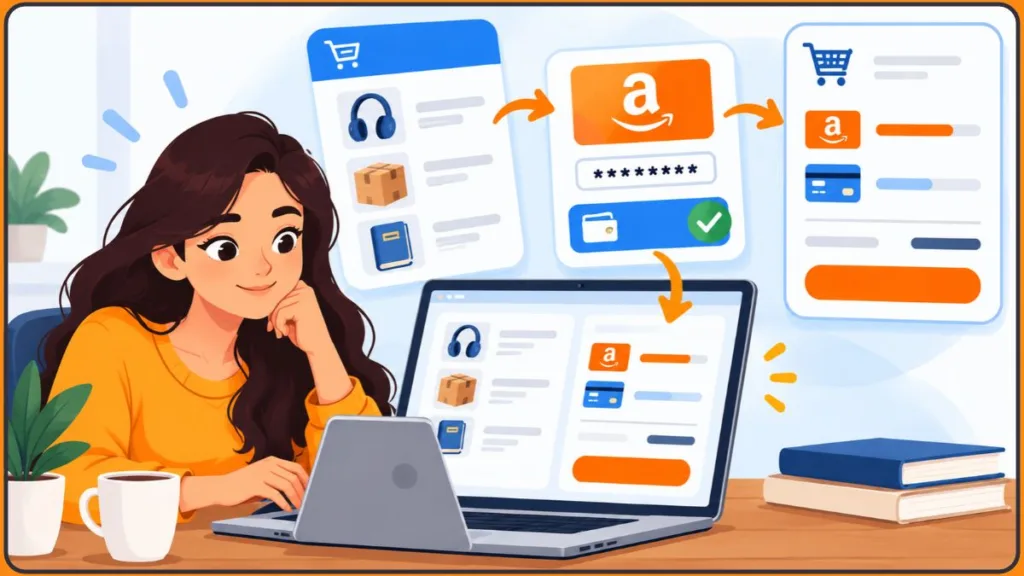
Use an Amazon Gift Card for an Online Order
- Add the item to your cart.
- Select Proceed to Checkout.
- Review your delivery address and shipping option.
- Check the payment section to confirm that your gift card balance is applied.
- Review the total and any remaining amount due.
- Select Place Your Order when the payment details are correct.
If your balance covers the entire eligible order, no additional payment should be needed. If the balance is lower than the total, select an accepted payment method for the remainder when the checkout flow allows it.
Do not calculate the required balance using the product price alone. Taxes, shipping charges, discounts, and other adjustments may affect the final amount. The checkout summary is the best place to confirm how much the gift card is covering.
Important: Before selecting Place Your Order, confirm that the gift card appears in the payment breakdown and that the final total is correct. This is your last opportunity to catch an unexpected remaining charge.
Pay with Amazon Gift Card Balance in the App
The process is similar in the Amazon shopping app:
- Open the app and add your item to the cart.
- Tap Proceed to Checkout or the purchase option displayed in your app version.
- Review the payment section.
- Confirm that the gift card balance is applied.
- Select another accepted method if the order has a remaining amount due.
- Review your order and tap Place Your Order.
If the balance is missing, check that you are using the same Amazon account where you redeemed the card. Switching accounts can make a valid balance appear to be missing.
If the app does not show the expected payment option, open the order using a browser or review Amazon’s payment help page before retrying the purchase. This can help you distinguish an app-menu issue from a balance, eligibility, or payment-method problem.
Tip: If the balance appears on your account but not at checkout, check the signed-in account first. Then review the order’s eligibility and payment options before trying again.
Apply an Amazon Gift Card Code at Checkout Without Redeeming First
In some checkout flows, Amazon provides a field for entering a gift card claim code. The exact label and availability can vary, so follow the options displayed on your checkout page.
If the gift card option is available:
- Proceed to checkout with your item.
- Open the section for gift cards, vouchers, or promotional codes.
- Enter the claim code in the designated field.
- Apply the code and review the updated order total.
- Complete checkout after confirming the payment details.
Redeeming the card to your account first is generally more convenient when you plan to use the funds for future purchases. Applying a code during checkout is useful when you are completing a purchase immediately and the relevant option is available.
After applying a code, check the order summary. Entering the code does not guarantee that Amazon accepted it or that the item is eligible.
Important tip: Use the checkout-code method only if that option is shown on your order. If it is not available, redeem the card through Amazon’s official redemption page and then check out using the account balance.
How to Pay the Remaining Total When Your Gift Card Balance Is Too Low
You usually do not need another gift card to cover the difference. For eligible Amazon.com purchases, the gift card balance can generally be combined with an accepted credit or debit card, subject to the checkout rules.
For example, an order total of $64 with a $40 gift card balance leaves $24 to be covered by another accepted payment method.
Before placing the order:
- Confirm that the gift card balance is applied.
- Select an accepted credit or debit card if Amazon requires one.
- Make sure the additional payment method is valid and has enough available funds.
- Review the final payment breakdown before submitting the order.
Amazon.com generally permits a gift card balance to be combined with an accepted payment card, but you should not assume that an order can be split across multiple credit or debit cards. Prepaid card combinations can also have additional restrictions.
If the checkout page does not offer the combination you expected, use the options it supports rather than repeatedly submitting a payment that may be declined.
You can review Amazon’s instructions for managing payment methods.
This help page covers the practical account tasks that often resolve a payment problem: adding a card, editing its details, updating the billing address, or removing an outdated payment method. If your card has expired or its billing address has changed, updating the saved details can help with future purchases. Amazon also notes that changing a saved payment method does not automatically change the payment method on an order that is already open, so check the order itself if you need to correct a payment in progress.
Tip: If your gift card does not cover the full order, check the remaining amount and make sure the selected payment method has enough available funds. Do not assume that Amazon will accept multiple payment cards for the same order.
Track an Amazon Gift Card Order or Digital Delivery
If you bought a gift card for another person, use the order details to check its status.
- Sign in to the Amazon account used to purchase the card.
- Open Your Orders.
- Find the gift card order.
- Open Order Details and review the latest status.
For digital gift cards, a status such as Sent indicates that Amazon has processed the delivery. It does not guarantee that the recipient has seen the message or that it has reached their main inbox.
If the card has not arrived, check the recipient’s email address or mobile number and ask them to look in their spam or junk folder. Digital delivery can take longer than expected, so use the order status rather than assuming something has gone wrong immediately.
If Amazon provides a resend option, follow the instructions shown in the order details. Pay attention to any notice about the original card or code, and tell the recipient to follow the latest delivery message.
If you are checking an ordinary product order paid for with a gift card, open the product order details and review the payment information. This can help you confirm whether the balance was applied.
Important tip: Before resending a digital gift card, review Amazon’s instructions for that order. Make sure the recipient follows the latest delivery message and understands which card or code to use.
Which Non-Amazon Gift Cards Can You Use on Amazon?
It depends on the type of card.
A store-specific gift card from a clothing brand, restaurant, or another retailer normally cannot be redeemed as Amazon.com gift card balance. It remains tied to the retailer that issued it.
Amazon may sell gift cards for other brands, but buying one through Amazon does not make it an Amazon gift card. Check the named brand’s redemption instructions to see where you can use it.
Visa, Mastercard, and American Express prepaid gift cards work differently because they function as payment cards. Amazon may accept an eligible card as a payment method, subject to the card issuer’s rules and the payment options available for your order.
Important: A gift card’s seller and issuer are not always the same thing. Check which company issued the card and where it can be redeemed before trying to apply it to your Amazon balance.
Add a Visa Gift Card to Amazon as a Payment Method
To try an eligible Visa gift card as a payment method:
- Sign in to Amazon.
- Open Your Account and select Your Payments.
- Choose Add a payment method.
- Select the option to add a credit or debit card.
- Enter the card number, expiration date, and security code.
- Provide the billing details required by the card issuer.
- Select the card at checkout if it is accepted for your order.
You may also be able to add a card during checkout. The available options depend on your account and the transaction.
Before trying the payment, check the prepaid card’s activation status and available balance. Some issuers require you to register billing details before the card can be used online. If the billing information does not match the issuer’s records, the transaction may be declined.
Do not assume that a prepaid card can cover only part of an order. Some prepaid card and payment combinations may not support partial payments. If Amazon does not offer the combination you need, use another accepted payment method or check with the card issuer.
For more information, see Amazon’s Manage Payment Methods help page. It explains how to add a card and update saved payment details. Use it if you need to check whether your card is stored correctly before another attempt.
Tip: If a Visa gift card is declined, check activation, available funds, and the billing address registered with the issuer before trying again. These checks help narrow down whether the issue is with the card or the checkout method.
Amazon Gift Card Balance Transfers and Conversion Rules
Amazon gift card funds are intended for eligible purchases under the terms of the marketplace where the card was issued. They are not the same as cash in a bank account.
Can an Amazon.com Gift Card Be Converted to Amazon Pay?
No. An Amazon.com gift card balance cannot simply be converted into an Amazon Pay balance for use on an unrelated retailer’s website.
Amazon Pay is a separate checkout service that lets customers pay participating third-party merchants using supported payment methods. Amazon.com gift cards cannot be used to pay for purchases directly through Amazon Pay on third-party merchant websites. See Amazon Pay’s accepted payment methods.
The accepted-payment-methods page is useful here because it clarifies what a shopper can use when the Amazon Pay button appears on a participating merchant’s site. It lists payment types Amazon Pay accepts and specifically distinguishes those from Amazon.com gift card balance. For instance, having money in your Amazon.com gift card balance does not mean that balance will appear when you use Amazon Pay to buy from a separate retailer.
Amazon.in works differently. Eligible Amazon Pay gift cards are added to the relevant Amazon Pay balance, which can be used for eligible transactions on Amazon.in and supported partner apps. That does not mean an Amazon.com gift card can be used in the Indian system.
Important: Amazon.com gift card balance and Amazon Pay balance are not interchangeable. Check your country’s gift card rules before attempting to convert, transfer, or use the funds on another website.
Link an Amazon Gift Card to Your Account by Redeeming It
When people ask how to connect a gift card to Amazon, they usually mean redeeming it.
On Amazon.com, open the official gift card redemption page, enter the claim code, and apply it to your balance. After redemption is confirmed, the funds are available for eligible purchases on that account.
Check the account before redeeming. Amazon.com gift card balances generally cannot be transferred between accounts, so it is worth confirming the sign-in details first.
Tip: If you intend to give a card to someone else, send them the unused card or redemption instructions instead of redeeming it to your own account.
Can You Transfer Amazon Gift Card Funds to a Bank Account?
Generally, no. Amazon.com gift card balances are meant for eligible purchases and are not normally redeemable for cash or transferable to a bank account, except where required by law.
Be careful if a person or website offers to cash out your gift card for a fee. Such offers can be scams, and sharing your claim code may allow someone else to spend the balance.
Amazon warns customers not to pay people or businesses with gift cards or give claim codes to people they do not know and trust. Review Amazon’s guidance on common gift card scams before accepting an offer to buy, sell, or convert a gift card balance.
Amazon’s guidance explains the pattern behind many gift-card scams: someone makes contact unexpectedly, creates urgency or fear, instructs the victim to buy a gift card, and then asks for its claim code or a photograph of the card. Once the code is shared, the funds may be spent before the victim can recover them. That is why legitimate customer support should be contacted through official channels instead of through a number or link supplied by a stranger.
Important: Do not share a claim code with anyone who promises to transfer your balance to a bank account. Keep the code private and use Amazon’s official support channels if you need help.
Buy Amazon Gift Cards Online: Formats and Ordering Steps
If you want to give someone a gift card instead of using one yourself, buying directly through Amazon is a straightforward option. The official gift card page lists the formats and designs currently available for the marketplace.
How to Buy an Amazon Gift Card for Someone
- Visit Amazon’s Gift Cards page.
- Choose a digital, print-at-home, or physical card available in your region.
- Select a design and amount, or enter a custom amount if offered.
- For digital cards, provide the recipient’s email address or mobile number when requested.
- Add a message and select a delivery date if scheduling is available.
- Add the gift card to your cart and complete checkout using an accepted payment method.
The process works for birthdays, holidays, thank-you gifts, and other occasions. The available delivery methods and amounts depend on the card type and region.
The official gift card page is also a useful place to check whether you’re buying an Amazon gift card or a card for another brand. That distinction matters because the recipient may need to redeem a third-party brand card with that brand, while an Amazon.com gift card is intended for eligible Amazon.com purchases.
One important restriction: you generally cannot use an Amazon.com gift card balance to purchase another gift card. Use another accepted payment method if the balance cannot be applied to the card you want to buy.
Tip: Before checking out, review the delivery method, amount, recipient details, and delivery date. A small mistake in an email address or mobile number can delay a digital gift.
Send an Amazon Gift Card by Email, Text, Mail, or Print-at-Home
Choose the delivery method that works for the recipient:
- Email: Enter the recipient’s email address and choose a delivery date if available.
- Text message: Enter the recipient’s mobile number when the card supports text delivery.
- Physical card: Provide the mailing address and select an available shipping option.
- Print at home: Select an eligible printable card and follow Amazon’s instructions for accessing and printing it.
For a scheduled digital gift card, double-check the recipient details and delivery date before checking out. If the gift is time-sensitive, leave room for a potential delivery delay.
If a digital card does not arrive, open Your Orders, select the gift card order, and review the latest status and available resend options. Follow any instructions about the original card so the recipient does not accidentally use an outdated code.
Important: Keep the order confirmation until the recipient receives the gift card. If delivery is delayed, use the order details to check its status rather than immediately purchasing another card.
Amazon Gift Card Bulk Orders for Businesses
Amazon provides business gift card and incentive options for eligible organizations that need cards or codes for employee rewards, customer incentives, research participation, events, or other approved programs.
Amazon’s Incentives and Gift Card API program is designed for businesses that need to distribute Amazon gift cards through a supported program. This is separate from an ordinary consumer gift card purchase.
The API page is most relevant to a company that wants to issue gift card codes through its own service, reward program, or business workflow. It describes technical options for generating and distributing eligible Amazon gift card codes. It is not the normal route for an individual who wants to buy one gift card for a friend.
Before placing a bulk order, check the current program requirements, delivery options, eligible use cases, and any purchase limits that apply to your business and region. Do not assume that consumer gift card rules and business incentive program rules are interchangeable.
Important: If you’re buying gift cards for a business, verify the program’s eligibility requirements and terms before placing a large order. Consumer gift card rules may not cover business incentive purchases.
Print an Amazon Gift Card at Home
If you choose the print-at-home option, follow the instructions supplied with the card:
- Select Print at home when purchasing an eligible gift card.
- Complete checkout.
- Open the confirmation page or email.
- Use the provided print option and print the card, or save the available file for printing later.
A printed card is convenient when you need a physical gift without waiting for shipping. Keep it secure until you hand it over. Anyone who obtains the usable claim code may be able to redeem its balance.
Tip: Treat a printed gift card like the digital version. Keep the claim code out of public view until you give the card to its recipient.
Fix Amazon Gift Card Problems: Codes, Balance, and Payments
If your code or balance does not work, identify the specific problem before attempting redemption repeatedly.
Amazon Gift Card Code Invalid or Already Redeemed
Likely causes: A typing error, use of the wrong number, or a code that has already been redeemed.
What to do: Compare the code with the original card or delivery message. Check similar-looking characters and make sure you are using the actual claim code, not a barcode or serial number. If Amazon says it has already been redeemed, check your balance and activity first.
If the value is missing and you did not redeem it, contact Amazon Customer Service and provide the purchase details or receipt. Do not post the claim code publicly while seeking help.
Tip: Check the original code and your account balance first. If the card appears to have been redeemed without your permission, keep the receipt and contact official support.
Amazon Gift Card Added to the Wrong Account
Likely cause: You were signed in to a different Amazon account when you redeemed the card.
What to do: Sign in to the account used for redemption and check its gift card balance and activity. Amazon.com balances generally cannot be transferred between accounts, so contact Amazon support if you believe the card was redeemed incorrectly or without your permission.
Important: Verify your Amazon account before redeeming a gift card. This can prevent a balance from being added to an account you did not intend to use.
Gift Card Balance Missing During Amazon Checkout
Likely causes: The card was not redeemed successfully, the balance belongs to another account, or the purchase is not eligible.
What to do: Check the balance page, confirm which account is open, and review the item’s eligibility under the gift card terms. If the balance is correct but still does not appear, refresh the page or reopen the app and check the payment section again.
Tip: Confirm the balance on the account page before troubleshooting checkout. This helps you determine whether the problem is with redemption, the signed-in account, or the purchase itself.
Amazon Gift Card Won’t Apply to an Item
Likely cause: The item or transaction is excluded under the gift card terms, or the card belongs to a different marketplace.
What to do: Check the Amazon.com Gift Card Terms and Conditions and the available payment options for the transaction. Gift card balance generally cannot be used to purchase other gift cards and certain prepaid or third-party gift cards. Choose another accepted method if the item is not eligible.
Important: If the card works for other purchases but not the current one, check the item’s eligibility before assuming the gift card is defective.
Amazon Gift Card from Another Country
Likely cause: The card was issued for a different Amazon marketplace.
What to do: Check whether the card is for Amazon.com, Amazon.in, or another regional store. Open the matching marketplace’s redemption page and terms. A US Amazon.com gift card generally cannot be applied as balance on Amazon.in.
Amazon also warns that when an account’s country or region changes, gift card balances and promotional credits remain tied to the original marketplace rather than transferring to the new one. If you recently moved or changed your account’s country settings, review Amazon’s guidance on changing your Amazon account country before assuming the balance has disappeared.
Tip: Check the marketplace shown on the gift card before redeeming it. A card from another country may not be usable on the store where you’re shopping.
Amazon Digital Gift Card Not Received
Likely causes: An incorrect email address or phone number, a message filtered as spam, or a processing delay.
What to do: Check the recipient details in Your Orders, ask the recipient to look in spam or junk folders, and review the gift card’s order status. Use the resend option if one is available. If the problem continues, contact Amazon support through the order.
Tip: Check the delivery status and recipient details before resending a digital card. Follow Amazon’s instructions if the order page warns you about the original code.
Visa Gift Card Declined on Amazon
Likely causes: The card is not activated, the balance is insufficient, the billing details are not registered correctly, or the transaction is not supported by the card issuer.
What to do: Check activation and available funds with the card issuer. Confirm that the billing details match the issuer’s records. Then retry using a payment combination Amazon supports. If the issuer confirms that the card is valid but the transaction still fails, contact the issuer or Amazon support.
Tip: Check activation, remaining funds, and the registered billing address before retrying. If the card issuer confirms everything is correct, contact support instead of repeatedly submitting the same declined payment.
Protect Your Amazon Gift Card Balance from Scams
Gift card codes can be spent by whoever redeems them. Protect the code as carefully as you would payment information.
- Keep the claim code private. Do not post a photo or screenshot of an unused card online or send its code to someone you do not trust.
- Keep the receipt or order confirmation. These records can help when contacting support about a card that will not redeem.
- Check your balance and activity. Review your account if you suspect that funds were redeemed or spent without your permission.
- Ignore requests for gift card payment. A caller or online contact who demands Amazon gift cards to pay a bill, clear a fine, unlock an account, or claim a prize is showing a major warning sign.
- Buy from trusted sellers. Amazon warns against unauthorized gift card sellers because it cannot guarantee the legitimacy of cards purchased through them.
The risk is not hypothetical. The Federal Trade Commission’s 2024 Consumer Sentinel Network Data Book recorded 41,120 fraud reports involving gift cards or reload cards as the reported payment method, with $212 million in reported losses. These figures cover gift and reload cards broadly, not Amazon gift cards alone, and describe reported cases rather than every incident that occurred. See the FTC’s 2024 Consumer Sentinel Network Data Book.
The Data Book is useful for understanding the scale of reported consumer fraud, but it has an important limitation: the FTC describes the reports as consumer-provided and unverified, not as the results of a representative consumer survey. These figures should therefore be read as reported losses and complaints, not as a count of every scam or proof that every report was independently confirmed.
The practical lesson is simple: a legitimate business or government agency will not require you to pay a bill or fine by buying gift cards and handing over the claim codes.
If you suspect a scam, stop communicating with the person requesting the code. Contact Amazon through its official support channel and, in the United States, report suspected fraud through ReportFraud.ftc.gov. This is the FTC’s official reporting portal for consumers who want to submit a fraud report. Filing a report does not guarantee recovery of the money, but it can help authorities identify patterns and inform enforcement work.
The FTC also explains how to avoid and report gift card scams. Its consumer advice is particularly relevant if someone claims you must pay an unexpected bill, unlock an account, secure a discount, or claim a prize with a gift card. A useful rule is to pause and contact the organization through a verified website or phone number rather than the contact details supplied by the person making the demand.
Important: Never give a gift card claim code to someone who demands it as payment. If you have already shared a code and suspect fraud, stop communicating with the requester and report the incident through the appropriate official channels.
Amazon Gift Card Restrictions: Cash, Transfers, Expiry, and Eligible Purchases
Amazon gift cards can make checkout easier, but their restrictions are worth understanding before you redeem one.
- No general cash withdrawal: Amazon.com gift card balances are not normally redeemable for cash or transferable to a bank account, except as required by law.
- No normal account-to-account transfer: Redeemed Amazon.com balances generally cannot be moved to another Amazon.com account.
- Marketplace restrictions: A gift card is tied to the marketplace for which it was issued and generally cannot be used as balance on another country’s Amazon store.
- Purchase exclusions: Gift card balance cannot be used for certain transactions, including purchasing other gift cards and some prepaid or third-party gift cards.
- Regional validity rules differ: Amazon states that Amazon.com gift cards do not expire and carry no fees under its published US offering. Do not assume those terms apply to every Amazon marketplace or gift card product. For Amazon.in, check the terms for the specific Amazon Pay gift card you received.
These restrictions matter if you want to save the balance for later, send a card to someone in another country, or use it for a purchase outside the usual Amazon checkout flow. Check the relevant marketplace’s terms before redeeming the card.
For example, if you’re moving from the US to India, do not assume your Amazon.com balance will transfer to an Amazon.in account. If you’re buying a card for someone who lives abroad, the safest approach is to choose a gift card issued for the recipient’s marketplace. The same principle applies to expiry rules and eligible purchases: confirm the terms for that specific product rather than relying on a general statement about Amazon gift cards.
Important tip: The rules for expiry, eligible purchases, and transfers can vary by marketplace and gift card type. Check the terms for your specific card instead of applying US rules to an Amazon.in gift card.
Amazon Gift Card FAQs
Can I Use an Amazon Gift Card for Online Orders?
Yes. Redeem it to your Amazon account and apply the available balance to an eligible purchase. If the balance does not cover the full order, select an additional accepted payment method if Amazon offers that option.
How Do I Redeem an Amazon Gift Card in the App?
Open the Amazon shopping app, sign in, and look for Gift Cards or Manage gift card balance in the account area. Follow the redemption instructions, then confirm that the balance has been added.
Where Is My Amazon Gift Card Claim Code?
For a physical card, check the back beneath the sticker or scratch-off coating. For an email or text gift card, open the original message and follow its redemption instructions. For a card you purchased, check Your Orders and the relevant order details.
Does Amazon Accept Visa Gift Cards?
Amazon may accept an eligible Visa prepaid gift card as a payment card. Check that it is activated, has enough available funds, and uses the billing details registered with the issuer. Payment combinations are subject to Amazon’s checkout rules.
Where Can I Check My Amazon Gift Card Balance?
On Amazon.com, open Gift Cards in your account or visit the gift card balance page. In the app, look for Gift Cards or Manage gift card balance in the account area.
Can I Transfer Amazon Gift Card Funds to a Bank Account?
Generally, no. Amazon.com gift card balance is intended for eligible purchases, not withdrawal to a bank account or transfer to another Amazon.com account, except where required by law.
Where Can I Buy Amazon Gift Cards Online?
Yes. Visit Amazon’s official Gift Cards page, choose an available format and amount, enter the recipient’s details if needed, and complete checkout using an accepted payment method.
Do Amazon.com Gift Cards Work on Amazon.in?
Generally, no. Amazon gift cards are marketplace-specific. Use the redemption page and terms for the marketplace that issued your card.
Do Amazon Gift Cards Expire?
Amazon states that Amazon.com gift cards do not expire and carry no fees under its published US offering. Other marketplaces and gift card types can have different terms, so check the conditions for your specific card.
Can I Buy One Gift Card with an Amazon Gift Card Balance?
Generally, no. Amazon.com gift card balance cannot be used to purchase other gift cards and certain prepaid or third-party gift cards. For an Indian Amazon Pay gift card, check Amazon India’s current gift card purchase restrictions.
Final Checklist: Redeem, Check Your Balance, and Confirm Payment
To order on Amazon with a gift card, redeem the code to the correct account, confirm the available balance, and review the payment details at checkout. If the balance falls short, use another accepted payment method when Amazon supports that combination.
The most important distinction is that Amazon gift cards are tied to specific marketplaces and have purchase restrictions. Check the terms before redeeming a card, particularly if it was issued in another country, you plan to use it with Amazon Pay, or you want to purchase something other than an eligible item through the standard Amazon checkout.
Remember: Redeem the card on the correct marketplace, keep the claim code private, and confirm how the balance is applied before placing your order.
Visit Our Post Page: Blog Page
Discover more from Izoate
Subscribe to get the latest posts sent to your email.