
Want to sort and manage photos on your Mac? Learn 10 easy ways to organize your photo library using Apple Photos, Finder, Smart Albums, and iCloud.
If your Mac is filled with thousands of photos, random screenshots, duplicate images, and pictures scattered across your Desktop, Downloads, and external drives, you’re definitely not alone. Most of us capture memories every day—whether it’s family photos, travel adventures, receipts, work documents, or screenshots we planned to delete later. Before long, finding one specific picture can feel like searching for a needle in a haystack.
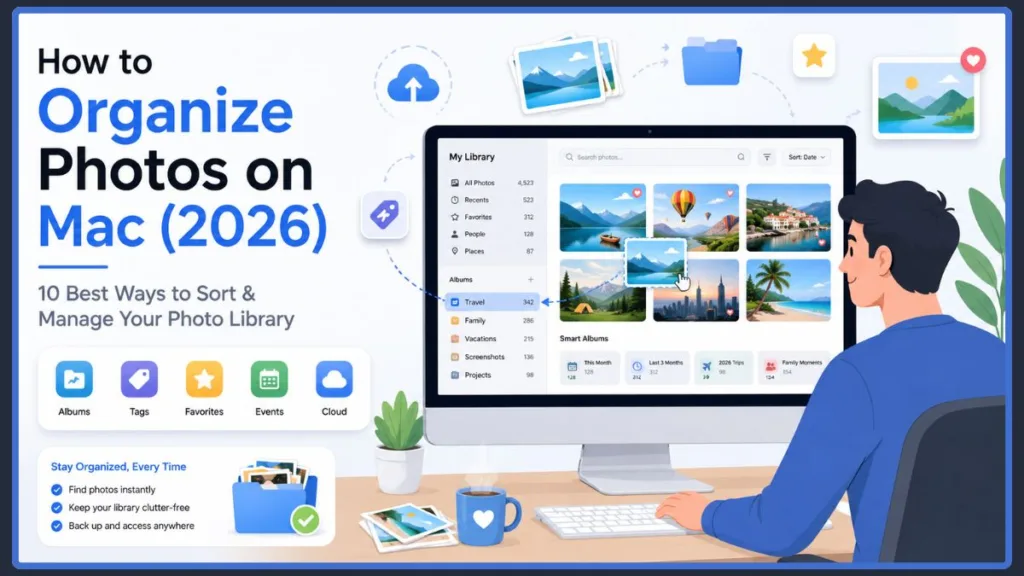
The good news is that you don’t need to spend hours creating dozens of folders or manually sorting every single image. macOS already includes powerful tools that can help you organize photos on Mac efficiently, making it easier to browse, search, and manage even the largest photo libraries.
One of the biggest reasons people struggle with Mac photo organization is not because they have too many pictures—it’s because they’re unsure where to organize them. Should you use the Apple Photos app, keep everything in Finder, or store your library on an external drive? If you’ve ever asked yourself those questions, you’re in the right place.
In this guide, you’ll learn the best way to organize photos on Mac without making the process more complicated than it needs to be. We’ll cover everything from understanding where your photos are stored and choosing between Apple Photos vs Finder, to creating albums, using Smart Albums, removing duplicates, and building a simple routine that keeps your library organized over time.
Tip: Don’t aim for a perfectly organized photo library in one sitting. A simple system that you can maintain is far more valuable than a perfect one you’ll never keep up with.
Whether you’re organizing a few hundred family photos or managing thousands of images on Mac, from your iPhone, camera, or work projects, the goal is the same: help you find the right photo when you need it—without frustration.
Understand Where Your Photos Are Stored on a Mac
Before you start organizing anything, it’s important to understand where your photos are stored on Mac. This is where many Mac users get confused, especially if they’ve recently switched from Windows or use multiple Apple devices.
On macOS, your pictures usually exist in two different places, and each one is designed for a different purpose. Knowing the difference will help you choose the best organization method and avoid accidentally moving or deleting important files.
Photos Library
If you import your pictures into the Apple Photos app, they are typically stored inside a single Photos Library located in your Pictures folder. Instead of seeing thousands of individual image files in Finder, Apple Photos manages everything inside this library for you.
This might sound unusual at first, but it’s one of the reasons the Photos app can offer features like:
- Automatic photo organization by date and time
- People recognition using facial recognition
- Places based on location data
- Powerful photo search on Mac for objects, text, pets, and landmarks
- Albums and Smart Albums without creating duplicate copies
- Seamless iCloud Photos sync across your Apple devices
Because the Photos app relies on hidden information, or metadata, to keep everything organized, it works very differently from a normal folder in Finder.
Important: Never open or manually move files inside Photos Library.photoslibrary using Finder. Doing so can damage your photo library or cause images to disappear from the Photos app.
If you use iCloud Photos, this same library is synchronized across your Mac, iPhone, and iPad. Any edits, favorites, albums, or deleted photos can sync automatically, helping you keep your photo collection consistent on every device.
Finder Files
Not every image on your Mac lives inside the Photos app.
Photos stored on your Desktop, Downloads, Documents, external SSDs, USB drives, or project folders are simply regular files managed by Finder. You have complete control over these files—you can rename them, move them between folders, archive them, or back them up however you like.
Finder is especially useful if you:
- Store photography projects on external drives
- Manage client work
- Keep exported images separate from your personal library
- Need complete control over filenames and folder structures
Unlike the Photos app, Finder doesn’t automatically organize pictures by People, Places, or Memories. Instead, you’ll rely on folders, filenames, and manual organization.
The key takeaway is simple:
- Use Apple Photos app for Mac for your everyday memories and searchable photo library
- Use Finder file management on Mac when you need direct access to image files or long-term archives
Once you understand which system your photos belong to, organizing them becomes much easier.
Should You Organize Photos in Apple Photos or Finder?
One of the most common questions Mac users ask is whether they should organize everything inside the Apple Photos app or continue using traditional folders in Finder.
The answer depends on how you use your photos, but for most people, the easiest and most efficient solution is to let Apple Photos manage photos on Mac while using Finder only when they need direct file access.
Here’s how to decide.
Use Apple Photos if you:
The Photos app is designed for everyday photo management. Instead of manually creating dozens of folders, it uses intelligent organization features to help you find pictures in seconds.
Apple Photos is the better choice if you:
- Use an iPhone or other Apple devices
- Want your photos to sync automatically with iCloud Photos backup
- Prefer searching by date, location, person, or objects
- Like organizing pictures using Albums, Smart Albums, and Favorites
- Want built-in photo editing tools on Mac
- Need a fast way to browse thousands of images
For most families and casual users, this is all you’ll ever need.
Use Finder if you:
Finder is better suited for situations where the actual files matter more than Apple’s organization features.
You may prefer Finder if you:
- Store photos on an external SSD for Mac
- Work as a photographer, designer, or content creator
- Deliver images to clients
- Need specific filenames and folder structures
- Maintain long-term archives outside the Photos app
Finder gives you complete control over your files, but you’ll also be responsible for organizing everything yourself.
Which Is Better?
Rather than choosing one over the other, think of them as serving different purposes.
For most people, the simplest workflow looks like this:
- Apple Photos = Your main photo library for everyday browsing, searching, and organizing
- Finder = Your archive for work projects, exported photos, and external storage
This approach gives you the convenience of Apple’s intelligent organization while still allowing complete control over files when you need it.
Tip: Avoid managing the same photos in both Apple Photos and Finder unless you have a clear workflow. Keeping duplicate libraries often creates confusion and wastes storage space.
Before You Start Organizing Your Photo Library
It’s tempting to jump straight into creating albums and deleting duplicates, but spending a few minutes preparing your library will save you hours later.
Think of this as cleaning your workspace before starting a project. A little preparation makes every step that follows much easier.
Update macOS and the Photos App
Start by making sure your Mac is running the latest version of macOS. Apple regularly improves the Photos app features, adding better search, duplicate detection, and performance improvements.
If you use iCloud Photos, verify that all of your devices are signed in with the same Apple Account and have finished syncing.
Back Up Your Photo Library
Before making any major changes, create a backup of your photo library.
You can use Time Machine backup on Mac or simply copy your Photos Library to an external drive. Having a backup means you can always restore your pictures if something goes wrong.
Important: Never reorganize thousands of photos without creating a backup first. It’s a simple step that can prevent permanent data loss.
Gather Photos into One Place
Many people have photos spread across multiple locations, including:
- The Desktop
- Downloads
- External hard drives
- SD cards
- Old folders
- Their iPhone
Before organizing, decide where your primary library will live. Consolidating your pictures into one place makes searching, backing up, and maintaining your collection much easier.
Remove the Obvious Clutter
You don’t need to perform a deep cleanup yet, but it’s worth deleting files that clearly don’t belong.
Good candidates include:
- Blurry images
- Accidental screenshots
- Duplicate downloads
- Random memes
- Temporary reference photos
Removing this obvious clutter now makes the rest of the organization process much less overwhelming.
Check Dates and Locations
If you’ve imported old scanned photos or images from older cameras, verify that the photo metadata dates are correct.
Apple Photos organizes much of your library based on dates and locations. Fixing incorrect information now ensures features like Years, Months, People, Places, and photo search on Mac work much more accurately later.
Tip: If you have a massive photo collection, don’t start with everything. Begin with your most recent year of photos, build a simple organization system, and then work backward whenever you have time.
Now that your library is prepared and you understand where your photos are stored, you’re ready to start organizing them using the most effective methods built into macOS.
10 Best Ways to Organize Photos on Mac
Now that you’ve prepared your library and understand how Apple Photos app on Mac and macOS Finder file management work, it’s time to build an organization system that’s actually easy to maintain.
The biggest mistake people make is trying to organize every single photo file in one afternoon. Instead, focus on creating a workflow that helps you find photos fast on Mac, keeps your library tidy, and doesn’t require constant maintenance.

The following methods build on each other, so you can start with the basics and gradually improve your Mac photo management system over time.
Step 1: Consolidate All Your Photos into One Library
Before you start creating albums or deleting duplicates, make sure your photos aren’t scattered across multiple locations.
Many Mac users have images stored in places like:
- Mac Desktop
- Downloads folder
- External SSDs or hard drives
- USB flash drives
- SD cards from cameras
- iPhone photo imports
- Old backup folders
When your pictures are spread across different locations, you’ll constantly wonder where a particular image is stored. Even Apple’s powerful photo search on Mac tools can’t help if half your photos aren’t part of the same library.
If you mainly use Apple Photos library, import your recent photos into one primary Photos Library on Mac instead of keeping copies in random folders. If you prefer a Finder-based workflow for work or photography projects, create one master archive folder and organize everything there.
You don’t have to import decades of photos in one day. Start with your newest pictures first, then gradually work through older collections whenever you have time.
Tip: One well-organized photo library on Mac is much easier to manage than five partially organized folders spread across your Mac and external drives.
Step 2: Let Apple Photos Organize Your Library Automatically
One of the biggest advantages of the Apple Photos app for Mac is that it already organizes much of your library for you.
Instead of immediately creating dozens of albums, spend some time exploring the built-in views Apple provides. Many users overlook these features and end up doing unnecessary manual work.
Years
The Years view in Apple Photos groups your photos into broad timelines, making it easy to jump to a particular period of your life.
If you remember taking a picture “a few summers ago” but don’t remember the exact date, this view gives you a great starting point.
Months
The Months view in Photos app breaks your library into smaller collections based on time and events.
Trips, holidays, birthdays, and family gatherings often become much easier to identify here.
Days
When you know approximately when a photo was taken, the Days view on Mac Photos lets you browse individual events without scrolling through thousands of unrelated pictures.
People
If you’ve enabled face recognition in Apple Photos, Apple automatically groups photos of the same person together.
Spend a few minutes naming important people in your library. After that, finding family photos becomes much faster because you can simply search by name instead of remembering dates or albums.
Places
Photos with location information are automatically grouped using Apple Photos map view.
This is incredibly useful when you remember where a photo was taken but not when it happened.
Media Types
Apple also creates automatic collections for different types of content, including:
- Screenshots on Mac
- Videos
- Selfies
- Live Photos
- Portrait mode photos
- Panorama photos
These built-in categories make it easy to review and clean up specific types of images without manually sorting your entire library.
Rather than fighting against Apple’s organization system, let it do most of the work for you.
Tip: If some photos appear in the wrong year, update their capture date before organizing further. Accurate dates improve photo search accuracy, People recognition, and Memories feature results.
Step 3: Create Albums Without Overorganizing
Albums are one of the easiest ways to organize photos on Mac, but they’re also one of the easiest features to overuse.
Many people create an album for every small event, weekend outing, or random idea. After a few years, they end up with hundreds of albums that are just as difficult to browse as the original photo library.
Instead, create albums only for collections you’ll actually revisit.
Good examples include:
- Family photos
- Vacation photos
- Road trips
- Work projects
- Pet photos
- Special events
- School memories
Remember that Albums in Apple Photos do not duplicate photos. They simply create another way to view them.
A single photo can belong to multiple albums without creating duplicate copies or using additional storage space.
For example, one picture from your vacation could appear in:
- Your Italy Trip album
- Your Family album
- Your Favorites album
All without being stored three separate times.
Keeping your album structure simple makes your library much easier to navigate in the future.
Important: If you’re creating an album just because one photo doesn’t seem to fit anywhere else, you probably don’t need that album. Apple’s photo search feature can usually find it faster.
Step 4: Organize Albums into Folders
As your collection grows, you’ll eventually have more albums than can comfortably fit in the sidebar.
That’s where Folders in Apple Photos become useful.
Unlike albums, folders don’t contain photos directly. Their only purpose is to organize your albums into logical groups.
For example:
Vacations
    Italy 2024
    Japan 2025

Family
    Birthdays
    Holidays

Work
    Projects
    Clients
This approach keeps your sidebar clean without affecting your actual photo library.
A good folder structure should stay broad rather than overly detailed.
Examples include:
- Travel photos
- Family albums
- Work folders
- Personal photos
- Archived events
Avoid creating several layers of nested folders unless you genuinely need them. The deeper your folder hierarchy becomes, the harder it is to find things later.
Remember, folders are simply there to keep your albums organized—they’re not meant to replace Apple’s powerful Mac photo search tools.
Tip: Think of folders as drawers in a filing cabinet. They organize your albums, not your actual photos.
Step 5: Use Smart Albums to Organize Photos Automatically
If regular albums require manual work, Smart Albums in Apple Photos do the work for you.
Instead of dragging photos into an album yourself, you create a few simple rules and let Apple Photos keep everything updated automatically.
For example, you can create Smart Albums that automatically collect:
- Photos taken this year
- Favorite images
- Videos
- Screenshots
- Photos with specific keywords
- Images added in the last 30 days
Whenever a new photo matches those rules, it appears in the Smart Album automatically.
This is especially helpful if you’re constantly adding pictures from your iPhone or camera.
Rather than reorganizing your library every week, Smart Albums quietly maintain themselves in the background.
Some useful Smart Album ideas include:
- Recent imports on Mac
- Travel photos
- Work documents
- Videos collection
- Favorite photos
- Screenshots folder
- Photos from this year
The more repetitive the task, the more likely a Smart Album can automate it.
Tip: Use Smart Albums for collections that continue to grow, and use regular albums for one-time events like vacations or weddings.
Step 6: Use Search Instead of Creating Hundreds of Albums
This is one of the biggest habits that separates experienced Mac users from beginners.
Instead of building hundreds of folders, learn to trust Apple’s built-in AI photo search on Mac.
Modern versions of Apple Photos can search for far more than filenames.
You can search using:
- People recognition
- Pets
- Cities
- Countries
- Objects
- Landmarks
- Food
- Documents
- Text recognition (Live Text)
- Dates
For example, you can search for:
- Beach
- Passport
- Dog
- Receipt
- Birthday
- Paris
- Sunset
Without ever remembering where you saved the picture.
Apple Photos uses machine learning and image recognition to make your library searchable, even if you never created an album for those photos.
This means you spend less time organizing and more time actually enjoying your memories.
Important: Before creating another album, ask yourself, “Could I simply search for this later?” In many cases, the answer is yes.
Step 7: Favorite and Keyword Your Best Photos
Not every photo deserves the same level of attention.
That’s why Favorites and keywords in Apple Photos are such useful organization tools.
Whenever you come across a picture you know you’ll want again, simply mark it as a Favorite photo on Mac.
Over time, this creates a curated collection of your best memories without requiring any extra folders.
Keywords take organization one step further.
They’re especially useful for photos that aren’t easy to search by date or location.
Practical keywords include:
- Travel photos
- Family pictures
- Work files
- Receipts
- Documents
- Invoices
- Pet photos
Keep your keyword system simple.
Using five or ten consistent keywords is much more effective than creating hundreds you’ll never remember.
Tip: Favorites help you quickly revisit your best photos, while keywords improve photo search on Mac for hard-to-find images.
Step 8: Remove Duplicate Photos and Clutter
Even the best organization system becomes difficult to manage if it’s filled with unnecessary photos.
Take advantage of the duplicate photo finder in Apple Photos if it’s available on your version of macOS.
Review duplicate images carefully before merging them, especially if they’ve been edited.
While you’re cleaning up, also look for:
- Blurry photos
- Burst shots you don’t need
- Accidental screenshots
- Temporary downloads
- Multiple copies of the same image
Remember that deleted pictures aren’t immediately erased.
They’ll first move to the Recently Deleted album on Mac, giving you time to recover them if you make a mistake.
Cleaning a little at a time is far less stressful than trying to remove years of clutter all at once.
Tip: Every photo you delete is one less photo you’ll have to organize in the future.
Step 9: Organize Photos Stored Outside Apple Photos (Finder)
Not everyone stores every picture inside Apple Photos.
If you work with RAW images, client projects, exported photos, or long-term archives, Finder gives you more control over your files.
A simple folder structure like this usually works well:
Photos Archive

2024
    2024-01 Vacation
    2024-06 Wedding

2025
    2025-03 Iceland
Using date-based file naming on Mac keeps everything automatically sorted and easier to browse years later.
If you already imported photos into Apple Photos but need actual files, export photos from Apple Photos instead of copying files from the Photos Library package.
Finder works best as a photo archive system, while Apple Photos works best as your searchable everyday library.
Keeping those two roles separate helps prevent confusion and accidental file management mistakes.
Important: Never rename, move, or delete files inside Photos Library.photoslibrary package using Finder.
Step 10: Keep Your Photos Synced with iCloud
Once your library is organized, you’ll probably want that same organization on every Apple device you own.
That’s where iCloud Photos sync becomes incredibly useful.
When enabled, your:
- Albums
- Favorites
- Edits
- Keywords
- Photo organization
can stay synchronized across your Mac, iPhone, and iPad.
If your Mac has limited storage, you can also enable Optimize Mac Storage for Photos, which keeps smaller versions of your photos on your computer while storing the full-resolution originals securely in iCloud.
This saves disk space without changing how your library is organized.
If you regularly share memories with family, iCloud Shared Albums also make collaboration much easier by allowing everyone to view and contribute photos without creating duplicate libraries.
Tip: Before assuming a photo is missing, check whether iCloud Photos syncing status has finished updating. Large libraries can take some time to sync across all your devices.
How to Organize Thousands of Photos on Mac
If your photo library contains 10,000, 50,000, or even 100,000+ photos, don’t panic. The size of your library isn’t the real problem—trying to organize everything at once is.
Many people open their Photos app, see years of memories mixed with screenshots, downloads, and duplicates, and immediately feel overwhelmed. The best approach is to break the job into smaller, manageable tasks instead of treating it like a weekend project.
Start with your most recent year of photos. These are usually the pictures you search for most often, so organizing them first gives you the biggest improvement right away. Once your latest photos are under control, you can gradually work backward through older years whenever you have spare time.
Instead of manually reviewing every image, let Apple Photos app on Mac do much of the heavy lifting. Features like AI photo search, People recognition, Places map view, Media Types filters, and Smart Albums automation are designed specifically for large libraries. They’re much more efficient than creating hundreds of folders or albums.
As you organize, focus on making meaningful decisions rather than perfect ones.
For example:
- Keep your best memories photos by marking them as Favorites in Apple Photos.
- Delete obvious clutter like blurry photos and accidental screenshots.
- Create albums only for important trips, milestones, or projects.
- Leave everyday photos in your main library where Mac photo search can find them instantly.
If you’re managing professional work alongside personal photos, consider keeping your active personal photo library inside Apple Photos while storing completed client projects or RAW files in a well-organized Finder archive.
Most importantly, give yourself permission to stop after making progress.
Even organizing 200 photos today is better than waiting until you have time to organize 20,000 photos tomorrow.
Tip: The goal isn’t to organize every picture you’ve ever taken. It’s to build a system that helps you quickly find the photos that matter most.
Common Mistakes to Avoid
Even with the right tools, a few common mistakes can make your Mac photo library organization system harder to manage over time. Avoiding these habits will save you countless hours later.
Creating Too Many Albums
It’s easy to think every event deserves its own album.
In reality, dozens—or even hundreds—of tiny albums quickly become difficult to browse.
Instead, rely on AI photo search, People recognition, Places map view, and a handful of well-planned albums for major events or projects.
Editing the Photos Library in Finder
The Photos Library on Mac isn’t a normal folder.
Moving, renaming, or deleting files inside Photos Library.photoslibrary package can break your library and cause missing photos.
Always manage imported photos through the Apple Photos app itself.
Important: If you need actual image files, use File → Export photos from Mac instead of opening the Photos Library package.
Skipping Backups
Organization always involves moving, deleting, or merging photos.
Without a backup, one accidental mistake could permanently remove valuable memories.
Whether you use Time Machine backup Mac, iCloud Photos sync, or an external drive, make sure you have at least one current backup before making major changes.
Keeping Every Single Photo
Not every picture deserves a permanent place in your library.
Keeping ten nearly identical photos of the same scene only makes future searches more difficult.
Choose the best version and let the rest go.
Ignoring Duplicate Photos
Duplicates quietly consume storage space and make your library look much larger than it really is.
Review the duplicate photos finder Mac (Duplicates album) periodically and merge confirmed duplicate images to keep your library clean.
Using Inconsistent Album Names
Album names like “Vacation,” “Trip,” “Holiday,” and “Summer Stuff” can become confusing over time.
Choose a consistent naming style—for example:
- 2026 Summer Vacation Photos
- 2025 Family Reunion Album
- 2024 Japan Travel Photos
A predictable structure makes browsing much easier years later.
Quick Weekly Photo Organization Routine
The easiest way to keep your library organized isn’t through massive cleanups—it’s through small, consistent habits.
Set aside just 10 to 15 minutes each week to maintain your collection before clutter builds up again.
| Task | Time |
|---|---|
| Import new photos to Mac | 2 minutes |
| Delete blurry images, accidental screenshots, and obvious duplicates | 3 minutes |
| Mark your favorite photos | 2 minutes |
| Add major events to an album if needed | 3 minutes |
| Confirm iCloud Photos sync status | 2 minutes |
This routine may seem simple, but it prevents months—or even years—of photo clutter from building up.
Tip: A 15-minute weekly routine is much easier than spending an entire weekend reorganizing thousands of photos later.
Monthly Maintenance Checklist
While your weekly routine keeps everyday clutter under control, it’s worth spending a little extra time once a month reviewing your entire library.
A monthly checkup helps ensure your photo collection stays organized, searchable, and safely backed up.
Use this checklist:
- Review the duplicate photos finder Mac (Duplicates album) and merge confirmed duplicate photos.
- Empty the Recently Deleted photos folder after confirming you don’t need anything back.
- Remove screenshots, temporary downloads, and reference images you no longer need.
- Review newly recognized faces in the People recognition album and assign names where appropriate.
- Check that your iCloud Photos sync across devices has finished syncing.
- Confirm your Time Machine backup Mac or external backup is up to date.
- Review your newest albums to make sure they still fit your organization system.
Think of this as routine maintenance for your photo library. A little attention each month keeps everything running smoothly.
Frequently Asked Questions
Is Apple Photos better than Finder?
For most people, yes.
Apple Photos is designed for managing and searching large photo libraries using People recognition, Places map view, Albums, Smart Albums automation, and intelligent AI photo search. Finder is better suited for users who need direct access to image files, such as photographers or designers managing client projects.
Does creating an album duplicate photos?
No.
Albums simply create another way to view your photos. Adding the same picture to multiple albums does not create extra copies or use additional storage space.
How do I organize photos on an external drive?
Create a clear folder structure using year-based photo organization and event-based naming, such as:
- 2026
- 2026-04 Spring Trip Photos
- 2026-09 Family Reunion Album
If the photos already exist in Apple Photos, export them first instead of copying files directly from the Photos Library.
Can I organize photos without iCloud?
Absolutely.
The Photos app works perfectly well without iCloud Photos sync. You’ll simply manage your library locally on your Mac, and your photos won’t automatically sync to your other Apple devices.
How do I organize 50,000+ photos on Mac?
Start with your newest photos rather than your oldest ones.
Delete obvious clutter first, rely on AI photo search, People recognition, and Smart Albums automation, and organize your library gradually over time instead of trying to finish everything in one session.
What’s the difference between Albums and Folders?
An Album contains collections of photos.
A Folder contains albums.
Folders help organize your sidebar, while albums help organize your pictures.
Should I rename photo files?
If your photos stay inside Apple Photos app on Mac, renaming files usually isn’t necessary because the app relies on metadata and AI photo search.
If you manage photos in Finder on Mac, especially for work or archives, descriptive filenames can make your collection easier to navigate.
Can I recover deleted photos?
Usually, yes.
Deleted photos first move to the Recently Deleted photos folder, where they remain for a limited time before being permanently removed. If you’ve also created backups with Time Machine backup Mac or another backup solution, you may be able to restore older copies as well.
Final Thoughts
Learning how to organize photos on Mac efficiently doesn’t have to be overwhelming. Once you understand where your photos are stored and choose a workflow that fits your needs, managing even a large photo library becomes much simpler.
For most people, the best approach is to let Apple Photos app on Mac handle everyday organization while using Finder on Mac only when direct file management is necessary. Features like Albums, Smart Albums automation, AI photo search, People recognition, Places map view, and iCloud Photos sync are designed to help you spend less time organizing and more time enjoying your memories.
Remember, you don’t need a perfectly organized library to get great results. A few thoughtful changes today—combined with a short weekly maintenance routine—will make it much easier to find your favorite photos months and even years from now.
Final Tip: Don’t wait until your library feels out of control. Start with your newest photos, organize a little at a time, and let your system grow naturally. Small, consistent improvements are what keep a photo library organized for the long term.
Useful Official Resources for Organizing Photos on Your Mac
If you are looking for dependable, Apple-certified information about streamlining your picture library and safeguarding your digital memories, the following official guides are incredibly helpful. They explain how to navigate native Mac applications, synchronize your images across devices, and clear out storage space without losing your files.
- Photos User Guide for Mac – Official Overview: Apple breaks down the core fundamentals of building your primary visual library. You will learn how to seamlessly import pictures from your iPhone or camera, navigate the main interface, and tweak image metadata so you can always find exactly what you are looking for.
- Create and Work With Albums in Photos on Mac – Official Support Guide: A highly practical walkthrough showing you how to properly utilize standard and Smart Albums. This guide helps you automatically sort your memories based on specific conditions without accidentally duplicating your actual files.
- Remove Duplicate Photos and Videos on Mac – Clean-Up Configuration: Step-by-step instructions for using the built-in duplicate detection feature on macOS. This is a must-read if you want to quickly merge identical shots and reclaim gigabytes of wasted hard drive space.
- Set Up and Use iCloud Photos – Integration Details: An essential breakdown of how to connect your Mac’s library directly to your broader Apple ecosystem. This resource is perfect for making sure any changes you make on your computer instantly reflect on your iPhone and iPad.
- Move Your Photos Library to Save Space on Your Mac – Storage Management: Apple’s dedicated technical tutorial on safely migrating your massive
.photoslibraryfile to an external SSD. If you are constantly running out of internal storage, this guide shows you how to free up room without breaking your organization system. - Delete Photos and Videos or Recover Deleted Ones – Archive & Recovery Management: A reassuring look into how the Recently Deleted folder operates. You will discover exactly how to permanently clear out unwanted junk files, as well as how to rescue precious memories if you happen to delete something by mistake.
Visit Our Post Page: Blog Page
Discover more from Izoate
Subscribe to get the latest posts sent to your email.