
Want to know how to enable 2FA on Fortnite? Learn how to set up Epic Games 2FA using email, SMS, or an authenticator app and unlock rewards.
Let’s Start with the Basics
If you’re wondering how to enable 2FA on Fortnite, you’re making one of the smartest decisions to protect your gaming account. Whether you’ve spent years collecting rare skins, earned thousands of V-Bucks, or simply want to keep your Epic Games account safe, enabling Two-Factor Authentication (2FA) adds an essential layer of security against unauthorized access.
Unlike changing your password alone, Fortnite 2FA requires a second verification step whenever someone tries to sign in. Even if someone manages to discover your password, they won’t be able to access your account without the additional verification code. This significantly reduces the risk of hackers stealing your cosmetics, changing your account details, or locking you out of your own account.
Another reason to enable 2FA in Fortnite is that it’s required for several important features. Epic Games requires Epic Games 2FA if you want to send gifts to friends, participate in eligible competitive events, and claim certain free games available through the Epic Games Store. On top of that, eligible players can unlock exclusive Fortnite 2FA rewards, including the popular Boogie Down Emote.
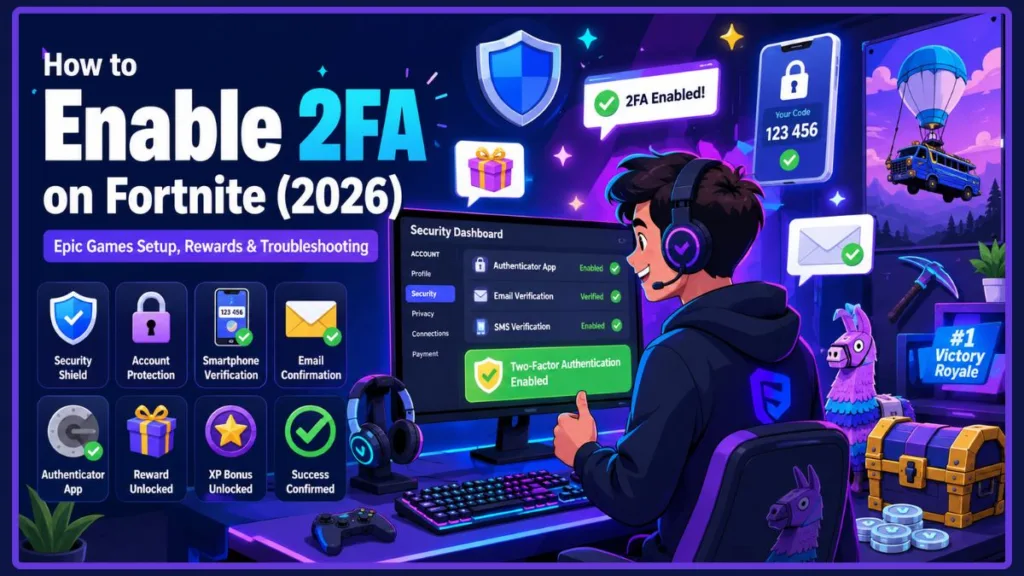
One thing that often confuses players is where to find the setting. Although many people search for terms like fortnite.com 2FA, http fortnite.com 2fa, or how to turn on 2FA Fortnite, the security settings are actually managed through your Epic Games account rather than inside the Fortnite game itself. You can access it directly through the Epic Games Account Settings. Once you know where to look, the setup process only takes a few minutes.
In this guide, we’ll walk you through how to enable 2FA on Fortnite, explain the different Fortnite 2FA methods, show you how to set up Authenticator App, Email, or SMS Authentication, discuss the available Fortnite 2FA rewards, and help you troubleshoot common verification issues if you run into any problems.
Tip: For the strongest protection, consider using an Authenticator App instead of relying solely on email or SMS verification. It offers better security against phishing attempts and account compromise.
What Exactly Is Fortnite 2FA and Why Should You Care?
Fortnite 2FA, short for Two-Factor Authentication, is an additional security feature that protects your Epic Games account by requiring two forms of verification before anyone can sign in. Instead of relying only on your password, Epic Games asks you to confirm your identity using a second verification method, making it much harder for unauthorized users to access your account.
Think of it as an extra security checkpoint. Even if someone guesses or steals your password, they still won’t be able to log in without the unique verification code sent to your chosen authentication method.
Currently, Epic Games 2FA supports three verification options:
- Authenticator App
- Email Authentication
- SMS Authentication
Each method provides an extra layer of protection, allowing you to choose the one that best suits your preferences.
So, why should you enable Fortnite 2FA?
Many players don’t think about account security until it’s too late. Fortnite accounts often contain valuable digital items such as rare skins, Battle Pass rewards, V-Bucks, and years of gameplay progress. Because of this, gaming accounts are frequent targets for hackers and scammers.
By enabling 2FA on your Fortnite account, you can:
- Protect your Epic Games account from unauthorized logins.
- Prevent someone from changing your password or email address.
- Secure your purchased cosmetics, skins, and V-Bucks.
- Reduce the risk of losing years of game progress.
- Add an extra layer of login verification even if your password is exposed.
In addition to improving security, Epic Games 2FA is also required for certain Fortnite features. Without enabling it, you may be unable to access some in-game functionality that depends on additional account verification.
Important: Two-Factor Authentication doesn’t replace a strong password—it works alongside one. For the best protection, use a unique password and enable 2FA on both your Epic Games account and your email account. You can also review Epic’s official guidance on account safety via the Epic Games Security Page.
What Rewards Do You Get and Why Is 2FA Required?
Besides improving your account security, enabling Fortnite 2FA also unlocks several useful features and rewards. This is one of the main reasons many players search for how to enable 2FA on Fortnite, especially if they want to start gifting friends or participate in competitive events.
What rewards do you get from Fortnite 2FA?
After successfully enabling Two-Factor Authentication, eligible players can receive:
- Boogie Down Emote in Fortnite Battle Royale.
- Additional Save the World rewards, where applicable, including:
- 50 Armory Slots
- 10 Backpack Slots
- Legendary Troll Stash Llama
These rewards are designed to encourage players to improve their account security while enjoying additional in-game benefits. You can learn more about these rewards on the official Fortnite News Page.
Why does Fortnite require 2FA?
Epic Games requires Two-Factor Authentication before you can access certain account features. Depending on your account and game mode, you’ll need Epic Games 2FA to:
- Send gifts to other Fortnite players.
- Participate in eligible Fortnite competitive events.
- Claim certain free games available through the Epic Games Store.
These requirements help reduce fraud, unauthorized purchases, and account abuse across the Epic Games ecosystem.
Good to know: If you’re planning to use Fortnite’s gifting feature during special events or seasonal updates, it’s a good idea to enable 2FA beforehand so your account is ready when you need it.
What You Need Before Enabling 2FA on Fortnite
Before starting the setup process, it’s worth taking a minute to make sure everything is ready. Having the correct information available will make the activation process quick and hassle-free.
Here’s what you’ll need before you enable 2FA on Fortnite:
Do you have an Epic Games account?
Since Fortnite 2FA is managed through your Epic Games account, you’ll need access to the account you use to play Fortnite. If you play on PlayStation, Xbox, Nintendo Switch, or PC, make sure you’re signing in with the correct linked Epic Games account. You can verify your account details through the Epic Games Login Page.
Can you access your registered email?
Even if you plan to use an Authenticator App or SMS Authentication, you should still have access to your registered email address. Epic Games may use it for account verification or recovery if needed.
Do you have a mobile device ready?
If you want to use the recommended Authenticator App or SMS Authentication, keep your phone nearby during setup.
Popular authenticator apps include:
- Google Authenticator (Download on Google Play)
- Microsoft Authenticator (Download on App Store)
- Authy (Official Website)
Is your internet connection stable?
You’ll need an active internet connection to sign in, verify your identity, and complete the setup successfully.
Before you continue: Double-check that you’re signing into the correct Epic Games account. Many Fortnite players have multiple accounts linked to different platforms, and enabling 2FA on the wrong account won’t protect the one you actually use.
Ready to Enable 2FA on Fortnite? Here’s How
If you’re asking how to enable 2FA on Fortnite, the process is surprisingly simple. You’ll complete everything through your Epic Games account settings, where you can choose your preferred verification method and activate Two-Factor Authentication in just a few minutes.
Follow these steps:
- Open your web browser and sign in to your Epic Games account via the Epic Games Account Portal.
- Click your profile and open Account.
- Select Password & Security from the left-hand menu.
- Scroll down until you find the Two-Factor Authentication section.
- Choose your preferred verification method:
- Authenticator App
- Email Authentication
- SMS Authentication
- Click Set Up next to your chosen option.
- Follow the on-screen instructions to verify your identity.
- Enter the verification code you receive.
- After verification, confirm that the selected method displays as Enabled.
- If you enable multiple authentication methods, you can choose one as your primary 2FA method from your account settings.
Once enabled, your Epic Games account will require an additional verification code whenever a new login attempt occurs, providing much stronger protection against unauthorized access.
Note: Although many users search for fortnite.com 2FA or http fortnite.com 2fa, the activation process takes place through your Epic Games Account > Password & Security settings rather than inside Fortnite itself.
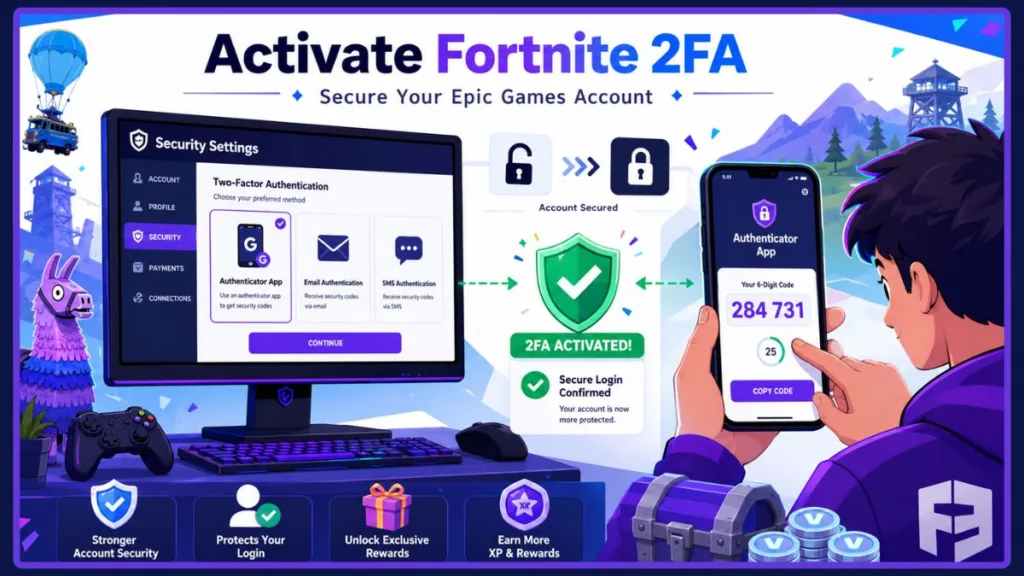
Which Fortnite 2FA Method Should You Choose?
Epic Games gives you three different ways to verify your identity. Each method offers additional account security, but they differ in convenience and protection level. Choosing the right option depends on how you usually access your account and the level of security you want.
Want the Most Secure Option? Try the Authenticator App
The Authenticator App is generally considered the most secure Fortnite 2FA method. Instead of sending verification codes through email or text messages, the app generates unique time-based codes directly on your device.
Popular apps include:
- Google Authenticator (Get it here)
- Microsoft Authenticator (Download here)
- Authy (Visit official site)
During setup, you’ll scan a QR code or enter a setup key provided by Epic Games. Whenever you sign in, simply open the app and enter the current verification code.
Best for: Players who want the highest level of account security.
Prefer Something Simple? Use Email Authentication
With Fortnite 2FA email setup, Epic Games sends a verification code to your registered email address whenever additional verification is required.
This method is easy to use because it doesn’t require installing any additional apps. However, you’ll need reliable access to your email account whenever you sign in from a new device.
Best for: Casual players who prefer a simple setup process.
Want Codes on Your Phone? Go with SMS Authentication
SMS Authentication sends a one-time verification code to your registered mobile number.
It’s convenient if you always have your phone nearby, but SMS availability may vary depending on your region, and changing your phone number later will require updating your account settings.
Best for: Players who prefer receiving verification codes through text messages.
Recommendation: If you’re unsure which option to choose, the Authenticator App offers the strongest balance of security and convenience, making it the preferred choice for protecting your Fortnite and Epic Games account.
How to Enable 2FA on Fortnite PC, PlayStation, Xbox, Switch, and Mobile
One question players often ask is whether the process differs depending on the device they’re using. The good news is that Fortnite 2FA is linked to your Epic Games account, not your gaming platform. That means once you enable 2FA on your Fortnite account, the security feature applies everywhere you use that account.
To get started, open your browser and go to the official Epic Games Account Settings. Sign in using your Epic Games credentials, then navigate to the Password & Security section. From there, scroll down to the Two-Factor Authentication area and choose your preferred method—Authenticator App, Email Authentication, or SMS. Follow the on-screen instructions to complete the setup. If you need a detailed walkthrough, you can also refer to the official Epic Games 2FA guide.
Once you’ve completed these steps, your account will be protected across all platforms where you use Fortnite.
PC
If you’re playing Fortnite on Windows, start by opening your browser and visiting the Epic Games login page. After signing in, go to your account settings and enable 2FA as described above. Once activated, every future sign-in from a new or unrecognized device will require your selected verification method, adding an extra layer of protection.
PlayStation (PS5 & PS4)
For PlayStation users, 2FA is not enabled through console settings. Instead, you need to access your Epic Games account through a browser. Visit the Epic Games account portal, sign in, and enable 2FA under Password & Security. As long as your PlayStation Network account is linked, your Fortnite account will automatically be secured.
Xbox Series X|S & Xbox One
Xbox players can follow the same process by heading to the Epic Games account settings page. After logging in, enable your preferred 2FA method. Once completed, your Xbox-linked Fortnite profile will benefit from the added security without requiring any changes on your console.
Nintendo Switch
If you’re playing on Nintendo Switch, make sure your Nintendo Account is linked to your Epic Games account. Then, visit the Epic Games security settings and enable Two-Factor Authentication. This ensures your Fortnite progress and purchases remain protected across all devices.
Mobile
For mobile players, 2FA is also managed through the Epic Games website rather than the app. Open your browser, go to the Epic Games account page, sign in, and enable your preferred authentication method. After activation, your account will require a verification code whenever a new login attempt is detected.
Important: You only need to enable 2FA once on your Epic Games account. After it’s activated, the protection applies across every platform connected to that account.
Fortnite 2FA Troubleshooting: Common Problems and How to Fix Them
Most players can enable Fortnite 2FA within a few minutes. However, if you run into verification issues, don’t worry—many of them are easy to resolve. Below are some of the most common problems players face and the recommended solutions.
Not Receiving Your Fortnite 2FA Email Code?
If your verification code isn’t arriving in your inbox, don’t immediately assume something is wrong with your account.
Try these solutions:
- Wait a few minutes, as email delivery can occasionally be delayed.
- Refresh your inbox.
- Search for the verification email instead of checking only recent messages.
- Check your Spam, Junk, or Promotions folders.
- Make sure your primary authentication method is actually set to Email Authentication rather than an Authenticator App or SMS.
- Ensure Epic Games emails haven’t been blocked or marked as spam by your email provider.
Tip: Avoid requesting multiple verification codes within a short period. Waiting briefly before requesting another code can prevent unnecessary delays.
Not Receiving SMS Verification Codes?
If you’ve selected SMS Authentication but aren’t receiving the verification code, there are a few things to check.
First, confirm that your registered phone number is correct. If you’ve recently changed numbers, you’ll need to update your SMS Authentication settings after signing into your account.
It’s also worth noting that SMS Authentication may not be available in every region, so some players may find that using Email Authentication or an Authenticator App provides a more reliable experience.
Lost Access to Your Authenticator App or Changed Your Phone?
Changing phones or losing access to your authenticator app doesn’t necessarily mean you’ve lost your account.
If you’re unable to generate verification codes:
- Select Try another way on the verification screen.
- Choose Email Verification, if it’s available on your account.
- Enter the verification code sent to your email.
- If you previously saved your backup codes, you can also use one of them to regain access.
After successfully signing in, visit Password & Security to update your authentication settings or change your preferred verification method.
Important: If you use an Authenticator App, store your backup codes somewhere safe when you first enable 2FA. They can save you from being locked out later.
How to Change Your SMS Phone Number
If you’ve switched to a new mobile number, updating your SMS Authentication settings is straightforward once you’re signed in.
Simply:
- Open Password & Security in your Epic Games account.
- Find SMS Authentication.
- Remove the existing SMS verification method.
- Set up SMS Authentication again.
- Enter your new phone number.
- Verify it using the code sent by text message.
Keeping your phone number up to date ensures you can continue receiving verification codes whenever they’re needed.
Best Practices to Keep Your Fortnite Account Secure
Enabling Fortnite 2FA is one of the most effective ways to protect your account, but it’s only part of a strong security strategy. Following a few additional best practices can help keep your Epic Games account safe from unauthorized access.
Use a strong, unique password
Avoid using simple passwords or reusing passwords from other websites. A unique password significantly reduces the chances of someone gaining access to your gaming account through data breaches elsewhere.
Secure your email account too
Your email account is often the recovery method for your Epic Games account. If someone gains access to your email, they may also be able to reset your Epic Games password.
Consider enabling Two-Factor Authentication on your email account as well.
Save your backup codes
If you use an Authenticator App, store your backup codes somewhere secure. They can help you regain access if you lose your phone or uninstall the authentication app.
Watch out for phishing websites
Be cautious of fake websites promising free V-Bucks, exclusive skins, or account upgrades. Always sign in through the official Epic Games website and avoid entering your login details on suspicious pages.
Keep your recovery information updated
If you change your email address or phone number, update your Epic Games account as soon as possible. Keeping your recovery information current makes account recovery much easier if you ever lose access.
Security Tip: No legitimate Epic Games employee will ever ask for your password or verification code. Never share your login credentials or 2FA codes with anyone.
Frequently Asked Questions
How do I enable 2FA in Fortnite?
You can enable Fortnite 2FA by signing in to your Epic Games account, opening Password & Security, choosing a verification method, and completing the verification process. The setting is managed through your Epic Games account rather than inside the Fortnite game.
How do I enable 2FA on Fortnite?
The process is the same for every supported platform. Log into your Epic Games account, navigate to Password & Security, select Authenticator App, Email Authentication, or SMS Authentication, and follow the setup instructions.
How do I set up two-factor authentication in Fortnite?
After choosing your preferred verification method, Epic Games will guide you through the setup process. Once you’ve entered the verification code, your selected method will be marked as Enabled.
How do I create a 2FA account?
You don’t create a separate 2FA account. Instead, you enable Two-Factor Authentication on your existing Epic Games account.
Why do I need 2FA in Fortnite?
Two-Factor Authentication helps protect your account against unauthorized access. It’s also required for features such as gifting, eligible competitive events, and certain Epic Games Store promotions.
Which Fortnite 2FA method is the most secure?
An Authenticator App is generally considered the most secure option because verification codes are generated directly on your device rather than being delivered by email or SMS.
Can I disable Fortnite 2FA later?
Yes. After signing in to your Epic Games account, you can return to the Password & Security section and manage or remove your preferred authentication method if necessary.
Is Fortnite 2FA free?
Yes. Epic Games 2FA is completely free to enable and doesn’t require any subscription or additional purchase.
Can I enable Fortnite 2FA inside the game?
No. Although many players search for fortnite.com 2FA or similar terms, Two-Factor Authentication must be enabled through your Epic Games account settings.
Final Thoughts
Learning how to enable 2FA on Fortnite takes only a few minutes, but it can protect years of progress, valuable cosmetics, and your Epic Games account from unauthorized access. Whether you choose an Authenticator App, Email Authentication, or SMS Authentication, adding a second verification step significantly improves your account security.
Beyond protecting your account, enabling Epic Games 2FA also unlocks important Fortnite features like gifting and eligible competitive events while making you eligible for available Fortnite 2FA rewards. Once you’ve completed the setup, remember to keep your recovery information up to date and store any backup codes securely.
By taking these simple precautions today, you’ll be able to enjoy Fortnite with greater confidence, knowing your account is better protected against hackers and unauthorized login attempts.
Visit Our Post Page: Blog Page
Discover more from Izoate
Subscribe to get the latest posts sent to your email.