
Want to pair your Apple Watch with your iPhone in just a few minutes? Learn how to connect and set up your Apple Watch using automatic or manual pairing. From transferring to a new iPhone to fixing common pairing issues, get your Apple Watch ready to use today.
If you’ve recently purchased a new Apple Watch, one of the first things you’ll need to do is pair it with your iPhone. Whether you own an Apple Watch SE, Apple Watch Series, or Apple Watch Ultra, pairing is essential before you can access features like fitness tracking, notifications, calls, messages, Apple Pay, and health monitoring.
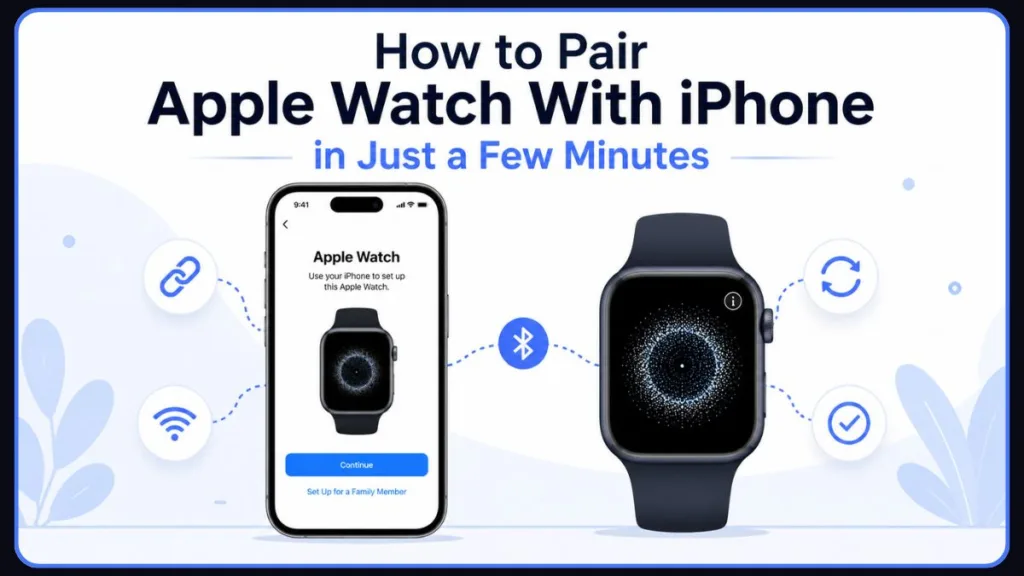
The good news is that connecting an Apple Watch to an iPhone is usually a straightforward process. Apple has designed the setup experience to be beginner-friendly, allowing most users to pair their devices within a few minutes. However, if you’re setting up a watch for the first time, transferring it to a new iPhone, or dealing with pairing issues, you may need a little extra guidance.
In this guide, you’ll learn how to pair an Apple Watch with an iPhone, manually connect it when automatic pairing doesn’t work, set up your watch for first-time use, and prepare for more advanced situations like transferring to a new iPhone or troubleshooting pairing problems.
Quick Answer: How to Pair Apple Watch With iPhone in Minutes
If you’re looking for the fastest way to get started, here’s the short version:
- Turn on your Apple Watch by pressing and holding the Side Button until the Apple logo appears.
- Bring your iPhone close to the watch.
- Wait for the Apple Watch pairing prompt to appear on your iPhone.
- Tap Continue.
- Select Set Up for Myself.
- Scan the animated pattern displayed on your Apple Watch using your iPhone camera.
- Follow the setup instructions to complete pairing and syncing.
Once the setup finishes, your Apple Watch will display its watch face and be ready to use.
What You Need Before Pairing Your Apple Watch
Before you begin the Apple Watch setup process, it’s worth spending a minute checking a few requirements. Doing this can prevent pairing errors and save you time later.
Check Apple Watch and iPhone Compatibility
Apple Watch requires a compatible iPhone to function. If you’re using a newer Apple Watch model, make sure your iPhone supports the required version of iOS. In general, newer Apple Watch models work best with recently updated iPhones.
If you’re unsure whether your devices are compatible, update your iPhone first and verify that it supports the latest software available for your watch.
Update Your iPhone to the Latest iOS Version
One of the most common reasons Apple Watch pairing fails is outdated software.
To avoid compatibility problems, open the Settings app on your iPhone and check for available updates. Installing the latest iOS version ensures your phone can communicate properly with your Apple Watch during setup.
Keeping both devices updated also improves performance, security, and synchronization reliability.
Turn On Bluetooth and Connect to Wi-Fi
Apple Watch relies on Bluetooth and network connectivity during the pairing process.
Before starting, make sure:
- Bluetooth is enabled on your iPhone.
- Your iPhone is connected to Wi-Fi or cellular data.
- Airplane Mode is disabled.
The pairing process uses Bluetooth to establish the initial connection and internet access to activate services and sync account information.
Charge Both Devices Before Setup
Although Apple Watch can pair with a lower battery level, it’s best to start with sufficient charge on both devices.
A low battery can interrupt syncing, software updates, or backup restoration. Many setup issues occur simply because one device powers off midway through the process.
Quick Tip
For the smoothest setup experience, charge both your Apple Watch and iPhone to at least 50% and keep them close together throughout the pairing process.
How to Pair Apple Watch With iPhone Automatically (The Easiest Method)
Automatic pairing is the easiest and most reliable way to connect an Apple Watch to an iPhone. Apple uses a camera-based pairing animation that securely links both devices in seconds.
Step 1: Turn On Your Apple Watch
Press and hold the Side Button on your Apple Watch until the Apple logo appears.
If the watch doesn’t turn on, place it on its charger and allow it to gain some battery power before continuing.
Step 2: Bring Your iPhone Close to the Watch
Unlock your iPhone and hold it near your Apple Watch.
Within a few moments, a setup screen should appear automatically on your iPhone asking whether you’d like to pair the watch.
If the prompt doesn’t appear, open the Apple Watch app manually and tap Pair New Watch.
Step 3: Tap Continue on the Pairing Prompt
When the pairing notification appears, tap Continue to begin the setup process.
You’ll then be asked whether you’re setting up the watch for yourself or another family member.
Step 4: Choose “Set Up for Myself”
Select Set Up for Myself if the Apple Watch will be linked to your personal Apple Account and iPhone.
Users setting up a watch for a child or dependent can use Family Setup.
Step 5: Scan the Pairing Animation
Your Apple Watch will display a moving animation.
Position the watch inside the camera frame shown on your iPhone screen. Once the animation is recognized, the devices will pair automatically.
This process typically takes only a few seconds.
Step 6: Complete Apple Watch Setup
After pairing, Apple guides you through the remaining setup steps.
You’ll be asked to:
- Sign in with your Apple Account.
- Create an Apple Watch passcode.
- Configure health and fitness settings.
- Enable location services and notifications.
- Restore from a previous Apple Watch backup or set up the watch as new.
If you’re upgrading from an older Apple Watch, restoring from a backup can save time and preserve your settings, apps, and preferences.
Expected Result
After synchronization finishes, your Apple Watch displays its watch face and becomes fully connected to your iPhone.
At this point, you’ll be able to receive notifications, track workouts, monitor health metrics, and access the full Apple Watch experience.
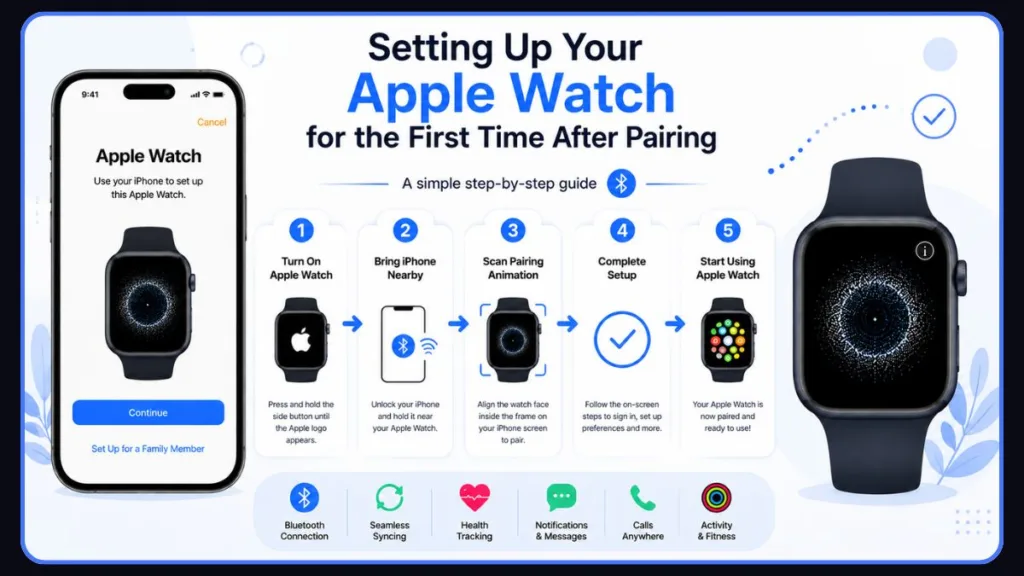
Setting Up Your Apple Watch for the First Time After Pairing
Pairing is only the beginning. The initial setup process helps personalize your Apple Watch and enables many of the features you’ll use every day.
Sign In With Your Apple ID
Your Apple Account connects services such as iCloud, Apple Pay, App Store downloads, Find My, and Health synchronization.
Using the same Apple Account across your devices creates a seamless Apple ecosystem experience.
Create an Apple Watch Passcode
Apple requires a passcode to protect your watch and secure sensitive information such as payment methods and health data.
You can choose a standard passcode or a longer passcode for additional security.
Using a strong passcode helps protect your personal data and enables secure features like Apple Pay.
Configure Health and Fitness Permissions
During setup, Apple may ask for information such as your:
- Age
- Height
- Weight
- Date of birth
These details help improve the accuracy of:
- Activity tracking
- Workout calculations
- Heart rate monitoring
- Calorie estimates
Set Up Activity Tracking
Activity Rings are one of the most popular Apple Watch features.
Taking a few moments to configure your fitness goals during setup allows your watch to provide more personalized insights and recommendations.
Manage Notifications and Preferences
You’ll also have opportunities to customize:
- Notifications
- Display preferences
- Accessibility settings
- App permissions
These settings can always be changed later through the Apple Watch app on your iPhone.
How Long Does It Take to Pair an Apple Watch?
Most Apple Watch pairing sessions take between a few minutes and around 15 minutes, depending on your setup.
If you’re setting up a brand-new watch, the process is usually quite fast. However, restoring a backup, downloading updates, or activating cellular service can extend setup time.
First-time synchronization often takes longer because the watch is transferring settings, downloading apps, and syncing account data.
If the syncing screen remains active for several minutes, don’t worry. This is usually normal, especially during the initial setup process.
Keeping both devices nearby and connected to power can help the process finish more smoothly.
How to Pair Apple Watch Manually When Automatic Pairing Doesn’t Work
Sometimes the camera-based pairing method may fail to recognize the pairing animation. This doesn’t mean your Apple Watch is defective. In most cases, manual pairing resolves the issue quickly.
When Should You Use Manual Pairing?
Manual pairing is useful when:
- The camera cannot scan the pairing animation.
- The pairing animation isn’t appearing.
- The iPhone camera has trouble focusing.
- Automatic pairing repeatedly fails.
Step 1: Open the Watch App
Launch the Apple Watch app on your iPhone.
Tap All Watches, then choose Add Watch.
Step 2: Tap Pair Apple Watch Manually
Instead of scanning the animation, select Pair Apple Watch Manually at the bottom of the screen.
Step 3: Select Your Watch
On your Apple Watch, tap the small Information (i) icon to display its device name.
Choose the matching watch name on your iPhone.
Step 4: Enter the Six-Digit Pairing Code
A six-digit pairing code will appear on the watch.
Enter this code on your iPhone when prompted to verify the connection.
Step 5: Finish Setup
Once the code is accepted, continue with the remaining setup steps, including:
- Apple Account sign-in
- Passcode creation
- Health settings configuration
- Notification preferences
Manual pairing provides the same result as automatic pairing and is an excellent solution when troubleshooting Apple Watch connection issues.
Manual pairing achieves the same result as automatic pairing and is particularly useful when resolving Apple Watch pairing problems.
Why Is My Apple Watch Not Pairing With My iPhone? Common Fixes to Try
If your Apple Watch won’t pair with your iPhone, you’re not alone. Pairing issues are among the most common Apple Watch setup problems, especially when you’re connecting an older watch, switching to a new iPhone, or setting up a device that has been used before.
Fortunately, most pairing problems can be resolved without visiting an Apple Store. In many cases, the issue comes down to software compatibility, connectivity settings, or an Apple Watch that still believes it’s connected to another iPhone.
Important: Before attempting a reset, work through the following troubleshooting steps.
Apple Watch Is Already Paired to Another iPhone
An Apple Watch can only be actively paired with one iPhone at a time.
If you see a normal watch face instead of the pairing screen, there’s a good chance the watch is already linked to another device. This often happens when purchasing a used Apple Watch or when trying to reconnect a watch that wasn’t properly unpaired from an old iPhone.
In this situation, you’ll need to erase the watch or unpair it from the previously connected iPhone before pairing it again.
Pairing Animation Is Not Showing
The animated pairing pattern is required for automatic setup. If it doesn’t appear, try restarting both your iPhone and Apple Watch.
You can also bypass the animation entirely by using the manual pairing method covered earlier in this guide.
Tip: Many users assume the watch is faulty when the animation doesn’t appear, but manual pairing usually solves the issue within minutes.
Apple Watch Is Stuck on the Pairing Screen
Sometimes the pairing animation remains visible for an extended period and never progresses to the setup screen.
This can happen due to temporary software glitches, interrupted connections, or incomplete previous pairing attempts.
If the pairing process appears frozen for several minutes, restart the watch and begin the setup process again.
Bluetooth or Wi‑Fi Is Disabled
Apple Watch uses Bluetooth to establish the initial connection and relies on Wi‑Fi or cellular connectivity to complete activation and syncing.
If Bluetooth is turned off, pairing cannot begin.
Open your iPhone’s Control Center and confirm that:
- Bluetooth is enabled.
- Wi‑Fi is enabled.
- Airplane Mode is disabled.
Tip: Even if Bluetooth appears active, toggling it off and back on can sometimes resolve connection issues.
Apple Watch Battery Is Too Low
A low battery may prevent your Apple Watch from pairing correctly.
If your watch has been sitting unused for a long period, place it on the charger and allow it to charge before attempting setup again.
Important: For best results, both devices should have at least 50% battery life before beginning the pairing process.
Outdated iOS or watchOS
Software compatibility plays a major role in Apple Watch setup.
If your iPhone is running an older version of iOS, it may not recognize a newer Apple Watch model. Likewise, an outdated watchOS version can sometimes cause communication issues during setup.
Checking for software updates before pairing can eliminate many common errors.
Activation Lock Is Preventing Pairing
Activation Lock is Apple’s built-in security feature designed to protect lost or stolen devices.
If your Apple Watch was previously linked to another Apple Account, you’ll be prompted to enter the original account credentials before setup can continue.
Without those credentials, the watch cannot be paired to a new iPhone.
Important: When purchasing a second-hand Apple Watch, always verify that Activation Lock has been removed before completing the purchase.
Pairing Process Is Stuck
If the pairing animation remains on screen for an unusually long time, resetting the watch may help.
While the watch is displaying the pairing animation, press and hold the Digital Crown until the reset option appears. After the reset completes, restart the pairing process from the beginning.
Tip: In many cases, this resolves stalled setup sessions and allows pairing to complete normally.
How to Reset Apple Watch and Pair It Again
When standard troubleshooting doesn’t work, resetting your Apple Watch can often solve persistent pairing issues.
Resetting removes settings, apps, and stored data from the watch, allowing you to start fresh. Depending on your situation, there are several ways to reset an Apple Watch before pairing it again.
Unpair Apple Watch From iPhone
If you still have access to the iPhone currently connected to your Apple Watch, unpairing is the recommended option.
Open the Apple Watch app on the paired iPhone and navigate to the watch management section. Select your watch, choose the unpair option, and confirm the action.
Unpairing automatically removes Activation Lock and creates a backup that can later be restored during setup.
Once the process completes, the watch becomes ready to pair with another iPhone.
Erase Apple Watch Without the Paired iPhone
If you no longer have access to the original iPhone, you can erase the watch directly from its settings.
Open Settings on the Apple Watch, navigate to General, select Reset, and choose Erase All Content and Settings.
The watch will remove its data and return to the setup screen.
Important: Activation Lock remains enabled when you erase the watch this way. You’ll still need the original Apple Account credentials used to activate the device.
Reset Apple Watch Without a Passcode
Forgot your Apple Watch passcode?
Apple provides a recovery method that allows you to reset the watch without entering the existing passcode.
Place the Apple Watch on its charger and access the reset option through the watch’s hardware controls. Once the reset finishes, you’ll be able to begin setup again.
Important: Activation Lock protection remains active after the reset.
Pair the Watch Again After Resetting
After resetting, turn the watch on and bring it near your iPhone.
You can then use either:
- Automatic camera pairing
- Manual pairing with a six-digit code
Follow the setup instructions and restore a backup if one is available.
Tip: Most users find that pairing problems disappear after completing a clean reset and fresh setup.
Before You Transfer Apple Watch to a New iPhone: Don’t Lose Your Data
Many people upgrade their iPhone every few years, but few realize that Health and Activity data require special attention during the transfer process.
If you skip a few important preparation steps, you could lose years of workout records, Activity Rings, and health information.
Taking a few minutes to prepare before transferring your Apple Watch can save a lot of frustration later.
Enable iCloud Health Sync
Before moving to a new iPhone, verify that Health data is syncing with iCloud.
This ensures that information such as:
- Workout history
- Activity Rings
- Heart rate records
- Health metrics
can be restored on your new device.
Important: Health synchronization is one of the most important steps when transferring Apple Watch data.
Create an Encrypted Backup
If you prefer backing up your iPhone to a computer, make sure the backup is encrypted.
Encrypted backups preserve sensitive information that standard backups may exclude, including Health and Activity data.
Important: Without encryption, some fitness and wellness records may not transfer successfully.
Update Your iPhone and Apple Watch
Before beginning the migration process, install the latest available software updates on both devices.
Running current versions of iOS and watchOS reduces compatibility issues and makes the transfer process significantly smoother.
Protect Health, Activity, and Workout Data
Your Apple Watch stores much more than notifications and apps.
For many users, years of:
- Fitness achievements
- Workout records
- Health trends
- Activity history
are stored within Apple’s ecosystem.
Tip: Taking the proper backup precautions helps ensure that all of this information follows you to your new iPhone.
How to Transfer Apple Watch to a New iPhone Without Losing Health Data
Switching to a new iPhone doesn’t mean you need to start over with your Apple Watch.
If you prepare properly, you can transfer your watch, preserve your settings, and keep your Health and Activity history intact.
Before You Begin
Before starting the transfer process:
- Update both devices
- Verify iCloud Health Sync is enabled
- Back up your old iPhone
- Keep both devices charged and connected to Wi‑Fi
Important: These preparations significantly reduce the risk of transfer issues.
Method 1: If You Still Have Your Old iPhone
The easiest migration method is to use your existing iPhone.
First, create a fresh backup of your old iPhone. During the setup of your new iPhone, restore from that backup.
When prompted, choose to continue using your Apple Watch with the new device.
Keep the watch unlocked and close to the new iPhone while the transfer completes.
Tip: This method usually preserves settings, apps, Health data, Activity Rings, and workout history automatically.
Method 2: If You No Longer Have Your Old iPhone
If your previous iPhone has been sold, lost, damaged, or factory reset, you’ll need to take a different approach.
Erase the Apple Watch and return it to its setup screen.
Afterward, pair the watch with your new iPhone and restore an available backup if one exists.
If no backup is available, you’ll need to set up the Apple Watch as a new device.
Important
The most valuable data most users want to preserve includes:
- Health data
- Activity Rings
- Workout history
Important: As long as you’ve maintained proper backups or iCloud synchronization, these records should transfer successfully to your new iPhone.
How to Set Up Apple Watch for a Family Member Using Family Setup
Not everyone who wants an Apple Watch owns an iPhone. That’s exactly why Apple introduced Family Setup, a feature that allows you to set up and manage an Apple Watch for a child, older adult, or another family member using your own iPhone.
Family Setup is particularly useful for parents who want to stay connected with their children without giving them a smartphone. It also works well for family members who may benefit from health monitoring, location sharing, and emergency features while maintaining a simple wearable experience.
To use Family Setup, you’ll need a compatible Apple Watch model that supports cellular connectivity and a properly configured Family Sharing group.
Tip: Family Setup is ideal for children and older adults who need Apple Watch features without owning an iPhone.
What Is Family Setup?
Family Setup allows one iPhone owner to manage an Apple Watch on behalf of another person.
Instead of pairing the watch directly to the wearer’s iPhone, the watch is managed through the organizer’s device. The family member can still make calls, send messages, share their location, and use many Apple Watch features independently.
This setup has become increasingly popular among parents looking for a safe way to stay connected with children.
Requirements for Family Setup
Before you begin, ensure that:
- The Apple Watch supports Family Setup.
- The watch has cellular capabilities if independent connectivity is required.
- Family Sharing is configured correctly.
- The organizer’s iPhone is updated to the latest version of iOS.
Having these requirements in place helps avoid setup interruptions later.
Important: Verify compatibility before starting to prevent setup issues.
Steps to Pair Apple Watch for a Child or Family Member
The setup process is similar to pairing a watch for yourself.
Start by opening the Apple Watch app on your iPhone and selecting the option to add a new watch. Instead of choosing Set Up for Myself, select Set Up for a Family Member.
You’ll then pair the watch using either the camera-based pairing animation or the manual pairing method. After that, follow the on-screen instructions to assign the watch to the appropriate family member and configure settings.
Depending on your preferences, you can also enable safety features, communication settings, and location sharing during setup.
Features Available Through Family Setup
One of the biggest advantages of Family Setup is the ability to manage important safety and communication tools remotely.
Location Sharing
Location Sharing allows family members to view each other’s locations through Apple’s ecosystem.
Parents often use this feature to know when children arrive at school, return home, or travel independently.
Schooltime
Schooltime helps reduce distractions by limiting watch functionality during designated hours.
This feature is particularly useful for students who wear an Apple Watch during the school day.
Emergency Features
Family Setup also supports important safety tools such as emergency calling and location services.
These features can provide additional peace of mind for both parents and caregivers.
Tip: Enable emergency features during setup for added safety and faster access to help when needed.
How to Activate Cellular Service on Apple Watch
If you own a cellular-enabled Apple Watch, you can connect it to a mobile network and use many features even when your iPhone isn’t nearby.
Cellular connectivity allows you to make calls, send messages, stream music, use maps, and access online services directly from your watch.
While cellular setup is optional, many users choose to activate it for greater flexibility and independence.
Can All Apple Watches Use Cellular?
Not every Apple Watch includes cellular hardware.
Only cellular-capable models can connect to a carrier’s network and support standalone mobile connectivity.
Before attempting activation, verify that your watch model supports cellular service and that your carrier offers Apple Watch plans.
Important: GPS-only Apple Watch models cannot connect directly to a cellular network.
Activate Cellular During Setup
Apple provides the option to activate cellular service during the initial pairing process.
If your watch and carrier support the feature, you’ll see prompts guiding you through plan activation while setting up the device.
This is often the easiest time to add cellular service because all setup tasks are completed together.
Add Cellular Later Through the Watch App
If you skip activation during setup, you can always add a cellular plan later.
Open the Apple Watch app on your iPhone, navigate to the cellular or mobile settings section, and follow your carrier’s activation process.
The exact steps may vary depending on your mobile provider and region.
Common Carrier Requirements
Most carriers require:
- A compatible Apple Watch cellular model.
- An eligible mobile plan.
- A supported region.
- An active carrier account.
Because carrier policies differ, it’s worth checking your provider’s Apple Watch support information before activating service.
Tip: Contact your carrier if cellular activation fails, as account restrictions can sometimes prevent setup.
Can You Pair Multiple Apple Watches With One iPhone?
Many Apple Watch users eventually upgrade to a newer model while keeping an older watch as a backup. Others prefer different watches for fitness, travel, or everyday use.
The good news is that Apple allows you to connect multiple Apple Watches to a single iPhone.
However, there are some limitations you should understand.
Pairing a Second Apple Watch
To pair another Apple Watch, open the Apple Watch app on your iPhone and navigate to the watch management section.
From there, choose the option to add another watch and follow the pairing instructions.
The process is nearly identical to setting up your first Apple Watch.
Switching Between Multiple Watches
Once multiple watches are paired, Apple can automatically switch between them based on which watch you’re wearing.
This makes it easy to move between devices without constantly reconfiguring settings.
For example, you might use one watch for workouts and another for daily wear.
Apple Watch Limitations
Although one iPhone can support multiple Apple Watches, there are important restrictions.
An Apple Watch cannot remain actively paired with multiple iPhones at the same time. Likewise, a single watch isn’t designed to be shared between multiple users.
Understanding these limitations helps prevent confusion when setting up additional devices.
Important: One Apple Watch can only be actively paired with one iPhone at a time.
Frequently Asked Questions About Pairing Apple Watch With iPhone
How do I pair my Apple Watch with my iPhone?
Turn on your Apple Watch, bring it close to your iPhone, tap Continue when the pairing prompt appears, scan the pairing animation, and follow the on-screen instructions to complete setup.
Can I pair Apple Watch without using the camera?
Yes. If the pairing animation doesn’t work, select Pair Apple Watch Manually in the Apple Watch app and use the six-digit code displayed on the watch.
Why won’t my Apple Watch connect to my iPhone?
Common causes include Bluetooth being disabled, outdated software, low battery levels, Activation Lock restrictions, or the watch already being paired with another iPhone.
How long does Apple Watch pairing take?
Most Apple Watch setup sessions take between a few minutes and around 15 minutes. Restoring backups, installing updates, or activating cellular service may increase setup time.
Can I pair Apple Watch without my old iPhone?
Yes. You can erase the Apple Watch directly from its settings and pair it with a new iPhone. However, you may need the Apple Account credentials associated with the device if Activation Lock is enabled.
How do I transfer Apple Watch to a new iPhone?
Back up your old iPhone, restore the backup to your new iPhone, and follow the Apple Watch transfer prompts. This helps preserve settings, Health data, and Activity history.
Can I use multiple Apple Watches with one iPhone?
Yes. Apple allows multiple Apple Watches to be paired with a single iPhone, although only one watch can be actively used at a time.
How do I remove Activation Lock from Apple Watch?
Activation Lock can be removed by unpairing the watch from the associated Apple Account or by entering the original Apple Account credentials during setup.
Do I need Wi-Fi to pair Apple Watch?
While Bluetooth handles the initial connection, an internet connection through Wi‑Fi or cellular data is often required to complete activation, sign in to services, and restore backups.
Can I use Apple Watch without an iPhone?
Apple Watch is designed to be paired with an iPhone during setup. However, Family Setup allows certain Apple Watch models to be configured for family members who don’t have their own iPhone.
Tip: Family Setup is the best option for users who want Apple Watch functionality without owning an iPhone.
Conclusion: Your Apple Watch Is Ready to Use
Pairing an Apple Watch with an iPhone is usually a quick and straightforward process when your devices are updated, charged, and properly configured. For most users, automatic pairing is the fastest method, while manual pairing provides a reliable alternative when the pairing animation doesn’t appear.
If you’re moving to a new iPhone, taking the time to back up your data and enable Health synchronization can help preserve years of fitness and activity history. And if pairing problems occur, simple troubleshooting steps such as checking Bluetooth, updating software, or resetting the watch can often resolve the issue.
Final Tip: Always keep your Apple Watch and iPhone updated to ensure the smoothest pairing and transfer experience.
Whether you’re setting up your first Apple Watch, transferring to a new iPhone, configuring Family Setup, or activating cellular service, you now have everything you need to complete the process successfully and start enjoying the full Apple Watch experience.
Official Setup & Pairing Guides
These links are perfect for the early sections of your post where you explain the standard setup process and data migration.
- Set up and pair your Apple Watch with iPhone: This is Apple’s primary guide covering the standard camera-based pairing process. You can link to this when explaining the basic “Set Up for Myself” steps.
- Pair your Apple Watch with a new iPhone: This resource is highly relevant for your section on transferring to a new phone without losing data. It explains the importance of iCloud Health Sync.
- Get started with your Apple Watch: A great general resource that covers everything a beginner needs to know right after pairing, including choosing watch faces and opening apps.
Troubleshooting & Connection Fixes
Readers looking for troubleshooting help will appreciate direct links to official recovery methods, especially if they are dealing with complex issues like Activation Lock or forgotten passcodes.
- If you can’t pair an Apple Watch with your iPhone: This page covers the exact fixes you mention, including what to do if the pairing animation stalls or the camera won’t read the pattern.
- If your Apple Watch isn’t connected or paired: This resource is perfect for users who see the red iPhone icon with a strike-through on their watch face and need help checking Bluetooth or Control Center settings.
- About Activation Lock on your Apple Watch: You can link to this in your troubleshooting section to explain why a second-hand watch might be locked to a previous owner’s Apple ID.
Advanced Setup (Family & Cellular)
For your sections detailing alternative setup methods, these links provide the exact carrier requirements and family sharing rules.
- Set up Apple Watch for a family member: This is Apple’s definitive guide on Family Setup, explaining how to connect a watch for a child or older adult who doesn’t have an iPhone.
- Set up cellular on Apple Watch: A highly practical resource to include when explaining how to activate mobile service, as it outlines which models are supported and how to contact carriers.
Visit Our Post Page: Blog Page
Discover more from Izoate
Subscribe to get the latest posts sent to your email.