
Want to play Fortnite on a school Chromebook? You can’t download it, but you can stream it. Discover the top 3 cloud gaming methods to play unblocked in 2026.
Sitting with a school-issued Chromebook usually means hitting an immediate dead end: ChromeOS is not officially supported by the Epic Games Launcher, and campus Wi-Fi networks often block gaming websites automatically.
If you want to play Fortnite without administrator access or without risking your device, your best officially supported route is cloud streaming. Running the game through a web browser lets remote servers handle the heavy computing while bypassing your laptop’s hardware constraints. Because modern browsers updates handle high-definition video decoding efficiently, cloud gaming can provide a highly responsive experience, provided you have a stable network setup.
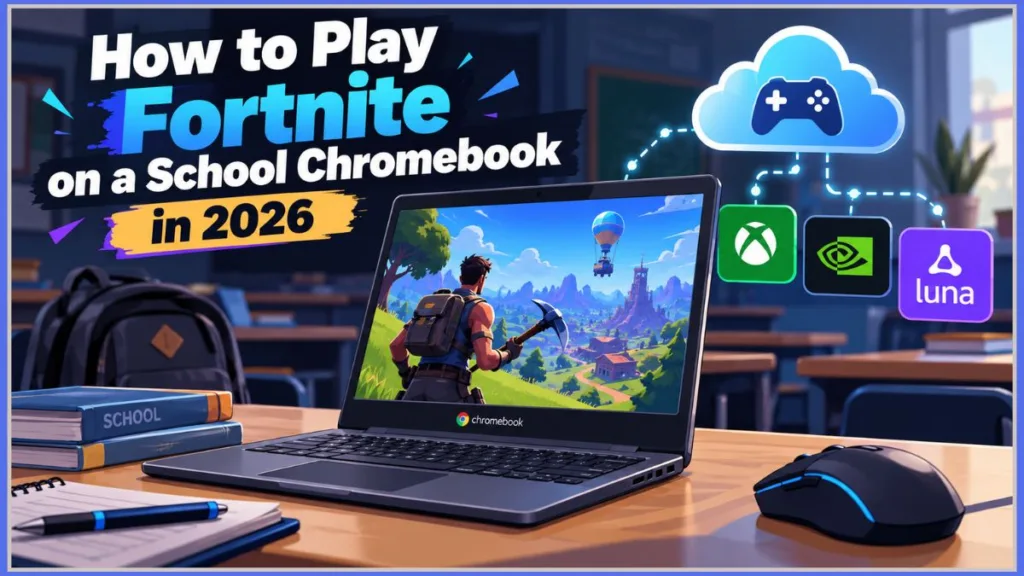
Here is exactly how to configure every officially supported platform, what credentials you need, how to optimize Chrome for gaming, and how school network restrictions impact access.
Why You Can’t Just Download Fortnite on a School Chromebook
Before hunting for direct download links, it helps to understand the underlying technical and administrative barriers that prevent a local installation on school-managed hardware.
ChromeOS Architecture Limitations
Standard desktop games require operating systems like Windows or macOS. Chromebooks operate on ChromeOS, a lightweight, Linux-based system engineered around web technologies. Epic Games does not officially support native Chromebook installations for Fortnite. Because the desktop launcher depends on Windows or macOS system libraries, you cannot install the standard game package directly onto a Chromebook’s local drive.
Personal vs. School-Managed Devices
The distinction between who owns the machine determines what software can run:
- Personal Chromebooks: While personal devices offer more flexibility for developer modes or Android apps, Epic Games still points users to cloud gaming as the supported method for ChromeOS.
- School-Managed Chromebooks: When a laptop is issued by an educational district, the IT department manages it via the Google Admin Console. District administrators remotely enforce extension-based monitoring tools (like GoGuardian or Securly), block executable files, and restrict developer settings.
Because local installations are not officially supported and system settings are locked down, the only functional solution is streaming the game via the cloud.
The Official Method: Fortnite Chromebook Cloud Gaming
Cloud gaming functions like streaming an interactive video on a platform like YouTube. The game engine runs on enterprise-grade hardware inside a secure server rack. Your Chromebook transmits your keyboard, mouse, or controller inputs over the web, and the remote server streams the video feed back to your display in real time.
This approach uses zero local storage, minimizes hardware bottlenecks, and operates inside a standard Google Chrome tab.
Epic Games officially supports three cloud gaming services for running Fortnite in a browser: Xbox Cloud Gaming, NVIDIA GeForce NOW, and Amazon Luna.
Xbox Cloud Gaming (The Best Free Option)
Xbox Cloud Gaming is a popular choice for ChromeOS because Epic Games and Microsoft offer Fortnite as a free-to-play cloud title. You do not need a paid Xbox Game Pass Ultimate subscription to load the game.
Crucially, Microsoft supports native browser keyboard and mouse inputs for Fortnite, meaning you can play exactly like a PC gamer using the Chromebook’s built-in keyboard and a standard USB mouse.
- Best For: Fast, free browser access with mouse and keyboard or gamepad controls.
- Download Required: No. Operates entirely inside the browser at
xbox.com/play. - Hardware & Account Requirements: A free personal Microsoft account, a recommended internet speed of at least 20 Mbps, and a supported Chrome browser.
- School Filter Status: Availability depends entirely on your school’s network policies, as many IT administrators block gaming-related domains.
Step-by-Step Instructions:
- Open the browser interface: Launch Google Chrome, enter
xbox.com/playinto the address bar, and press Enter. - Log into your Microsoft account: Click the Sign In button at the top right.Tip: Use a personal Microsoft or Outlook email. School-managed Google Workspace or Microsoft 365 accounts often restrict third-party gaming access and may block login attempts.
- Locate Fortnite in the catalog: Use the search bar at the top or scroll through the free-to-play catalog to select Fortnite.
- Confirm your input device: If using a gamepad, plug a wired USB controller into your Chromebook. If using your keyboard and mouse, you may need to enter full-screen mode and click once inside the video stream to lock your mouse cursor to the game window.
- Launch the session: Click the green Play button. Chrome will launch directly into the Fortnite title screen. From there, link your personal Epic Games account to retain your Locker items and Battle Pass progress.
NVIDIA GeForce NOW (Best PC Experience)
NVIDIA GeForce NOW streams the native PC release of Fortnite rather than a console port. This provides standard PC menu layouts and advanced graphics rendering, though the free membership tier includes session limits.
- Best For: Authentic PC performance and responsive keyboard/mouse controls.
- Download Required: No. Runs directly in the browser at
play.geforcenow.com. - Hardware & Account Requirements: A free NVIDIA account, a linked Epic Games account, and an internet connection of at least 15 Mbps for 720p or 25 Mbps for 1080p at 60 FPS.
- Free Tier Limits: Capped at 1-hour play sessions with standard virtual server access that often requires waiting in a player queue.
- School Filter Status: Availability depends on local administrative policies. The high bandwidth requirement may also trigger automatic network throttling.
Step-by-Step Instructions:
- Access the web portal: Open Google Chrome and navigate to
play.geforcenow.com. - Authenticate your NVIDIA profile: Click Log In in the upper-right corner and complete the sign-in process with your personal credentials. Select the Free Membership tier if you do not have a paid subscription.
- Link your Epic Games library: Click the Settings menu (gear icon) in the top navigation bar, open the Connections sub-tab, find Epic Games, and click Connect.
- Launch Fortnite: Return to the home library, click on Fortnite, and press Play. If you are on the free tier, you will enter the virtual server queue.
- Start your session: When your server is ready, the game will boot inside the browser window. Keep track of your session time; when the 1-hour limit nears its end, an on-screen warning will appear.
Amazon Luna (Alternative Cloud Option)
Amazon Luna is an alternative cloud gaming service powered by Amazon Web Services (AWS). It offers Fortnite streaming directly through the Chrome browser and fully supports keyboard, mouse, and Bluetooth controllers.
- Best For: An alternative streaming option if Xbox Cloud Gaming is unavailable on your network.
- Download Required: No. Hosted directly at
luna.amazon.com. - Hardware & Account Requirements: An active Amazon Prime membership or a standalone Luna Premium subscription, plus a linked Epic Games account.
- School Filter Status: Availability depends on whether your district’s content filter permits access to Amazon’s streaming subdomains.
Step-by-Step Instructions:
- Load the platform: Navigate to
luna.amazon.comin Google Chrome. - Sign in with your Amazon account: Click Sign In at the top right and enter the credentials for your Prime-enabled or Luna+ account.
- Link your accounts: Select Fortnite, click Link Account, and sign into your Epic Games profile.
- Start playing: Select Play Now. The game will stream directly inside your Chrome tab.
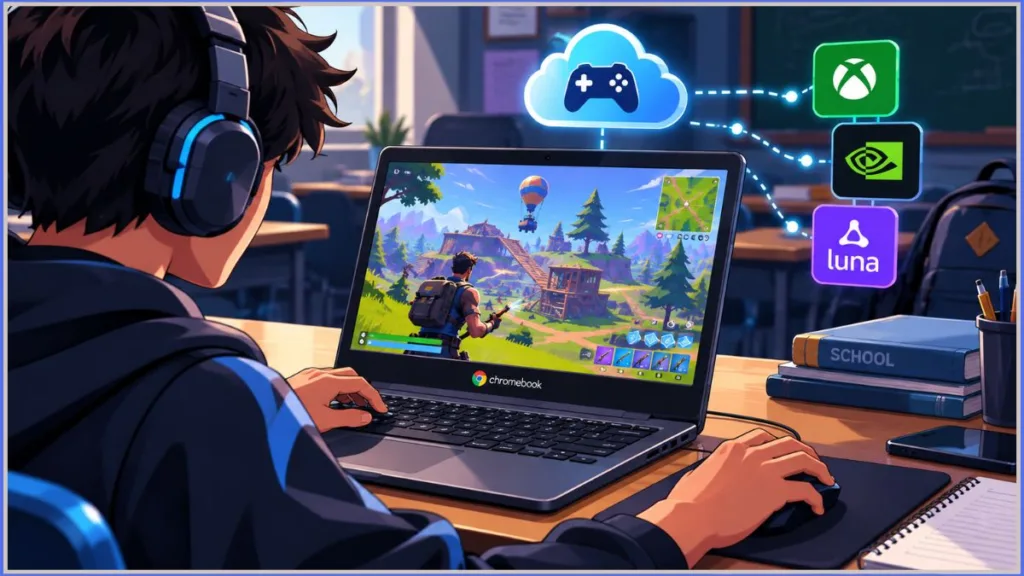
Optimizing ChromeOS for Cloud Gaming
Because cloud gaming relies entirely on your browser and network connection, your Chromebook’s settings directly impact video quality and input responsiveness. Before launching a match, consider these practical adjustments:
- Use 5 GHz Wi-Fi or Ethernet: For cloud gaming, stability is more important than raw speed. Whenever possible, connect to a 5 GHz Wi-Fi network or use a hardwired Ethernet adapter, as this significantly reduces latency compared to the 2.4 GHz band.
- Enable Hardware Acceleration: Open Chrome, click the three-dot menu, go to Settings > System, and ensure Use graphics acceleration when available is toggled ON. This helps the Chromebook process the video stream efficiently.
- Close Unnecessary Tabs: In Chrome Settings, navigate to the Performance tab and turn on Memory Saver. Close all other background tabs to free up system memory and bandwidth.
- Use a Wired Mouse: If you are experiencing input delay with Bluetooth devices, switching to a standard USB wired mouse can often provide a more consistent aiming experience.
Understanding School Network Restrictions (Why Fortnite is Blocked)
Finding a supported cloud gaming platform is only part of the process. If you are on campus, school networks use protective measures designed to preserve educational bandwidth and prevent off-task activity.
How School Filtering Works
School districts typically secure their technology environments using a multi-layered approach:
- Hardware Firewalls (Network-Level): Enterprise-grade network appliances monitor traffic on the physical school Wi-Fi. They often drop connections categorized under “Gaming,” “Streaming Media,” or high-bandwidth video traffic.
- Device Extensions (Browser-Level): Cloud filtering extensions run directly inside your managed Chrome profile. These tools read URLs and page headers, automatically closing tabs that attempt to access restricted domains like
xbox.comorgeforce.com.
Why Proxies and VPNs Are Unsuitable
When facing restricted access, students often look for workarounds like web proxies or Virtual Private Networks (VPNs). However, these tools are rarely practical for cloud gaming:
- Standard Web Proxies are designed for simple text-based websites and cannot handle the continuous, low-latency WebRTC streaming protocols required for gaming, resulting in broken connections.
- VPN Apps and Extensions are almost universally blocked by school administrators via the Google Admin Console.
Important Policy Warning: Bypassing security measures, utilizing unauthorized VPNs, or attempting to circumvent web filters generally violates a school’s Acceptable Use Policy (AUP). Doing so can result in device confiscation or revoked network privileges.
Ultimately, there is no universal Chromebook setting to “unblock” a game if the IT department has actively restricted the domain. Access relies on finding an officially supported cloud platform that is permitted under your school’s current network policies.
Frequently Asked Questions
Can you play Fortnite on a school computer without downloading it?
Yes. Browser-based cloud platforms like Xbox Cloud Gaming, NVIDIA GeForce NOW, and Amazon Luna execute the game on external servers and stream the video feed directly to Google Chrome. The game requires no local disk storage and runs without standard desktop installation files.
Why is my in-game voice chat or microphone not working on cloud gaming?
Cloud gaming platforms require explicit browser permission to use your Chromebook’s microphone. If voice chat fails, click the padlock icon next to the URL in your Chrome address bar, select Site Settings, and ensure the Microphone permission is set to Allow. Note that some schools disable microphone input entirely via administrative device policies.
How do you get Fortnite unblocked on a school Chromebook?
If primary URLs like [xbox.com/play](https://xbox.com/play) are restricted by your school, you can check if alternative authorized streaming services like Amazon Luna are accessible on your network. Legitimate access depends entirely on your school’s acceptable use policies and which domains the administrators have permitted.
Does GeForce NOW work on school Wi-Fi?
It depends on the network configuration. GeForce NOW requires a sustained connection of at least 15 to 25 Mbps. If the school’s firewall throttles high-bandwidth media streams to preserve network stability, the cloud gaming platform may drop frames, suffer input lag, or fail to start—even if the website itself is technically unblocked.
Visit Our Post Page: Blog Page
Discover more from Izoate
Subscribe to get the latest posts sent to your email.