
Picked up a shard in Night City, dismissed the notification, and now can’t find it again? The problem isn’t necessarily the shard itself. Cyberpunk 2077 stores collected data shards behind a Journal dropdown that is easy to overlook, especially if you’re returning to the game after Update 2.0.
These digital documents contain archived conversations, personal notes, corporate secrets, mission clues, and details about Night City’s inhabitants. Some provide optional lore, while others contain information you need to investigate a crime, understand a character, or progress through a quest.
You don’t need to return to the original location every time you want to reread a collected document. Once you know where the Shards menu is, you can reopen entries, identify unread shards, and decrypt encrypted information when a quest or item requires it.
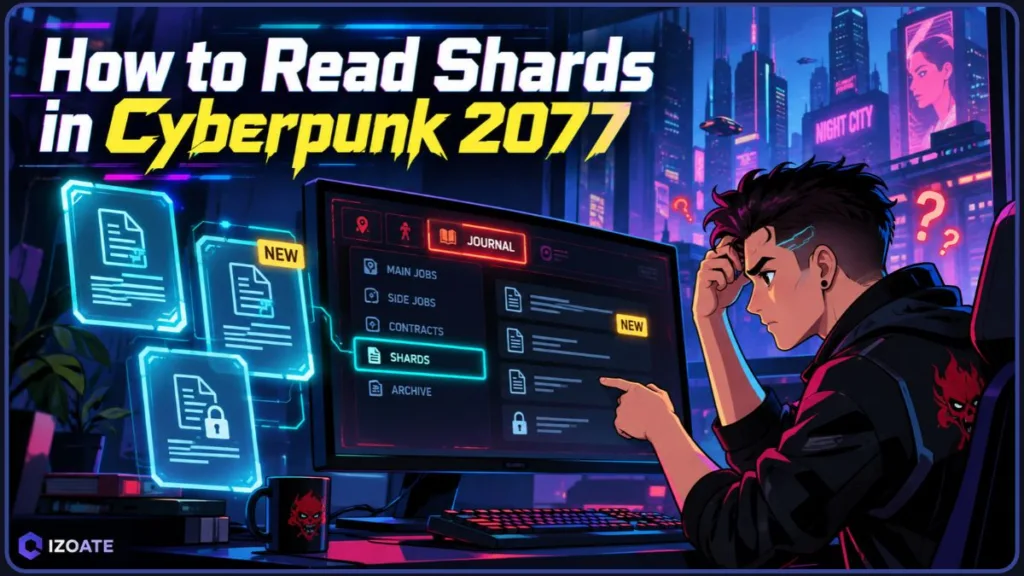
This guide explains how to read shards in Cyberpunk 2077 on PC, PlayStation, and Xbox, including the specific menu interactions, encrypted-shard mechanics, and solutions to common problems.
Quick Answer: Open the main character menu, hover over Journal on PC or navigate to Journal with your controller, and reveal its dropdown options. Select Shards, then choose the collected entry you want to read. If you dismissed a shard’s pickup notification, you can generally reopen it from this menu. Encrypted entries require the Crack Security interaction when available.
Current version: CD PROJEKT RED released the Edgerunners 2 Update (2.5) on October 22, 2026. It adds the Welcome to Paradise side quest, which provides a current example of finding and decrypting an encrypted shard. The official patch notes document the new quest but do not specifically describe a change to the existing Shards menu navigation. See the official Update 2.5 announcement and patch notes.
Where to Find the Shards Menu in Cyberpunk 2077
The Shards menu is accessed through the Journal dropdown in the main character menu. Opening the regular Inventory screen or the main Journal page is not necessarily enough; you need to reveal Journal’s additional options and select Shards.
PC Controls: Open Journal and Read Collected Shards
On PC, use the main-menu control to open the character menu containing the game’s main sections. The I key is commonly listed for opening this menu in PC control guides, although your assigned bindings may differ.
- Open the main character menu. Press
Iusing the commonly listed default control. If your key bindings have been customized, check the assigned Open Main Menu control in Settings. - Locate Journal. Find Journal among the main menu options.
- Reveal the dropdown. Hover over Journal with your mouse to display its additional options.
- Select Shards. Open the Shards section from the dropdown.
- Choose an entry. Browse your collected documents and select the shard you want to read.
Tip: You should now see your collected shards rather than having to search the world for the original item.
If you open a different menu or can’t find Journal, return to the top-level character menu. The distinction between the main menu and the individual Inventory or Journal screen is important here.
The default PC controls can be customized, so check your bindings if the shortcut does not open the expected screen. CD PROJEKT RED recommends checking the key bindings and control scheme when troubleshooting input problems. See its official PC controls troubleshooting guidance.
Important: If the expected keyboard shortcut does not work, check your assigned controls instead of assuming the Shards menu is missing.
PlayStation Controls: Read Shards on PS5 and PS4
The PlayStation versions use the controller to open the main character menu. On PS5, the general navigation route is the same as on PC, but you select the available menu options with the controller rather than relying on mouse hovering.
- Press the Touchpad to open the character menu.
- Move the controller focus to Journal.
- Reveal its available options and select Shards.
- Choose the collected entry you want to read.
You can then reopen collected shards and read their contents whenever you need them.
What about PS4? The PS4 version remains on the legacy update branch. CD PROJEKT RED confirmed that new content updates and improvements after Patch 1.6 would focus on PC, PlayStation 5, and Xbox Series X|S. The PS4 version continues to work and receive technical support, but those consoles do not receive the later content updates, and Phantom Liberty is unavailable on them.
Platform reminder: If a screenshot from a newer version does not match your PS4 interface, account for the difference between the legacy and current-generation builds.
You can still look for the Shards option under Journal in the PS4 version’s available menu system. If a screenshot from a newer version does not match your interface, account for the difference between the legacy and current-generation builds.
For details, see CD PROJEKT RED’s official information about previous-generation consoles.
Xbox Controls: Access Collected Shards with the View Button
On Xbox, the View button opens the main character menu.
- Press the View button.
- Navigate to Journal.
- Reveal the Journal dropdown or submenu.
- Select Shards.
- Choose the entry you want to read.
The menu route is the same as on the other platforms. Once you reach Shards, you can browse your collected documents without returning to the location where you picked them up.
What if you’re playing on Xbox One? The same general navigation applies to the legacy version, but Xbox One does not receive the content updates introduced after Patch 1.6. The newer Xbox Series X|S version receives subsequent updates, including Update 2.5. Phantom Liberty is also unavailable on Xbox One. The platform distinction is documented in CD PROJEKT RED’s previous-generation console announcement.
Nintendo Switch 2: Use Touch Controls to Navigate the Shards Menu
Cyberpunk 2077: Ultimate Edition is available on Nintendo Switch 2 and includes the base game and Phantom Liberty. The Switch 2 version adds touchscreen navigation alongside Joy-Con motion controls, gyro aiming, and mouse-sensor support.
CD PROJEKT RED confirms that touchscreen input supports certain interface functions, including switching between menu tabs, interacting with the inventory, and navigating supported in-game menus. You can therefore use touch controls where supported to navigate the character menu and Journal interface.
To find your collected shards:
- Open the character menu using the available touchscreen or Joy-Con controls.
- Navigate to Journal.
- Open its additional menu options and select Shards.
- Tap or select the collected entry you want to read, using whichever input the menu supports.
The official documentation does not describe a separate touchscreen-only shortcut for the Shards list. If tapping does not reveal the Journal dropdown in your setup, use the Joy-Con controls to navigate the menu instead.
For details about touchscreen support and the game’s available input options, see CD PROJEKT RED’s official Nintendo Switch 2 input features guide and its Nintendo Switch 2 Ultimate Edition announcement.
Why Players Couldn’t Find the Shards Menu After Update 2.0
Players reported difficulty locating previously collected shards after Update 2.0, even when they could still access documents directly tied to active missions.
In one Reddit discussion, a player asked whether the collected-shard menu had been removed. Another discussion describes a player struggling to find a shard collected during the Bloody Ritual Cyberpsycho mission.
CD PROJEKT RED’s official Update 2.0 notes confirm that the Quest Journal received a cleaner interface, but they do not say that the Shards feature was removed.
Practical tip: Return to the top-level character menu and reveal the Journal dropdown instead of searching only within the Journal screen.
If hovering over Journal doesn’t reveal the submenu on PC, try selecting Journal through the available menu controls. One player in the Update 2.0 Reddit discussion reported that right-clicking Journal revealed the submenu in their setup.
Treat right-clicking as a community-reported workaround, not a guaranteed fix for every platform or current game version.
Remember: You haven’t necessarily lost your collected entries just because you cannot see them in the first menu you open. Check the Journal dropdown before trying more complicated solutions.
How to Read, Reopen, and Track Data Shards
You can read a shard immediately when you collect it or return to the Shards menu later. The choice depends on what you’re doing in the game at the time.
Read a Shard Directly from Its Pickup Notification
When you collect a shard during exploration or a mission, the game may display a pickup notification that lets you open the entry immediately.
Use the interaction shown in that notification when you want to read the information straight away. This can be useful when the document contains clues related to the area you’re investigating.
Shards can also be found on the bodies of defeated enemies, so search fallen opponents when you’re clearing an area or investigating a location. Picking up a shard typically triggers a New Shard notification on the left side of the screen, which lets you identify the collection event. The Gamer Tweak shard-reading guide documents both the enemy-loot source and the notification location.
Tip: You don’t need to interrupt every firefight or conversation to read optional lore. A shard collected during combat can wait until you’ve finished dealing with the immediate threat.
Reopen a Collected Shard Through Journal
If you’ve dismissed the notification, return to Journal > Shards and select the entry from your collection.
The process is straightforward:
- Open the main character menu.
- Reveal the Journal dropdown.
- Select Shards.
- Browse the available categories.
- Choose the collected entry you want to read.
The Shards menu lets you revisit documents after the original pickup opportunity has passed. This is particularly useful during longer missions, when you may collect several entries but only want to read them after the action has settled down.
Important: A shard you have already collected generally does not need to be picked up again just to reopen its contents.
Find Unread Shards Using the New Label
Look for the New label in the Shards menu. It helps identify entries that you have collected but haven’t yet read.
When several notifications appear during an exploration session, use this marker to find the entries that still need your attention. You can also browse categories to narrow the list rather than opening every document individually.
Tip: If you’re looking for a technical document, start with the Technology category instead of manually checking unrelated entries.
The available category names can vary with the collection and interface version. The Prima Games guide to reading shards documents categories including Technology, Notes, Literature, World, Articles, and Encrypted.
Can You Reopen a Shard After Dismissing Its Notification?
Yes. Dismissing the pickup notification does not, by itself, mean you have lost access to a shard that was successfully collected.
Open the Shards menu and locate the entry. If you cannot find it, check the available categories and confirm that the shard was actually acquired.
Important: There is a difference between collecting a shard and merely encountering it during a mission. An item that hasn’t been collected may still require you to return to its location or complete the relevant interaction.
How to Manage a Large Shard Collection Without Missing Important Clues
As your collection grows, opening every document can become time-consuming. Use the categories to narrow your search and prioritise the information that matters to your current objective.
Keep track of useful codes. Some mission-related shards contain passcodes, safe combinations, or access codes. If you find a code that you’ll need later, write it down in a separate note on your phone or in a document. This is particularly helpful when a mission sends you between multiple rooms or objectives and you don’t want to search through the Shards menu again.
Prioritise mission-related entries. If the current objective mentions a particular character, location, or shard, read that entry first. Optional lore can wait until you’re finished with the mission.
Use categories to organise your reading. The categories help separate conversations, contracts, technical information, and worldbuilding documents. If you’re looking for a job-related clue, check the appropriate category before browsing general lore.
Skim duplicate or low-priority lore when necessary. Some entries may cover similar subjects or provide background information that isn’t relevant to your current objective. You can skim those entries instead of reading the entire collection in one sitting.
Practical reminder: Record important codes, focus on shards connected to your active quest, and leave optional lore for when you have time to explore it properly.
What Is a Datashard in Cyberpunk 2077?
A datashard, commonly called a shard, is a digital document containing information found throughout Night City.
These documents expand the story beyond dialogue and main missions. Some contain optional lore, while others provide information about characters, locations, corporations, or investigations.
Data Shard Categories: Conversations, Lore, Notes, and Encrypted Data
The contents depend on the individual entry. You might find:
- Archived conversations: Messages or exchanges between characters.
- Notes and personal records: Information that provides context about events or people.
- Articles and literature: Documents that reveal more about Night City’s culture.
- Technology records: Technical information and other details about the world.
- Contracts: Job-related records and information associated with people or activities around Night City.
- Mission-related information: Clues or records connected to an objective.
- Encrypted data: Information that requires a security-cracking interaction before it can be accessed.
The Shards menu organizes entries into categories. Depending on your collection and game version, these can include Archived Conversations, Contracts, Technology, World, Literature, Articles, Notes, Leaflets, People of Night City, Other, Religion & Philosophy, Poetry, and Encrypted. The Gamer Tweak guide specifically lists Archived Conversations, Contracts, Technology, World, Literature, Articles, Notes, and Leaflets among the available types.
You don’t need to memorize every category. Start with the one most closely related to the information you want to find.
For example, if you’re looking for a technical document, begin with Technology. If you’re investigating a job, check the relevant mission-related entries and Contracts category. For background information about the city, Articles, Literature, and archived conversations may be more useful.
Do Cyberpunk 2077 Shards Contain Text or Audio?
Most ordinary shards contain written text, but the format depends on the specific entry. The game’s shard system can include audio recordings, images, maps, schematics, videos, and Braindances in addition to text. A small number of quest-related entries use more than a conventional written document.
When you open a collected shard, check what the entry actually contains instead of expecting every item to display a paragraph of text. Some shards are designed to reveal information through a different medium, so the reading experience can vary.
The Cyberpunk 2077 Shards catalogue documents these different content types and explains how collected entries are catalogued in the Journal.
Phantom Liberty Shards: Dogtown, Solomon Reed, and NUSA Lore
If you own Phantom Liberty, your shard collection also includes material connected to Dogtown, its factions, and the expansion’s political storyline. These documents help explain the district’s history and provide background about the characters involved in V’s espionage mission.
Dogtown – A Splinter in the Eye of Night City explores the district’s troubled history, from failed development ambitions to its transformation into a combat zone controlled by Kurt Hansen and his BARGHEST forces. It provides context for the environment V encounters while exploring the expansion’s central location. See the Dogtown shard entry.
Myers’ Notes offers insight into the priorities of Rosalind Myers, the NUSA president at the centre of the expansion’s political conflict. The shard can be found at the Kress Street Hideout after meeting Solomon Reed during Lucretia My Reflection. Its notes refer to agency matters and other tasks Myers wants handled. See the Myers’ Notes shard entry.
Gambling in Night City provides another example of an expansion-related lore entry. It can be found at the Black Sapphire during You Know My Name, next to Solomon Reed on the 99th floor. The document discusses the city’s gambling industry and its relationship with the Tyger Claws. See the Gambling in Night City shard entry.
These entries illustrate why reading shards can be useful even when a mission doesn’t require you to open them. A document can supply background about Dogtown, the NUSA, or a character’s priorities that isn’t fully explained through the immediate objective.
Expansion reminder: Phantom Liberty adds its own locations, missions, and readable shards. If a guide directs you to a document in Dogtown or during a Solomon Reed mission, make sure you’re playing a version that includes the expansion. Phantom Liberty is unavailable on PS4 and Xbox One, but it is included in the Nintendo Switch 2 Ultimate Edition.
When Data Shards Affect Quests and Gameplay
Ordinary data shards primarily provide information. Reading one does not automatically award a skill or character upgrade simply because you’ve opened the document.
However, some quests require you to find, read, or decrypt a particular shard. Other entries provide clues that help you understand a target, investigate an incident, or approach an objective.
The distinction is especially clear during Cyberpsycho Sightings. In Cyberpsycho Sighting: Bloody Ritual, V must crack the ritualist’s shard, investigate the scene, defeat Zaria Hughes, read the shard found on her body, and message Regina Jones to complete the gig. The PowerPyx Bloody Ritual walkthrough documents these objectives.
Quest tip: Reading optional shards adds context to Night City’s people and history. For quest-related entries, follow the objective carefully: picking up, reading, and decrypting a shard can be separate actions.
How to Decrypt Encrypted Shards in Cyberpunk 2077
An encrypted shard behaves differently from an ordinary readable document. Its protected information requires a Crack Security interaction when that option is available.
Find an Encrypted Shard in the Shards Menu
Open Journal > Shards and look for the relevant entry in the Encrypted category.
Select the shard and check the available actions. If it belongs to a quest, use the objective text to identify the correct entry rather than assuming any encrypted document will satisfy the requirement.
Important: Finding an encrypted shard is only the first step. You still need to complete the security interaction if the objective requires you to access the protected information.
Use Crack Security to Decrypt a Shard
To decrypt an entry:
- Open the main character menu.
- Navigate to Journal > Shards.
- Locate the encrypted shard.
- Select the entry.
- Choose Crack Security.
- Complete the associated hacking interaction.
- Review the unlocked information and return to the quest.
The security interaction uses a Breach Protocol hacking puzzle. Read the displayed requirements and complete the required sequence.
Remember: Don’t confuse opening a shard with decrypting it. If the game presents Crack Security, selecting the entry alone may not reveal its protected information.
Welcome to Paradise: Decrypt the Identity Cache Shard
The free Edgerunners 2 Update (2.5) added Welcome to Paradise, a side quest in which V investigates the disappearance of a hacker named Haze and follows a guided tour of Night City narrated by a digital recreation of Richard Night.
CD PROJEKT RED confirms that the quest unlocks after completing The Heist and reaching 15 Street Cred. It is part of the free update, not a feature exclusive to Phantom Liberty. See the official Update 2.5 patch notes.
During the tour, V encounters an encrypted shard named NC REVITALIZATION PROJECT – IDENTITY CACHE. The objective to decrypt it appears after the NCART tour stop.
To complete that step:
- Finish the NCART presentation and wait for the decryption objective.
- Open Journal > Shards.
- Find NC REVITALIZATION PROJECT – IDENTITY CACHE under Encrypted.
- Select the entry and choose Crack Security.
- Complete the Breach Protocol puzzle.
These steps are documented in the October 2026 tour-shard walkthrough.
Useful reminder: After decrypting the Identity Cache, the entry moves from Encrypted to Other. If the quest asks you to examine the information again later, check Other rather than assuming the shard has disappeared.
The Pickup: Decrypt and Use the Militech Datashard
The Militech Datashard is associated with The Pickup, a quest involving the Maelstrom gang and the All Foods building.
Before heading to All Foods, V has the opportunity to contact Meredith Stout and arrange an optional meeting. During that encounter, she can provide a Militech Datashard containing a credchip infected with malware.
Important quest detail: This chip is not simply an optional lore document. How you handle its security and malware can affect the subsequent encounter with Royce and the Maelstrom gang.
To access the chip’s hacking interaction:
- Open Journal > Shards.
- Locate the Militech Datashard.
- Select the entry and choose Crack Security.
- Complete the Breach Protocol puzzle.
The shard contains two sequences:
- Neutralize Malware: Removes the malware infecting the chip.
- Datamine Copy Malware: Copies the daemon responsible for the infection.
Both sequences can be completed, but they serve different purposes. Neutralize Malware removes the infection, while Datamine Copy Malware creates a copy of the daemon. The malware choices can affect how the subsequent conversation with Royce unfolds.
The PC Gamer Militech Datashard guide explains how to obtain the chip during The Pickup and complete the two malware sequences.
Quest reminder: If the quest is asking you to decrypt the chip, opening its entry without completing the required hacking interaction is not enough.
Cyberpunk 2077 Shard Troubleshooting: Common Problems and Fixes
If a shard is missing or a quest isn’t progressing, check the menu, collection, and objective before reloading an older save.
Fix a Missing Shards Menu After Update 2.0
Update 2.0 changed parts of the game’s interface, including the Quest Journal. Players subsequently reported difficulty finding the collected-shard list, but CD PROJEKT RED’s official Update 2.0 notes do not state that the Shards feature was removed.
Return to the main character menu, locate Journal, and reveal its dropdown. Selecting the Journal screen itself may not expose the Shards option.
First check: If you’re following an older guide, compare its interface with your current version. The menu may be easy to overlook without the feature itself being absent.
Find a Collected Shard That Isn’t Showing
If you picked up a shard but cannot find it afterward, check these possibilities:
- Confirm that it was collected. Seeing a shard during a mission doesn’t necessarily mean the game registered it as acquired.
- Check the Shards menu. Look through the available categories instead of searching only the regular Inventory screen.
- Look for the New label. It can help you identify unread entries.
- Check the mission objective. If the shard belongs to a quest, verify that you’re looking for the correct entry.
If you’re looking for the NC REVITALIZATION PROJECT – IDENTITY CACHE after decrypting it in Welcome to Paradise, check Other. The entry moves there after successful decryption, as documented in the tour-shard walkthrough.
Troubleshoot a Journal Dropdown That Won’t Open
If Journal doesn’t reveal its additional options, return to the top-level character menu and try interacting with it again.
On PC, use the mouse and keyboard navigation available in your menu layout. If the menu shortcut isn’t working, check Settings for the current control bindings.
On a controller, move the menu focus to Journal and look for its additional options before selecting the Journal screen itself.
A player in the Update 2.0 Reddit discussion reported that right-clicking Journal revealed the submenu in their setup. You can try an alternative interaction if hovering doesn’t work, but it isn’t a confirmed universal workaround across all platforms and versions.
Troubleshooting tip: If the menu doesn’t appear, try returning to the main character menu and selecting Journal through the available controls. The goal is to reveal the submenu, not simply reopen a screen you’ve already checked.
Fix a Shard-Related Mission That Won’t Progress
A mission can require more than collecting a document. Check which action the objective actually requests before repeating the same interaction.
Read the correct entry. If the objective names a particular shard, opening a different document won’t necessarily satisfy it.
Decrypt it when required. If the objective asks you to crack security, complete the Breach Protocol interaction rather than simply opening the entry.
Check the mission tracker. Picking up, reading, and decrypting a shard can represent separate objective steps.
Return to gameplay. Close the menu and check whether the objective updates or another interaction becomes available.
Check for a persistent game issue. If you’ve completed the required action but the objective remains stuck, make sure your game is updated to the latest version supported by your platform. CD PROJEKT RED provides official quest progression support for PC and a PlayStation quest progression support form for persistent problems.
For Cyberpsycho Sighting: Bloody Ritual, for example, reading the shard recovered from Zaria Hughes is followed by a separate objective to message Regina Jones. Opening the shard does not, by itself, finish that final step. The PowerPyx walkthrough lists the complete sequence.
Data Shards vs. Skill Shards and Other Progression Shards
Cyberpunk 2077 uses the term shard for different types of items. Readable data shards are digital documents; progression shards serve a different gameplay purpose.
Data Shards vs. Skill Shards: What’s the Difference?
No. Data Shards contain information that you can read, while Skill Shards are progression items that grant experience toward the relevant skill when collected.
Skill Shards are not ordinary documents stored in the Journal for reading. If you’re trying to improve a skill or find a specific progression item, you need to identify the relevant shard type and follow a guide for that mechanic.
Remember: This article focuses on finding and reading collected data shards. A guide to Skill Shard locations or progression rewards addresses a different task and may require different instructions.
Attribute Shards and Cyberware Capacity Shards Explained
CD PROJEKT RED’s Update 2.0 notes introduced progression shard types including Attribute Shards, Carrying Capacity Shards, and Cyberware Capacity Shards.
These items belong to the character-progression system rather than the ordinary process of opening lore entries under Journal. They should not be confused with Skill Shards or readable data shards because their purposes differ.
If you’re looking for all Skill Shards, Attribute Shards, or Cyberware Capacity Shards, use a guide focused on their locations and progression mechanics. The steps for reading data shards will not tell you where every progression item is located.
Cyberpunk 2077 Shards: FAQs About Reading, Finding, and Decrypting
What Is the Fastest Way to Read Shards in Cyberpunk 2077?
Open the main character menu, reveal the Journal dropdown, and select Shards. Choose a collected entry to read it. If you dismissed the pickup notification, use the collected-shard list instead.
Which PC Key Opens the Character Menu for Reading Shards?
Use the key assigned to open the main character menu, commonly I in PC control guides. Reveal the Journal dropdown and select Shards. Check your bindings if the menu shortcut behaves differently.
Is There a Direct Shortcut to Open the Shards Menu?
The documented navigation route is through the Journal dropdown. You can open a shard directly from its pickup notification when that option is available, but the collected-shard list is accessed through the menu.
Can You Read Shards During Cutscenes in Cyberpunk 2077?
Menu access depends on whether the current scene allows you to open the character menu. If the game prevents menu input during a scripted sequence, wait until you regain control and open Shards afterward.
Where Are Collected Shards Stored in Cyberpunk 2077?
Shards are collected throughout Night City during exploration and missions. Some are found on characters or at locations you investigate. After collecting one, you can generally revisit it through Journal > Shards.
What Should You Do When the Shards Menu Is Missing?
The menu is accessed through the Journal dropdown on the main character menu, not necessarily the Journal screen itself. Return to the top-level menu and reveal Journal’s additional options.
How Do You Decrypt an Encrypted Shard?
Select the encrypted entry in Journal > Shards and choose Crack Security. Complete the associated Breach Protocol puzzle to access the protected information.
Are All Shards Required for Quest Progression?
No. Many shards provide optional lore and background information. However, missions can require you to read or decrypt specific entries before progressing.
Can You Reread a Shard After Closing It?
Yes. Reopen the Shards menu and select the collected entry. If you’ve already decrypted it and can no longer find it under Encrypted, check the other categories, such as Other.
Conclusion: Read, Reopen, and Decrypt Shards in Cyberpunk 2077
To read a previously collected shard in Cyberpunk 2077, open the main character menu, reveal the Journal dropdown, and select Shards. The menu lets you revisit collected documents without returning to their original locations.
Final takeaway: Collecting adds the shard to your collection, reading opens its contents, and decrypting requires the Crack Security interaction when the information is encrypted. Certain quests also require a separate objective afterward, such as messaging Regina Jones in Bloody Ritual.
Once you know which action the game expects, you can find the right entry, access its information, and get back to exploring Night City.
Visit Our Post Page: Blog Page
Discover more from Izoate
Subscribe to get the latest posts sent to your email.