
Want to reminisce on Facebook without seeing unwanted reminders? Learn how to find old Facebook posts from any year without endless scrolling.
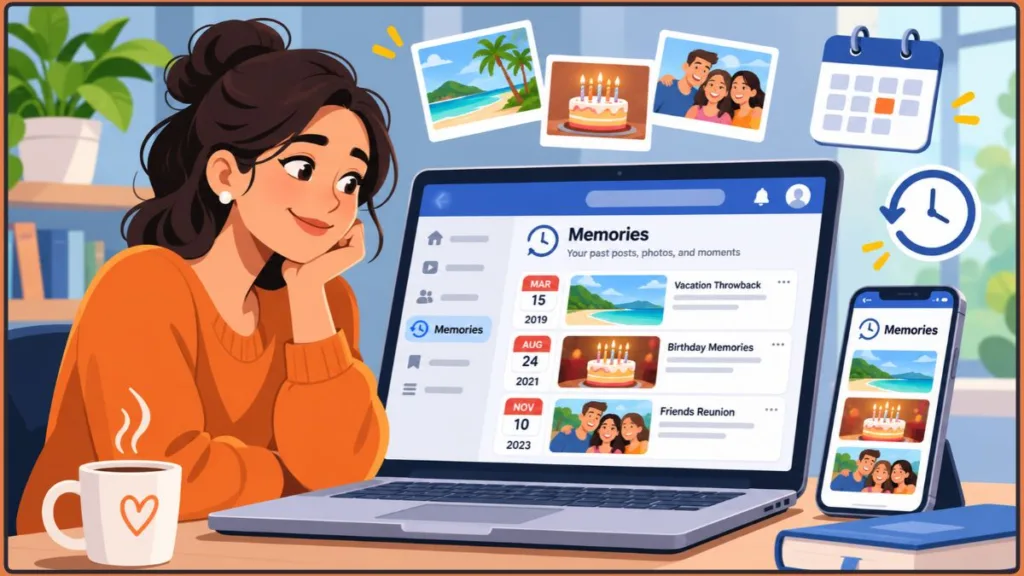
Facebook’s Memories feature works well for a quick look back, until you want to find a specific vacation, last summer, or even yesterday’s date. Because Memories only shows posts from today’s calendar date, most people end up endlessly scrolling down their profile wall looking for older moments.
You don’t have to wait for Facebook to show you an old post or spend twenty minutes scrolling. You can check today’s “On This Day” highlights, jump straight to a specific month five years ago, or pull up every post from an old trip using Facebook’s built-in filters and search tools.
Not every old post is worth seeing again, either. You can also hide specific people, block painful date ranges, and turn off unwanted notifications without deleting your account history.
Note: Facebook updates its layout often, so exact icon positions and menu labels can vary slightly depending on your device and app version.
| What You Want to Look Back At | Best Tool to Use | Best Device |
|---|---|---|
| Posts and milestones from today’s date in past years | Facebook Memories | Mobile & Desktop |
| Visual feed of your profile wall from a specific year | Profile Timeline Filters | Desktop |
| Every post from an exact week, month, or date range | Activity Log Date Filter | Mobile & Desktop |
| A specific trip, event, or topic when you forgot the date | Facebook Search + Year Filter | Mobile & Desktop |
| Keep memories permanently offline | Export Your Information in HTML | Mobile & Desktop |
How to See Your Facebook Memories From Today
To see what you posted or got tagged in on today’s date in previous years, open Facebook Memories, formerly known as “On This Day”. Along with individual posts and photos, it collects friendship anniversaries, seasonal recaps, and photo collections.
Check Memories on Android and iPhone
- Open the Facebook app and tap the Menu icon with three horizontal lines, located at the top right on Android and the bottom right on iPhone.
- Tap Memories. If you don’t see it right away, tap See More to expand your shortcuts.
- Scroll through your past posts, tagged photos, and recaps from today’s date.
- To reshare a post, tap Share underneath it to send it to your Feed, Messenger, or Story.
You can open the page directly by going through
https://facebook.com/memoriesinto your mobile browser.
View Facebook Memories on Desktop
- Open facebook.com and log in.
- Click Memories in the left-hand sidebar of your Home Feed. If it is collapsed, click See More or go directly to
Facebook Memories. - Browse your posts from today’s date across previous years.
- Click Share on any memory you want to repost to your timeline.
Privacy check: Your Memories page is private to you, and nobody else gets alerts about your “On This Day” posts. Each original post still keeps its original audience setting, so check the audience selector before resharing anything.
How to See Old Facebook Posts From Any Date Without Scrolling
Facebook Memories only shows posts from today’s calendar date. If you missed yesterday’s memories, want to look up an old birthday, or want to browse an entire year from the past, use these three options instead of manually scrolling your profile.
Filter Your Profile Timeline by Year and Month
If you want to scroll through your profile wall as it looked in a previous year, complete with full-size photos, status updates, and comments, use the built-in timeline filter.
- Open facebook.com on desktop and click your profile picture or name to open your profile.
- Scroll down to the Posts header right below the “What’s on your mind?” box, then click Filters on the right.
- Under Go to, select the Year you want to check, and pick a specific Month or Day if you want to narrow it down.
- To refine the list even further, adjust Posted By between You and Others, or filter by Privacy and Tagged Posts.
- Click Done. Your profile timeline will reload with only the posts from that exact timeframe.
Tip: Profile timeline date filters work best on desktop. If you’re on your phone and don’t see the Filters button next to Posts, use Activity Log below.
Jump to Exact Dates With Activity Log
Your Activity Log keeps a chronological list of your posts, photos, and tags going back to the day you joined Facebook. Unlike the Memories tab, it lets you pick any custom date range, including yesterday’s date from five years ago.
On Android and iPhone:
- Open the Facebook app and go to your Profile.
- Tap the three-dot
•••icon next to Edit Profile. - Tap Activity Log.
- Tap Your Facebook activity → Posts, or scroll down to View Activity History.
- Tap Filters → Date.
- Set your Start date and End date, then tap Done.
- Tap any item to open the full post, photo, or comment thread.
On Desktop:
- Click your profile picture in the top-right corner.
- Go to Settings & privacy → Activity Log.
- Click Your Facebook activity → Posts, or choose Activity history, in the left sidebar.
- Click Date under the Filters panel.
- Select your Year, add a Month if needed, and click Save changes.
Note: Activity Log tracks your account activity such as posts, photos, tags, and interactions, not a history of every post you’ve scrolled past on Facebook.
Search Old Facebook Posts by Keyword and Year
Sometimes you remember what you posted, like a vacation city, a graduation, a concert, or a quote, without having any idea what month or year it happened. Facebook Search lets you search only through your own past posts.
- Tap or click the Search bar at the top of Facebook.
- Type a specific keyword, location, event name, or friend’s name and run the search.
- Select the Posts tab to filter out Pages, groups, and profiles.
- Open the Filters panel from the left sidebar on desktop, or tap the filter icon at the top right on mobile.
- Set Posts From to You.
- To narrow results further, set Date Posted to a specific Year.
Tip: Skip generic words like “trip,” “happy,” or “birthday.” Searching a specific city, venue name, or distinctive phrase from your caption finds the exact post much faster.
How to Hide Memories on Facebook by Person, Date, or Alert
Looking back at old posts is much better when you aren’t caught off guard by ones you’d rather forget. You can avoid seeing an ex-partner, skip a difficult anniversary, or stop daily alerts by filtering your Memories feed without deleting your old posts.
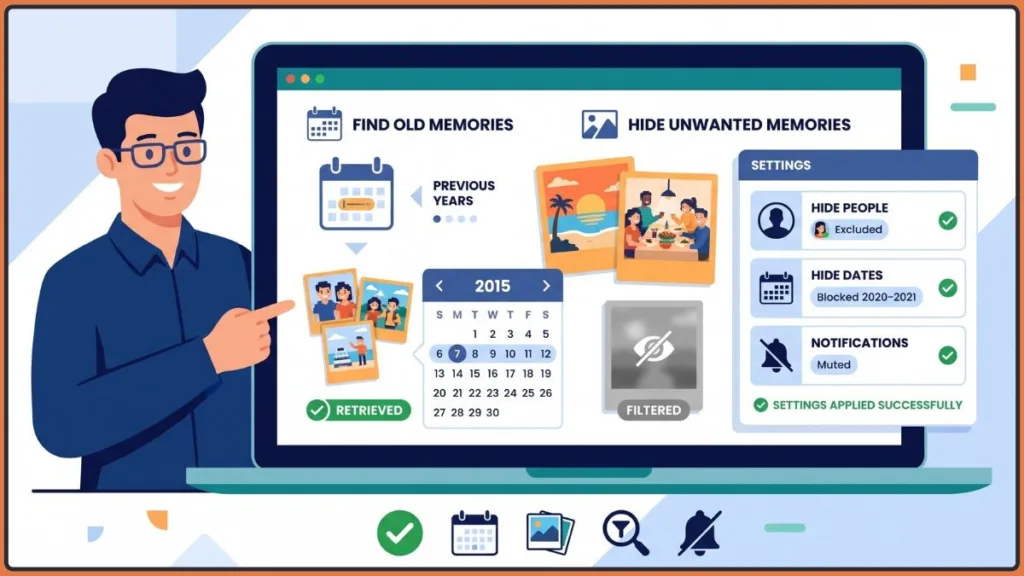
Before changing your settings, check how each option affects your original posts:
| What You Want to Do | Best Option | Deletes the Original Post? |
|---|---|---|
| Avoid memories involving someone | Hide People | No |
| Skip a specific date or year | Hide Dates | No |
| Avoid memories with certain words | Hide Keywords, where available | No |
| Stop daily memory alerts | Set notifications to None | No |
| Hide a post from your public profile | Move to archive | No |
| Remove an old post permanently | Move to Trash or Delete | Yes, once deletion completes |
Exclude Specific People From Memories
Use Hide People to stop Facebook from showing photos, tags, and reminders involving a specific person. Facebook does not unfriend, block, or notify them when you add them to this list.
On Android and iPhone:
- Open Menu → Memories. Tap See More first if the shortcut isn’t visible.
- Tap the Settings gear in the top-right corner.
- Under Hide Facebook Memories, tap People.
- Type the person’s name into the search box and select their profile from the list.
- Tap Save if prompted, and repeat for anyone else you want to exclude.
On Desktop: Facebook’s Hide People menu isn’t always available on desktop. If you don’t see Hide People in the left sidebar at facebook.com/memories, set it in the Facebook mobile app instead. The filter syncs automatically across your account.
Hide Specific Dates on Facebook Memories
To skip a painful anniversary, a rough summer, or an entire multi-year period, block those exact dates from showing up in Memories:
On Android and iPhone:
- Go to Menu → Memories and tap the Settings gear.
- Under Hide Facebook Memories, tap Dates.
- Tap Select Dates or Add New Date Range.
- Choose your Start date and End date, then tap Save.
On Desktop: If Hide Dates shows up in the left sidebar of your Memories page, you can add date ranges there; otherwise, set them in the mobile app. You can add multiple ranges and edit or remove them anytime.
How To Filter Out Memories by Keyword
Some accounts also have Hide Keywords, which blocks memories containing specific words or phrases. This helps if you want to avoid reminders of a former job, event, or topic without hiding an entire year.
- Go to Menu → Memories and tap the Settings gear.
- Under Hide Facebook Memories, tap Keywords if the option appears on your account.
- Enter the words or phrases you want to block and tap Save.
Note: Availability varies by account and app version. Keyword filters only apply to your Memories feed and do not delete matching posts from your timeline.
How To Mute Facebook Memories Notifications
If you want to check Memories on your own schedule instead of getting daily pop-ups, turn off notifications:
- Open Memories and tap the Settings gear on mobile, or click Notifications in the left sidebar on desktop.
- Under Notifications, pick your preference:
- All Memories: Sends alerts whenever you have memories for that day.
- Highlights: Sends occasional alerts for major milestones and recaps only.
- None: Turns off all Facebook Memories notifications.
If your Instagram account is linked, you can also switch off Instagram memory alerts on this same screen.
Important: Setting notifications to None stops alerts, but it does not permanently delete or disable the Memories tab. Pair it with Hide People and Hide Dates to keep sensitive posts from showing up if you open Memories manually.
Archive or Permanently Delete an Old Post
If hiding a reminder isn’t enough and you want the original post off your timeline completely:
- Quickest way from the Memories feed: Tap the three-dot
•••icon in the top-right corner of the memory card. Choose Move to archive to hide it privately, or Move to Trash to delete it. - For any older post through Activity Log:
- Go to your Profile → Activity Log and find the post using the Date filter.
- Tap or click the three-dot
•••icon next to the post. - Choose Move to archive to take it off your public profile while keeping a private copy in your Archive, or select Move to Trash or Delete to remove it from your account.
Posts moved to Trash stay there for 30 days before permanent deletion, so you have time to restore them if you change your mind.
How To Download and Save Your Facebook Memories Offline
If you want a permanent copy of your old photos, videos, and status updates saved outside Facebook, download an offline archive:
- Go to Settings & privacy → Settings → Accounts Center.
- Select Your information and permissions → Export your information.
- Choose your Facebook profile and select Export to device.
- Select the content you want to save, such as Posts, Photos, and Videos.
- Pick your Date range, choose HTML format so you can view your memories in any web browser, and start the export.
Facebook will notify you once the file is ready to download.
FAQ: Facebook Memories
Can You See Facebook Memories From Yesterday or Another Day?
Not inside the Memories tab itself, which only shows posts from today’s calendar date. To see memories from yesterday’s date in previous years, or any other date, use the Activity Log Date Filter or your Profile Timeline Filters.
How Do I See Old Facebook Posts Without Endless Scrolling?
Use one of three shortcuts: filter your desktop profile timeline by Year under Posts → Filters, set a custom start and end date in Activity Log, or run a Facebook Search filtered by Posts From: You and Date Posted.
How Do I Find Old Facebook Photos From a Specific Year?
Filter your Profile Timeline or Activity Log by year and month to pull up every photo post from that period, or use Facebook Search with a location, event name, or friend’s name along with the Date Posted filter.
Why Are My Facebook Memories Not Showing Up or Blank?
Usually, it just means you didn’t post or get tagged in anything on today’s calendar date in previous years. It can also happen if the original posts were deleted or if your Hide People or Hide Dates filters are blocking today’s memories. Check your Hide Memories settings, or open Activity Log to check past posts directly.
Can You Hide Facebook Memories Without Deleting the Original Post?
Yes. Hide People and Hide Dates keep selected reminders out of your Memories feed while leaving your original posts and photos intact on your profile with their existing privacy settings.
Does Hiding Someone From Facebook Memories Notify Them?
No. Adding someone to Hide People is completely private. Facebook never notifies them, unfriends them, or blocks them.
Can You Turn Off Facebook Memories Completely?
Not completely. Setting Memories notifications to None stops daily reminders, but the Memories section stays in your menu. Combining None notifications with Hide People and Hide Dates is the closest option Facebook offers.
Can Other People See My Facebook Memories?
No. Your Memories page is visible only to you. Others will only see a memory if you click Share and post it to your Feed, Story, or Messenger.
You don’t have to wait for Facebook’s daily “On This Day” feed or scroll for twenty minutes just to find an old post. Profile Timeline filters, Activity Log date ranges, and Facebook Search let you pull up posts from any year in seconds, while Hide People, Hide Dates, and notification controls keep unwanted reminders out of sight.
Visit Our Post Page: Blog Page
Discover more from Izoate
Subscribe to get the latest posts sent to your email.