
Concerned about privacy or unwanted AI features? Learn how to remove AI from Windows 11, disable Microsoft Copilot, turn off Recall, and create a cleaner, more private Windows experience in 2026.
Microsoft is adding AI to more parts of Windows 11 every year. From Microsoft Copilot and Recall to AI-powered search, recommendations, and productivity tools, the operating system is rapidly changing.
While features like Copilot and Recall may be useful to some people, you may prefer a simpler experience, reduced distractions, or an offline workflow. The good news is that you can disable many of these AI features—and in some cases, remove them entirely.
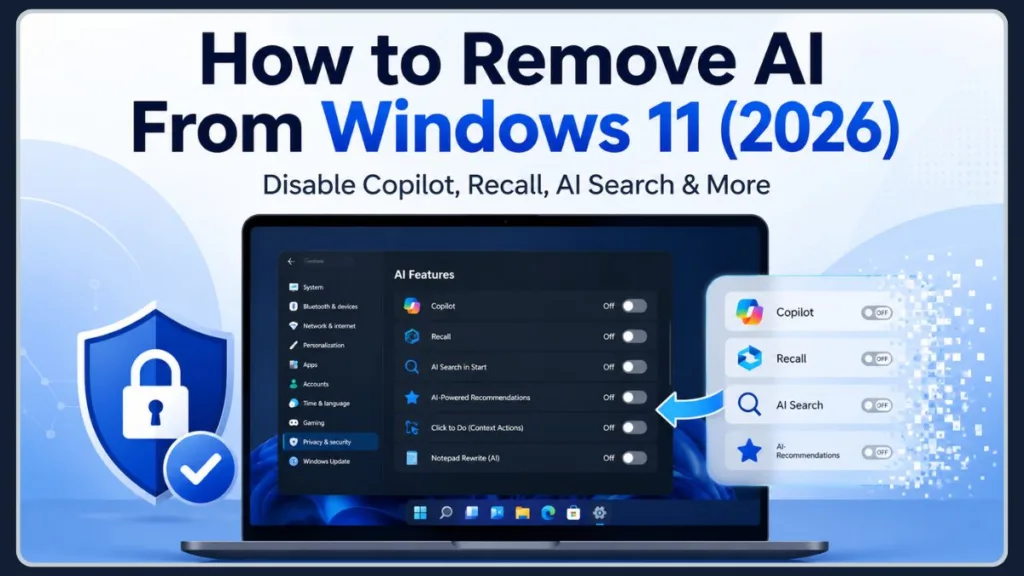
If you are looking to take control of your PC, this guide walks you through every available method. You will learn exactly what AI features exist in Windows 11, how to use the powerful open-source RemoveWindowsAI script to clean up your system safely, and which AI components still require manual removal.
Understanding how to navigate your Windows privacy settings has never been more critical. Whether you are looking for a comprehensive Windows 11 debloat guide to remove bloatware Windows 11 installs by default, or you simply want to learn how to disable ai on windows 11 for a cleaner workspace, you are in the right place. Creating a privacy-focused Windows setup allows you to stop Microsoft from collecting data without sacrificing the core functionality of your computer.
What AI Features Are Quietly Running Inside Windows 11?
Before you start disabling things, it helps to know exactly what Microsoft has built into the background of your operating system—and how these features actually impact your daily use.
These AI-powered Windows features operate constantly in the background. Understanding exactly what each machine learning feature does is the first step in deciding whether you want to disable microsoft ai windows 11 entirely or keep a few helpful tools active.
Microsoft Copilot: Helpful Assistant or Desktop Distraction?
This is the primary AI assistant integrated directly into Windows. It can chat with you, write content, change system settings, and analyze documents right from your desktop.
- Why some like it: It is a powerful, instant shortcut for research and drafting emails without opening a browser.
- Why others disable it: It can feel like unnecessary clutter on the taskbar, and some users prefer keeping AI tools separate from their local operating system.
Beginner’s Explanation: Think of Microsoft Copilot as a highly advanced chatbot living directly on your taskbar. It connects to the internet, processes your prompts, and sends data back to Microsoft servers to generate responses.
Privacy Impact: If you are building a privacy-focused Windows setup, having a cloud-connected AI analyzing your local prompts might violate your personal security boundaries. If you decide to disable windows copilot, you immediately cut off one of the largest avenues for AI data collection on your PC. Learning how to turn off copilot windows 11 or even completely uninstall copilot windows 11 ensures that your desktop remains a strictly local workspace.
Pro Tip: If you just want it out of sight, you can easily remove copilot button from taskbar in your settings menu. But if you want to disable microsoft copilot permanently across the entire system, you will need the deeper script methods discussed later in this guide.
Windows Recall: A Perfect Memory or a Security Risk?
This feature creates a searchable history of everything you do on your computer by taking constant, secure screenshots of your activity timeline.
- Why some like it: It is incredibly useful for finding a document, web page, or image you saw days ago but forgot to save.
- Why others disable it: Having an operating system take continuous snapshots of personal and financial information feels highly invasive to many users.
Beginner’s Explanation: Imagine someone standing behind you taking a photograph of your monitor every few seconds, cataloging everything you read, type, and watch. That is essentially what Windows Recall does, storing it all in a hidden, searchable timeline on your hard drive.
Expert Insight: Even though Microsoft encrypts this data locally, security researchers have raised massive concerns about malicious software easily extracting this timeline. For anyone concerned about Microsoft account privacy or local data security, you must turn off recall windows 11. Knowing how to disable windows recall feature is non-negotiable for enterprise users and privacy advocates alike.
Click to Do: Contextual Help or Unwanted Clutter?
An AI-powered overlay that suggests contextual actions depending on what is currently on your screen, from editing photos to searching text.
- Why some like it: It speeds up everyday tasks, like instantly removing the background from an image.
- Why others disable it: The constant pop-up suggestions can be visually distracting when you just want to focus on your work.
Real-World Scenario: Contextual overlays are notorious for scanning screen content in real-time. If you work with sensitive documents, you will likely want to disable click to do windows 11 to prevent artificial intelligence from analyzing your active windows.
AI Search Enhancements: Helpful Shortcut or Data Concern?
Your Start Menu and Windows Search now use natural language processing and AI-powered recommendations to guess what you are looking for before you even finish typing.
- Why some like it: It finds buried files much faster than the old Windows search ever could.
- Why others disable it: It blends local file searches with web results and cloud data, which can feel disorganized or overly connected for local workflows.
Performance Impact: AI-powered search enhancements often rely heavily on telemetry settings Windows 11 uses to track your habits. When you disable ai powered search windows 11, you force your computer to only look at your local hard drive, immediately speeding up your start menu and preventing your queries from being sent to Bing servers.
AI Rewrite Features: Writing Aid or Overstepping Editor?
Built into everyday apps like Notepad, this feature offers text rewriting, tonal adjustments, and content suggestions as you type.
- Why some like it: It acts as a built-in proofreader for quick notes and drafts.
- Why others disable it: Sometimes you just want a raw text editor that doesn’t try to change your words.
Bottom Line: Writing is a deeply personal process. Many users find AI-generated recommendations interrupt their train of thought. By choosing to disable ai suggestions windows 11, you regain a traditional typing experience where your local text editor remains exactly that—a basic, offline text editor.
Copilot+ PC Features: Hardware-Exclusive Upgrades
If you have a newer device with a specialized AI chip (NPU), you likely have exclusive features like Studio Effects (background blurring for video calls), Live Captions (real-time translation), and Image Creator in Paint.
Tip: Not every AI feature is available on all Windows 11 devices. Some, like Recall and Studio Effects, strictly require Copilot+ PC hardware.
Feature Comparison: Copilot+ Hardware Integrations
If you own a newer device and want to disable ai features on copilot pc hardware, use this quick reference table to see what you are dealing with:
| Copilot+ Feature | What It Does | Privacy Impact | Should You Disable It? |
| Windows Recall | Screenshots your activity | High | Yes, for maximum privacy |
| Studio Effects | Blurs webcam background | Low (Local Processing) | No, excellent for remote meetings |
| Live Captions | Translates audio on device | Low (Local Processing) | No, great accessibility tool |
| Image Creator | Generates AI art in Paint | Medium (Cloud Sync) | Optional based on preference |
Before You Remove AI: Which Features Are Actually Worth Keeping?
Google and Microsoft are betting heavily on AI, and not every addition to Windows 11 is inherently bad. Before you run scripts to remove everything, it is worth considering what to keep.
AI Features Most Users Disable:
- Windows Recall: The idea of constant background screenshots is the number one reason users seek out removal tools.
- Start Menu Recommendations: Often viewed as visual clutter or disguised advertisements.
- AI Suggestions in Text Fields: Frequently turned off by users who want a distraction-free typing environment.
AI Features Many Users Keep:
- Live Captions: An incredibly helpful accessibility tool that translates audio entirely locally, without tracking your data.
- Windows Studio Effects: Excellent for remote workers who want reliable background blurring and eye-contact correction during Zoom or Teams calls.
- Copilot in Edge: Many users remove Copilot from the Windows taskbar but leave it enabled in their browser for occasional help with research or summarization.
Good to Know: You don’t have to choose between keeping everything or deleting everything. Many users choose to disable Windows suggestions and remove ai from taskbar windows 11 to keep their desktop clean, while intentionally leaving powerful on-device tools like Live Captions active for daily productivity.
Why More Windows 11 Users Are Choosing to Turn AI Off
Whether you see these AI tools as helpful productivity features or unnecessary additions, Windows 11 gives you several ways to limit them. Here is why many people are choosing to hit the “off” switch.
A Desire for Simplicity
Removing unnecessary features can create a cleaner, more predictable experience. A simpler system means no unexpected pop-ups, new buttons, or suggested actions appearing after routine updates.
Quick Example: If you constantly have to swat away Windows productivity features trying to guess your next move, your computer stops feeling like yours. Disabling these elements restores a sense of ownership over your user interface.
Reclaiming System Performance
AI services naturally consume memory and system resources. Disabling them can free up processing power, which is especially beneficial if you are gaming, rendering video, or trying to extend your laptop’s battery life.
Performance Impact: Background tasks are the silent killers of battery life. When you turn off ai recommendations windows 11, you prevent the operating system from constantly using your processor to analyze your habits.
Corporate and Offline Workflows
In business environments, or for users working with highly sensitive local files, preventing the operating system from indexing data or communicating with cloud-based AI servers is a strict requirement, not just a preference.
Real-World Scenario: Many enterprise companies strictly prohibit using public AI on local networks. For corporate laptops, figuring out how to make Windows 11 more private and completely disable cloud features Windows 11 relies on is a matter of strict legal compliance, not just preference.
Personal Preference for Traditional Desktops
Some users simply prefer a traditional computing experience. They view their PC as a blank canvas for the tools they choose to install, rather than an active participant in their workflow.
Privacy Impact: Using a local account Windows 11 setup without syncing your data to the cloud is becoming incredibly popular among tech enthusiasts. When you disable generative ai windows 11 features, you effectively turn back the clock to a time when your operating system simply ran the programs you told it to run.
Meet RemoveWindowsAI: The Open-Source Tool Built to Remove Windows AI
If you want to completely remove AI from Windows 11, doing it manually takes a lot of time. That is where a community-built tool steps in to help.
What Is RemoveWindowsAI?
RemoveWindowsAI is an open-source PowerShell utility developed by GitHub user Zoicware and released under the permissive MIT License. The tool is designed for Windows 11 (version 24H2 and newer) and helps users disable, remove, or manage many of Microsoft’s AI-powered features from a single interface.
Rather than manually editing Registry settings, Group Policies, scheduled tasks, and Windows packages, RemoveWindowsAI automates much of the process. It can help users manage features such as Microsoft Copilot, Windows Recall, AI-powered recommendations, rewrite tools, and other AI-related components that may remain active within the operating system.
Important Context: Because RemoveWindowsAI is open source, anyone can inspect its code directly on GitHub and review the changes it makes before running it. However, as with any tool that modifies Windows system files, policies, or registry settings, you should review the project’s documentation, create backups, and understand the available options before making changes to your system.
AI Feature Removal Matrix
Understanding the privacy risks and your removal options is crucial before modifying your system.
| Feature | Disable | Remove | Privacy Risk |
| Copilot | ✓ | ✓ | Medium |
| Recall | ✓ | ✓ | High |
| Click to Do | ✓ | Partial | Medium |
| AI Search | ✓ | Partial | Medium |
AI Feature Removal Comparison
Google loves a clear breakdown, so here is a quick look at what you can actually achieve manually versus using the script:
| AI Feature | Can Be Disabled | Can Be Removed | Manual Method | RemoveWindowsAI |
| Copilot | Yes | Yes | Yes | Yes |
| Recall | Yes | Yes | Yes | Yes |
| Click to Do | Yes | Partial | Limited | Yes |
| AI Rewrite | Yes | Partial | Limited | Yes |
This comparison highlights why so many power users rely on automated scripts; while manual methods allow you to disable ai features in windows settings visually, the script is required to actually delete the files off your hard drive permanently.
What Actually Happens When RemoveWindowsAI Goes to Work
This script goes far beyond simply turning off a toggle switch in your settings menu. Here is a look under the hood at how it actually cleans up your PC.
Disable AI Registry Keys
Think of the Windows Registry as your PC’s control center. Instead of manually hunting down dozens of AI-related settings, RemoveWindowsAI automatically updates the necessary entries so Windows stops loading certain AI features in the background.
Beginner-Friendly Explanation: The Windows Registry is a massive, hidden address book that tells your computer how to run every single application. When you change a “Registry Key,” you are essentially crossing out the instructions that tell Windows to boot up its AI tools.
Disable Microsoft Copilot Policies
It applies local Group Policy rules to build a virtual wall, permanently blocking Copilot from running or connecting to the internet on your machine.
Beginner-Friendly Explanation: Group Policies are like strict house rules for your computer. They dictate what is and isn’t allowed to happen. Setting a policy to disable AI means telling the operating system, “Under no circumstances are you allowed to launch these specific programs,” overriding any future updates.
Remove AI App Packages
Windows apps are often bundled as locked “Appx” packages. Rather than letting them sit dormant on your hard drive, the script hunts down these hidden AI packages and completely uninstalls them.
Beginner-Friendly Explanation: Appx Packages are basically the zipped folders that contain modern Windows apps (like the ones you download from the Microsoft Store). Microsoft hides some of these packages deep in the system folder so you can’t easily click “Uninstall.” The script forces them into the trash bin.
Remove Windows Recall
If you are on a Copilot+ PC, this tool forcefully disables the Recall feature, deletes its scheduled tasks, and stops it from logging your screen activity.
Beginner-Friendly Explanation: To stop Microsoft ai tracking through screenshots, the script doesn’t just turn the feature off—it deletes the background alarm clocks (scheduled tasks) that trigger Recall to turn on in the first place.
Remove AI-Related CBS Packages
The script can also remove certain Windows servicing packages (called CBS packages) that help install and maintain AI components behind the scenes. Most users never see these packages, but they can allow AI features to remain on the system even after uninstalling apps.
Beginner-Friendly Explanation: Component-Based Servicing (CBS) is the engine room of Windows Updates. It handles the deep, core files of the operating system. Removing an AI CBS package means ripping the AI out by its literal roots, so it cannot regenerate on its own.
Remove AI Files
It sweeps through your system folders and deletes the leftover standalone files and background scripts associated with AI tracking.
Performance Impact: Leftover files can often trigger error messages or attempt to phone home to Microsoft servers. A clean sweep ensures your system remains incredibly stable after you windows 11 disable ai features.
Hide AI Components Across Windows
It actively cleans up your user interface, removing AI buttons, search bar highlights, and AI settings menus from the Settings app so you never have to look at them again.
Bottom Line: Visual clutter is frustrating. By hiding these components, the script gives you back a clean, traditional Windows 10-style interface where every button serves a functional, local purpose.
Prevent AI Features From Returning After Updates
Microsoft often sneaks features back in during system updates. The script acts as a bodyguard, creating a background task that automatically blocks Windows Update from forcing AI apps back onto your PC.
Pro Tip: This is perhaps the most valuable feature of the entire tool. Uninstall Microsoft Copilot today, and an update will try to reinstall it tomorrow. The script’s update-blocker ensures your privacy-focused Windows setup remains permanent.
Before You Run the Script: Important Safety Checks
Because this tool makes deep modifications to Windows, you need to take a few precautions before getting started.
Checklist: Before Running RemoveWindowsAI
To ensure a smooth and safe process, follow this quick checklist before you execute any scripts:
- Create Restore Point
- Backup Documents
- Use PowerShell 5.1
- Enable Backup Mode
- Restart PC After Changes
Create a Restore Point
Always create a Windows System Restore point before running debloat scripts. If anything goes wrong or your system acts strangely afterward, you can click a single button to rewind your PC to exactly how it was.
Important: Think of a System Restore point as a save file in a video game. If you disable the wrong feature and your Start Menu stops working, reloading your save file takes less than two minutes and fixes everything instantly.
Understand the Risks
Modifying system files, registry keys, and blocking future updates carries inherent risks. Some future Windows features may rely on the components you are deleting, which could cause minor compatibility bugs down the road.
Expert Insight: When you remove bloatware Windows 11 relies on for secondary functions, you might accidentally disable a tool you actually use, like the Snipping Tool’s ability to read text.
Use PowerShell 5.1
The developer strongly warns that you must use the default Windows PowerShell (version 5.1). Do not try to run this script using the newer PowerShell 7, as it can cause the tool to crash.
Beginner-Friendly Explanation: PowerShell is a command-line tool—a blue screen where you can type direct, raw text commands to your computer without using a mouse or menus. Windows 11 comes with version 5.1 pre-installed, so as long as you open it from your standard Start Menu search, you are perfectly safe.
Consider Testing in a Virtual Machine
If you are an advanced user, running the script in a virtual machine first is a great way to see exactly what changes are made before applying them to your main computer.
Good to Know: A virtual machine is essentially a “computer inside your computer.” It lets you test dangerous scripts in a quarantined environment without putting your real hard drive at risk.
Important: Always back up your important photos, documents, and data before making major Windows modifications.
How to Disable All Windows 11 AI Features Using RemoveWindowsAI
Ready to take control? Here is how to run the interactive version of the script like a pro.
Step 1: Open Windows PowerShell as Administrator
Click your Start Menu, type “PowerShell”, right-click the Windows PowerShell result, and select Run as administrator.
Note: You must select “Run as administrator” or the script will not have the necessary security permissions to delete system-level files.
Step 2: Launch the Interactive Version
Copy and paste the following command into the blue window and press Enter:
& ([scriptblock]::Create((irm “https://raw.githubusercontent.com/zoicware/RemoveWindowsAI/main/RemoveWindowsAi.ps1”)))
Note: This command tells PowerShell to reach out securely to GitHub, download the newest version of the script, and instantly run its visual interface.
Step 3: Select AI Features to Remove
A graphical menu will pop up on your screen. Here, you can check the boxes for exactly which features you want to remove (like Copilot, Recall, or AI Rewrite). Make sure to check the Backup Mode option if you want to be able to undo this later.
Pro Tip: Take your time here. Read through the options and only check the boxes for the AI assistant settings you are certain you want to remove permanently.
Step 4: Apply Changes
Click the execution button. The script will run through the commands automatically. Do not close the window while it is working.
Note: You may see lines of yellow or red text flash across the PowerShell window while it works. This is normal behavior as the script searches for hidden files.
Step 5: Restart Windows
Once the script says it is finished, restart your computer. A reboot is required to clear out the registry and apply the system policy changes.
Important: Do not just put your computer to sleep. You must perform a full Start Menu > Restart sequence to fully disable ai in windows 11 completely.
Decoding the Script: What Each Removal Option Really Does
If you’re staring at the script’s visual menu wondering what the individual checkboxes actually do, here is your human-friendly translation:
- DisableRegKeys: Updates your PC’s registry to make Windows “forget” AI features exist.
- PreventAIPackageReinstall: Acts as a shield to stop Microsoft from downloading AI tools again during your next Windows update.
- DisableCopilotPolicies: Uses system-level rules to lock Copilot out entirely.
- RemoveAppxPackages: Uninstalls the invisible application files powering the AI tools.
- RemoveRecallFeature: Pulls the plug on the timeline screen-recording function.
- RemoveCBSPackages: Strips out the deep system servicing files that keep AI anchored to your hard drive.
- RemoveAIFiles: Acts like a broom, sweeping away leftover telemetry and tracking folders.
- HideAIComponents: Removes the annoying AI menus from your Windows Settings app.
- DisableRewrite: Stops Notepad and other apps from trying to rewrite your sentences.
- RemoveRecallTasks: Deletes the scheduled internal alarms that tell Windows to take Recall screenshots.
- UpdateCleanupCheck: Runs a final sweep to ensure no leftover junk files are consuming your storage space.
Good to Know: Understanding these options helps you avoid breaking things. If you just want to disable ai assistant windows 11 uses for chat, you only need to use the Appx removal. But if your goal is absolute privacy, you will want to employ the RegKeys and Policies options as well.
One Command to Remove Nearly Everything AI-Related
For advanced users who don’t want to click through a visual menu, the script offers an automated command-line option.
What the AllOptions Parameter Does
By adding -AllOptions to the script execution in PowerShell, it bypasses the visual menu and aggressively removes every AI feature supported by the script in one silent sweep.
& ([scriptblock]::Create((irm "https://raw.githubusercontent.com/zoicware/RemoveWindowsAI/main/RemoveWindowsAi.ps1"))) -nonInteractive -AllOptionsPro Tip: Adding this parameter executes all of the checkboxes listed in the section above automatically. It is the fastest way to completely remove ai from windows 11.
Who Should Use It
- Power users: Those comfortable troubleshooting Windows on their own.
- IT admins: Professionals setting up clean machines for an office environment.
- Minimalists: Users who want a completely stripped-down, traditional system.
Who Should Avoid It
- Casual users: If you aren’t sure what a feature does, don’t auto-delete it.
- Shared computers: Other family members might actually want to use Copilot for schoolwork.
- Production systems without backups: Never use the “All Options” command on your primary work PC without a full hard drive backup.
Important: Running the complete script is an aggressive move. Only use this if you are absolutely certain you want a completely offline, traditional experience.
The AI Features RemoveWindowsAI Cannot Remove Automatically
While powerful, the script doesn’t catch absolutely everything. You may still need to handle a few things manually.
Gaming Copilot
Game Bar overlays that suggest gaming tips via AI may remain, as they are tied heavily to Xbox services.
How to Fix It: You can manually disable these overlays in the Xbox Game Bar settings menu by turning off helpful tips and background recording.
OneDrive AI Features
Cloud-based AI tagging in OneDrive happens on Microsoft’s servers, not your local machine, so the script cannot stop it.
How to Fix It: The only way to stop cloud indexing is to unlink your OneDrive account from your PC entirely and rely solely on local storage.
Windows Studio Effects
Webcam blurring and framing effects are tied directly to your hardware drivers, requiring manual disabling in your camera settings.
How to Fix It: Open your Camera app, go to settings, and manually toggle off background blur and automatic eye contact.
Copilot+ Exclusive Features
Certain proprietary features on high-end NPU laptops are hardcoded into the manufacturer’s software and bypass standard Windows packages.
How to Fix It: You will need to open the specific hardware control center provided by your manufacturer (like HP Command Center or Dell Optimizer) to disable these AI chips.
Manual Settings Still Worth Checking
- Edge browser AI settings
- Microsoft Office online connected experiences
- Windows telemetry and diagnostic data sharing
Privacy Impact: Disabling the operating system AI is only half the battle. To truly ensure privacy, you must manually turn off online speech recognition, disable activity history Windows 11 relies on, and turn off personalized ads Windows 11 uses to monetize your usage.
Beyond AI: Restoring Classic Windows Apps After Cleanup
When you remove AI from modern apps, they can sometimes feel broken or empty. The script includes a fantastic feature to fix this: restoring the classic Windows apps you already know and love.
You can easily replace the AI-heavy modern apps with the older, lightweight versions of Notepad, Paint, Snipping Tool, and the classic Windows Photo Viewer and Photos Legacy. This gives you a fast, traditional Windows experience without the modern bloat.
Performance Impact: Classic apps open instantly, consume virtually zero RAM, and never try to rewrite your text or suggest AI edits. Restoring these legacy apps is the ultimate way to create a distraction-free environment.
Changed Your Mind? Here’s How to Restore Removed AI Features
If you realize you actually miss having Copilot around to draft emails, you aren’t out of luck.
Backup Mode Explained
If you selected “Backup Mode” before running the script the first time, the tool saved a compressed copy of all your original registry keys, Appx packages, and system files.
Pro Tip: Backup Mode is essentially an insurance policy. Always check this box. It guarantees that if a future Windows update breaks because of a missing AI file, you can fix it instantly.
Revert Mode Explained
To restore your system, simply run the PowerShell script again and select the “Revert Changes” option. It will unpack your backup and put the AI features right back where they belong.
Beginner-Friendly Explanation: Revert Mode puts the puzzle pieces back exactly where they were originally. It undoes all the Registry and Appx deletions seamlessly.
When Restoration May Not Be Perfect
Because Windows Updates change system files over time, reverting a backup made months ago can sometimes cause minor glitches. If a reverted app won’t open, you may need to reinstall it manually from the Microsoft Store.
Expert Insight: Windows is a dynamic operating system. If your backups fail, you may need to rely on Microsoft’s online recovery tools to fully restore your AI components.
Will Your PC Actually Feel Faster After Removing AI?
Is all this effort actually worth it?
Potential Privacy Benefits
Absolutely. By disabling Copilot, Recall, and AI search, you are significantly reducing the amount of your typing data, search habits, and screen activity that is indexed locally or sent to Microsoft’s cloud servers.
Privacy Impact: This gives you incredible peace of mind. Knowing you have taken the necessary steps to stop Microsoft from collecting data means you can use your computer for sensitive financial or creative work without worry.
Potential Performance Benefits
You may notice a slightly snappier system. Background AI services consume RAM and CPU cycles. Disabling them frees up those resources, which is especially helpful on older computers or budget laptops with limited memory.
Performance Impact: Every megabyte of RAM matters on older laptops. By removing the background tracking services, your PC can dedicate 100% of its power to the apps you actually want to use.
Realistic Expectations
Disabling AI will not magically double your gaming framerates or make a ten-year-old laptop feel brand new. The performance gains are modest, but the feeling of having a clean, uncluttered, and highly controlled operating system is substantial.
Good to Know: While framerates may not double, you will likely notice that your laptop fan spins up far less often, and your battery may last a bit longer throughout the day.
Don’t Want to Run Scripts? Try These Built-In Windows Settings Instead
If using PowerShell scripts makes you nervous, you can still secure your system manually using the built-in Windows Settings.
- Disable Copilot From Settings: Go to Settings > Personalization > Taskbar and toggle Copilot off.
- Turn Off Recall Manually: Navigate to Settings > Privacy & security > Recall & snapshots and disable the feature.
- Remove Copilot From Taskbar: Right-click the taskbar, select Taskbar settings, and turn off the Copilot button.
- Adjust Privacy Settings: Head to Privacy & security > Diagnostics & feedback and turn off optional diagnostic data.
- Disable Personalized Recommendations: In Settings > Privacy & security > General, turn off the toggles that let Windows track app launches and show suggested content.
Additional Manual Fixes to Improve Privacy:
If you want to know how to make Windows 11 more private using only the official settings menu, you should also focus on disabling telemetry Windows 11 sends back to Microsoft. Go into your Privacy Settings and disable activity history Windows 11 logs locally. Then, turn off personalized ads Windows 11 pushes through the Start Menu. Finally, navigate into Microsoft Edge and toggle off the Copilot sidebar. While not as deep as a PowerShell script, this significantly improves your overall Windows 11 privacy guide baseline.
Should You Remove Every AI Feature From Windows 11?
There is no right or wrong answer here; it comes down to how you use your computer.
Reasons to Remove AI:
You want absolute control over your local data, you want maximum system resources for heavy workloads, or you simply prefer a distraction-free, traditional desktop experience without pop-up suggestions.
Reasons to Keep Certain Features:
AI search can find files much faster. Copilot is excellent for summarizing long PDFs or writing quick emails. Studio Effects make your video calls look highly professional.
Best Approach for Most Users:
Take a balanced approach. Instead of using the script to nuke everything, manually turn off invasive features like Recall and Start Menu recommendations, but consider keeping tools like Live Captions or Edge Copilot for occasional help when you actually need it.
Mini Summary: The beauty of PC ownership is choice. You can use RemoveWindowsAI to completely gut the operating system, or you can take ten minutes to manually toggle off the most annoying settings. The right choice is whichever one makes you feel comfortable and productive.
Frequently Asked Questions About Disabling AI in Windows 11
Can I completely remove AI from Windows 11?
You can remove the vast majority of local AI processes, like Copilot and Recall, using scripts or Group Policy edits. However, deep cloud-based AI integrations within Microsoft Edge and Windows Search can only be disabled, not entirely deleted.
Is RemoveWindowsAI safe?
Because RemoveWindowsAI is open source, anyone can inspect its code. However, as with any tool that modifies Windows system files, you should review the project’s documentation, create backups, and proceed carefully.
Does Windows Recall collect screenshots?
Yes, on Copilot+ PCs, Windows Recall takes continuous snapshots of your active screen to build a searchable timeline. This data is processed locally on your machine, but many users still choose to disable it for peace of mind.
Can Microsoft reinstall AI features through updates?
Yes. Major Windows 11 feature updates often reset system policies and reinstall missing apps. Tools like RemoveWindowsAI try to prevent this by setting up update-blocker tasks.
Will disabling AI improve gaming performance?
It can provide a minor boost. Disabling background AI services frees up RAM and reduces CPU overhead, which can help stabilize framerates on lower-end systems, though the difference is usually small on high-end gaming rigs.
Can I reinstall Copilot later?
Yes. If you used a script with a backup feature, you can revert the changes. Alternatively, you can always download the Copilot application directly from the Microsoft Store.
Does Windows 11 require AI features to function?
No. Windows 11 will run perfectly fine as a traditional operating system without Copilot, Recall, or AI Search enhancements enabled.
Can I disable AI without uninstalling Windows features?
Absolutely. You can simply hide Copilot from your taskbar and turn off Recall in the Privacy settings. This stops the AI from actively running without modifying your core system files.
What Happens After a Major Windows Update?
A common concern among users is what happens to their privacy-focused Windows setup when Microsoft pushes a major feature update (like the 24H2 or 25H2 releases). Here is what you need to prepare for:
- Copilot may return: Microsoft often resets taskbar and group policy settings during major updates, which can cause the Copilot button to reappear.
- Recall settings may reset: Major privacy features are sometimes toggled back to their default “on” state after a system overhaul.
- New AI features may appear: Each major build introduces new machine learning features or cloud integrations that were not present previously.
- Script may need updating: Because Windows constantly changes its underlying architecture, the developer of RemoveWindowsAI frequently updates the script. You may need to download the latest version from GitHub to effectively remove new AI components.
Good to Know: The RemoveWindowsAI script includes an
UpdateCleanupChecktask that runs in the background to prevent many of these reinstallations, but you should still manually verify your settings after a large Windows update.
Final Thoughts: Taking Back Control of Your Windows 11 Experience
Windows AI features will continue expanding over the next few years. Whether you embrace them or prefer to opt out, the choice should always be yours.
Tools like RemoveWindowsAI offer one of the most comprehensive approaches available for users who want a clean, traditional system. Just remember that backups are essential before making system-level changes. Ultimately, you can choose between a full removal script or simply toggling a few manual settings—either way, Windows remains fully functional without an AI assistant looking over your shoulder.
By understanding your Windows 11 privacy settings, running targeted debloat scripts, and intentionally choosing a privacy-focused Windows setup, you ensure your PC works for you, rather than the other way around.
The goal isn’t necessarily to remove every AI feature. It’s to decide which features genuinely help you and which ones simply add clutter. Whether you choose to disable Microsoft Copilot, turn off Windows Recall, or completely remove AI from Windows 11 using RemoveWindowsAI, the most important thing is that you’re in control of how your PC works.
Visit Our Post Page: Blog Page
Discover more from Izoate
Subscribe to get the latest posts sent to your email.